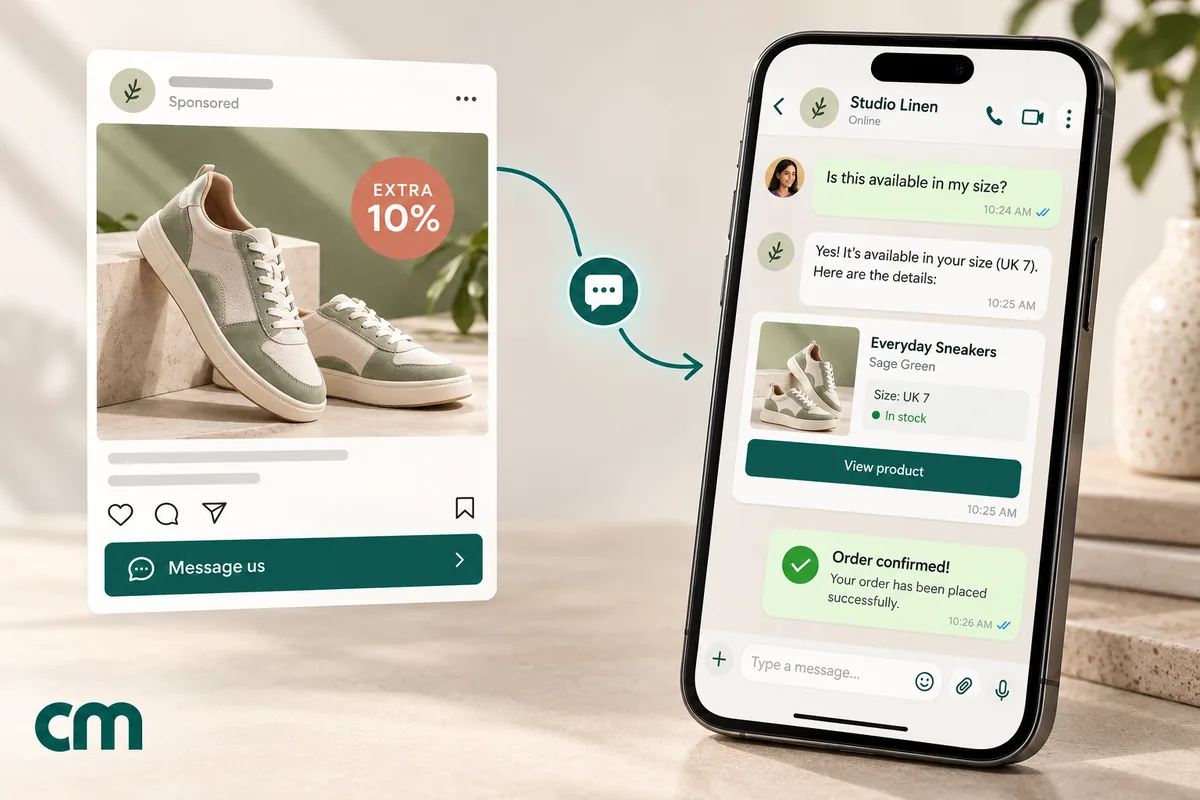
Click-to-WhatsApp ads for ecommerce are Facebook, Instagram and WhatsApp Status ads that open a chat with your online store instead of a product page. They earn their keep on products people ask about before buying. Run one ad per product or collection, give each its own prefilled question, show the product in the chat, confirm the order while Meta’s free window is open, and judge the campaign by cost per order, not cost per chat.
This guide is for online stores, D2C brands and social sellers that want orders from their WhatsApp ads. It covers when a chat beats a website ad, how to set up the ad and the first message, how to show products and take the order in WhatsApp, how to check cash-on-delivery orders, what a month costs in INR, and how to measure and optimise for purchases. For the general mechanics of every WhatsApp ad format, see our WhatsApp ads guide. For a sale-week version of this playbook, see Click-to-WhatsApp ads for Black Friday.
Using ChatMitra? You create the ads in Meta Ads Manager. ChatMitra runs the chat side on an official WhatsApp Business API number: a shared inbox, a welcome sequence that tags every new shopper, keyword replies matched to each ad’s prefilled question (Pro), and an AI chatbot for size and delivery questions at night (Pro). With the Shopify integration, it sends order confirmations, cash-on-delivery checks, shipping updates and abandoned-cart reminders. On Pro and above, your webhook receives each ad chat’s referral data. Jump to running ecommerce ads with ChatMitra.
When a chat beats a product page
Every website ad has the same problem: a shopper with one question leaves. “Will this kurta fit if I’m usually an L?” “Is this shade right for my skin?” “Does this charger work with my phone?” “Can I pay cash on delivery to my pin code?” On a product page those questions go unanswered. In a WhatsApp chat they get answered, and the answer is often what closes the sale.
Click-to-WhatsApp ads tend to suit stores where:
| Your products | Chat or page? | Why |
|---|---|---|
| Need a fit, shade, size or compatibility check | Chat | The question is the barrier to buying |
| Are higher-priced or considered purchases | Chat | Shoppers want reassurance before paying |
| Sell to buyers who prefer cash on delivery | Chat | You can check the order before you ship it |
| Have bulk, wholesale or custom options | Chat | Prices depend on quantity or design |
| Are cheap impulse buys with no options | Page | A chat adds a step nobody needs |
| Have a large range bought from a grid | Page, or both | Catalogue ads to your site are more direct |
Most stores end up running both: website ads for products that sell themselves and Click-to-WhatsApp ads for products that need a conversation. Our WhatsApp for ecommerce guide covers the rest of the shopper journey once the first chat starts.
What WhatsApp ads can’t do for a store
Meta’s Advantage+ catalogue ads, the dynamic product ads that show each shopper the items from your catalogue they’re most likely to buy, send people to your website or app (Meta: Advantage+ catalogue ads). Meta’s product extensions for messaging ads are documented for ads that click to Messenger, not WhatsApp. So you can’t run a dynamic catalogue campaign that drops each shopper into a chat about the product they saw.
A Click-to-WhatsApp ad is built per product, collection or offer. That’s more work to set up, but it gives you a clean signal: each ad’s chats are about one thing, which makes replies faster and tracking easier.
What it costs: two bills, one of them small
The hub guide explains both bills. In short:
Bill 1: the ad. Auction-priced, with no rate card. Cost per conversation depends on your audience, creative, category and season, and Ads Manager shows your own figure once the campaign runs. Sale seasons (Diwali, end-of-season sales, Black Friday) push prices up because everyone bids for the same shoppers.
Bill 2: the messages. Meta’s pricing rule for chats that start from an ad (Meta: pricing):
- The shopper taps your ad on the WhatsApp Android or iOS app and sends the first message. Meta says its “desktop and web apps are not supported”.
- A 24-hour customer service window opens. Reply within it, and that reply isn’t charged.
- Your reply opens a free entry point (FEP) window, which “may remain open for up to 7 days”.
- While it’s open, Meta doesn’t charge for marketing, utility, authentication or service messages.
For a store this is a bigger deal than it sounds. The product details, the payment link, the order confirmation and the cash-on-delivery check can all happen inside that window at no Meta charge. Many store guides still say 72 hours; the current rule is “up to 7 days”, and because it can close sooner, put the important messages in the first few days.
Your WhatsApp provider’s fee isn’t covered by Meta’s window. On ChatMitra that’s ₹0.20 per conversation (once per customer per 24 hours) on Starter and Pro, including ad chats; Enterprise has no ChatMitra fee.
Choose the objective: from chats to purchases
Meta’s Click-to-WhatsApp documentation lists four objectives that can send people to WhatsApp: Engagement, Leads, Sales and Traffic. The Sales objective “can optimize for CONVERSATIONS, OFFSITE_CONVERSIONS, LINK_CLICKS, IMPRESSIONS, and REACH” (Meta: Click-to-WhatsApp ads).
| Stage | Objective and goal | When to use it |
|---|---|---|
| 1. Learn | Engagement, maximise conversations | First campaigns, while you learn how many chats become orders |
| 2. Qualify | Leads, WhatsApp as the conversion location | When you want serious enquiries, such as bulk or custom orders |
| 3. Optimise for buyers | Sales, with purchase optimisation | Once you send purchase events back to Meta |
Purchase optimisation is the step most stores skip. By default, Meta finds people likely to start a chat. With the Conversions API for Business Messaging, your store reports what happened in the chat (an order, a purchase, a cancelled order) and Meta can find people likely to buy. Meta’s documentation says this “enables access to purchase optimization for ads that click to Messenger and ads that click to WhatsApp only” (Meta: Conversions API for Business Messaging).
How much difference it makes depends on the store. Meta’s own figures:
- Meta’s study: purchase optimisation delivered “on average… 10% lower cost per purchase, compared to optimizing for conversations”, based on a week-long global study in the second half of 2024 (WhatsApp Business: down-funnel optimisations).
- VIP Leather Craft (Indonesia): an A/B test showed “28% more sales and a 21% lower cost per purchase” against conversation optimisation (success story).
- Thanh Vinh Holdings (Malaysia, cosmetics): with a partner, it reported 1.8× more sales and a 40% lower cost per purchase using purchase optimisation for ads that click to WhatsApp (success story).
These are self-reported results from Meta’s case studies, not benchmarks. The point is the direction: once Meta knows who buys, it stops spending your budget on people who only chat.
What purchase optimisation needs:
- The click ID. Each chat from an ad carries a click ID (
ctwa_clid) in the first message’s referral data. Meta says it “is a required field for sending events over the Conversions API”. - The events. Meta accepts Purchase, OrderCreated, OrderShipped, OrderDelivered, OrderCanceled, OrderReturned, AddToCart, InitiateCheckout, CartAbandoned, ViewContent, LeadSubmitted, QualifiedLead and review events, among others.
- Thread events only. Meta says “messaging events should only represent customer interactions that occur in the messaging thread”, and it doesn’t deduplicate events for you.
- A developer or partner integration. You need one to connect your orders to the click ID.
Build each ad around one product
“Shop our new collection” ads collect vague chats. Ads about a specific product collect specific questions you can answer in one message.
- One product, collection or offer per ad. Each gets its own creative, prefilled question and budget, so you can see which products produce orders.
- Show the product in use. The dress on a person, the serum on skin, the shoe from three angles. Use vertical versions (9:16) for Stories, Reels and Status, and square or 4:5 for feeds.
- Use carousels for ranges. Meta supports image, video, carousel and slideshow creative for these ads. Five colours of one product, or five bestsellers in one category, make good carousel cards.
- Put the reason to chat in the ad. “Not sure of your size? Ask us on WhatsApp” or “Send a photo, we’ll match your shade” gives people a reason to tap that a website can’t match.
- Show the real price. If you show a price, show the one the chat will quote, and say whether delivery is extra.
- Say what happens next. “Get the price and sizes on WhatsApp in 2 minutes” works if your reply actually arrives in 2 minutes.
Meta’s own guidance for these ads makes the same point: “Ensure that your content reflects what your business and products truly offer” (WhatsApp Business: successful ads that click to WhatsApp).
The first message: one prefilled question per product
Meta’s default first message is “Hello! Can I get more info on this?” Every chat that starts with it looks the same in your inbox, so you can’t tell which of your ten ads it came from. Change it on every ad.
Meta lets you set a greeting, a prefilled (autofill) message or ice breakers, which are tappable starter questions. A greeting can also include a View Catalog button. Here’s how that maps to store ads:
| Ad | Prefilled message | First reply should carry |
|---|---|---|
| A cotton kurta | ”Hi, I’d like the price and sizes for the indigo cotton kurta” | Price, available sizes, a size-chart image, delivery time to their pin code |
| A face serum | ”Hi, which serum is right for oily skin?” | Two questions about skin type, then one recommendation |
| A phone case | ”Hi, do you have this case for my phone model?” | A request for the model, then a yes/no with a product link |
| A festive gift box | ”Hi, I want the Diwali gift box. Can you deliver by Friday?” | Delivery date first, then price and how to order |
| Bulk T-shirts | ”Hi, I need a quote for 50 printed T-shirts” | Questions on quantity, sizes and print, then a quote |
| A whole collection | Ice breakers: “New arrivals” · “Bestsellers” · “Track my order” | A short list for the chosen option |
Each ad’s opening words become its label. A keyword rule that matches the start of the message can send the right product details and tag the chat with the product name, which makes the campaign measurable without a developer.
Answer, then ask. If the shopper asked about delivery, answer delivery first. Then ask the one question you need to complete the order: size, shade, model or pin code. Two questions per message is the most anyone answers.
Show the product inside the chat
Once the chat starts, you have three ways to show products.
1. A WhatsApp catalogue. If your store’s products are in a Meta commerce catalogue connected to your WhatsApp Business account, you can send (Meta: sell products and services):
- catalogue messages with a View catalog button;
- single-product messages;
- multi-product messages with up to 30 products in up to 10 sections;
- product carousels of up to 10 cards.
Shoppers can add up to 99 units of each item to a cart and send it to you as an order. Meta allows one catalogue per WhatsApp account, and “you cannot send carts to customers”: the shopper builds the cart, not you. Multi-product messages can only go out inside an existing chat, which is exactly where ad chats are.
2. Product links. A message with a short description, the price and a link to the product page works on any setup. Add a different coupon code or UTM tag per ad so website orders can be traced back to the chat.
3. Photos, videos and PDFs. A size chart, a 10-second product video or a lookbook PDF answers questions a product page can’t, and inside the chat it costs nothing extra.
Use the catalogue when shoppers pick from several items and you can keep it in sync with your stock. Use links when checkout happens on your website. Many stores use both. Our WhatsApp Business catalogue guide covers setting one up.
From chat to order: three checkout paths
| Path | How it works | Best for |
|---|---|---|
| Checkout link | Send the product or cart link from your store; the shopper pays on your site | Stores with a fast mobile checkout and online payments |
| Order in chat, pay by link | The shopper sends a WhatsApp cart or tells you what they want; you send a payment link from your gateway | Small ranges, custom orders, social sellers |
| Cash on delivery | You confirm the order and address in the chat, then ship | Buyers who won’t pay upfront; confirm before you ship |
Whichever path you use, send the order confirmation while the chat is still open. It’s a utility message, and inside the free window it costs nothing from Meta. Our order confirmation message examples have wording you can adapt, and the WhatsApp payment link guide covers sending a link and confirming payment.
Confirm cash-on-delivery orders before you ship
Cash-on-delivery orders from ads carry a familiar risk: some are placed on impulse, some with the wrong address and some not meant seriously at all. Each one that comes back costs you shipping both ways. Our guide to RTO in ecommerce explains the full cost.
A simple confirmation catches most of them:
- Send it within minutes of the order. The shopper still remembers buying.
- Keep it short. Order number, items, total amount to pay on delivery, the delivery address and two buttons: Confirm and Cancel.
- Act on the answer. Ship confirmed orders. Cancel the cancelled ones before they leave the warehouse. Call or re-send to the silent ones before dispatch.
- Offer prepaid as an option, not a demand. A small prepaid discount in the same message moves some buyers off COD. Our COD to prepaid guide covers the wording and the maths.
If the order came from a Click-to-WhatsApp chat within the last few days, the confirmation goes out inside the free window and costs nothing from Meta. Outside it, a COD confirmation is a utility template, at ₹0.115 to an Indian number on Meta’s 1 October 2026 rates.
Follow up on chats that didn’t buy
Most ad chats don’t turn into orders on the first day. A good follow-up plan uses the free window first and opt-in after it.
| When | What to send | Cost from Meta |
|---|---|---|
| Day 1, if they asked but didn’t order | One helpful nudge: “Did the size chart help? I can hold the M for you until tomorrow.” | ₹0 inside the window |
| Day 2–3 | One reason to decide: back-in-stock news, delivery cut-off for a festival, or a question answered | ₹0 inside the window |
| Before the window closes | Ask whether they’d like offers and new arrivals on WhatsApp | ₹0 inside the window |
| After the window, opted-in shoppers only | A marketing template with a relevant offer | ₹0.8631 per Indian number |
Keep it to one unanswered follow-up in a row. A shopper who doesn’t reply to two messages won’t reply to five, and blocks and reports hurt your number’s quality rating. Meta’s own advice for these ads is to “avoid sending unsolicited messages or spamming customers”.
Shoppers who reach checkout on your website and leave are a separate flow: abandoned-cart reminders. Our WhatsApp abandoned cart recovery guide covers the timing and templates.
Worked example: an online store’s month
These figures are assumptions to show the arithmetic, not benchmarks. A clothing store spends ₹30,000 on Click-to-WhatsApp ads in a month. Ads Manager reports 1,000 conversations started. 90 shoppers order (50 cash on delivery, 40 prepaid), all within a few days of their first chat. The store is on ChatMitra Starter.
| Item | Calculation | Cost (₹) |
|---|---|---|
| Ad spend | Set by the store | 30,000.00 |
| First replies and product details | 1,000 chats inside the free window: Meta ₹0; ChatMitra 1,000 × ₹0.20 | 200.00 |
| Follow-ups on later days, still inside the window | 500 shoppers, 1 new 24-hour conversation each: Meta ₹0; ChatMitra 500 × ₹0.20 | 100.00 |
| Order confirmations and COD checks | 90 orders, sent inside the window in the same conversations | 0.00 |
| Order updates after the window | 90 orders × 2 utility templates = 180 × (₹0.115 + ₹0.20) | 56.70 |
| Offer a month later to 400 opted-in shoppers | 400 × (₹0.8631 + ₹0.20) | 425.24 |
| Total | 30,781.94 |
Three things stand out:
- Messaging is about 2.5% of the month (₹781.94). The ad is the cost that matters.
- Cost per order is ₹342.02 (₹30,781.94 ÷ 90), against ₹30 per conversation. The first number is the one to compare with your margin.
- The free window carried the expensive part of the conversation. Product details, follow-ups, confirmations and COD checks cost nothing from Meta.
The example assumes each post-window update opens its own 24-hour ChatMitra conversation; on Enterprise the ₹0.20 lines disappear. It also ignores returns, so subtract the cost of the COD orders that still come back.
How to measure orders, not just chats
Ads Manager reports messaging conversations started and cost per messaging conversation. Those tell you what the ads cost. To know what they sold, connect each chat to its ad and its outcome.
1. Tags from prefilled messages. Each ad’s opening words identify it, a keyword rule tags the chat, and your team adds an outcome tag (ordered, COD confirmed, cancelled, follow up). Count orders per ad every week.
2. Codes and links per ad. A different coupon code or UTM-tagged link per ad catches shoppers who chat, then buy on your website later.
3. The ad’s referral data. Through the WhatsApp Business API, the first message from an ad carries a referral object with the ad’s source ID, headline, body and the ctwa_clid click ID (Meta webhook reference). Meta omits the click ID for chats from ads in WhatsApp Status, so Status chats can’t be reported back for purchase optimisation.
4. Orders back to Meta. The Conversions API for Business Messaging, covered above, turns your order data into a signal Meta can optimise on.
| Metric | Where | What it tells you |
|---|---|---|
| Cost per conversation, per ad | Ads Manager | Which creative starts chats cheaply |
| Reply time to new ad chats | Your inbox | Whether the team can keep up |
| Orders ÷ chats, per ad | Inbox tags or store data | Which products sell through chat |
| COD cancellation rate, per ad | COD confirmations | Which ads bring unserious orders |
| Cost per order, per ad | Ad spend ÷ orders | Where next week’s budget should go |
Give each campaign at least a week before judging it. Meta recommends running ads for more than six days so delivery can settle (Meta ad pricing).
Rules online stores must follow
- WhatsApp’s Business Policy. It lists prohibited and restricted goods (“Regulated Verticals”) that you can’t sell through WhatsApp, including firearms, alcohol and tobacco, prescription and other drugs, medical and healthcare products, adult products and real-money gambling (WhatsApp Business Policy). Check your category before you plan a campaign; an ad Meta approves doesn’t make the chat sale allowed. Our WhatsApp ads guide covers the ad-side rules.
- India’s online selling laws. Meta’s commerce documentation says “businesses based in India must comply with all online selling laws”. Selling through a chat doesn’t take you outside India’s consumer protection and e-commerce rules on prices, returns and grievance handling.
- No false urgency or basket sneaking. India’s Guidelines for Prevention and Regulation of Dark Patterns, 2023 define false urgency as “falsely stating or implying the sense of urgency or scarcity”, and basket sneaking as adding items such as products, services or donations at checkout “without the consent of the user” (CCPA guidelines). “Only 3 left” has to be true, and the quote in the chat can’t grow at payment.
- Opt-in before broadcasts. A chat from an ad lets you reply. It isn’t permission to add the shopper to every future offer. Ask in the chat and record the answer; our opt-in guide has the wording.
- No marketing templates to US numbers. Meta “does not currently deliver marketing template messages to WhatsApp users with United States phone numbers” (Meta: per-user limits). If you ship to the US, finish the sale inside the windows.
Mistakes that waste ecommerce ad budget
- Leaving Meta’s default first message. Every chat looks the same, and you can’t tell which product the shopper saw.
- Sending a menu to a specific question. Someone who asked for the price of the indigo kurta wants the price, not “Reply 1 for new arrivals”.
- Running ads when nobody is answering. Ads deliver at night. Use an away message or a chatbot, and reply properly within 24 hours so the free window opens.
- Shipping COD orders without a check. Ad-driven COD orders are where a confirmation pays for itself.
- Judging by cost per chat. A ₹60 chat for a ₹3,000 product that sells beats a ₹15 chat for a product nobody buys.
- Staying on conversation optimisation forever. Once you can send purchase events, test a Sales campaign optimised for purchases.
- Following up five times. One helpful nudge, then one reason to decide, then ask for opt-in.
- Treating ad chats as a broadcast list. Ask first.
Running ecommerce CTWA ads with ChatMitra
ChatMitra doesn’t create or buy ads; that stays in Meta Ads Manager. It runs the WhatsApp side, where chats turn into orders. Checked against the product in October 2026:
| Need | ChatMitra | Notes |
|---|---|---|
| Official API number as the ad’s WhatsApp destination | Yes | Connect it to your Facebook Page and pick it in Ads Manager |
| Shared inbox for the sales team | Yes | Everyone sees the same chats on one number, on web and the Android app |
| Instant welcome sequence for new shoppers | Yes | Text, templates, buttons, lists, images or PDFs; tags every new contact |
| A different reply per ad | Yes, on Pro | Auto Reply rules match the start of each ad’s prefilled message (exact, starts-with or regex, not case-sensitive), reply with the product details and add a product tag |
| Out-of-hours answers | Yes, on Pro | An away message for one daily time window, or the AI chatbot trained on your FAQs using your own AI provider key |
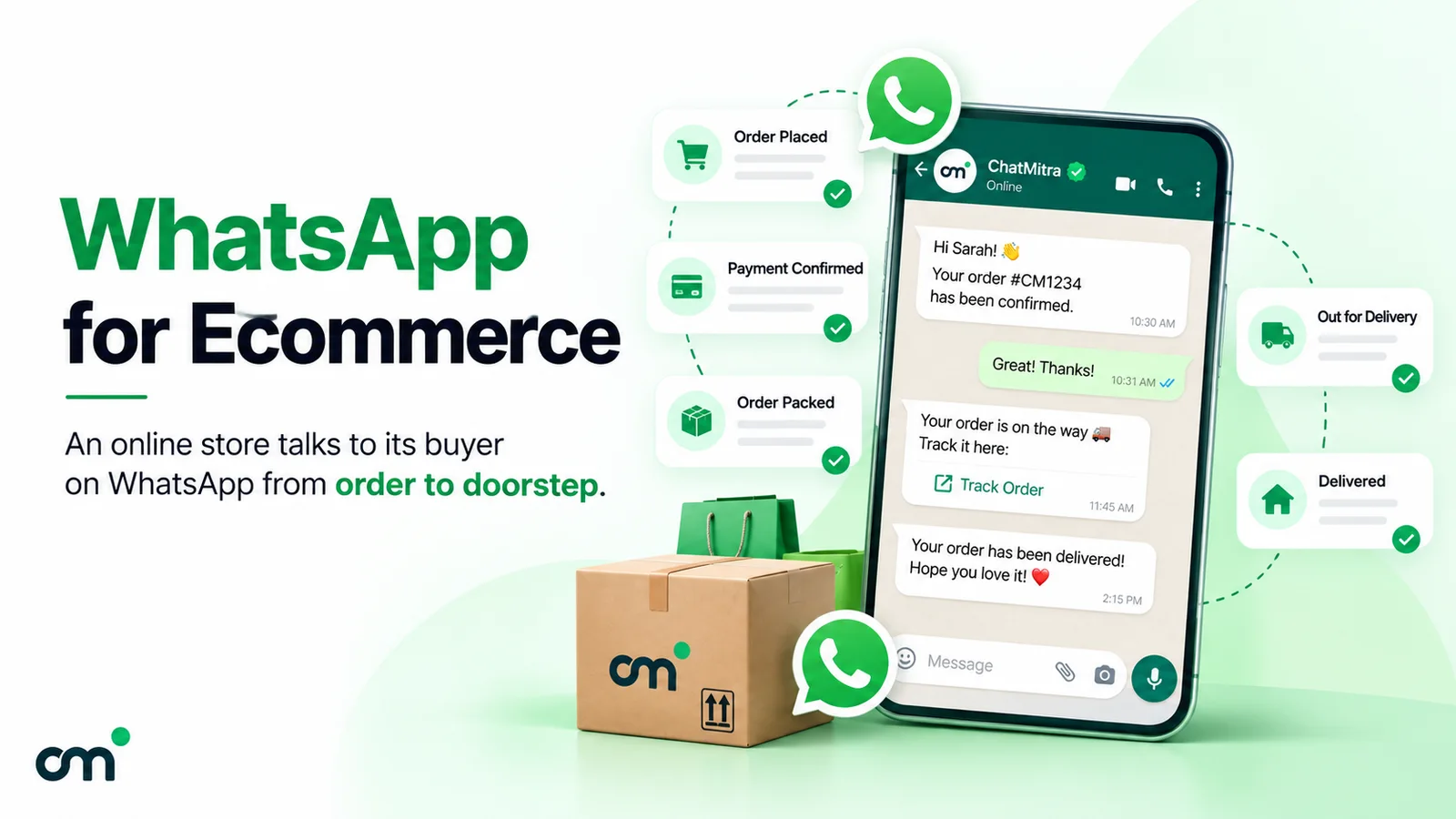
| Shopify order messages | Yes | The Shopify integration sends order confirmations, COD confirmations with buttons, cancellation and fulfilment updates (with tracking where available), feedback requests and up to three abandoned-cart reminders, and tags each customer by flow |
| Templates for offers | Yes | Image, video or document headers; URL buttons with a dynamic link; quick replies; copy-code coupon buttons |
| Orders sent from a WhatsApp cart | Shown in the inbox | Incoming cart orders appear as order cards and reach your webhook as message.received with type order |
| Which ad started the chat | Through webhooks, on Pro | The message.received webhook carries the ad’s referral data, including ctwa_clid. It isn’t shown in the inbox, and chats aren’t tagged by ad automatically, so use prefilled messages and keyword tags day to day |
| Conversions API events to Meta | No | Use the webhook data with a separate integration |
ChatMitra plans:
- Starter: free, with ₹0.20 per conversation plus Meta’s rates.
- Pro: ₹999 a month, with a 15-day trial and no card. It adds Auto Reply, away messages, the AI chatbot and webhooks.
- Enterprise: ₹2,499 a month, with no ₹0.20 conversation fee.
- Meta’s rates pass through at cost on every plan.
See the pricing page for details.
A first store campaign, step by step:
- Connect your ChatMitra number to your Facebook Page and pick it as the ad’s WhatsApp destination.
- Write one prefilled message per ad that names the product (“Hi, I’d like the price and sizes for the indigo cotton kurta”).
- In Auto Reply, add one “Starts” rule per ad that sends that product’s price, sizes and link, asks the one question you need, and adds the product tag.
- Turn on the Welcome Message for new contacts so every shopper is tagged even if no rule matches.
- If you sell on Shopify, connect the integration and switch on order confirmation and COD confirmation (see how to integrate WhatsApp with Shopify).
- Set the away message or train the AI chatbot on sizing, delivery and returns questions.
- After a week, count orders per product tag, check COD cancellations per ad, and move the budget.
Good to know:
- No Meta catalogue sync. ChatMitra doesn’t sync your products to a Meta commerce catalogue, and normal accounts can’t send catalogue or product messages from the inbox. Use product links or images, or manage the catalogue in Meta Commerce Manager.
- COD buttons don’t update Shopify. Confirm and Cancel replies land in the inbox, and your team acts on them. ChatMitra doesn’t cancel or tag the order in Shopify automatically.
- No in-chat payments. Send your payment gateway’s link as a message.
- Shopify is the only native store integration. WooCommerce and other platforms connect through the developer API, webhooks or an automation tool like WorkflowMitra.
Where to start
Pick the product your customers ask about most before buying. Build one Click-to-WhatsApp ad for it with a vertical video or a carousel, an honest price, a reason to chat (“not sure of your size? ask us”) and a prefilled question that names the product. Make sure someone, or a chatbot, replies within minutes with the answer the ad promised. Confirm every cash-on-delivery order before you ship it. Run the ad for a week, count orders rather than chats, and once you can send purchase events back to Meta, test a Sales campaign that optimises for buyers.
If your ads already bring more chats than one phone can handle, move the destination to a shared API inbox. ChatMitra’s Pro plan includes a 15-day free trial with the inbox, keyword replies and AI chatbot used in this guide, and our WhatsApp for D2C brands guide shows how ads fit into the rest of a brand’s WhatsApp programme.