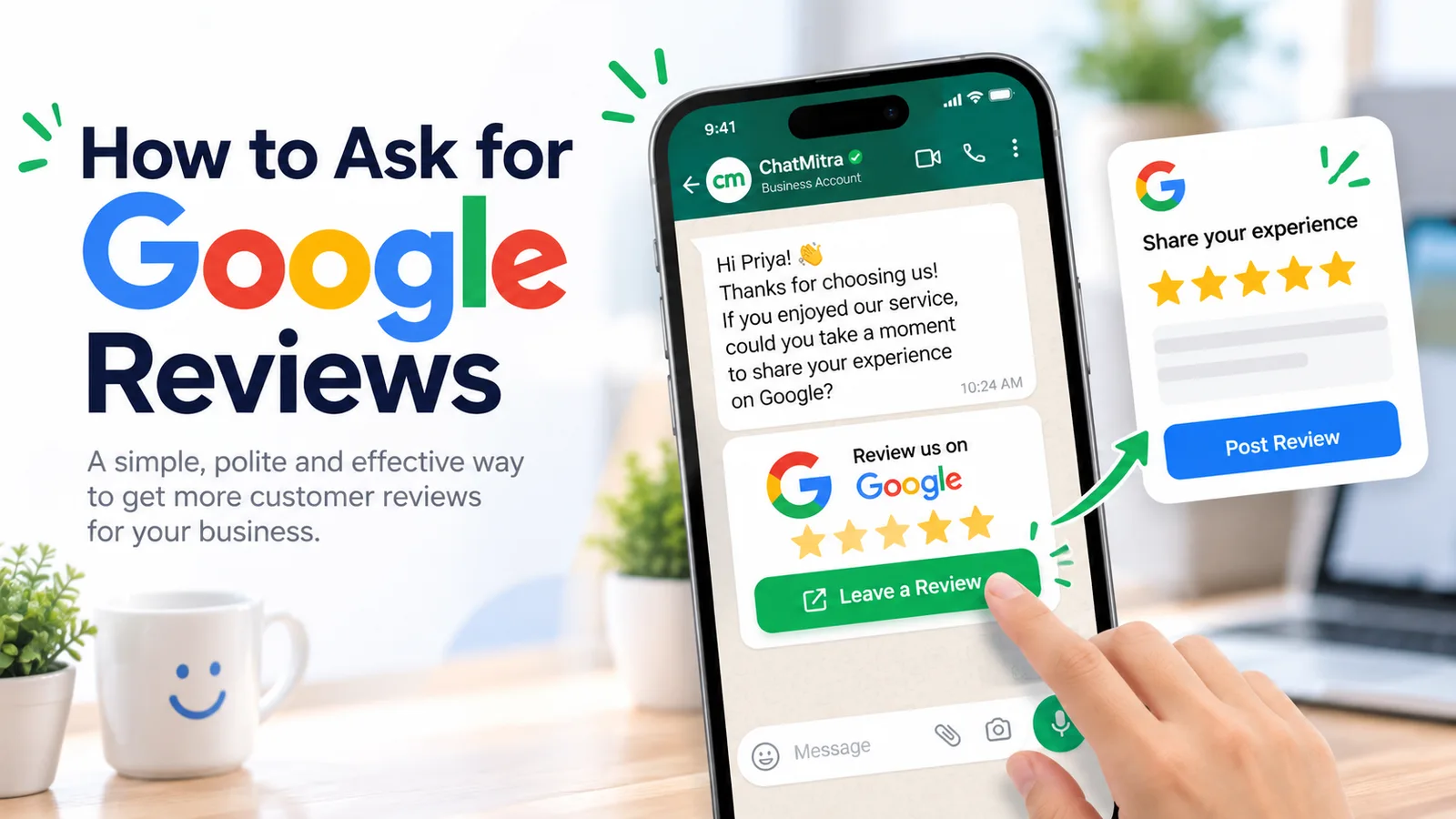
To ask for Google reviews, copy your review link or QR code from your Google Business Profile (Read reviews → Get more reviews) and send it to every customer soon after a good moment: a delivered order, a finished job, a paid bill. Keep the message short and personal, ask once with at most one reminder, and never offer a reward.
Plenty of customers who liked you will leave a review. They just need to be asked at the right time, with a link that opens the review form in one tap. This guide covers where to find that link, when to ask in different kinds of business, 20 request messages you can adapt, and the rules that get profiles penalised when they’re ignored.
Key takeaways
- A direct review link beats "search for us on Google" every time.
- Ask everyone, not only the customers you expect to be happy.
- No discounts, freebies or prize draws for reviews, ever.
Why Google reviews are worth asking for
Your reviews appear next to your Business Profile in Google Search and Maps, so they’re often the first thing a new customer reads about you. Google’s own guidance puts it simply: reviews help a business stand out and give potential customers useful information.
Two details from that page shape everything below:
- Honest reviews win. Google says “a mix of positive and negative feedback often feels more trustworthy”. A wall of identical five-star reviews can look staged to the people reading them.
- Asking is expected. Google’s help centre tells businesses to remind customers to leave reviews, and to share a link or QR code to make it easy.
How to get your Google review link and QR code
Google lets you create a review link and a matching QR code from your Business Profile. Here’s how to find them, following Google’s help article on review links:
- Sign in to the Google Account that manages your Business Profile.
- Go to your Business Profile (search for your business name while signed in, or open it from Google Maps).
- Select Read reviews, then Get more reviews.
- Select Copy to copy the review link.
- To save the QR code, right-click it and choose Save image as….
Google notes that “reviews QR codes can only be generated on a computer browser, not on mobile devices”, so do this step on a laptop.
Before you share the link anywhere, open it in a private browser window. It should land on your profile with the review box open. Then keep it somewhere your whole team can find it: the description of your saved replies, your POS notes, your email signature template. A review link buried in one manager’s inbox doesn’t get used.
Two small checks that save complaints
Customers must be signed into a Google Account to post a review, but Google says they can create one with a non-Gmail email address. And you can only reply to reviews once your business is verified, so finish verification before you start asking.
When to ask: timing by type of business
The best moment is right after the customer has had the whole experience and before daily life pushes it out of their head. Too early, and they review the wait. Too late, and they’ve forgotten the details that make a review useful to others.
| Business | The moment to ask | Good channel |
|---|---|---|
| Restaurant or café | With the bill, or a message the same evening | Table card with QR code; WhatsApp or text |
| Salon, spa, gym | A few hours after the appointment | WhatsApp or text |
| Clinic or dental practice | The day after the visit, with no health details in the message | Text or email |
| Online store | Two to five days after delivery, once the product has been used | WhatsApp or email |
| Home services (plumber, electrician, cleaner) | The same day the job is finished and paid | WhatsApp or text |
| Hotel or homestay | At checkout, or the day after | Email or WhatsApp |
| Agency, consultant, B2B service | When a project milestone lands, or at a good quarterly review | Personal email or chat from the account lead |
| Coaching, courses, tuition | After a result the student can see: a completed course, a cleared exam | WhatsApp or email |
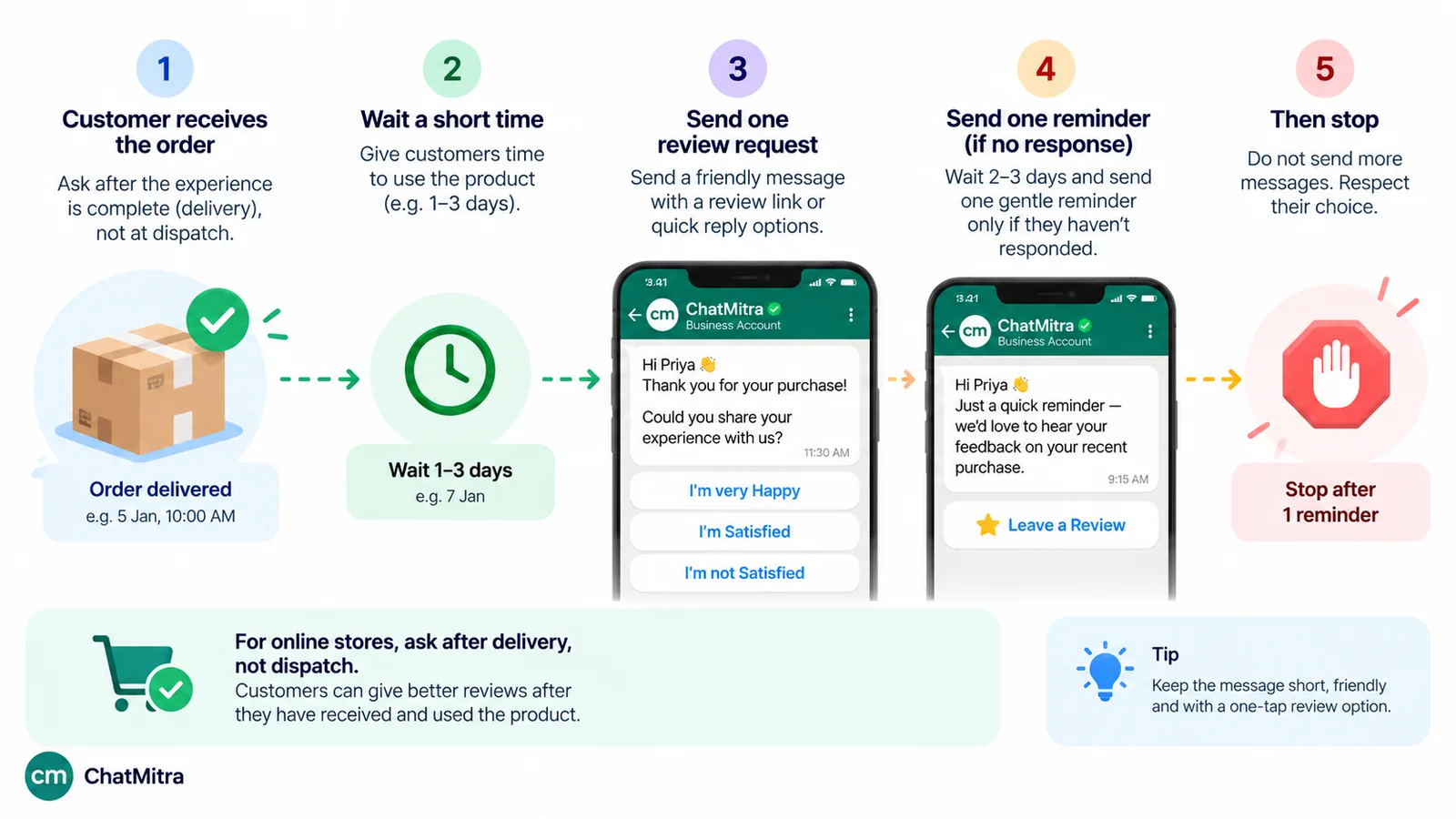
For online stores, tie the request to delivery, not dispatch. A customer whose parcel is still in transit will review the courier. A good fallback is to wait a few days after the order is marked fulfilled.
Time of day matters too. Send during the customer’s waking, non-working hours: early evening on weekdays works for many consumer businesses, mid-morning for B2B. Avoid late-night sends, which feel intrusive on a phone.
How to ask for Google reviews: a six-step method
- Get the direct link and QR code from your Business Profile and test them.
- Choose one trigger moment per customer journey: delivery, job completion, checkout. Write it down so the whole team asks at the same point.
- Ask every customer at that moment. Not only the ones who smiled at the counter, and not only the ones who answered “Good” to a survey. Selective asking breaks Google’s policy (more on that below).
- Write a short, personal message. Use their name, mention what they bought or what you did, give one reason a review helps, and include the link. Three or four lines is plenty.
- Send one reminder at most, three to five days later, to people who haven’t reviewed. Then stop. A third message turns goodwill into irritation.
- Reply to the reviews that come in, good and bad. Customers notice, and Google recommends it.
That’s the whole system. The rest is wording and timing.
20 Google review request messages you can copy
Swap the bracketed parts for your own details. Keep your real review link in place of [link]. None of these ask for a particular rating, and none offer anything in return. Both are deliberate.
WhatsApp and text messages
1. After an in-store purchase
Hi [Name], thanks for shopping at [Store] today. Once you’ve tried the [product], would you share an honest Google review? It helps other shoppers nearby: [link]
2. After an online order is delivered
Hi [Name], your order [#1234] was delivered on [date]. Once you’ve had a chance to use it, we’d value a quick Google review of your experience: [link]. Any problem with the order? Just reply here.
3. After a salon or spa appointment
Thanks for coming in today, [Name]. [Stylist] enjoyed working with you. If you have a minute, an honest Google review helps us a lot: [link]
4. After a home-service job
Hi [Name], thanks for having us fix the [issue] today. If you have a minute, a short, honest Google review helps neighbours find a reliable [trade]: [link]
5. After a restaurant booking
Thank you for dining with us tonight, [Name]. We’d love to know how it went. You can leave a Google review here: [link]
6. After a hotel or homestay checkout
Safe travels, [Name], and thank you for staying at [Property]. If you have a moment, a review of your stay on Google helps future guests plan: [link]
7. After a course or coaching programme
Congratulations on finishing [Course], [Name]. Would you write a short, honest Google review for students deciding whether to join? [link]
8. For a B2B client after a delivered project
Hi [Name], thank you for trusting us with [project]. If you’re comfortable sharing, a short Google review about working with our team would mean a lot: [link]. No pressure at all.
One polite reminder
9. Reminder, three to five days later
Hi [Name], a gentle reminder in case our last message got buried. If you’d like to review your [visit/order], here’s the link: [link]. Thanks either way!
10. Reminder for a busy B2B contact
Hi [Name], I know inboxes are full this week. If you get two minutes, the review link is here: [link]. I won’t chase again.
11. Subject lines (pick one):
- How was your [order/visit], [Name]?
- A quick favour from the [Business] team
- Two minutes to help other [customers/patients/guests]?
12. Short email after a purchase or visit
Subject: How was your visit, [Name]?
Hi [Name],
Thanks for choosing [Business] for your [service] on [date]. We read every review, and honest ones help other people decide whether we’re right for them.
If you have two minutes, you can leave yours here: [link]
If anything wasn’t right, reply to this email and I’ll look into it personally.
[Your name], [Role]
13. Email for professional services
Subject: A small favour after [project]
Hi [Name],
It was good working with you on [project]. Many of our new clients find us through Google, and a few sentences from you about the process, good or otherwise, would help them.
Review link: [link]
Thank you, [Your name]
In person
14. At the counter
“Thanks for coming in. If you’ve got a minute later, we’d really appreciate an honest Google review. The QR code is on your receipt.”
15. At the end of a service call
“I’ll send you the invoice and a review link on WhatsApp. If you have a minute, an honest review helps us a lot.”
16. When a customer compliments you
“That’s really kind, thank you. If you’d like to review us on Google, I can send you the link so it takes a minute.”
Printed and on receipts
17. Table tent or counter card
Enjoyed your visit? Scan to review us on Google. [QR code]
18. Line at the bottom of a receipt or invoice
Tell others about your experience: [short review link]
19. Packaging insert for online orders
Thanks for your order. Once you’ve used it, we’d welcome an honest Google review. Scan the code to go straight to the review form.
When a customer replies with a complaint instead
20. Private reply to a problem
I’m sorry to hear that, [Name], and thank you for telling us. Could you share [the order number / a photo]? I’d like to put this right today.
Notice what message 20 doesn’t do: it doesn’t withdraw the review invitation or ask them not to post. Fix the problem, and let the customer decide.
Asking for reviews on WhatsApp: templates, categories and cost
WhatsApp suits review requests because people read their messages and a link opens in one tap. Google itself says you can send review requests “through email, WhatsApp message, or Facebook post”. On the WhatsApp Business Platform, a few rules decide how you send them.
Opt-in and the 24-hour window
You need the customer’s permission to message them on WhatsApp first. The WhatsApp Business Messaging Policy requires opt-in, and it requires you to respect every request to stop. See how to collect WhatsApp opt-in for wording and placement.
When a customer messages you, a 24-hour customer service window opens and you can reply in free-form text, review link included. Outside that window, you can only send a pre-approved template, per Meta’s service messages guide.
Build the template around a link button
Create the template in your provider’s template builder (here’s how templates are built and approved in ChatMitra) and put your review link in a URL button rather than pasting it into the text. Meta’s template components reference allows up to two URL buttons per template, with button labels of up to 25 characters. “Leave a Google review” fits. Because your review link never changes, a static URL is enough.
Utility or marketing?
Meta sorts templates into categories and charges by category. Its categorisation guide lists feedback on “previous orders, transactions, or engagements” as a utility use, but only when the message points to one particular order or interaction. A generic request for feedback won’t be approved as utility, and a feedback message with promotional content counts as marketing.
For review requests, that means:
- “Your order #1234 was delivered on 3 March. How did it go? Leave a review” is tied to one transaction, so it has a fair chance at utility. It works best as the next step after your order confirmation and delivery updates.
- “We’d love your review!” sent to your whole list is generic, so don’t expect utility.
- Any discount, new-arrivals line or “shop again” button makes it marketing.
Meta makes the final call, and the category can change after approval. Its pricing page makes clear that you pay for whichever category the template carries at the moment you send it.
One more reason to keep requests specific: WhatsApp “does not currently deliver marketing template messages” to people with US phone numbers, according to Meta’s per-user limits page. A marketing-categorised review request won’t reach your American customers at all.
What it costs in India
Meta’s INR rate card effective 1 October 2026 lists ₹0.1150 per delivered utility template and ₹0.8631 per marketing template for Indian numbers, the same as the July 2026 card. For 400 review requests a month:
| If Meta categorises the template as | Meta's charge for 400 sends |
|---|---|
| Utility (₹0.1150 each) | ₹46.00 |
| Marketing (₹0.8631 each) | ₹345.24 |
A free-form reply inside an open 24-hour window is a service message. Since 1 October 2026 Meta bills those per message at the utility rate, after a free tier of 1,000 delivered service messages per number each month (Meta pricing). Your provider may add a fee on top (this per-message cost breakdown walks through the full maths). On ChatMitra’s Starter plan that is ₹0.20 once per contact per 24-hour conversation, so 400 requests to 400 different customers would add up to ₹80 (nothing extra for a customer who already has an open window).
The rules: what Google and the FTC don’t allow
Review rules exist because paid and filtered reviews mislead shoppers. Breaking them can cost you far more than a few missing stars. This is a practical summary, not legal advice.
Google’s Maps content policy
Google’s user-contributed content policy lists all of the following under fake engagement or rating manipulation:
- Rewards of any kind for posting a review, or for changing or removing a negative one: money, discounts, free products or services.
- Review gating: discouraging negative reviews, or deciding who gets the review link based on how happy they seem. The policy’s wording is to “selectively solicit positive reviews”.
- Pressure on site: requiring or pushing customers to write a review “while on the premises”.
- Scripted content: asking reviewers to include particular things. That covers staff being told to collect reviews that name them, or staff being given review targets.
- Conflicts of interest: reviews from current or former employees, family members, or anyone with a business relationship that biases them.
Google allows merchants to ask for genuine reviews “without offering incentives to do so or attempting to influence the rating or the contents of the review”.
What happens if you break them
Besides deleting the reviews, Google may restrict a profile that breaks its fake engagement rules. Its restrictions page gives three examples: the profile can’t receive new reviews for a period, existing reviews are unpublished for a period, or a warning tells visitors that fake reviews were removed. That warning sits on your profile where every prospective customer sees it. No batch of paid reviews is worth that.
The US FTC rule
In the United States, the FTC’s Rule on the Use of Consumer Reviews and Testimonials took effect on 21 October 2024, and courts can impose civil penalties for knowing violations. Its main points for anyone asking for reviews:
- Rewards that depend on the review being positive (or negative) are banned outright.
- The rule itself doesn’t ban every incentive. But FTC staff warn that undisclosed incentives can violate the FTC Act, and Google bans them regardless, so the practical answer is still no.
- Asking only customers you think are happy isn’t specifically prohibited by the rule, but FTC staff say it “could violate the FTC Act”.
- Contacting someone who posted a negative review to fix their problem is fine.
Other countries have their own consumer-protection laws on fake reviews. If you sell abroad, the safe standard is Google’s: ask everyone, reward no one, script nothing.
Should you ask for a five-star review?
No. It’s tempting, because “please leave us 5 stars” feels harmless. But Google’s policy says merchants should not ask for specific content, and a star request is an attempt to influence the rating. It also backfires in practice: customers who were mildly satisfied feel cornered, and reviews that echo your wording look coached.
Ask for an honest review instead, and earn the five stars in the service itself. If you’re worried about unhappy customers, ask them privately how things went first and fix problems quickly. Just don’t hold back the review link from anyone. The customer feedback guide covers private feedback surveys that run alongside review requests without gating them.
How to reply to Google reviews, good and bad
Replying shows future customers that someone is listening. Per Google’s review management guide:
- Go to your Business Profile and select Read reviews.
- Next to the review, select Reply, write your response and select Reply again.
Google checks replies against its content policies. Replies usually take up to 10 minutes to review, but some take up to 30 days. The reply appears under your business name, not your personal name, and the reviewer is notified. They can still change their review afterwards.
For positive reviews, avoid pasting the same “Thanks!” everywhere. Mention something specific from their review, and keep it short. Google’s advice is to be “conversational, not promotional”, so no offers or sales pitches in replies.
For negative reviews, reply calmly and quickly:
Hi [Name], I’m sorry your delivery arrived two days late. That’s not the standard we aim for. We’ve changed courier partners for your area since then. Please call us on [number] or email [address] so we can make this right.
Hi [Name], thank you for the honest feedback about the wait on Saturday. You’re right that we were short-staffed, and we’ve added a second person for weekend mornings. I’d like to hear more if you’re willing: [email].
Never reveal a customer’s personal details or order history in a public reply, even to correct them. If a review breaks Google’s policies (spam, a review from someone who was never a customer, offensive content), flag it through your profile rather than arguing in public. Don’t offer anything in exchange for deleting a review. Google’s policy treats that as fake engagement too. For wording that repairs trust, see our apology message guide.
Automating review requests without losing the personal touch
Asking by hand works until a busy day, and busy days are when requests get forgotten. Automation keeps you consistent if you keep three things:
- A real trigger. The request should fire from an event that proves the experience is complete: delivery, job closed, checkout.
- Personal details. The customer’s name and what they bought or booked, pulled from your order data.
- A stop rule. One reminder at most, and no request for anyone who has opted out or has an open complaint.
A simple setup for a small business: keep a Google Sheet of completed jobs with name, phone and date. Each day, send the review template to rows from the previous day. Mark each row once sent so no one gets asked twice.
Where ChatMitra fits
ChatMitra can send the WhatsApp side of this system:
- Shopify stores: a feedback message can go out automatically a set number of days after an order is fulfilled (from 2 to 40 days, 3 by default), and it’s cancelled if the order is cancelled first. ChatMitra gets no delivery events from Shopify, so pick enough days for the parcel to arrive.
- Other businesses: Google Sheets automations can start when a row is added or when a date column is a set number of days in the past. They can wait with a delay step, send an approved template with the customer’s name and order details filled in, and tag the contact so you know who was asked.
- Batches: broadcasts can go to contacts with a tag such as “visited-this-week”, with sent, delivered, read and failed counts afterwards.
- Templates: the template builder supports URL buttons, so your review link sits behind a “Leave a Google review” button.
What it doesn’t do: ChatMitra doesn’t connect to your Google Business Profile, so it can’t see who reviewed you, read your rating or reply to reviews. Nor does it have a rating screen that decides who gets the link, and given Google’s policy, you shouldn’t build one.
If your customers read WhatsApp, compare plans and set up your first review request. For neighbouring messages, see thank-you messages for customers and our WhatsApp for customer service guide.
Common mistakes that cost reviews
- Sending customers to search for you. Every extra step loses people. Always share the direct link.
- Asking before the experience is over. A review request before delivery gets reviews about shipping times.
- Asking only the happy ones. It feels smart, but it breaks Google’s policy, which says biased reviews will be removed.
- Offering “10% off for a review”. Even for honest reviews of any rating, Google treats it as a paid review.
- Chasing more than once. Two messages is a request; three is spam, and on WhatsApp it invites blocks.
- Coaching the content. “Mention Ravi and our fast delivery!” is exactly the kind of scripted request Google prohibits.
- Letting staff or family review. Google’s policy treats these as conflict-of-interest reviews.
- Ignoring negative reviews. Silence reads as not caring; a calm, specific reply shows readers you take problems seriously.
Troubleshooting: when reviews don’t appear
“I left a review but I can’t see it.” Google’s help page on missing or delayed reviews says reviews are checked against its policies first, which can take a few days. Ask the customer to check again later rather than posting twice.
“The link won’t let me post.” The customer needs to be signed into a Google Account. On older phones, Google suggests updating the Maps app.
“Several reviews vanished at once.” Reviews removed for policy violations aren’t restored. Google’s policy also removes “unusual volumes or patterns of review contributions”, so avoid sudden bursts from one event or one staff member’s contacts.
“Our WhatsApp request was rejected or came back as marketing.” Tie the template to one order or visit with a variable such as the order number, remove any promotional wording, and request a category review if you believe the categorisation is wrong.
“Customers open the message but don’t review.” Shorten it to three lines, move the link into a button, and send it closer to the moment of delivery or service.
Sources: Google Business Profile Help (review links and QR codes, tips to get more reviews, managing reviews, missing reviews and profile restrictions); Google's Maps user-contributed content policy; the US FTC's Consumer Reviews and Testimonials Rule Q&A; Meta's WhatsApp template categorisation guide, template components reference, sending guide, per-user marketing limits, pricing page and India INR rate card; and the WhatsApp Business Messaging Policy. All are linked above. Facts checked against Google's, the FTC's and Meta's documentation on 27 September 2026.