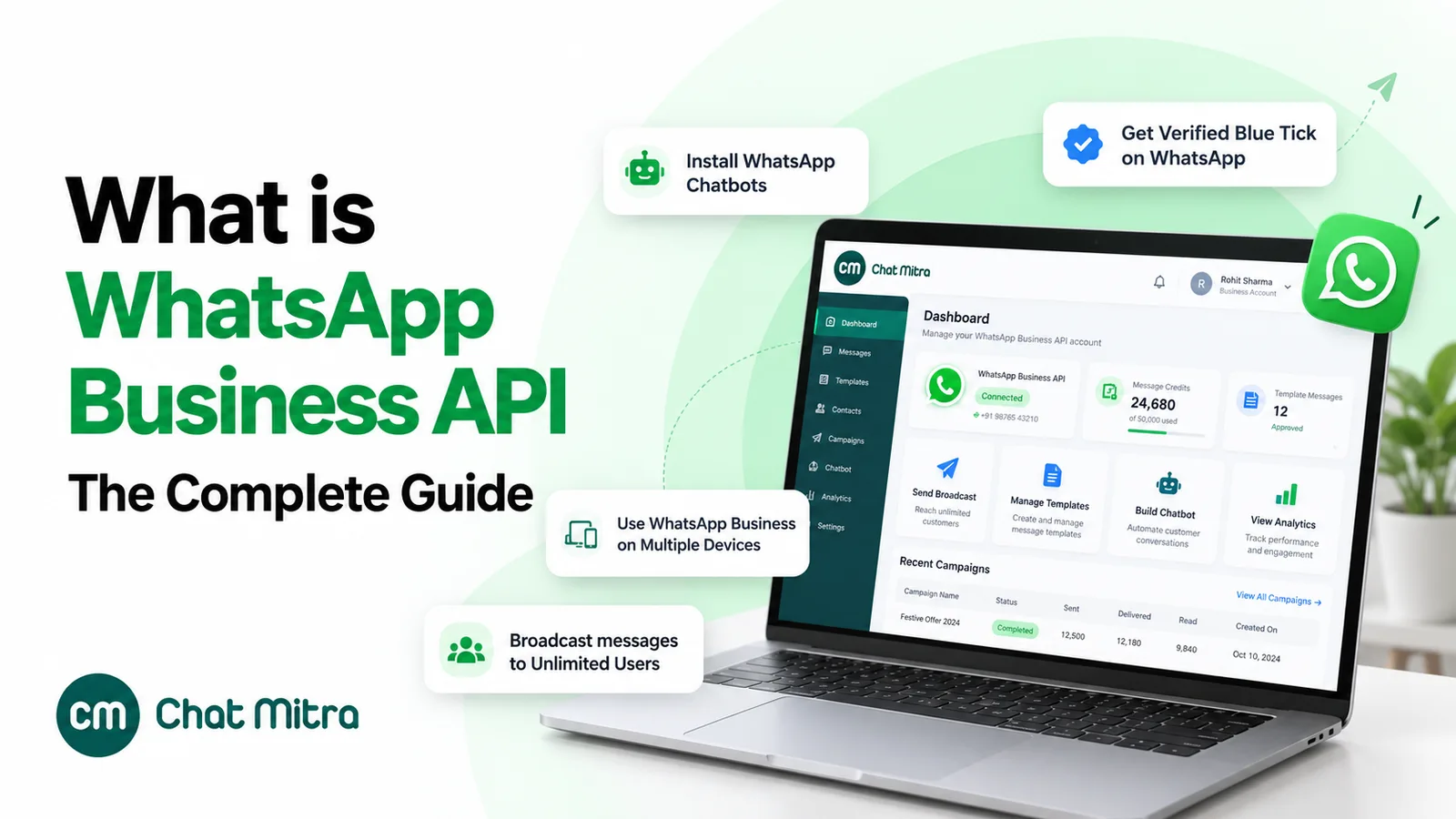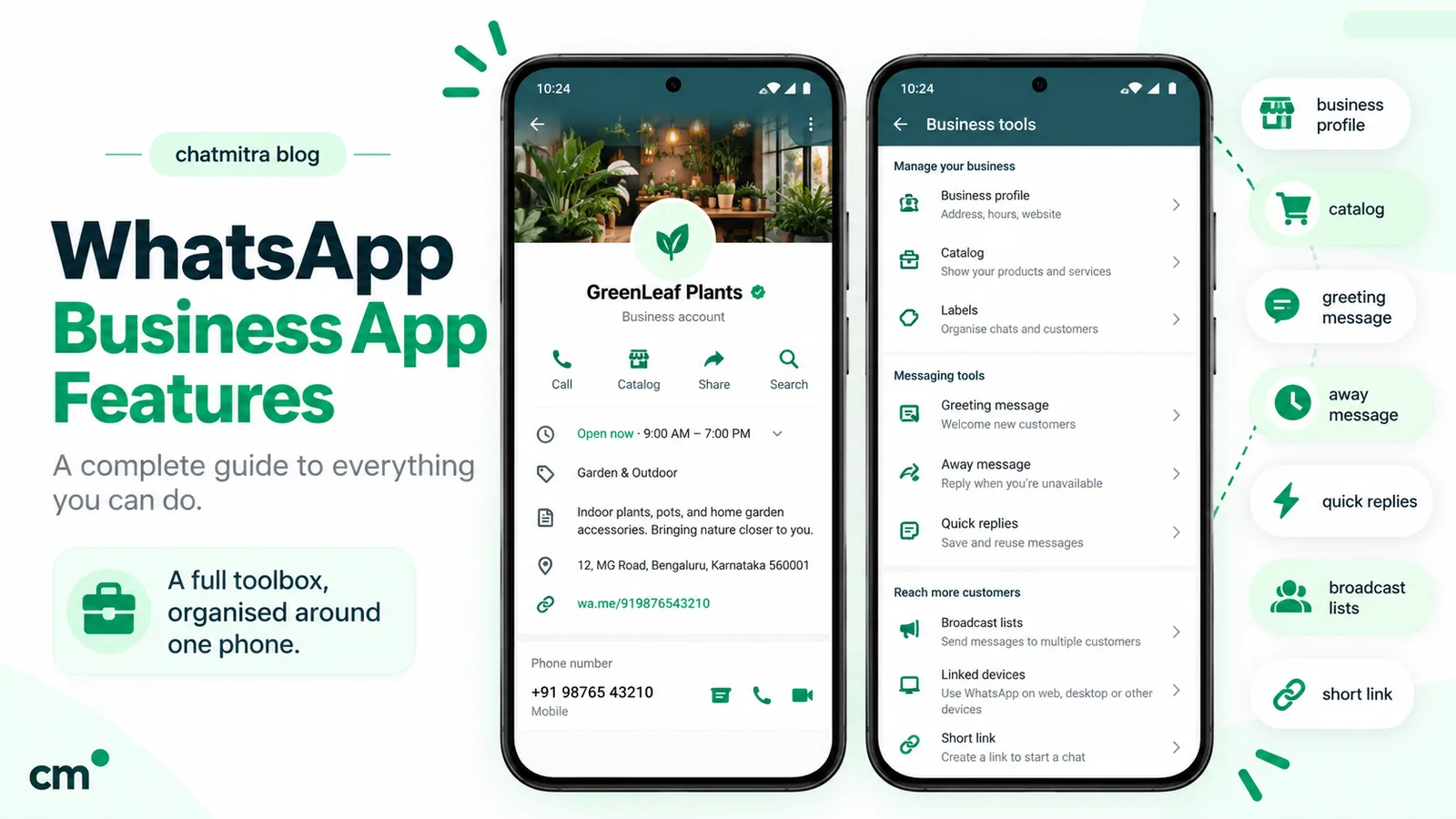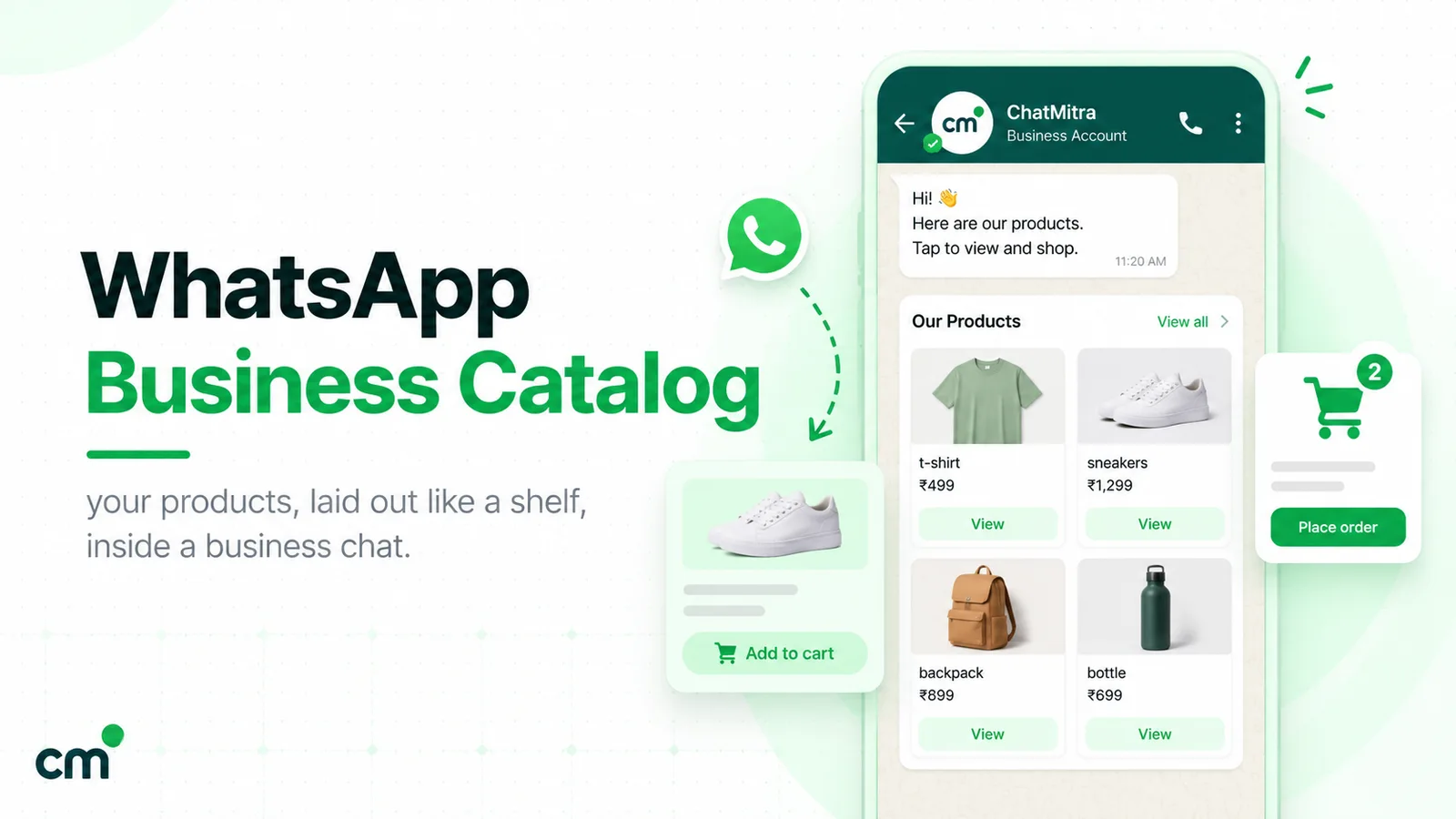
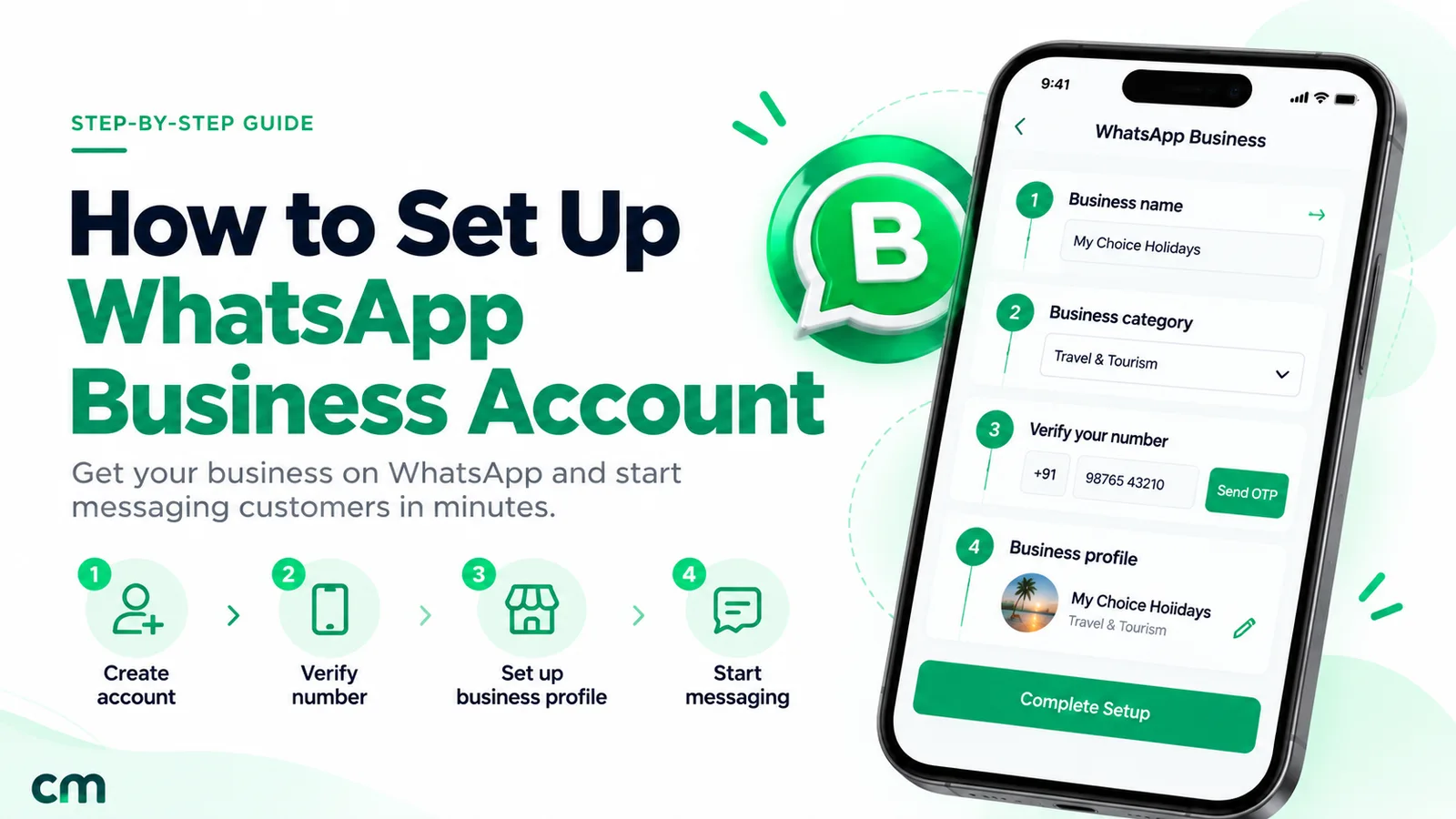
To create a WhatsApp Business account, install the free WhatsApp Business app on Android or iPhone, accept the terms, verify a mobile or landline number you own with the 6-digit code, then add your business name, categories, hours, photo, address and description. For the API, you create a WhatsApp Business Account on Meta’s Business Platform, directly or through a provider.
Both are called a “WhatsApp Business account”, which is where most confusion starts. This guide covers the free app step by step, with the Android and iPhone differences, the number rules that block people (personal numbers, landlines, one number per account), and the API route in one short section. It ends when your account is working and your profile is complete.
Key takeaways
- Pick the route first. One phone and a small team: the app. Several people, automated messages or your own software: the Business Platform.
- Save WhatsApp-only contacts to your phone's address book before moving a personal number, or you'll lose them.
- A landline works on the Business app only, with the Call me option and no extension.
Facts checked against the WhatsApp Help Center and Meta's documentation on 25 September 2026. Rupee figures are Meta's India rates and exclude tax.
What “WhatsApp Business account” can mean
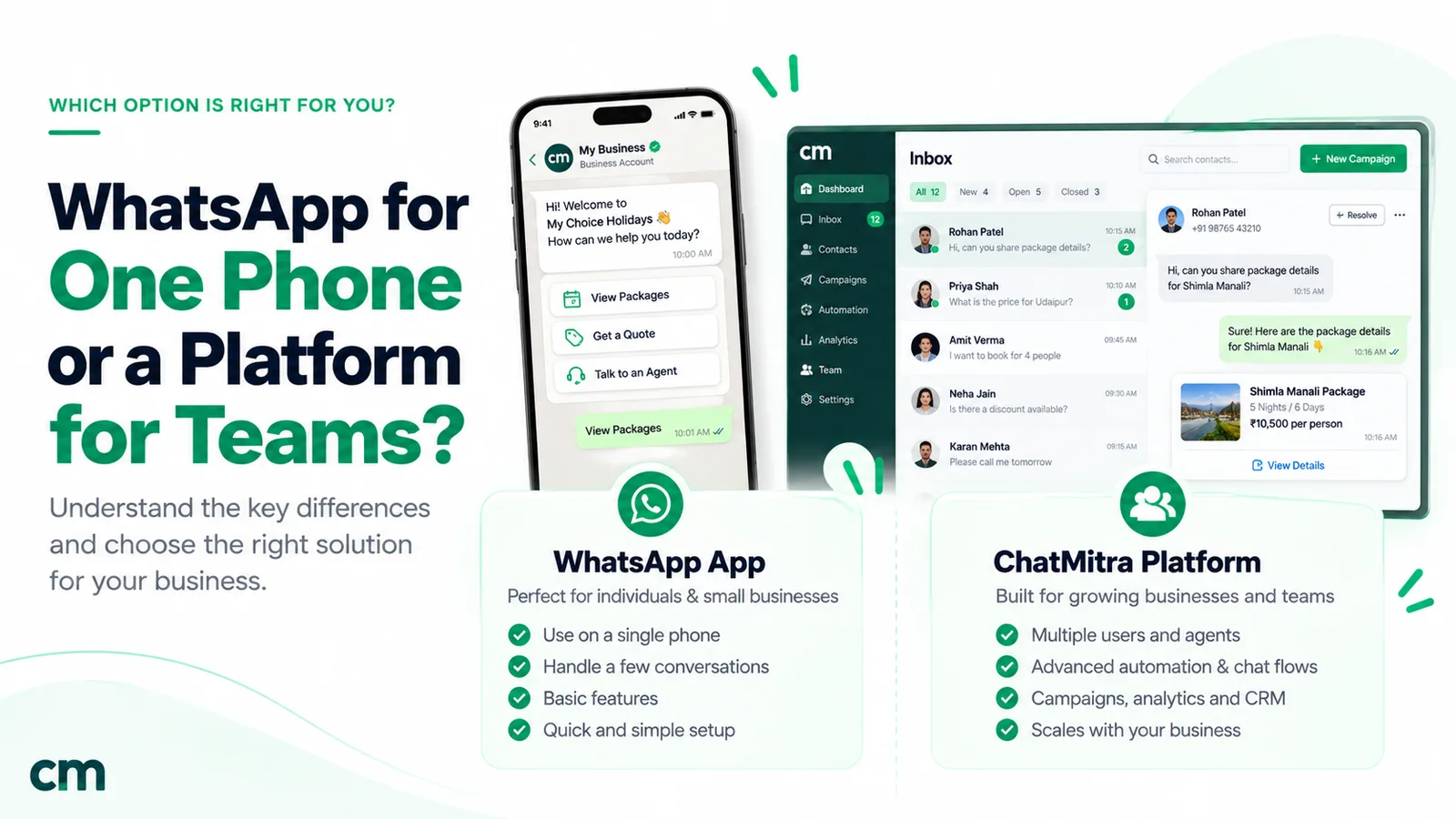
WhatsApp offers two business products. Its Help Center puts it simply: small businesses can use the WhatsApp Business app “to communicate with customers from a single device”, while the WhatsApp Business Platform “enables you to manage high volumes of conversations” (WhatsApp Help Center, business products).
| WhatsApp Business app account | WhatsApp Business Account (WABA) on the Platform | |
|---|---|---|
| What you create | An account inside a free app on your phone | A business portfolio, a WhatsApp account and a registered number in Meta's systems |
| Where you manage it | The app, plus up to four linked devices | Meta's business tools and the software you connect (your own code or a provider) |
| Cost | Free; optional paid extras | Meta charges per message; providers may charge a fee |
| Typical user | A shop, clinic, tutor or freelancer answering from one phone | A business sending order updates, running campaigns or sharing one number across a team |
Which route should you choose?
Answer three questions, in order.
- Will more than one person answer chats at the same time, beyond one phone and four linked devices? If yes, lean towards the Platform. The free app allows “up to four linked devices and one phone at a time” (WhatsApp Help Center, linked devices).
- Should messages go out automatically from your store, booking system or spreadsheet? Messages triggered by your own systems need the Platform’s API.
- Do you need to message many customers who haven’t written to you recently? The Platform does this with approved templates. The app’s broadcast lists reach customers only “as long as they have your number saved in their phones’ address book” (WhatsApp Help Center, broadcast lists), and its paid business broadcasts are “currently available in select countries” (WhatsApp Help Center, business broadcasts).
If all three answers are no, start with the app. It costs nothing, and you can move to the Platform later without changing your number, through coexistence (covered below).
Before you start: what the app needs
Check these five things first.
- A supported phone. WhatsApp supports “Android phones running OS 6.0 and newer” and “iPhones running iOS 15.1 and newer”, and says that “Starting November 30, 2026, only iOS 15.5 and newer will be supported” (WhatsApp Help Center, supported operating systems).
- A number you own that can receive a call or SMS. WhatsApp’s rule is “You can only register a mobile phone or a landline (fixed) number that you own.” VoIP, toll-free, paid premium and universal access (UAN) numbers can’t be registered, and WhatsApp’s list of unsupported types also includes “Personal numbers” (WhatsApp Help Center, register for the Business app).
- Mobile service, not only Wi-Fi. WhatsApp says, “We don’t support setting up new accounts on devices that can only connect to a Wi-Fi network.” You also need a working internet connection.
- A number that isn’t in use on the other app. “It’s not possible to have one phone number linked to both apps at the same time” (WhatsApp Help Center, download the Business app). You either move the number across (see below) or use a different one.
- Your profile details ready: the business name, up to three categories, opening hours, a square logo, address or service area, website and a short description.
Turn off call-blocking apps and task killers before you start; WhatsApp lists them as a registration requirement.
How to create a WhatsApp Business account on the app
These steps follow WhatsApp’s articles for Android and iPhone; differences are in the table after them.
Step 1: Download the app
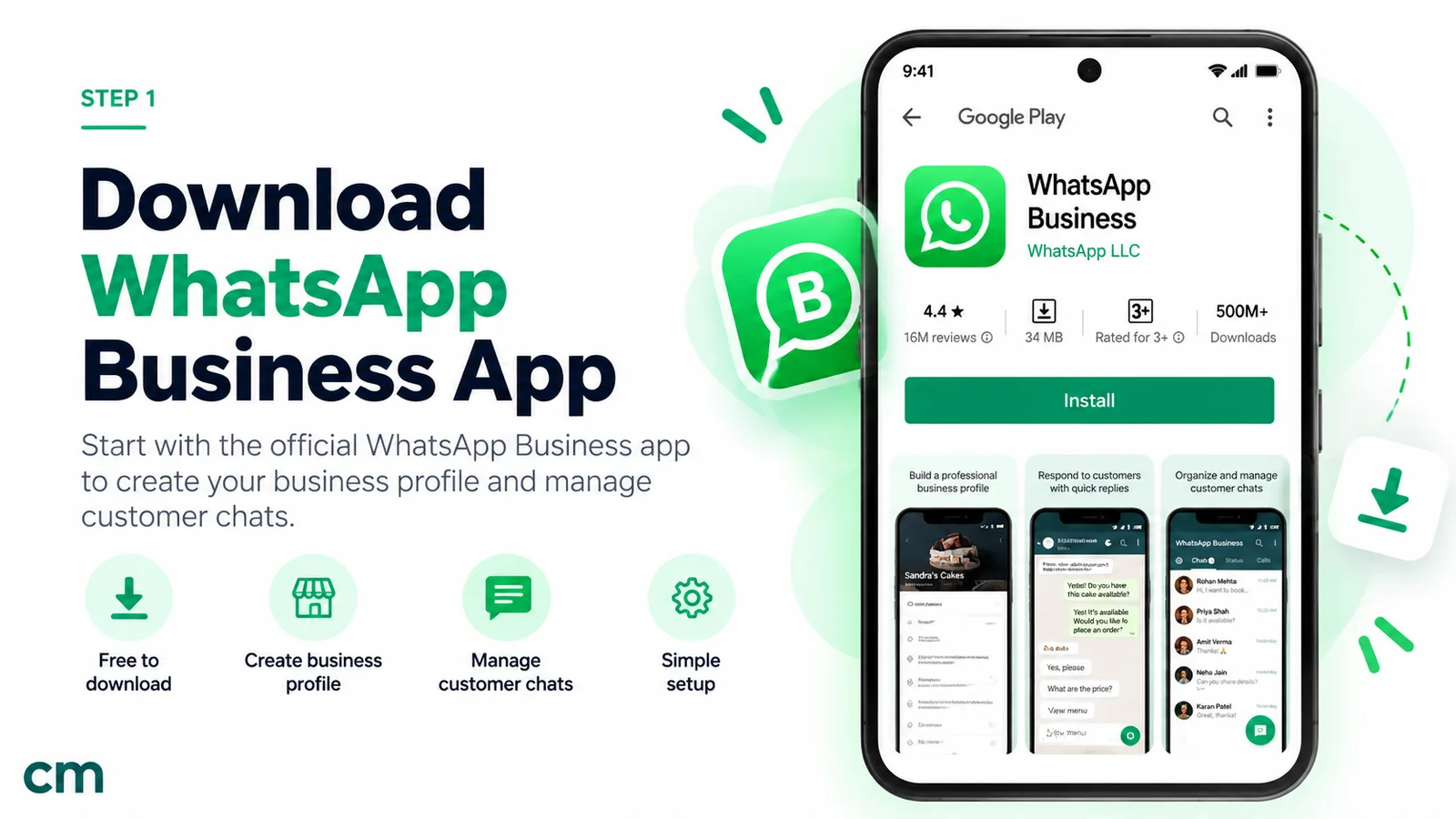
Install WhatsApp Business from the Google Play Store (Android) or the Apple App Store (iPhone). It is a separate app from WhatsApp Messenger. Avoid look-alikes: “Using these apps or linking your WhatsApp account to unofficial versions of WhatsApp violates our Terms of Service”, and WhatsApp names GB WhatsApp and FM WhatsApp as examples (WhatsApp Help Center, unofficial apps). Accounts on such apps can be temporarily or permanently banned.
Step 2: Accept the terms
Read the WhatsApp Business Terms of Service (and, in some regions, the privacy policy), then tap Agree and continue.
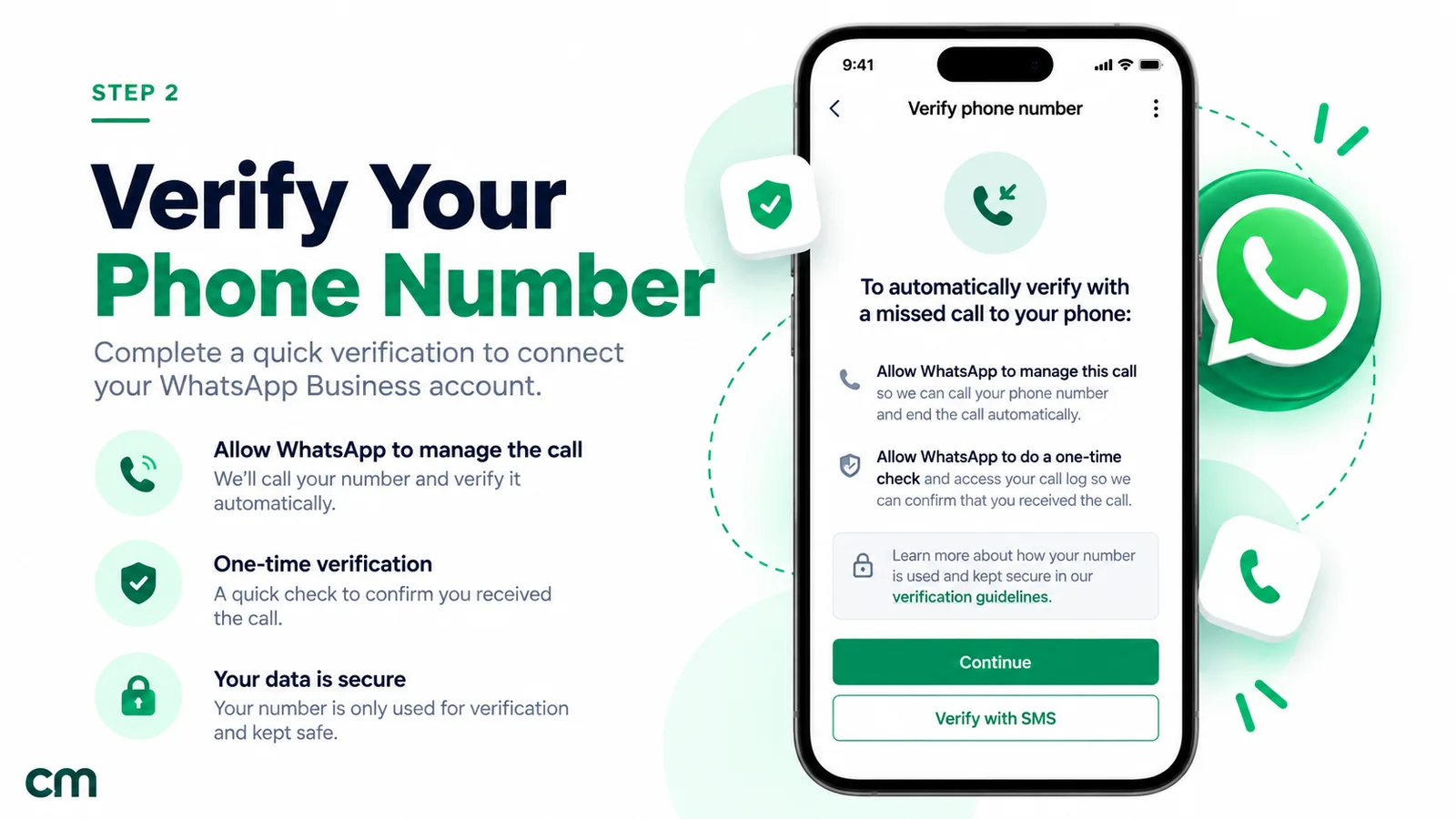
Step 3: Verify your number
- Choose your country from the list; the country code fills in automatically.
- Enter your number in the box on the right. WhatsApp’s instruction is “Don’t put a 0 before your phone number.” In India, that means the ten digits without a leading 0.
- Tap Done. If prompted, you can tap Call me to get the code by phone.
- Enter the 6-digit registration code.
On iPhone, WhatsApp notes that if iCloud Keychain is on and you’ve registered the number before, you “may be automatically registered without receiving a new SMS code.”
Two warnings from the same article: the SMS “wait time may take up to 10 minutes”, and “Don’t guess the code or you’ll be locked out for a period of time.”
Step 4: Restore a backup, if one appears
If WhatsApp finds a backup for the number, you may be able to restore your chat history. Otherwise the app moves on to the profile.
Step 5: Create the business profile
The app walks you through the fields in this order:
- Business name. Read the naming rules in the next section before you type it.
- Categories. “Select up to three business categories.” You can’t create a custom one.
- Business hours.
- Profile photo. Your logo works better than a shopfront photo at small sizes.
- Address and website. Skippable, but customers use them.
- Description. Skippable too. The app offers Refine with Meta AI to suggest versions of a draft you’ve written, which you can edit.
Tap Continue (and Done on Android) at the end. Your account is live.
Android and iPhone: what’s different
| Point | Android | iPhone |
|---|---|---|
| Where to download | Google Play Store | Apple App Store |
| Oldest supported system | Android 6.0 | iOS 15.1 (iOS 15.5 from 30 November 2026) |
| Profile screens | Buttons read Next; finish with Continue > Done | Buttons read Continue |
| Skipping the SMS code | No Android equivalent described | Possible with iCloud Keychain on a number verified on that phone before |
| Moving from Messenger asks for | Access to chat history and media | Access to the address book |
| Backup used to switch back to Messenger | Google Account | iCloud |
| Reaching Settings | The menu icon, then Settings | Settings or your profile picture |
Sources: WhatsApp Help Center articles on downloading the app, moving from Messenger and moving back, each read in its Android and iOS version on 25 September 2026.
Choosing a business name that works
WhatsApp’s first rule: “A business name must be representative of the business or organization” (WhatsApp Help Center, creating a business name).
A name can’t consist of only:
- a person’s full name;
- a generic term (WhatsApp’s example is “Fashion”);
- a generic place (“New York”);
- three characters or fewer.
It also can’t include any variation of the word “WhatsApp”.
A second set of formatting rules applies if you want to be eligible for an Official Business Account: no all-capital words except acronyms, no extra spaces, no emoji, no symbols such as ®, no unnecessary punctuation and no special characters such as @, # or &. These don’t apply “to businesses who already brand this way externally”, so a brand that writes its name in capitals on its shopfront and website can use it.
In practice, “Rahul Sharma” alone fails as a person’s full name, while “Sharma Opticals Jaipur” says what you do. And the name may not be what customers see: on a regular account they see the name they saved for you, or your number if they haven’t saved it. Only an Official Business Account shows the business name in the chat list to customers who haven’t saved your number.
How to switch your personal WhatsApp number to WhatsApp Business
If the number your customers already know is on personal WhatsApp, move it rather than starting again. WhatsApp says you can “migrate your account, including chat history and media, to a new WhatsApp Business account.”
Before you move:
- Back up your chats in WhatsApp Messenger. WhatsApp recommends it.
- Save WhatsApp-only contacts to your phone. WhatsApp warns that “WhatsApp contacts are not yet supported on WhatsApp Business app, so any WhatsApp contacts created will be lost” (WhatsApp Help Center, move to the Business app). In Messenger’s settings you can turn off WhatsApp contacts and choose to save them to your address book.
- Update WhatsApp Messenger, then install WhatsApp Business.
The move:
- Open WhatsApp Business and tap Agree and continue (Agree & continue on iPhone).
- The app “automatically identifies the number you’re using in WhatsApp Messenger”. Tap the option with that number. To use a different number, tap Use a different number.
- On Android, tap Continue > Allow so the Business app can read your chat history and media, then enter the 6-digit code from the SMS.
- On iPhone, the code comes first (it can be skipped with iCloud Keychain, as above), then you allow or deny access to the address book.
- Create your business profile and tap Next.
From then on, WhatsApp Messenger can’t use that number at the same time. If you still want a personal account, register Messenger with a second number; WhatsApp’s multiple-account feature lets you “have two different accounts on a single mobile device”, each needing “a separate phone number” (WhatsApp Help Center, multiple accounts).
Going back is possible. You back up the Business account (to your Google Account on Android, iCloud on iPhone), install WhatsApp Messenger and verify the number; on Android you then tap Restore. What doesn’t come back: “data created by features unique to WhatsApp Business, such as your catalog and collections” (WhatsApp Help Center, move to Messenger). If you pay for Meta Verified, WhatsApp says “your verified status will be removed” when you switch.
Can you use a landline number?
Yes, but only on the Business app. WhatsApp’s troubleshooting article lists landlines among numbers that can’t be registered on WhatsApp, with one exception: the WhatsApp Business app, “where you will receive the code via your landline number” (WhatsApp Help Center, can’t complete registration). A shop’s fixed line printed on its bills can become its WhatsApp number:
- Install WhatsApp Business on a smartphone with its own internet connection.
- Enter the landline number with its area code, without the leading 0.
- Tap Call me instead of waiting for an SMS.
- Answer the landline. “An automated voice will tell you the six-digit registration code.” Type it into the app.
The number can’t have an extension: “Landline extension numbers can’t be used to complete the registration process.” If the line sits behind an IVR menu, use a direct number a person can answer. The smartphone running the app then holds the account, so keep it in the shop and in use.
One number, one account: the rules that catch people out
| Question | WhatsApp's rule |
|---|---|
| Can one account have two numbers? | No. "Your WhatsApp account can only be verified with one registered phone number." |
| Can one phone run two accounts? | Yes, with a separate number for each (the multiple-account feature, or the two apps side by side). |
| Does the account follow the SIM? | It follows the number. Swapping SIM or eSIM doesn't sign you out, but you need an active SIM with that number to keep access. |
| How many devices can use it? | A phone and as many as four linked devices (WhatsApp Web, WhatsApp Desktop, Android tablets, companion phones and a few other devices). |
| Do linked devices need the phone online? | No, but they log out if the phone is unused for more than 14 days, and inactive linked devices are disconnected after 30 days. |
| Can I register on a tablet or computer alone? | No. You register with the phone, then link other devices to it. |
Sources: WhatsApp Help Center, multiple numbers and accounts, moving between the apps and linked devices, checked 25 September 2026.
If more than four or five people need to answer, the WhatsApp CRM software guide explains what a shared inbox adds.
Finish your profile before you share the number
The account works as soon as the code is accepted, but an empty profile tells a new customer nothing. WhatsApp describes the profile as “one of the main ways to attract potential customers and show them that your business is trustworthy”, and shows customers your name, description, address, hours, category and “the month and year you joined” (WhatsApp Help Center, business profile).
To edit it, go to the Tools tab and tap Profile (WhatsApp Help Center, edit your profile). Work through this checklist:
- Profile photo with a logo that stays readable when small. It is public by default.
- Up to three categories. If yours is missing, WhatsApp suggests a broader one or Other Business.
- Business hours: Open for selected hours, Always open or Appointments only (By appointment only on iPhone).
- Address, or a service area if customers don’t visit you (on Android, This business does not have a physical location sets a coverage area).
- Description saying what you sell, where, and one concrete detail. See these WhatsApp business description examples for ideas.
- Email and website, so customers can check you’re real.
- Facebook Page or Instagram account, linked under Facebook & Instagram.
Selling online in India? WhatsApp says businesses conducting commerce in India “must provide certain information in your business profile and catalog”, including the legal name, business type, licence or registration, customer care contact and a grievance officer (WhatsApp Help Center, selling online in India). The form appears under Business details in your profile and before your first catalog item. Our WhatsApp Business catalog guide lists the fields.
Turn on two-step verification. It is optional and adds a second check on top of the SMS code, which WhatsApp says protects “against unauthorized access” (WhatsApp Help Center, about two-step verification). Go to Settings > Account > Two-step verification (on iPhone, start from your profile picture), turn it on, create a password and, if you like, add an email address (WhatsApp Help Center, two-step verification settings). WhatsApp is replacing the old 6-digit PIN with a password.
Make the number easy to reach. The app gives you a short link that opens a chat with you, or a page with your business information in a browser, and you can set a default message for it under Tools (WhatsApp Help Center, short links). The free WhatsApp chat link generator builds a similar wa.me link with a pre-filled first message, for your website, bills and Instagram bio.
That completes the account. The time-saving tools come next (quick replies, away and greeting messages, lists, the catalog), and the guide to WhatsApp Business features covers each one, including the first seven quick replies to save.
If registration doesn’t work: quick fixes
| Problem | Likely cause | What WhatsApp suggests |
|---|---|---|
| No SMS arrives | Carrier delay, blocked SMS, no balance on a prepaid line | Wait for the timer (up to 10 minutes), then use Call me. Contact your mobile provider if SMS and calls are blocked. |
| "You have guessed the code too many times" | Wrong codes entered | Wait out the lock. "There's no way to make this faster." |
| Number rejected | VoIP, toll-free, UAN or a number entered with a leading 0 | Use a supported number in full international format |
| Landline code never arrives | SMS chosen, or an extension or IVR in the way | Use Call me on a direct line without an extension |
| Registration fails abroad | Roaming is off | Turn on roaming to receive international SMS or calls |
| Still stuck | App or phone state | Restart the phone, reinstall the latest WhatsApp Business, and test that the number receives an ordinary SMS |
Sources: WhatsApp Help Center, register for the Business app and can’t complete registration, checked 25 September 2026.
And whoever asks for it: “Never share your 6-digit registration code with anyone.”
How to create a WhatsApp Business Account for the API
On the Platform, you create linked assets in Meta’s systems, and software sends and receives the messages. Meta’s overview says, “You must have a business portfolio to use the platform” (Meta for Developers, about the platform).
What you end up with:
- A Meta business portfolio, the container for your business assets.
- A WhatsApp Business Account (WABA). Meta is splitting it into a WhatsApp account for the phone number and a Messaging account for templates and billing, reaching all businesses “by mid-October 2026” (Meta, Updates to WhatsApp Business accounts), so you may see either name.
- A business phone number, registered for the API, with a display name.
Developers can set this up directly with Meta. Through a provider, you use Embedded Signup, a Meta pop-up launched from the provider’s dashboard. In it you log in with Facebook or Meta business credentials, accept the terms, choose or create a business portfolio, choose or create a WhatsApp account, “enter and verify their business phone number”, and “enter a display name that can appear in place of their number” (Meta for Developers, Embedded Signup). Depending on your provider, you may then need to add a payment method before you can send messages.
Four rules differ from the app:
- A number already on WhatsApp must be freed first. Meta says, “Numbers already in use with WhatsApp cannot be registered unless they are deleted first” (Meta, business phone numbers). The exception is a Business app number joined through coexistence.
- The two-step verification PIN is being retired. API numbers have needed a six-digit PIN at registration, but Meta is deprecating it for eligible Cloud API numbers as part of the same account change.
- You can start before any review. Meta’s help centre says you “don’t need to complete a WhatsApp display name review or account checks to get started” (Meta Business Help Centre, display name). New portfolios start with a messaging limit of 250 unique recipients per 24 hours outside customer service windows (Meta, messaging limits).
- Business verification is optional at first. It is one way to raise that limit, and raises how many phone numbers you can register from two to 20. Meta says a decision “may take up to 14 working days” (Meta Business Help Centre, verification).
Coexistence: keep the app and add the API. If the number already runs the Business app, a provider offering coexistence can connect it to the Cloud API while you keep using the app. Meta says the business “can still send messages on a one-to-one basis using the WhatsApp Business app, and WhatsApp keeps messaging history between both apps in sync” (Meta, onboard WhatsApp Business app users). The app must be version 2.24.17 or later, a provider can synchronise chats from the most recent six months if the business allows it, the number’s API throughput is fixed at 20 messages per second, and broadcast lists become read-only. Replies typed in the app itself carry no Meta charge.
Costs. Meta charges per delivered message. In India, since 1 October 2026: ₹0.8631 per marketing template, ₹0.1150 per utility or authentication template, and 1,000 free service messages per number per month, then ₹0.1150 each (Meta’s INR rate card). The full walkthrough, with display name rules, verification documents and a month-one cost example, is in how to get the WhatsApp API; per-message maths is in WhatsApp Business cost per message.
How this works in ChatMitra
ChatMitra works on the Platform route only; it doesn't create WhatsApp Business app accounts. It connects a number in one of two ways, and ChatMitra's team sets which one your account uses; unless they change it, that is manual connect. Manual connect is for a WhatsApp account you already have: assign ChatMitra as a partner with full access in Meta Business Suite (Meta says messaging needs the partner on both the WhatsApp account and the Messaging account; our WhatsApp Manager guide has the steps), paste your WABA ID and Phone Number ID, and ChatMitra subscribes to the account and registers the number. If you don't have an account yet, ask the team about the second way. Embedded Signup, from a dashboard card labelled "WhatsApp Business – 5-Minute Setup Flow", is configured with Meta's Business app option, so the pop-up can create a portfolio and WhatsApp account, use existing ones, or connect a Business app number through coexistence. The card then tracks display name approval and adding a payment method in Meta. On a coexistence number, messages you send from the phone app after connecting also appear in ChatMitra's inbox; earlier chats from the app aren't imported. The Embedded Signup walkthrough shows the Meta screens.
Mistakes to avoid when creating the account
- Registering the owner’s personal number without planning. The personal account moves to the Business app, and the owner then needs a second number for family chats.
- Losing contacts in the move. Contacts saved only in WhatsApp don’t transfer. Copy them to the phone first.
- Installing a modified app. WhatsApp can’t guarantee that chats backed up on an unofficial app will transfer to the official one.
- Choosing a name WhatsApp won’t accept. A generic word, a person’s full name alone or the word “WhatsApp” all fail.
- Leaving the profile empty. A number with no photo, hours or description gives customers nothing to check you against.
- Deleting an app account to register the API without checking coexistence. WhatsApp says deleting your account will “Erase your message history” (WhatsApp Help Center, delete your account). If the number is on the Business app and your provider supports coexistence, you may not need to delete it.
What to do once the account is live
- Set up the features that save time: quick replies, greeting and away messages, and lists. The WhatsApp Business features guide goes through each, with limits and where to find them.
- Add a catalog if you sell products or services, and share the number on your website, receipts and social profiles.
- Consider the verified badge once you’re established. Meta Verified is a paid subscription under Tools, where available. WhatsApp says review “may take up to three business days” and the payment is refunded if Meta can’t verify you (WhatsApp Help Center, Meta Verified).
When one phone can’t keep up, the Platform route above is the next step. If you go that way with ChatMitra, its Starter plan costs nothing; you pay Meta’s rates at cost plus a ₹0.20 fee per contact per 24-hour conversation on Starter and Pro, including conversations opened by a customer’s message or by a reply from the phone app on a coexistence number. Plans are on the ChatMitra pricing page.
Sources: WhatsApp Help Center (setup, registration, business names, moving between apps, accounts and devices, business profile, India commerce details, two-step verification, unofficial apps, Meta Verified); Meta for Developers (platform overview, Embedded Signup, coexistence, phone numbers, messaging limits, pricing and the INR rate card effective 1 October 2026); Meta Business Help Centre (display names, verification). ChatMitra behaviour verified in ChatMitra’s code on 25 September 2026.
Facts checked against Meta's and WhatsApp's documentation on 25 September 2026.