To get the WhatsApp API, you register a phone number to a WhatsApp Business account inside a Meta business portfolio, either through Meta’s Cloud API setup (if you have developers) or a provider’s Embedded Signup flow (if you don’t). There is no approval form. You can start messaging straight away, within a starting limit of 250 recipients a day.
Today the WhatsApp Business API is Meta’s Cloud API, hosted by Meta, and access is a sign-up, not a review. The real decisions are which route to take, which number to use, and how to get past the limits every new account starts with. This guide covers all three, plus what is free and what you pay in India.
Key takeaways
- You need: a Meta business portfolio, a phone number that can receive an SMS or call, a display name that follows Meta's guidelines, and a payment method for paid messages.
- Three routes: Meta directly (developer), a provider (no code), or coexistence (keep your WhatsApp Business app number).
- Limits: 250 recipients per 24 hours at first, then 2,000, 10,000, 100,000 and unlimited.
- Cost: no sign-up fee from Meta, but per-message charges apply. A provider may add its own fee.
Facts checked against Meta’s developer documentation and Business Help Centre on 25 September 2026. Rupee figures exclude tax.
What “getting the WhatsApp API” actually means
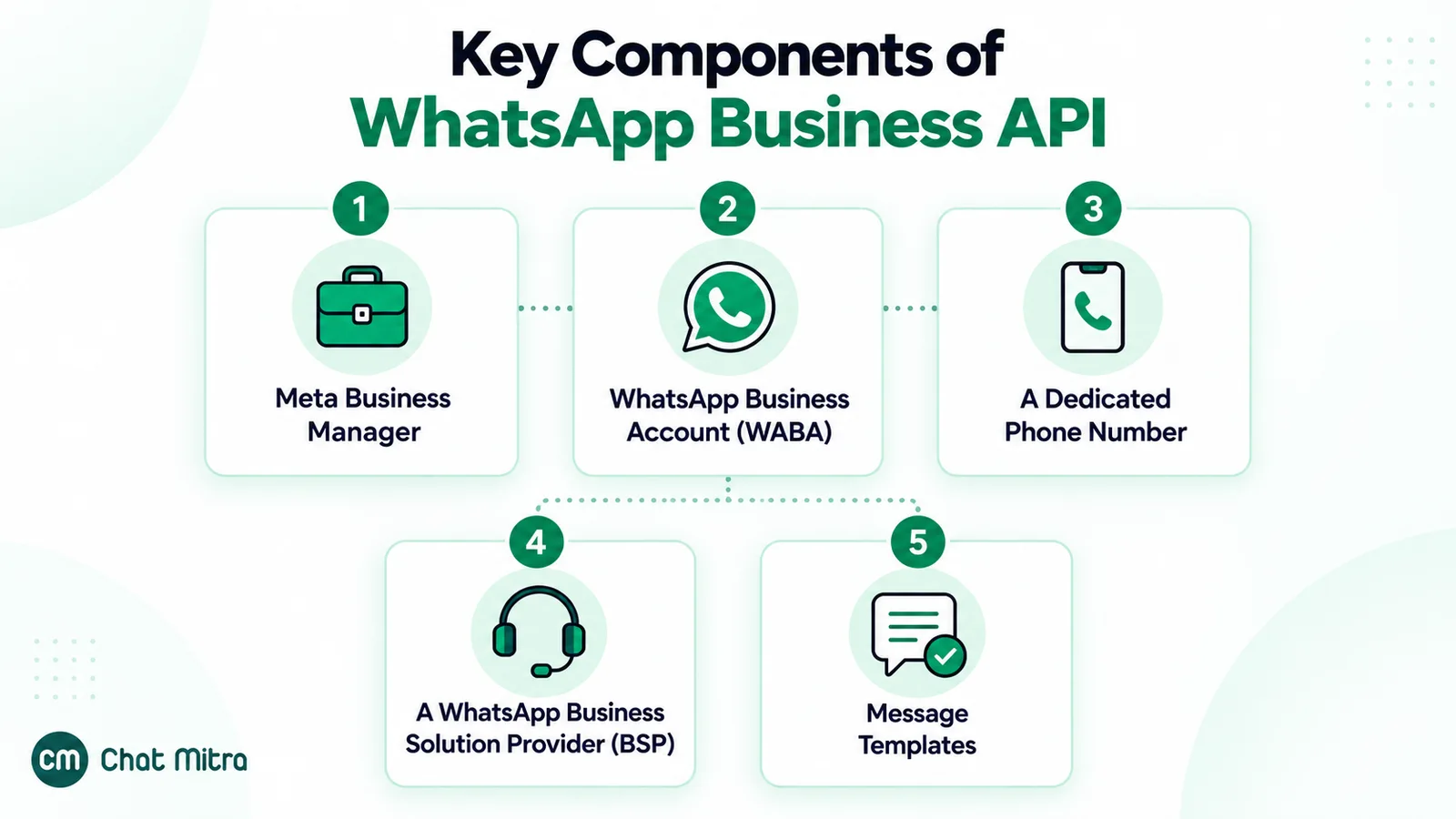
In practice you are creating three linked things in Meta’s systems:
- A business portfolio. Meta’s platform overview is blunt: “You must have a business portfolio to use the platform.” It holds everything else.
- A WhatsApp Business account (WABA) inside that portfolio, holding your phone numbers, templates and billing. Meta is splitting it in two: a WhatsApp account for numbers and display name, and a Messaging account for templates and billing. The change is in beta and existing WABA IDs keep working, so you may see either name in Meta’s screens.
- A registered business phone number with a display name. Once the number is registered for Cloud API, you can send and receive messages through software.
The software side is Meta’s Cloud API, which Meta hosts. The older self-hosted On-Premises API is gone: Meta states that “the final supported version of the On-Premise API client expired on October 23, 2025”. If a guide still asks you to choose between Cloud and On-Premises hosting, it is out of date.
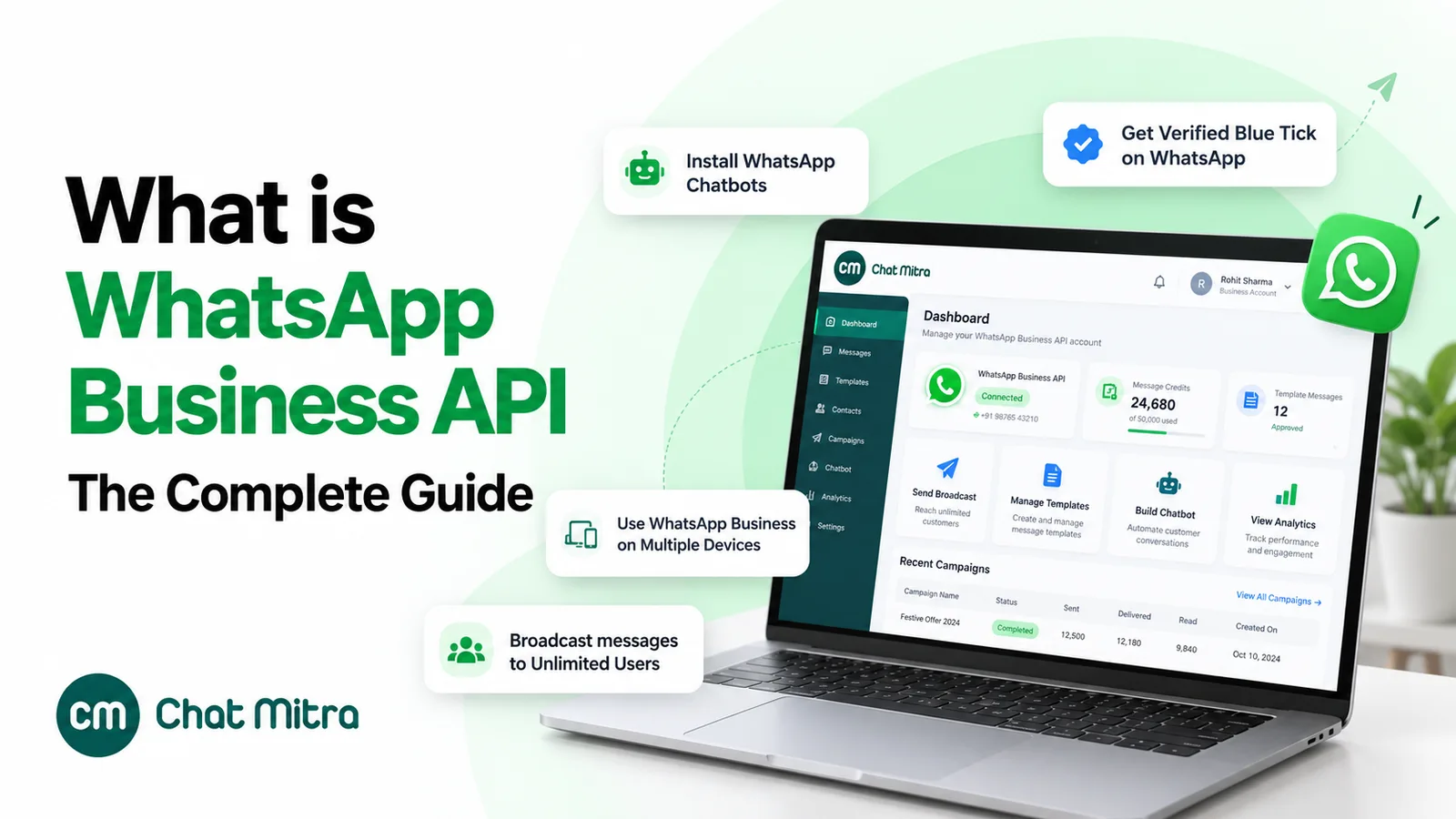
The WhatsApp Business app is a different product. It is a free-to-download app for small businesses, run from a phone. The API is what you need when several people must answer one number, when messages are sent from your own systems, or when you need approved templates to reach customers who haven’t messaged you recently. For the broader picture of what the platform does, see our complete guide to the WhatsApp Business API in India.
What do you need to get the WhatsApp Business API?
Gather these before you start.
| Requirement | What Meta asks for | Needed to start? |
|---|---|---|
| Meta login | A Facebook account or a managed Meta account (verification later needs full control of the portfolio) | Yes |
| Business portfolio | An existing portfolio, or a new one created during sign-up (see what a Meta business portfolio holds) | Yes |
| Phone number | Owned by you, with a country and area code (no short codes), and able to receive an SMS or voice call | Yes |
| Display name | A name that clearly relates to your business and follows Meta's display name guidelines | Yes (reviewed later) |
| Two-step verification PIN | A PIN you set when registering the number and need again to change or delete it | Yes |
| Payment method | A card on your WhatsApp Business account, or your provider's credit line | Before paid messages |
| Website | Business verification asks for a site that loads and is HTTPS-compliant | For verification |
| Business documents | Only if you verify your business (list below) | No |
| Opted-in contacts | WhatsApp's policy requires opt-in before you message people | Before your first campaign |
Sources: Meta, Business phone numbers, Cloud API Get Started and Verifying your business in Meta Business Suite, checked 25 September 2026.
The last row matters more than it looks. People who never agreed to hear from you can block or report you, WhatsApp’s Business Messaging Policy says it may limit your sending based on that feedback, and higher limits require high-quality messages. If your list is not built on consent yet, read our guide to WhatsApp opt-in rules before your first send.
Which route should you take?
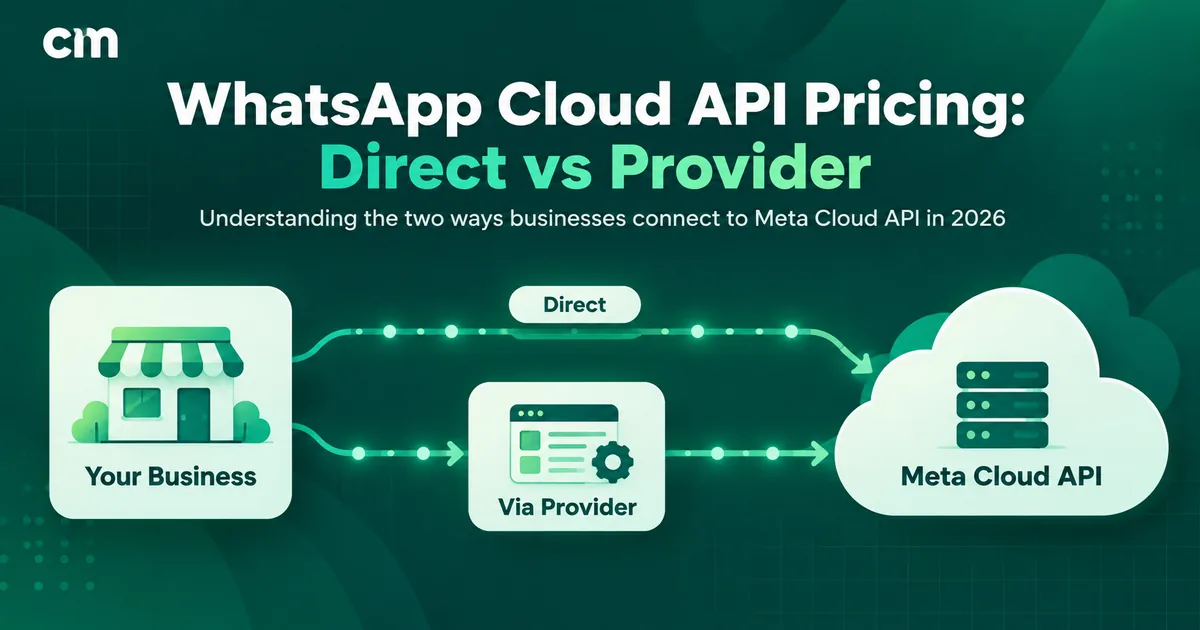
All three routes end with a registered number on Cloud API, but they suit different teams.
| Meta directly (Cloud API) | Through a provider (Embedded Signup) | Coexistence (keep your Business app number) | |
|---|---|---|---|
| Who it suits | Teams with developers building their own integration | Teams that want an inbox, broadcasts and templates without code | Businesses already serving customers on the WhatsApp Business app |
| How you sign up | Meta App Dashboard: create an app with the WhatsApp use case | A pop-up Meta flow launched from the provider's website or dashboard | A provider's Embedded Signup, choosing to connect an existing Business app account |
| Interface for your team | None: you build it | The provider's software | The provider's software plus the Business app on the phone |
| Who you pay | Meta only, per message | Meta per message, plus the provider's fee | Meta per API message (app messages stay free), plus the provider's fee |
| Main trade-off | Engineering time and upkeep | A second vendor in the loop | Throughput fixed at 20 messages per second, and some app features switched off |
In short: no one to write code means a provider; developers sending only system messages (OTPs, order updates) can go direct; a Business app number customers already know points to coexistence. For a line-by-line cost comparison of the first two routes, see WhatsApp Cloud API pricing: Meta direct vs a provider, and for choosing between providers, our comparison of WhatsApp API providers in India.
How to get the WhatsApp API through a provider (step by step)
Providers use Meta’s Embedded Signup, a Meta-hosted pop-up that creates your assets and gives the provider access to them. The screens you will see:
- Log in with your Facebook or Meta Business credentials.
- Accept the terms for Cloud API and the related Meta business tools.
- Choose or create a business portfolio. Use your real, existing portfolio if you have one, especially if it is already verified.
- Choose or create a WhatsApp account (older versions of the flow call it a WhatsApp Business account).
- Enter your phone number and pick SMS or voice call for the code.
- Enter the verification code. This proves you own the number.
- Set your display name, the name that can appear in place of your number in WhatsApp.
- Review permissions and finish. The provider then registers the number for Cloud API and subscribes to its webhooks.
What happens next depends on how your provider bills. Meta’s documentation says that if the provider is a Solution Partner (or works with one) you can message immediately on their credit line; otherwise “the customer must first attach a payment method to their Messaging account before they can begin messaging”. Ask your provider which applies to you.
Our Embedded Signup walkthrough shows these Meta screens one by one.
How this looks in ChatMitra
In ChatMitra the same flow sits behind an in-app card labelled "WhatsApp Business – 5-Minute Setup Flow", with three stages: connect your Meta business account, verify it (messaging limit and display name), and add a payment method in Meta. New projects start on the free Starter plan. If you already have a WABA, there is also a manual connect using your WABA ID and Phone Number ID.
How to get the WhatsApp API directly from Meta
Going direct has no set-up fee and gives you full control, but you build everything above the API yourself. Steps 1 to 6 follow Meta’s Get Started guide; steps 7 and 8 come from its phone number and billing documentation:
- Register as a Meta developer from the developer registration page.
- Create an app in the App Dashboard and choose the “Connect with customers through WhatsApp” use case. Select or create your business portfolio.
- Open API Setup and connect a Messaging account (the WABA). Meta creates test accounts and a test phone number for you.
- Send a test message with a temporary access token. Test numbers “have relaxed messaging limits and don’t require a payment method on file” for template sends.
- Set up a webhook endpoint to receive incoming messages and delivery statuses.
- Create a system user and a permanent token. Meta warns that the temporary token “expires quickly and is not suitable for development purposes.”
- Add your real business number in API Setup, verify it, then call the register endpoint with a two-step verification PIN. Adding a number in the dashboard does not by itself register it for Cloud API.
- Add a payment method. Meta’s help centre says direct developers can add a Visa or Mastercard credit card, and lists INR among the supported currencies. American Express and PayPal are not accepted.
A note on scale: each business phone number can send “up to 80 messages per second by default”, with upgrades available. For most small and mid-sized businesses the binding constraint is the daily messaging limit, not throughput.
Can you use your existing WhatsApp number?
The answer depends on where the number lives today.
If it’s on the WhatsApp Business app: coexistence
Meta now lets businesses connect a WhatsApp Business app number to Cloud API and keep using the app. Meta explains that the business “can still send messages on a one-to-one basis using the WhatsApp Business app, and WhatsApp keeps messaging history between both apps in sync”. Meta calls this coexistence onboarding. Before choosing it, know that:
- Your provider must support it. Only Solution Partners and Tech Providers can offer this onboarding, and your app must be version 2.24.17 or later.
- History: chats from the most recent six months can be synchronised. Group chats are not.
- Speed: numbers used on both the app and Cloud API have a fixed throughput of 20 messages per second.
- Features switched off in the app: broadcast lists become read-only, and disappearing messages, view-once and live location are disabled for one-to-one chats.
- Linked devices: all companion devices are unlinked at onboarding. Supported ones can be re-linked, but WhatsApp for Windows and WearOS are not supported.
- Pricing: messages you send from the app stay free, and messages sent through Cloud API follow Cloud API pricing.
Our coexistence guide covers the set-up in more detail.
If it’s on personal WhatsApp or you don’t want coexistence
Meta’s rule is direct: “Numbers already in use with WhatsApp cannot be registered unless they are deleted first.” Deletion is permanent. WhatsApp’s help centre says deleting your account will “erase your message history”, so export anything you need first. A banned number cannot be registered until it has been unbanned through WhatsApp’s appeal process.
If you need a new number
A fresh mobile number is the simplest option, and Meta’s number-type table marks mobile numbers as recommended for receiving the SMS or voice code. Landlines are usable with the voice option, and numbers behind an IVR need extra steps because the registration call cannot navigate a menu.
Some providers can also offer Meta-provided 555 numbers in Embedded Signup. According to Meta, business customers “can claim up to two 555 business phone numbers”. They have a US +1 country code, are verified automatically, need an approved display name before they can send, and cannot be moved to another WABA. Weigh that if your customers expect a +91 number.
Don't register the owner's personal number
A registered number still takes normal calls and SMS, but it can no longer be used with the consumer WhatsApp app.
Display name: getting it approved first time
Your display name is set during sign-up and, according to Meta, “becomes eligible for review once your business becomes eligible for higher messaging limits”. You can start messaging before that review. When the review does happen, Meta’s display name guidelines decide the outcome. In short, a name gets rejected if it:
- is a generic word or a place on its own, with no business attached;
- implies endorsement, for example by adding “Official” or “Verified”;
- mentions Meta, WhatsApp, Facebook or another Meta app;
- carries promotional text such as a discount or a “best in town” claim;
- is written as a web address or email address;
- has no visible link to your legal name or to branding on your website.
If your brand name differs from your registered company name, show the link publicly. Meta’s guidelines accept the “Brand by Company” pattern when the relationship is also stated on your website. After a change is approved you must re-register the number, and Meta allows 10 display name changes in any 30-day period. See WhatsApp display name rules for worked examples.
Do you need Meta business verification?
Not to start. Meta’s help centre says you “don’t need to complete a WhatsApp display name review or account checks to get started” and “can begin sending messages to customers immediately”.
Verification matters when you grow: it is one of the scaling paths to a 2,000-recipient limit, and it lifts the cap on registered numbers from 2 to 20. It is not Meta Verified and gives you no badge; the Official Business Account badge is a separate request for notable businesses.
How to verify, per Meta’s help centre:
- Open Security Centre in Meta Business Suite. You need full control of the portfolio.
- Click Start verification. If it says “Ineligible for verification”, you don’t need to verify there; Meta may notify you separately if a feature requires it.
- Enter your legal business name, address, phone number and website exactly as registered. The website must load and use HTTPS.
- If Meta finds no matching record, upload official documents.
- Confirm your connection by email, phone, text, WhatsApp message or domain verification.
Meta says a decision “may take up to 14 working days”, and that editing your business details afterwards means verifying again. If your provider is an approved Select or Premier Solution Partner, it may be able to submit verification for you. Meta puts the average turnaround for those submissions at five minutes, though some take hours. The full comparison of paths is in our Meta business verification guide.
Which documents work for Indian businesses?
Meta lists accepted document types, not country-specific names:
- a certificate or articles of incorporation;
- a business registration or licence document;
- a government-issued business tax document (self-filed tax documents are not accepted);
- a business bank statement;
- a utility bill, but only to prove address or phone number, and it must show the legal business name.
Documents must be unexpired and issued by the relevant authority, and Hindi and English are both accepted languages. Meta publishes no India-specific list, so pick a document that fits one of these types and shows your legal name exactly as you entered it: Meta asks for details that exactly match your legal entity.
Messaging limits: why new accounts start at 250
A messaging limit is “the maximum number of unique WhatsApp user phone numbers your business can deliver messages to, outside of a customer service window, within a moving 24-hour period”. Since 7 October 2025 the limit belongs to the whole business portfolio and is shared by all of its numbers.
| Limit (unique recipients per 24 hours) | How you reach it |
|---|---|
| 250 | Every newly created business portfolio |
| 2,000 | Complete one scaling path: verify your business, have your partner verify it, or deliver 2,000 messages outside service windows to unique users within 30 days using high-quality templates |
| 10,000 | Automatic scaling |
| 100,000 | Automatic scaling |
| Unlimited | Automatic scaling |
Source: Meta, Messaging limits, checked 25 September 2026.
Automatic scaling needs two things: high-quality messages across your numbers and templates, and use of at least half your current limit in the last 7 days. When both hold, the limit “increases by one level within 6 hours”. Older articles that give 1,000 as the second step describe the rules before October 2025.
Is the WhatsApp API free?
No, but it is not a subscription either: Meta’s pricing documentation charges per delivered message. Here is how the pieces split in India:
| Free | Charged by Meta (India, per delivered message) |
|---|---|
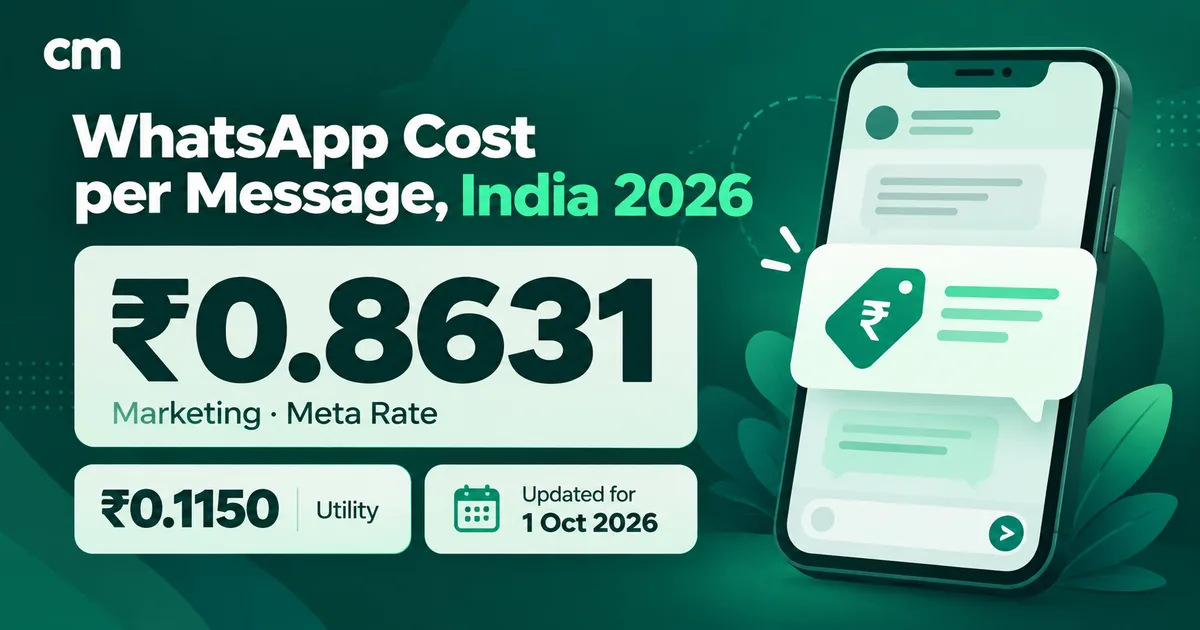
| Every message customers send you | Marketing templates: ₹0.8631 |
| Message delivery in a 72-hour free entry point window (after a customer arrives from a Click-to-WhatsApp ad or a Facebook Page button) | Utility and authentication templates: ₹0.1150 |
| The first 1,000 service messages per business phone number each month | Service messages beyond 1,000 per number per month: ₹0.1150 |
| Setting up the account: Meta's pricing lists no sign-up or monthly fee | Utility templates sent inside the 24-hour window (since 1 October 2026): ₹0.1150 |
| Messages sent from the WhatsApp Business app on a coexistence number | Authentication-international (eligible businesses outside India messaging Indian users): ₹2.4971 |
Source: Meta INR rate cards effective 1 July 2026 and 1 October 2026, and Meta’s pricing documentation, recorded in our pricing register on 24 September 2026 and re-checked on Meta’s rendered pricing page (updated 10 September 2026) on 25 September 2026. Service messages are free-form replies inside the 24-hour customer service window. Unused free service messages don’t roll over.
Three details catch people out:
- Service replies are no longer free without limit. Meta’s pricing update page says that from 1 October 2026 it charges “on a per-message basis for all service messages”, which “have not been charged since November 1, 2024.” The 1,000-per-number free tier cushions this for small teams.
- The old “1,000 free conversations” line is retired. Meta moved to per-message pricing on 1 July 2025 and marks conversation-based pricing as deprecated.
- Without a payment method, service replies stop after the first 1,000 free each month. Meta will deliver service messages within the shared free tier but not after it has been used.
Replies written by Meta’s own AI agent, Meta Business Agent, are billed differently: since 1 August 2026 Meta charges US$2.00 per million tokens for them, even inside a free entry point window. Your provider’s fee is the other variable: a monthly subscription, a per-message or per-conversation fee, or both. For message-by-message maths, see WhatsApp Business cost per message in India.
What you’ll pay in month one (a worked INR example)
Take a small Indian retailer with one number. In its first month it sends 800 marketing templates to opted-in customers, 1,500 utility templates (order and delivery updates), and 1,200 free-form service replies. Meta’s side of the bill:
| Messages | Volume | Meta rate | Meta charge |
|---|---|---|---|
| Marketing templates | 800 | ₹0.8631 | ₹690.48 |
| Utility templates | 1,500 | ₹0.1150 | ₹172.50 |
| Service replies (first 1,000 free) | 1,200 (200 charged) | ₹0.1150 | ₹23.00 |
| Messages customers send | Any | Free | ₹0 |
| Meta total | ₹885.98 | ||
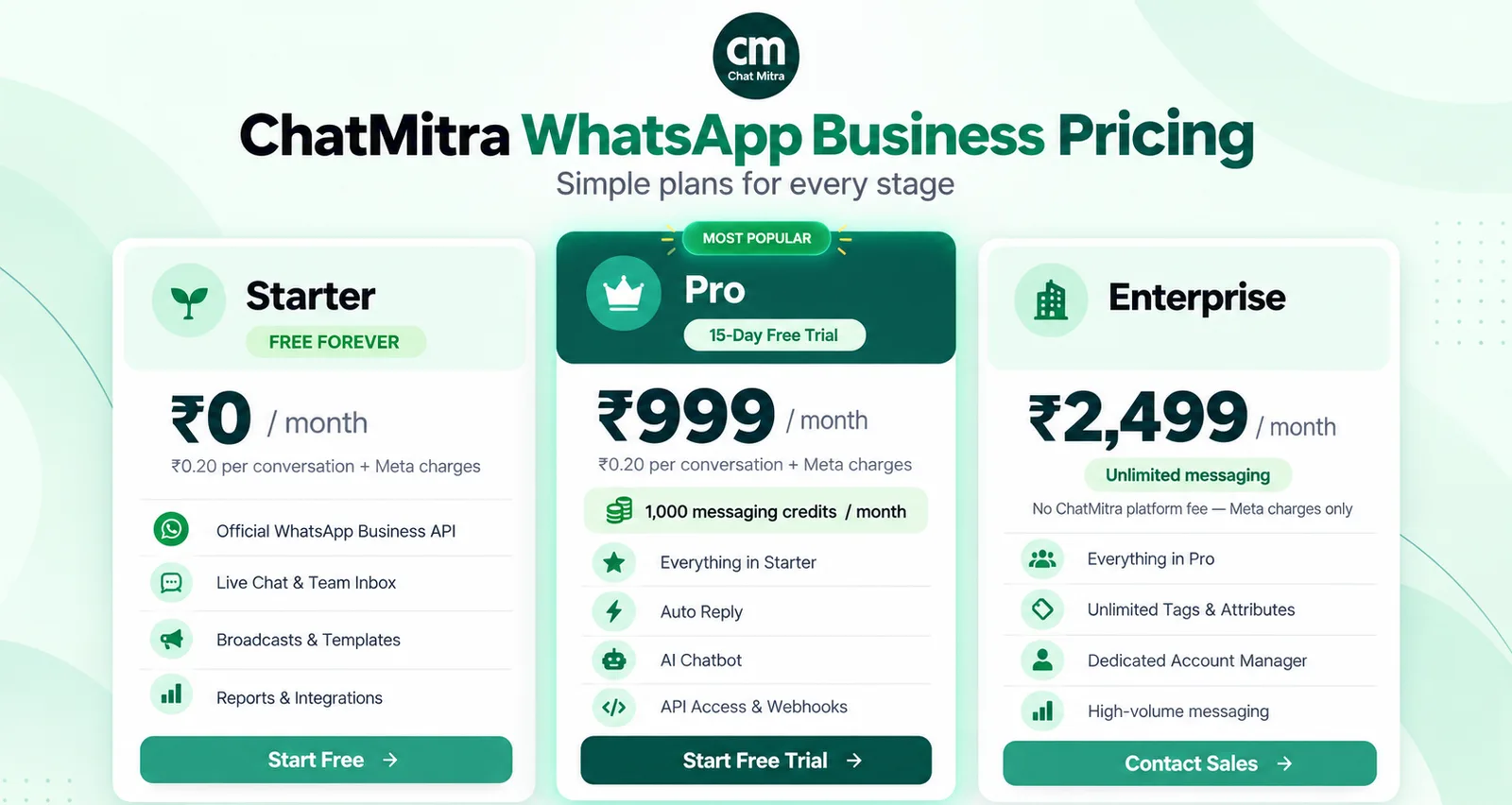
Now add the route. Going direct to Meta, ₹885.98 is the whole message bill, but you also carry the cost of building and hosting your own integration. Through a provider, you add its fee. Using ChatMitra’s published pricing as one example, and assuming this activity adds up to 2,300 ChatMitra conversations (one per contact per 24-hour window):
| ChatMitra plan | Monthly plan | Platform fee | Month-one total with Meta charges |
|---|---|---|---|
| Starter | ₹0 | 2,300 × ₹0.20 = ₹460 | ≈ ₹1,346 |
| Pro | ₹999 | 1,300 × ₹0.20 = ₹260 (first 1,000 covered by free credits) | ≈ ₹2,145 |
| Enterprise | ₹2,499 | None | ≈ ₹3,385 |
Pro includes 1,000 free messaging credits a month, per ChatMitra’s pricing page, and one credit pays one ₹0.20 conversation fee. At this volume the free plan is still the cheapest. Pro is worth paying for when you need what it adds (auto replies, the AI chatbot, API access and webhooks), not to save money. Enterprise only undercuts Starter on fees once you pass roughly 12,500 conversations a month (₹2,499 ÷ ₹0.20). To model your own numbers, use the WhatsApp Business API pricing calculator.
How long does it take to get the WhatsApp API?
Meta publishes no end-to-end time, only limits on individual steps. They show where the waiting happens:
| Step | What Meta says | Blocks your first message? |
|---|---|---|
| Embedded Signup and number verification | No published time. A code arrives by SMS or voice call. | Yes |
| Template review | "It can take up to 24 hours for an approval decision to be made." | Yes, for business-initiated messages |
| Display name review | Starts once you become eligible for higher limits | No |
| Business verification | A decision "may take up to 14 working days" | No (it limits growth, not the start) |
| Partner-led verification | Average 5 minutes, can take several hours | No |
| Automatic limit increases | "Within 6 hours" of meeting the criteria | No |
| Coexistence history sync | "Several minutes", and it must happen within 24 hours of onboarding | No |
Sources: Meta, Template review, Partner-led business verification, Messaging limits and the Business Help Centre, checked 25 September 2026.
The critical path to your first campaign is sign-up plus one template approval; verification runs in parallel and decides how fast you grow.
A sensible first week after you get access
A plan that keeps your quality high while you are still at 250 recipients a day:
- Day 1: finish sign-up, add the payment method, and complete your business profile (description, address, website). Start business verification if you have your documents ready.
- Day 1–2: submit two or three templates: one utility (such as an order update), one marketing, and one re-engagement message. Add sample values for every variable, because Meta reviews templates with samples.
- Day 2–3: send test messages to your own team’s phones. Check links, buttons and how variables render on Android and iPhone.
- Day 3–5: send your first marketing template to a small group of your most engaged, opted-in customers, well under 250. Watch replies and blocks.
- Day 5–7: reply quickly to everyone who answers, and keep volume steady rather than spiky while you wait for a higher limit.
If several people will answer chats, set up roles and a shared inbox early. Our guide to WhatsApp CRM software explains what to look for.
Common blockers and how to fix them
| Problem | Why it happens | Fix (per Meta's documentation) |
|---|---|---|
| "Number already registered" or can't add the number | The number is active on WhatsApp or the WhatsApp Business app | Use coexistence if it's a Business app number, or delete the WhatsApp account first (history is erased) |
| Verification code never arrives | Landline, IVR, or international SMS or calls blocked | Choose the voice call option; for IVR numbers, ask Meta for the calling numbers and route the call to a person |
| Display name rejected | Generic term, "Official" or "Verified", a Meta brand, promotion, or no visible link to your legal name | Edit the name to follow the guidelines or appeal via support; re-register the number once approved |
| Business verification rejected or stuck | Details don't exactly match your documents, website not HTTPS, or an unsupported document | Match the legal name and address exactly, use an accepted document type, and resubmit; editing details later means verifying again |
| Paid messages won't send | No payment method on the WABA (Messaging account) and no provider credit line | Add a Visa or Mastercard card in WhatsApp Manager, or ask your provider about billing |
| Template rejected | Policy issues, missing samples, or a duplicate of an existing template's wording | Fix and resubmit, or appeal with a sample (appeals are decided within 24 hours) |
When the API is the wrong choice
If one person answers every chat from one phone and you rarely message people first, the free WhatsApp Business app may be all you need.
Two situations need a different path:
- Moving an existing API number from another provider. Meta documents migrations between partners through Embedded Signup, but ChatMitra has no number-migration flow. If this is your case, confirm the process with both providers before you cancel anything.
- Personal or unofficial use. The platform is for businesses. WhatsApp’s Terms of Service rule out bulk messaging and auto-messaging from ordinary accounts, so tools that automate a personal WhatsApp account can cost you access to the number.
Getting started with ChatMitra
If you want the provider route without a monthly commitment, ChatMitra’s Starter plan is free: Meta’s rates pass through at cost, plus the ₹0.20 conversation fee shown above. Coexistence numbers are supported, with broadcasts capped at 20 messages per second to match Meta’s limit for those numbers. Compare the plans on the ChatMitra pricing page, or start with Meta’s basics in our get started hub.
Sources: Meta for Developers: About the platform, Get Started, Business phone numbers, Embedded Signup, Onboard WhatsApp Business app users, Messaging limits, Template review, Pricing, Upcoming pricing updates for non-template messages. Meta Business Help Centre: Verifying your business, Official documents for verification, Display name guidelines, About WhatsApp Business display name, Add a credit card. WhatsApp Help Center: How to delete your account. WhatsApp Business Messaging Policy. All checked on 25 September 2026.