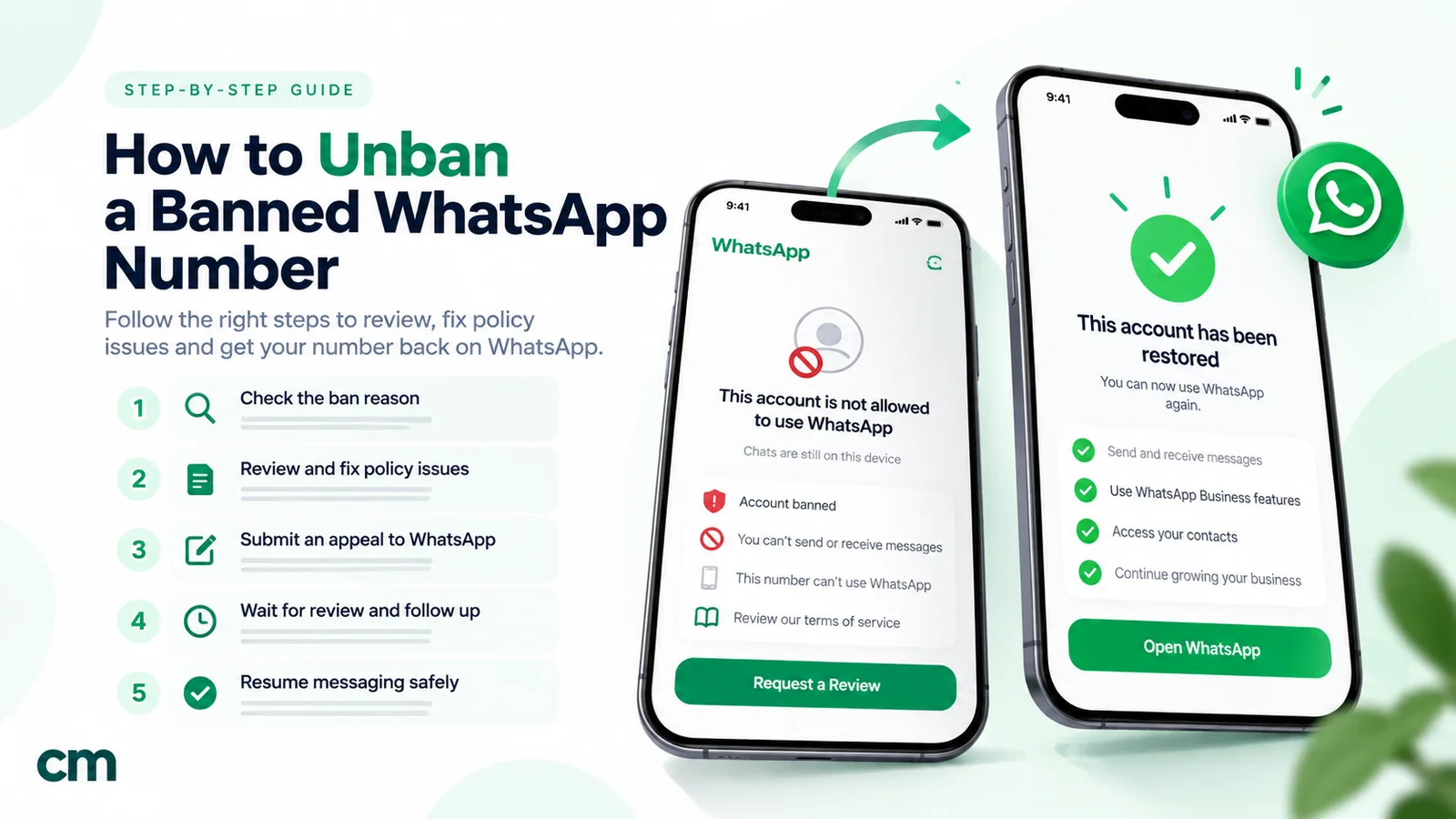
To unban a WhatsApp number, open WhatsApp on the banned phone and tap Request review. WhatsApp says most reviews are completed within 24 hours, and if the ban was a mistake it is removed. If there’s no Request review button, the ban is final. Numbers on the WhatsApp Business Platform (API) follow a different route: you appeal in Meta Business Support Home within 90 days. In every case, stop whatever caused the ban before you ask for a review.
A ban notice is alarming, especially if the number runs your business. But three different things get called a “ban”, and each has its own fix. This guide explains how to tell which one you have, what to do in the WhatsApp app, the WhatsApp Business app and the API, how long each route takes, and what doesn’t help despite what forums say. The steps and quotes come from WhatsApp’s help centre and Meta’s developer documentation, as checked in September 2026.
Key takeaways
- Work out which WhatsApp is affected (the app, the Business app or an API number), because the appeal routes are completely different.
- "Restricted" isn't banned. It ends by itself, and there's nothing to appeal.
- For app bans, the only official route is Request review in the app. Emails, other people's accounts and paid "unban services" don't speed it up.
- API numbers are handled by Meta. You appeal in Business Support Home within 90 days, and Meta says decisions typically take 24 to 48 hours.
- Fix the cause first: uninstall unofficial apps, stop bulk messaging from the app, and message only people who opted in.
First, work out which WhatsApp is banned
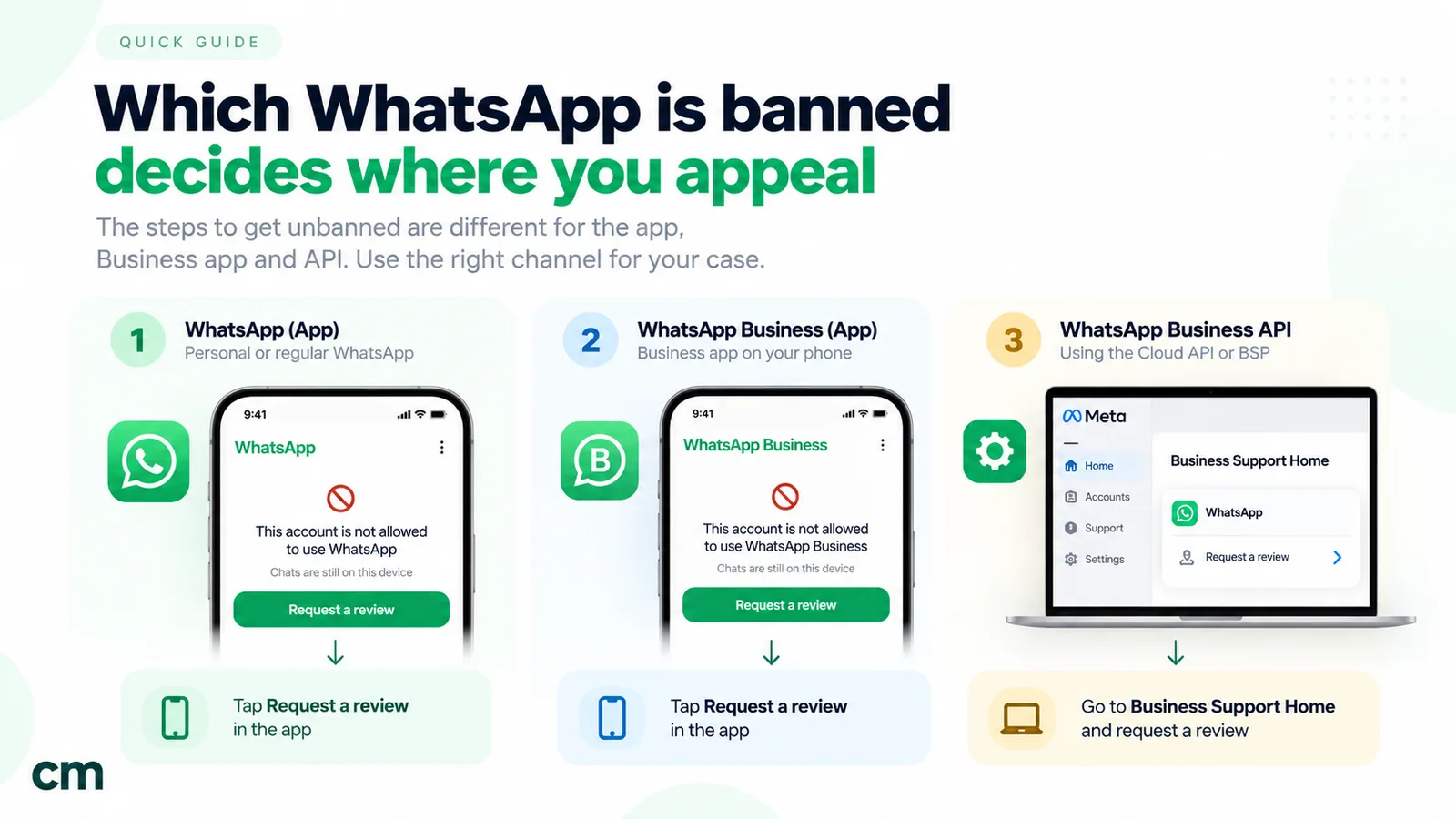
People say “WhatsApp banned my number” about three different products. They share a logo, but different teams handle their enforcement, and you appeal in different places:
| WhatsApp (personal app) | WhatsApp Business app | WhatsApp Business Platform (API) | |
|---|---|---|---|
| Who uses it | Individuals | Small businesses, one phone plus linked devices | Businesses messaging at scale through a provider such as ChatMitra, or directly via Meta's Cloud API |
| What gets banned | The account on that phone number | The account on that phone number | A phone number, the WhatsApp Business Account (WABA) behind it, or the business portfolio |
| Where you see it | A ban screen when you open the app | A ban screen when you open the app | WhatsApp Manager, Business Support Home, email or a webhook; sends start failing |
| How to appeal | Request review in the app | Request review in the app | Request review in Meta Business Support Home |
| Rules that apply | WhatsApp Terms of Service | Terms of Service plus the WhatsApp Business policies | WhatsApp Business Messaging Policy, Commerce Policy and Meta's enforcement rules |
If you’re not sure: if you log in to an app on a phone, it’s one of the first two. If your messages go out through a dashboard, an API or a provider and you’ve never installed an app for that number, it’s the platform. WhatsApp’s own help centre says so plainly: “WhatsApp Support does not provide support related to account bans and restrictions on the WhatsApp Business Platform.”
What the message on your screen means
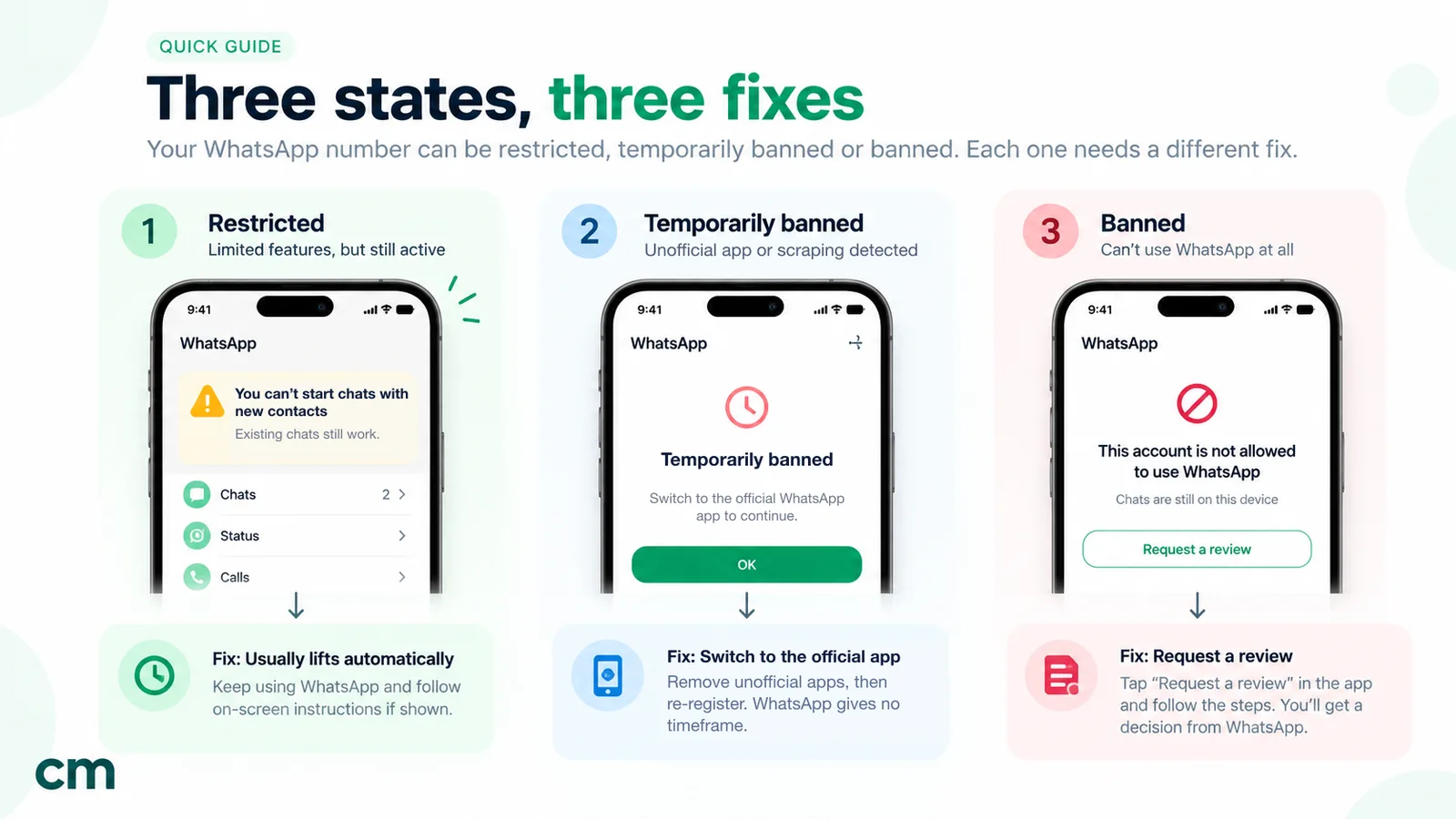
The wording on your screen tells you which state you’re in. Current WhatsApp help-centre wording is quoted below. You’ll find older phrasings such as “This account is not allowed to use WhatsApp” all over the web, but they aren’t on WhatsApp’s current help pages. The fix depends on the state, not the exact words.
| What you see | What it means | What to do |
|---|---|---|
| "This phone number can't use WhatsApp … You can request a review of this number. Most reviews are completed within 24 hours." | The account is banned, and the ban can be appealed | Fix the cause, then tap Request review |
| A ban screen with no Request review option | WhatsApp says the ban "is final and can't be appealed" | Stop trying to appeal; see "If the review doesn't go your way" |
| "Temporarily banned" | Usually an unofficial app (such as GB WhatsApp) or scraping | Switch to the official app or stop scraping. If you don't, a permanent ban can follow |
| "You need the official WhatsApp to log in" or "You have been logged out for using an unofficial app" | An unofficial client was detected | Uninstall it, download WhatsApp from the official site or store, and re-register |
| "Your account is restricted right now" or "Your account may be restricted soon" | A time-limited restriction, not a ban | Nothing: it ends automatically. Keep chatting with existing contacts |
| "This account can now use WhatsApp." | The review reversed your ban | Verify your phone number again and restore your backup |
On the API side there’s no ban screen. You’ll see a warning or a violation in WhatsApp Manager or Business Support Home, template sends fail, and your provider’s dashboard may show that the number can’t send. We cover that route below.
Why WhatsApp bans numbers
Bans aren’t rare. In its India monthly report for July 2026, WhatsApp said it banned 53,64,000 accounts with +91 numbers that month. That’s about 5.4 million. Of those, 17,90,800 (about a third) were banned proactively, “before any reports from users”. The system catches most of this behaviour automatically, which is why a ban can arrive without warning.
WhatsApp’s help centre lists what gets accounts banned. In plain terms:
- Bulk or automated messaging. “Don’t bulk message, auto-message, or auto-dial using WhatsApp.” WhatsApp says it uses “both machine learning technology and reports from users” to find accounts that send unwanted automated messages.
- Modified apps. GB WhatsApp, FM WhatsApp, TeleMessage, TM WhatsApp and similar apps can lead to temporary or permanent bans, or restrictions such as losing linked devices.
- Contact lists that aren’t yours. Messaging numbers from purchased, scraped or shared lists, or “data obtained from illicit sources”.
- Being reported. “Frequent use of broadcast messages may lead people to report your messages, and we ban accounts that are reported multiple times.”
- Scraping. Harvesting information about other users, including through automation.
- Creating accounts in unauthorised or automated ways, which the Terms of Service forbid outright.
The help centre’s advice for businesses on the app sums up the pattern: “Only send messages to those who have contacted you first or have requested you contact them on WhatsApp.”
For API numbers, Meta enforces the WhatsApp Business Messaging Policy and Commerce Policy. The opt-in rule is explicit: you may only contact people who have given you their number and from whom “you have received opt-in permission … confirming that they wish to receive subsequent messages or calls from you”. Meta’s violation categories include scams, misleading content, and restricted goods such as alcohol, tobacco, weapons, drugs, gambling and supplements. The policy also says Meta may limit a business “if you receive significant amounts of negative feedback”. In practice, that means users blocking and reporting you.
Notice how many of these come down to one thing: messaging people who didn’t want to hear from you. Our guide to WhatsApp opt-in covers collecting consent properly.
How to unban a WhatsApp or WhatsApp Business app number
This is the process for the personal app and the WhatsApp Business app. It’s the same for both.
Step 1: Stop what caused it
Before anything else, remove the trigger. Uninstall any modified WhatsApp, disconnect browser extensions or “WhatsApp sender” tools that automate your account, and pause any bulk messaging. A review that reinstates you while an unofficial app is still installed won’t last. WhatsApp notes it “can reinstate an account ban if the account activity continues to violate our Terms of Service”.
Step 2: Make sure you’re on the official app
Download WhatsApp or WhatsApp Business from the official app store or whatsapp.com. If you’re switching from an unofficial app, WhatsApp’s instruction is to uninstall it, “download WhatsApp or the WhatsApp Business app and re-register your phone number”. Back up anything you need from the unofficial app first, because its chats may not transfer.
Step 3: Open the app and read the screen carefully
Check which state you’re in using the table above. If the screen says restricted, stop here: the restriction ends by itself. If it says temporarily banned, switching to the official app is the fix. If it says the number can’t use WhatsApp and offers a review, continue.
Step 4: Tap Request review
Tap Request review in the app and submit. On the WhatsApp Business app, the help centre adds: “If you think your WhatsApp Business account was banned by mistake, tap Request review in the app to submit the request.” Two rules matter here:
- One number per appeal. “We only review one phone number per appeal.”
- No button means no appeal. “If you don’t see an option to request a review, it means the ban is final and can’t be appealed.”
Step 5: Explain briefly and honestly, if you’re given the chance
If the review flow lets you add details, keep it short and factual. Say who you are, how you use WhatsApp and, if you did something wrong, what you’ve changed. Here’s an example for a small business:
I run a home bakery and use WhatsApp Business to take orders from customers who message me first. I recently used a bulk-sending browser extension to send an offer. I’ve removed the extension and will only reply to customers or send updates to people who asked for them. Please review my account.
Don’t argue that you did nothing wrong if you did, and don’t paste long legal arguments. The reviewer needs to see that the behaviour has stopped.
Step 6: Wait for the notification
“You’ll receive a WhatsApp notification once we review your account and make a decision.” On the Business app, you can also view the decision in the app. Don’t submit extra appeals through friends’ accounts or support forms while you wait. WhatsApp says that contacting it “outside the review process or through another user’s account, won’t expedite the review process or impact the decision”.
Step 7: If you’re unbanned, re-verify and restore
If the ban is reversed, you’ll see “This account can now use WhatsApp.” Verify your phone number again, restore your chat backup if you have one, and change the habits that caused the ban. While the account was banned, WhatsApp says you couldn’t access its chat history or backups. That’s another reason to keep regular backups turned on.
On the WhatsApp Business app, one more thing: “A banned account automatically loses its Meta Verified subscription.” If you paid for Meta Verified, check its status after reinstatement.
Temporary bans and unofficial apps
A temporary ban is WhatsApp’s warning shot. WhatsApp says the “Temporarily banned” message “could mean you’re using an unofficial version of WhatsApp or harvesting information, known as scraping”. Its instruction is simple: “Switch to the official app or stop engaging in scraping after being temporarily banned. If you don’t, your account might be permanently banned from using WhatsApp.”
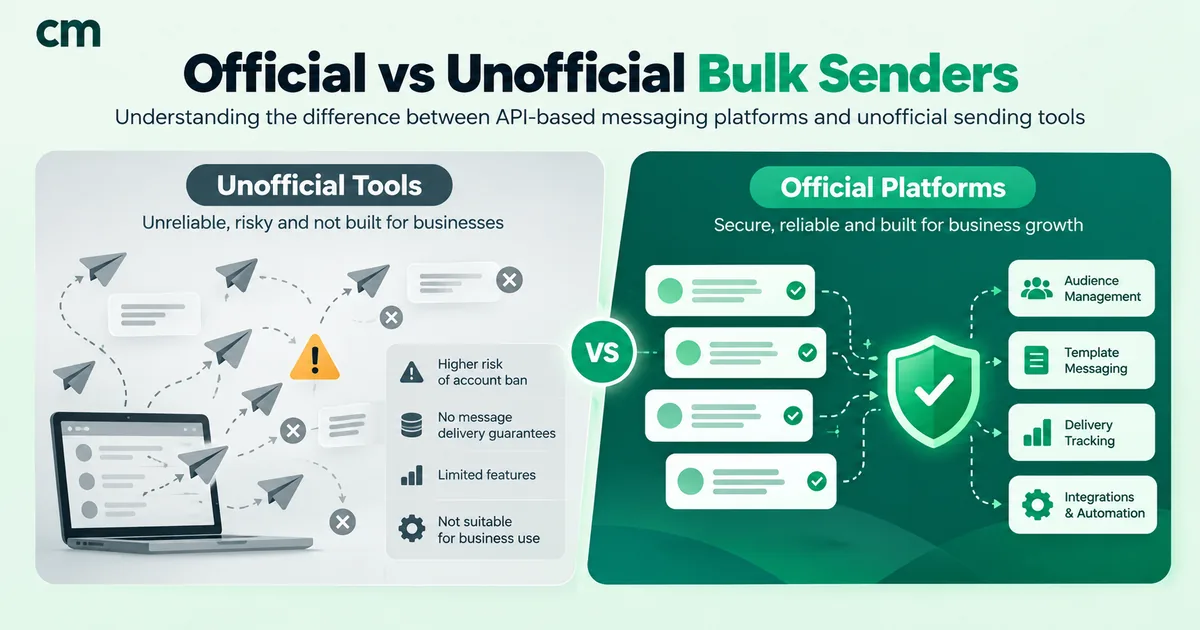
Modified apps attract users with extra features, such as scheduling messages or sending to hundreds of contacts at once. From WhatsApp’s point of view, they’re unauthorised clients, built by third parties that WhatsApp doesn’t vouch for, and they handle your messages. Bulk-sender extensions that automate WhatsApp Web carry the same risk for a business number. Our comparison of official and unofficial bulk WhatsApp senders explains why they get numbers banned.
The fix doesn’t involve an appeal. Uninstall the unofficial app, install the official one and re-register. If you ignore the warning and carry on, the next step can be a full ban, and that one may come without a review option.
Restricted isn’t banned: what to do
A restriction is a lighter measure, usually applied when an account sends messages that look like spam. The in-app messages are “Your account is restricted right now” and “Your account may be restricted soon”.
While restricted, you “can’t start chats or calls with new contacts, create new groups, add new members to groups, or use linked devices”. You can keep talking to people you already chat with. WhatsApp says you “don’t need to take any action” and that “the restriction automatically ends once the allocated time passes”. To see how long is left, tap New chat and select a contact you’ve never chatted with.
Use the time well. If you were sending the same message to lots of people who don’t have your number saved, that’s what triggered it, and doing it again after the restriction lifts is how restrictions turn into bans.
Got a new SIM and the number is already banned?
Mobile operators recycle numbers. If you’ve just got a number and WhatsApp says it can’t be used, the previous owner may have been banned. WhatsApp’s help centre covers this exact case: “If you’re using a new phone number, it’s possible that the previous owner of your new phone number violated our Terms of Service.” The route is the same Request review button. If the flow asks for details, mention that the number is newly assigned to you. Our guide to virtual numbers for WhatsApp covers checking a number before you commit a business to it.
How to recover a banned WhatsApp Business API number
On the WhatsApp Business Platform, enforcement works on a ladder. Meta’s policy enforcement documentation says accounts start with a warning. Repeated or serious violations then bring restrictions of increasing length:
| Level | What's blocked | How it ends |
|---|---|---|
| Warning | Nothing yet | Fix the issue; further violations escalate |
| 1 or 3 day block | Marketing, utility and authentication templates, and adding phone numbers | Expires, or reversed on appeal |
| 5, 7 or 30 day block | Sending any messages, and adding phone numbers | Expires, or reversed on appeal |
| Account lock | All messages, indefinitely | "Can only be removed via an appeal" |
| Disabled | The account is permanently disabled | Applied if the business doesn't change after multiple warnings |
For the most serious harms, Meta skips the ladder. For “child exploitation, scams, terrorism, or the sale of illegal drugs, WhatsApp will immediately offboard” the business.
Some older advice about quality ratings is out of date. Meta now sets messaging limits at the business portfolio level, shared by all its phone numbers. New portfolios start with a limit of 250 and move up through 2,000, 10,000 and 100,000 to unlimited. Meta also discontinued the “Flagged” and “Restricted” phone number statuses on 7 October 2025. The quality rating (green, yellow or red) still matters, because it reflects how users react to your messages. Meta says it may “limit or offboard your business from WhatsApp if your account receives excessive negative feedback from users.” Our quality rating guide explains how to read it.
Appealing in Business Support Home
Meta’s appeal process for API accounts:
- Open Meta Business Support Home from the business portfolio that owns the WhatsApp Business Account.
- Select the WhatsApp Business Account and find the violation.
- Click Request review, explain your case and submit.
- Track it under the In Review tab.
Meta says: “The appeal review decision will be sent via Business Manager and typically takes 24 to 48 hours. The appealed violation will either remain Unchanged or be set as Reversed.” If it’s reversed, “the account returns to its previous status”. You can appeal a policy violation within 90 days of receiving it, but “not all spam violations might be appealed”.
A strong API appeal gives the reviewer evidence, not adjectives:
- Opt-in proof. A screenshot of the checkout checkbox, form or chat flow where customers agreed to receive WhatsApp messages, and where that consent is stored.
- The message in question. The template that was flagged and the audience it went to.
- What you’ve changed. For example: “We removed the purchased list, now send marketing only to customers who opted in at checkout, and added an opt-out quick reply.”
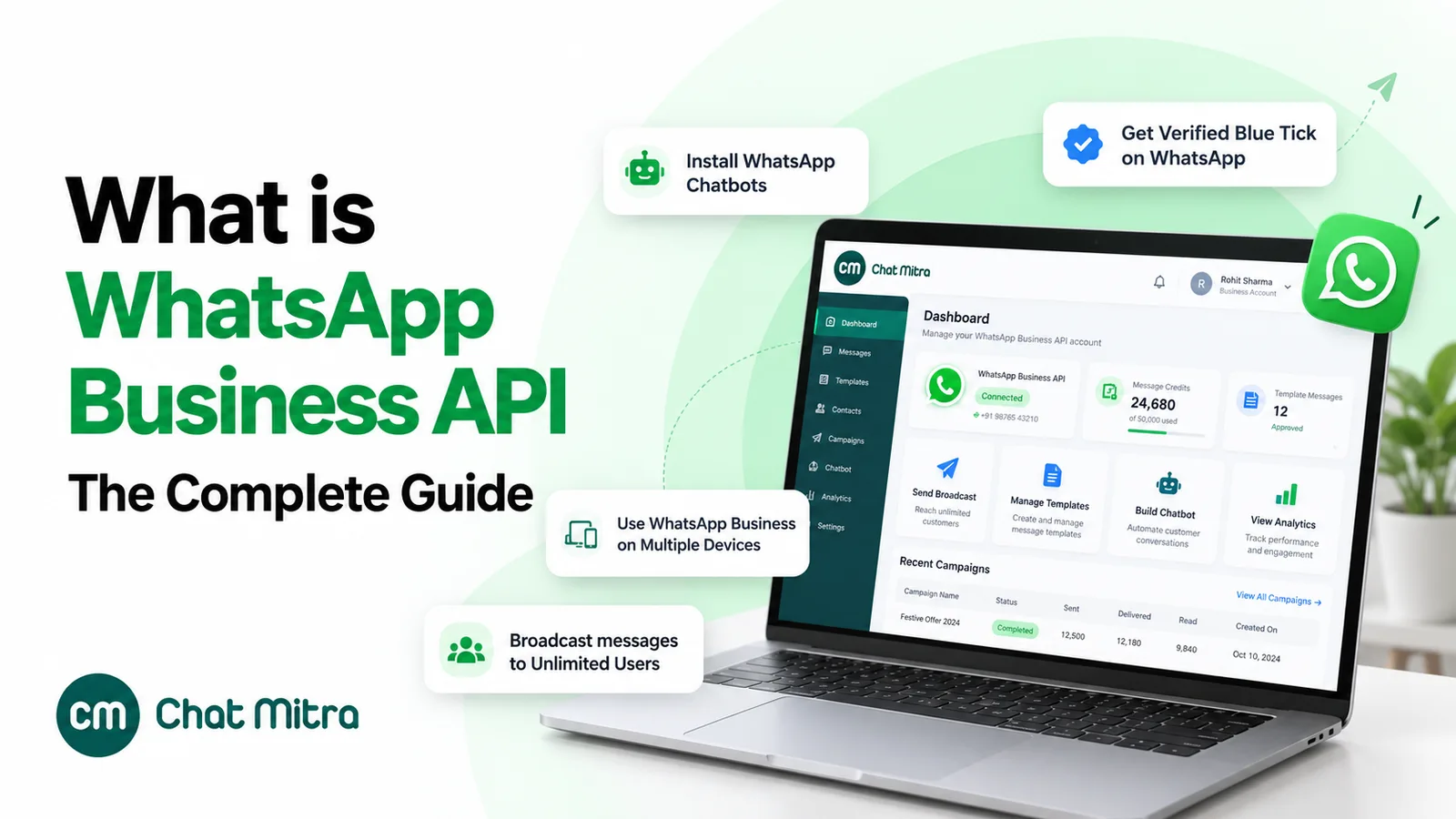
If you work with a provider, involve it early. Providers see the webhooks and can help you read the violation. Meta sends an account_update webhook with events such as ACCOUNT_RESTRICTION and ACCOUNT_VIOLATION, and a DISABLED_UPDATE event whose ban state can be SCHEDULE_FOR_DISABLE, DISABLE or REINSTATE. The appeal decision is still Meta’s. ChatMitra customers can follow our step-by-step guide to appealing a banned or restricted ChatMitra number. In the ChatMitra dashboard, the top bar shows your number’s status, messaging limit and quality rating. Before a campaign goes out, ChatMitra checks Meta’s live status for the number and stops the send with a message if Meta has blocked it.
How long does a WhatsApp unban take?
These are the only official timeframes:
| Situation | Official timeframe | Source |
|---|---|---|
| App or Business app review | "Most reviews are completed within 24 hours" | WhatsApp Help Center |
| Restriction | Ends "once the allocated time passes"; check it via New chat | WhatsApp Help Center |
| Temporary ban | No time given; ends when you move to the official app or stop scraping | WhatsApp Help Center |
| API appeal decision | "Typically takes 24 to 48 hours" | Meta developer documentation |
| API appeal window | Within 90 days of receiving the violation | Meta Business Help Center |
| API time-limited blocks | 1, 3, 5, 7 or 30 days | Meta developer documentation |
“Most” and “typically” are doing some work in those quotes. Some reviews take longer, and Meta doesn’t promise a deadline. Articles that promise precise business-day ranges for app appeals are guessing. If a review has taken much longer than a day, a second review request isn’t the answer. For API accounts, check the In Review tab and whether Meta has asked for more information.
Keeping your business running while you wait
For a business, the hardest part of a ban is often the silence: customers message you and hear nothing. A few steps limit the damage while a review or block runs its course.
Know what still works. On the API, the shortest blocks are partial. Meta’s 1 or 3 day restriction blocks marketing, utility and authentication templates and adding phone numbers. It doesn’t block every message. So during that period you can usually keep replying to customers who message you, within the customer service window. It’s the 5, 7 and 30 day blocks, and an account lock, that stop all sending. On the apps, a restriction still lets you chat with existing contacts. A ban stops everything.
Tell customers where to find you. Put a short note on your website, Google Business Profile and social pages with another way to reach you, such as a phone line, email or web chat. Don’t frame it as a WhatsApp problem; just say how to get in touch.
Move time-critical messages. One-time passwords, delivery alerts and appointment reminders can’t wait for a review. If WhatsApp is your only channel for them, arrange a temporary fallback such as SMS or email, and treat the ban as the moment to set one up permanently.
Don’t start a second number to carry on. It’s tempting to register another number on the app and keep going. But WhatsApp’s terms bar creating another account after a ban without permission. And if the original cause was bulk messaging from the app, the second number will attract the same reports. The same logic applies to API accounts: while a 1 to 30 day block is in place, you can’t add phone numbers anyway.
Use the time to fix the cause. Clean your contact list down to people who opted in, rewrite the message that drew reports, and write down what changed. That record is what makes an API appeal credible. It also makes the next ban far less likely.
If the review doesn’t go your way
On the app: if the Request review option has gone or was never there, WhatsApp considers the ban final. The app offers no second review. People in India sometimes turn to the grievance officer route under the IT Rules, which WhatsApp does provide. But its own July 2026 report shows it received 9,877 ban appeals through that channel and “actioned” 107. Treat it as a long shot, not a workaround.
Creating a new account: WhatsApp’s Terms of Service say that if your account is disabled or suspended, “you agree not to create another account without our permission”. Registering a new number to carry on the same behaviour breaks those terms and, if the pattern continues, is likely to end the same way.
On the API: a violation marked Unchanged stays on the account. If the restriction was time-limited, it will expire. If the account is locked, only a successful appeal removes the lock. Use the time to rebuild your consent records and messaging so that a later appeal, or the next warning, goes differently. Bringing a fresh number onto a WhatsApp Business Account doesn’t reset anything if the sending pattern stays the same. Enforcement applies at the account level, and during 1–30 day blocks you can’t even add numbers.
What helps and what doesn’t
| Action | Does it help? | Why |
|---|---|---|
| Stopping the behaviour before appealing | Yes | A reinstated account that keeps violating can be banned again |
| Request review in the app | Yes | It's the only official route for app accounts |
| Emailing support addresses found on blogs | No | WhatsApp says outside contact won't expedite or change the review |
| Asking a friend to report it from their account | No | Named specifically as not helping |
| Paying an "unban service" | No | "Only WhatsApp can ban or unban a WhatsApp account" |
| Reinstalling the app or switching phones | No | WhatsApp gives no sign that it does. The ban applies to the account registered to your number, not the handset |
| Filing repeated appeals | No | WhatsApp reviews one number per appeal, and contact outside the review process doesn't change the decision |
| Opt-in proof in an API appeal | Yes | It shows the use case is legitimate and consented |
How to avoid the next ban
If you use the personal app:
- Use only the official app, and don’t install “mod” versions for extra features.
- Don’t forward the same message to large numbers of people who don’t know you.
- Don’t add people to groups who haven’t agreed to join.
If you run a business on the WhatsApp Business app:
- Message people who contacted you first or asked to hear from you, as WhatsApp’s own guidance says.
- Use broadcast lists sparingly. A broadcast-list message only reaches people who saved your number, and WhatsApp warns that “frequent use of broadcast messages may lead people to report your messages”.
- Never automate the app with extensions or bots. If you need to send to hundreds or thousands of customers, that’s what the WhatsApp Business Platform is for. Our guide on how to get the WhatsApp API explains the options.
If you’re on the API:
- Collect and store opt-in. Record where and when each customer agreed. See opt-in best practices.
- Watch the quality rating weekly, and act when it turns yellow rather than waiting for red.
- Grow volume gradually. New portfolios start with a messaging limit of 250 for a reason. A sudden jump to large sends to cold contacts is the pattern that draws reports.
- Make every message worth receiving. Order updates and reminders people expect are rarely reported; daily promotions are.
- Give people an easy way out and honour opt-outs immediately. Someone who can’t stop your messages will block and report you instead.
- Keep to the Commerce Policy. If you sell anything near a restricted category (supplements, alcohol, tobacco, healthcare products), read the policy before you promote it on WhatsApp.
The WABA health routine turns these into a weekly checklist.
Checklist before you appeal
- I know which product is affected: the app, the Business app or an API number.
- I’ve confirmed it’s a ban and not a restriction or a temporary ban.
- Unofficial apps, extensions and automation are removed or disconnected.
- Bulk messaging to people who didn’t opt in has stopped.
- For the API: I have opt-in proof, the flagged template and a note of what I changed.
- I’m appealing in the right place: Request review in the app, or Business Support Home for the API.
- I’ll submit one appeal and wait, instead of sending more through other channels.
Summary
Only WhatsApp can lift a WhatsApp ban, and it gives you one official route per product. On the WhatsApp and WhatsApp Business apps, tap Request review. WhatsApp says most reviews finish within 24 hours, and a missing review option means the ban is final. A restriction ends on its own, and a temporary ban ends when you switch to the official app or stop scraping. API numbers go through Meta’s enforcement ladder and are appealed in Business Support Home within 90 days, with decisions typically in 24 to 48 hours. Whichever you have, the appeal only works if the behaviour has stopped. That means no unofficial apps, no bulk messaging from the app, and no messages to people who never asked for them.
Sources: WhatsApp Help Center: account bans, WhatsApp Business account bans, unbanned accounts, previously owned numbers, temporary bans, unofficial apps, restricted accounts, reasons for bans and Business Platform support. WhatsApp: Terms of Service, Business Messaging Policy and India monthly reports (July 2026 report). Meta: policy enforcement, violation types, account_update webhook, messaging limits, appealing policy violations and quality rating. Facts checked 30 September 2026.