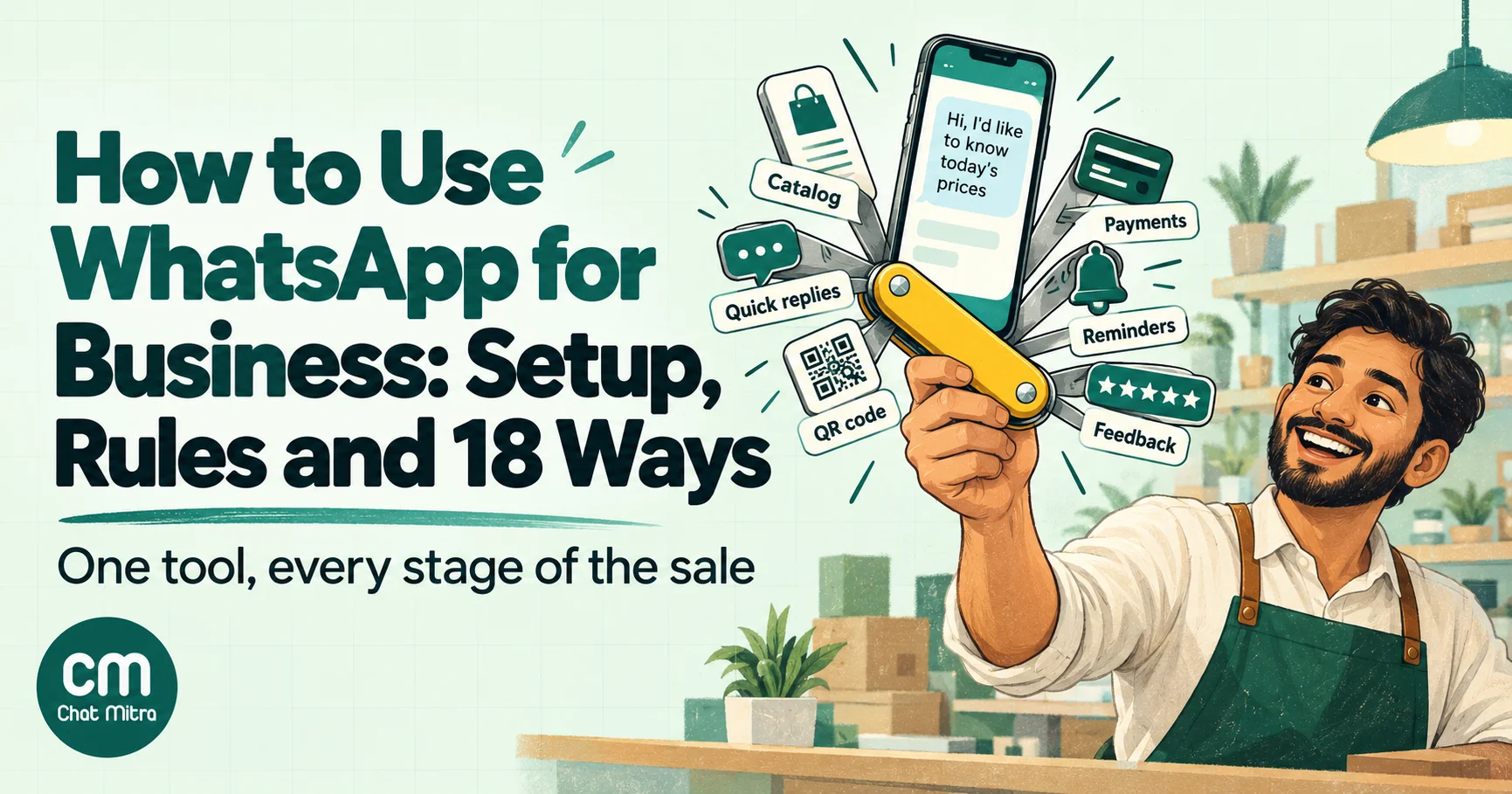
To use WhatsApp for business, choose your setup first: the free WhatsApp Business app, the WhatsApp Business Platform (the API) through a provider, or both on one number. Then complete your profile, share your chat link and QR code everywhere customers find you, and set up a catalog, quick replies, and greeting and away messages. Follow Meta’s rules on consent and the 24-hour window, and use WhatsApp at each stage of the customer journey: getting found, selling, updating customers after they buy, and bringing them back.
That’s the whole method. The rest of this guide is the detail that makes it work. It covers which setup fits you, what to configure on day one, and the five rules that catch most businesses out. Then come 18 practical ways to use WhatsApp, each with a short how-to and an example message, followed by a sample week at a small business, the numbers to watch, and the signs that you’ve outgrown the app.
Key takeaways
- Decide app, Platform or both before you set anything up. It changes what you can automate and what you pay.
- A complete profile, quick replies and lists do more for a small business than any campaign.
- Consent and the 24-hour window aren't small print. They decide what you're allowed to send and what it costs.
- Pick two or three uses that fix your biggest bottleneck. Add more once they run without you.
How to use WhatsApp for business: the short version
- Choose your setup: the WhatsApp Business app, the WhatsApp Business Platform through a provider, or both with coexistence.
- Register a number the business will keep. Avoid your personal number.
- Complete your business profile: description, hours, address, website and category.
- Create your short link and QR code with a pre-filled first message, and put them on your website, social profiles and packaging.
- Add a catalog of your products or services.
- Save quick replies for the ten questions you answer most, and switch on greeting and away messages.
- Create lists for your sales stages so no chat gets lost.
- Collect consent before you send updates or offers, and make stopping easy.
- Pick two or three uses from the 18 below and run them for a month.
- Measure response time, chats started and sales from chats, then add the next use.
App, Platform or both? Choose your setup
There are two official ways to use WhatsApp for business, and you can combine them on one number.
| WhatsApp Business app | WhatsApp Business Platform (API) | |
|---|---|---|
| Best for | Owner-run businesses, one or two people answering | Teams, automation, larger campaigns, integrations |
| How you use it | Phone app, plus WhatsApp Web or desktop | A provider's dashboard, or your own software on Meta's Cloud API |
| Cost | Free; paid extras are optional | Meta charges per delivered template message; providers add a plan or fee |
| People | One phone + 4 linked devices (10 with a paid Meta plan) | As many agents as your provider's plan allows |
| Bulk messages | Broadcast lists (saved contacts only) or paid business broadcasts | Template campaigns to opted-in customers, within your messaging limit |
| Automation | Greeting and away messages; AI agent where offered | Order updates, reminders, chatbots, CRM and store integrations |
Both, with coexistence. Meta lets a number that’s registered on the WhatsApp Business app also connect to the Platform. You keep chatting in the app, while software sends updates and campaigns through the API. There are trade-offs: broadcast lists are disabled, and API throughput on that number is fixed at 20 messages per second. It’s the smoothest route for a business that has grown on the app and doesn’t want customers to see a new number.
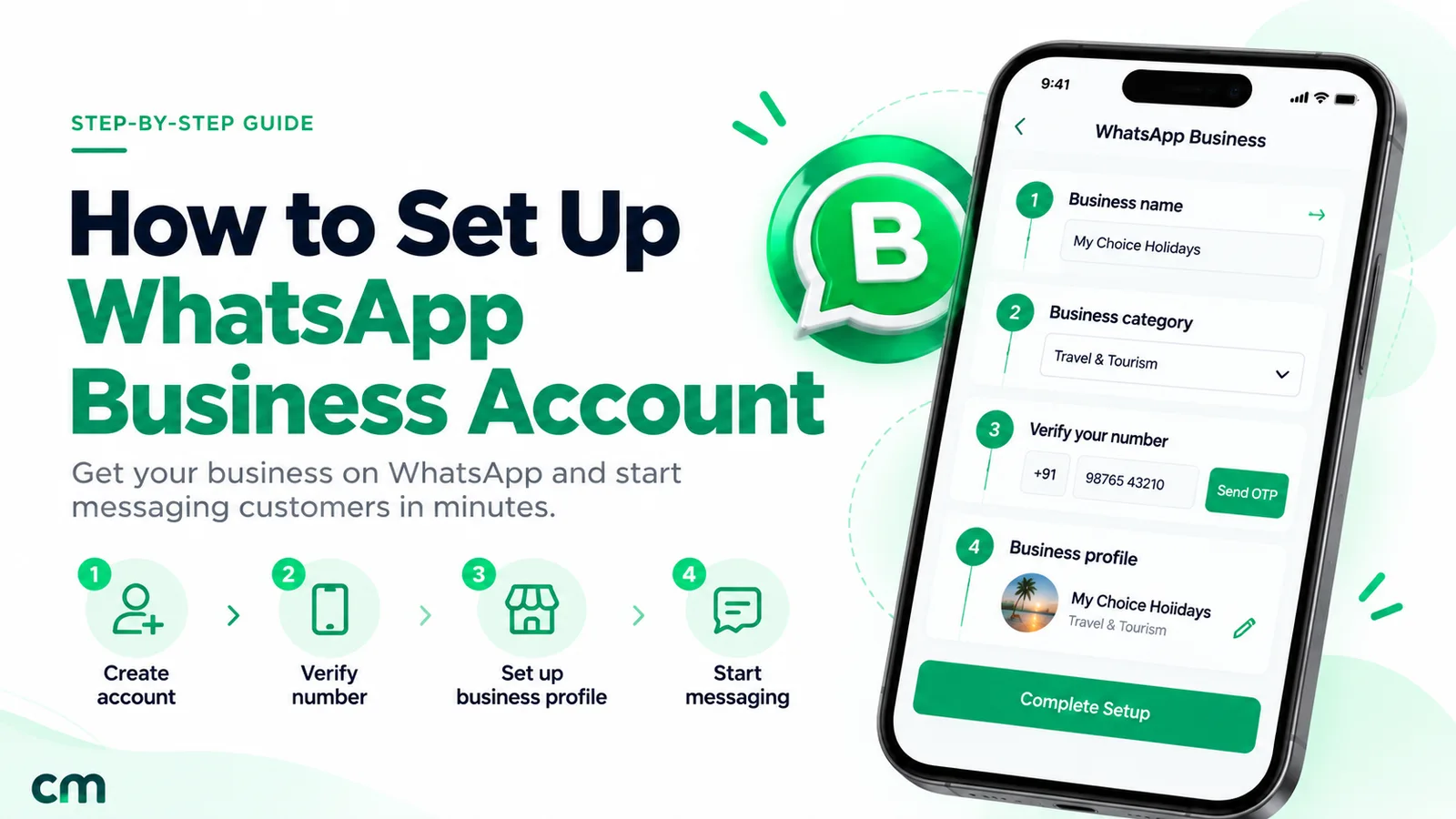
If you’re starting from scratch, how to create a WhatsApp Business account walks through registration on the app and on the API, and how to get the WhatsApp API covers the Platform route.
Set it up properly in one afternoon
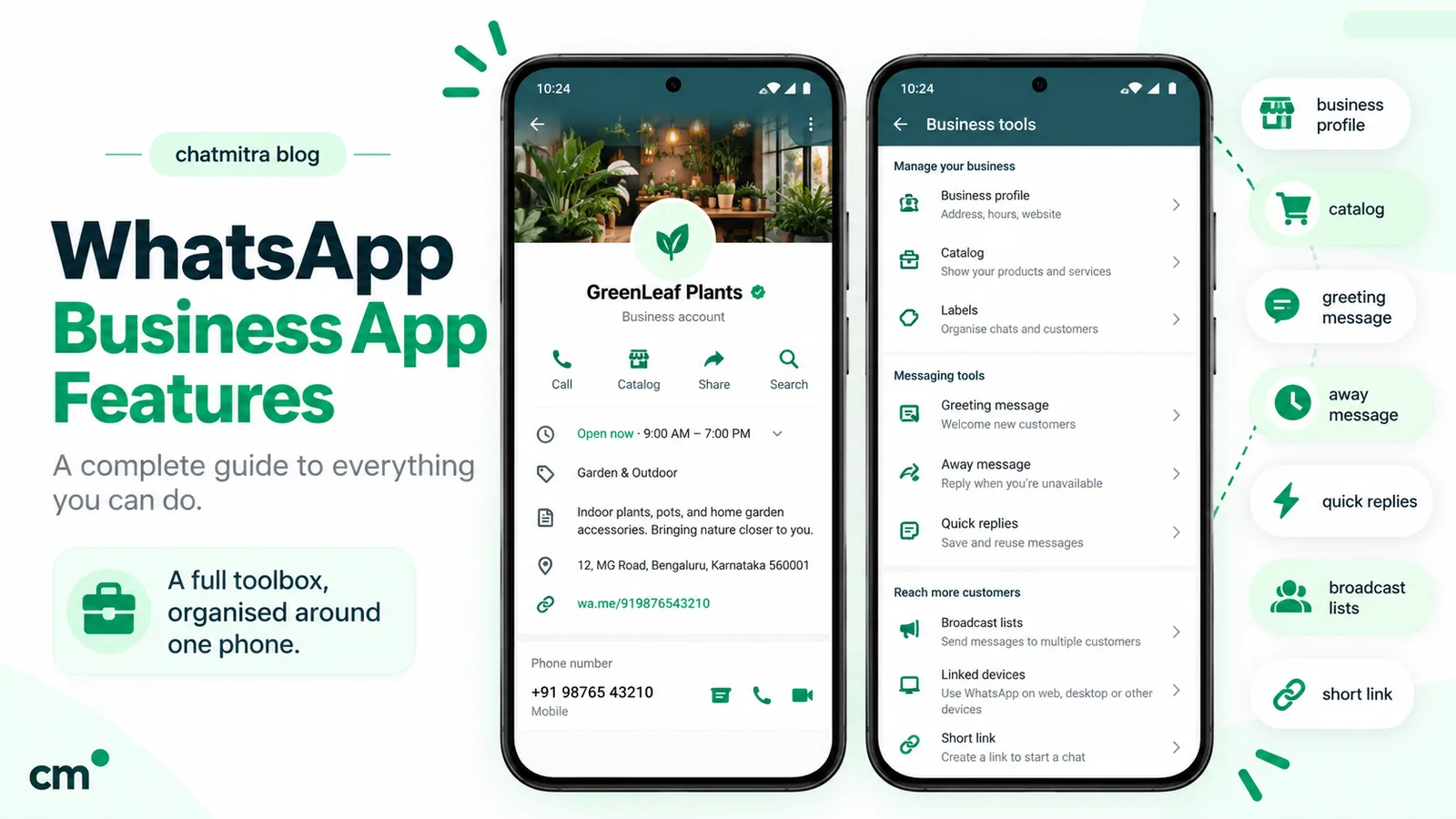
Most businesses install the app, type a name and start chatting. The half-hour you skip here costs you later: customers can’t find your hours, questions repeat, and hot leads get buried. Work through this list once. Our WhatsApp Business features guide explains each feature and its limits.
Business profile. Add a description that says what you sell and where, your address, hours, email, website and up to three categories. Hours matter twice: they tell customers when to expect a reply, and they unlock the “outside business hours” away schedule.
Short link and QR code. The app gives you both under Tools. Add a default message of up to 140 characters, such as “Hi, I’d like to know today’s prices”. The first message then tells you what the customer wants. Need a different link for each campaign? Our WhatsApp chat link creator and QR code generator make one per source.
Catalog. List your products or services with a title, price where your country allows it, and a clear photo. Group them into collections. Customers can add items to a cart and send it to you as a message, which arrives as an order request, not a payment. See our WhatsApp Business catalog guide.
Quick replies. Type ”/” in any chat to insert a saved message. You can store up to 50. Start with prices, payment details, delivery areas, hours, location, how to order and a thank-you.
Greeting and away messages. The greeting goes to a customer’s first message, and again after 14 days of silence. The away message covers closed hours. Both need your phone to be online. Our greeting message examples and away message examples have wording to adapt.
Lists (formerly labels). Create up to 20 colour-coded lists and use them as stages: New enquiry, Quoted, Awaiting payment, Paid, Shipped, Issue, VIP. A chat without a list is a chat nobody owns.
The five rules that shape how you use WhatsApp
WhatsApp works because people trust it, and Meta protects that trust with rules. Break them and messages stop arriving, or the number gets restricted. Learn them before you plan anything.
- Get consent before you message people. Meta requires opt-in before you send business-initiated messages, and your customers expect it. Collect it clearly: a checkbox at checkout, a form, or the customer messaging you first. Offer an easy way to stop, and honour it. Our WhatsApp opt-in guide covers wording and records.
- Reply freely only inside the 24-hour window. When a customer messages you, a customer service window opens for 24 hours from their last message. Inside it you can send anything relevant. Outside it, on the Platform, you can only start a conversation with a message template Meta has approved.
- Know the three template categories and what they cost. Marketing (offers, announcements), utility (order, delivery, booking and payment updates the customer expects) and authentication (one-time codes). In India, Meta charges ₹0.8631 per delivered marketing message and ₹0.1150 per utility or authentication message. From 1 October 2026, service replies inside the window are also charged at the utility rate, after 1,000 free per number each month. Our cost per message guide has the details.
- Respect the limits. A new business portfolio can message 250 unique customers outside the service window in 24 hours. Business verification, or 2,000 high-quality template deliveries to unique users within 30 days, lifts that to 2,000. Separately, Meta caps how many marketing messages each person receives, and it doesn’t deliver marketing templates to US numbers at all.
- Protect your quality rating. Blocks and reports tell Meta customers don’t want your messages. Too many, and your templates get paused and limits stop growing. In the app, repeated reports can suspend business broadcasts for three days.
18 ways to use WhatsApp for business
These follow the customer journey. For each, you’ll see what it is, how to do it, and whether the app is enough or you need the Platform. Don’t try all 18. Pick the stage where you lose the most customers today and start there.
Stage 1: Get found and start conversations
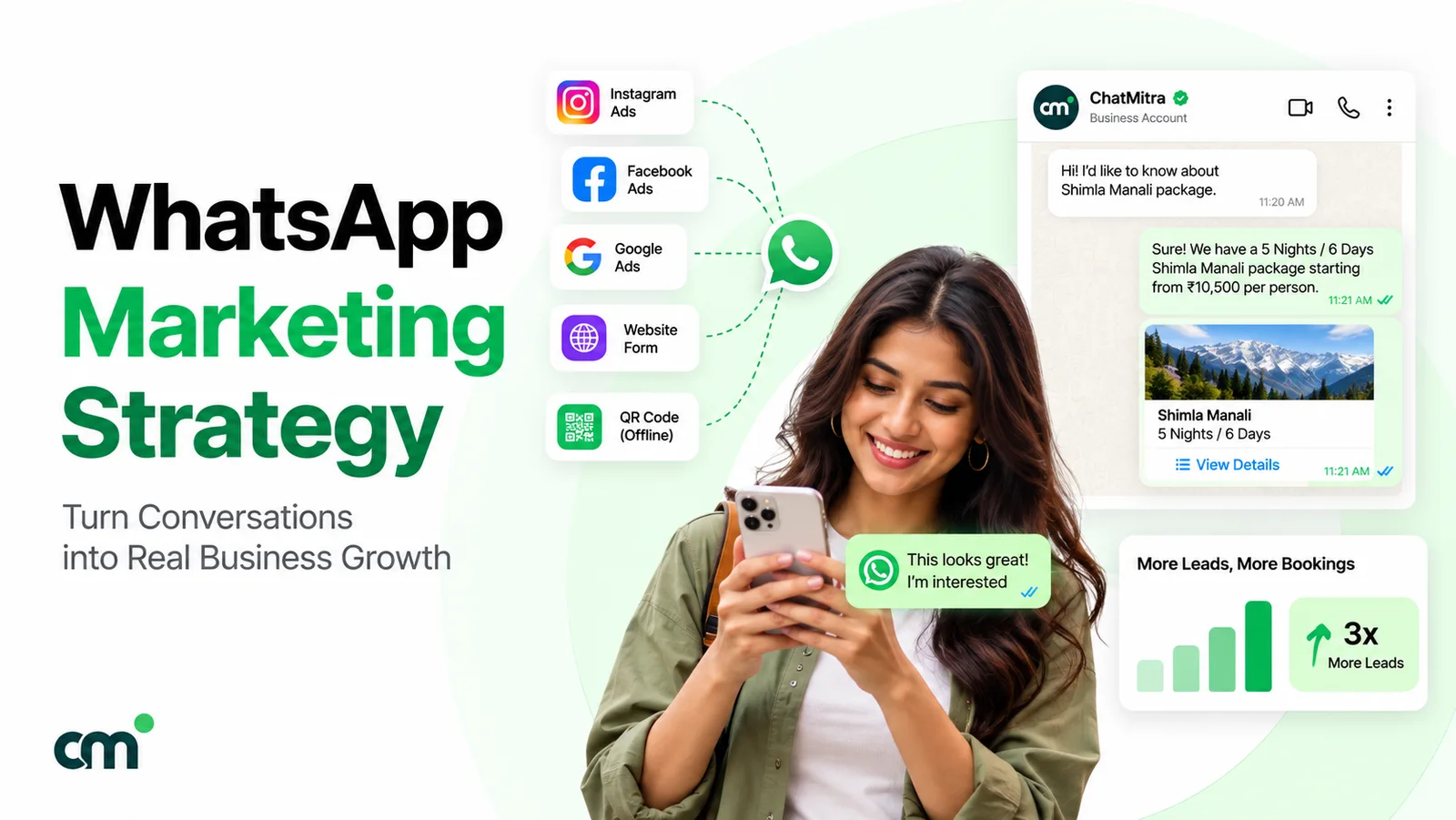
1. Put your chat link and QR code everywhere. Add them to your website header, Google Business Profile, Instagram bio, email signature, invoices, delivery boxes and shop counter. Use a different pre-filled message per place (“Hi, I saw your menu card”) so you know which source works. App or Platform: either.
2. Add a WhatsApp button to your website. A floating button on product and contact pages catches visitors who have a question but won’t fill a form. Our guide to WhatsApp integration with your website covers buttons, widgets and forms. Either.
3. Run click-to-WhatsApp ads. Facebook and Instagram ads can open a chat with you instead of a landing page. You can create simple ones from the app itself. When a customer starts the chat from one of these ads, Meta opens a free entry point window. Meta’s pricing page says it “may remain open for up to 7 days”, and messages inside it aren’t charged. Either.
4. Post to Status and a Channel. Status updates disappear after 24 hours and reach contacts who saved your number, which makes them good for today’s stock, offers and behind-the-scenes. Channels are one-way broadcasts to followers who can’t reply, so use them for updates, not sales conversations. Our WhatsApp Status marketing guide has ideas. App.
5. Use groups with care. A group for a class, a tour or a community of regular buyers can work well. Adding people without asking is the fastest way to get reported. Note that the Business app can join Communities but can’t create them. See our WhatsApp groups for business guide. App.
Stage 2: Turn chats into sales
6. Answer pre-sale questions within minutes. Speed wins sales on WhatsApp. Use quick replies for prices, sizes, delivery and payment, and send a photo or voice note when words aren’t enough. Example: “Yes, the blue one is in stock in M and L. Delivery to Pune is 2 days. Shall I reserve an M for you?” Either.
7. Share your catalog instead of typing prices. Send a catalog item or collection in the chat. The customer sees the photo, price and description, and can add it to a cart. Either.
8. Qualify leads with lists and a few questions. For services, ask two or three questions before quoting: budget, date, location. Move each chat to a list stage so you can follow up. Our WhatsApp lead generation guide and WhatsApp for sales guide go deeper. Either.
9. Take payment in the chat. In India, merchants set up for payments can send a payment request that customers pay with UPI, and any business can share a payment link from its gateway. Confirm payment on your side before you ship. Either (options vary by country).
10. Book appointments. Clinics, salons, tutors and repair services can offer slots in chat and confirm with a message the customer can find later. On the Platform, booking confirmations are utility templates. See booking confirmation messages. Either.
Stage 3: After the sale
11. Send order confirmations and delivery updates. Customers want to know it’s coming. Automated order, shipping and delivery messages are utility templates on the Platform, and they cut “where’s my order?” chats. Example: “Hi Ananya, your order #1042 has shipped. Track it here: [link]. Expected by Thursday.” See our order confirmation message guide. Platform.
12. Confirm cash-on-delivery orders. In markets where COD is common, a quick “confirm or cancel” message before dispatch reduces returns. Example: “Hi Neha, please confirm your cash-on-delivery order #3317 for ₹899. Tap Confirm to ship today, or Cancel if you’ve changed your mind.” Send it within minutes of the order, while the customer still remembers buying. Our guide to converting COD orders to prepaid takes this further. Platform.
13. Send reminders people are glad to get. Appointment, payment due and renewal reminders reduce no-shows and late payments. Keep them factual and include one clear action. Example: “Hi Sam, your invoice #218 for ₹4,500 is due on Friday. Pay here: [link]. Already paid? Just reply PAID.” Our WhatsApp reminder messages guide has templates. Platform for automatic reminders; the app for a handful by hand.
14. Handle support and returns in the same chat. Customers can send a photo of a damaged item instead of writing an email. Set expectations in your away message, and use lists to track open issues until they’re resolved. Our WhatsApp for customer service guide covers team workflows. Either; a team inbox needs the Platform.
Stage 4: Bring customers back
15. Ask for feedback and reviews. A day or two after delivery, ask one question: a rating from 1 to 5, or a reply button. Example: “Hi Priya, how was your order? Reply with a number from 1 (poor) to 5 (great).” Send your review link to everyone who replies, not only the happy ones, because Google’s policies prohibit selectively asking for positive reviews. Anyone who answers 1 or 2 also gets a personal reply asking what went wrong. See how to ask customers for feedback. Either.
16. Welcome new subscribers. When someone opts in, send a short welcome that says what they’ll get and how often: “Thanks for joining! You’ll get one message a week at most, with new arrivals and members-only offers. Reply STOP anytime.” It sets expectations and reduces blocks later. Our welcome message examples have more. Platform for automatic welcomes.
17. Send segmented offers to opted-in customers. Tell repeat buyers about restocks of what they bought, and new customers about bestsellers. Segments beat blasts: fewer blocks, more replies. The app’s broadcast lists only reach people who saved your number, so larger campaigns need business broadcasts or the Platform. Our WhatsApp marketing strategy shows how to plan a month. Either, at different scales.
18. Win back quiet customers. A personal note to customers who haven’t bought in 90 days, with a reason to return, often outperforms a discount blast. Example: “Hi Arjun, it’s been a while! We’ve added the dark roast you liked in a 500 g pack. Want me to send one over this week?” Keep it rare: one or two a quarter, and stop after one unanswered message. Either.
How to write messages customers want to read
WhatsApp sits next to messages from family and friends. A message that reads like an email newsletter feels out of place there, and customers react by muting or blocking. A few habits keep you welcome:
- Lead with the reason. The first line should say why you’re writing: “Your order has shipped”, “Your appointment is tomorrow at 4 pm”, “The kurta you asked about is back in stock”. Customers see it in the notification before they open the chat.
- Keep it short. Two to four short lines usually beat a paragraph. If you need detail, link to it.
- Give one clear next step. Reply YES to confirm, tap to pay, choose a slot. Two competing buttons halve the response.
- Sound like a person. Use the customer’s name, write the way your staff speak, and sign off with a name if it’s a small business. Voice notes work well for longer explanations in markets where people use them daily.
- Match the timing to the moment. Order updates go out as they happen. Offers go out when people shop, not at 7 am. Reminders go out the day before, not a week before.
- Use media on purpose. A photo of the exact product, a short video demo or a PDF invoice earns its place. A generic banner doesn’t.
Two quick examples of the difference:
| Instead of | Try |
|---|---|
| "Dear valued customer, we are delighted to inform you about our exciting new collection launching this season…" | "Hi Meera, the linen shirts you asked about in March are in. Sizes S–XL, ₹1,499. Want me to keep one aside?" |
| "Reminder regarding your upcoming appointment scheduled with our clinic." | "Hi Raj, see you tomorrow at 4 pm with Dr Shah. Reply 1 to confirm or 2 to reschedule." |
How different businesses use WhatsApp
The 18 uses apply everywhere, but each type of business leans on different ones. Use this table to choose your first three.
| Business type | Start with | Add next |
|---|---|---|
| Local shop or boutique | Chat link and QR at the counter (1), quick answers (6), catalog (7) | Status posts (4), restock offers to regulars (17) |
| Online store (D2C) | Order and delivery updates (11), support and returns (14) | COD confirmation (12), feedback (15), segmented offers (17) |
| Clinic, salon or studio | Appointment booking (10), reminders (13) | Feedback and reviews (15), win-back (18) |
| Restaurant or cloud kitchen | Chat link on menus and delivery bags (1), catalog (7) | Status for today's specials (4), offers to regulars (17) |
| Coaching, school or course | Lead questions and follow-up (8), reminders (13) | Groups for enrolled batches (5), welcome message (16) |
| B2B or services firm | Website button (2), lead qualification (8) | Quotes and payment reminders (9, 13), support (14) |
For deeper playbooks by sector, see our WhatsApp use cases by industry.
A week of WhatsApp at a small business
Here’s how the pieces fit, using an illustrative example: a two-dentist clinic with a receptionist, on the WhatsApp Business app.
- Monday. The receptionist opens WhatsApp Web at 9 am. Overnight enquiries got the away message with the clinic’s hours and a booking link. She answers them with quick replies (/fees, /location, /slots) and moves each chat to “Booked” or “Follow up”.
- Tuesday. Two patients ask about whitening. She sends the catalog item with the price and a before-and-after photo the clinic owns, and books one.
- Wednesday. She messages tomorrow’s patients by hand to confirm. Two reschedule, freeing slots for the “Follow up” list.
- Thursday. The clinic posts a Status about a new evening slot. Three regulars reply.
- Friday. She sends a feedback request to the week’s patients and the clinic’s review link to everyone who replies, then calls the one patient who scored the visit low.
By the end of the month, the clinic has 40 people on its reminder list, and confirming by hand takes an hour a day. That’s the signal to move reminders to the Platform, using coexistence so patients keep the same number. The receptionist keeps chatting in the app.
Your first 30 days: a simple plan
Week 1: set up. Register the number, complete the profile, create the short link and QR code, add your top 10 products or services to the catalog, and save 7–10 quick replies. Switch on greeting and away messages. Create your list stages.
Week 2: open the doors. Put the link and QR code on your website, Google Business Profile, social bios, invoices and packaging, each with its own pre-filled message. Tell existing customers the number is live, through channels where they’ve already agreed to hear from you, and ask if they’d like updates on WhatsApp.
Week 3: run your first two uses. Pick the two that match your bottleneck from the table above, such as quick answers plus reminders, or catalog plus order updates. Write the messages, test them on your own phone, then use them with real customers.
Week 4: measure and decide. Check your first response time, how many chats each source started, and how many became sales. Keep what worked, fix what didn’t, and choose the next use to add. If manual sending is already eating hours, look at the Platform now rather than in six months.
How to measure whether WhatsApp is working
| Metric | What it tells you | Where to find it |
|---|---|---|
| First response time | Whether enquiries are answered while the customer still cares | Your own spot checks in the app; inbox reports on the Platform |
| New chats per week, by source | Which links, QR codes and ads bring people in | Count chats by pre-filled message; ad results in Meta Ads Manager |
| Chat-to-sale rate | Whether chats turn into orders | List stages (Enquiry to Paid), or your store's UTM-tagged orders |
| Delivered and read rates | Whether campaigns reach people | App broadcast insights; campaign reports on the Platform |
| Blocks and opt-outs per campaign | Whether you're sending too much or to the wrong people | Quality rating in WhatsApp Manager; opt-out counts in your tool |
| "Where is my order?" chats | Whether your updates do their job | Tag these chats and count them monthly |
You don’t need all six from day one. Response time and chat-to-sale rate tell most small businesses what they need to know.
Common mistakes when using WhatsApp for business
- Using your personal number. Customers message at midnight, and you can’t hand the number to staff or move it to the API cleanly later.
- Leaving the profile half-filled. No hours means no away schedule, and no description means customers ask what you sell.
- Messaging people who never opted in. Imported phone lists create blocks, which hurt your quality rating and can restrict the number.
- Using unofficial bulk-sending tools. They automate WhatsApp in ways its terms forbid, and numbers get banned. See official vs unofficial bulk WhatsApp senders.
- Sending offers disguised as updates. A “your account update” message that’s really a sale erodes trust. On the Platform, Meta can also re-categorise the template as marketing.
- Answering from five phones. Chats get lost between staff. Use linked devices with lists, or a shared inbox on the Platform.
- Doing everything at once. Eighteen half-run uses are worse than three run well.
Signs you’ve outgrown the WhatsApp Business app
The app is enough for many businesses for a long time. These are the signals to move to the Platform:
- More than two people need to answer from the same number, and chats get missed.
- You’re sending the same update by hand more than 20 times a day.
- You want order, delivery or payment updates to go out automatically from your store or billing system.
- Your offers need to reach thousands of customers who haven’t saved your number.
- You need reports on what each campaign delivered, or chats inside your CRM.
The move doesn’t have to be disruptive. With coexistence, the number stays on the app while a provider adds automation and campaigns. Compare providers on total cost at your volume. Our guide to the best WhatsApp marketing software covers 15 tools, and for India-specific prices see best WhatsApp API provider in India.
Where ChatMitra fits
ChatMitra is one of those providers. It connects your number to the WhatsApp Business Platform, with coexistence support. On the free Starter plan, you get tag-based broadcasts with scheduling and retargeting, a live chat inbox and a Shopify integration. Pro (₹999 a month) adds keyword auto-replies, an AI chatbot and the API. Meta’s rates pass through at cost, plus ₹0.20 per conversation on Starter and Pro.
It isn’t the right fit if you need a drag-and-drop flow builder, automatic chat assignment, or billing in a currency other than rupees. If it does fit, you can see ChatMitra’s plans.
Summary
- Choose your setup first: the free app, the Platform through a provider, or both on one number with coexistence.
- Spend an afternoon on the profile, short link and QR code, catalog, quick replies, greeting and away messages, and lists.
- Follow the five rules: consent, the 24-hour window, template categories and costs, messaging limits, and your quality rating.
- Use WhatsApp at every stage of the journey, but start with the two or three uses that fix your biggest bottleneck.
- Measure response time and chat-to-sale rate, and move to the Platform when manual work or team size says it’s time.
Sources: WhatsApp Help Center articles on WhatsApp Business, the business profile, short links, catalog, quick replies, greeting messages, labels and lists, broadcast lists, business broadcast suspensions, channels and paying merchants in India. Meta for Developers: WhatsApp Business Platform pricing, messaging limits, per-user marketing limits. ChatMitra pricing page, 30 September 2026.