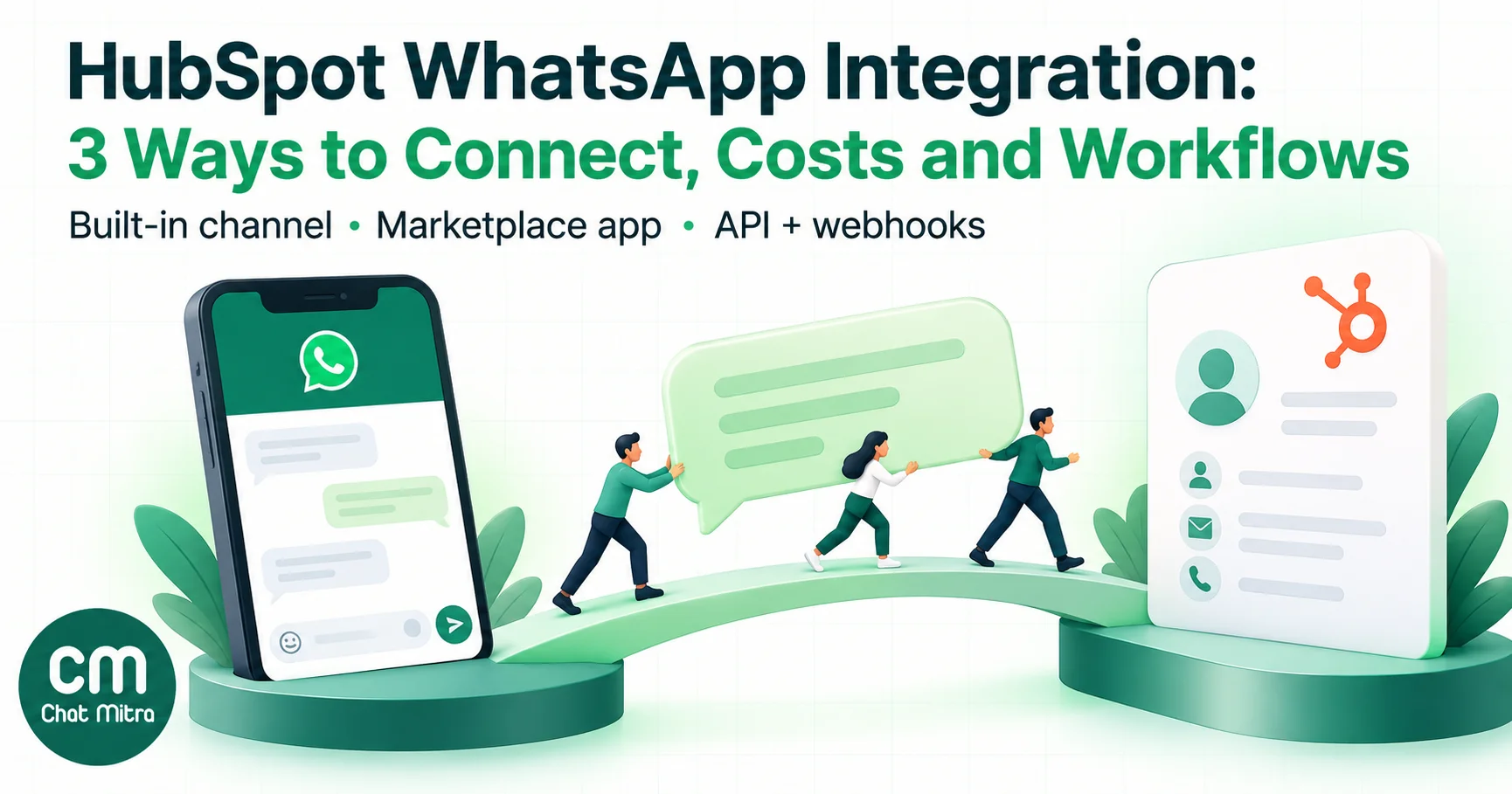
A HubSpot WhatsApp integration puts your WhatsApp conversations and your CRM records in the same place, so a new lead in HubSpot can get a WhatsApp message within seconds and a customer’s reply lands on the right contact. There are three ways to build one: HubSpot’s own WhatsApp channel, an app from the HubSpot App Marketplace, or a WhatsApp Business Platform provider connected through its API and webhooks. They differ less in what they can do than in which HubSpot plan they need, what they cost each month and where your team actually reads and answers the chats.
This guide compares the three routes, then walks through the API route step by step for both directions: HubSpot to WhatsApp, and WhatsApp back to HubSpot. Prices are taken from HubSpot’s and ChatMitra’s pricing pages and Meta’s India rate card as they stood in October 2026.
Using ChatMitra? ChatMitra has no HubSpot Marketplace app. It connects to HubSpot through its developer API and webhooks, which come with the Pro plan. You can use them from your own code, or from WorkflowMitra, ChatMitra’s workflow builder, without writing any. This works on the free HubSpot CRM. Jump to the setup.
The short answer: three ways to connect WhatsApp to HubSpot
| Route | HubSpot plan needed | Where your team replies | Best for |
|---|---|---|---|
| WhatsApp API provider + API and webhooks (for example ChatMitra) | Any, including the free CRM | The provider’s shared inbox; replies are logged on the HubSpot timeline | Teams that want WhatsApp volume and automation without a Professional hub |
| HubSpot’s built-in WhatsApp channel | Marketing Hub or Service Hub Professional or Enterprise | HubSpot’s conversations inbox or help desk | Teams already paying for a Professional hub who send fewer than 1,000 templates a month |
| HubSpot App Marketplace app | Varies by app | Usually inside HubSpot, through the app | Teams that want a ready-made connector and accept another subscription |
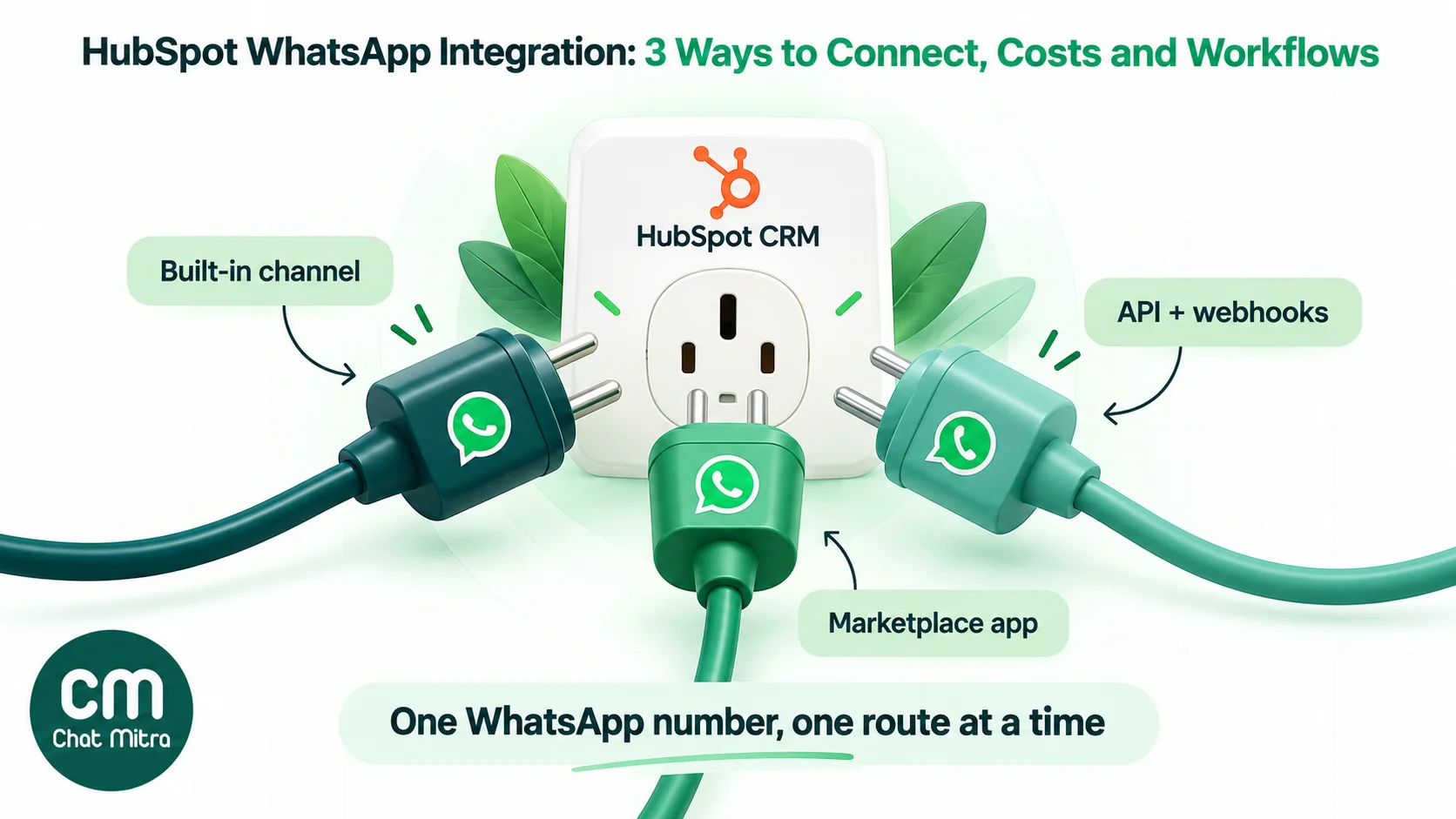
The rest of this guide explains each row. One rule applies to all of them: a WhatsApp Business number can be connected to only one platform at a time. HubSpot’s own setup guide says the number “must not be connected to another WhatsApp account, WhatsApp for Business App, or another WhatsApp integration.” So choose one route, not two.
How ChatMitra fits into a HubSpot setup
ChatMitra is an official WhatsApp Business Platform provider, built for Indian businesses. In a HubSpot setup it plays the WhatsApp side: it holds your number, your approved templates and the shared inbox, and it talks to HubSpot through two pieces of plumbing.
- The send API. A
POSTrequest to ChatMitra’ssend_messageendpoint, authenticated with a Bearer token from Settings → API Key, sends a template or a free-form message to a phone number. - Webhooks. ChatMitra posts an event to your URL for every incoming message (
message.received) and every status change (message.sent,message.failed,message.status.updated). Each request is signed with an HMAC-SHA256 signature in theX-Webhook-Signatureheader.
Between them sits whatever does the matching with HubSpot: your own code, or a workflow in WorkflowMitra, which has a WhatsApp step that sends through ChatMitra and an App Request step that calls HubSpot’s API with a private-app token.
| ChatMitra advantage | What it means for a HubSpot setup | How the alternatives compare |
|---|---|---|
| Works with the free HubSpot CRM | No Professional hub is needed just to get WhatsApp | HubSpot’s own channel needs Marketing Hub or Service Hub Professional or higher |
| Meta’s rates passed through at cost | You pay Meta’s India rate plus ₹0.20 per conversation on Starter and Pro, and no ChatMitra fee on Enterprise | Marketplace apps price their own subscriptions and message bundles; check each one |
| Unlimited team members | The whole sales and support team can answer from one number | HubSpot Professional hubs price additional seats, as listed on HubSpot’s pricing page |
| API and webhooks in the ₹999 Pro plan | Two-way sync without an add-on fee | HubSpot’s workflow webhook action is listed under Data Hub Professional |
| No monthly template cap from ChatMitra | Your volume is limited by Meta’s messaging tiers, not by the integration | HubSpot’s channel shares 1,000 template messages a month across connected accounts |
Good to know: ChatMitra doesn’t assign chats to agents or track deal stages. That’s HubSpot’s job in this setup, which is why the integration matters.
Route 1: HubSpot’s built-in WhatsApp channel
HubSpot made its WhatsApp integration generally available in November 2022. You connect your WhatsApp Business account as a channel in Settings → Inbox → Inboxes → Connect a channel, and from then on WhatsApp chats arrive in the conversations inbox like email and live chat.
What you need, according to HubSpot’s setup guide:
- a Marketing Hub Professional or Enterprise, or Service Hub Professional or Enterprise subscription;
- admin access to your Meta Business Manager;
- your legal company name, WhatsApp display name, website and business email;
- a phone number that can receive voice calls for verification, isn’t part of an IVR system and isn’t connected to any other WhatsApp account or integration.
What you get:
- WhatsApp threads in the shared inbox, with the contact record beside them.
- Templates created in your WhatsApp Business account sync into HubSpot. You can send them from a contact record or the inbox, or, once you publish them for automation, from a workflow with the Send WhatsApp message action.
- WhatsApp message data in HubSpot’s workflows and reports.
- An optional coexistence mode that shares one number between the WhatsApp Business app and HubSpot, importing the last 180 days of chat history. Media isn’t backfilled, and each backfilled conversation creates a help-desk ticket, per HubSpot’s coexistence guide. ChatMitra’s coexistence explainer covers the WhatsApp side of this.
The limits to check before you buy:
- 1,000 template messages a month. HubSpot’s knowledge base says “a limit of 1,000 template messages per month is shared by all your connected WhatsApp business accounts”, and HubSpot’s pricing page lists the integration as “Up to 1,000 messages per month.” A business sending a weekly campaign to a few thousand contacts outgrows this quickly.
- Personalization tokens. HubSpot’s template guide says the workflow action supports contact and company tokens only; deal, ticket and custom-object tokens can’t be used. A “your demo for {{deal name}}” message needs the deal value copied onto the contact first.
- Opt-in. HubSpot states you must get verifiable opt-in consent to send a message from a contact-based workflow, and recommends a Manage communication subscriptions step before the send.
- US numbers. HubSpot repeats Meta’s notice: since 1 April 2025 Meta hasn’t delivered marketing templates to US phone numbers. Utility, authentication and service replies still work.
Cost. In INR on 14 October 2026, HubSpot listed Marketing Hub Professional at ₹74,200 a month with three core seats included, and Service Hub Professional at ₹8,330 per seat per month, both paid monthly on an annual commitment. Meta’s message charges come on top, as they do on every route.
Route 1 is the right choice if you already pay for one of those hubs and your template volume fits under the cap. If you’d be buying a Professional hub mainly to get WhatsApp, compare it with Route 3 first.
Route 2: an app from the HubSpot App Marketplace
The HubSpot App Marketplace lists several WhatsApp apps, built by WhatsApp providers and integration agencies. Some put a WhatsApp inbox inside HubSpot, some sync messages to the timeline, and some are browser extensions for the WhatsApp Business app, which isn’t the WhatsApp Business Platform at all.
Plans, message bundles and limits change often, so instead of ranking apps, check each listing against these questions:
- Which WhatsApp does it use? Official WhatsApp Business Platform (Cloud API), or the consumer or Business app through a browser session? Only the first can send templates after the 24-hour window and run unattended. The second puts the number at risk under WhatsApp’s terms.
- Who is the provider? Does the app include its own WhatsApp number hosting, or do you need a separate provider account?
- What syncs, and in which direction? Incoming messages, outgoing messages, delivery status, templates and opt-outs should all be covered.
- Which HubSpot plan does it need? Some features depend on HubSpot workflows, which are paid.
- How is it priced? Per seat, per message, per contact or flat? Add Meta’s charges on top.
- Where does the data live? For Indian businesses handling customer data, check the app’s privacy policy and data-processing terms.
A marketplace app is the fastest setup if one fits. The cost is a second subscription, and your WhatsApp operation depends on how well that app keeps up with Meta’s and HubSpot’s API changes.
Route 3: a WhatsApp API provider connected with webhooks
In this route your WhatsApp number lives with a provider like ChatMitra, and HubSpot stays your CRM. Two small automations connect them, one for each direction.
Direction 1: HubSpot → WhatsApp. Something happens in HubSpot (a contact is created, a form is submitted, a deal changes stage) and a WhatsApp template should go out. HubSpot has three ways to tell the outside world:
| Trigger method | HubSpot plan | How it works | Trade-off |
|---|---|---|---|
| Workflow Send a webhook action | Data Hub Professional or Enterprise | The workflow posts a JSON body you choose to your URL, with a secret key in a header | Cleanest, but the plan was listed at ₹66,700 a month with one core seat in October 2026 |
| Private-app webhook subscription | Any plan | HubSpot posts batches of up to 100 events (object IDs and changed properties) to your URL | Only IDs arrive, so you fetch the contact. Requests are signed with HubSpot’s own scheme, which your receiver must verify |
| Polling the CRM search API | Any plan | Every few minutes, search for contacts that match a rule, such as “created recently and not yet messaged” | Simple and safe, but each poll costs a run, even when nothing changed |
Direction 2: WhatsApp → HubSpot. A customer replies. The provider posts a message.received webhook, and your automation finds the HubSpot contact by phone number and logs the message. HubSpot’s Communications API exists for exactly this: it records “external communications via WhatsApp, LinkedIn, or SMS messages” on the timeline, with hs_communication_channel_type set to WHATS_APP.
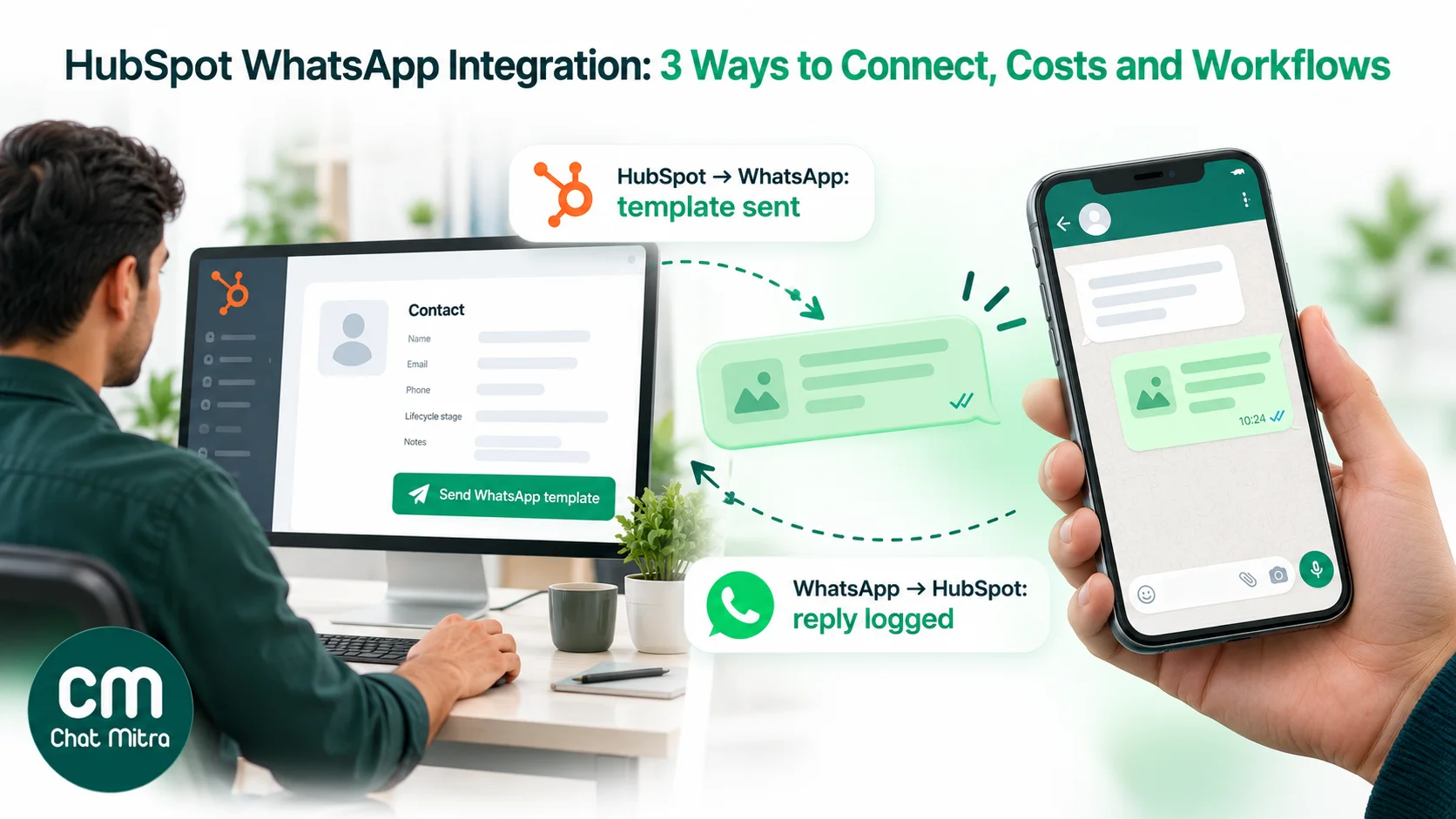
Both directions authenticate to HubSpot with a private-app access token. HubSpot’s developer docs list private apps on Free, Starter, Professional and Enterprise, with up to 20 per account. That’s why this route doesn’t need a paid hub. Free and Starter accounts get 100 requests per 10 seconds per private app and 250,000 a day per account, far more than an SMB WhatsApp sync uses.
HubSpot now calls these “legacy” private apps. They’re still supported, but new platform features go to its newer app framework. Rotate the token at least every six months, as HubSpot recommends.
Set up your HubSpot data before you connect anything
Most failed integrations fail on data, not code. Do these four things in HubSpot first.
1. Make the phone number matchable. ChatMitra’s webhook identifies a customer by from, a string of digits with the country code and no plus sign, for example 919876543210. HubSpot’s phone field is free text, so the same person might be saved as +91 98765 43210, 098765 43210 or 9876543210. A search for one form won’t find the others. Create a custom contact property, say WhatsApp number, that always holds digits with the country code, and fill it from the phone field with a HubSpot workflow, an import or a one-off cleanup. Both directions then match on that one property.
2. Record consent. Add a property such as WhatsApp opt-in (yes/no) with the date and source of consent, or use HubSpot’s communication subscription types if your plan has them. Meta requires opt-in before you message someone first. See the WhatsApp opt-in guide for wording that works on forms.
3. Add status flags. A property such as WhatsApp welcome status (blank, sent, failed) stops the same person getting the same template twice when a webhook is retried or a poll overlaps. Add one per automated message you plan (a follow-up status, for example), plus a WhatsApp last reply date so you never chase someone who has already answered.
4. Map the template variables. Write down which HubSpot property fills each template variable. If a value isn’t on the contact (a deal name or a ticket number), decide now how it gets there.
HubSpot’s free tools have a small custom-property allowance, so check how many your account has left before you add these.
How to connect ChatMitra to HubSpot, step by step
This setup uses ChatMitra Pro for WhatsApp and WorkflowMitra for the automations. If you write your own code, the same requests apply; only the tool around them changes.
Step 1: Get your ChatMitra API key and approve a template
- In ChatMitra, open Settings → API Key and create a key. Treat it like a password: it can send messages on your bill. The API keys and webhook URL explainer covers the basics.
- Create the template you want HubSpot to trigger, for example a new-enquiry acknowledgement, and wait for Meta’s approval. Note its exact name and language code.
A test send from the command line confirms the key and template work before anything else is involved:
curl -X POST https://backend.chatmitra.com/developer/api/send_message \
  -H "Authorization: Bearer $CHATMITRA_API_TOKEN" \
  -H "Content-Type: application/json" \
  -H "Idempotency-Key: hubspot-contact-12345-welcome" \
  -d '{
    "recipient_mobile_number": "919876543210",
    "messages": [{
      "kind": "template",
      "template": {
        "name": "enquiry_received",
        "language": "en",
        "components": [{
          "type": "body",
          "parameters": [{ "type": "text", "text": "Priya" }]
        }]
      }
    }]
  }'
The Idempotency-Key header matters later: if the same request arrives twice, ChatMitra replays the first result instead of sending and charging again. Build the key from the HubSpot contact ID and the template name. The API reference lists every message type.
Step 2: Create a HubSpot private app
In HubSpot, go to Development → Legacy apps → Create legacy app → Private (super admin required). Give the app two scopes: crm.objects.contacts.read and crm.objects.contacts.write. They let it search contacts, read the phone number and owner, update your status flags, and create WhatsApp communication records on contacts.
Open the app’s Auth tab, click Show token and copy it. In WorkflowMitra, add it as a HubSpot credential; WorkflowMitra checks the token when you save it.
Step 3: Build the HubSpot → WhatsApp workflow
If you have Data Hub Professional, trigger from a HubSpot workflow:
- In WorkflowMitra, create a workflow with a Webhook trigger and copy its URL and secret.
- In HubSpot, build a contact-based workflow, for example “Contact created and WhatsApp opt-in is yes”, and add Send a webhook with method POST and your WorkflowMitra URL.
- Set Authentication type to API key, choose Request header as the location, and use the header name your WorkflowMitra trigger expects (
x-webhook-secretby default), with the secret as the value. - Choose Customize request body and send only what the message needs:
{
  "contact_id": "<Record ID>",
  "first_name": "<First name>",
  "whatsapp_number": "<WhatsApp number>"
}
HubSpot retries failed webhooks for up to three days, which is why the idempotency key and the status flag matter. It doesn’t retry most 4xx responses, apart from 429 rate-limit replies.
On HubSpot Free or Starter, poll instead. Use a Schedule trigger, every 30 minutes for example, followed by an App Request step to HubSpot’s search endpoint:
POST /crm/objects/2026-03/contacts/search
{
  "filterGroups": [{
    "filters": [
      { "propertyName": "whatsapp_opt_in", "operator": "EQ", "value": "true" },
      { "propertyName": "whatsapp_welcome_status", "operator": "NOT_HAS_PROPERTY" },
      { "propertyName": "createdate", "operator": "GTE", "value": "1814985000000" }
    ]
  }],
  "properties": ["firstname", "whatsapp_number"],
  "limit": 100
}
The createdate filter is the moment you switch the workflow on, in Unix milliseconds (here, midnight IST on 8 July 2027). Without it, the first run messages every opted-in contact you’ve ever had. Loop over the results. Because the status flag is updated in the same run, a contact drops out of the next search automatically, so the poll needs no memory of its own. HubSpot’s search endpoints allow five requests per second per account and up to 200 results per page, which is plenty at this interval.
Either way, the next steps are the same:
- Add a WhatsApp step set to send through ChatMitra, with your API key, the template name, the language and the variable mapped from
first_name. - Add an App Request step that updates the contact (
PATCH /crm/objects/2026-03/contacts/{id}) to set WhatsApp welcome status tosent. Set the WhatsApp step to continue on error and connect its error branch to a second update that sets the status tofailed, so someone can follow up by phone.
The two-day follow-up is the same pattern with a second search: welcome status sent, created more than two days ago, no WhatsApp last reply date, and follow-up status empty.
Step 4: Turn on ChatMitra webhooks
- Create a second WorkflowMitra workflow with a Webhook trigger.
- In ChatMitra, open Settings → Webhooks, paste the trigger URL and turn on
message.received. Turn onmessage.failedtoo if you want failed sends flagged in HubSpot. - In the WorkflowMitra trigger, turn on signature verification with the
X-Webhook-Signatureheader and your ChatMitra webhook secret, so only ChatMitra can start the workflow. Clear the trigger’s shared-secret header: ChatMitra signs each request instead of sending a secret header, so a required header would reject every delivery. The webhook docs show the signature format and every event’s payload.
Step 5: Build the WhatsApp → HubSpot workflow
- Find the contact. An App Request to the search endpoint, filtering
whatsapp_numberEQ{{ from }}, asking forhubspot_owner_id. - Branch on the result. If nobody matches, either create a contact (useful for inbound enquiries) or alert a person. Don’t let the run fail silently.
- Log the message. An App Request that creates a communication and associates it with the contact:
POST /crm/objects/2026-03/communications
{
  "properties": {
    "hs_communication_channel_type": "WHATS_APP",
    "hs_communication_logged_from": "CRM",
    "hs_communication_body": "{{ message.text }}",
    "hs_timestamp": "{{ timestamp }}000",
    "hubspot_owner_id": "{{ owner_id }}"
  },
  "associations": [{
    "to": { "id": "{{ contact_id }}" },
    "types": [{ "associationCategory": "HUBSPOT_DEFINED", "associationTypeId": 81 }]
  }]
}
Map contact_id and owner_id from the first result of the search step (the contact’s id and its hubspot_owner_id property). HubSpot lists the owner among the properties to set, so contacts without an owner should get a default one. ChatMitra’s timestamp is in seconds and HubSpot accepts milliseconds, hence the three zeros. Association type 81 links a communication to a contact. For images and documents there’s no text, so log the message type and caption instead. To keep the timeline readable, some teams log only the first message of each day.
- Stamp the reply. A final App Request sets the contact’s WhatsApp last reply date, so the follow-up search skips people who have already answered. If the text is “STOP”, set WhatsApp opt-in to no in the same request.
Step 6: Test both directions with your own number
Create a test contact with your own WhatsApp number and opt-in set to yes. Check that:
- the template arrives;
- the status flag changes;
- your reply appears on the contact’s timeline within a minute;
- a second trigger for the same contact sends nothing.
Then send a reply that contains a quotation mark and a line break, since these are the inputs that break hand-built JSON in other tools.
Cost check. WorkflowMitra charges one credit for each step that runs, the trigger included. Control steps such as IF are free. A 30-minute poll runs about 1,440 times a month, even when nothing has changed. Plan for that before you shorten the interval.
Five HubSpot WhatsApp workflows worth building first
| Workflow | HubSpot trigger | WhatsApp message | Template category |
|---|---|---|---|
| New enquiry acknowledgement | Contact created from a form, opted in | ”Hi {{1}}, we’ve got your enquiry and {{2}} will call you today.” | Usually utility, if it only confirms the request |
| Demo or meeting reminder | Meeting date property is tomorrow | Time, joining link and a reschedule option | Utility |
| Quote follow-up | Deal stage changed to “Quote sent”, no reply in two days | A check-in with a question | Often marketing; Meta decides from the wording |
| Renewal or payment reminder | Renewal date in 7 days | Amount due and a payment link | Utility, if it’s about an existing agreement |
| Support update | Ticket status changed | The new status and what happens next | Utility |
Two rules shape this table. First, Meta, not you, has the final say on a template’s category, so promotional wording in a “reminder” gets it classed as marketing at marketing rates. The marketing and utility guides explain where the line is. Second, a reply inside 24 hours opens the customer service window, and your sales rep can then answer in free form from the ChatMitra inbox without another template. For message wording, the WhatsApp follow-up message guide has 30 examples.
What a HubSpot WhatsApp integration costs: an Indian worked example
The scenario. A three-person sales team gets 600 enquiries a month. Each opted-in enquiry gets one utility acknowledgement, and two days later one marketing follow-up. About 400 customers reply, and the replies sit inside Meta’s 1,000 free service messages per number per month.
Meta’s charges (same on every route). India rates effective 1 July 2026, unchanged in Meta’s 1 October 2026 update:
- 600 utility messages × ₹0.1150 = ₹69.00
- 600 marketing messages × ₹0.8631 = ₹517.86
- 400 service replies, inside the free tier = ₹0
- Meta total: ₹586.86
| Monthly cost | Route 1: HubSpot Marketing Hub Professional | Route 1: HubSpot Service Hub Professional (3 seats) | Route 3: ChatMitra Pro + WorkflowMitra on the free HubSpot CRM |
|---|---|---|---|
| HubSpot | ₹74,200 (3 core seats) | ₹24,990 (₹8,330 × 3) | ₹0 |
| WhatsApp provider or app | Included | Included | ChatMitra Pro ₹999, including 1,000 conversations; 200 more × ₹0.20 = ₹40 |
| Automation | HubSpot workflows | Check that your hub’s workflows include the WhatsApp action | WorkflowMitra Starter ₹999 (10,000 credits) |
| Meta charges | ₹586.86 | ₹586.86 | ₹586.86 |
| Total | ₹74,786.86 | ₹25,576.86 | ₹2,624.86 |
| Fits the volume? | No: 1,200 templates exceed the 1,000-a-month cap | No: same cap | Yes |
How the numbers work:
- ChatMitra’s fee. ChatMitra charges ₹0.20 per conversation, once per customer per 24 hours, however many messages are exchanged. The acknowledgement and the follow-up go out on different days, so they’re two conversations per lead: 1,200 in all. Pro includes 1,000 credits a month.
- WorkflowMitra credits. This design uses about 9,500 of the 10,000 credits: about 4,300 for a 30-minute poll that runs two searches, 3,600 for the 1,200 sends and status updates, and 1,600 for logging and stamping 400 replies. At higher volume, either lengthen the poll or move to HubSpot’s webhook action.
- HubSpot prices. These are HubSpot’s listed INR prices on 14 October 2026, on annual commitments. They may differ for your account or region.
What the comparison doesn’t show. Route 1 gives your team HubSpot’s own inbox, reporting and help desk, with no workflow to maintain. Route 3 keeps chats in ChatMitra’s shared inbox and puts a copy on the HubSpot timeline, and someone has to own two small workflows. If your team lives in HubSpot all day and your volume fits under the cap, that convenience can be worth the price. If you’d be buying a Professional hub mostly for WhatsApp, the gap is hard to justify. For ChatMitra’s own figures, see the pricing page. The cost per message guide explains Meta’s side.
Consent and template rules on every route
The integration changes where messages come from, not WhatsApp’s rules.
- Opt-in first. Meta’s Business Messaging Policy requires businesses to get opt-in permission before contacting people on WhatsApp. A HubSpot form tickbox works if its wording names WhatsApp and your business. Keep the date and source with the contact.
- Templates outside 24 hours. You can only start a conversation, or restart one after 24 hours of silence, with an approved template. HubSpot’s channel, marketplace apps and ChatMitra all enforce this, because Meta does.
- Opt-outs travel both ways. When someone replies “STOP” on WhatsApp, update the HubSpot opt-in property in the same workflow that logs the reply. Then a later HubSpot workflow won’t message them again. ChatMitra marks the contact as opted out on its side, but HubSpot only knows if you tell it.
- Frequency. Meta limits how many marketing templates one person receives from businesses in a period, and the per-message cost adds up. A CRM that can trigger messages on every property change can quickly become a spam machine. Use a status flag and send WhatsApp only at a few key moments.
Troubleshooting a HubSpot WhatsApp integration
| Symptom | Likely cause | Fix |
|---|---|---|
| Replies don’t appear on the timeline | The phone in HubSpot doesn’t match from | Fill the digits-only WhatsApp number property and search on that |
| The same person got the template twice | A webhook retry or overlapping polls | Use the status flag and an Idempotency-Key built from the contact ID |
| Send fails with an invalid-parameter error | A blank template variable, often a missing first name | Use a fallback (“there”) or skip contacts with the value missing |
| Template rejected or paused | Promotional wording in a utility template, or low quality | Rewrite it. The API errors guide lists the codes |
| HubSpot’s webhook action stopped | You set a rate limit on the action, or your endpoint returned 4xx | Check the action’s rate-limit setting and your receiver’s logs |
| HubSpot API returns 401 | The private-app token was rotated or the scopes were removed | Update the WorkflowMitra credential and re-check scopes |
Which route should you choose?
- Choose HubSpot’s built-in channel if you already pay for Marketing Hub or Service Hub Professional, send fewer than 1,000 templates a month and want everything in HubSpot’s inbox.
- Choose a marketplace app if one supports the official WhatsApp Business Platform, syncs both directions and costs less than the hub upgrade, and you don’t want to maintain workflows.
- Choose an API provider like ChatMitra if you’re on HubSpot Free or Starter, send more than HubSpot’s cap, want unlimited team members on WhatsApp, or want to control the logic yourself.
If you’re also weighing other CRMs, the WhatsApp CRM software guide compares inbox-first tools with full CRMs that have a WhatsApp connector. For teams that automate with n8n instead of WorkflowMitra, the n8n WhatsApp integration guide walks through the same API and webhook pattern with n8n’s HTTP Request node.
Start small: one acknowledgement template, the reply-logging workflow and a test contact. Once the timeline fills reliably, add the reminder and follow-up workflows. Pro’s 15-day free trial includes the API and webhooks; see the plans.