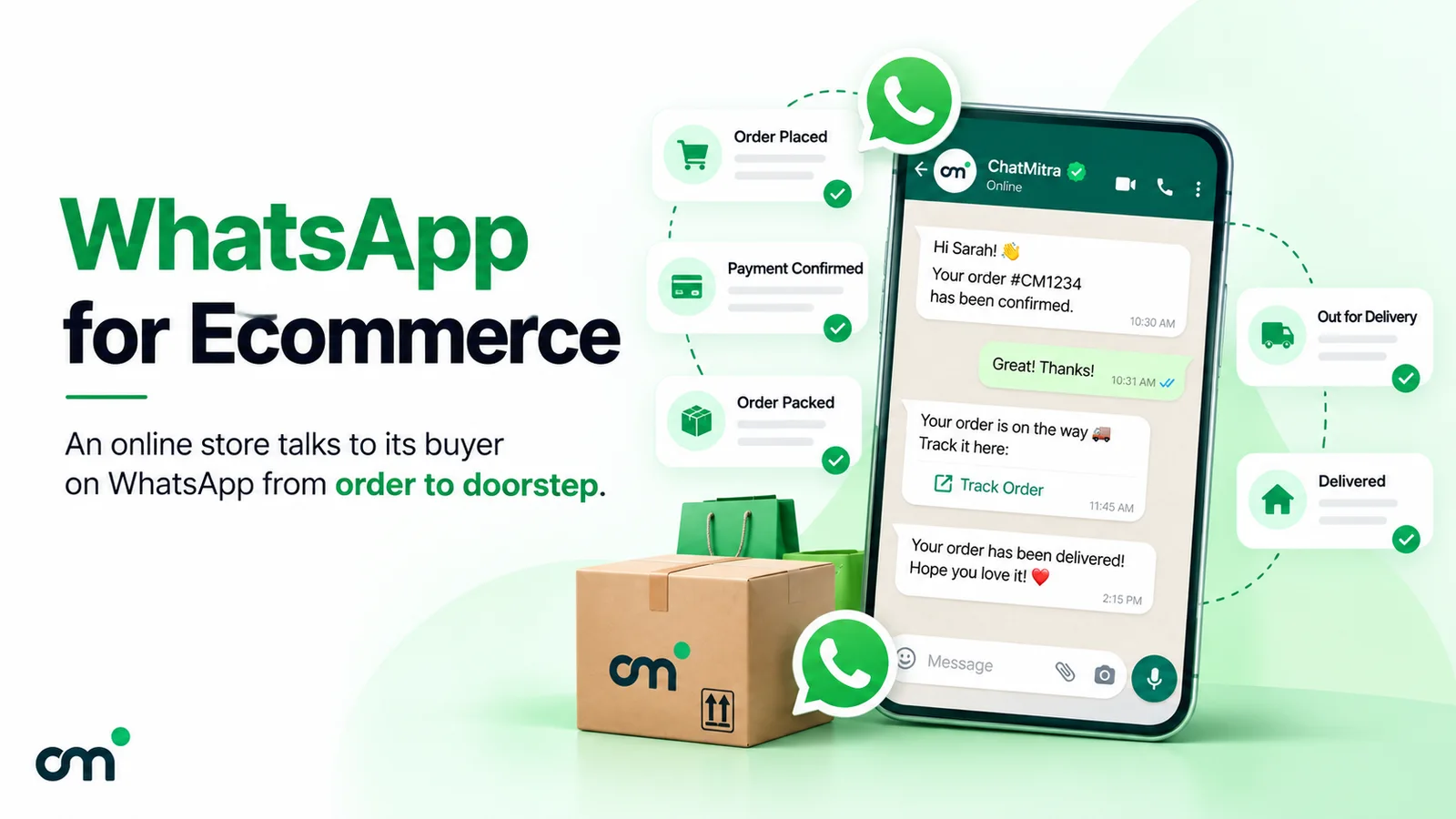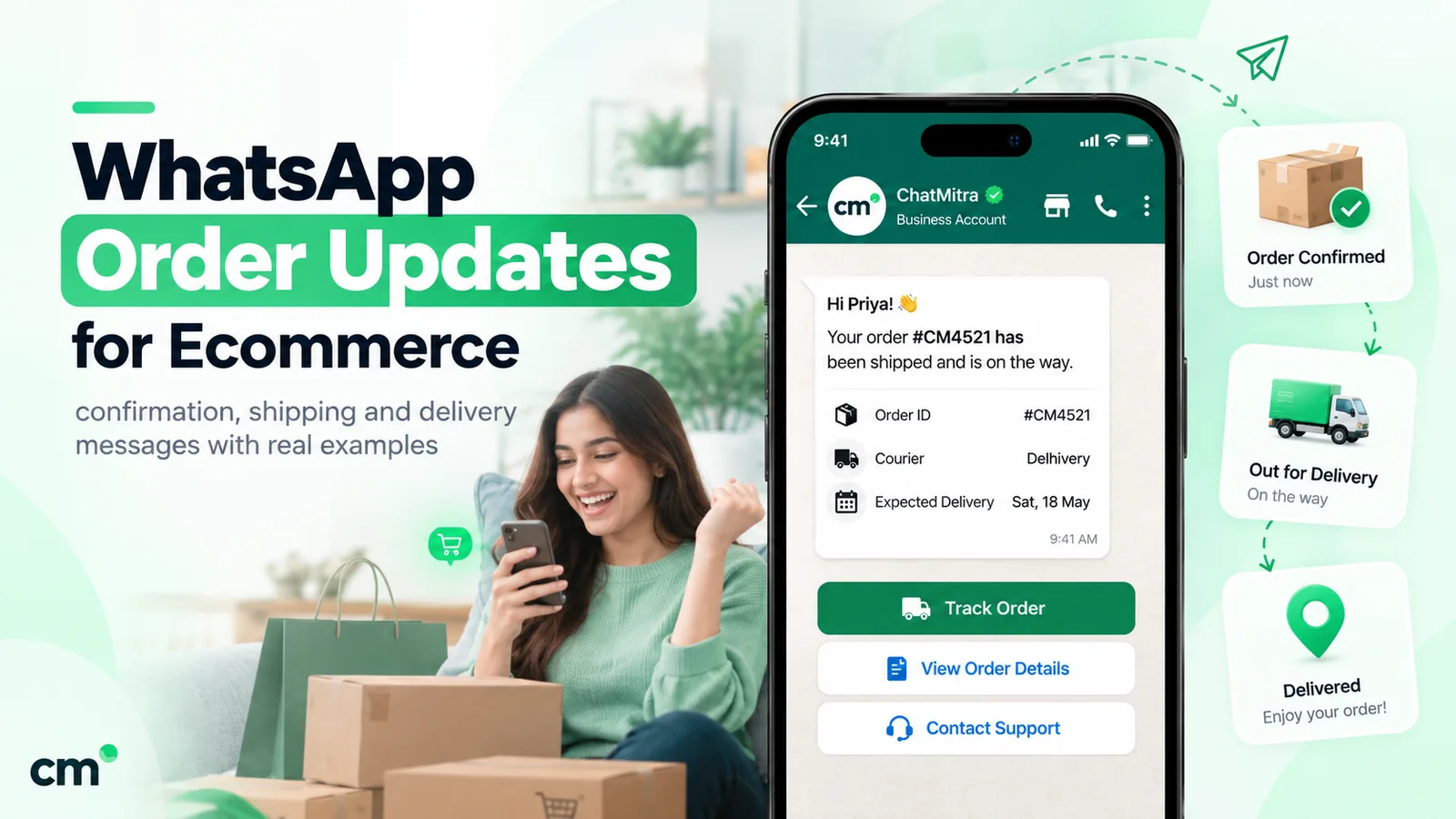

To integrate WhatsApp with Shopify, choose one of five routes: add a free click-to-chat button, send campaigns with Shopify Messaging, send order updates with Meta’s WhatsApp app, install a WhatsApp Business API provider’s app for full automation, or build your own flow with Shopify Flow or code. A button lets customers message you; everything your store sends automatically needs the WhatsApp Business Platform and Meta-approved templates.
Search “Shopify WhatsApp integration” and you’ll find dozens of apps that each promise to do everything. They don’t all do the same thing. Some only put a green button on your store. Some only send order updates. Some send marketing but can’t answer a customer. Picking the wrong one usually means paying for features you can’t use, or discovering after launch that your cart reminders can’t reach half your customers.
This guide sorts the options by what they actually do. It compares the five ways to connect WhatsApp to a Shopify store, walks through setup for each, explains which messages Meta treats as utility or marketing and what they cost, and ends with the order in which most stores should switch things on.
Key takeaways
- A chat button is inbound only. Automated order updates and reminders need the WhatsApp Business Platform (API).
- Order updates can be cheap utility messages. Cart reminders and offers are always marketing.
- Consent comes first: switch on WhatsApp opt-in at checkout before you automate anything.
What a WhatsApp integration for Shopify actually does
A WhatsApp integration can work in two directions, and most confusion comes from mixing them up.
Customers to you. A shopper taps a WhatsApp button on your product page and asks about sizes or delivery. The chat opens in WhatsApp on their phone, and you answer from the WhatsApp Business app or from a shared inbox. Nothing in Shopify has to change for this to work, apart from the button.
Your store to customers. Shopify tells a WhatsApp tool that something happened, such as an order being placed, a shipment going out or a checkout being left unpaid, and the tool sends a message automatically. This direction needs the WhatsApp Business Platform, Meta’s API for businesses, because the WhatsApp Business app can’t be triggered by another system. It also needs message templates: pre-written messages that Meta approves before you can send them to someone who hasn’t messaged you in the last 24 hours.
That 24-hour rule shapes everything. When a customer messages you, a 24-hour customer service window opens and you can reply with any normal message. Outside that window, which is where most order updates and every cart reminder land, you can only send an approved template. Meta’s pricing page puts it plainly: non-template messages “can only be sent within an open customer service window”.
The 5 ways to connect WhatsApp to Shopify
| Method | What it sends | Automation | Who bills the messages | Best for |
|---|---|---|---|---|
| 1. Click-to-chat button | Nothing. Customers message you | None | Free (replies from the Business app) | Any store, day one |
| 2. Shopify Messaging (WhatsApp) | Marketing campaigns to opted-in subscribers | Keyword replies; no order or cart flows | Shopify, on your invoice | Stores that want campaigns inside Shopify admin |
| 3. Meta's WhatsApp app for Shopify | Order updates to customers who opt in at checkout | Order events | Meta, separately from Shopify | Order notifications without a third party |
| 4. WhatsApp Business API app (provider) | Order updates, COD confirmation, cart reminders, campaigns, replies | Order, checkout and fulfilment events, plus inbox and chatbot tools | Meta, plus the provider's fee | Growing stores that want everything in one place |
| 5. Shopify Flow, Make, Zapier or code | Whatever you build | Fully custom | Meta, plus your API provider | Stores with a developer and unusual workflows |
The rest of this section explains each one, with setup steps and the limits you should know before you install anything.
Method 1: Add a WhatsApp chat button
The simplest integration isn’t really an integration. It’s a link. WhatsApp’s click-to-chat feature opens a chat with your number when someone taps https://wa.me/<number>, where the number is “a full phone number in international format”, without zeros, brackets or dashes. You can add a pre-filled message with ?text= followed by URL-encoded text, so the chat opens with something like “Hi, I have a question about [product]” already typed (WhatsApp Help Center, click to chat).
How to add it:
- Build the link. Our free WhatsApp chat link generator formats the number and encodes the message for you.
- In Shopify admin, go to Online Store > Themes > Customize.
- Add the link where shoppers hesitate: a button block on product pages, a line in the cart, your contact page and your footer. Most themes let you add a button or a custom-liquid block without code.
- For a floating button on every page, install a chat-button app from the Shopify App Store instead. Many are free.
What it can’t do: it can’t send anything. Every conversation starts with the customer, and you answer by hand from the WhatsApp Business app on your phone, or from a shared inbox if your number is on the API. It’s the right first step for a small store, and it keeps being useful after you add automation. For button placement and wording ideas beyond Shopify, see our guide to adding WhatsApp to a website.
One tip that saves you an awkward first reply: set up a WhatsApp greeting message so the shopper who taps your button hears back instantly, even when you’re packing orders.
Method 2: Shopify Messaging (WhatsApp campaigns inside Shopify)
Shopify’s own marketing app, Shopify Messaging, can send WhatsApp marketing. According to Shopify’s Help Center, “You can create WhatsApp marketing campaigns with Shopify Messaging to send messages directly to subscribers who opt in to receive WhatsApp marketing from your store” (Shopify Help Center, WhatsApp in Shopify Messaging).
How to set it up (Shopify’s setup page):
- In Shopify admin, open Apps > Messaging > Settings.
- Choose to set up a new WhatsApp account, or switch from another provider.
- Log in to Meta, then enter your WhatsApp Business Account name and category.
- Add a phone number. It can be an existing business number, a number requested through WhatsApp (Meta review can take up to 5 business days), or one from a provider such as Twilio.
- Turn on WhatsApp marketing opt-in at checkout, and import any existing consent you hold.
What you get: one-off campaigns to customer segments, with a text, image or product header, up to 1,024 characters of body text and buttons including a discount code. Each template goes to Meta for approval, which Shopify says “can take up to 24 hours”. You can also set keyword replies.
Limits to know:
- It’s for campaigns. Shopify’s campaign documentation doesn’t describe order updates, COD confirmation or abandoned-cart flows.
- You “can’t send WhatsApp marketing messages to customers in” the United States, China, Cuba, Iran, North Korea, Syria, Crimea, Donetsk or Luhansk. US-based stores can still message customers in other countries.
- New accounts are capped at 2,000 messages a day until Meta raises the limit, and every message carries a STOP-to-unsubscribe line you can’t remove (Shopify, requirements).
- Billing: you’re “charged per message” and billed monthly on your Shopify invoice. Shopify lists India at $0.024 per marketing message and $0.0014 per service message, and the United Kingdom at $0.106 and $0.0220 (Shopify, WhatsApp pricing, read 30 September 2026). Compare those with Meta’s own rates, below, before you decide where to send campaigns from.
Method 3: Meta’s WhatsApp app for Shopify (order updates)
Meta publishes its own app on the Shopify App Store, simply called WhatsApp. Its listing describes it as “The official app from Meta” for “timely order updates on WhatsApp”, and explains how it works: “At checkout, shoppers can opt in to get order updates from you on WhatsApp.” You connect your WhatsApp Business Account, then customise messages or pick pre-built templates (Shopify App Store, WhatsApp by Meta, read 30 September 2026).
The app is free to install. The listing warns that “External charges may be billed by Meta separately from your Shopify invoice”, which means Meta’s per-message rates apply. On 30 September 2026 it had a 4.4 rating from 885 reviews.
When it fits: you want order confirmations and shipping updates on WhatsApp, you’re comfortable dealing with Meta directly, and you don’t need cart recovery, COD confirmation, campaigns or a team inbox from the same tool. Recent reviews ask for features such as order tags and confirm or cancel buttons, so check the current listing against your needs.
Method 4: A WhatsApp Business API app from a provider
This is what most growing stores end up with. A Business Solution Provider (BSP), or a tech provider working with one, connects your number to the WhatsApp Business Platform and installs a Shopify app that listens to your store’s events. One tool then covers several jobs:
- Order updates: confirmation, shipped, delivered or cancelled, as utility templates.
- COD confirmation: asking cash-on-delivery customers to confirm before you ship, which cuts fake orders and returns. Our order confirmation message guide has wording for this.
- Cart recovery: reminders to shoppers who left checkout after entering a phone number.
- Campaigns: offers, launches and back-in-stock news to opted-in customers.
- Conversations: a shared team inbox for replies, often with auto-replies or an AI assistant.
How to choose a provider. Ask each one the same questions:
- Which Shopify events can trigger a message? Order created, fulfilled, delivered, cancelled, checkout abandoned? Delivery events usually need a courier integration, because Shopify alone often doesn’t know when a parcel arrives.
- Which variables can go into a template? Customer name, order number, total, product name and image, tracking link, checkout link.
- Does it handle the reply? A “Confirm” button is only useful if the tool reads the tap and does something, such as tagging the order in Shopify.
- How is pricing split? You should see Meta’s charge and the provider’s fee as separate lines.
- Can you keep your number? Ask about coexistence if your number is already on the WhatsApp Business app.
- Does it write back to Shopify? Order tags, notes or cancellations save your team manual work.
Typical setup:
- Sign up with the provider and connect your WhatsApp Business Account through Meta’s Embedded Signup.
- Install the provider’s app from the Shopify App Store and approve the store data it asks for (usually orders, customers and products).
- Create or pick templates for each event and submit them to Meta.
- Map template variables to Shopify fields, set delays, and turn each flow on.
- Send a test order to your own number, from checkout to fulfilment, before customers see anything.
Method 5: Shopify Flow, Make, Zapier or custom code
If none of the apps fits, you can build the link yourself. You still need access to the WhatsApp Business Platform, either Meta’s Cloud API directly or a provider’s API, and you need approved templates.
- Shopify Flow is “a free app available on the Basic, Grow, Advanced, and Plus plans”, but only “Stores on the Grow, Advanced, and Plus plans can use the Send HTTP Request action”, which is how a Flow would call a WhatsApp API (Shopify Help Center, Shopify Flow).
- Make or Zapier can connect a Shopify trigger, such as a new paid order, to a WhatsApp action without code. Check whether the WhatsApp step uses the official API and supports your template’s variables.
- Custom code listens to Shopify webhooks and calls the Cloud API. It gives you full control, and full responsibility for retries, opt-outs and error handling.
This route suits stores with a developer and an unusual process, such as sending a WhatsApp alert to a warehouse team rather than to customers. For most stores, a ready-made app is cheaper once you count maintenance.
Which method should you choose?
| If you… | Start with |
|---|---|
| Get fewer than a handful of orders a day and answer chats yourself | Chat button plus the WhatsApp Business app |
| Mainly want to send offers, and like having billing in Shopify | Shopify Messaging, if your customers aren't in the US |
| Only want order confirmations and shipping updates | Meta's WhatsApp app |
| Take many cash-on-delivery orders, or lose sales at checkout | A WhatsApp Business API app with COD and cart flows |
| Have several people answering customers | A WhatsApp Business API app with a shared inbox |
| Need a workflow no app offers | Shopify Flow (Grow plan or higher) or custom code |
Two things decide the answer more than any feature list: where your customers are, and how many orders you take on cash on delivery. A store selling mainly to the US gets little from WhatsApp marketing, because Meta doesn’t deliver marketing templates to US numbers (Meta for Developers, per-user marketing limits), though utility order updates still work. A store in India with a high COD share gets the most from COD confirmation, which only API apps offer.
Consent first: collecting WhatsApp opt-in on Shopify
Before any automated message goes out, you need permission. Meta’s opt-in rules say businesses may contact people on WhatsApp if “they have given their mobile phone number” and the business has “received opt-in permission from the recipient”. The opt-in must “clearly state that a person is opting in to receive communication from the business” and name the business (Meta for Developers, getting opt-in, updated 16 June 2026).
On Shopify, the practical steps are:
- Add a WhatsApp consent checkbox at checkout. Shopify Messaging and Meta’s app both provide one, and some provider apps add their own. If yours doesn’t, check that it at least respects the consent you collect. Place the checkbox next to the phone field.
- Separate order updates from marketing if your tool allows it. Meta suggests getting consent that covers the categories you’ll send, or separate consent for each. Customers who agreed to delivery updates didn’t necessarily agree to offers.
- Ask for the phone number early in checkout. You can only recover carts where the number was captured before the shopper left.
- Make opting out easy, and make sure your tool actually stops sending to people who opt out.
Our opt-in best practices guide covers wording and placement in more detail.
Utility or marketing? What each Shopify message counts as
Meta prices every template by category, so the category decides your cost. Meta’s categorisation guidelines say a utility template must be “non-promotional” and “specific to or requested by the user (clearly related to their order, account, services, or transactions)”. Its utility examples include confirming an order, sending a tracking number, a backorder notice and a refund confirmation. Its marketing examples include “You left {{items}} in your cart!”, listed among messages that “are marketing even if requested by users”. And a template with mixed content, “such as an order update with a promo”, is marketing (Meta for Developers, template categorisation, updated 15 September 2026).
| Shopify message | Usual category | Keep it utility by… |
|---|---|---|
| Order confirmation | Utility | Order number, items and total only; no "10% off your next order" |
| Shipped, with tracking | Utility | Tracking link and expected date; no product recommendations |
| COD confirmation request | Utility | Asking to confirm this order only; no upsell |
| Delivered / feedback request | Utility, if purely about the order | Asking about this order; any discount turns it into marketing |
| Refund processed | Utility | Amount and order number |
| Abandoned cart reminder | Marketing, always | It can't be; budget for marketing |
| Back in stock, launches, sales | Marketing | It can't be |
| Welcome after sign-up | Usually marketing | A plain opt-in confirmation can be utility |
What a Shopify WhatsApp integration costs
Three charges can apply, and it’s worth listing them separately.
1. Meta’s per-message charge. Meta charges for each delivered template, by category and by the customer’s country. On Meta’s India rate card effective 1 October 2026, a marketing message costs ₹0.8631 and a utility message ₹0.1150. Since 1 October 2026, replies inside the 24-hour customer service window are service messages: “Each business phone number has one shared free tier of 1,000 delivered service messages per month”, then Meta charges the service rate (Meta for Developers, pricing, updated 28 September 2026).
2. The app or provider fee. A monthly plan, a per-message markup, or both. Shopify Messaging folds everything into its own per-message USD price instead.
3. Your time. Templates, testing and answering replies. A cheap tool that can’t read a “Confirm” tap costs you in manual checking.
A worked example. A D2C store in India takes 3,000 orders a month.
- Order confirmation and shipped updates: 2 utility templates × 3,000 = 6,000 × ₹0.1150 = ₹690.
- COD confirmation for the 1,500 COD orders: 1,500 × ₹0.1150 = ₹172.50.
- Cart reminders: 1,000 abandoned checkouts with a number and consent, two reminders each = 2,000 × ₹0.8631 = ₹1,726.20.
That’s about ₹2,590 a month in Meta charges before any provider fee. Notice where the money goes: the cart reminders are about a fifth of the messages but two-thirds of the bill. That’s why the first cart reminder should be well timed and the second should be optional. For a full breakdown of rates, see WhatsApp Business cost per message.
The automations to switch on first
Don’t launch everything on day one. This order keeps costs low and lets you fix templates before they reach thousands of people.
- Order confirmation. The message customers expect most. Keep it short: order number, items, total, and what happens next.
- Shipped, with tracking. It cuts “where is my order?” chats more than any other message.
- COD confirmation, if you take cash on delivery. Ask the customer to confirm, and have someone follow up on orders nobody confirms.
- Abandoned cart reminder, once the first three are stable. One reminder within the first hour or so, and at most one more the next day.
- Feedback or review request, a few days after delivery.
- Campaigns, only to customers who opted in to marketing.
Three examples you can adapt (written for this guide):
Order confirmation (utility): Hi {{1}}, thanks for your order {{2}} from [Store name]. Total: {{3}}. We’ll message you here as soon as it ships.
COD confirmation (utility): Hi {{1}}, you placed order {{2}} for {{3}}, to be paid on delivery. Please tap Confirm so we can ship it, or Cancel if you didn’t place this order.
Cart reminder (marketing): Hi {{1}}, your {{2}} is still in your cart at [Store name]. Tap below to finish your order; your cart is saved for you.
For longer libraries of wording, see our order confirmation messages and the ecommerce flows in WhatsApp for ecommerce.
How ChatMitra’s Shopify app works
ChatMitra is one of the API apps in Method 4. Here is what its Shopify integration does, checked in ChatMitra’s code on 30 September 2026, including what it doesn’t do yet.
| Area | How it works |
|---|---|
| Install | "Chat Mitra WhatsApp Marketing" on the Shopify App Store, free to install and embedded in Shopify admin. It asks for read-only access to checkouts, customers, orders and products. You can also connect a store manually with an access token |
| Shopify events used | Order created, order fulfilled, order cancelled, checkout created and checkout updated |
| Automations | Eight: three abandoned-cart reminders, COD confirmation, order confirmed (for paid orders), order cancelled, order fulfilled (with the tracking link) and a feedback request |
| Timing | Delay presets from 1 minute to 24 hours; the feedback request goes 2 to 40 days after fulfilment (3 by default) |
| Template variables | Customer name, order ID, items, amount, order date, shipping address, order status link, tracking link and checkout link, with fallback text for empty values; dynamic URL buttons and coupon-code buttons |
| Checkout sources for cart reminders | Shopify's own checkout, Razorpay Magic Checkout or Shiprocket Checkout, one at a time. Checkouts without a phone number are skipped |
| Contacts | Created automatically from orders and checkouts, and tagged by event: order_confirmed, order_fulfilled, order_cancelled, abandoned_cart. You can then target these tags in broadcasts |
| Safeguards | Each cart reminder re-checks that the checkout is still unpaid before sending, and no number gets more than 10 cart messages a day from one project |
What it doesn’t do (yet):
- It doesn’t read Shopify’s consent fields. Messages go to the phone number on the order or checkout, so collect WhatsApp consent at checkout yourself before you switch flows on.
- COD detection is exact. A COD message goes only when the payment method is named “Cash on Delivery (COD)”. A renamed or third-party COD method won’t trigger it.
- Button replies aren’t automated. When a customer taps Confirm or Cancel, the reply lands in your inbox for your team to act on. Nothing is written back to Shopify: no order tags, notes or cancellations.
- No delivered or refund updates. The shipped message carries the tracking link Shopify has; there are no out-for-delivery, delivered or refund events.
- No storefront button, catalog sync or per-order product images. Use a wa.me link for the button; a media header is one fixed image per flow.
- “Recovered” means converted, not attributed. The dashboard counts a cart as recovered when that checkout later became an order, whether or not the customer opened the reminder.
- One store per WhatsApp number (project).
As recommended above, switch on the order confirmation flow (and COD confirmation, if you take COD) before the cart reminders. The Shopify app is free to install; Meta’s message charges apply, and plan details are on the ChatMitra pricing page.
Common mistakes when connecting WhatsApp to Shopify
- Automating before collecting consent. Messages to people who never opted in get blocked and reported, which lowers your quality rating and your sending limits.
- Adding an offer to an order update. One discount line turns a utility template into marketing, at more than seven times the price in India.
- Sending cart reminders to US numbers. Meta doesn’t deliver marketing templates to US phone numbers, so those reminders fail, although utility order updates still reach them.
- Running two tools on the same events. Meta’s app and a provider app both sending “order confirmed” means two messages and two charges.
- Promising a reply you can’t give. A “Reply to this message for help” line needs someone, or something, reading the replies.
- Using variables that can be empty. A template that says “Hi {{1}}” with no name on file reads “Hi ,”. Set a fallback such as “there”.
- Never checking delivery reports. Failed and undelivered messages tell you about wrong numbers, blocked templates and opt-outs.
Troubleshooting: messages aren’t going out
- Template not approved or paused. Check its status in WhatsApp Manager or your provider’s dashboard. Meta can pause templates that get poor feedback.
- Wrong category. If Meta re-categorised a utility template as marketing, it’s now charged as marketing and subject to marketing limits.
- No phone number, or no country code. Shopify stores what the customer typed. A 10-digit Indian number without +91 may fail unless your tool adds the code.
- Customer didn’t opt in. Many apps skip customers without consent, by design.
- The event never fired. Delivery events need a courier or shipping app that tells Shopify a parcel arrived.
- Daily limit reached. New numbers start with a limit on how many people they can message; it rises as you send good-quality messages.
Where to start
Put a WhatsApp button on your product pages today; it costs nothing and it’s still useful after you automate. Then decide which of your pain points is bigger: customers asking where their order is, fake or refused COD orders, or carts left at checkout. That decides whether Meta’s app is enough or you need a full API app.
Whichever you pick, switch on consent at checkout first, start with order confirmation and shipping updates, check that your templates are approved as utility, and add cart reminders last. To see how ChatMitra’s Shopify app handles these flows, visit our Shopify WhatsApp integration page.
Sources: WhatsApp Help Center (click to chat). Shopify Help Center (WhatsApp in Shopify Messaging: overview, setup, requirements, pricing, campaigns; Shopify Flow). Shopify App Store listings (WhatsApp by Meta; Chat Mitra WhatsApp Marketing; Shopify Inbox). Meta for Developers (pricing, updated 28 September 2026; template categorisation, updated 15 September 2026; getting opt-in, updated 16 June 2026; per-user marketing message limits, which cover US numbers) and Meta’s India rate card effective 1 October 2026. ChatMitra behaviour verified in ChatMitra’s code on 30 September 2026.
Facts checked on 30 September 2026. Shopify Messaging prices are Shopify's USD figures; rupee figures are Meta's India rates.