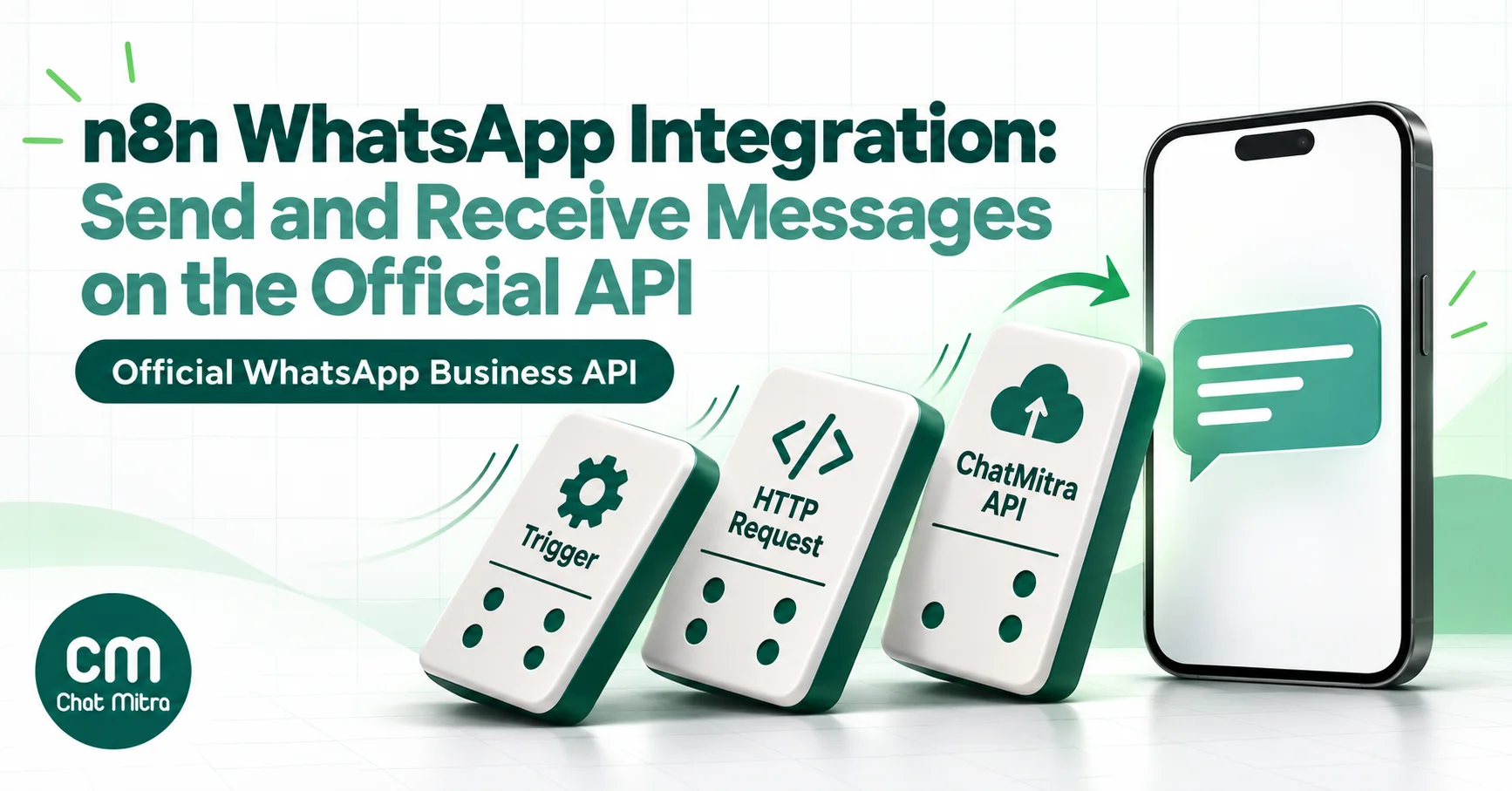
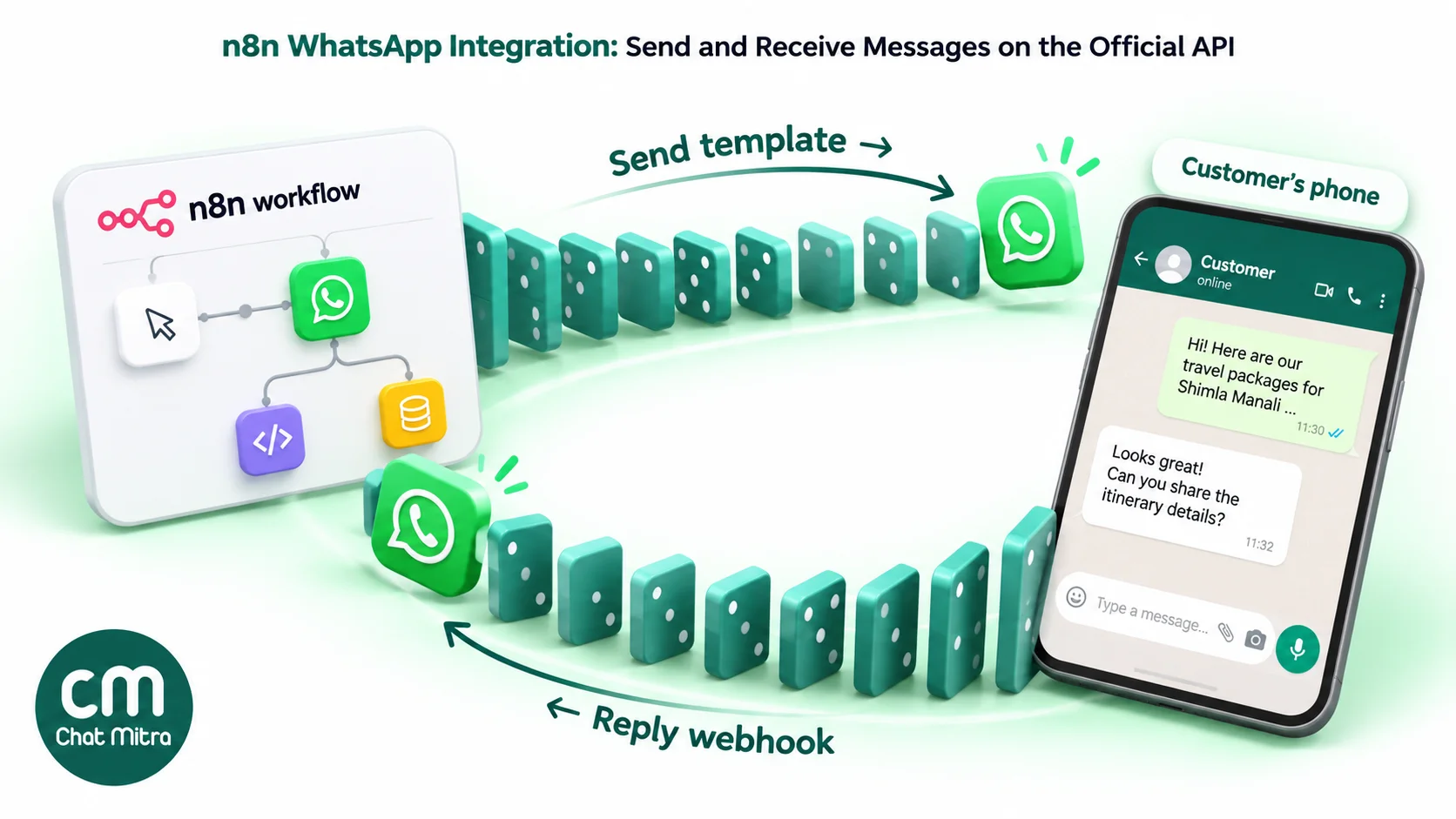
An n8n WhatsApp integration lets your n8n workflows send WhatsApp messages and react to the replies: an order confirmation when a webhook arrives, a reminder from a schedule, or a lookup when a customer types a question. There are two official ways to build it. The first is n8n’s built-in WhatsApp Business Cloud node, which talks to Meta directly using your own Meta app. The second is n8n’s HTTP Request node calling a WhatsApp provider that already hosts your number. A third way, unofficial WhatsApp Web bridges, shows up in plenty of n8n tutorials, and this guide explains why it isn’t safe for business messages.
You’ll get a comparison of the options, then a step-by-step setup for both directions: sending templates from n8n, and receiving and verifying replies in n8n. A worked Indian cost example comes after that. The examples use ChatMitra’s API, but the pattern works with any provider that has an API and signed webhooks.
Using ChatMitra? There’s no ChatMitra node in n8n, and you don’t need one. n8n’s HTTP Request node calls ChatMitra’s
send_messageAPI with a Bearer token, and ChatMitra’s signed webhooks start n8n workflows when customers reply. The API and webhooks come with the Pro plan. Jump to the setup.
The short answer: three ways to connect n8n to WhatsApp
| Option | What n8n uses | What you manage | Best for |
|---|---|---|---|
| A WhatsApp provider’s API (for example ChatMitra) | HTTP Request node out, Webhook node in | An API key, templates in the provider’s dashboard, one webhook URL | Businesses that want automation plus a shared inbox for their team |
| n8n’s built-in WhatsApp Business Cloud node | WhatsApp node out, WhatsApp Trigger in | A Meta app, a system-user token, the app’s single webhook, Meta billing | Developers who want no intermediary and will run the Meta side themselves |
| An unofficial WhatsApp Web bridge | Community nodes or HTTP calls to a self-hosted bridge | A server that keeps a WhatsApp Web session alive | Personal experiments only. Outside WhatsApp’s terms, so never for customers |
All three can send a message when something happens in n8n. They differ in who carries the Meta-side work, whether your team gets an inbox, and how much risk sits on your phone number.
Why pair n8n with ChatMitra
ChatMitra is an official WhatsApp Business Platform provider for Indian businesses. With n8n it handles the parts of WhatsApp that n8n doesn’t: your number’s registration with Meta, submitting templates for Meta’s approval, a shared inbox where people answer the chats your workflows don’t, and the INR bill.
| ChatMitra advantage | What it means for an n8n setup | How the direct route compares |
|---|---|---|
| One API key instead of a Meta app | Create a key in Settings → API Key and n8n is ready to send | You create a Meta business app, add WhatsApp, and manage a system-user token and its permissions |
| Shared team inbox, unlimited team members | Replies that n8n doesn’t automate land where staff can answer them | The built-in node has no inbox; unhandled replies sit in n8n’s execution log |
| You choose the webhook URL in ChatMitra’s settings | Listening for a test event in n8n never replaces your production webhook | n8n’s docs warn that Meta allows a single webhook per app, so a test listen replaces production |
| Signed webhooks with a timestamp | n8n can verify every request with its Crypto node | The WhatsApp Trigger handles Meta’s verification for you |
| Meta’s rates at cost, billed in INR | Meta’s India rate plus ₹0.20 per conversation on Pro, and no ChatMitra fee on Enterprise | You pay Meta directly through its Billing Hub; since 1 January 2027 Meta has required eligible India-based businesses to bill in INR |
Good to know: ChatMitra charges ₹0.20 per conversation, once per customer per 24 hours, on Starter and Pro. A direct Meta setup doesn’t have that fee. The rest of this guide shows both routes, so you can weigh that against the work it saves.
Option 1: n8n’s built-in WhatsApp Business Cloud node
n8n ships a WhatsApp Business Cloud node with these operations:
- Message: Send, Send and Wait for Response, and Send Template.
- Media: Upload, Download and Delete.
Send and Wait for Response pauses the workflow until the recipient taps an approval button or fills a short form. That’s handy for internal approvals. For operations the node doesn’t cover, n8n’s docs suggest the HTTP Request node with the same credentials.
The matching WhatsApp Trigger node receives Meta’s webhook events: messages, template status and quality updates, phone-number quality updates and account updates.
What you need, according to n8n’s credential guide:
- a Meta developer account, a Meta business portfolio and a Meta business app with the WhatsApp product added;
- for sending, an access token and your WhatsApp Business Account ID;
- for the trigger, an OAuth2 credential made from your app’s App ID and App Secret.
Three things that catch people out:
- The quick token expires. The token you generate in the app dashboard is a user access token. Meta’s access token guide says those “expire quickly, so you have to keep generating a new one”, and tells direct developers to use a long-lived system user access token instead. Make one in Business Settings before you go live, or your workflow will fail with an authentication error a few hours after it worked.
- One webhook per app. n8n’s WhatsApp Trigger docs say: “WhatsApp only allows you to register a single webhook per app.” Listening for a test event registers the test URL and silently takes over the production workflow’s webhook. n8n’s workaround is to unpublish, test, then republish, which takes production offline while you test.
- The number belongs to your app. A number registered to your own Meta app is managed from Meta’s tools, not from a provider dashboard. Templates, display-name changes, quality ratings and payment methods all live in Meta Business Manager.
Setting up the built-in node, in brief
If you choose the direct route, the order of work is:
- In Meta’s App Dashboard, create a business app and add the WhatsApp product. Meta gives you a test number to start with.
- Add your real business number and verify it by SMS or voice call. The number can’t be active on another WhatsApp Business Platform setup at the same time.
- In Business Settings, create a system user, assign it your app and your WhatsApp Business Account, and generate a token with the
whatsapp_business_messagingandwhatsapp_business_managementpermissions. This is the long-lived token n8n should use. - Add a payment method in Meta’s Billing Hub. Without one, Meta delivers only service messages inside the monthly free tier, and nothing that needs paying for.
- In n8n, create the WhatsApp credential with the system-user token and your WhatsApp Business Account ID, then use the Send Template operation with your phone number ID, template name and language.
- For replies, create the OAuth2 credential from your App ID and App Secret, add a WhatsApp Trigger with the Messages event, and publish the workflow so its production URL is the one Meta registers.
The direct route has no provider fee, and that’s its real advantage. The cost is that someone on your team becomes the WhatsApp platform administrator. That person handles token rotation, webhook registration, template approval and Meta’s billing setup.
Option 2: call a WhatsApp provider’s API from n8n
In this route your number lives with a provider, and n8n only needs to make an HTTP request. With ChatMitra the request looks like this:
- URL:
POST https://backend.chatmitra.com/developer/api/send_message - Auth:
Authorization: Bearer <your API key> - Body: a
recipient_mobile_number(digits with the country code) and amessagesarray holding either a template (kind: "template") or a free-form message (kind: "raw") for chats inside the 24-hour window.
Replies come back as webhooks. ChatMitra posts message.received for every incoming message, plus message.sent, message.failed and message.status.updated for your own messages. Each request is signed with HMAC-SHA256, so n8n can prove it came from ChatMitra.
Because the provider owns the Meta app, an n8n test listen can’t take over your production webhook. You set the URL in the provider’s dashboard and change it only when you choose to, and your team still has an inbox. The API reference and the webhook docs cover every message type and payload.
Why to avoid unofficial WhatsApp Web bridges
Search “n8n WhatsApp” and many tutorials use self-hosted bridges that log into WhatsApp Web with a QR code and expose it as an API. They’re free, quick and need no template approval, which is exactly why they’re tempting.
They also run outside WhatsApp’s rules. WhatsApp’s Terms of Service prohibit accessing or using the service “in impermissible or unauthorized manners” and doing so “directly, indirectly, through automated or other means.” In practice, numbers driven this way risk being restricted or banned, often after a burst of outbound messages. They also can’t send approved templates, can’t message someone outside the 24-hour window the official way, and give you none of Meta’s delivery guarantees.
For any number your customers know, use the official API through one of the first two routes. The official vs unofficial sender guide covers the trade-off in more depth.
Before you build: what you need
- An approved template for every message that starts a conversation. Meta must approve it, and it has a name, a language code and numbered variables such as
{{1}}. - Opt-in from everyone you message first. Collect it on the form or checkout that feeds n8n. The WhatsApp opt-in guide has wording that works.
- Clean phone numbers. ChatMitra expects digits with the country code, so
919876543210, not98765 43210. Normalise numbers in n8n before you send, with an Edit Fields (Set) node or a small Code node. - A public HTTPS URL for n8n, if you want replies. n8n Cloud has one. A self-hosted n8n needs a domain and TLS, not
localhost. - ChatMitra Pro (₹999 a month, 15-day free trial) for the API key and webhooks. The developer API isn’t on the free Starter plan.
Send a WhatsApp template from n8n, step by step
This example sends an order confirmation when a store posts a webhook to n8n. The same HTTP Request node works after any trigger: Schedule, Google Sheets, a form, a CRM or a database.
Step 1: Create a ChatMitra API key and template
In ChatMitra, open Settings → API Key and create a key. Store it only in n8n’s credentials, never in a node’s plain-text fields; the API keys explainer covers why. Then create and submit a template, say order_confirmed in English with body text “Hi {{1}}, your order {{2}} is confirmed and will ship within 2 days.” Wait for Meta’s approval.
Step 2: Add the credential in n8n
In n8n, create a Header Auth credential:
- Name:
Authorization - Value:
Bearer <your ChatMitra API key>
Every HTTP Request node that talks to ChatMitra reuses it, and the key never appears in the workflow JSON when you export or share it.
Step 3: Add the trigger
Add a Webhook node (method POST) and copy its production URL into your store or form tool. Send one test order using the test URL, so n8n shows you the incoming fields. In this example, they’re body.customer_name, body.phone and body.order_id.
Step 4: Add the HTTP Request node
Configure it as follows:
- Method: POST
- URL:
https://backend.chatmitra.com/developer/api/send_message - Authentication: Generic Credential Type → Header Auth → your ChatMitra credential
- Send Headers: on, with
Idempotency-Key={{ $json.body.order_id }}-order-confirmed - Send Body: JSON, using this body:
{
  "recipient_mobile_number": "{{ $json.body.phone }}",
  "messages": [{
    "kind": "template",
    "template": {
      "name": "order_confirmed",
      "language": "en",
      "components": [{
        "type": "body",
        "parameters": [
          { "type": "text", "text": "{{ $json.body.customer_name }}" },
          { "type": "text", "text": "{{ $json.body.order_id }}" }
        ]
      }]
    }
  }]
}
The parameters fill {{1}} and {{2}} in order, so there must be exactly as many as the template has variables.
Step 5: Make it safe to retry
In the HTTP Request node’s settings, turn on Retry On Fail with two or three tries and a few seconds’ wait. Retries are safe because of the Idempotency-Key header: if ChatMitra receives the same key and message twice, it replays the first result instead of sending and charging again. Build the key from something unique to the event, such as the order ID plus the template name. Never use a timestamp.
Then add an IF node after the request. A 2xx response means ChatMitra accepted the message. Anything else should go to an alert (email, Slack or a Google Sheet), so a failed confirmation doesn’t vanish into the execution log.
Step 6: Test, then publish
Use your own number as the test customer and check that:
- the template arrives with both variables filled;
- a second request with the same order ID sends nothing new;
- a deliberately wrong phone number takes the failure path.
Then publish the workflow. Only production executions count towards n8n Cloud’s quota; manual test runs don’t.
Receive and verify WhatsApp replies in n8n
Sending is half an integration. The other half is reacting when the customer answers: “Where’s my order?”, “Yes, confirm”, “STOP”.
Step 1: Create the receiving workflow
Add a Webhook node (POST) and set:
- Respond: Immediately. ChatMitra waits up to 8 seconds for a response and makes up to three delivery attempts with growing delays, so answer at once and do the slow work afterwards.
- Options → Raw Body: on. n8n then keeps the exact bytes ChatMitra signed in a binary field named
data, alongside the parsedbody.
Step 2: Point ChatMitra at it
In ChatMitra, open Settings → Webhooks, paste the n8n production URL, copy the webhook secret and turn on message.received. Turn on message.failed as well if you want failed sends reported to n8n.
Step 3: Verify the signature
ChatMitra signs every request with HMAC-SHA256 of the raw body, sent as hex in the X-Webhook-Signature header. In n8n:
- Add a Crypto node: action Hmac, type SHA256, encoding HEX, Binary File on, binary property
data, with your ChatMitra webhook secret stored in the Crypto credential. Write the result to a field calledsignature_check. - Add an IF node:
{{ $json.signature_check }}equals{{ $json.headers["x-webhook-signature"] }}. The false branch stops the workflow.
Anyone who finds your n8n URL can post to it. This check means only ChatMitra can start the workflow. The raw body matters because the signature is over the exact bytes sent: re-serialising the parsed JSON can change spacing and break the match.
Step 4: Route by message
Add a Switch node on {{ $json.body.message.type }} and, for text, on the words in {{ $json.body.message.text }}. A typical split:
- “STOP” or “unsubscribe”: mark the contact as opted out wherever your list lives, such as a Google Sheet, CRM or database, so later workflows skip them.
- “Where is my order” plus an order number: look up the status and reply with a free-form text. The customer has just written, so you’re inside the 24-hour window and no template is needed.
- Everything else: leave it for a person. It’s already in ChatMitra’s shared inbox.
A free-form reply uses the same endpoint with a raw message:
{
  "recipient_mobile_number": "{{ $json.body.from }}",
  "messages": [{
    "kind": "raw",
    "payload": { "type": "text", "text": { "body": "Your order {{ $json.order_id }} is out for delivery today." } }
  }]
}
Step 5: Handle duplicates
Because ChatMitra retries deliveries that time out or fail, the same message.received can occasionally reach n8n twice. Keep each processed message_id in a data table or sheet and skip repeats, or make every action idempotent, like the Idempotency-Key header on replies. The WhatsApp API errors guide covers what a failed status means and what to do about it.
Sending to a list from n8n without hitting WhatsApp’s limits
Sooner or later someone asks n8n to message everyone in a Google Sheet. That works, but three of WhatsApp’s limits apply, whichever route you use.
- Messaging limit (how many people). Meta limits how many unique people your business can message outside an open customer service window in a moving 24-hour period. Meta’s messaging-limits guide says new business portfolios start at 250 and can rise to 2,000 by completing a scaling path, then increase automatically with good template quality. The limit is shared by every number in the portfolio. A 1,500-row sheet on a new account will mostly fail.
- Throughput (how fast). Meta’s throughput guide allows up to 80 messages per second per number by default, and returns error 130429 above that. n8n rarely reaches that speed, but a fast loop can.
- Pair rate (how often to one person). Sending many messages to the same number in a short time returns a pair-rate error (131056). It usually means a loop is resending to one row.
The n8n pattern that respects all three is short:
- Read the rows with Google Sheets or a database node, filtered to opted-in contacts who haven’t been sent this campaign.
- Use Loop Over Items with a batch size of 20–50.
- Inside the loop, send through the HTTP Request node, then write
sentorfailedback to the row. - Add a Wait node of a few seconds between batches.
The whole loop runs as one execution in n8n. On the ChatMitra side, each recipient is still a separate conversation and a separate Meta charge.
For one-off campaigns, ChatMitra’s own broadcast tool may be simpler than n8n: import a CSV and schedule the send, and the sending pace is managed for you. Keep n8n for messages that depend on an event or on data in another system.
Monitor your WhatsApp workflows
A silent failure in WhatsApp automation looks like this: customers stop getting confirmations, and nobody notices until someone complains. Three cheap guards prevent it.
- An error workflow. Create a workflow that starts with n8n’s Error Trigger and sends you an email or a Slack message. Set it as the error workflow in each WhatsApp workflow’s settings, so any crash is reported with the execution link.
- Failed-message events. Accepted isn’t the same as delivered. Turn on ChatMitra’s
message.failedwebhook and route it to the same alert, with the phone number and the error. The common causes are an unregistered number, a paused template or a missing payment method. - A weekly count. Compare the number of orders with the number of confirmations sent. A gap that grows is a broken trigger, not bad luck.
Adding an AI agent to WhatsApp replies
n8n’s AI nodes make it tempting to answer every WhatsApp message with a model. That can work for narrow questions such as order status, opening hours or price lists, if you keep three rules:
- Keep the facts out of the model. Look up the order or the price list in n8n first and pass it into the prompt, so the model phrases the answer instead of inventing one.
- Give it a way out. If the model isn’t confident, or the customer asks for a person, send nothing automated and let the chat wait for your team in ChatMitra’s inbox.
- Stay inside the window. Free-form AI replies only work within 24 hours of the customer’s last message. Anything later needs an approved template.
ChatMitra also has its own AI chatbot on the Pro plan, which answers inside the inbox using your choice of model provider and your own key. Choose one or the other for a given number. If both a ChatMitra chatbot and an n8n workflow answer the same message, the customer gets two replies.
Six n8n WhatsApp workflows worth building first
| Workflow | n8n trigger | WhatsApp message | Category |
|---|---|---|---|
| Order or booking confirmation | Webhook from the store or booking tool | Template with name, order or booking ID, date | Utility |
| Appointment reminder | Schedule, reading tomorrow’s bookings from a sheet or database | Template with time, place and a reschedule button | Utility |
| Payment reminder | Schedule, reading unpaid invoices | Template with amount and payment link | Utility, if it’s about an existing payment |
| New lead welcome | Form, ad-lead or CRM webhook | Template that confirms the enquiry and names the next step | Usually utility, if it isn’t promotional |
| Reply-based order status | ChatMitra message.received webhook | Free-form text reply inside 24 hours | Service (no template) |
| Internal alert | Any failure path in your workflows | A template to your own team’s numbers | Utility |
For copy, the reminder messages guide and the booking confirmation examples have tested wording. Meta decides a template’s category from its content, so promotional lines in a “reminder” turn it into a marketing template at marketing rates. The utility message guide explains where the line sits.
What an n8n WhatsApp integration costs: an Indian worked example
The scenario. A small online store sends 1,500 order confirmations a month from a webhook, plus a weekly re-engagement template to 75 opted-in customers (300 a month). About 600 customers reply, and those replies are handled by the receiving workflow.
n8n executions. n8n counts one execution per workflow run, not per node. That gives 1,500 webhook runs, plus 4 weekly scheduled runs that each send to 75 people inside a loop, plus 600 reply runs: 2,104 executions, under Cloud Starter’s 2,500.
Meta’s charges (India rates from 1 July 2026, unchanged in Meta’s 1 October 2026 update):
- 1,500 utility templates × ₹0.1150 = ₹172.50
- 300 marketing templates × ₹0.8631 = ₹258.93
- 600 service replies, inside Meta’s 1,000 free service messages per number per month = ₹0
- Meta total: ₹431.43
| Monthly cost | n8n Cloud Starter + ChatMitra Pro | Self-hosted n8n + ChatMitra Pro | n8n Cloud Starter + direct Meta (built-in node) |
|---|---|---|---|
| n8n | ₹2,602.81 (€24 at ₹108.4503) | ₹0 licence, plus your server | ₹2,602.81 |
| ChatMitra | ₹999 Pro, including 1,000 conversations; 800 more × ₹0.20 = ₹160 | ₹999 + ₹160 | Not used |
| Meta | ₹431.43 | ₹431.43 | ₹431.43 |
| Total | ₹4,193.24 | ₹1,590.43 + server | ₹3,034.24 |
| Team inbox for unhandled replies | Yes | Yes | No |
How the numbers work:
- ChatMitra’s fee. ChatMitra charges ₹0.20 per conversation, once per customer per 24 hours, however many messages are exchanged. The 1,800 outbound templates are assumed to go to different customers or on different days, so they’re 1,800 conversations. Pro includes 1,000.
- Enterprise. At about 8,500 conversations a month, ChatMitra Enterprise (₹2,499, no per-conversation fee) costs the same as Pro. Above that, it’s cheaper.
- n8n’s price. It’s n8n’s listed Starter price on 14 October 2026, converted at FBIL’s euro reference rate for 7 October 2026. Paying yearly brings it to €20 a month, or about ₹2,169.
- What the direct column leaves out. It’s cheaper on paper, but it doesn’t price the setup and upkeep of a Meta app, its token and its single webhook.
For the detail behind Meta’s side, see how WhatsApp Business API pricing works. ChatMitra’s plans are on the pricing page.
Common n8n WhatsApp errors and fixes
| Symptom | Likely cause | Fix |
|---|---|---|
| 401 from ChatMitra | Wrong or revoked API key, or “Bearer ” missing from the header value | Re-create the Header Auth credential with Bearer <key> |
| 400 “Template name must be…” | Name typed with capitals or spaces | Use the exact lowercase name from the template list |
| 400 about components or parameters | The number of parameters doesn’t match the template’s variables | Count the {{n}} variables and send exactly that many |
| 400 “Phone must be 8-15 digits” | Number missing its country code, or empty | Normalise to digits with the country code before the request |
| A free-form reply fails | The customer’s last message is more than 24 hours old | Send an approved template instead |
| Built-in node fails hours after a good test | A short-lived user access token | Switch to a system user access token |
| WhatsApp Trigger receives nothing in production | A test listen took over the app’s single webhook | Unpublish, test, republish (n8n’s documented workaround) |
| Signature check always fails | Raw Body is off, or the wrong secret | Turn on Raw Body and HMAC the binary data field with the webhook secret |
| Customers get two messages | Retries without an idempotency key | Add an Idempotency-Key built from the event ID |
n8n’s node or a provider: which should you choose?
- Choose n8n’s built-in node if a developer on your team will own the Meta app, every message is automated, and nobody needs to read or answer chats by hand.
- Choose a provider like ChatMitra if people on your team also answer WhatsApp, if you’d rather not manage Meta tokens and webhooks, or if you want INR billing and template approval handled in one dashboard.
- Consider a different tool altogether if nobody wants to maintain n8n. WorkflowMitra, ChatMitra’s own workflow builder, has a WhatsApp step that sends through ChatMitra with no HTTP setup.
Using HubSpot as your CRM? The HubSpot WhatsApp integration guide applies the same API and webhook pattern to logging chats on contact records. To see how ChatMitra’s API compares with calling Meta’s Cloud API directly, read the WhatsApp Cloud API guide and the Python example.
Start with one template and one workflow: the order or booking confirmation. Add reply handling once that has run cleanly for a week. Pro’s 15-day free trial includes the API and webhooks; see the plans.