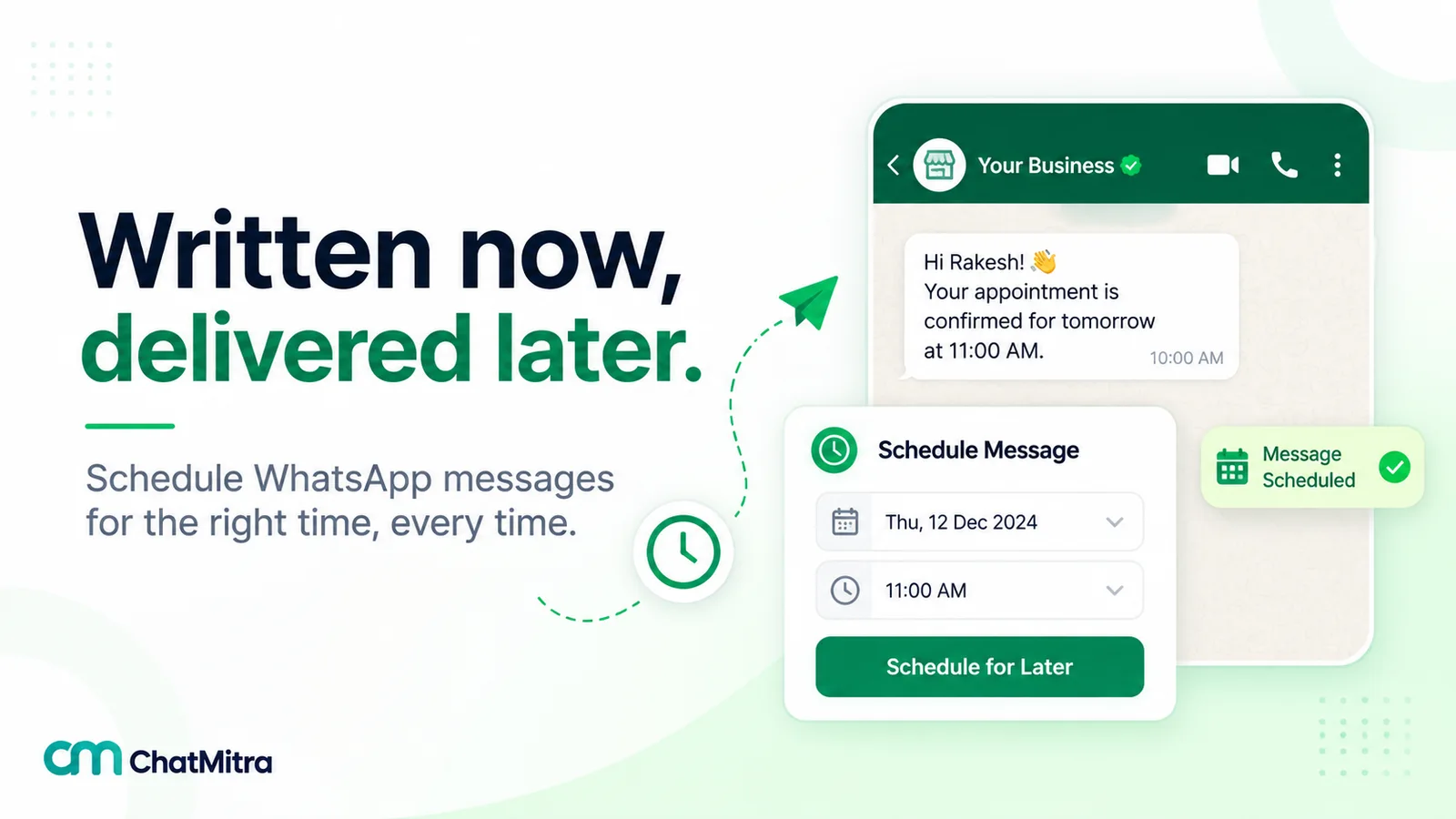
A WhatsApp scheduler sends a message at a time you choose instead of now. The regular WhatsApp app has no documented scheduler as of 26 September 2026. The WhatsApp Business app can schedule paid business broadcasts where available, and businesses schedule template messages to many customers through the official WhatsApp Business Platform.
Which route you need depends on who you are writing to. A birthday wish to a friend, a Monday offer to 300 customers and an automatic reminder three days before each customer’s renewal date are three different jobs. This guide covers the personal app, the Business app and the API in that order, then the rules and time-zone arithmetic that decide whether a scheduled business message actually arrives.
Key takeaways
- For personal chats there's no official way to send later. Every workaround drives WhatsApp for you, and WhatsApp's terms put the risk on you.
- For a small shop on the Business app, a scheduled business broadcast is the only built-in option, where it's available.
- For business sends at volume, schedule approved templates on the Business Platform, set times in the customer's time zone, and check Meta's limits before the send date.
Facts checked against WhatsApp's Help Center and terms, Meta's WhatsApp Business Platform documentation and GOV.UK on 26 September 2026. Rupee figures are Meta's India rates and exclude tax.
Can you schedule a WhatsApp message? The short answer by app
Yes and no. It depends on which WhatsApp you use and who is on the other end.
| Where you send from | Built-in scheduling? | Who can receive it | Cost | Main catch |
|---|---|---|---|---|
| WhatsApp (personal app) | No, per WhatsApp's Help Center | Any chat, sent manually | Free | Workarounds rely on third-party automation |
| WhatsApp Business app: greeting and away messages | No. They are automatic replies, triggered when a customer writes | Customers who message you | Free | They never start a conversation |
| WhatsApp Business app: broadcast list | No schedule option documented | Listed contacts who saved your number | Free | People who haven't saved your number don't get it |
| WhatsApp Business app: business broadcast | Yes: "send or schedule" | Contacts you select, including ones who haven't saved your number | Paid per delivered message | Limited countries; reviewed by Meta first |
| WhatsApp Business Platform (API) via a provider | Yes, in the provider's tool or your code | Opted-in customers, through approved templates | Meta's per-message rate plus any provider fee | Templates, messaging limits and per-user marketing limits apply |
| Third-party scheduler apps and extensions | Yes, by operating WhatsApp for you | Whatever the app can reach on your account | App's own pricing | Against WhatsApp's terms on auto-messaging; account risk |
Scheduling in the regular WhatsApp app
What WhatsApp itself offers
Nothing that sends a chat message later, as far as WhatsApp documents it. We searched WhatsApp’s Help Center for “schedule”, “scheduled” and “send later” on 26 September 2026. The results covered away messages, scheduled payments, business broadcasts and calls, but no article on scheduling a message in a personal chat. The recent posts on WhatsApp’s own blog didn’t announce one either.
You may have read otherwise. In February 2026, news reports citing WABetaInfo said a message-scheduling option had been spotted in an iOS beta build, with no release date (News24, secondary source). Some guides, and some AI search answers that quote them, say you can already long-press the send button and pick “Schedule Send”. We found no WhatsApp source for that. Searches for “schedule send”, “scheduled messages” and “send a message later” in the Help Center returned nothing about it. Test features can reach some phones before they’re documented, so check your own app: if a long-press on send shows a schedule option, it’s there for you. If it doesn’t, no setting will add it.
Two nearby features often get mistaken for scheduling:
- The “message timer”. This is disappearing messages. WhatsApp lets you set messages to disappear “24 hours, 7 days, or 90 days after they’re sent”, and you can make it the default under Settings > Privacy > Default message timer (WhatsApp Help Center, disappearing messages). It deletes messages. It doesn’t delay them.
- Reminders and group events. Tech press has reported a “Remind me” option that reminds you about a message on some versions, and group events can carry reminders for invitees. Neither sends your message to someone else at a set time. Our guide to WhatsApp reminder messages covers what each one does.
The workarounds, and how they work
Three kinds of workaround exist. All of them work by operating WhatsApp on your behalf, and none is a scheduling feature WhatsApp documents.
- Android scheduler apps. You write the message and pick a time. At that time the app opens WhatsApp and presses send for you. The Google Play listing of one popular app, SKEDit, says it “uses Android Accessibility Services to automate sending of messages created by the user, at the scheduled time” and “mimics user behavior on screen” (Google Play listing). The same listing says it “is not affiliated with WhatsApp”.
- iPhone automations. Apple’s Shortcuts app can run a personal automation from a trigger “such as Time of Day” (Apple Support, personal automation). Some guides chain that to a WhatsApp action that sends by itself. WhatsApp doesn’t document any Shortcuts action as a way to schedule messages, so treat it like the Android apps: test it on your own number and accept the risk.
- Browser extensions for WhatsApp Web. These run inside WhatsApp Web in your browser and send from your linked account.
There is one method that stays inside WhatsApp’s own features, because you still press send yourself. WhatsApp’s click to chat links can carry a message: “The pre-filled message will automatically appear in the text field of a chat”, using https://wa.me/<number>?text=<urlencodedtext> (WhatsApp Help Center, click to chat). On an iPhone, Apple says you can build such a URL with the URL action and “launch them using the Open URLs action” (Apple Support, another app’s URL scheme). Put that in a Time of Day automation and, at the set time, the chat opens with your message typed in. You check it and tap send. It’s a nudge more than a scheduler, and nothing sends while you sleep.
Read this before installing a scheduler app
WhatsApp's terms say you will not use its services in ways that "involve sending illegal or impermissible communications such as bulk messaging, auto-messaging, auto-dialing, and the like", and that you must not access the services "through automated or other means" in unauthorised ways (WhatsApp Terms of Service). WhatsApp doesn't say whether one birthday message sent by an automation counts. The account is yours, so the risk is yours.
WhatsApp is blunter about modified apps. Using unofficial versions such as “GB WhatsApp, FM WhatsApp” violates its terms, and your account “might also be temporarily or permanently banned” (WhatsApp Help Center, unofficial apps). A “Temporarily banned” message “could mean you’re using an unofficial version of WhatsApp”, and ignoring it can lead to a permanent ban (WhatsApp Help Center, temporarily banned accounts). Before installing anything, check that it’s a separate app and not a modified copy of WhatsApp itself.
Our practical advice for personal use: use the pre-filled link method above, or set a phone reminder and send the message yourself. It takes ten seconds at the right moment and risks nothing. If you use an automation anyway, grant it the least access you can, keep it off your business number, and never use it to message many people.
Scheduling in the WhatsApp Business app
The free WhatsApp Business app has four tools that sound like scheduling. Only one of them is.
Greeting and away messages: automatic replies, not schedules
A greeting message is sent automatically “when they first message you”, and again when customers message you “after 14 days of inactivity” (WhatsApp Help Center, greeting messages). An away message has a Schedule setting with three options: “Always send”, “Custom schedule” and “Outside of business hours” (WhatsApp Help Center, away messages).
That “Schedule” setting only decides when the auto-reply is switched on. Nobody receives anything unless they write to you first. It’s useful for closing hours and holidays, and our greeting message guide explains how the two fit together, but it can’t send your Monday offer at 10 am.
Broadcast lists: free, but send-now only
A broadcast list sends one message to many contacts as separate chats. WhatsApp’s article on broadcast lists describes creating, editing and deleting them, with “up to 256 contacts in each broadcast list”, and describes no scheduling (WhatsApp Help Center, broadcast lists). The Business app’s own page gives no number and no schedule option either. Only people who have saved your number receive the message. Our WhatsApp broadcast list guide covers setup and why messages go missing.
Business broadcasts: the one scheduler in the app
Business broadcasts (still called “marketing messages” in some countries) are paid messages from the Business app to contacts you pick. WhatsApp’s Help Center describes this flow (WhatsApp Help Center, create and send a business broadcast):
- Open Tools > Business broadcasts.
- Select your audience from your contacts, or from a saved audience you imported.
- Draft the message: media, text and an optional button (catalog, custom reply, phone call or website).
- Preview it. Broadcasts “are subject to review by Meta before you send them”.
- Review the price and recipients, then send or schedule it.
The fine print matters for anyone planning around a scheduled time:
- You’re charged when you schedule. When you’re ready, “you can send or schedule the business broadcast; you’ll be charged when you do so.” WhatsApp reserves an amount for every contact you select and refunds broadcasts “that aren’t delivered in 5 days”.
- Processing can lag. After you send or schedule, the delay is “typically no more than a few seconds, but could be as long as 3 hours”. Where the feature is still called marketing messages, WhatsApp adds that your device “must be connected to the internet at the time your message is scheduled to send” (WhatsApp Help Center, create a marketing message).
- Price depends on the recipient. Pricing “is based on the country code of each message recipient” (WhatsApp Help Center, pricing for business broadcasts).
- Spam complaints cancel schedules. After a warning, continued spam gets business broadcasts “suspended on the business account for three days”. Broadcasts you had scheduled before a block “won’t be sent”, and you won’t be charged for them (WhatsApp Help Center, can’t send business broadcasts).
- Not everywhere, and not on the API. The feature is “currently available in limited countries”. The same article says: “The WhatsApp Business Platform doesn’t currently support business broadcasts.” If you connect your Business app number to an API provider, plan your scheduled campaigns on the Platform instead.
Our overview of WhatsApp Business app features covers message packs and the other ways the app reaches many customers.
Scheduling on the WhatsApp Business Platform (API)
The WhatsApp Business Platform is Meta’s API for businesses. There’s no schedule button in it. Your system calls Meta’s send endpoint when it wants a message to go, so “scheduling” means software that holds the message and calls the API at the right moment. That software is your provider’s campaign tool, an automation, or your own code.
Two patterns cover nearly every business need:
- One message, many people, one moment. A scheduled template broadcast: a festival sale, a webinar starting in an hour, a monthly newsletter.
- One message per person, on their own date. Date-triggered sends: a renewal reminder three days before each customer’s due date, a birthday greeting, a follow-up a week after delivery.
The rules a scheduled message must pass
A message scheduled days ahead meets the rules as they stand at send time, not at scheduling time. Check each of these before the date.
- Outside the 24-hour window, only templates. When a customer messages you, “a 24-hour timer called a customer service window starts”. When it closes, “you can only send pre-approved template messages” (Meta, send messages). Scheduled sends almost always fall outside a window, so they need an approved template.
- Opt-in. Scheduling changes when a message arrives, not whether you may send it. Our WhatsApp opt-in guide covers collecting and recording consent.
- Messaging limits. Meta caps “the maximum number of unique WhatsApp user phone numbers your business can deliver messages to, outside of a customer service window, within a moving 24-hour period”. Limits are set per business portfolio and shared by all its numbers. New portfolios start at 250, and completing a scaling path raises that to 2,000 (Meta, messaging limits). Two campaigns scheduled on the same day draw from the same limit.
- Per-user marketing limits. WhatsApp may limit how many marketing templates one person receives “from any business in a given period of time”, based partly on their recent read rate. A message blocked this way fails with error 131049, and Meta says to “wait at least 24 hours before resending” (Meta, per-user marketing limits).
- No marketing to US numbers. The same page says WhatsApp “does not currently deliver marketing template messages to WhatsApp users with United States phone numbers”. Utility templates aren’t covered by that rule.
Message expiry: a scheduled send can still arrive late
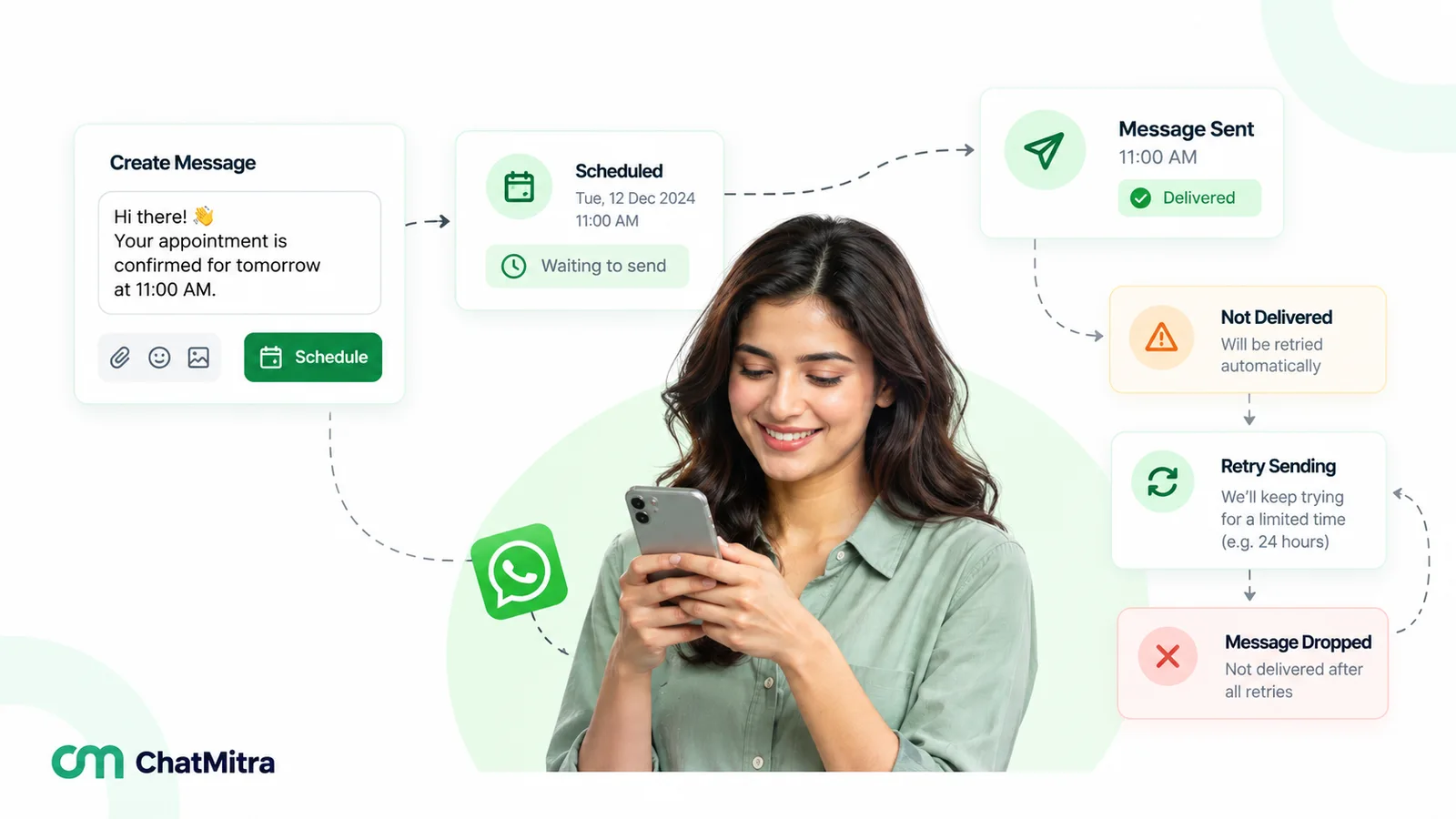
If a phone is off or offline, Meta keeps retrying. The retry period is called time-to-live (TTL). The default is 30 days for all messages except authentication templates, and “the platform drops messages it cannot deliver” within it (Meta, send messages). You can shorten it for utility templates to between 30 seconds and 12 hours. For marketing templates, the setting ranges from 12 hours to 30 days and only applies when you send through Meta’s Marketing Messages API (Meta, time-to-live).
So a “sale ends tonight” message scheduled for 8 pm could reach someone whose phone was off the next morning. The fix is in the wording, not the schedule: name the date (“ends 14 November at midnight”) rather than “tonight”, and put time-sensitive notices in utility templates only when they are genuinely transactional.
What it costs
Meta charges “on a per-message basis for messages businesses deliver”. Rates vary by “the template’s category and the recipient WhatsApp phone number’s country calling code” (Meta, pricing). Meta’s rate card effective 1 October 2026 lists these India rates:
| Category | Meta's rate per delivered message (India) | Typical scheduled use |
|---|---|---|
| Marketing | ₹0.8631 | Festival offers, launches, newsletters, win-back messages |
| Utility | ₹0.1150 | Payment due dates, appointment reminders, renewal notices |
| Service (free-form replies inside the window) | ₹0.1150 after 1,000 free per phone number per month | Rarely scheduled; replies happen in the conversation |
A worked example: a marketing template scheduled to 2,000 customers in India, all delivered, costs 2,000 × ₹0.8631 = ₹1,726.20 in Meta charges. On ChatMitra’s Starter or Pro plan, add ₹0.20 per contact without an open 24-hour conversation: up to 2,000 × ₹0.20 = ₹400, so up to ₹2,126.20 in total. For provider fee models and volume tiers, see our WhatsApp Business cost per message guide.
Time zones: the part most schedules get wrong
A scheduled time is only right if it’s right where the customer lives. If your customers span countries, split the audience by country and schedule one campaign per time zone.
Here’s a worked example for a sale opening at 10:00 local time on Saturday, 14 November 2026, from a team in India:
| Customer group | Local offset that day | 10:00 local in UTC | Time to enter on a picker set to IST |
|---|---|---|---|
| India | IST, UTC+5:30 | 04:30 | 10:00 am |
| United Kingdom | GMT, UTC+0 | 10:00 | 3:30 pm |
The UK row shows the trap. UK clocks go back “at 2am on the last Sunday in October”, which was 25 October in 2026, and the UK then runs on GMT (GOV.UK, when do the clocks change). Had the same sale opened on 17 October, the UK would still have been on British Summer Time (UTC+1). 10:00 in London would then have been 2:30 pm IST, not 3:30 pm. A campaign scheduled in September for a November date needs the November offset.
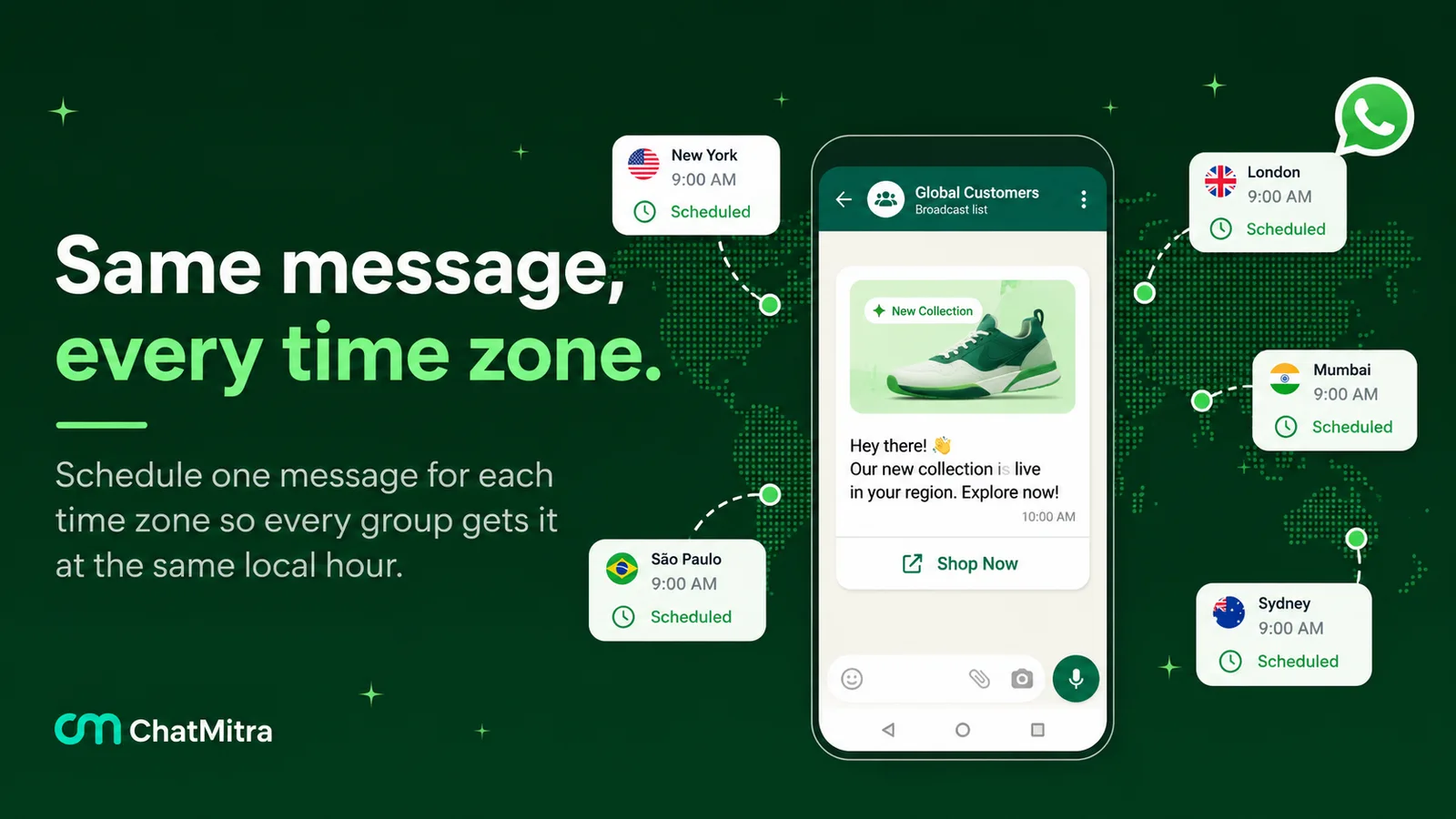
Three habits prevent most time-zone mistakes:
- Know what zone your tool uses. Some pickers use your computer’s zone, some the account’s, some a fixed zone. Check before you schedule.
- Use a country tag, not a guess. A phone number’s country code tells you the country, not the city. Countries with several zones, such as the US, Australia or Brazil, need a region field too.
- Recheck anything scheduled across a clock change. The UK, most of Europe and most of the US and Canada change their clocks. India doesn’t observe daylight saving time.
Which business scheduling method fits which job?
| Job | Best method | Why |
|---|---|---|
| A festival or launch offer to a customer segment | Scheduled template broadcast | One approved message, one moment, one audience |
| Fee, EMI or renewal reminders on each customer's own date | Date-triggered automation from a sheet or CRM | Each person has a different date; a single broadcast can't handle that |
| Appointment confirmations the moment a booking is made | Event-triggered send from your booking system via API | It has to follow the booking, not a clock |
| A daily or weekly internal report | A recurring automation, or a cron job in your own code | Repeats on a fixed rhythm |
| Drip sequences after sign-up | Automation with delays, or your own scheduler calling the API | Each step waits relative to the previous one |
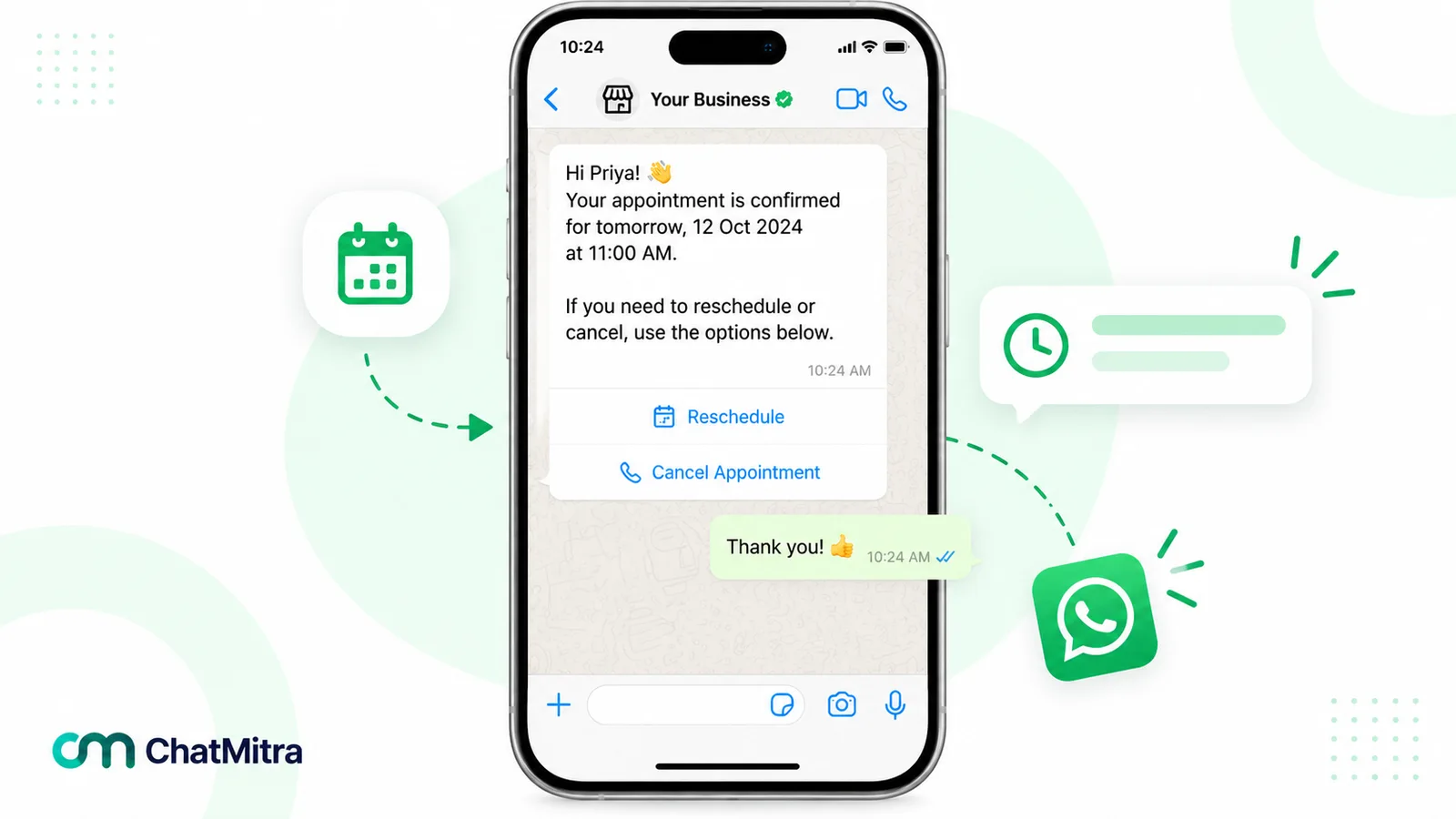
Reminder wording and timing get their own treatment in the reminder messages guide. The broader picture of triggers and tools is in our WhatsApp automation guide.
How to schedule a WhatsApp broadcast in ChatMitra
ChatMitra is a WhatsApp Business Platform tool. Here is how its campaign scheduler works. We checked each step against ChatMitra’s code in September 2026.
- Get a template approved. Create a marketing or utility template in ChatMitra and wait for Meta’s approval.
- Start a campaign. Open the campaign wizard, name the campaign and pick the approved template. Fill in its variables.
- Choose the audience. Select contacts, or include and exclude tags. For example, include “uk-customers” and exclude “opted-out”.
- Turn on Schedule Time. Pick the date and time. The picker uses the time zone of the computer you’re scheduling from, and the time must be in the future.
- Optionally switch on Smart Auto-Retry. It re-sends to numbers that failed, in up to three later rounds.
- Confirm. The campaign moves into a queue and sends at the chosen time.
A few behaviours to know before you rely on it:
- The audience is fixed when you schedule. Contacts you add or tag afterwards aren’t included, so finish tagging first.
- Credits are taken when you schedule. ChatMitra’s ₹0.20 conversation credits (Starter and Pro) are checked and deducted at that point, for each selected contact who has no open 24-hour conversation at that moment. Meta’s own charge applies per delivered message.
- You can stop it, not edit it. A scheduled campaign has a Stop button on its page. There is no edit or reschedule, so to change anything, stop it and create a new campaign. Stopping doesn’t return the credits already taken, so the new campaign uses fresh ones. Check the template, audience and time before you confirm.
- One campaign per time zone. There’s no per-recipient local-time option, so split the audience with tags and schedule each group.
- One-off, not recurring. Campaign schedules run once. For per-customer dates, use ChatMitra’s Google Sheets automation. Its date triggers include “Birthday Today” and “N Days Before a Date”, and they run at a “Run at” time in Indian Standard Time (9:00 am by default).
- For developers. On the Pro plan, per ChatMitra’s pricing page, the REST API sends templates when you call it, so your own scheduler decides when to call.
Choosing a time to schedule
We won’t quote a “best time to send” statistic. The ones that circulate rarely cite a source you can check, and your customers aren’t an average. These principles hold anyway:
- Match the message to the customer’s day. A payment reminder works on a working-day morning. A restaurant offer works before a mealtime. Schedule for the moment the customer can act.
- Leave slack before deadlines. Business app broadcasts can take up to 3 hours to process, and large API campaigns send in batches. Don’t schedule a “starts in 10 minutes” message for exactly 10 minutes before.
- Space marketing messages. Per-user marketing limits respond to how people engage. If you send too often to people who don’t read, fewer of your messages get delivered. Our WhatsApp marketing strategy guide covers frequency and calendars.
- Test, then compare. Split one audience across two times, and compare delivered, read and conversion numbers in your own reports.
- Avoid late nights. No WhatsApp rule sets quiet hours for businesses, but a message that wakes a customer is one they may block or report.
Scheduled message didn’t send? A checklist
| Symptom | Likely cause | What to do |
|---|---|---|
| Nothing went out at the scheduled time (Business app) | Processing delay, phone offline, suspension, or feature not available | Wait up to 3 hours, then check Tools > Business broadcasts; broadcasts scheduled before a block aren't sent |
| Some numbers failed with 131049 | Per-user marketing limit | Wait at least 24 hours before retrying those numbers |
| US numbers all failed | Meta doesn't deliver marketing templates to US numbers | Remove +1 US numbers from marketing sends, or use another channel |
| The campaign stopped partway on a new account | Messaging limit reached (unique users per 24 hours, per portfolio) | Split sends across days or raise your limit through Meta's scaling paths |
| Messages arrived hours or days late | Recipient's phone offline; Meta retried within the TTL | Put the date, not "today", in time-sensitive copy |
| A scheduler app message never sent (personal app) | The app couldn't operate WhatsApp at that moment, for example after a permission or battery setting changed | Check the app's own guidance; for important messages, send manually |
| Arrived an hour early or late | Clock change between scheduling and sending, or wrong picker time zone | Recalculate in the recipient's zone on the send date |
Where ChatMitra fits, and where it doesn’t
ChatMitra fits a business that wants scheduled template broadcasts, date-triggered automations and a shared inbox on one official WhatsApp number. It doesn’t schedule messages in personal WhatsApp, and it doesn’t post to groups.
| Need | In ChatMitra? | Detail |
|---|---|---|
| Schedule a template broadcast for a later date and time | Yes | Campaign wizard, Schedule Time, audience by contacts or tags |
| Stop a scheduled campaign | Yes | Stop button on the campaign page, before it sends |
| Edit or reschedule a scheduled campaign | No | Stop it and create a new one |
| Recurring broadcasts | No | Use Google Sheets automation schedules for repeating workflows |
| Per-customer date reminders | Yes, via Google Sheets automation | Birthday, anniversary, N days before or after a date; runs at a set IST time |
| Send at each recipient's local time automatically | No | Schedule one campaign per time-zone tag |
| Schedule in personal WhatsApp or to groups | No | ChatMitra works on the WhatsApp Business Platform only |
If scheduled broadcasts are what you need, compare ChatMitra’s plans. Whichever tool you choose, pick one built on the official Business Platform rather than an app that drives WhatsApp for you. Our comparison of official and unofficial bulk WhatsApp senders explains why.
Sources: WhatsApp Help Center (business broadcasts, broadcast lists, greeting and away messages, disappearing messages, click to chat, unofficial apps, temporarily banned accounts); WhatsApp Terms of Service; Meta for Developers (send messages, time-to-live, messaging limits, per-user marketing limits, pricing and the rate card effective 1 October 2026); Apple Support; Google Play; GOV.UK. ChatMitra behaviour verified in ChatMitra’s code on 26 September 2026.
Facts checked against WhatsApp's Help Center and terms, Meta's WhatsApp Business Platform documentation and GOV.UK on 26 September 2026.