
You have a list in Excel: names, phone numbers, maybe an amount or a due date. You want each person to get a WhatsApp message. It sounds like a five-minute job. Then you find that WhatsApp has no “import from Excel” button, the YouTube shortcuts involve macros that take over WhatsApp Web, and the numbers in your sheet have quietly turned into 9.19877E+11.
This guide shows how to send WhatsApp messages from Excel or a CSV file properly. It covers the four methods people actually use, which ones are safe, how to prepare the spreadsheet so the upload works first time, and what the send costs. The spreadsheet advice applies whichever tool you use.
Can you send WhatsApp messages directly from Excel?
Not by itself. Excel can’t send WhatsApp messages, and the WhatsApp and WhatsApp Business apps can’t import a spreadsheet. What Excel can do is hold the list and build the pieces another tool needs: links, cleaned numbers and personalised values.
There are four ways to get from a spreadsheet to sent messages:
| Method | How it works | Practical scale | Personalised? | Risk | Cost |
|---|---|---|---|---|---|
| 1. Click-to-chat links | A formula builds a wa.me link per row; you click and press send | Tens per day, by hand | Yes, through the pre-filled text | None, if people expect your message | Free |
| 2. Macros, extensions, desktop bots | Software clicks through WhatsApp Web or the app for you | Hundreds, until the number is flagged | Yes | High: breaks WhatsApp’s terms | Low fee, high hidden cost |
| 3. Upload to an official platform | A WhatsApp Business Platform tool imports the file and sends an approved template to each row | Thousands to millions | Yes, column by column | Low, with opt-in and good quality | Meta’s per-message rate plus the tool’s fee |
| 4. API or automation | Your sheet or system calls a send API row by row, or an automation sends when a row changes | Any, ongoing | Yes | Low | Same as method 3, plus build time |
For a handful of people you know personally, method 1 is fine. For a customer list, methods 3 and 4 are the only ones you can rely on. The rest of this guide goes through all four, then spends most of its time on preparing the file, because that’s where bulk sends usually go wrong.
Method 1: Click-to-chat links built with a formula
WhatsApp supports “click to chat” links that open a chat with any number, saved or not. WhatsApp’s help centre gives the format as https://wa.me/<number>, where the number is “a full phone number in international format”, omitting “any brackets, dashes, plus signs, and leading zeros”. You can add a pre-filled message with ?text= followed by URL-encoded text (WhatsApp Help Center).
That means a spreadsheet can build one link per row. Suppose column A holds the cleaned number (919876543210), column B the first name and column C an order number.
Excel for Windows (Microsoft 365, 2016 or later):
=HYPERLINK("https://wa.me/"&A2&"?text="&ENCODEURL("Hi "&B2&", your order "&C2&" is ready for pickup."),"Open chat")ENCODEURL turns spaces and punctuation into the %20-style codes a URL needs. Microsoft notes that it “is not available in Excel for the web or Excel for Mac” (Microsoft Support).
Excel for Mac or the web: replace the spaces yourself, and keep the message free of &, # and ?, which would break the link:
=HYPERLINK("https://wa.me/"&A2&"?text="&SUBSTITUTE("Hi "&B2&", your order "&C2&" is ready for pickup."," ","%20"),"Open chat")Google Sheets has its own ENCODEURL function (Google Docs Editors Help), so the first formula works there unchanged.
Drag the formula down, then click each link. WhatsApp opens with the message typed in, and you press send.
When this is the right method: a tutor messaging 25 parents about a schedule change, a wedding family sending invitations, or a shop owner sending a few personal follow-ups. Each message comes from your own number, goes to one person, and is sent by you, which is exactly how the app is meant to be used.
When it isn’t: more than a few dozen people, anything you need to repeat every week, or customers who haven’t messaged you before. You also get no delivery report beyond the ticks in each chat.
Method 2: Macros, extensions and “free bulk senders”
The search results for this topic are full of VBA macros, Chrome extensions and desktop tools that read your Excel file and type messages into WhatsApp Web for you. They work, until they don’t.
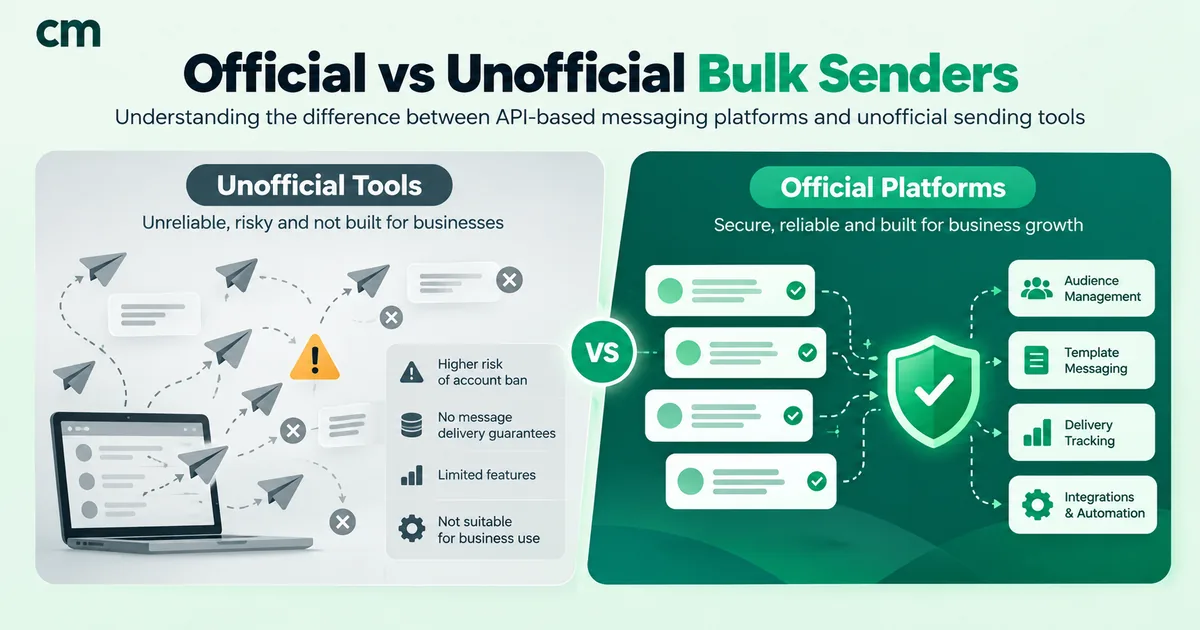
WhatsApp’s Terms of Service rule out “bulk messaging, auto-messaging, auto-dialing, and the like”, and accessing the service through unauthorised automated means. Its systems look for exactly this pattern: one account sending near-identical messages to many people, many of whom haven’t saved the number. Restriction or a permanent ban usually follows, and the number goes with everything attached to it: chats, groups and the customers who know it.
The economics look good only until that happens. We compare the two routes in detail, including what the rules say word for word, in official vs unofficial bulk WhatsApp senders. The short version: if the list is customers, don’t automate your personal or Business app number.
Method 3: Upload the spreadsheet to an official platform
This is the method most businesses need. A WhatsApp Business Platform provider imports your CSV or Excel file and sends a Meta-approved template message to every row. There’s no app to automate and no number at risk, as long as you follow the rules on consent and content.
Here’s how a spreadsheet maps onto a WhatsApp campaign:
- One row = one recipient. Each row produces one message to one phone number.
- One column = one variable. Templates contain numbered placeholders such as
{{1}}and{{2}}. You map each to a column, so row 2’s message says “Hi Priya, your payment of ₹2,400 is due on 12 October”, and row 3’s says “Hi Arjun, your payment of ₹1,150 is due on 15 October”. - The template is approved before the file matters. Meta reviews the wording, not your list. You can’t change the text per row beyond the variables.
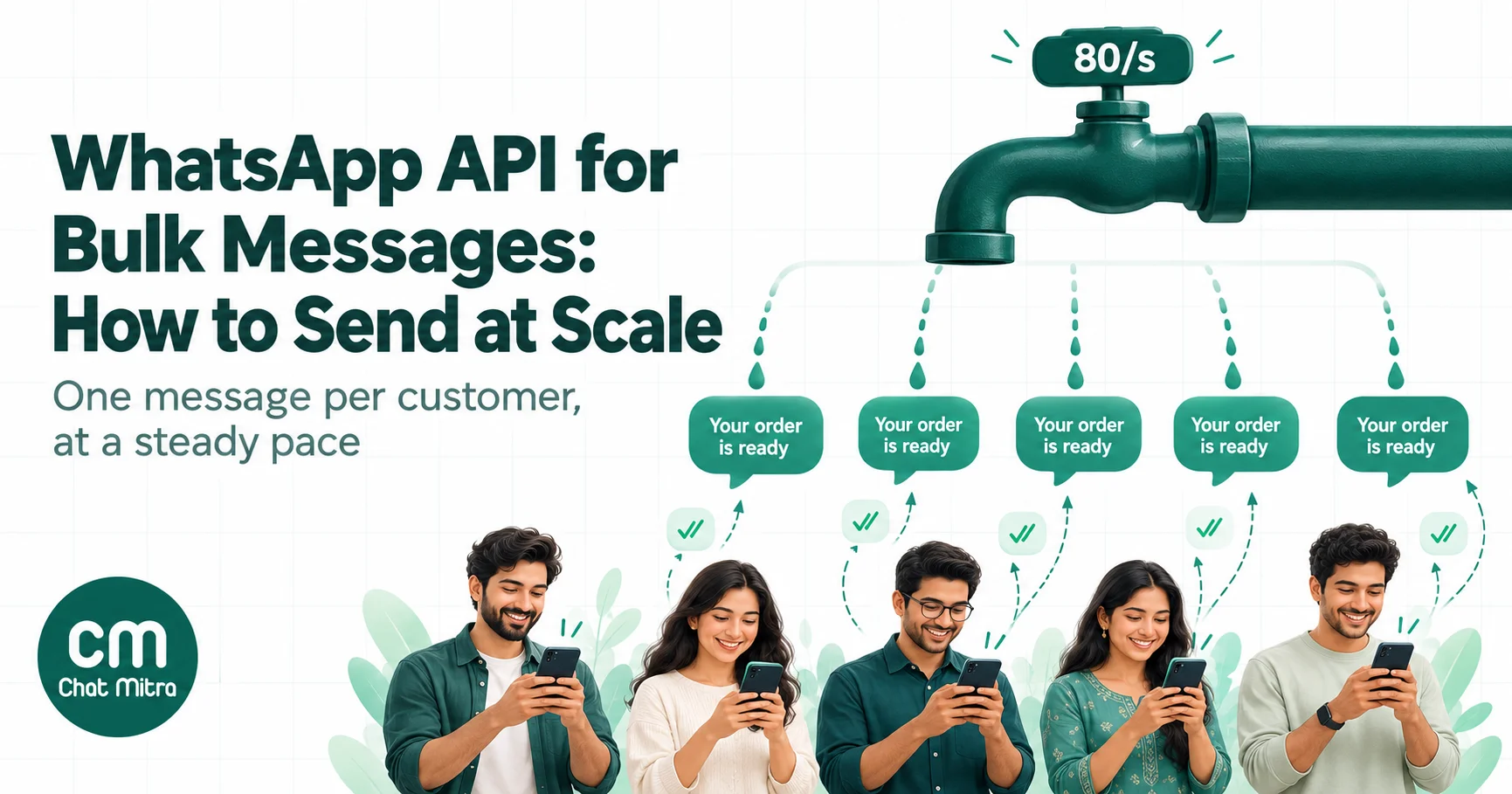
- The send is paced for you. The platform queues the rows and sends them at the speed your number allows. If you’re curious what happens underneath, our guide to the WhatsApp API for bulk messages explains throughput, retries and status webhooks.
Method 4: Connect the sheet through an API or automation
If the list changes every day, such as new leads, fresh invoices or tomorrow’s appointments, uploading a file each morning gets old. Two alternatives:
- An automation that watches the sheet and sends a template when a row is added or updated.
- A script or system that calls a send API for each row: a Google Apps Script, an Excel macro that calls a provider’s HTTP API (not WhatsApp Web), or your own backend.
Both use the same approved templates and the same Meta pricing as an upload. The difference is that nobody has to remember to send. Our WhatsApp Business API guide for Python shows what a send request looks like.
Which method should you use?
Answer three questions:
- Do the recipients already expect a message from you personally? Family, a small class, a few clients you speak to anyway: use click-to-chat links (method 1).
- Is it a one-off or monthly list of customers? Festival greetings, a price update, this month’s fee reminders: upload the file to an official platform (method 3).
- Does the list grow or change every day? New leads from a form, invoices raised today, tomorrow’s appointments: connect the sheet through an automation or API (method 4).
If you’re tempted by method 2 because the list is large and the budget is small, the size of the list is exactly what makes it dangerous. A large send from an automated personal number is the pattern WhatsApp’s systems look for. Start with a smaller, opted-in segment on the official platform instead. At ₹0.1150 a message for utility content in India, 500 reminders cost less than ₹60 in Meta charges.
Preparing the spreadsheet: the part that decides whether it works
Most failed bulk sends fail before WhatsApp is involved. Spend ten minutes here and you’ll avoid most of the error rows.
The columns to include
| Column | Required? | Example | Notes |
|---|---|---|---|
| Phone | Yes | 919876543210 | Country code + number; stored as text |
| Name | Recommended | Priya | First name only reads more naturally in a greeting |
| Variable columns | If the template has variables | ₹2,400, 12 October | One column per variable, already formatted as the customer should see it |
| Opt-in source | Strongly recommended | Checkout, 4 Sep 2026 | Your evidence that this person agreed to WhatsApp messages |
| Language | If you send in several | hi / en | Lets you split the file per template language |
| Segment or tag | Optional | Ahmedabad, Repeat buyer | Useful for filtering after import |
Keep the first row as plain headers with no merged cells, no notes above the table, and no blank columns in between. Short headers without spaces, such as due_date rather than “Due Date (DD/MM)”, survive every import tool and are easier to pick when mapping variables.
Phone numbers: the number-one cause of failed rows
WhatsApp identifies people by their number in international format. Your sheet probably contains a mix of 98765 43210, +91-98765-43210, 09876543210 and 919876543210. Only the last one is ready.
Fix them in four steps.
1. Format the column as Text first. Select the column, choose Format Cells → Text, and only then paste. Otherwise Excel turns long numbers into scientific notation like 9.19877E+11 and can silently drop the last digits or leading zeros.
2. Strip the symbols. Remove spaces, dashes, brackets and plus signs. For a single-country Indian list, this formula in a helper column does it and keeps the last ten digits:
="91"&RIGHT(SUBSTITUTE(SUBSTITUTE(SUBSTITUTE(SUBSTITUTE(SUBSTITUTE(A2," ",""),"-",""),"+",""),"(",""),")",""),10)It also handles a leading 0 and an existing 91, because it keeps only the last ten digits and puts 91 back in front. Don’t use it on mixed-country lists, because national numbers elsewhere aren’t all ten digits long.
3. Check the length. Add =LEN(B2) next to the result. For India every cleaned number should be 12 characters. Filter for anything else and fix those rows by hand; a landline or a typo usually hides there.
4. Paste values back. Copy the helper column and paste it as values over the original, so the upload contains numbers, not formulas.
For a list spanning several countries, keep a separate country-code column and clean each country with its own rule. Don’t guess: a missing country code sends the message to the wrong person or to nobody.
Duplicates
Run Data → Remove Duplicates on the cleaned phone column, not the original. 98765 43210 and +91 98765 43210 look different until they’re cleaned, and the same person getting the same message twice is an easy way to earn a block.
Variable values
- No blank cells in a column that fills a variable. A blank either fails the row or produces “Hi , your payment…”. Fill blanks with a sensible default (“there”, “your order”) or remove those rows.
- Dates as text. Excel stores dates as serial numbers, so a raw date can arrive as
46307. Convert them with=TEXT(D2,"d mmmm")to get “12 October”, then paste as values. - Amounts as text, with the currency.
=TEXT(C2,"₹#,##0")gives “₹2,400”. Decide on the format your customers expect. - Keep values short and plain. No line breaks inside a cell, no stray quotation marks copied from other systems, and no full sentences pasted into a variable meant for a name.
Opt-in
WhatsApp’s Business Messaging Policy says you may contact people only if they’ve given you their number and you’ve received opt-in permission to message them on WhatsApp. Before uploading, filter out anyone without an opt-in record. A purchased or scraped list doesn’t meet that rule however carefully it’s formatted, and recipients who never asked to hear from you report and block. That lowers your quality rating, and with it how many people you can reach. Our WhatsApp opt-in guide has wording and collection methods that hold up.
Saving the file
Save as CSV UTF-8 (Comma delimited) if your list has names in Hindi, Gujarati, Arabic or any non-Latin script, or emoji. The plain “CSV” option can turn those characters into question marks. If your tool accepts .xlsx, uploading the workbook directly avoids the problem entirely.
Sending the campaign, step by step
The exact screens vary by provider, but the order of work doesn’t.
- Get a template approved for the message, with one variable per personalised value. Utility for transactional content such as reminders and confirmations; marketing for offers and announcements. Our broadcast message examples are a good starting point.
- Clean and save the spreadsheet as described above.
- Import the file, map the phone column, and map each variable to its column.
- Read the import summary. Any tool worth using tells you how many rows were accepted, skipped as duplicates or rejected as invalid. Fix rejected rows in the sheet, not one by one in the tool, so next time’s file is clean.
- Send a test to two or three team members’ numbers, including one with a long name and one with an empty optional value.
- Check your messaging limit. Meta caps how many unique people your business can message outside a customer service window in a moving 24-hour period: 250 for a new business portfolio, then 2,000, 10,000, 100,000 and unlimited (Meta, messaging limits). If your file is bigger than your limit, split it across days.
- Send or schedule. Pick a time your customers are awake. A payment reminder at 11 pm reads very differently from one at 10 am.
- Read the report the next day, not the next minute; delivery and read statuses keep arriving for hours.
Utility or marketing? Pick the category before you build the file
The category of the template decides the price, who it can reach and how often. Decide it before you design the columns, because it changes what the message is allowed to say.
Utility templates are for something the customer already has going on with you: a payment due, an appointment tomorrow, a document ready for collection, an order update. Meta expects them to refer to that specific transaction and to carry no promotion. A spreadsheet of fee reminders, EMI due dates or class timings is usually utility.
Marketing templates are for everything that tries to sell, re-engage or announce: a festive sale, a new branch opening, a “we miss you” offer. They cost more, Meta limits how many marketing messages a person receives from businesses (which is where 131049 comes from), and they aren’t delivered to US numbers.
The trap is a reminder file that someone “improves” with a line like “Pay today and get 5% off your next month”. That line is an incentive, and Meta treats mixed content as marketing. If the offer matters, send it as a separate marketing campaign to the people who’ve opted in to offers. Our guide to WhatsApp utility templates shows where the line sits.
A worked example: 1,200 fee reminders from one Excel sheet
Take a coaching institute that keeps its students in Excel: parent’s name, parent’s mobile, student’s name, batch, monthly fee and due date. Each month, about 1,200 parents need a reminder.
The sheet starts out like this:
| parent_name | mobile | student | fee | due |
|---|---|---|---|---|
| Sunita Kulkarni | 98220 12345 | Aarav | 3500 | 05/11/2026 |
| R. Deshmukh | +91-98901-23456 | Isha | 4200 | 05/11/2026 |
| Meena | 09823456789 | Kabir | 3500 | 07/11/2026 |
Here’s how it becomes a clean campaign:
- Numbers: the cleaning formula turns all three into
919822012345,919890123456and919823456789.LENshows 12 for each. Seven rows in the full sheet turn out to be landlines and go to a separate call list. - Duplicates: parents with two children appear twice. Removing duplicates on the cleaned number would drop one child’s reminder, so the institute instead combines those rows into one (“Aarav and Riya”) before removing duplicates.
- Values:
=TEXT(D2,"₹#,##0")gives “₹3,500” and=TEXT(E2,"d mmmm")gives “5 November”. - Template: a utility template, “Hello {{1}}, this is a reminder that {{2}}‘s fee of {{3}} for the {{4}} batch is due on {{5}}. Reply here if you have already paid.”, approved before the file is touched.
- Opt-in: the admission form has a WhatsApp consent line, so the sheet gets an
opt_incolumn from the form data; three parents who didn’t tick it are removed. - Send: two batches, morning and afternoon, so the front desk can handle replies. At ₹0.1150 per delivered utility message, roughly 1,180 delivered reminders cost about ₹136 in Meta charges, plus the provider’s fee.
The replies are the real payoff: “Paid yesterday” and “Can I pay on the 10th?” arrive in one inbox instead of a thousand separate phone calls.
Sending in batches
Even when your messaging limit allows the whole file at once, splitting it often works better:
- By team capacity. If a campaign will draw replies, send only as many as your team can answer that day. An unanswered reply is a worse experience than no message.
- By language or city. One template per language, one file per template. City batches also let you schedule around local holidays.
- By risk. For a new template or a list you haven’t messaged in months, send to a small slice first. If blocks or failures spike, you’ve learned it on 200 people instead of 20,000.
- By time. Late morning and early evening suit most consumer lists; business lists prefer working hours. Avoid sending a full file at the moment it happens to be ready.
Between batches, glance at the delivery report and your number’s quality rating. A sudden drop is a reason to stop and look at the message, not to push the rest of the file through faster.
What a spreadsheet campaign costs
Meta charges per delivered template message, by category and the recipient’s country (Meta, pricing). For India, the rate card effective 1 October 2026 lists:
| Category | Rate per delivered message (India) | 2,000-row file, all delivered |
|---|---|---|
| Marketing | ₹0.8631 | ₹1,726.20 |
| Utility | ₹0.1150 | ₹230.00 |
Some things to factor in:
- Undelivered rows cost nothing from Meta, which is one more reason to clean numbers rather than “just try them”.
- Replies are cheap. When customers reply, you can answer with free-form messages inside the 24-hour window. Each business phone number gets 1,000 free service messages a month; after that they’re charged at the utility rate.
- Provider fees come on top. On ChatMitra’s Starter and Pro plans, there’s a ₹0.20 fee once per customer per 24-hour conversation window, so the 2,000-row send above adds ₹400 however many replies follow that day. The Enterprise plan has no per-conversation fee.
- US numbers and marketing don’t mix. Meta currently doesn’t deliver marketing templates to WhatsApp users with US phone numbers. Remove +1 US rows from marketing files, or you’ll get failures instead of sales.
Our pricing calculator works out the total for your own mix of markets and categories.
After the send: cleaning the list for next time
The report is also a cleanup list. The common failure codes tell you what to do with each row (full list):
| Code | Meaning | What to do with the row |
|---|---|---|
131026 | Message undeliverable (often not a WhatsApp number) | Mark it; reach the person by SMS or email instead |
131049 | Not delivered to protect engagement (per-user marketing limit) | Leave it in; don’t resend for at least 24 hours |
131050 | The person stopped marketing messages from you | Remove from every marketing file, permanently |
132000 | Wrong number of template variables | Fix the column mapping, not the row |
131048 | Sending restricted after too many blocks or reports | Stop and check your quality rating before the next send |
Keep a “do not message” sheet of every 131050 number and every person who replied STOP, and remove them from each new file before upload. It’s the cheapest quality protection there is.
Common mistakes
- Pasting numbers into a General-format column. Scientific notation and lost digits follow.
- Removing duplicates before cleaning numbers. Duplicates hide behind different formatting.
- Uploading one huge file on a new number. The messaging limit stops you at 250 unique people a day until you’ve verified the business or built up sending history.
- Using a marketing template for a payment reminder, or a utility template for a sale. Meta categorises by content, and a mismatch changes the price or gets the template reclassified.
- Blank variable cells that turn “Hi Priya” into “Hi ,”.
- Sending everything at once at midnight because that’s when the file was ready.
- No suppression list. Re-sending to people who opted out is how quality ratings drop.
Troubleshooting import problems
| Symptom | Likely cause | Fix |
|---|---|---|
Numbers look like 9.19877E+11 | Column formatted as General | Format as Text before pasting; re-import from the source |
| Many rows rejected as invalid | Missing country code or extra digits | Apply the cleaning formula; check LEN |
Names show as ??? | Saved as plain CSV, not UTF-8 | Save as CSV UTF-8, or upload .xlsx |
Dates arrive as 46307 | Raw Excel date serials | Convert with TEXT() and paste values |
| Fewer contacts than rows | Duplicates removed on import | Expected; check the summary count |
| Campaign stops partway | Messaging limit reached | Split the file across days, or raise the limit through business verification |
How ChatMitra handles spreadsheet campaigns
ChatMitra runs on Meta’s official WhatsApp Business Platform and offers two spreadsheet routes. Here’s how they behave, checked against the product’s code in October 2026.
Route 1: import the file into Contacts, then broadcast. You don’t upload a file inside the campaign itself. You import it into Contacts first, then pick those contacts for a broadcast.
| Step | How it works in ChatMitra |
|---|---|
| File format | CSV only, up to 5 MB and 10,000 rows per import. Excel users save as CSV UTF-8 first. A sample file is available in the import dialog |
| Required column | Mobile, spelled exactly like that. Name, Email, Tags, City and the other standard columns are optional |
| Phone format | Digits only, starting with the country code, such as 919876543210. Numbers with +, spaces or dashes, or without a country code, are rejected rather than fixed, so clean them in the sheet first |
| Invalid rows | Listed with the reason before you confirm, and downloadable as a CSV with an Errors column. The valid rows import; the rest are skipped |
| Duplicates | Repeats within the file are skipped. A number that’s already a contact is updated: tags are added and extra fields overwritten, but the saved name isn’t changed |
| Extra columns | Become custom fields (up to 15 per project), usable as template variables such as $amount or $due_date. Use headers without spaces |
| Tags | A Tags column with values separated by a pipe character (for example vip|ahmedabad) tags contacts on import |
| Choosing the audience | Filter contacts by tags or search, or retarget a previous campaign’s recipients by delivery status |
| Variables | Each template variable takes fixed text, a contact field, or both, plus a fallback value used when that contact’s field is empty |
| Media | One image, video or document header per campaign, not one per row |
Route 2: Google Sheets Automation. Connect a sheet and choose a trigger: row added, row updated, either, or a specific column changing. ChatMitra checks the sheet every 1 to 30 minutes, as you set, and sends an approved template with variables filled from that row’s columns. A row with a blank variable fails with an error instead of sending a half-empty message. One thing to know before you rely on it: rows already in the sheet when you connect it don’t trigger anything. It’s built for new and changed rows, such as today’s leads or a payment-status column, not for blasting an existing list. For that, use Route 1. The Google Sheets automation page has the details.
What ChatMitra doesn’t do for you today:
- No opt-in column. Keep your consent records in the sheet and filter before importing.
- No automatic exclusion of people who stopped your marketing messages. Contacts’ opt-out status is recorded and can be filtered in Contacts, but a “select all” broadcast doesn’t skip them. Tag them and exclude the tag.
- No campaign-size check against your messaging limit. Your tier is shown in the app; split large files across days yourself.
For the full walkthrough, see how to broadcast WhatsApp messages in ChatMitra and the WhatsApp broadcasting feature page.
Checklist before you upload
- Every row has an opt-in record.
- Phone column stored as text, in international format, with the length checked.
- Duplicates removed on the cleaned numbers.
- Suppression list (opt-outs,
131050numbers) removed. - No blank cells in variable columns; dates and amounts converted to text.
- File saved as CSV UTF-8, or as
.xlsxif accepted. - Template approved, in the right category, with the variable count matching your columns.
- File size within your messaging limit, or split across days.
- Test sent to your own team first.
Summary
Excel is a fine place to keep a WhatsApp list, but it can’t send the messages. For a few personal messages, build click-to-chat links with a formula and send them yourself. For anything bigger, upload the file to an official WhatsApp Business Platform tool or connect it through an API, and skip the macros that automate WhatsApp Web, because they risk the number itself. Whichever route you choose, the quality of the result is decided in the spreadsheet: clean international numbers stored as text, no duplicates, no blank variables, and nobody on the list who didn’t ask to hear from you.