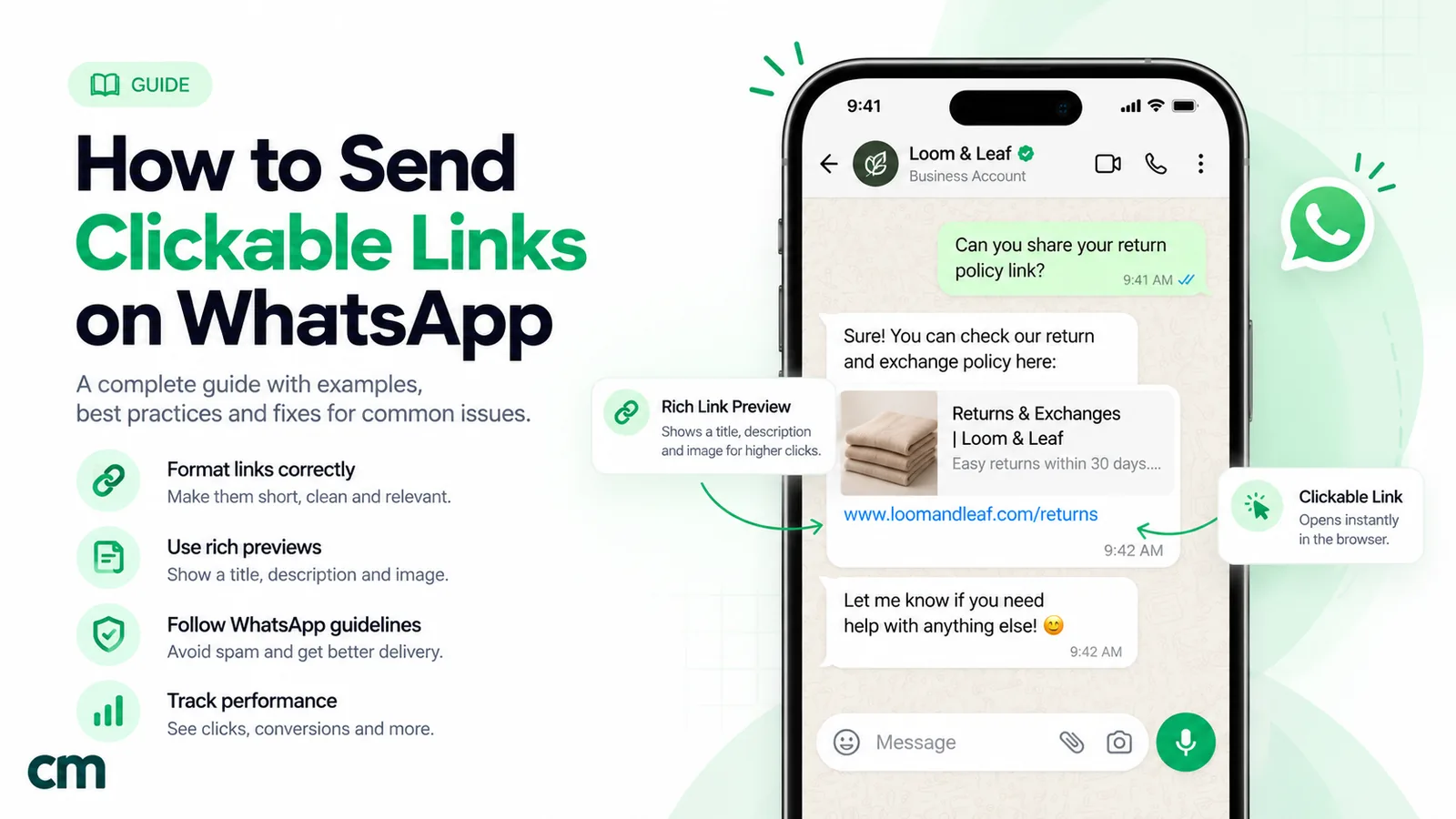
To send a clickable link on WhatsApp, paste the full address, starting with https://, into your message. WhatsApp recognises it and turns it into a tappable link on its own. You can’t hide a link behind words in a normal chat, so the address always shows. A business that wants a clean “Track order” label instead of a long URL has to use a button: a URL button in an approved template, or a CTA URL message inside the 24-hour customer service window.
That covers personal chats. Business messages come with more rules. This guide walks through every way a business can put a link in front of a customer on WhatsApp, which one to use when, how to get a preview, how to track clicks, and how to fix a link that won’t open.
Key takeaways
- WhatsApp creates the link, not you. It detects the web address as text. Give it a clean, complete URL and it does the rest.
- No hyperlinked text in chats. HTML and Markdown links show up as plain characters. Buttons are the only way to show a label.
- The 24-hour window decides your options. Outside it, links travel only in approved templates. Inside it, plain links, previews and CTA URL buttons all work.
- Buttons are the reliable choice for business messages. They are short, tappable, and trackable in Meta's template analytics.
- Most "broken" links are formatting problems. A missing https://, a space inside the address, or asterisks touching it.
How WhatsApp turns text into a link
WhatsApp has no “insert link” button. When a message arrives, the app scans the text for anything that looks like a web address, email address or phone number and turns it into something you can tap. That’s the whole mechanism. You don’t create the link; you give WhatsApp text it can recognise.
Three habits make recognition reliable:
- Write the full address with the scheme.
https://example.com/offeris recognised on every device. A bareexample.com/offeroften works too, but not always, and Meta’s own API documentation only promises previews for links that begin withhttp://orhttps://(Meta, text messages). - Give the link some space. Put a space or a line break before and after it. A full stop right after the address is usually fine; brackets, quotation marks and emoji glued to it cause trouble.
- Keep formatting away from it. WhatsApp uses symbols for formatting:
*bold*,_italic_,~strikethrough~, three backticks for monospace, one backtick for inline code,*or-for bullets,1.for numbered lists and>for quotes (WhatsApp Help Center, formatting). Wrap a URL in asterisks to bold it and you may bold part of it, break it, or both. Bold the words next to the link instead.
Can you hyperlink text on WhatsApp?
No. This is the most common question on this topic, and the answer is the same on Android, iPhone, WhatsApp Web and the desktop apps. There is no way to make the words “our spring menu” open a web page inside an ordinary message. If you paste <a href="...">menu</a> or [menu](https://...), the recipient sees exactly those characters, with only the address part clickable.
There is one way around it, and it belongs to the WhatsApp Business Platform: buttons. A URL button on a template, or a CTA URL message, shows a short label such as “View menu”, and the address stays hidden until the customer taps. We cover both below.
Six ways a business can send a link on WhatsApp
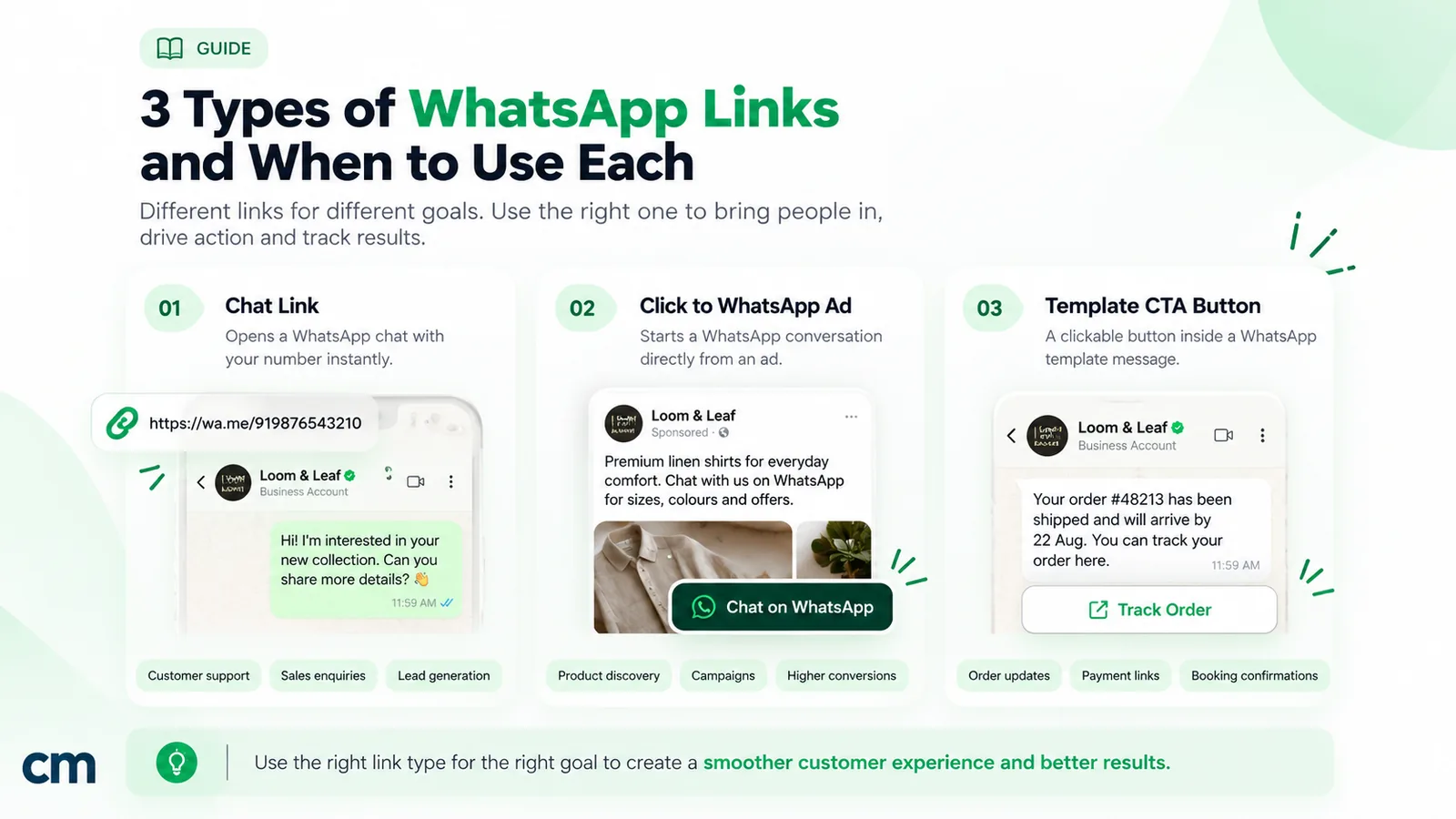
WhatsApp gives businesses more than one way to send a link, and they aren’t interchangeable. Each has its own rules about timing, looks and tracking. Here they are side by side.
| Method | Where it works | When you can send it | Customer sees | Click tracking |
|---|---|---|---|---|
| 1. Link typed in a chat | WhatsApp and WhatsApp Business apps | Any time you're chatting | Full blue address, usually with a preview | Only via UTM tags on your site |
2. Text message with preview_url | Cloud API | Only inside the 24-hour window | Full address plus a preview card, if one can be built | Only via UTM tags |
| 3. Link in a template body | Cloud API templates | Any time, template approved first | Full blue address inside the text | Only via UTM tags |
| 4. Template URL button (static or dynamic) | Cloud API templates | Any time, template approved first | A button label, up to 25 characters | Meta template analytics (marketing and utility) |
| 5. CTA URL interactive message | Cloud API | Only inside the 24-hour window | A button label, up to 20 characters | Only via UTM tags |
| 6. Carousel card buttons | Cloud API (templates or interactive) | Depends on the version used | Swipeable cards, each with its own button | Same as the message type used |
Links that bring people to WhatsApp are a different job. A wa.me link or QR code on your website, packaging or ads opens a chat with you. That’s click-to-chat, not a link inside a message. Our guide to WhatsApp message links explains the format, and our free WhatsApp link generator builds one for you.
The rest of this guide takes the methods one at a time, starting with the simplest.
Sending a link from the WhatsApp or WhatsApp Business app
For one-to-one conversations on your phone, sending a link takes a few seconds.
- Open the page you want to share in your browser and copy the address from the address bar. Alternatively, tap the browser’s Share button and choose WhatsApp.
- Open the chat, paste the address into the message box, and add a line of context above it. “Here’s the size guide you asked for:” gets more taps than a bare URL.
- Wait a moment before sending. If the page supports it, a preview card with the page title and image appears above the text box. You can close the preview with the small ✕ if you’d rather send the plain link.
- Send.
A few things are worth knowing when you do this all day as a business:
- Previews come from your phone. WhatsApp describes Disable link previews (Settings > Privacy > Advanced) as a way to protect the sender’s IP address: with it on, “the links you send to others won’t generate a link preview”. It’s off by default and doesn’t affect links you receive (WhatsApp Help Center, disable link previews). If your team’s previews suddenly vanish, check this setting first.
- Quick replies save typing. The WhatsApp Business app lets you save common messages as quick replies, so a link you send twenty times a day, such as your catalogue or booking page, can live behind a shortcut.
- Your own short link is for inbound chats. The Business app creates a short link to your chat automatically (Tools > Short link). Customers use it to start a conversation with you; it isn’t a way to shorten other URLs (WhatsApp Help Center, short links).
The app works well until you need to send the same link to hundreds of people, send links from a system, or reach customers who haven’t written to you recently. That’s where the API methods come in.
Sending a link with a preview through the API
On the WhatsApp Cloud API, a free-form text message can carry a link like any other text. The body can hold up to 4,096 characters. The one setting that matters is preview_url:
{
  "messaging_product": "whatsapp",
  "to": "919812345678",
  "type": "text",
  "text": {
    "preview_url": true,
    "body": "Your invoice for order #4821 is ready: https://example.com/invoice/4821"
  }
}
Meta’s documentation spells out how previews behave (Meta, text messages):
- With
preview_urlset totrue, the WhatsApp client tries to render a preview of the first URL in the body. Later links in the same message get no preview. - The URL must begin with
http://orhttps://. - If
preview_urlis left out, or WhatsApp can’t fetch a preview, the customer still gets a clickable link.
Two limits apply. First, this is a service message, so it can only be sent while a customer service window is open: within 24 hours of the customer’s last message or call to you. Once the window closes, Meta allows only approved template messages (Meta, service messages). Second, the preview is only as good as the page behind it.
What makes a good preview
WhatsApp builds the card from the metadata of the page you link to, typically the Open Graph tags that social networks also read: og:title, og:description and og:image. Meta’s WhatsApp documentation doesn’t publish exact image requirements, so treat these as working habits rather than rules:
- Give every page you link to a clear
og:title(the product or offer, not your company slogan) and a one-lineog:description. - Use an
og:imagethat is served over HTTPS, publicly reachable without a login or cookie banner, and reasonably small. Heavy images are the most common reason a card shows text only. - Test by sending the link to your own number before you send it to customers. Previews can be cached, so after changing the tags, test with a fresh URL (for example with a different query string).
- Remember that links behind a login, a paywall or a geo-block will preview as a bare address, if at all.
Links in approved templates: body text and URL buttons
Templates are how a business reaches a customer outside the 24-hour window: order updates, reminders, offers, renewals. A link can live in a template in two places, the body text or a button, and the difference matters.
A link in the body is simply part of the approved text, and the customer sees the full address. It works, but a long tracking URL in the middle of a sentence looks untidy and, on a small screen, suspicious. If the address changes per customer, you’d put it in a variable, and a sentence ending in a variable is a problem of its own: Meta’s template review rejects templates that start or end with a parameter (“dangling parameters are not allowed”) (Meta, template review). Add a word or punctuation after it, or better, use a button.
A URL button puts a label on the message, such as “Track order” or “Pay now”, and hides the address. Meta’s template limits (Meta, template components):
| Limit | Value |
|---|---|
| URL buttons per template | Up to 2 |
| Buttons per template, all types | Up to 10 |
| Phone number buttons per template | Up to 1 |
| Button label | 25 characters |
| Button URL | 2,000 characters |
| Variables in a button URL | 1, and it must come at the end |
| Body text | 1,024 characters |
| Button order | Quick-reply buttons grouped together, other buttons grouped together |
Static vs dynamic URL buttons
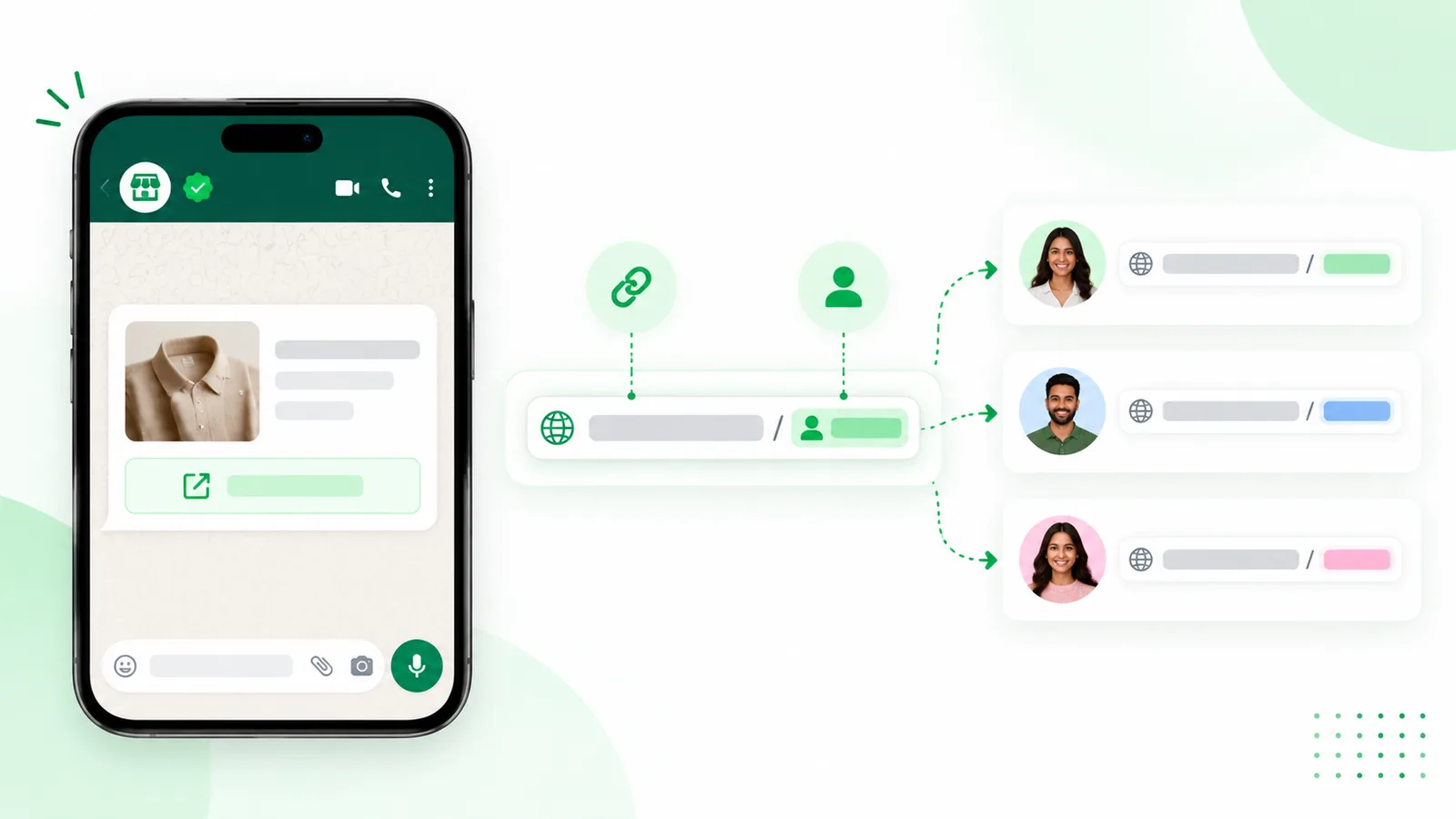
A static button sends everyone to the same address, such as your festive sale page. A dynamic button has one variable at the end, so each customer can get their own link:
https://example.com/track/{{1}}When you send the template, you supply the value for {{1}} (for example AWB77341920), and the customer’s button opens https://example.com/track/AWB77341920. When you create the template, Meta requires an example value for the variable, and special characters in it must be percent-encoded (Meta, template components).
Because only the end of the URL can change, plan your address structure around it:
- Good:
https://example.com/o/{{1}}, where your server looks up the order from the code. - Good:
https://example.com/r/{{1}}, a redirect on your own domain that adds UTM tags and forwards to the right page. - Won’t work:
https://{{1}}.example.com/trackorhttps://example.com/{{1}}/invoice, because the variable isn’t at the end.
Creating a template with a URL button, step by step
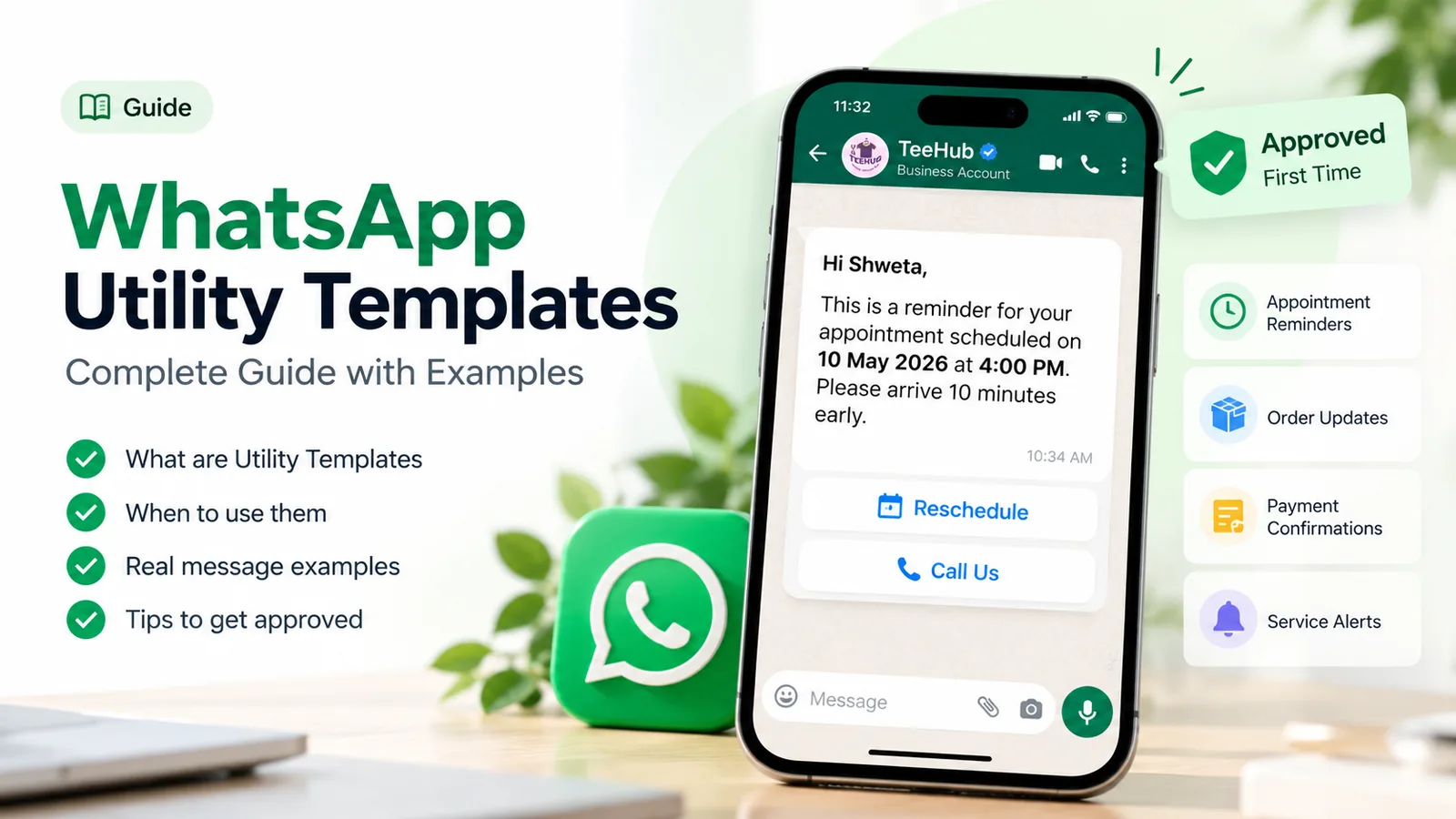
- Choose the category honestly. An order or delivery update with a tracking button is utility. A sale announcement with a “Shop now” button is marketing. Our guide to utility templates explains where Meta draws the line.
- Write the body so it stands on its own. The customer should know why they’re getting the message before they reach the button.
- Add a “Visit website” (URL) button. Write a verb-first label that says what happens: “Track order”, “View invoice”, “Pick a slot”. Avoid “Click here”.
- Enter the URL. Use your own domain. For a dynamic link, end the URL with
{{1}}and give a realistic example value. - Submit and wait for review. Many templates are reviewed quickly, but some take longer.
- Send a test to yourself. Tap the button on both Android and iPhone if you can, and check that the landing page loads fast on mobile data.
What about URL shorteners? Meta’s template review page doesn’t list shorteners as a rejection reason. Several WhatsApp providers report, however, that templates with bit.ly-style links are rejected or flagged more often, because the reviewer can’t see the destination. There’s also a trust issue: customers can’t see where a short link goes either. A redirect on your own domain, such as yourbrand.com/r/…, gives you the same click tracking without the doubt.
CTA URL messages and carousels inside the 24-hour window
When a customer has written to you in the last 24 hours, you don’t need a template to show a button. A CTA URL message is an interactive message that maps one URL to one button. Meta built it because, in its words, users “may be hesitant to tap raw URLs containing lengthy or obscure strings” (Meta, CTA URL messages).
Its limits:
- One button, with a label of up to 20 characters.
- Body up to 1,024 characters; footer up to 60.
- Header is optional: text (60 characters), an image, a video or a document.
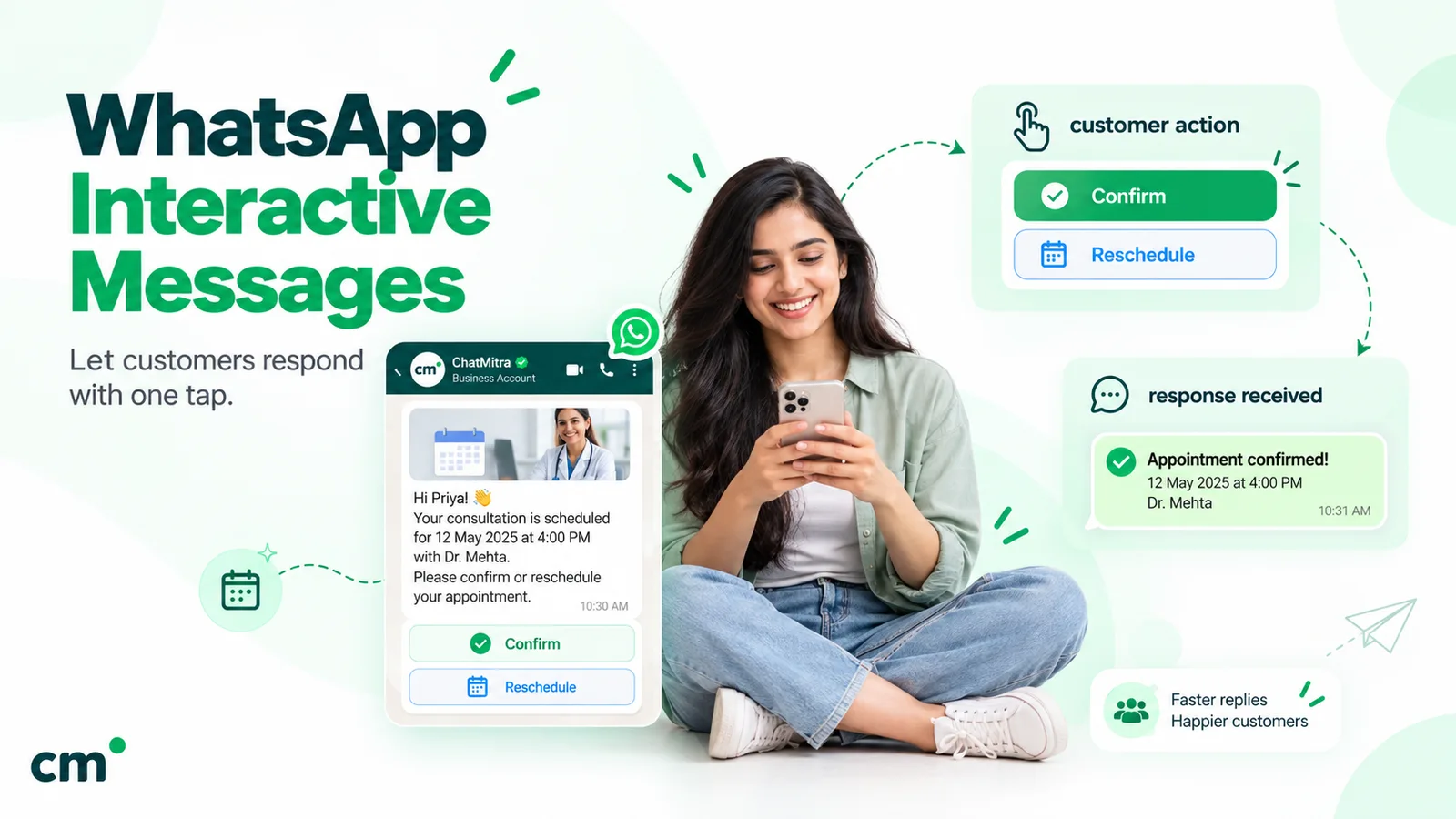
It’s a service message, so it only works while the window is open. It suits replies in live conversations: “Here’s the size chart” with a “See size chart” button, or a support agent sharing a return form. Our guide to WhatsApp interactive messages shows the JSON and compares CTA URL messages with template buttons in detail.
Carousels are the multi-link version: two to ten swipeable cards, each with its own image or video and its own button, useful for showing three products with a “Buy” button on each. They exist both as interactive messages (inside the window) and as carousel templates (any time). The same guide covers carousel limits.
Which method should you use?
Most businesses end up using three of these. A quick way to pick for each message:
| Situation | Best choice | Why |
|---|---|---|
| Customer asked a question a few minutes ago | CTA URL message, or a plain link with a preview | Window is open; no template needed |
| Order, delivery or appointment update | Utility template with a dynamic URL button | Personal link, works any time, clicks are counted |
| Offer or campaign to many opted-in customers | Marketing template with a static URL button, UTM-tagged | Clean label; campaign clicks in analytics |
| Two actions in one message ("Pay" and "View order") | Template with two URL buttons | Meta allows up to two |
| Sharing a page with a contact from your phone | Plain link in the app | Fast, with an automatic preview |
| Getting people to message you | A wa.me link or QR code | Click-to-chat, not a link inside a message |
Why isn’t my WhatsApp link clickable?
When a link arrives as plain black text, or doesn’t open, work through these causes in order. Most are fixed in a minute.
| Symptom | Likely cause | Fix |
|---|---|---|
| Address shows as plain text | No https://, or an unusual domain ending the app doesn't recognise | Always include the scheme |
| Only part of the address is blue | A space, line break or unencoded character inside the URL | Remove spaces; percent-encode characters such as spaces (%20) |
| Link broken by formatting | Asterisks, underscores or tildes touching the URL | Format the words around the link, not the link |
| Links in a group can't be tapped | You were added to a group with people who aren't in your contacts | WhatsApp asks you to message the group first (WhatsApp Help Center) |
| Customer says your link isn't tappable in a first message | Reported by several API providers for messages from numbers the customer hasn't saved or replied to; WhatsApp documents this only for groups | Use a URL button, which is always tappable, or invite a reply first |
| Customer sees a scam warning on your link | WhatsApp flags links with "an unusual combination of characters", such as look-alike letters (WhatsApp Help Center, suspicious links) | Use a plain ASCII domain you own; avoid look-alike characters |
| No preview card | Missing or blocked Open Graph tags, a heavy image, a login wall, or the sender's Disable link previews setting | Fix the page's tags; test with a fresh URL |
| Button opens the wrong page | Dynamic variable filled with the wrong value, or unencoded characters in it | Log the exact value sent; percent-encode it |
| Template with a link rejected | Often a variable at the start or end of the body, or a destination the reviewer can't verify | Move variables inside a sentence; use your own domain |
A note on the “unknown sender” row: this is one of the few places where the behaviour matters more than the documentation. We found no Meta statement that links from unsaved business numbers are disabled, but enough providers describe it that you should plan for it. A button sidesteps the problem because it’s part of the message design, not detected text.
If the message itself fails to deliver, that’s a different problem: the API returns an error code rather than a dead link. Our WhatsApp API error codes reference explains what each code means and what to do.
How to track clicks on WhatsApp links
WhatsApp doesn’t tell you when someone taps a link in a normal chat. For business messages you have two sources of data, and it’s worth using both.
Meta’s template analytics counts button taps. According to Meta’s analytics documentation (Meta, analytics):
- Clicks are returned only for URL buttons and quick-reply buttons in templates categorised as marketing or utility.
- You get two numbers:
url_button(total clicks) andunique_url_button(distinct WhatsApp accounts that clicked). - Template analytics must be confirmed on your WhatsApp Business Account before it returns data.
- Read and click data covers 7 days from the send date; after that, those counts reset to zero.
- Click tracking can be switched off for a single template with its
cta_url_link_tracking_opted_outfield.
Our template analytics guide explains how to read these numbers as rates rather than raw counts.
Your own web analytics covers everything else. Add UTM parameters to every link you send, so visits from WhatsApp don’t disappear into “direct” traffic:
https://example.com/diwali-sale?utm_source=whatsapp&utm_medium=template&utm_campaign=diwali_2026For dynamic buttons, put the tagging in a redirect on your side (/r/{{1}} looks up the code and forwards to the tagged URL). That keeps the approved button URL short, lets you change the destination after approval, and gives you a click log per customer. Whatever you log, keep personal details out of the URL itself: use an opaque code, not a phone number or email address, because URLs end up in browser histories and analytics tools.
Keeping links safe and trustworthy
A link is a request for trust: you’re asking a customer to leave WhatsApp and open a page. Scammers know this too, so the details matter.
- Use one domain, consistently. If your messages always link to
yourbrand.com, customers learn what a real link from you looks like. - Match the button to the page. “View invoice” should open the invoice, not your home page. A mismatch feels like a trick, even when it’s an honest mistake.
- Prefer buttons for anything involving money or accounts. A labelled button in a message from your official business account is harder to imitate than a text link.
- Never ask for passwords or OTPs through a link. Teach customers that you won’t, and say so in your support messages.
- Keep landing pages fast and mobile-first. Most taps happen on a phone, often on mobile data.
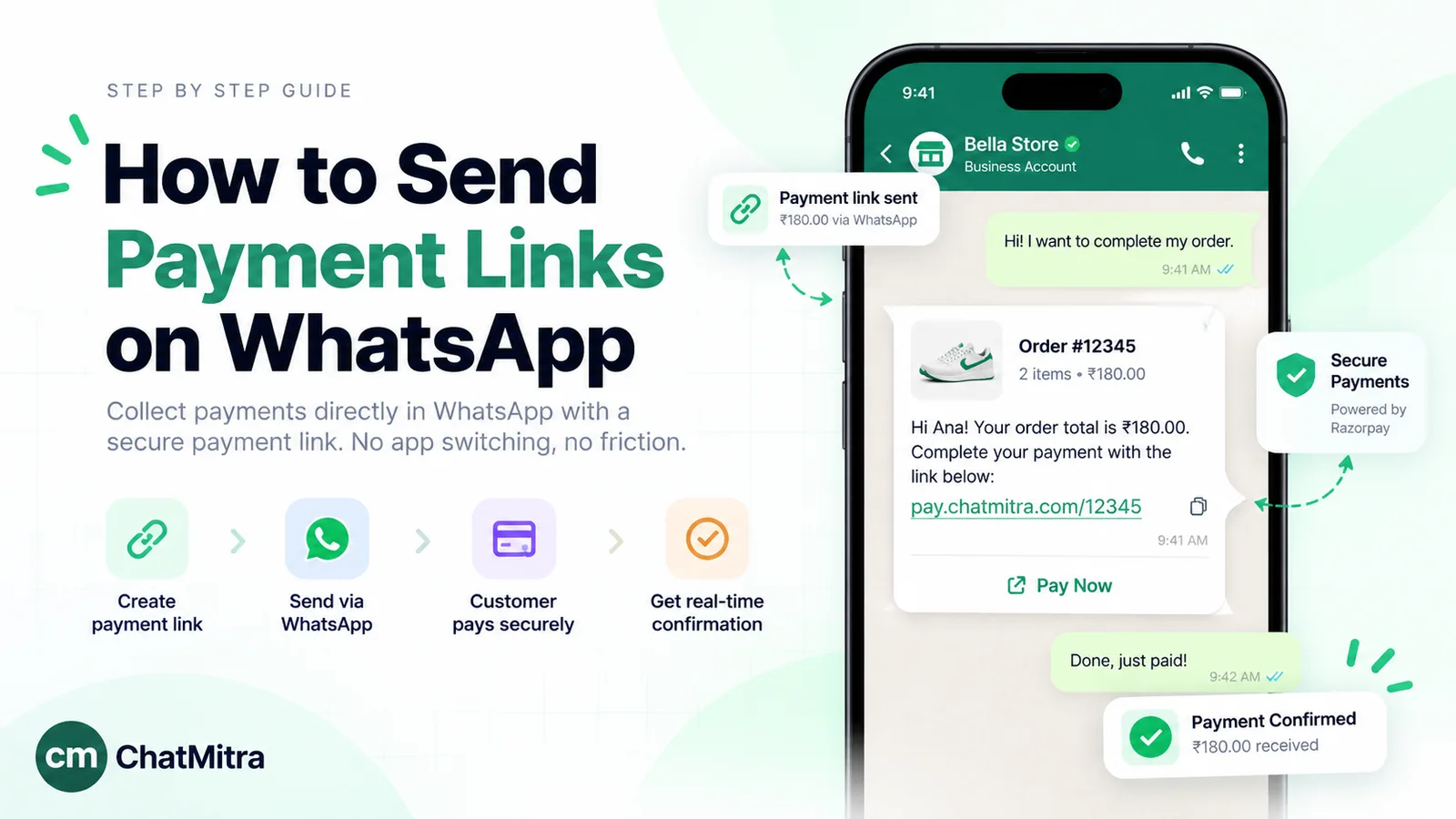
- Make payment links clearly yours. If you collect payments this way, our guide to sending a payment link on WhatsApp covers the extra care they need.
Link message examples you can adapt
Good link messages follow the same pattern: why you’re writing, what the customer gets, and one clear action. Here are five, written for templates with a URL button. Variables are shown as {{1}}, {{2}}, and so on.
1. Delivery tracking (utility, dynamic button)
Hi {{1}}, your order {{2}} has been shipped and should arrive by {{3}}. You can follow it live using the button below.
Button: Track order,
https://example.com/t/{{1}}
2. Appointment reminder (utility, dynamic button)
Reminder: your appointment at {{1}} is on {{2}} at {{3}}. Need a different time? You can change it online.
Button: Reschedule,
https://example.com/b/{{1}}
3. Invoice ready (utility, dynamic button)
Your invoice {{1}} for {{2}} is ready. It stays available for download for 90 days.
Button: View invoice,
https://example.com/inv/{{1}}
4. Seasonal offer (marketing, static button)
Our monsoon sale starts today: 20% off rain jackets and umbrellas until Sunday. Reply STOP to opt out of offers.
Button: Shop the sale,
https://example.com/monsoon?utm_source=whatsapp&utm_medium=template
5. Live chat reply (CTA URL message, inside the window)
Sure, here’s our size chart. Most customers between sizes pick the larger one for jackets.
Button: See size chart
Notice what’s missing: no “click here”, no long raw URLs in the body, and no variable at the very end of a sentence.
Sending links with ChatMitra
ChatMitra runs on the official WhatsApp Business Platform, so every method above that relies on templates is available. This is exactly what each part of the product does with links today:
- Template builder. Add up to two URL buttons (and one phone button) within Meta’s ten-button limit, with labels capped at 25 characters. A URL can be static or dynamic: the builder accepts one variable, only at the end of the address, and asks for a sample value before you can submit. If you paste a
wa.meor other WhatsApp link into a URL button, it’s flagged in red, because those links open WhatsApp rather than a web page. - Campaigns. When a template has a dynamic URL button, the campaign wizard shows a URL Parameter field for it, so you set the value before sending. Campaign reports count sent, delivered, read and failed messages; they don’t count link clicks, so tag your URLs with UTM parameters and check button clicks in Meta’s template analytics.
- Automations and the API. Automation actions can fill a URL button’s variable from the data that triggered them, such as an order ID, and developers can pass the button parameter in the developer API’s send request. That’s how order-tracking and invoice links become personal at scale.
- Team inbox and auto-replies. Agents can paste links into replies inside the 24-hour window, and they arrive as ordinary clickable links. Plain-text auto-replies go out without a preview card; if you want one, build the reply in the auto-reply payload builder and tick Enable link preview.
Two gaps, stated plainly: ChatMitra has no screen for building CTA URL interactive messages (developers can send them through Meta’s API directly), and it has no built-in link shortener or click tracker. For a labelled link inside a live chat, use a template with a URL button, or ask your developer to send a CTA URL message.
If you’re not on the API yet, our guide on how to get the WhatsApp API walks through the options, and our template elements reference covers every part of a template, including buttons.
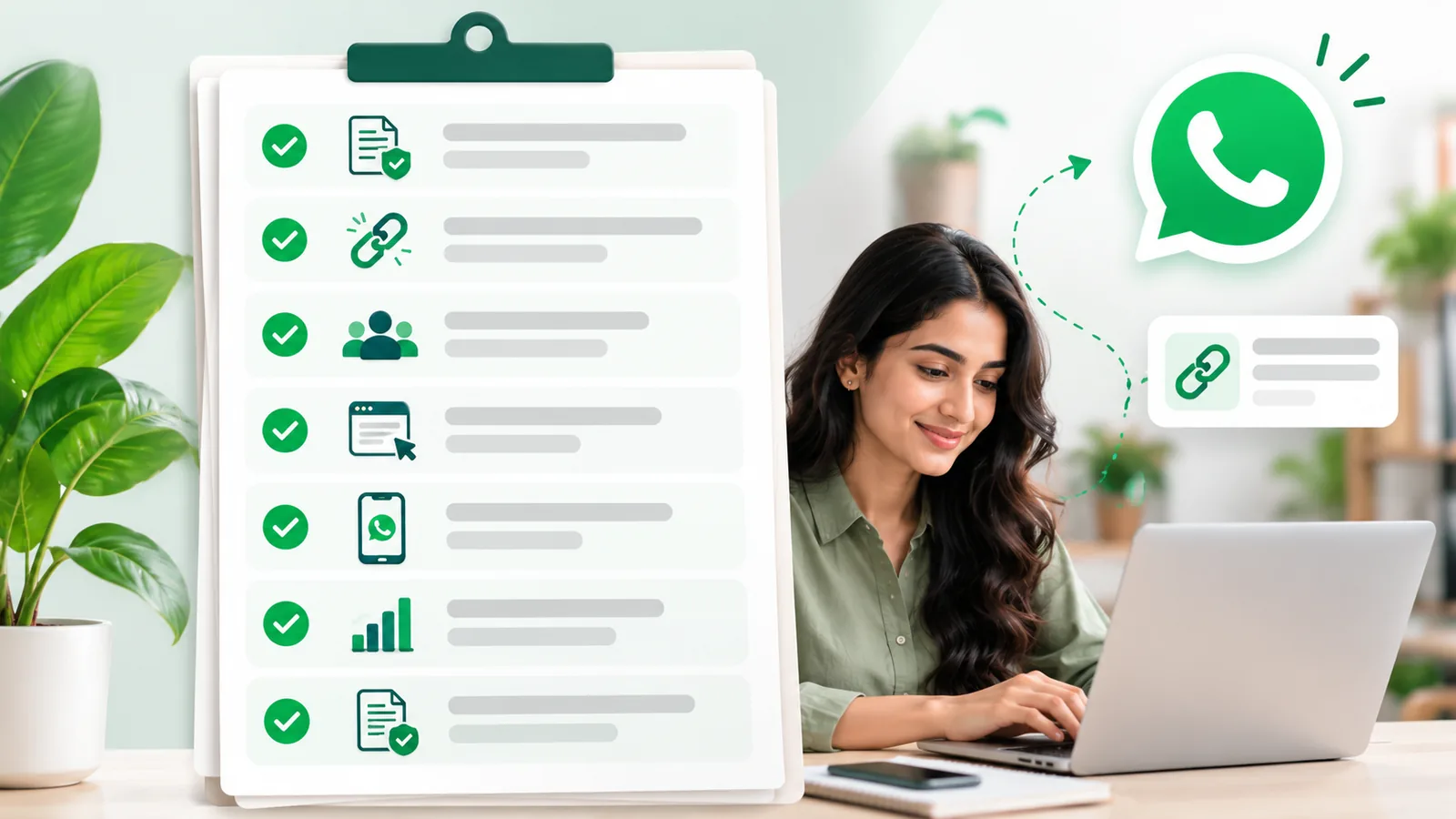
Checklist before you send a link on WhatsApp
- The URL starts with
https://and uses your own domain. - No spaces, line breaks or formatting symbols touch the link.
- Outside the 24-hour window, the link is in an approved template.
- Button labels start with a verb and fit the limit (25 characters on templates, 20 on CTA URL messages).
- A dynamic URL has its variable at the end, and the values are percent-encoded.
- Links carry UTM tags, or go through your own redirect.
- No phone numbers, emails or other personal data in the URL.
- The landing page loads fast on mobile data and matches the button label.
- You’ve sent a test to yourself and tapped it on Android and on iPhone.
Get these right and a link on WhatsApp stops being a gamble. It becomes the shortest path from a message to a result.