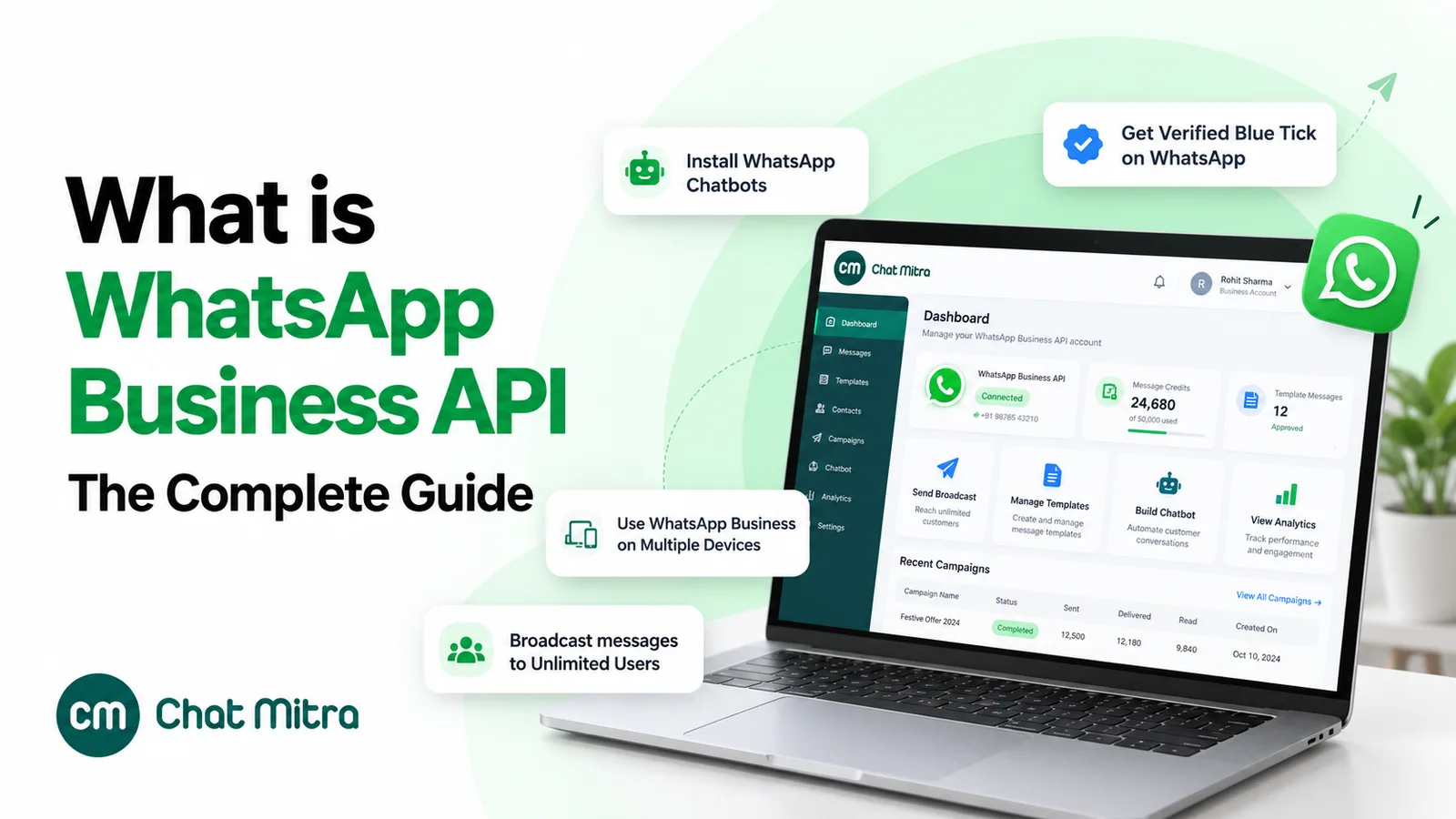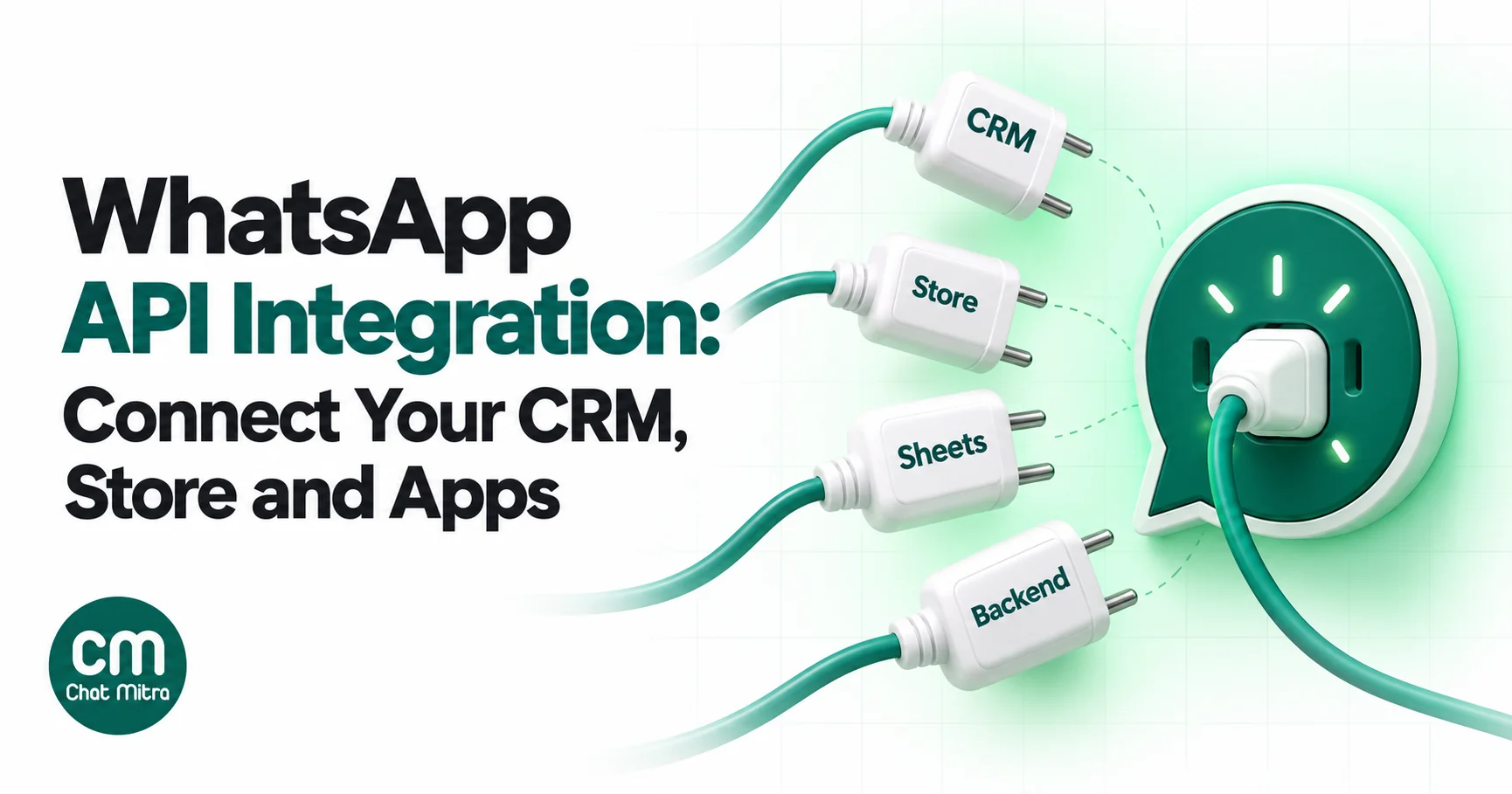
WhatsApp API integration means connecting the WhatsApp Business Platform to the systems you already run, such as your CRM, online store, payment gateway, helpdesk or own backend, so that business events send WhatsApp messages automatically and customer replies flow back into those systems. Outbound, your software calls a send API. Inbound, the WhatsApp side calls your software through webhooks. Both directions have to work before the integration is finished.
Using ChatMitra? ChatMitra gives you three ways in: native connectors for Shopify and Google Sheets, a developer API and signed webhooks on the Pro and Enterprise plans, and WorkflowMitra, its no-code workflow builder, for everything else. Jump to connecting your own system step by step.
Most “WhatsApp API integration” guides stop at getting API access. That’s a separate job, covered in our guide on how to get the WhatsApp API. This guide starts after you have a number on the API. It covers what to connect, in which order, by which route, and what each message will cost.
What a WhatsApp API integration actually connects
Every integration, however large, is built from two loops.
The outbound loop. Something happens in one of your systems: an order is placed, a lead fills a form, a payment fails, an appointment is a day away. Your system, or a tool watching it, calls the send API with the customer’s number, an approved template and the variable values. WhatsApp delivers the message.
The inbound loop. The customer replies, taps a button, or the message changes status (sent, delivered, read, failed). The WhatsApp side posts that event to a webhook URL you registered. Your receiver checks the request is genuine, finds the matching customer, and records the reply or acts on it.
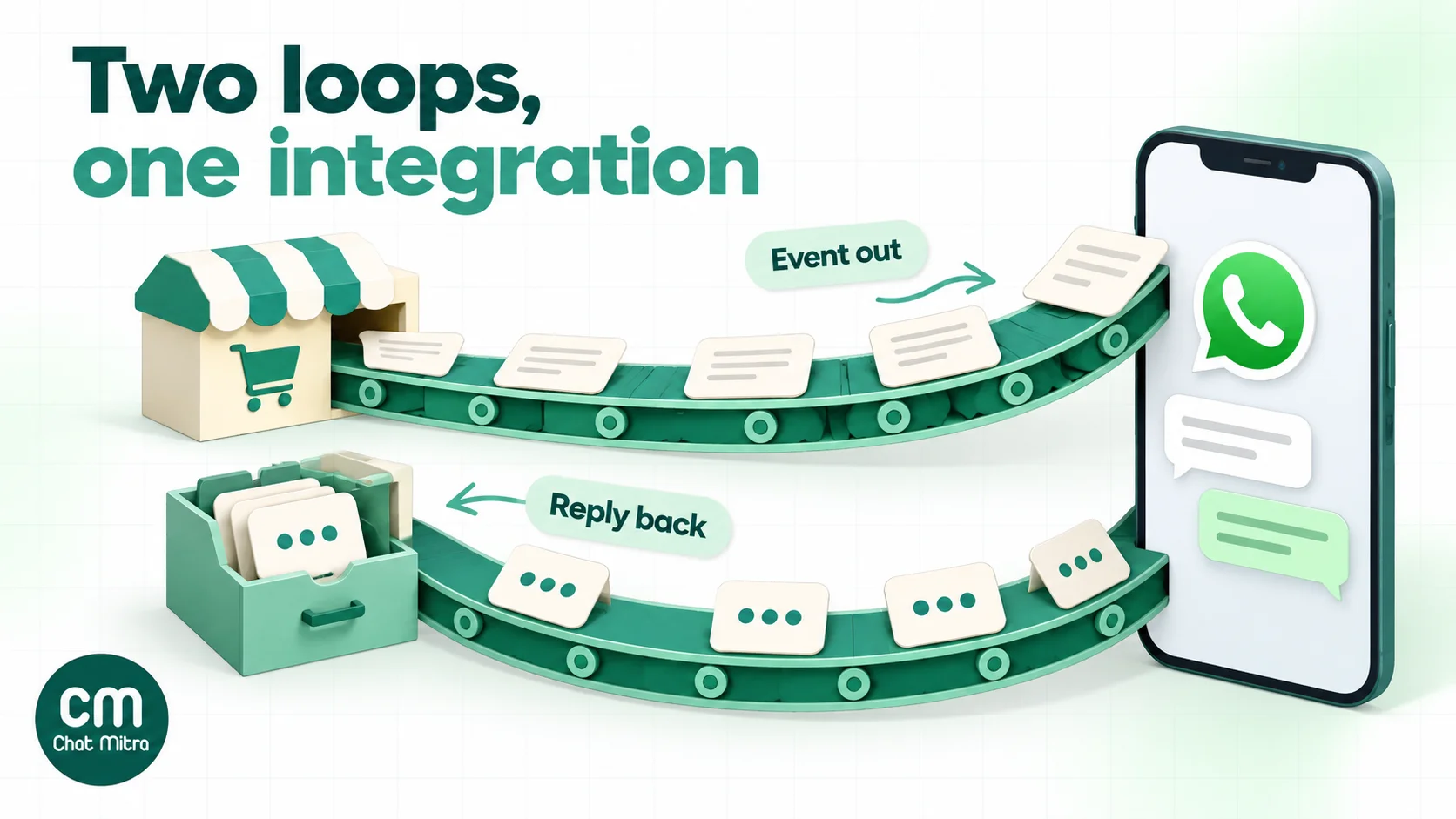
Businesses often build only the first loop and wonder why the CRM never shows the conversation. Without the inbound loop, a sales rep can’t see that the lead already answered, a support agent can’t see the order update that went out, and nobody notices the messages that failed.
The four ways to integrate, compared
| Route | What you build | Who it suits | Watch out for |
|---|---|---|---|
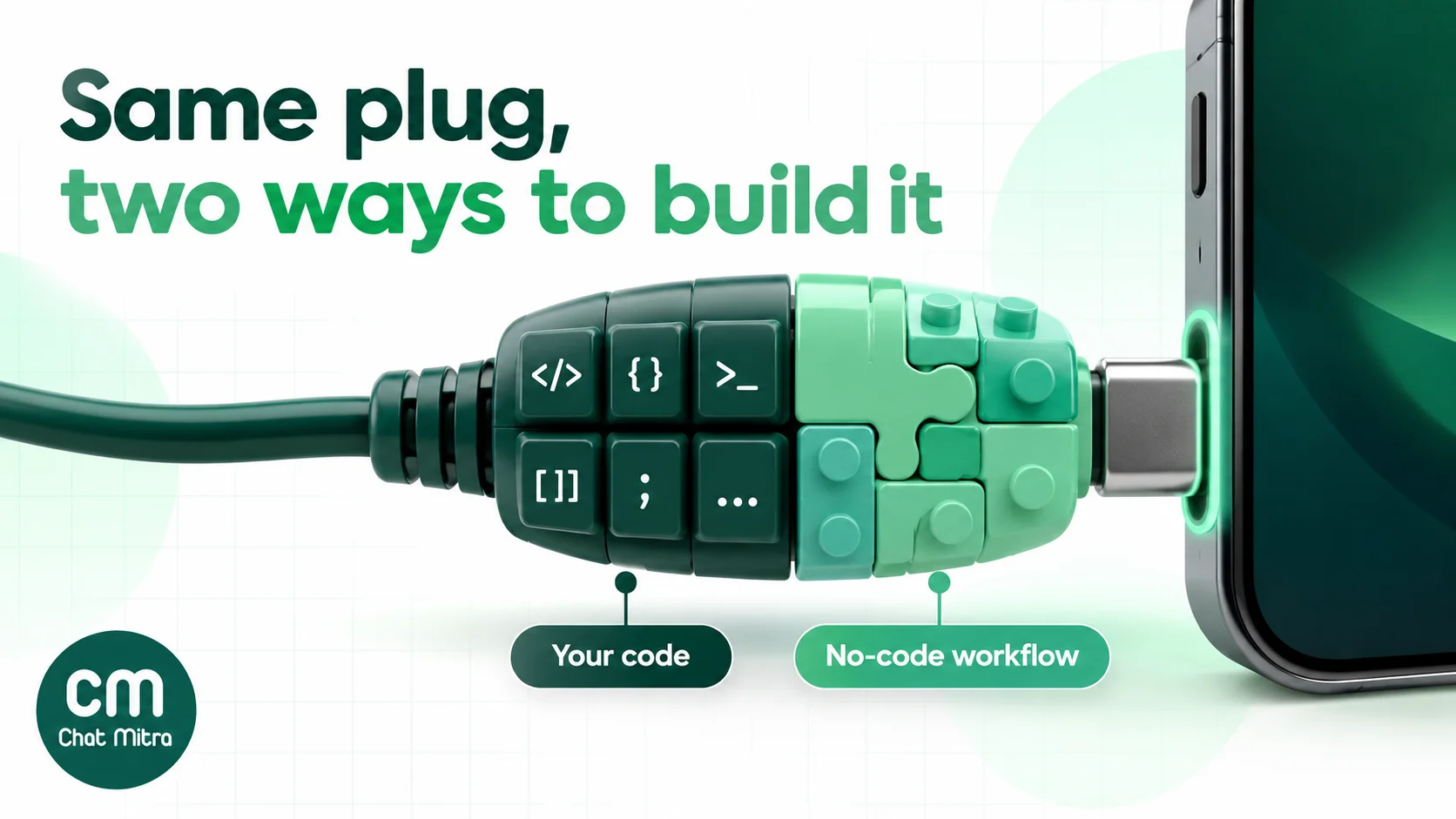
| Native connector from your WhatsApp provider | Settings and templates, no code | Stores and teams on a supported platform (for ChatMitra: Shopify, Google Sheets) | Only the events the connector supports |
| No-code workflow tool (WorkflowMitra, Zapier-style tools) | A trigger and one or more steps | Systems that can send a webhook or be polled, and teams without developers | Per-run credits, and polling delays |
| Your code + a provider’s API and webhooks | An API client and a webhook receiver | Custom apps, ERPs, SaaS products, high volume | You own retries, logging and security |
| Your code straight on Meta’s Cloud API | Everything, including the inbox and template management | Large engineering teams that want no intermediary | No shared inbox, no dashboard, Meta’s webhook rules (below) |
Most businesses end up mixing routes. A typical D2C brand uses the Shopify connector for order messages, a workflow for leads from its website form, and a few API calls from its own returns portal. That’s fine, as long as one WhatsApp number and one provider sit behind all of them. A number can be connected to only one platform at a time.
Where ChatMitra fits
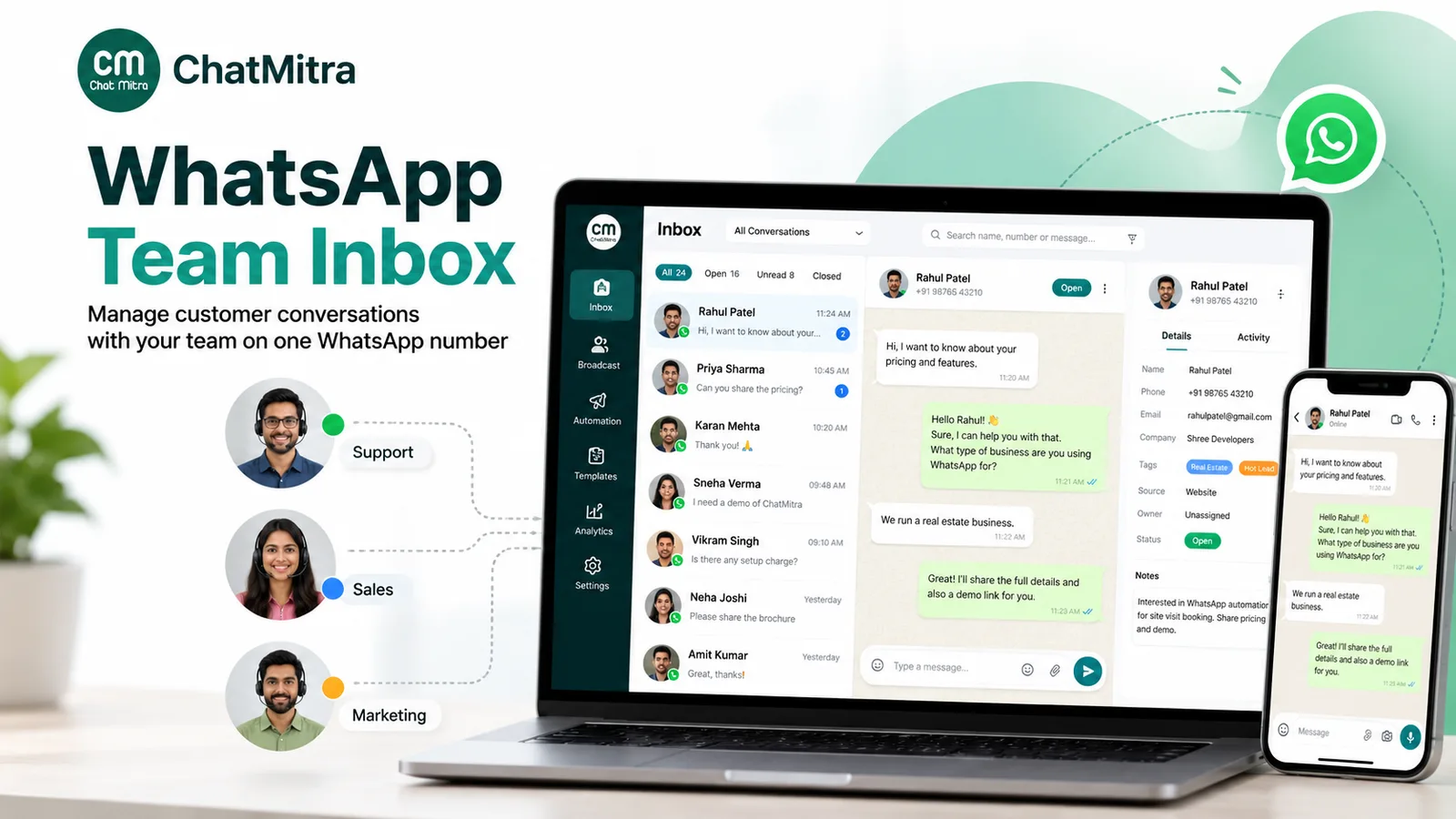
ChatMitra is an official WhatsApp Business Platform provider built for Indian businesses. In an integration, it holds your number, your approved templates and the shared team inbox, and it gives every other system the same two pieces of plumbing.
- The send API. A
POSTtohttps://backend.chatmitra.com/developer/api/send_message, authenticated with a Bearer key from Settings → API Key, sends a template or a free-form message. You can create several named keys, for example one per system, and give each an expiry date. - Signed webhooks. From Settings → Webhooks, ChatMitra posts four events to your URL:
message.received,message.sent,message.status.updatedandpayment.status.updated. Each request carries an HMAC-SHA256 signature and a timestamp.
| ChatMitra advantage | What it means for an integration | How the alternatives compare |
|---|---|---|
| Meta’s rates passed through, plus a flat ₹0.20 per conversation on Starter and Pro, and no platform fee on Enterprise | You can forecast cost per event from Meta’s card | Many providers add a markup per message or sell message packs |
| API and webhooks included in Pro at ₹999 a month | Two-way sync without an add-on fee | Some platforms reserve the API for higher tiers or charge setup fees |
| Native Shopify and Google Sheets connectors | The two commonest small-business integrations need no code | Building these yourself means handling Shopify webhooks and sheet polling |
| WorkflowMitra for the rest | Webhook-based systems (WooCommerce, Razorpay, Typeform, Facebook Lead Ads, helpdesks) connect without code | Generic automation tools usually need a separate WhatsApp connector subscription |
| Unlimited team members in the inbox | Everyone who answers integration-triggered replies works from one number | Seat-based tools charge for each agent |
| Idempotency keys on the send API | A retried request is replayed, not sent and charged twice | Without one, duplicate prevention is entirely your code’s job |
Good to know: ChatMitra has no contacts API and no endpoint to look up a message’s status. Delivery statuses arrive only through webhooks, so if you need them in your system, store them as they arrive. There’s also no delivery log for your webhook calls in the dashboard; log them on your side. And there’s no native WooCommerce, HubSpot, Zoho or Zapier app: those connect through the API, webhooks or WorkflowMitra.
Map your events before you build anything
The commonest integration mistake is wiring systems together first and deciding what to say later. Start with a list of events instead. For each one, write down the message, the template category Meta is likely to assign, and the price, because the category decides the bill.
| System | Event | WhatsApp message | Likely category | India cost per delivered message |
|---|---|---|---|---|
| Store | Order placed | Order confirmation with order number | Utility | ₹0.115 |
| Store | Cash-on-delivery order | ”Confirm your COD order” with two buttons | Utility | ₹0.115 |
| Store or courier | Shipped / out for delivery | Tracking update | Utility | ₹0.115 |
| Store | Cart abandoned | Reminder to finish checkout | Marketing | ₹0.8631 |
| Payment gateway | Payment failed | Retry link for that order | Utility (no offer) | ₹0.115 |
| CRM or form | New enquiry | Acknowledgement and next step | Utility (no promotion) | ₹0.115 |
| CRM | Deal idle for 7 days | Follow-up nudge | Marketing | ₹0.8631 |
| Booking system | Appointment tomorrow | Reminder with Reschedule button | Utility | ₹0.115 |
| Your app | Login or signup | One-time passcode | Authentication | ₹0.115 |
| Accounting | Invoice due | Payment reminder for that invoice | Utility | ₹0.115 |
| Helpdesk | Ticket resolved | Resolution notice | Utility | ₹0.115 |
| Any | Customer replies | Your agent’s free-form answer, inside 24 hours | Service | Free for 1,000 a month per number, then ₹0.115 |
Rates are from Meta’s India rate card effective 1 October 2026. Three rules sit behind the table:
- Meta decides the category, not you. Its categorisation guidelines treat “mixed content”, such as an order update with a discount code, as marketing. Meta can also move an approved template from utility to marketing later, and it sends a
template_category_updatewebhook when it does. - Utility inside the window is no longer free. Since 1 October 2026, a utility template sent while the customer’s 24-hour window is open is charged. Meta’s pricing page lists it under messages that were previously free.
- Free-form replies are service messages. Each number gets 1,000 free service messages a month, and the 1,001st is charged. A business with no payment method on file stops delivering service messages after the free tier.
If an event in your list has no clear customer benefit, drop it. An integration can send a message on every field change in your CRM; customers will block a business that does.
Integrations by system
CRM
The CRM is usually the system of record for leads and customers, so it gets both loops. Outbound, a workflow sends an acknowledgement when a contact is created with WhatsApp opt-in, and a follow-up when a deal stalls. Inbound, every reply is written to the contact’s timeline and stamps a “last WhatsApp reply” date so follow-ups stop once the customer answers.
ChatMitra has no native HubSpot or Zoho app. It connects through WorkflowMitra, whose App Request step calls the CRM’s API (HubSpot, Zoho CRM and Pipedrive are built in), or through your own code. Our HubSpot WhatsApp integration guide walks through the full two-way setup, and WhatsApp CRM software compares inbox-first tools with full CRMs.
Online store
For Shopify, use the connector instead of building one. ChatMitra’s Shopify app sends order confirmations, cash-on-delivery confirmations and follow-ups, cancellation and fulfilment messages, and abandoned-cart reminders. Shopify stores using Razorpay Magic Checkout or Shiprocket’s checkout can also send abandoned-cart reminders from those checkouts.
For WooCommerce and other platforms, there’s no native ChatMitra app. Create a webhook in the store (WooCommerce offers webhooks for order events such as created and updated) and point it at a WorkflowMitra webhook trigger, which has a WooCommerce preset, then add a WhatsApp step. Our guide to integrating WhatsApp with your website covers the click-to-chat side of a store.
Payment gateway
Payment events are some of the most valuable messages you can send, because each one is tied to money the customer meant to pay. Typical events: payment failed, payment link expiring, refund processed. Razorpay and Stripe both send webhooks, and WorkflowMitra has presets for both. Keep these messages strictly transactional. A failed-payment message with “and 10% off your next order” is marketing.
Google Sheets
Many small teams run on a sheet before they have a CRM. ChatMitra’s Google Sheets automation can trigger on a new, updated or deleted row, a changed column, a schedule, or a date in a column (for example “3 days before the renewal date”). It can send a template, text or media, add tags, and write rows back. It’s the fastest way to put a lead list or a renewal calendar on WhatsApp without any code.
Helpdesk
If support runs in Freshdesk, Zendesk, Intercom or Zoho Desk, the helpdesk should stay the source of truth for tickets. Send ticket-resolved and survey messages from helpdesk webhooks (WorkflowMitra has presets for all four), and decide deliberately where agents reply. If they answer in ChatMitra’s inbox, log a copy of the conversation to the ticket.
Your own backend, ERP or SaaS product
Custom software is where the API route earns its keep: a logistics platform sending delivery windows, a school ERP sending fee reminders, a SaaS product sending OTPs and usage alerts. The next section is the build guide.
How to connect your own system to ChatMitra, step by step
You need a ChatMitra Pro or Enterprise plan (the API and webhooks aren’t on Starter), a connected WhatsApp number, and at least one approved template.
Step 1: Create an API key for each system
Open Settings → API Key and create a key, named after the system that will use it (“Store backend”, “Billing”). Give it an expiry if the integration is temporary. Store it in your secrets manager or environment variables, never in front-end code or a shared sheet: anyone with the key can send messages on your bill. Separate keys let you revoke one system without breaking the others. The API keys and webhook URL explainer covers where both live in the dashboard.
Step 2: Approve the templates on your event map
Create one template per event in the ChatMitra dashboard and wait for Meta’s approval. Note each template’s exact name and language code. Keep variables inside sentences rather than at the start or end, and don’t mix scripts in one template.
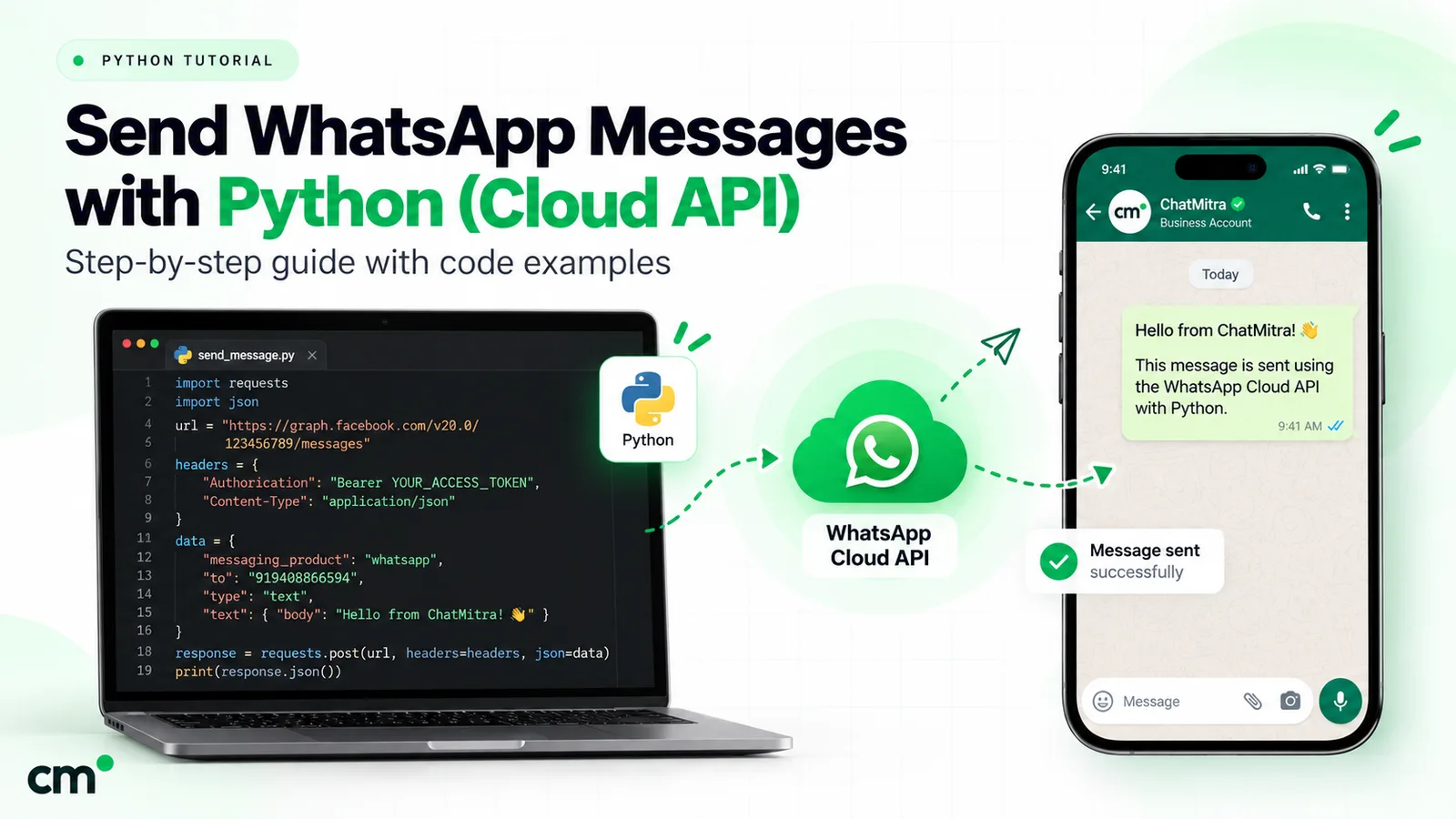
Step 3: Send your first template
curl -X POST https://backend.chatmitra.com/developer/api/send_message \
  -H "Authorization: Bearer $CHATMITRA_API_KEY" \
  -H "Content-Type: application/json" \
  -H "Idempotency-Key: order-10482-confirmation" \
  -d '{
    "recipient_mobile_number": "919876543210",
    "messages": [{
      "kind": "template",
      "template": {
        "name": "order_confirmation",
        "language": "en",
        "components": [{
          "type": "body",
          "parameters": [
            { "type": "text", "text": "Priya" },
            { "type": "text", "text": "10482" }
          ]
        }]
      }
    }]
  }'
What each part does:
recipient_mobile_numbertakes digits with the country code. ChatMitra strips spaces and the+, and expects 8 to 15 digits. Store numbers that way in your system from the start; a 10-digit Indian number without91is the commonest reason a message never arrives.messagesis a list. Each item is either"kind": "template"or"kind": "raw", and one request can’t mix the two. A raw text message, allowed only inside the customer’s 24-hour window, looks like{"kind": "raw", "payload": {"type": "text", "text": {"body": "Your refund was processed."}}}.Idempotency-Keymakes retries safe. If the same key arrives twice, ChatMitra replays the first result instead of sending and charging again. Build it from the record ID and the event name, so the same event can never send twice.
Template variables have rules worth knowing before your first error: they can’t contain characters such as *, _, ~, # or square brackets, or HTML. They can’t be emoji-only or longer than 1,024 characters, and header text is limited to 60 characters. Values that mix Devanagari and Latin script are rejected. Sanitise these fields before they reach the API. Use GET /developer/api/templates to list your approved templates from code, so your integration can check a template exists before relying on it. The same request in other languages is in our Python and PHP guides.
Step 4: Register your webhook
In Settings → Webhooks, enter your receiver’s URL (use HTTPS), choose the events, and copy the signing secret. ChatMitra shows the secret only once, so store it with your API key. The Test button sends a sample event so you can check your receiver before real traffic arrives. For what each delivery status means, see webhooks and message status.
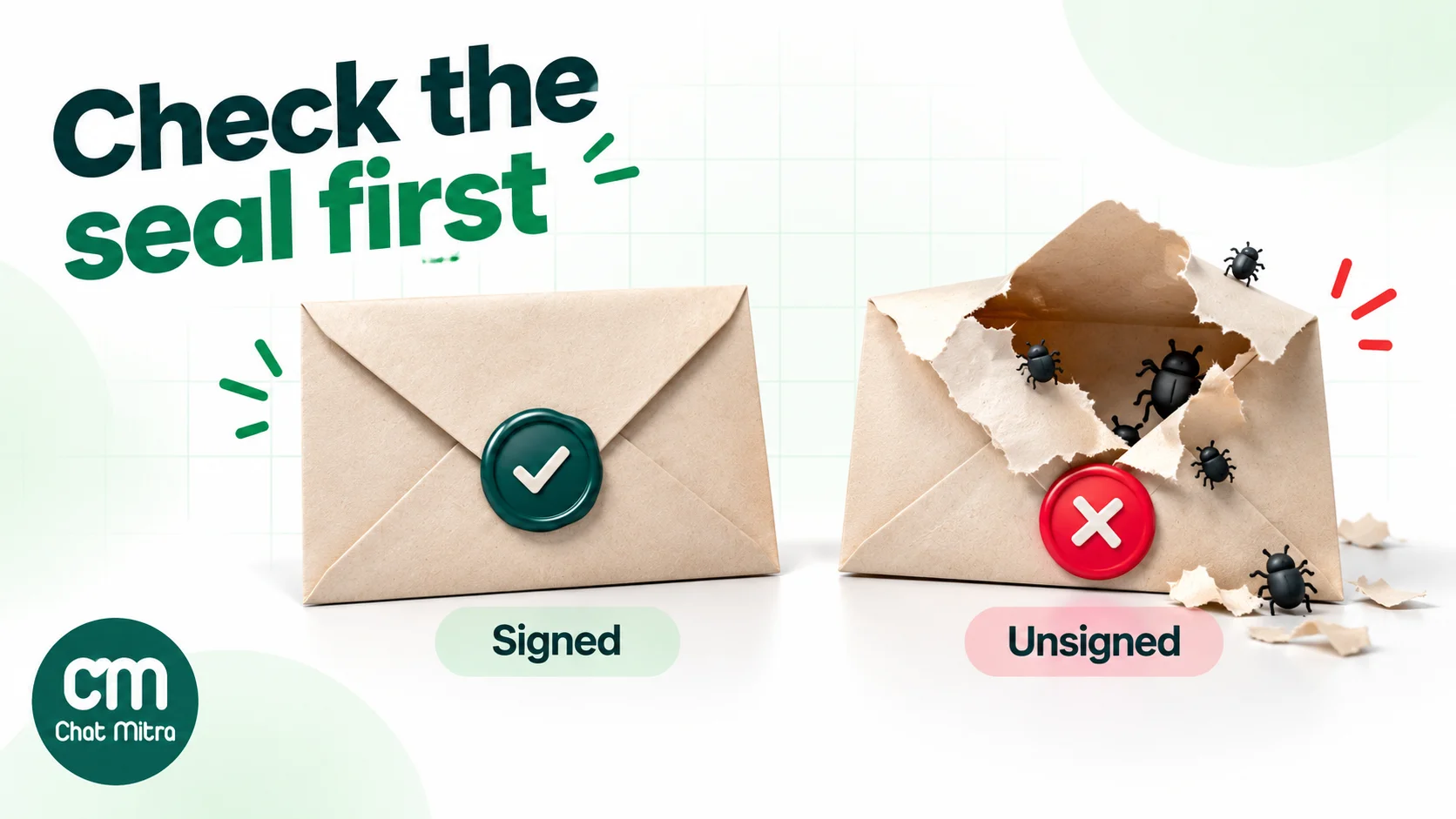
Step 5: Verify the signature, then answer fast
Every ChatMitra webhook carries three headers:
X-Webhook-Timestamp: the send time in Unix seconds.X-Webhook-Signature-256:sha256=followed by the hex HMAC-SHA256 oftimestamp.body, keyed with your secret.X-Webhook-Signature: the hex HMAC-SHA256 of the body alone, for older receivers.
Prefer the timestamped signature, because it lets you reject old requests that someone recorded and replayed. A minimal receiver in Node.js:
import express from "express";
import crypto from "node:crypto";

const app = express();
const SECRET = process.env.CHATMITRA_WEBHOOK_SECRET;

app.post("/webhooks/chatmitra", express.raw({ type: "application/json" }), (req, res) => {
  const ts = req.get("X-Webhook-Timestamp") || "";
  const sig = req.get("X-Webhook-Signature-256") || "";
  const expected = "sha256=" + crypto
    .createHmac("sha256", SECRET)
    .update(`${ts}.${req.body}`)
    .digest("hex");

  const fresh = Math.abs(Date.now() / 1000 - Number(ts)) < 300;
  const valid = sig.length === expected.length &&
    crypto.timingSafeEqual(Buffer.from(sig), Buffer.from(expected));
  if (!fresh || !valid) return res.sendStatus(401);

  res.sendStatus(200);               // acknowledge first
  jobs.add(JSON.parse(req.body));    // then process in your queue
});
Three details matter here. Compute the HMAC over the raw body, before any JSON parsing changes its spacing. Compare with a constant-time function such as timingSafeEqual, as GitHub’s webhook validation guide recommends. And answer quickly: ChatMitra waits 8 seconds for a response and makes three attempts in all, with growing gaps between them. A receiver that does slow CRM lookups before answering will trigger retries.
Step 6: Process events idempotently
Each event’s JSON includes event, message_id, from, to and timestamp. Incoming messages add a message object with the type and content, and a contact with the customer’s profile name and WhatsApp ID. Replies to your messages include a context with the original message ID, and messages that started from a click-to-WhatsApp ad include a referral. Status events add the status, pricing details and any errors.
Store each message_id you process and skip any you’ve seen. Then route by event:
message.received: find the customer by number, log the message, and if the text is “STOP” or similar, set their opt-in to no.message.status.updated: record delivered, read or failed against the message you sent. A failed status is your cue to try another channel.message.sent: confirm that the message left, useful for audit trails.payment.status.updated: update the order when a WhatsApp Pay payment is captured, pending or failed.
Step 7: Test both directions with your own number
Before switching on real traffic, check that:
- the template arrives on your phone, with the right variables;
- your reply appears in your system within a minute;
- the delivered and read statuses are recorded;
- sending the same event twice delivers one message;
- a request with a wrong signature is rejected.
Then reply with a quotation mark and a line break, which break hand-built JSON in many receivers.
The no-code route: WorkflowMitra
If nobody on the team writes code, or the system already sends webhooks, a workflow is quicker to build and easier to hand over. A WorkflowMitra workflow is a trigger followed by steps:
- Trigger. A webhook (with presets for Shopify, WooCommerce, Razorpay, Stripe, Typeform, Facebook Lead Ads, website forms, Freshdesk, Intercom, Zendesk and Zoho Desk), a schedule, a Google Sheets change, or an app trigger.
- Logic. IF and Switch steps to skip orders without a phone number, or to route by order value.
- WhatsApp step. Sends a template through ChatMitra with your API key, mapping the variables from the trigger data.
- Write-back. An App Request or Sheets step that records “WhatsApp sent” on the source record.
For the inbound loop, point a ChatMitra webhook at a second workflow’s webhook trigger. Turn on signature verification with the X-Webhook-Signature header and your ChatMitra secret, and leave the trigger’s shared-secret header empty: ChatMitra signs requests instead of sending a secret header, so a required header would reject every delivery.
Mind the credits. WorkflowMitra charges a credit for every trigger run and for each action step that runs, including steps that fail, while IF, Switch, Merge, Delay and Set Variable steps are free. A workflow that polls every 15 minutes runs about 2,900 times a month even when nothing has changed, so prefer webhook triggers where the source system offers them. Plans are on the WorkflowMitra page.
Rate limits and throughput
Three separate limits shape how fast an integration can send.
- Meta’s throughput. Each business number can send up to 80 messages per second by default, and Meta automatically upgrades eligible high-volume numbers to 1,000 per second, according to its throughput documentation. Numbers using Coexistence with the WhatsApp Business app are fixed at 20. Sending too many messages to the same person in a short period returns error 131056.
- Meta’s messaging limits. These cap how many customers you can send business-initiated templates to in a rolling 24 hours. They’re set for the whole business portfolio and shared by its numbers. A new portfolio starts at 250, and limits then rise to 2,000, 10,000, 100,000 and unlimited as you use at least half of your current limit with good quality. See Meta’s messaging limits page.
- ChatMitra’s queue. ChatMitra smooths sends to about 2,400 messages a minute per number. When the queue would take longer than about two minutes to clear, the API answers HTTP 429. Treat 429 as “slow down”: back off, then retry with the same idempotency key.
For bulk sends from your own system, such as a fee reminder to 5,000 parents, spread the calls over time rather than firing them in one loop. Check that your messaging limit covers the number of recipients before you start.
Security, consent and data handling
- Keys and secrets. One API key per system, stored server-side, rotated when someone leaves. Keys with an expiry are good for agencies and pilots.
- Signatures. Verify every webhook, as in Step 5. If you build directly on Meta’s Cloud API, Meta signs payloads with your app secret in the
X-Hub-Signature-256header, and its webhooks guide says you should validate it. - Opt-in. WhatsApp’s Business Messaging Policy requires permission before you message people. Store the opt-in date and source on the customer record, and check it in the integration before every marketing template.
- Opt-outs. Write “STOP” replies back to the source system, or a later CRM workflow will message the customer again.
- Personal data. Send only the fields a message needs. Customers’ phone numbers, order details and messages are personal data, and India’s Digital Personal Data Protection Act, 2023 applies to how you collect and use them.
If you build straight on Meta’s Cloud API
Some teams skip the provider and call Meta directly: POST https://graph.facebook.com/v26.0/<PHONE_NUMBER_ID>/messages with a system-user access token, as shown in Meta’s send messages guide. It works, but you take on several jobs a provider does for you:
- answering Meta’s verification request (echo
hub.challengewhenhub.verify_tokenmatches) when you register your webhook; - handling Meta’s retries. Meta’s webhooks overview says failed deliveries are retried for up to 7 days and can produce duplicate notifications;
- reading statuses from the
messageswebhook field, which carries both incoming messages and the status of messages you sent; - building your own inbox, template management, opt-out handling and reporting.
The On-Premises API is no longer an option: its final version expired on 23 October 2025, so every direct integration today is on the Cloud API.
What a WhatsApp API integration costs: an Indian worked example
The scenario. A Shopify store with 3,000 orders a month connects ChatMitra’s Shopify app, so the integration itself needs no code. Every order gets a confirmation and a shipped update. 40% are cash on delivery and get a COD confirmation the same day. 2,000 abandoned carts get one reminder. Customers send 1,500 replies, which agents answer.
Meta’s charges (India rate card effective 1 October 2026):
- Utility: 3,000 confirmations + 3,000 shipped updates + 1,200 COD confirmations = 7,200 × ₹0.115 = ₹828.00
- Marketing: 2,000 cart reminders × ₹0.8631 = ₹1,726.20
- Service: 1,500 replies, of which the first 1,000 are free; 500 × ₹0.115 = ₹57.50
- Meta total: ₹2,611.70
ChatMitra’s charges. ChatMitra charges per conversation, once per customer per 24 hours, however many messages go back and forth. The confirmation, the COD check and same-day replies share one conversation; the shipped update days later is another; each cart reminder is its own. Say 8,600 conversations in all.
| Monthly cost | ChatMitra Pro | ChatMitra Enterprise |
|---|---|---|
| Plan | ₹999, including 1,000 conversations | ₹2,499 |
| Conversation fee | 7,600 × ₹0.20 = ₹1,520 | No platform fee |
| Meta charges | ₹2,611.70 | ₹2,611.70 |
| Total | ₹5,130.70 | ₹5,110.70 |
Pro and Enterprise break even at 8,500 conversations a month, so a store at this volume should consider Enterprise. Marketing is two-thirds of Meta’s bill here from a fifth of the messages, which is why the cart reminder is the message to tune first. The pricing calculator runs the same arithmetic for your own volumes, and the ChatMitra pricing page has the current plans.
Common integration problems and fixes
| Symptom | Likely cause | Fix |
|---|---|---|
| API returns 401 | Missing Bearer prefix, or a deleted or expired key | Send Authorization: Bearer <key>; create a new key |
| API returns 403 | The plan doesn’t include the API, or the project has no connected number | Move to Pro or Enterprise; connect the number |
| API returns 429 | Too many sends queued for one number | Back off and retry with the same idempotency key |
| Message accepted but never delivered | Number stored without the country code, or the customer isn’t on WhatsApp | Store digits with country code; record failed statuses |
| Invalid parameter error | A blank variable, a forbidden character such as _ or #, or mixed scripts | Sanitise variables; use a fallback like “there” for missing names |
| Customer got the same message twice | Webhook retry or overlapping polls | Idempotency key per event, plus a status flag |
| Replies never reach the CRM | Webhook not saved, receiver erroring, or number mismatch | Use the Test button; log every delivery; match on digits only |
| Template suddenly costs more | Meta recategorised it as marketing | Watch category updates; remove promotional lines from utility templates |
The WhatsApp Business API errors guide explains Meta’s error codes in detail.
A go-live checklist
- Event map written, with category and cost per event.
- One API key per system, stored server-side.
- Templates approved, names and language codes recorded.
- Phone numbers stored as digits with country code.
- Opt-in stored and checked before marketing templates.
- Webhook signature verified on the raw body, with a timestamp check.
- Receiver answers within a second and queues the work.
- Message IDs deduplicated; idempotency keys on every send.
- Failed statuses alert a person or fall back to another channel.
- Both directions tested with your own number.
Build the smallest useful loop first: one event, one template, one webhook that writes replies back. Once that has run cleanly for a week, add the next event from your map. If you’d rather start without code, ChatMitra’s Shopify and Google Sheets connectors are in the dashboard, and the API and webhooks come with Pro; compare the plans.