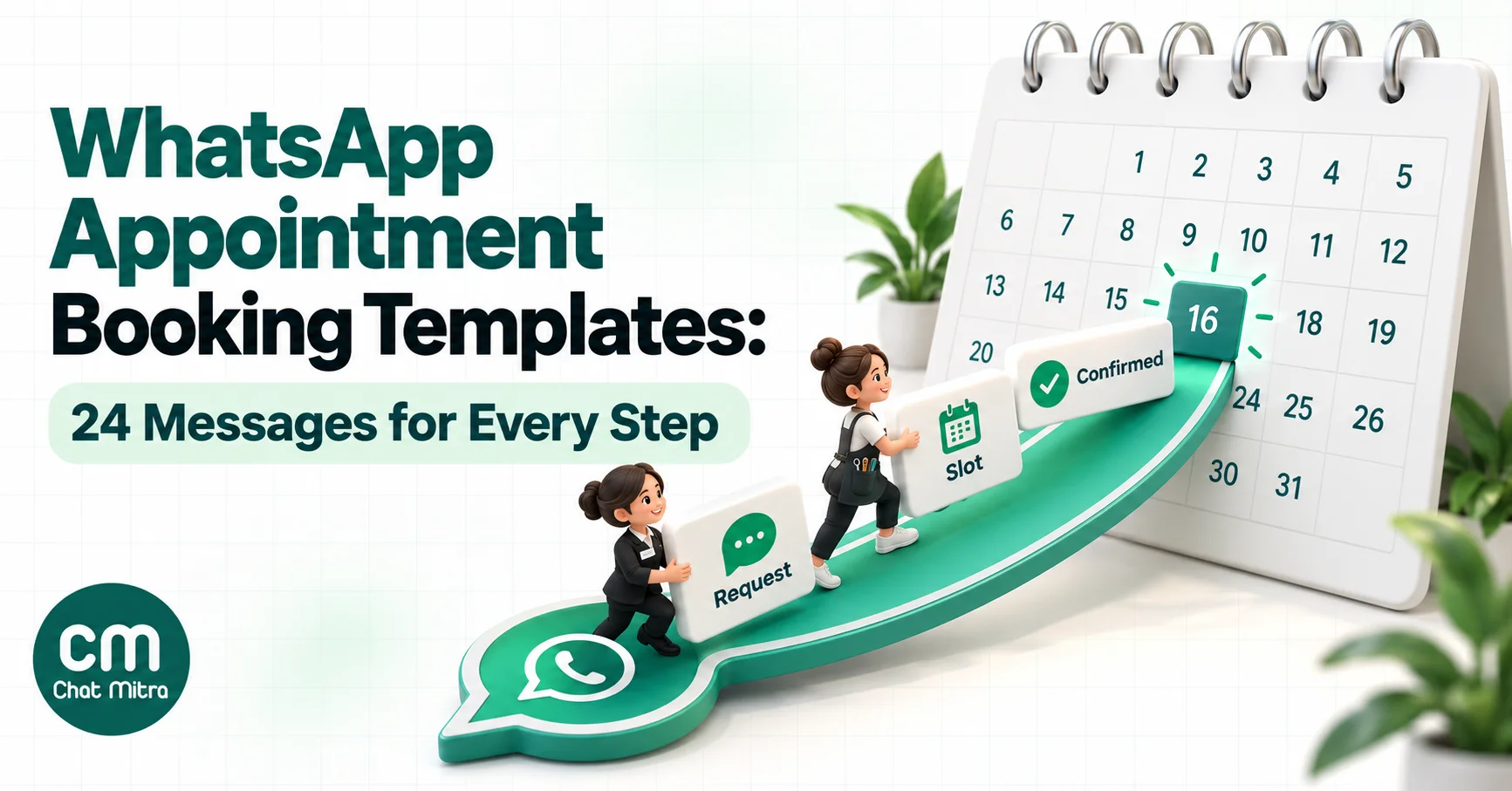
A WhatsApp appointment booking template is a pre-approved message that helps a customer book, confirm, change or cancel an appointment. Steps the customer starts need no template; steps your business starts need an approved utility or marketing template. Clinics, salons, coaches and consultants all use them, and because booking on WhatsApp is really a short conversation, each step follows its own rules on approval and price.
This guide walks through the whole booking conversation, step by step, with 24 ready-to-adapt messages. For each one you get the Meta category, whether you need a template at all, and what it costs. Confirmation and reminder copy is covered in more depth in our booking confirmation examples and WhatsApp reminder messages, so here they get one or two messages each, and the focus is on everything around them.
Using ChatMitra? ChatMitra covers the whole journey without code. Campaigns send and schedule your invitations. Auto Reply answers booking requests with a tappable slot list, even out of hours. Google Sheets Automation sends confirmations, day-before reminders and feedback requests from a bookings sheet. ChatMitra has no built-in calendar, so your slots come from your own diary or booking tool. Jump to running appointment booking on ChatMitra.
The booking journey at a glance
| Step | Who starts it | Message type | Meta category | India cost (Meta) |
|---|---|---|---|---|
| 1. Invite customers to book | You | Template | Marketing | ₹0.8631 |
| 2. Acknowledge a booking request | Customer | Free-form reply | Service | Free for the first 1,000 a month |
| 3. Offer time slots | Customer (open chat) | List or buttons | Service | Free for the first 1,000 a month |
| 4. Confirm the booking | You | Reply in the window, or a template | Service or utility | ₹0.1150 as a template |
| 5. Collect details before the visit | You | Template | Utility | ₹0.1150 |
| 6. Reschedule or cancel | Either | Template, or a reply in the window | Service or utility | ₹0.1150 as a template |
| 7. Offer a freed slot to the waitlist | You | Template, then replies in the window | Usually utility | ₹0.1150 |
| 8. Follow up a missed appointment | You | Template | Usually utility; marketing with an offer | ₹0.1150 or ₹0.8631 |
| 9. Ask for feedback after the visit | You | Template | Utility | ₹0.1150 |
Reminders sit between steps 5 and 6 and are covered in our reminder guide. Service messages are free for the first 1,000 a month per business phone number, then ₹0.1150 each. On ChatMitra, add ₹0.20 per conversation (once per customer per 24 hours) on Starter and Pro.
Do you need a template to book an appointment on WhatsApp?
Only for messages that start a conversation or come back to it later. The rule that decides this is the 24-hour customer service window. When a customer messages you, a 24-hour window opens, and inside it you can reply with anything: text, images, lists of time slots, buttons. Once the window closes, Meta’s send-messages guide says “you can only send pre-approved template messages.”
In practice, that splits the booking journey in two:
- Customer-led steps (2 and 3) happen in the window. No template, no approval, and they’re billed as service messages.
- Business-led steps (1 and 4–9) usually happen hours or days after the last chat, so they need approved templates. Templates take time to approve, and Meta’s template review page says the text “cannot start or end with a parameter”, so plan them before you launch.
You also need the customer’s opt-in for every business-led message. A tick box on your booking form or front-desk register (“Send my appointment updates on WhatsApp”) covers it. Our WhatsApp opt-in guide has consent wording you can copy.
Step 1: Invite customers to book (marketing)
These templates go to people who haven’t booked yet, or haven’t booked recently. They promote a service, so Meta treats them as marketing, and WhatsApp may limit how many marketing templates each person receives. Send them only to customers who agreed to hear from you, and make the next step one tap.
1. Open slots this week
Hi {{1}}, we have a few appointments open at Sunrise Physio this week for consultations and follow-ups. Tap below to see the times and book in under a minute.
Buttons: Quick reply “See open slots” · Quick reply “Not now”
2. Check-up due (recall)
Hello {{1}}, it has been six months since your last dental check-up at Smile Dental. Regular check-ups catch small problems early. Would you like us to book your next visit?
Buttons: Quick reply “Book a check-up” · Quick reply “Remind me later”
3. Festive rush, book early
Hi {{1}}, our stylists at Glow Salon fill up fast before the festive season. Book your slot now to get the day and time you want.
Buttons: Quick reply “Book my slot” · URL “View services”
4. Free product demo
Hi {{1}}, thanks for your interest in {{2}}. Our team can walk you through it on a 20-minute video call at a time that suits you. Shall we find a slot?
Buttons: Quick reply “Pick a time” · Quick reply “Send details first”
Quick-reply buttons matter here. When the customer taps one, they send you a message, and that opens the 24-hour window for every step that follows.
Step 2: Acknowledge a booking request (no template needed)
When the customer writes first (“Can I get an appointment tomorrow?”) or taps a quick reply, you’re in the window. Reply fast, and ask only for what you need to find a slot.
5. Instant acknowledgement
Thanks for messaging {{1}}! Happy to book you in. Which service do you need, and which days suit you best?
6. After-hours reply
Thanks for your message. We’re closed right now and open again at 9 am. Leave the service and the day you’d like, and we’ll confirm a slot first thing.
7. Ask for the one missing detail
Got it, a haircut and colour on Saturday. Do you have a preferred stylist, or is anyone fine?
These are free-form replies, so the wording is yours. The {{1}} placeholder only matters if you save message 5 as an auto-reply in your platform. For more after-hours wording, see our away message examples.
Step 3: Offer time slots
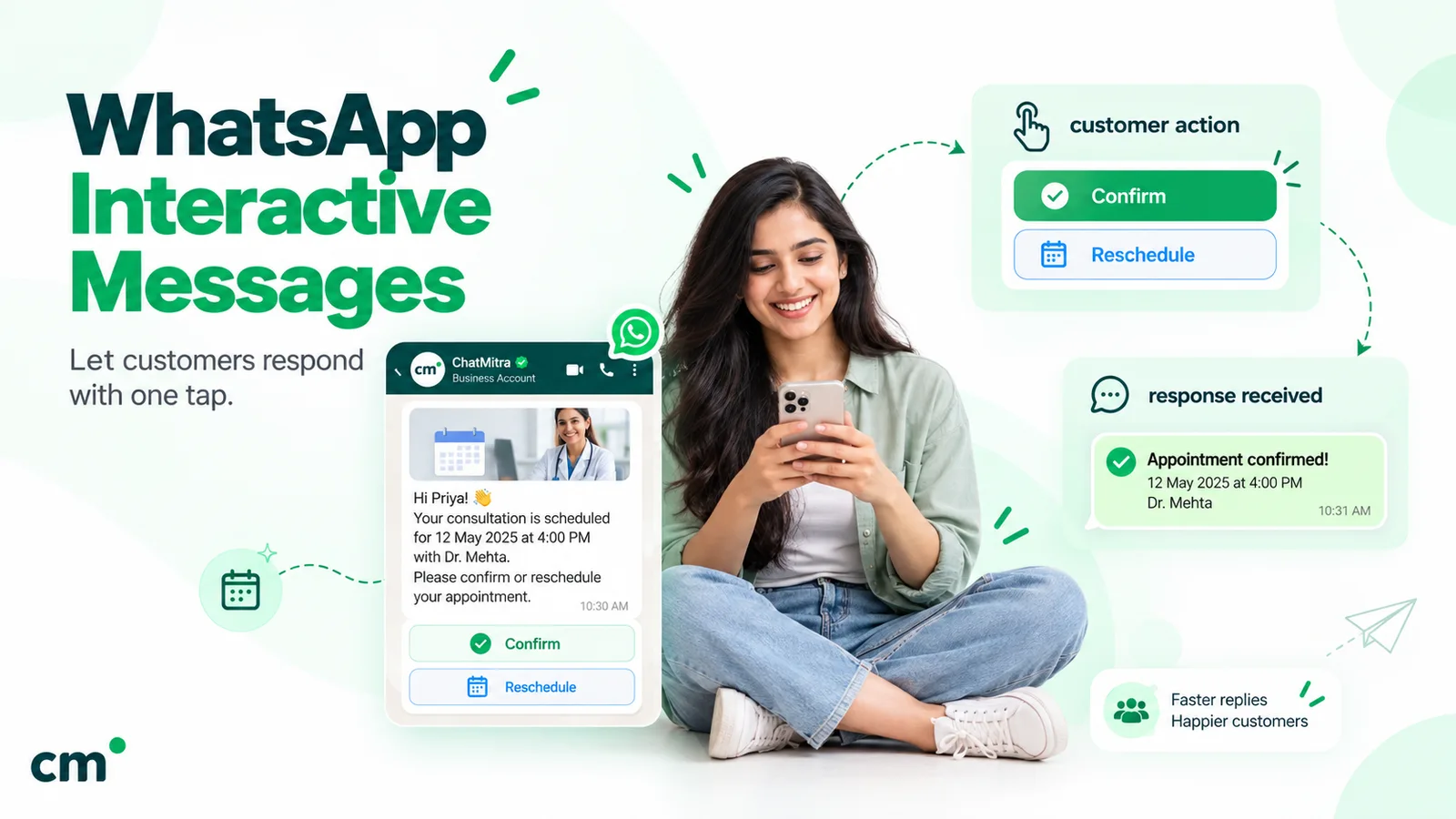
This is where WhatsApp booking is faster than a phone call. Instead of typing out times and waiting, send an interactive list the customer taps.
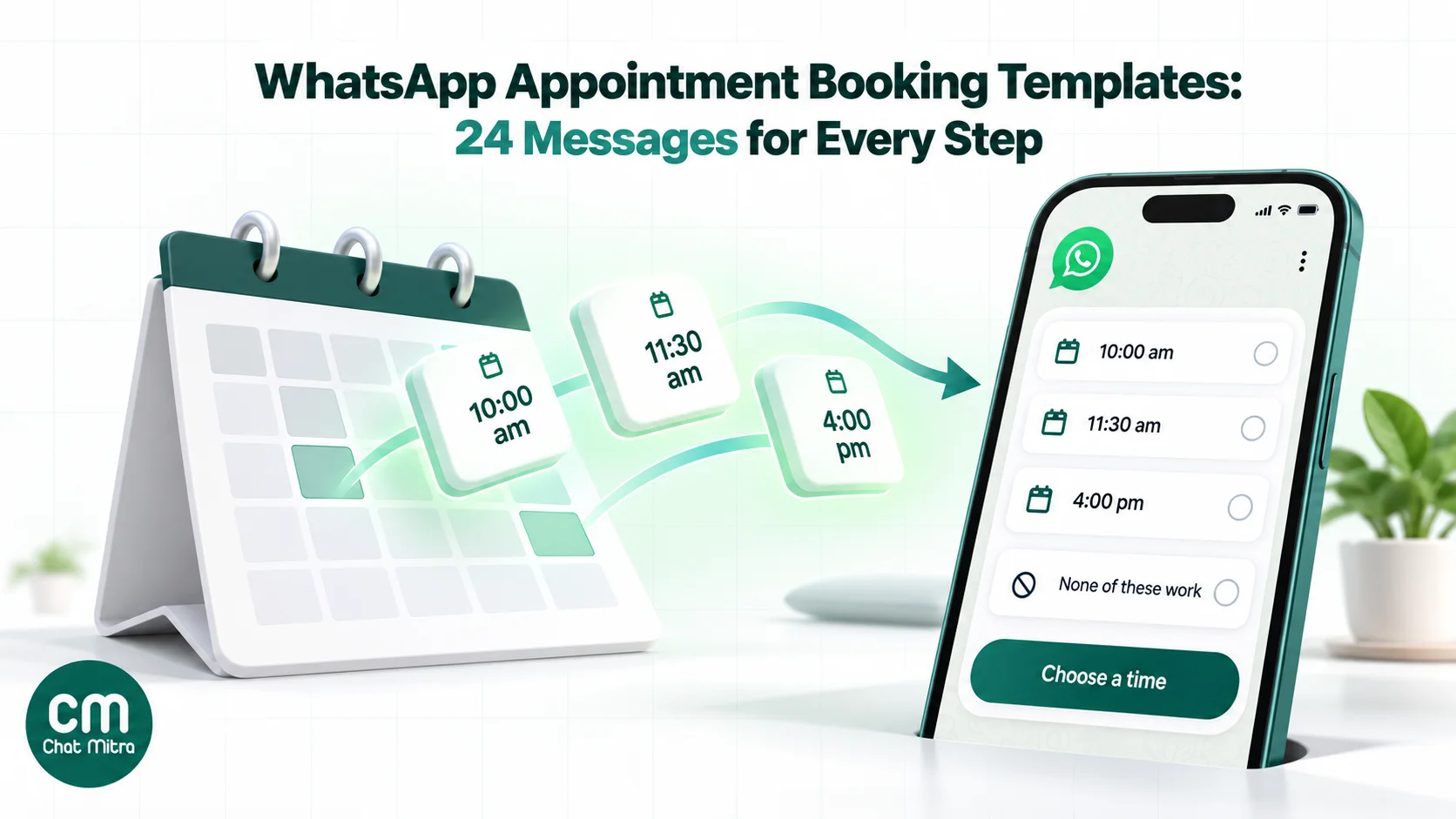
Meta’s list message rules allow up to 10 rows across up to 10 sections. Row titles can be 24 characters and descriptions 72, and the button that opens the list can be 20 characters. That’s enough for one day’s slots, or two days split into sections.
8. Slot list
Here are the next open slots with Dr Mehta. Tap “Choose a time” and pick the one that suits you.
List button: “Choose a time”
- Section “Thursday 15 Jul”: “10:00 am”, “11:30 am”, “4:00 pm”
- Section “Friday 16 Jul”: “9:30 am”, “12:00 pm”, “5:30 pm”
- Section “Other”: “None of these work”
9. Two or three options as buttons
We can see you tomorrow at 11:00 am or 3:30 pm. Which works better?
Buttons: “11:00 am” · “3:30 pm” · “Another day”
Two habits make slot lists work. Always include a “None of these work” or “Another day” option, so the customer never has to type. And hold the slot only briefly (“I’ll keep 4:00 pm for you for 15 minutes”), so an abandoned chat doesn’t block your calendar. Reply buttons are limited to three, with titles of up to 20 characters, so use a list when you have more than three choices. Our interactive messages guide covers both formats.
For a longer form (service, staff, date, time, name, notes) on one screen, WhatsApp Flows can show a booking form inside the chat. See WhatsApp Flows and webviews.
Step 4: Confirm the booking (utility)
If the customer booked in the chat, send the confirmation right away, while the window is open. It can be an ordinary reply, billed as a service message. Use an approved utility template when the booking came from your website, a phone call or the front desk, or when you want every confirmation identical.
10. Booking confirmed (template)
Hi {{1}}, your appointment is confirmed. Service: {{2}}. Date and time: {{3}}. Place: {{4}}. Reply here or use the buttons below if anything changes.
Buttons: Quick reply “Reschedule” · Quick reply “Cancel” · URL “Get directions”
11. Booking confirmed with a reference (template)
Hello {{1}}, your booking {{2}} for {{3}} on {{4}} is confirmed. Please keep this message handy and show it at the reception desk.
Buttons: Quick reply “Reschedule” · Quick reply “Cancel”
Keep confirmations free of offers. Meta’s template categorisation guidelines treat a message that mixes an update with a promotion as marketing. For 36 more confirmations by business type, from hotels to home services, see our booking confirmation message examples.
Step 5: Collect details before the visit (utility)
The days between booking and visit are where no-shows start. Use them to give people what they need, and to collect what you need, so the appointment itself runs on time.
12. Pre-visit form
Hi {{1}}, before your appointment on {{2}}, please fill in a short form so we can prepare. It takes about two minutes.
Buttons: URL “Open the form”
13. What to bring
Hello {{1}}, for your visit on {{2}}, please bring {{3}} and arrive ten minutes early so we can start on time.
Buttons: Quick reply “Got it” · Quick reply “I have a question”
14. Directions and parking
Hi {{1}}, here is how to reach us for your appointment on {{2}}: {{3}}. Parking is available behind the building.
Buttons: URL “Open in Maps” · Phone “Call reception”
Message 14 has three variables and only a short sentence after them. Meta’s review rejects templates with “too many variable parameters relative to the message length”. If that happens, write the address into the template text and keep only the name and date as variables.
Reminders belong here too. The usual pattern is one a day before and one a few hours before. Timing, wording and the utility test for reminders are in our WhatsApp reminder guide.
Step 6: Reschedule and cancel (utility)
Our confirmation guide has plain-text examples for changes; the four below are Meta-ready templates with buttons. Changes are where WhatsApp saves the most staff time. A customer taps “Reschedule” on a confirmation or reminder, and that tap opens the window, so the slot list from step 3 can follow as a normal reply. You need templates for the changes you start, and for confirming a change after the window has closed.
15. Customer asked to reschedule: confirmed
Hi {{1}}, your appointment has moved from {{2}} to {{3}}. Everything else stays the same. See you then.
Buttons: Quick reply “Change again” · Quick reply “Cancel”
16. You need to reschedule
Hello {{1}}, we’re sorry, but {{2}} is no longer available at your booked time on {{3}}. Please choose a new time using the button below, or reply here and we’ll call you.
Buttons: Quick reply “Choose a new time” · Quick reply “Please call me”
17. Cancellation confirmed
Hi {{1}}, your appointment on {{2}} has been cancelled as you asked. Whenever you’re ready, you can book again from this chat.
Buttons: Quick reply “Book a new time”
18. You have to cancel
Hello {{1}}, we have to cancel your appointment on {{2}} because {{3}}. We’re sorry for the trouble. Tap below and we’ll offer you the first available slot.
Buttons: Quick reply “Find a new slot” · Phone “Call us”
Don’t put a cancellation fee or late-change policy into a utility template as a sales message. A plain factual line is fine (“Changes within 4 hours of the appointment may be charged as per our policy”), but “Rebook today and get 10% off” makes the whole template marketing.
Step 7: Offer a freed slot to the waitlist (usually utility)
A waitlist message is usually utility when the customer asked to hear about earlier slots, because it answers their own request, which is the kind of message Meta’s utility definition covers. Keep it strictly factual. When someone cancels, the slot is worth something only if another customer takes it.
19. Earlier slot available
Hi {{1}}, you asked us to tell you if an earlier appointment opened up. A slot is now free on {{2}}. Would you like it? This slot goes to the first person who confirms.
Buttons: Quick reply “Yes, book it” · Quick reply “Keep my current time”
20. Slot taken, you’re still listed
Hi {{1}}, thanks for replying. That slot has just been taken, but you’re still on our list and we’ll message you as soon as another one opens.
Message 20 usually goes out in the window opened by the customer’s tap, so it’s a free-form reply rather than a template. The first-come rule in message 19 matters. Without it, two customers can both tap “Yes” and you have to disappoint one of them.
Step 8: Follow up a missed appointment (usually utility; marketing with an offer)
A missed appointment needs two decisions: when to message, and whether to include an offer. Send the note the same day, while the customer still remembers. Without an offer, and written about the missed booking itself, it’s usually approved as utility. With a discount or a “special rebooking price”, it’s marketing.
21. Missed appointment (usually utility)
Hi {{1}}, your appointment on {{2}} was marked as missed. We hope everything is all right. If you’d like to rearrange it, reply here or tap below.
Buttons: Quick reply “Rearrange it”
22. Rebooking with an offer (marketing)
Hi {{1}}, we noticed you couldn’t make your last visit to {{2}}. Book a new appointment this week and your consultation fee is on us.
Buttons: Quick reply “Book this week” · Quick reply “Not now”
For most businesses message 21 is enough, and it costs about an eighth as much as message 22 (₹0.1150 against ₹0.8631 in India). Save offers for customers who missed more than once and didn’t respond to the first note. Our follow-up message guide covers timing for a second message.
Step 9: Ask for feedback after the visit (utility)
Meta lists feedback surveys about a specific order or transaction among its utility use cases, as long as they’re specific rather than generic. A one-question check-in about the appointment the customer just had fits that.
23. One-tap feedback
Hi {{1}}, thank you for visiting {{2}} today. How was your appointment?
Buttons: Quick reply “Great” · Quick reply “Okay” · Quick reply “Not good”
24. Next visit, already planned
Hello {{1}}, as discussed at today’s visit, your next session is due around {{2}}. Would you like us to book it now so you get your preferred time?
Buttons: Quick reply “Yes, book it” · Quick reply “I’ll book later”
Message 24 works as utility only when the next visit was actually agreed during the appointment, for example the second session in a course of treatment. A general “time for your next visit” sent to everyone is a recall, and recalls are marketing, like message 2. If you’d also like a public review, ask the customers who tapped “Great” in a separate message. Our Google review guide shows how to ask, and our guide to asking customers for feedback covers longer surveys.
Utility or marketing: a test for every appointment message
Meta’s categorisation rules say a utility template must be non-promotional and also either “specific to or requested by the user (clearly related to their order, account, services, or transactions)” or critical to them. For appointment messages, that becomes four questions:
- Is there a real booking, or a request from this customer, behind the message? If not, it’s marketing (messages 1–4).
- Does any sentence try to sell, upsell or win the customer back with an offer? If yes, it’s marketing (message 22).
- Would the message still make sense if the customer had never booked? If yes, it’s marketing.
- Is the purpose clear from the template text alone? Templates that are mostly variables, such as “Hi {{1}}, {{2}}”, read as unclear and can be categorised as marketing.
Mislabelling doesn’t save money. A template you submit as utility that Meta judges to be marketing is approved as marketing. If Meta later decides an already-approved utility template is marketing, its guidelines say it gives 24 hours’ notice before changing the category. Either way, you can ask for a review within 60 days. It’s cheaper to write cleanly from the start. Our marketing, utility and authentication guide explains the categories in more detail.
What an appointment journey costs: a worked month
A clinic with 400 appointments a month pays about ₹1,059 in all, or ₹2.65 per appointment, and 71% of Meta’s charges are the marketing invitations. Here’s the working. Take a physiotherapy clinic in Pune with 400 appointments a month, on ChatMitra’s free Starter plan. These volumes are assumptions for the arithmetic, not benchmarks.
| Step | Volume | Meta (India) | ChatMitra fee (₹0.20 per conversation) |
|---|---|---|---|
| Invite past patients to book (marketing) | 600 | ₹517.86 | ₹120.00 |
| Booking chats: 1,600 service replies, 1,000 of them free | 600 charged | ₹69.00 | ₹50.00 (250 new chats; the other 150 replied to an invite) |
| Confirm bookings in the open chat (utility template) | 400 | ₹46.00 | ₹0 (same conversation) |
| Remind a day before (utility) | 400 | ₹46.00 | ₹80.00 |
| Confirm reschedules in the reminder chat (utility) | 40 | ₹4.60 | ₹0 (same conversation) |
| Missed-appointment note (utility) | 24 | ₹2.76 | ₹4.80 |
| Visit feedback, the evening of the visit (utility) | 376 | ₹43.24 | ₹75.20 (more than 24 hours after the reminder) |
| Total | ₹729.46 | ₹330.00 |
The month comes to ₹1,059.46, or about ₹2.65 per appointment. Three things stand out:
- Invitations are the expensive part. The 600 marketing invitations cost ₹517.86, 71% of Meta’s charges. Every message about an existing booking costs paise.
- Bundling saves the fee. A confirmation sent in the chat where the customer booked, or a reschedule confirmed in the chat the reminder opened, adds no ChatMitra fee, because the fee is charged once per customer per 24 hours.
- Free-form can beat templates inside the window, in smaller months. A confirmation typed as an ordinary reply in the open chat is a service message. In a month that stays under 1,000 service messages it costs nothing from Meta, against ₹0.1150 for a utility template. In this example the booking chats already use up the free 1,000, so the swap saves nothing.
Meta’s rates are from its India rate card effective 1 October 2026, which also started charging for utility templates sent inside an open window. On ChatMitra’s Enterprise plan (₹2,499 a month) the ₹0.20 fee doesn’t apply. See pricing and our cost per message guide for more cases.
How to run appointment booking on ChatMitra
Here’s how each step maps to ChatMitra features. All of them use the official WhatsApp Business API, so the templates above work as written once Meta approves them.
| Step | ChatMitra feature | Plan |
|---|---|---|
| 1. Invitations | Campaigns, with the Schedule Time option (up to two months ahead) | Starter and above |
| 2. Acknowledgement and after-hours | Settings → Auto Reply: keyword rules, Away Message with “Away From” and “Away Until” times | Pro |
| 3. Slot list | An Auto Reply rule that replies with a Text + List or Text + Button message | Pro |
| 4–5, 9. Confirmations, pre-visit messages, feedback | Google Sheets Automation: “Row Added” sends a template when a booking is added; “N Days Before a Date” and “N Days After a Date” send at a set time | Google Sheets Automation in the dashboard |
| 6. Reschedule and cancel taps | A template’s quick-reply tap (“Reschedule”, “Cancel”) arrives as a message, so an Auto Reply keyword rule can answer it with the slot list | Pro |
| Any step, from your booking software | Developer API (send_message) and webhooks | Pro |
Setting it up, in order:
- Get your templates approved. In Templates, create the business-led messages you’ll use (for most businesses 1, 10, 12, 21 and 23), with Quick reply buttons such as “Reschedule” and “Cancel”. The builder allows up to 10 quick replies, 2 URL buttons and 1 phone button per template, and a URL button can end in a variable to open each customer’s own booking page.
- Build the front door. In Settings → Auto Reply, add a rule for words like “appointment”, “book” and “slot” that replies with message 5 and a Text + List of your open times. Keep the whole list to 10 rows: the editor allows more rows per section, but Meta’s limit is 10 across all sections. Add an Away Message for closed hours.
- Answer the buttons. Add rules whose keyword is exactly “Reschedule” and “Cancel”. When a customer taps those buttons on a confirmation or reminder, the rule replies straight away, inside the window the tap opened.
- Keep bookings in a sheet. One row per appointment, with the customer’s number, name, service and date. In Google Sheets Automation, use “Row Added” to send the confirmation template, “N Days Before a Date” (1 day, at your chosen time) for the reminder, and “N Days After a Date” (0 or 1 day) for the feedback message.
- Connect a booking tool, if you use one. Your booking software can call ChatMitra’s API to send templates when an appointment is created or changed. ChatMitra’s webhooks report which quick-reply button a customer tapped, so your system can tell “Reschedule” from “Cancel”. For no-code links to Cal.com or Zoho Bookings, WorkflowMitra, our automation product, can create and cancel bookings in those tools and send the WhatsApp message in the same workflow.
Good to know.
- ChatMitra has no built-in appointment calendar. Auto Reply slot lists are fixed text, so update them when your diary changes, or let your booking tool send the times through the API.
- Sheet-based reminders run on days (for example, one day before at 9 am), not “exactly 24 hours before”.
- WhatsApp Flows forms aren’t supported yet, so use a list, buttons or a URL button to your booking page.
Pro is ₹999 a month with a 15-day free trial and no card; the plan details are on the pricing page.
Mistakes that lose bookings on WhatsApp
- Asking for everything at once. “Please send your name, service, date, time and phone number” gets half-answers. Ask one thing at a time, or use a list.
- No way out of the slot list. Without a “None of these work” row, customers who can’t make any slot stop replying.
- Slow first replies. A booking request answered three hours later has usually been booked elsewhere. Use an instant acknowledgement, even out of hours.
- Offers inside confirmations. One promotional line turns a cheap utility template into a marketing one, and can get the category changed after approval.
- Double-booking a freed slot. Waitlist messages need a first-come rule and a quick “slot taken” reply.
- Confirming without a way to change. Every confirmation and reminder should carry “Reschedule” and “Cancel” buttons. A cancellation you hear about is a slot you can fill. A no-show isn’t.
- Messaging people who didn’t opt in. Blocks and reports lower your number’s quality rating, which affects every message you send.
Where to start
You don’t need all 24 messages on day one. Start with three: an instant acknowledgement (message 5), a slot list (message 8) and a confirmation template with Reschedule and Cancel buttons (message 10). Add a reminder from our reminder guide next, then the missed-appointment note (message 21). Leave invitations and rebooking offers until the booking flow itself runs smoothly, because they’re the only part that costs marketing rates.