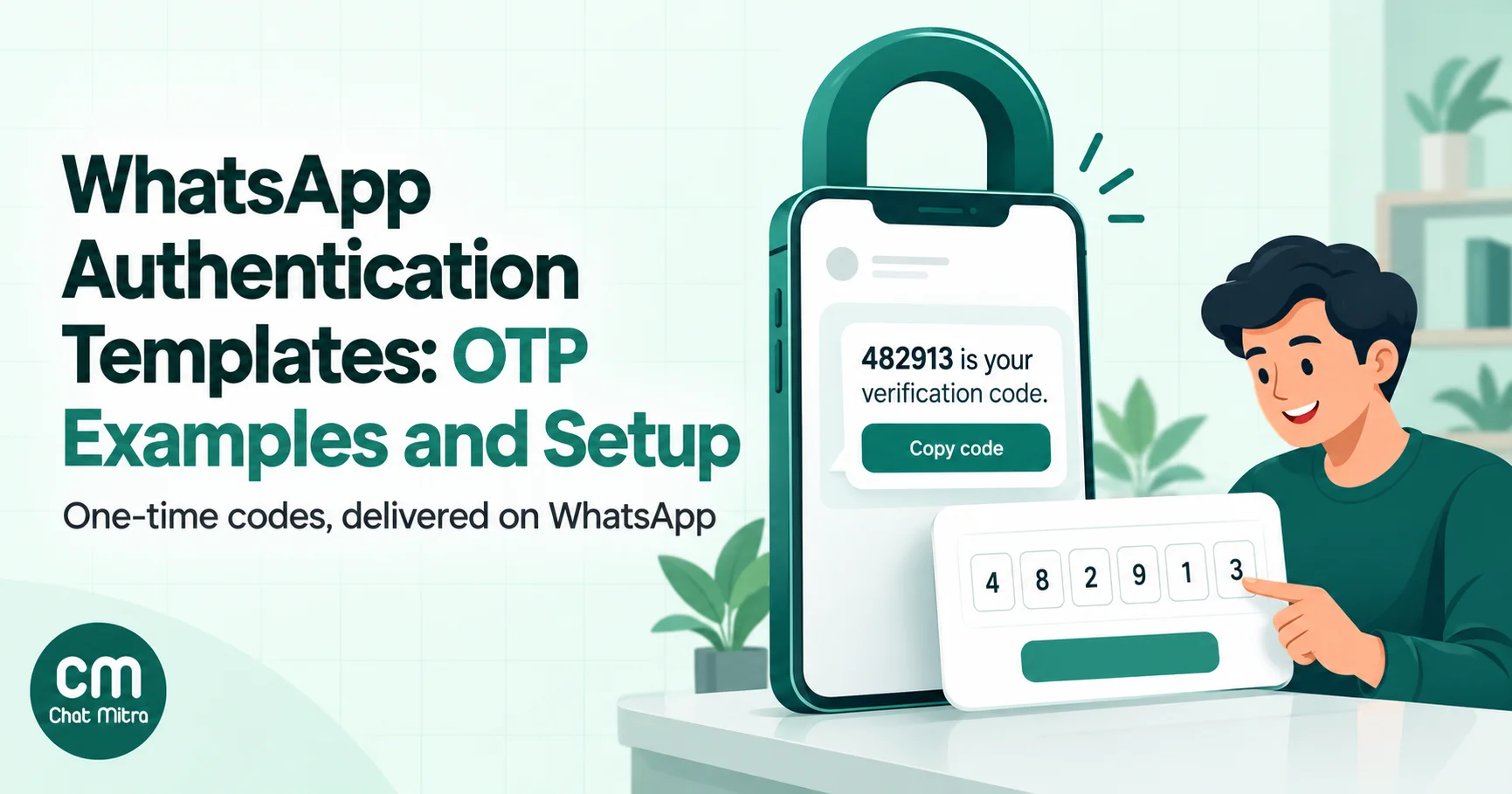
A WhatsApp authentication template is the message format Meta requires for sending one-time passcodes (OTPs) on WhatsApp. Its text is fixed: “482913 is your verification code.” You can add a security line and an expiry note, and you choose how the code reaches the user: a copy code button, a one-tap autofill button, or zero-tap delivery into your Android app. That is almost everything you control. So the useful “examples” are configurations for each use case, not wording.
That last point surprises people, because most OTP template “examples” online show custom sentences such as “Hi Priya, use code 482913 to reset your password for ShopName.” Meta won’t approve that as an authentication template. This guide shows what you can actually set, ten configurations for common OTP jobs, how to create and send them, what they cost, and how to fix the usual problems.
Key takeaways
- The body text is Meta's preset. You choose the security line, the expiry note (1 to 90 minutes), the button and its label, and the delivery time-to-live (30 seconds to 15 minutes).
- Context belongs on your own screen ("We sent a code to WhatsApp to confirm your new device"), not in the message.
- Copy code works everywhere. One-tap and zero-tap are Android-only and need an app integration.
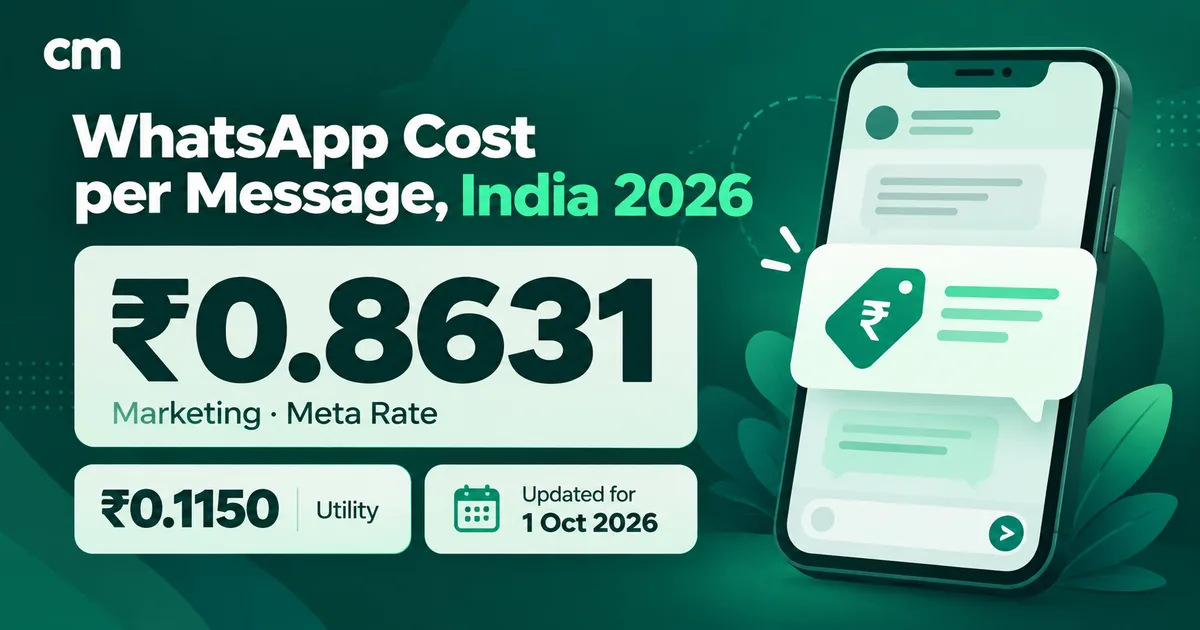
- In India each delivered authentication message costs ₹0.1150 from Meta, inside a customer service window too.
Facts in this guide were checked against Meta’s developer documentation and rate cards on 1 October 2026. Meta changes authentication features several times a year, so check its pages before you build.
What is a WhatsApp authentication template?
It’s one of WhatsApp’s three template categories, next to marketing and utility, and the only one allowed to carry a one-time passcode. Meta’s categorisation rules say so directly: “Only authentication templates can be used to send a one-time passcode for identity verification. Marketing and utility templates cannot be used for this purpose.”
Meta lists three situations where you’d send one:
- New account creation: confirming a phone number at sign-up.
- Account integrity, access or recovery: login, two-step verification, password reset, a new device.
- New or existing orders or transactions: confirming a checkout, a payment, a high-value change, or a hand-over.
If you need the category basics first, our explainer on marketing, utility and authentication messages covers them, and the authentication messages section of ChatMitra Learn documents each delivery type. This guide is the practical side: which settings to pick for which job, and how to run it in production.
What you can and can’t change
Here is the whole template, part by part, as Meta’s authentication template documentation describes it.
| Part | What the customer sees | What you control |
|---|---|---|
| Body | "<code> is your verification code." | Nothing in the wording. You supply the code at send time (up to 15 characters) |
| Security line (optional) | "For your security, do not share this code." | On or off |
| Expiry note (optional footer) | "This code expires in N minutes." | On or off, and N from 1 to 90 |
| Button | Copy code, or Autofill plus a copy code fallback, or nothing visible with zero-tap | The type, and the label (up to 25 characters; WhatsApp localises the default) |
| Delivery time-to-live | Nothing; it's invisible | 30 seconds to 15 minutes (default 10 minutes) |
| Language | The preset text in that language | Which languages you create the template in |
| Header, media, links, emojis | None | Not allowed |
Two consequences follow.
Your brand appears through the sender, not the text. The customer sees your WhatsApp business display name and profile picture at the top of the chat, so a verified, recognisable business profile does the branding work that a custom sentence would do in an SMS.
The context moves to your screen. The message can’t say “to reset your password” or “to confirm your ₹4,999 order”. Your app or website, where the user just asked for the code, should say it: “We’ve sent a 6-digit code to your WhatsApp to confirm this payment.” That screen copy is fully yours, and it’s where most of the “examples” in this guide do their work.
Ten authentication template examples by use case
Every example below produces the same visible sentence. What changes is the configuration and the words on your own screen. Meta allows codes of up to 15 characters, but stick to 4 to 8 digits for anything a person might type, and numeric codes are the only kind iPhone autofill can detect.
| # | Use case | Button | Expiry note | Security line | Time-to-live |
|---|---|---|---|---|---|
| 1 | Sign-up phone verification | One-tap on Android app, copy code on web | 10 min | On | 10 min |
| 2 | Passwordless login | One-tap or zero-tap (app); copy code (web) | 5 min | On | 2–5 min |
| 3 | Two-step verification on a new device | Copy code | 5 min | On | 2–5 min |
| 4 | Password reset | Copy code | 10 min | On | 5–10 min |
| 5 | Account recovery | Copy code | 10–15 min | On | 10 min |
| 6 | Changing the phone number or email | Copy code | 10 min | On | 10 min |
| 7 | Checkout or cash-on-delivery order confirmation | Copy code (one-tap in your app) | 10 min | On | 5–10 min |
| 8 | Payment, payout or new-payee approval | Copy code | 3–5 min | On | 1–3 min |
| 9 | Delivery hand-over code | Copy code | Off, or a long window | Off | 15 min |
| 10 | Confirming a WhatsApp number before switching OTPs to WhatsApp | Copy code | 10 min | On | 10 min |
These are starting points, not Meta rules. Your fraud team and your own data on how long people take to enter codes should set the final numbers.
1. Sign-up phone verification
What the customer sees: “482913 is your verification code. For your security, do not share this code. This code expires in 10 minutes.” with a button.
Your screen: “Enter the code we sent to WhatsApp on +91 98xxx xx210.” Show the number, so a typo is caught before the user waits for a message that went elsewhere.
Why these settings: people signing up are often switching apps for the first time, so give them 10 minutes. If you have an Android app, one-tap saves the copy-and-paste step at the moment people are most likely to drop off. Always offer a second channel, such as SMS or email, for people who don’t use WhatsApp on that number.
2. Passwordless login
Your screen: “We sent a login code to your WhatsApp.” Add a visible “Send by SMS instead” link that appears after 30 seconds.
Why these settings: login is frequent, so friction matters most here. Zero-tap gives the smoothest experience in an Android app, because the code reaches the app without the user doing anything. It also has the most setup and the most responsibility; more on that below. Keep the code short-lived, because a login code that works for an hour is a gift to anyone who sees the phone.
3. Two-step verification on a new device
Your screen: “Signing in on a new device? Confirm it’s you with the code sent to your WhatsApp.” Name the device or browser if you can.
Why these settings: this is a security check, so copy code is enough and the window is short. If the user is at a computer, remember that authentication messages appear only on their primary WhatsApp device, normally the phone, and are masked on WhatsApp Web and other linked devices. Tell them to check their phone.
4. Password reset
Your screen: “Enter the code we sent to WhatsApp to set a new password. Didn’t ask for this? You can ignore the message; your password hasn’t changed.”
Why these settings: a reset is a common takeover route, so the security line stays on. Ten minutes gives the user time to find the message without leaving a long-lived code around. Invalidate the code the moment the new password is saved.
5. Account recovery
Your screen: explain what happens next (“After this, we’ll ask you to confirm your email too”) so the user knows the code alone won’t unlock everything.
Why these settings: recovery often happens when someone has lost access to something else, so allow a bit more time. Meta’s authentication best practices describe using its identity change check to “bind” a WhatsApp account to your user’s account, so you can tell when a number has changed hands. Ask your developers to read it before you rely on WhatsApp for recovery.
6. Changing the phone number or email
Your screen: “To change your phone number, enter the code sent to your current WhatsApp number.” Send the code to the old contact point, not only the new one.
Why these settings: contact changes are how attackers lock owners out, so verify the existing channel first and the new one second.
7. Checkout or cash-on-delivery order confirmation
Your screen: “Confirm your order of ₹1,499 with the code we sent to WhatsApp.” The amount appears on your page, never in the message.
Why these settings: Meta lists “new or existing orders/transactions” as a valid authentication use. If you sell on cash on delivery, a code at checkout confirms that the buyer controls the phone number before you ship. If you only want the customer to tap “Yes, confirm”, that’s a utility message with buttons, not an OTP. Our guide to utility templates covers that route, and it costs the same in India.
8. Payment, payout or new-payee approval
Your screen: show the amount, the recipient and the action, then ask for the code.
Why these settings: money movement deserves the shortest window you can live with. A 1 to 3 minute time-to-live means a message stuck on an offline phone is dropped instead of arriving late and confusing someone. If you’re a regulated payments business, your regulator’s authentication rules come first; WhatsApp is only the delivery channel.
9. Delivery hand-over code
Your screen and your courier’s app: “Share this code with the delivery partner only when you have your parcel.”
Why these settings: here the customer is supposed to share the code, with the courier at the door, so the preset “do not share this code” line would contradict your instructions. Turn it off. The parcel may arrive hours later, so either leave the expiry note off or check that your own system accepts the code for the delivery window. The 15-minute maximum time-to-live is about delivery of the message, not the code’s validity; send it when the parcel is out for delivery.
10. Confirming a WhatsApp number before switching OTPs to WhatsApp
Your screen: “Want your codes on WhatsApp instead of SMS? Enter the code we just sent to confirm.”
Why these settings: Meta’s best practices ask businesses to confirm the user’s WhatsApp number and to let users choose their channel. Doing it as a one-time switch, with SMS or email kept as a fallback, means every later login code lands where the user expects it.
Choosing the button: copy code, one-tap or zero-tap
The button decides how much work the user does and how much work your developers do.
| Copy code | One-tap autofill | Zero-tap | |
|---|---|---|---|
| What the user does | Taps "Copy code", then pastes | Taps "Autofill"; the code fills your app | Nothing; your app receives the code |
| Platforms | All, including iPhone | Android only; others see copy code | Android only; falls back to one-tap, then copy code |
| App setup | None | Package name, 11-character signing hash, handshake | The same, plus accepting Meta's zero-tap terms |
| Best for | Websites, iPhone-heavy audiences, first launch | Android apps with frequent logins | Android apps where speed matters and you can handle the security |
The handshake. For one-tap and zero-tap, your Android app has to tell WhatsApp that a code is about to arrive, just before you request it from your server. If that handshake is missing, or the package name or signing hash doesn’t match, WhatsApp falls back to a copy code button. Meta lists up to five supported apps per template, which helps when you have separate apps, such as a customer app and a partner app.
Check older Android apps. Meta deprecated the older PendingIntent handshake method on 15 October 2026 and recommends its OTP Android SDK instead. If your app’s one-tap flow was built before then, ask your developers whether it was migrated.
Zero-tap needs restraint. In its zero-tap best practices, Meta tells businesses to get opt-in, give users a choice of channels, and not make WhatsApp the default code delivery method. Since the code goes straight into the app, the user never sees the message unless they open WhatsApp, where they’ll see only the preset sentence.
iPhone users got an upgrade in 2026. From 15 June 2026 WhatsApp enabled iOS 26’s keyboard suggestions for authentication templates by default. When a numeric code of 3 to 8 digits arrives in a WhatsApp notification, iOS offers it above the keyboard, much like an SMS code. It doesn’t trigger when WhatsApp itself is open, it ignores alphanumeric codes, and the opt-out is a toggle in WhatsApp Manager with no API equivalent. The copy code button stays as the fallback.
The one-tap and zero-tap pages in ChatMitra Learn explain each flow in more detail: one-tap autofill, zero-tap and copy code.
How to create a WhatsApp authentication template
You can create one in three places. They produce the same template.
In WhatsApp Manager. Meta’s categorisation guide points businesses to the authentication templates in its Template Library. You pick the authentication format, the button type, the security and expiry options, and the time-to-live from preset values.
Through the API. A single POST to your WhatsApp Business Account’s message_templates endpoint creates it. This is Meta’s own copy code example, trimmed:
{
  "name": "authentication_code_copy_code_button",
  "language": "en_US",
  "category": "authentication",
  "message_send_ttl_seconds": 60,
  "components": [
    { "type": "body", "add_security_recommendation": true },
    { "type": "footer", "code_expiration_minutes": 5 },
    { "type": "buttons", "buttons": [
      { "type": "otp", "otp_type": "copy_code", "text": "Copy Code" }
    ] }
  ]
}
There is no text for the body, because there’s nothing to write. To create the same template in several languages in one call, Meta offers an upsert_message_templates endpoint, and a message_template_previews endpoint shows the exact preset wording per language before you commit.
In your WhatsApp platform. Most providers, ChatMitra included, wrap this in a form. The steps below are ChatMitra’s.
Creating one in ChatMitra
- Go to Templates → Create template and set the category to Authentication. The type locks to text, and the header, body and button editors disappear, because Meta presets them.
- Optionally set Expiration warning, from 1 to 90 minutes. This adds the expiry note.
- Tick Add security disclaimer to add the “do not share this code” line.
- Enter a sample value such as 637482. It’s used only for the preview.
- Pick the language and submit. ChatMitra adds the copy code button for you.
Two limits to know before you start. ChatMitra currently creates copy code templates only, with WhatsApp’s default button label, so one-tap and zero-tap templates have to be created in WhatsApp Manager or through Meta’s API. And it doesn’t expose a time-to-live setting, so Meta’s 10-minute default applies.
Approval is usually quick, but Meta’s general review guidance allows up to 24 hours, so create authentication templates before launch day. Meta’s rule that rejects templates duplicating an existing template’s content doesn’t apply to authentication, which is why everyone’s template can say exactly the same thing.
How to send an authentication template
The send request has one quirk that catches developers: the code goes in twice, once as the body parameter and once as the button parameter. The button component is sent with sub_type url, even for copy code.
{
  "messaging_product": "whatsapp",
  "to": "919812345210",
  "type": "template",
  "template": {
    "name": "login_code",
    "language": { "code": "en_US" },
    "components": [
      { "type": "body", "parameters": [ { "type": "text", "text": "482913" } ] },
      { "type": "button", "sub_type": "url", "index": "0",
        "parameters": [ { "type": "text", "text": "482913" } ] }
    ]
  }
}
The same shape works through ChatMitra’s developer API, available on the Pro and Enterprise plans according to our pricing page. When the request is a single approved authentication template, ChatMitra sends it straight away instead of queuing it, skips the per-number rate limit that applies to bulk sends, and ignores an identical retry so a nervous client can’t send the same code twice. Your API key and webhook settings are covered in API keys and webhook URL, and code walkthroughs are in our Python and PHP guides.
Where not to send OTPs from. An OTP belongs to one person at one moment, so it should come from your backend when the user asks for it. Don’t put an authentication template in a broadcast or campaign, where every recipient would get the same code. ChatMitra’s automations reject authentication templates for the same reason.
What your backend must do, because WhatsApp won’t:
- Generate the code with a secure random generator and store only a hash of it.
- Expire it on your side at the time the expiry note promises.
- Accept it once, then invalidate it.
- Limit attempts (for example, five wrong entries locks the code) and limit resends (for example, one every 30 seconds and a few per hour per number).
- Log delivery statuses from your webhook, so support can tell “never delivered” from “delivered but not entered”.
What WhatsApp authentication messages cost
Since 1 July 2025 Meta has charged per delivered template message. These were the authentication rates on Meta’s rate card when we checked on 1 October 2026:
| Recipient's country | Authentication rate | Authentication-international rate |
|---|---|---|
| India | ₹0.1150 | ₹2.4971 |
| North America | $0.0034 | None |
| United Kingdom | $0.0220 | None |
| Brazil | $0.0068 | None |
| Indonesia | $0.0250 | $0.136 |
Four rules decide what you actually pay.
You pay only for delivered messages. Meta’s pricing page says you’re charged when a template message is delivered. A message that can’t be delivered before its time-to-live runs out is dropped, so a short time-to-live also stops you paying for codes nobody can use.
There is no in-window discount. Meta’s only exemption for templates sent inside a customer service window applied to utility, and it ended on 1 October 2026. Authentication was never exempt. The exception is a free entry point window, opened when someone messages you from a click-to-WhatsApp ad or a Facebook Page call-to-action, which can last up to 7 days and makes all messages free.
Authentication-international applies to some foreign senders. In India and several other markets, a business based in another country pays a higher rate once Meta finds it eligible, which happens after it sends more than 750,000 messages outside customer service windows to users in that market over a moving 30-day period. Meta gives 30 days’ notice, and eligibility is permanent. An Indian business sending OTPs to Indian numbers pays the normal ₹0.1150.
Volume tiers start at 750,001. For India, Meta’s authentication rate drops to ₹0.1081 from 750,001 messages a month and keeps stepping down to ₹0.0805 above 100 million. Tiers are counted across your business portfolio, per market and category, and reset monthly.
A worked example: 20,000 codes a month in India
Say your app sends 20,000 authentication messages a month to Indian numbers, all delivered.
- Meta: 20,000 × ₹0.1150 = ₹2,300.
- ChatMitra Starter or Pro: add a ₹0.20 platform fee whenever a send opens a new 24-hour conversation with that customer. OTP recipients rarely have an open conversation, so assume most sends carry it: up to 20,000 × ₹0.20 = ₹4,000, for a total of up to ₹6,300.
- ChatMitra Enterprise: no per-conversation fee, ₹2,499 a month for the plan: ₹2,300 + ₹2,499 = ₹4,799.
At OTP prices, a platform fee can be larger than Meta’s own charge, on ChatMitra and elsewhere. ChatMitra’s ₹0.20 is charged once per customer per 24-hour conversation, not per message. Once your fee-bearing conversations pass about 12,500 a month, Enterprise’s flat plan costs less than the ₹0.20 fee on Starter or Pro. Whichever provider you use, ask for the total per delivered OTP, not just the plan price. Our cost per message guide and the pricing calculator cover the other categories.
The cheapest saving is in your own product. Every “Resend code” tap is another paid message, so a 30-second resend timer and a clear “check your phone, not WhatsApp Web” hint pay for themselves.
WhatsApp OTP vs SMS OTP
Most of the “OTP message examples” you’ll find are written for SMS, where you write the whole sentence yourself. The two channels work differently:
| WhatsApp authentication template | SMS OTP | |
|---|---|---|
| Message text | Meta's preset sentence, plus optional security and expiry lines | Your own wording, within your country's rules |
| Who approves it | Meta | In India, SMS headers and templates are registered on a telecom operator's DLT platform |
| Reach | People who use WhatsApp on that number | Any phone with signal |
| Autofill | One-tap and zero-tap on Android; iOS 26 keyboard suggestions | Native on Android and iOS |
| Delivery status | Sent, delivered and read webhooks | Delivery reports, depending on the route |
| Linked devices | Masked; only the primary phone shows the code | Only the phone |
The practical answer is usually both: WhatsApp first for people who chose it, SMS as the fallback when WhatsApp isn’t delivered within your time-to-live. Our WhatsApp vs SMS comparison covers costs, DLT rules and the fallback pattern in detail.
Security details that change how you design the flow
Meta built several protections into authentication messages. They’re good for users, and each has a support consequence.
- Primary device only. The code shows on the user’s main phone. On WhatsApp Web and other linked devices the message is masked with a prompt to check the phone. You can’t turn this off, and Meta notes it applies on the Cloud API. Expect “I see the message but not the code” tickets from desktop users.
- No forwarding. WhatsApp disables forwarding of authentication messages, to make phishing harder.
- “I didn’t request a code.” Meta is rolling out, in beta, a button that lets a user report an unrequested code. When tapped, your webhook receives a button event with the payload
DID_NOT_REQUEST_CODE. Treat it as a fraud signal: stop sending to that number for a while and flag the account. - Don’t send what wasn’t asked for. An authentication template should only follow a request the user made seconds ago. Codes that arrive unprompted look like an attack, and they get reported.
- Watch for fake sign-up traffic. Bots that hit your “send code” endpoint with lists of numbers run up a bill and damage your number’s reputation. Rate-limit per number, per IP address and per account, and add a challenge after unusual bursts.
Why authentication templates get rejected, and other fixes
“My OTP template was rejected.” The usual cause is trying to write your own body, add a link, add an emoji or attach media. Start again from the authentication format, which has no body text to write. If your template was submitted as utility or marketing because it carried a code, Meta will reject it on the first day of the following month. Rebuild it as authentication.
“The message arrived but the user can’t see the code.” They’re probably looking at WhatsApp Web or a desktop app. Tell them to open WhatsApp on their phone.
“One-tap shows a copy code button instead.” Check, in this order: the user is on Android, your app sent the handshake before you requested the code, the package name matches, and the signing hash is the release key’s hash, not the debug key’s. Meta’s error signals list includes incorrect_signature_hash and missing_handshake_or_disorder to help you find which.
“The code arrives too late.” Lower the time-to-live so stale codes are dropped, not delivered late, and send an SMS fallback when no delivered status arrives in time. Check your own queue too; an OTP should never wait behind a bulk campaign.
“The send failed with a parameter error.” Make sure the code is in both the body and the button parameter, that it’s 15 characters or fewer, and that the language code matches an approved language of the template. For the full list of error codes and their fixes, see our guide to WhatsApp Business API errors.
“Our OTP bill jumped.” Look for repeated resends from the same numbers and for bursts of new numbers. Both usually mean a bot, a broken resend timer, or users unable to find the code on a linked device.
Mistakes to avoid
- Copying “OTP template examples” with custom sentences. They won’t be approved as authentication. Put the context on your screen.
- A code that outlives its message. If the expiry note says 5 minutes, your server must reject the code at 5 minutes.
- A time-to-live longer than the code’s life. Meta recommends the time-to-live be equal to or shorter than the code expiry, so a code never arrives already dead.
- Only WhatsApp, no fallback. Some users don’t have WhatsApp on that number or have no data connection. Keep SMS or email.
- Sending OTPs from a broadcast tool. Codes must be generated per request.
- Leaving the “do not share” line on a delivery code. It contradicts your own instructions.
- Forgetting iPhone users. One-tap and zero-tap are Android features. Test the copy code path, and the iOS keyboard suggestion, on a real iPhone.
Where ChatMitra fits, and where it doesn’t
ChatMitra is a WhatsApp Business API platform, and we send our own sign-up codes as a WhatsApp authentication template. For businesses, it covers the common OTP setup: copy code authentication templates built in the dashboard, and fast, deduplicated sending from your own backend through the developer API on Pro and Enterprise. It’s a good fit if you want WhatsApp OTPs next to your support inbox, campaigns and order updates on the same number, with Meta’s rates passed through.
It isn’t the right tool, today, if you need one-tap or zero-tap buttons built in the dashboard, a custom time-to-live, or OTPs triggered from no-code automations. For those, create the template in WhatsApp Manager or work with Meta’s API directly. You can compare plans on the pricing page and see how templates work in ChatMitra on the WhatsApp templates feature page.
Summary
A WhatsApp authentication template is a fixed sentence, a few switches and a button. Choose the button by platform (copy code everywhere, one-tap or zero-tap for Android apps), set the expiry and time-to-live by risk, turn the security line off only when the user must share the code, and put all the context on your own screen. Then build the parts WhatsApp doesn’t do for you: code expiry, one-time use, attempt and resend limits, and an SMS fallback. In India each delivered code costs ₹0.1150 from Meta, so the bigger savings come from fewer resends and from checking your provider’s fee per OTP.
Sources: Meta for Developers: authentication templates, copy code, one-tap autofill, zero-tap, keyboard suggestions, authentication best practices, error signals, time-to-live, template categorisation, pricing and authentication-international rates, all read on 1 October 2026. ChatMitra product details were checked in the product on the same date.