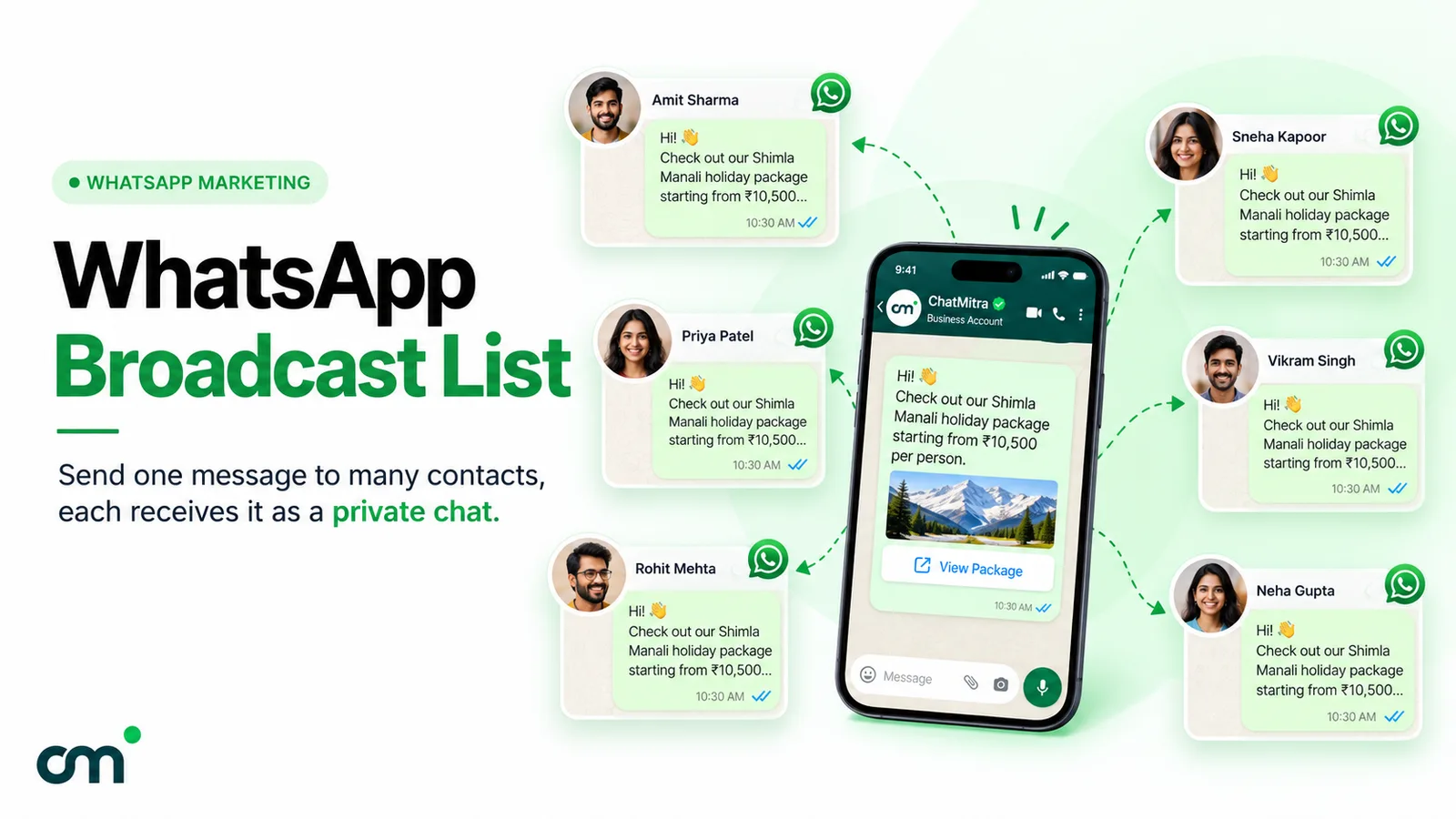
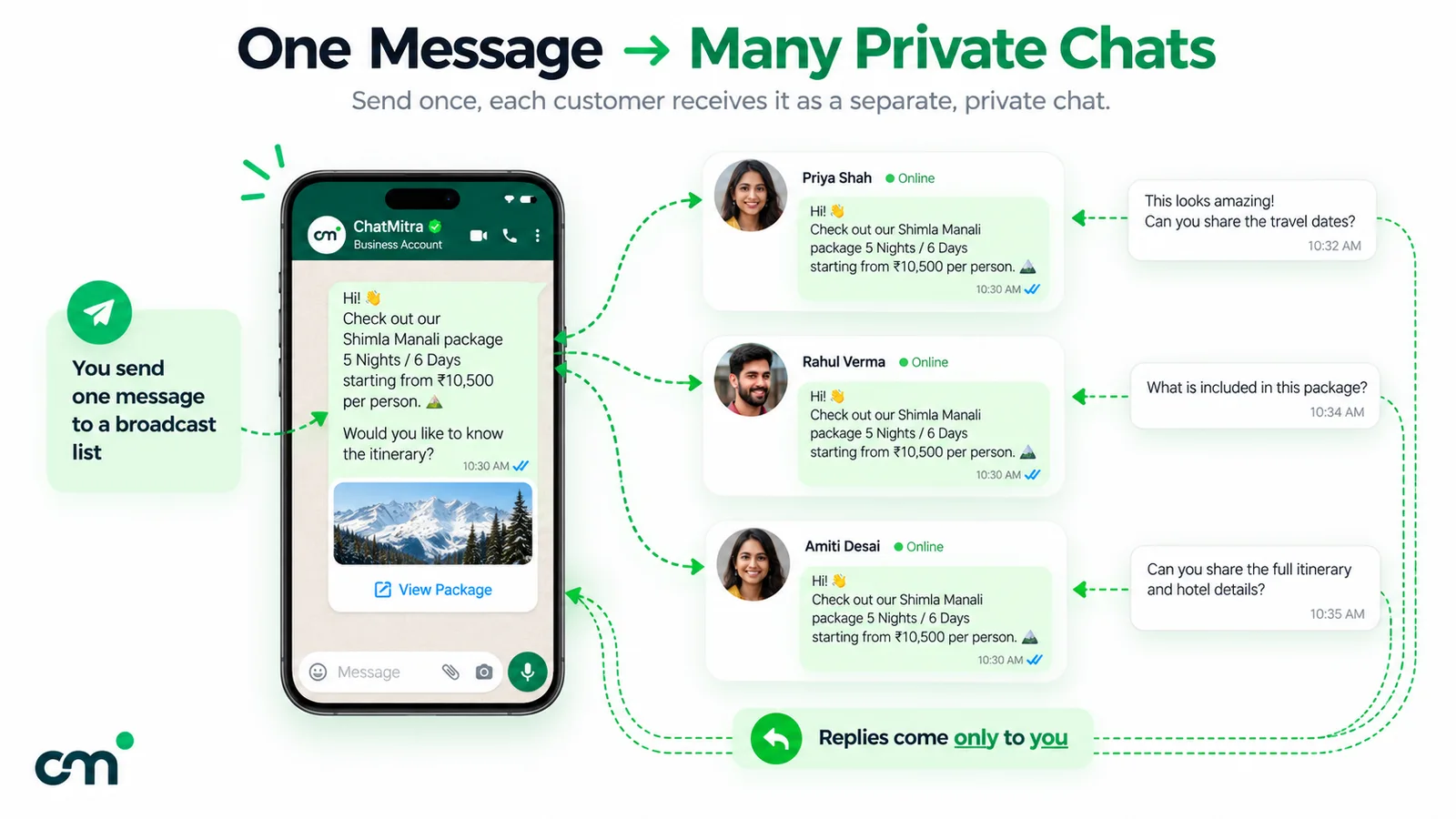
A WhatsApp broadcast list is a saved list of up to 256 contacts you can message at once. Each person gets the message in their own chat with you, and replies come back only to you. Only people who have saved your number receive it, and lists can be created only in the phone app.
It is WhatsApp’s simplest one-to-many tool, and the one businesses outgrow fastest: messages quietly don’t arrive, there’s no delivery report, and WhatsApp is gradually rolling out a monthly broadcast limit in some countries. This guide covers the rules, the steps on each app, delivery fixes, and what to use once a list isn’t enough.
Key takeaways
- You can create unlimited lists of up to 256 contacts each, but only on a phone.
- If someone hasn't saved your number, your broadcast never reaches them, so the list size overstates your reach.
- On iPhone, WhatsApp's current steps start from Settings (or your profile picture) > Broadcast messages. On Android, a list sits in the Chats tab like any other chat.
- The filters at the top of your Chats tab are also called "lists", but they only sort chats. They can't send anything.
Facts checked against WhatsApp's Help Center and Meta's developer documentation on 30 September 2026. Rupee figures exclude tax.
What is a WhatsApp broadcast list?
A broadcast list is a saved group of recipients for one-way messages. WhatsApp’s Help Center page on broadcast lists describes them as “saved lists of contacts that you can repeatedly message without having to select the contacts each time”. You write once, and WhatsApp sends a separate copy to each person on the list.
How does a broadcast list work in WhatsApp?
Three things set it apart from other ways of reaching many people:
- Delivery is private. WhatsApp says recipients get the message “as an individual message from you in their Chats tab”.
- Replies are private too. A reply appears in your normal one-to-one chat with that person and “won’t be sent to other contacts in the broadcast list”.
- The list is yours alone. Recipients don’t join anything. You manage the list from your phone: rename it, add or remove people, or delete it.
That makes a broadcast list closer to a personal mailing list than to a group chat. WhatsApp says so itself: “Broadcast lists are a one-to-many communication. If you want your recipients to participate in a group conversation, create a group chat instead.”
WhatsApp broadcast list limits and rules
Almost every broadcast list problem comes back to one of these rules. They come from WhatsApp’s Help Center pages, re-read on 30 September 2026.
| Rule | What WhatsApp says | What it means in practice |
|---|---|---|
| Contacts per list | "You can include up to 256 contacts in each broadcast list." (WhatsApp app page; the Business app page gives no number) | A list of 400 customers needs two lists and two sends. |
| Number of lists | "You can create as many broadcast lists as you like." | Split by interest or city rather than cramming everyone into one. |
| Who receives it | "Only people who've added you to their phone's contacts will receive your broadcast message." | A list of 256 can reach far fewer than 256 people. |
| Where you can create it | "Broadcast lists aren't supported on Windows, Mac, or Web." On the Business app, "Creating and viewing broadcast lists on linked devices" is listed as unsupported. | Build and send lists from the phone that holds the account. |
| Monthly broadcast limit | "People in some countries might see a monthly broadcast limit." Where it applies: "up to 35 free broadcast messages per month." | Check yours under Settings > Broadcasts. WhatsApp says it will notify you before you reach the limit. |
| Business app lists | Same saved-number rule. For customers who haven't saved your number, WhatsApp suggests "converting your broadcast list into a marketing message" (renamed business broadcasts in some countries). | The Business app's broadcast list page mentions neither a per-list number nor a monthly limit (checked 30 September 2026). |
WhatsApp’s page on broadcast limits says the monthly limit “is rolling out gradually”, points people who need wider reach to status updates and channels, and adds that “Businesses can get more advanced messaging tools on the WhatsApp Business app.” It doesn’t say whether one send to a 256-person list counts once or 256 times, so check the counter in Settings after your first send.
Searching for "WhatsApp broadcast limit per day"?
WhatsApp's Help Center describes no daily limit for broadcast lists, only per list (256) and, where it applies, per month (35). The daily limits people quote belong to the WhatsApp Business Platform (API), where new business portfolios can message 250 unique people per rolling 24 hours outside a customer service window. More on that below.
How to create a broadcast list on WhatsApp
These steps follow WhatsApp’s instructions as published on 30 September 2026; button names can change between versions. On iPhone the entry point has moved, which is why so many people search for how to find their lists.
On Android
- Open WhatsApp and go to the Chats tab.
- Tap ⋮ (More options) and then Broadcast lists.
- Tap the new-list icon (WhatsApp’s instructions show a check mark).
- Search for or select the contacts you want to add.
- Tap the check mark to create the list, then type your message and send it as usual.
On iPhone
- Open WhatsApp and tap Settings, or your profile picture.
- Tap Broadcast messages, then New List.
- Search for or select the contacts you want to add.
- Tap Create.
How to find, see and open your broadcast lists
“Where did my broadcast list go?” is now one of the most common questions about the feature. The answer depends on your phone, and on not confusing broadcast lists with a newer WhatsApp feature that has almost the same name.
| Where you are | How to see your broadcast lists | Notes |
|---|---|---|
| WhatsApp on Android | Open the Chats tab and tap the list, which sits among your chats. New lists start from Chats > ⋮ > Broadcast lists. | WhatsApp's own edit and delete steps both begin "From the Chats tab, tap your broadcast list". |
| WhatsApp on iPhone | Tap Settings or your profile picture > Broadcast messages. Every list appears there, with an i icon to open its details. | Older guides that point elsewhere describe a previous layout. |
| WhatsApp Business on Android | Open the list from the Chats tab. New lists start from Chats > ⋮ > Business Broadcast. | You can also start one from a label: ⋮ > Labels > pick a label > ⋮ > Message customers. |
| WhatsApp Business on iPhone | Settings or your profile picture > Broadcast Lists. | Same idea as the WhatsApp app, under the Business app's own wording. |
| WhatsApp Web, Windows, Mac or a linked device | You can't. WhatsApp says broadcast lists "aren't supported on Windows, Mac, or Web". | Pick up the phone that holds the account. |
Lists are not broadcast lists
WhatsApp now has a feature simply called lists. WhatsApp’s page on lists calls them “customizable filters that can help you keep your chats organized”. You see them by swiping down in Chats: All, Unread, Favorites, Groups, plus any custom lists you create. They are handy for sorting “Suppliers” from “Family”, but they send nothing. Putting 50 customers into a custom list and typing a message sends it to no one, because a list is a view of your chats, not a recipient.
To add to the confusion, the WhatsApp Business app’s labels page says labels are gradually becoming “lists” too. If a guide tells you to “open your lists”, check whether it means filters, labels or broadcast lists before you follow it.
If a list seems to have disappeared
Work through these in order:
- Check you’re on the phone, not WhatsApp Web or desktop. Lists never show on linked devices.
- On iPhone, use Settings > Broadcast messages, not the Chats tab.
- On Android, check you haven’t filtered Chats. If “Unread” or a custom list is highlighted in green, WhatsApp says the filter stays applied until you change it or reopen the app. Tap All.
- Check the number. Lists belong to the WhatsApp account on that phone. A list made on your personal WhatsApp won’t appear in the Business app, and the other way round.
- Check for coexistence. If you connected your Business app number to an API provider, Meta disables broadcast lists and makes existing ones read-only. See the coexistence note under “When a broadcast list is no longer enough”.
WhatsApp’s Help Center doesn’t describe a way to restore a deleted broadcast list, so if none of these steps brings it back, recreate it. That takes a minute when your contacts are well named, which is one more reason to save customers with a consistent tag in their contact name, such as “Anita – Pune – offers”.
How to send or forward a message to a broadcast list
Sending is the easy part. Open the list (from Chats on Android, or from Settings > Broadcast messages on iPhone), type or attach your message, and tap send. Each person on the list gets a separate copy in their own chat with you.
Forwarding is where people get stuck. WhatsApp’s forwarding instructions describe forwarding to “individual or group chats”, and the same page notes: “You can’t forward a broadcast list.” Don’t plan a workflow around forwarding into a list. Use one of these instead:
- Text: copy the message, open the broadcast list and paste it. The copy arrives as your own message, without the “Forwarded” label.
- Photos, videos and documents: attach them again from your gallery or files inside the list chat.
- A message you reuse often: keep it in the “Message yourself” chat, or as a quick reply in the Business app, so it’s always one copy away.
Forwarding one by one isn’t a substitute either. WhatsApp’s forwarding limits allow “up to five people or groups at a time”, and a message already forwarded through a long chain can go to only one chat at a time.
How to create a broadcast list in WhatsApp Business
The WhatsApp Business app has the same feature under slightly different names. It also lets you create a broadcast from a label. WhatsApp’s Business app broadcast list page gives these steps.
Android:
- Tap Chats > ⋮ > Business Broadcast.
- Search for or select the customers you want to add.
- Tap the check mark.
Android, from a label:
- Tap ⋮ > Labels and pick a label.
- Tap ⋮ > Message customers.
- Tap the check mark to draft and send.
WhatsApp’s labels page notes that broadcasts created from labels “can’t be sent to groups”, and that you can create up to 20 labels. It also says labels are becoming “lists” gradually, so the menu may read differently on your phone.
iPhone:
- Tap Settings or your profile picture, then Broadcast Lists > New List.
- Select the contacts.
- Tap Create.
The Business app keeps the saved-number rule: the message goes to customers “as long as they have your number saved in their phones’ address book”. The same page makes a practical suggestion: to reach customers who haven’t saved you, “consider converting your broadcast list into a marketing message”. That feature is now called business broadcasts in some countries, and it is covered below.
How to edit or delete a broadcast list
Changes apply to your next broadcast: people you add start receiving it, and people you remove stop.
| Task | Android (WhatsApp) | iPhone (WhatsApp) |
|---|---|---|
| Open list settings | Open the list in Chats > ⋮ > Broadcast list info | Settings or profile picture > Broadcast messages > tap the i next to the list |
| Rename | ⋮ > Change broadcast list name > OK | Tap the list name and type a new one |
| Add or remove people | Edit recipients, then select contacts, or tap the "x" on a profile picture | Edit list…, then tap the "x" on a profile picture > Done |
| Delete | Broadcast list info > Delete broadcast list > Delete | Swipe left on the list > Delete |
In the Android Business app you can also delete a list by tapping and holding it in Chats and tapping the trash icon. There’s an option to delete the media sent through the list at the same time. WhatsApp’s steps don’t describe any way to recall a broadcast that has already been delivered.
Can you use broadcast lists on WhatsApp Web or desktop?
No. WhatsApp’s help page says plainly that broadcast lists “aren’t supported on Windows, Mac, or Web”. The WhatsApp Business app’s linked devices page lists “Creating and viewing broadcast lists on linked devices” among unsupported features. If your team answers customers from a laptop, whoever sends broadcasts still needs the phone. Our WhatsApp Business Web guide lists what else does and doesn’t work on the computer.
The exception is the Business app’s paid business broadcasts, a separate feature that has its own web instructions (“Click Tools > Business broadcasts”).
Do people know they are in a broadcast list?
Not from WhatsApp itself. The message appears in their personal chat with you, there’s no member list for them to open, and their replies go to nobody else.
People can still guess. A message with no name, a generic offer and a “reply STOP” line reads like a broadcast, and that’s usually fine for a business update. Trouble starts when a broadcast pretends to be a personal note and isn’t.
Two consequences follow. Privacy: unlike a group, a list doesn’t expose customers to each other. Tracking: WhatsApp’s Help Center explains ticks and Message info for individual and group chats but describes no delivery report for broadcast lists, and either side can turn read receipts off. Treat blue ticks as a rough signal, not a report.
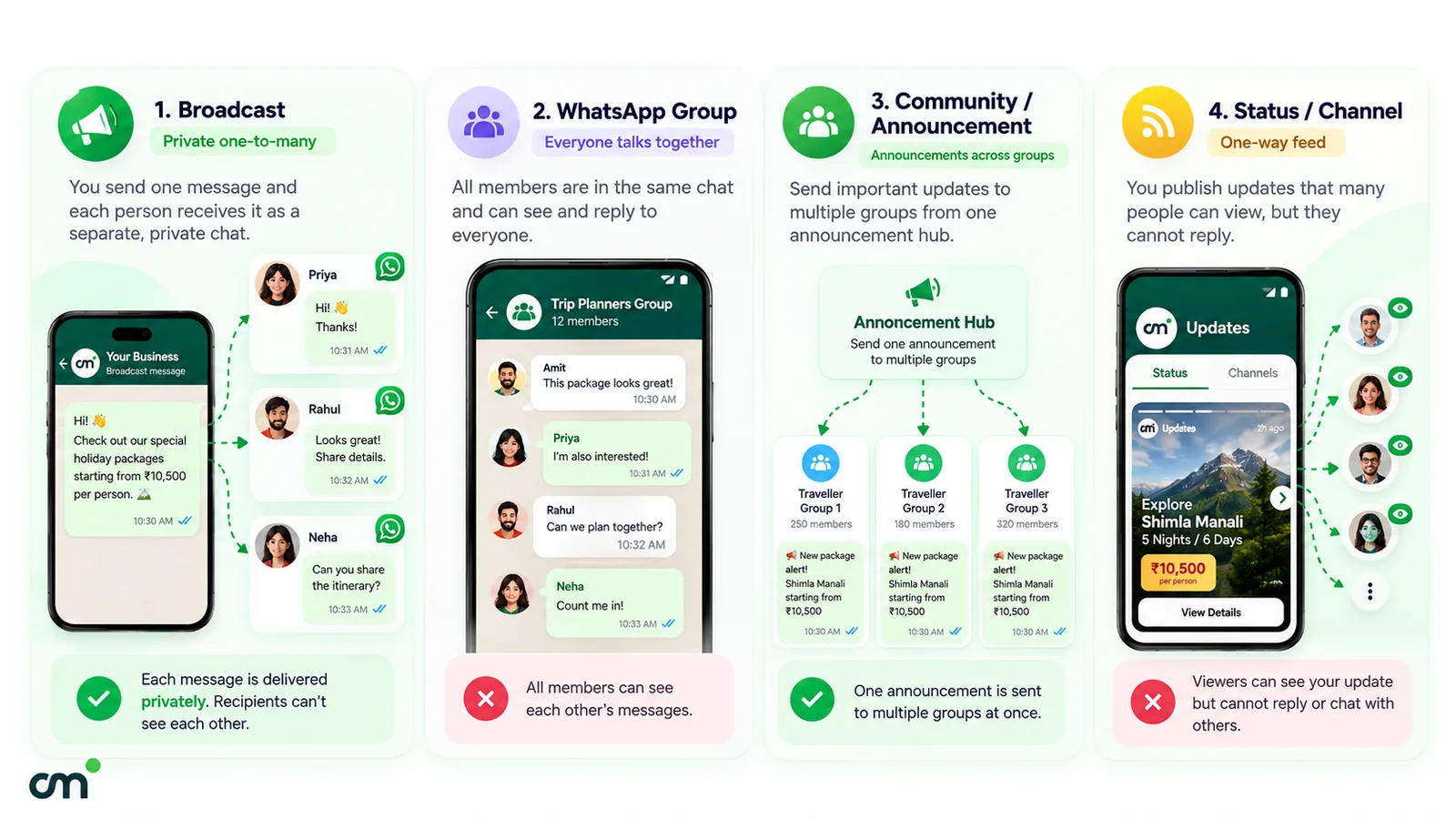
Broadcast list vs group vs Community vs Channel
These features solve different problems. Here’s how they compare on what matters to a business, with figures from WhatsApp’s Help Center and Meta’s documentation as of 25 September 2026.
| Feature | Best for | Audience size | Who sees what | Can people reply? | Must they save your number? | Cost |
|---|---|---|---|---|---|---|
| Broadcast list | Private updates to known customers | 256 per list, unlimited lists | Each person sees only their own chat with you | Yes, privately to you | Yes | Free (monthly limit in some countries) |
| Group | Conversations among members | Up to 1,024 members (source) | Everyone sees every message | Yes, to the whole group | No | Free |
| Community announcements | Updates to several related groups at once | Up to 2,000 members (source) | Only admins can see the total member count | Members can reply and react | No | Free |
| Channel | Public, one-way updates to followers | Not stated on the Help Center pages we checked | Followers can't see each other. Admins see profile names (source) | No, only emoji reactions and poll votes | No, people choose to follow | Free |
| Status | Short-lived updates to your contacts | Your contacts, or a chosen subset | Viewers see the status; you see who viewed it, if read receipts are on | Yes, replies come to you | Effectively yes (WhatsApp's fix for missing statuses is for both people to save each other) | Free |
| Business broadcasts (Business app) | Promotions to customers, including people who haven't saved you | Not stated | Private, like a broadcast | Yes, replies come to you | No | Paid per delivered message, where available |
| API broadcast | Opted-in customer lists at scale, with reporting | Your Meta messaging limit (250 per rolling 24 h to start) | Private, one-to-one | Yes, into your inbox | No | Meta's per-message rate plus any provider fee |
What the table can’t show:
- Groups expose people. Everyone sees everyone else’s messages, which suits a class or a residents’ association, not a shop’s customer list. WhatsApp’s responsible-use guidance also asks you to “get permission from contacts before you add them to a group”.
- Community announcements suit businesses that already run several groups. WhatsApp says using them “instead of sending repeated messages to groups or members may help reduce the risk of being flagged as spam”.
- Channels work like a feed: followers “can’t reply directly to updates”, and notifications are muted by default.
- Status disappears after 24 hours. It’s good for a daily offer, and poor for anything someone must not miss.
For a longer look at the two most-confused options, see our guide to Communities vs groups.
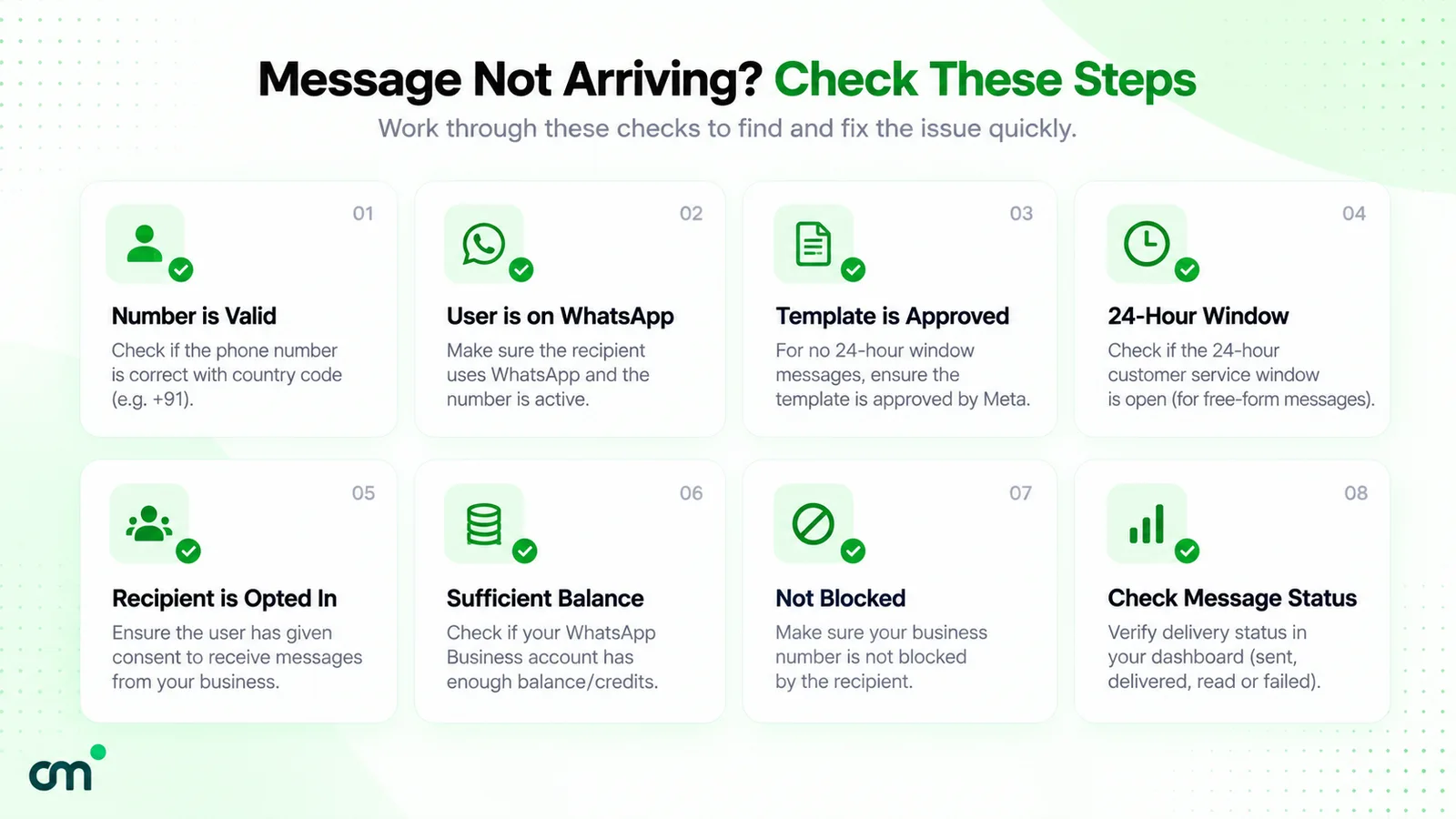
Why didn’t my contacts receive my broadcast?
WhatsApp’s help pages describe no notice for a skipped broadcast, so work through the causes in order. Only the first is specific to broadcast lists; the rest apply to any WhatsApp message.
| Symptom | Likely cause | What to do |
|---|---|---|
| One or more people never get your broadcasts, but do get your normal messages | They haven't saved your number. WhatsApp: "If someone isn't receiving your broadcast messages, ask them to add you to their contacts." | Ask them to save your number. A welcome message that asks new customers to save you prevents this. |
| Single grey tick that never turns double | Their phone is off, or the message hasn't reached any of their devices | Wait. WhatsApp's read receipts page says the second tick won't appear until the message reaches their phone or a linked device. |
| No blue ticks from someone who usually reads | Read receipts are off on either side, or they've blocked you | Don't treat it as a delivery failure. WhatsApp lists "The recipient might have blocked you" among the possible reasons. |
| A customer says they got nothing after changing phones | Their number changed, or your saved entry is out of date | Update the contact in full international format (for example +91…) and re-add them to the list. |
| You can't send a broadcast at all, or see a warning about limits | You've reached the monthly broadcast limit, where it applies | Check Settings > Broadcasts. Use a Channel or Status for general updates until the limit resets. |
| The Broadcast lists option is missing | You're on WhatsApp Web, Windows, Mac or a linked device | Use the phone. On iPhone, WhatsApp's steps start from Settings (or your profile picture) > Broadcast messages. |
| You can't start new chats and see a restriction message | The account is restricted for suspected spam or bulk messaging | Wait for it to end. WhatsApp's restricted accounts page says the restriction ends automatically, and you can still message existing contacts in the meantime. |
| Lists became read-only after connecting to an API provider | The number is using coexistence (Business app plus API) | Send broadcasts from the API platform from now on. See the next sections. |
Forwarding the message to people one by one isn’t a workaround: WhatsApp’s forwarding limits allow “up to five people or groups at a time”.
How to use broadcast lists without getting reported
WhatsApp is unusually direct on this point. Under “Practices to avoid”, its responsible-use page warns against over-using broadcast lists:
“…frequent use of broadcast messages may lead people to report your messages, and we ban accounts that are reported multiple times.”
The same page says to “Only send messages to those who have contacted you first or have requested you contact them on WhatsApp”. Among the practices to avoid it is equally blunt: “Don’t bulk message, auto-message, or auto-dial using WhatsApp.” A broadcast list isn’t a licence to message everyone in your phone.
Habits that keep a list healthy:
- Only add people who asked to hear from you. A customer who bought once and said “send me offers” belongs on the list. A number from a trade-fair visitor register doesn’t, until they’ve agreed. Our WhatsApp opt-in guide covers what counts as permission.
- Split lists by what people signed up for. “New arrivals”, “order updates” and “Pune customers” are three lists, not one. Relevance is what stops the block button.
- Say who you are in the first line. Recipients may have saved you under a nickname.
- Keep a steady, modest rhythm. WhatsApp doesn’t publish a safe frequency. Watch replies and blocks after each send, and slow down if either moves the wrong way.
- Give people an easy way out, and honour it the same day. Remove anyone who asks. WhatsApp’s page says to “remove the contact from your address book and refrain from contacting them again”.
- Prune quietly. WhatsApp’s advice for business broadcasts is to “Remove contacts who haven’t interacted with your business recently”. It applies just as well to free lists.
- Never buy or scrape numbers. The same page warns against “Using contact lists that aren’t yours”.
What you write matters as much as who you send it to. For ready-made wording by occasion, see WhatsApp broadcast message examples that don’t get you blocked. For where broadcasts fit alongside ads, Status and automation, see our WhatsApp marketing strategy guide.
When a broadcast list is no longer enough
Signs you’ve outgrown broadcast lists:
- You have more opted-in customers than a few lists can hold, or they keep changing.
- A large share of customers never saved your number, so broadcasts miss them.
- You need to know who received and read a message, not guess from ticks.
- You want to schedule sends, add buttons, or personalise with names.
- Several staff need to send from, and answer on, the same number.
A quick way to decide:
| Your situation | Best fit | Why |
|---|---|---|
| Under about 250 customers, all have your number saved, occasional updates | Broadcast list | Free, private and already on your phone |
| General news for anyone who wants it, no replies needed | Channel or Status | No saved-number rule and no 256 cap; WhatsApp itself points here when the broadcast limit bites |
| Customers who never saved your number, occasional promotions, one person running the account | Business broadcasts (Business app, where available) | Reaches unsaved contacts, adds a button and scheduling, paid per delivered message |
| Hundreds or thousands of opted-in customers, a team, or delivery reports | API broadcast | Templates, segments, scheduling, reports and a shared inbox |
| Members who should talk to each other | Group or Community | Built for many-to-many conversation |
For the Status route, see our WhatsApp Status marketing guide; for groups run as a business tool, see WhatsApp groups for business.
For customer lists, there are two official ways forward, plus one to avoid.
Option 1: business broadcasts in the WhatsApp Business app
WhatsApp has renamed the Business app’s paid “marketing messages” to business broadcasts in some countries. According to WhatsApp’s business broadcast guide, they:
- are sent from the Business app, with an audience picked from your contacts or lists;
- can carry a photo and an optional action button (catalog, custom reply, phone call or website);
- are “subject to review by Meta before you send them”;
- can be sent now or scheduled.
On cost, you pay “for each message that is delivered to a contact within five days of being sent”. The app reserves funds for everyone you selected and credits back undelivered messages, according to WhatsApp’s pricing page for business broadcasts. Rates depend on each recipient’s country code, and the app shows the total before you pay. A Meta Verified subscription includes some free messages.
There’s a discipline built in. If a significant number of people report or block you, you get a warning. If the spam continues, business broadcasts are “suspended on the business account for three days”, and the suspension can’t be appealed, according to WhatsApp’s troubleshooting page. Business broadcasts are “currently available in limited countries”, so you may not have them yet. The same page notes that “The WhatsApp Business Platform doesn’t currently support business broadcasts.”
Option 2: API broadcasts on the WhatsApp Business Platform
This is the route for opted-in lists in the hundreds or thousands, and for teams. The mechanics differ from a broadcast list in four ways.
1. Messages are approved templates. Outside the 24-hour window that opens when a customer messages you, a business can only send pre-approved template messages. See message templates explained.
2. Opt-in replaces the saved-number rule. Nobody has to save your number. Instead, the WhatsApp Business Messaging Policy allows contact only if people “have given you their mobile phone number” and you have “received opt-in permission from the recipient confirming that they wish to receive subsequent messages or calls from you”. You must also respect opt-out requests made “on or off WhatsApp”.
3. Messaging limits replace the 256 cap. Meta’s messaging limits cap how many unique people a business portfolio can message outside a customer service window, “within a moving 24-hour period”:
- New business portfolios start at 250.
- You reach 2,000 by completing a scaling path.
- After that, limits rise to 10,000, 100,000 and then unlimited through automatic scaling, one level at a time, if your messages stay high quality and you’ve used at least half your current limit in the last 7 days.
- Limits are shared by all phone numbers in the portfolio.
4. You pay per delivered template. Meta has charged “on a per-message basis” since 1 July 2025, and a template is charged only when it is delivered, per Meta’s pricing page. From 1 October 2026, Meta also charges for replies inside the 24-hour window (service messages) once a number has used its 1,000 free ones for the month; the page was last updated on 28 September 2026. For recipients in India, a marketing template costs ₹0.8631 and a utility template ₹0.1150, and those rates are unchanged on the rate card that takes effect on 1 October 2026. For other countries, use Meta’s rate cards on the same page.
Here is a worked example: a marketing broadcast to 500 opted-in customers in India, none of whom has an open conversation with you.
| Cost line | ChatMitra Starter (free plan) | ChatMitra Enterprise |
|---|---|---|
| Meta: 500 × ₹0.8631 | ₹431.55 | ₹431.55 |
| ChatMitra platform fee: 500 × ₹0.20 (once per contact per 24-hour conversation) | ₹100.00 | ₹0 (no platform fee) |
| Subscription | ₹0 | ₹2,499 per month |
| This send | ₹531.55 | ₹431.55 + the subscription |
Messages that don’t deliver aren’t charged by Meta. Sending a utility template instead, where the content genuinely qualifies, cuts Meta’s share to ₹57.50 for the same 500. For a per-category breakdown, see WhatsApp Business cost per message, or model your own volumes in the pricing calculator.
For the practical workflow of a first send to about a thousand opted-in customers (template, list upload, send), see our guide to sending 1,000 WhatsApp messages at once. For the setup itself (business portfolio, number, display name and verification), see how to get the WhatsApp API.
Keeping your Business app number: coexistence
If you want to keep the Business app on your phone, Meta’s coexistence lets one number work in the app and on the Cloud API. Meta’s coexistence documentation sets out the trade-offs:
- “Broadcast lists will be disabled”, and “Existing Broadcast lists will become read-only”. From then on, broadcasts go through the API platform.
- Messages you send from the Business app “will continue to be free”. Messages sent through the Cloud API are billed at API rates.
- Coexistence numbers have “a fixed throughput of 20 mps” (messages per second).
Our coexistence guide covers eligibility and setup.
The option to avoid: unofficial bulk senders
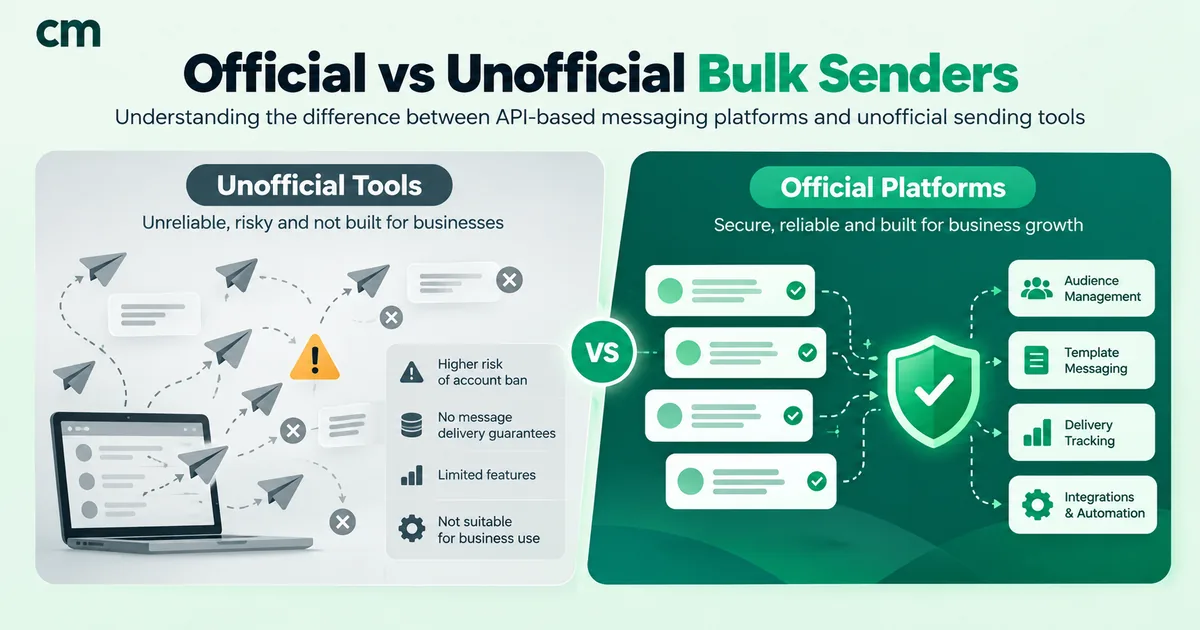
Extensions and “bulk sender” software that automate the normal app promise to get around the 256 cap and the saved-number rule. They do it by breaking WhatsApp’s Terms of Service, which prohibit “bulk messaging, auto-messaging, auto-dialing, and the like”, and the number at risk of a ban is the one you’ve built your business on. We compare the two approaches in official vs unofficial bulk WhatsApp senders.
Moving from broadcast lists to API broadcasts in ChatMitra
If the API route fits, here is what the move looks like in ChatMitra, including what you’ll do by hand.
- Connect your number. Use a new number, or keep your Business app number through coexistence. Your app broadcast lists become read-only, so note who is on each one first.
- Rebuild your lists as contacts and tags. ChatMitra imports contacts from a CSV file (not Excel). Give each old broadcast list a matching tag, such as “new-arrivals” or “pune”, and bring over only people who opted in.
- Get a template approved for the message you used to send by hand.
- Send to a segment. A ChatMitra broadcast can include or exclude tags, so you can send to “pune” but not “opted-out”. You can also schedule the broadcast for a later date and time.
- Read the results. Each campaign shows recipients, sent, delivered, read and failed counts. You can retarget a follow-up to the people who read it, or retry the ones that failed. Replies arrive in the shared inbox. They aren’t counted as a campaign metric.
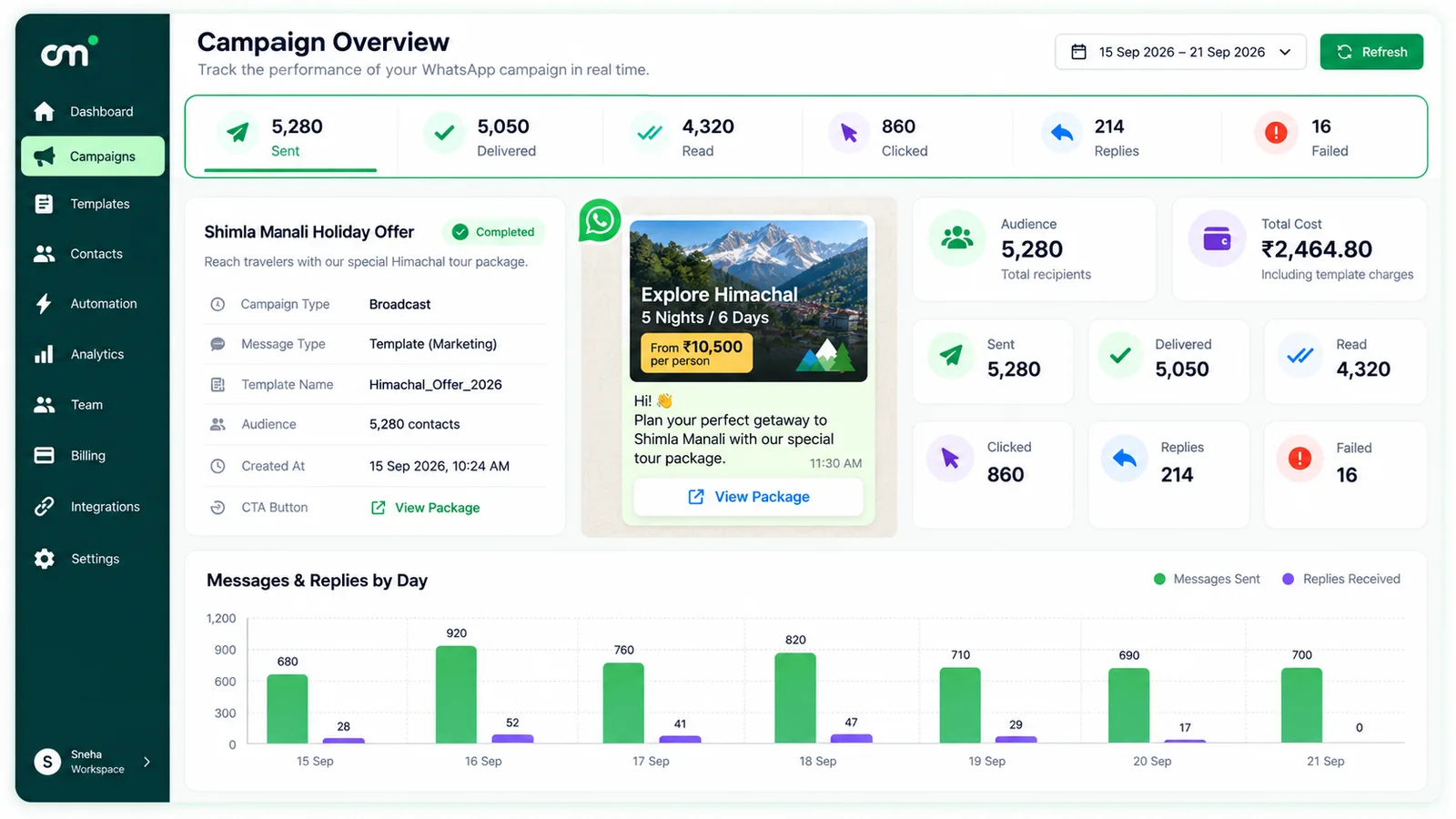
Be clear about the limits before you switch:
- ChatMitra does not exclude opted-out contacts automatically. Keep an “opted-out” tag and exclude it from every broadcast.
- ChatMitra can’t read or manage the broadcast lists inside the phone app.
- On a coexistence number, Meta fixes throughput at 20 messages per second, whichever platform you send from. ChatMitra paces broadcasts from a coexistence number at 15 per second by default to stay under that ceiling, so a 3,000-person send takes a little over three minutes.
If you message a few dozen customers who all have your number saved, the free broadcast list is still the right tool. When you do outgrow it, broadcasting and the campaign scheduler are on the free Starter plan, per ChatMitra’s pricing page; you pay Meta’s rates plus the platform fee shown above.
Facts first checked on 25 September 2026 and re-checked against WhatsApp's and Meta's documentation on 30 September 2026. Sources: WhatsApp Help Center pages on broadcast lists, broadcast limits, lists, forwarding messages, Business app broadcast lists, business broadcasts, responsible use, groups, Communities, Channels and Status; Meta's messaging limits, pricing and coexistence documentation; and the WhatsApp Business Messaging Policy.