Sending one WhatsApp message through the API takes a single request. Sending fifty thousand is a different problem. You’re no longer calling an endpoint. You’re running a small distributed system, with a queue, a speed limit, a stream of callbacks coming back at you, and a long tail of failures that each need a different response.
This guide is for the people who build or run that system: developers integrating the WhatsApp Cloud API, and technical marketers who need to know why “send to everyone” is harder than it looks. It covers what Meta actually allows, how long a large send takes, how to structure the sender, which errors to retry, how to survive the webhook flood that follows, and how ChatMitra handles the same problems in production.
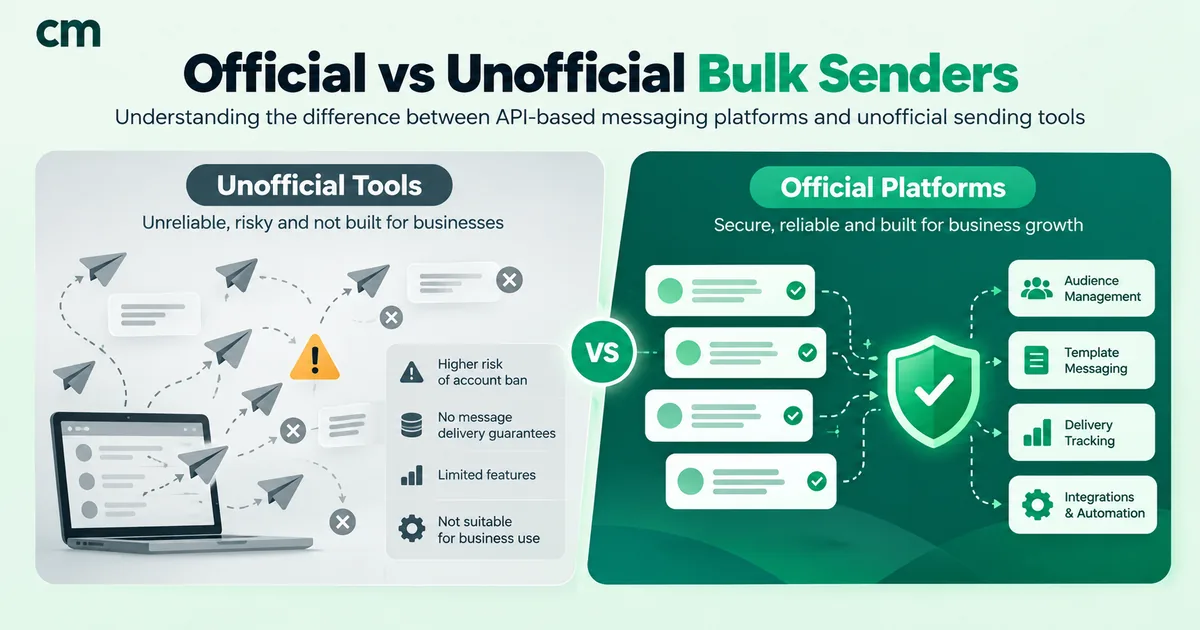
If you’re comparing tools rather than building one, start with official vs unofficial bulk WhatsApp senders instead. If you only need to send to a list from a dashboard, how to send 1,000 WhatsApp messages at once is the shorter read.
Is there a bulk message API for WhatsApp?
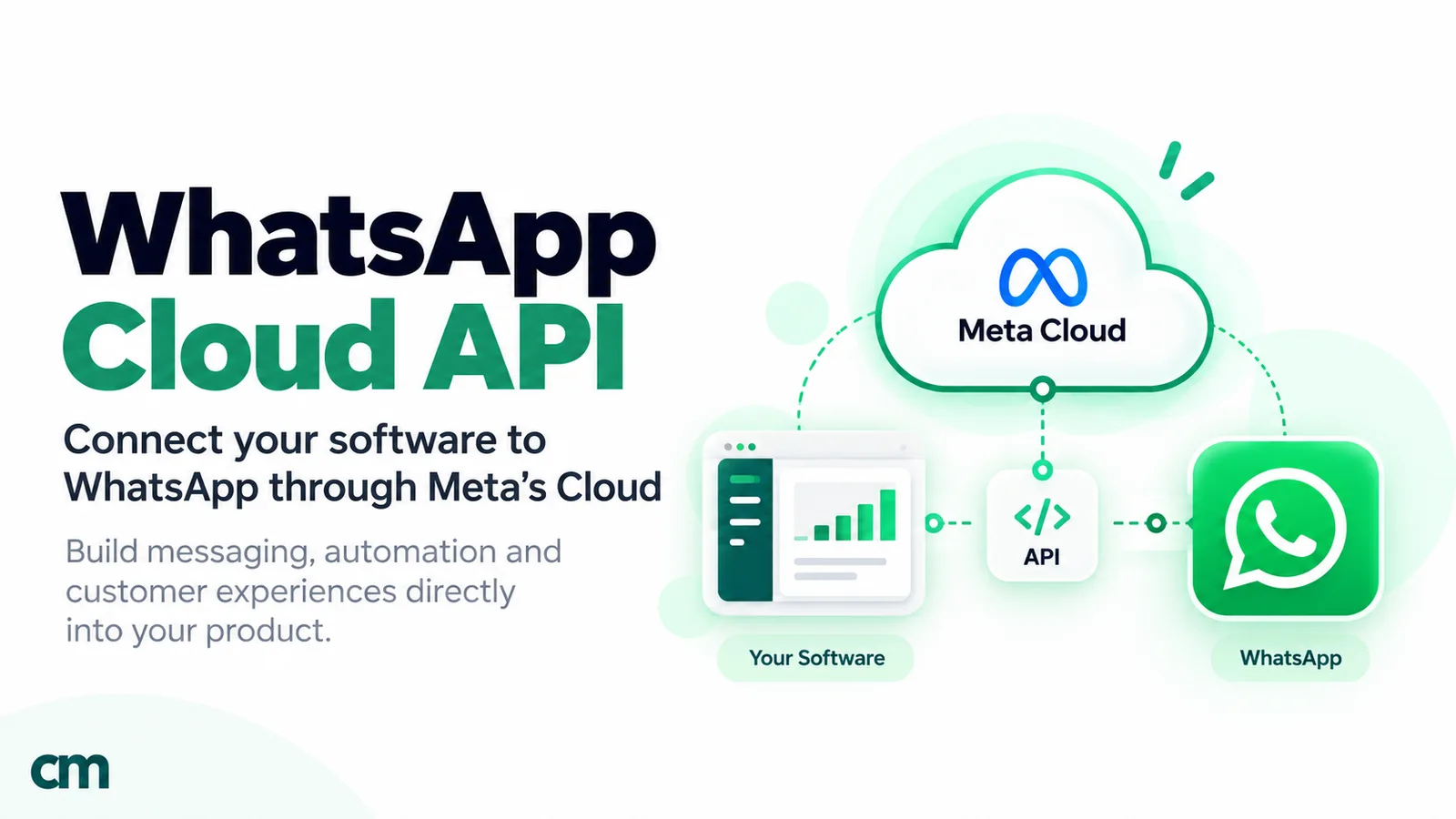
No, not in the sense most people mean. The WhatsApp Cloud API has no endpoint that takes a list of numbers and a message. Its messages endpoint sends one message to one recipient per request. A “bulk” or “broadcast” send, whether you build it or a provider runs it for you, is many individual requests made in a controlled way.
Three things follow from that:
- Every recipient gets their own API call, their own message ID and their own delivery status. Your system has to track each one.
- Bulk messages to people who haven’t messaged you in the last 24 hours must be approved templates. That covers almost every campaign. Free-form text is only allowed inside a customer service window.
- The speed limit applies per business phone number. Adding more servers doesn’t make one number send faster.
The only official way to do this is the WhatsApp Business Platform, either directly on Meta’s Cloud API or through a provider built on it. Tools that automate WhatsApp Web or the consumer app to blast messages break WhatsApp’s terms, and the number usually ends up banned. For the account setup itself, see how to get the WhatsApp API and what the Cloud API is.
What you need before the first bulk send
Have these in place before you write a line of sending code:
- A WhatsApp Business Account with a registered business phone number on the Cloud API.
- A system user access token (or a provider’s API key) with permission to send from that number.
- An approved template for the message, with sample values for every variable. Marketing, utility or authentication, chosen correctly, because the category sets the price.
- Opt-in from every recipient. Meta requires it before you send templates, and the opt-in must name your business.
- Numbers in full international format, with the plus sign and country code. If you leave the code out, Meta prefixes your business number’s country code, which can deliver the message to the wrong person.
- A webhook endpoint subscribed to the
messagesfield, so you can see what happened after you sent. - A payment method on the account, because delivered templates are billed.
The four limits that shape every bulk send
Meta applies several limits at once. They’re measured in different units, and confusing them is the most common reason a campaign stalls halfway through.
| Limit | What it caps | Measured per | Default | What happens when you hit it |
|---|---|---|---|---|
| Throughput | Messages per second | Business phone number | 80 per second, up to 1,000 by automatic upgrade | Error 130429 until you slow down |
| Messaging limit | Unique users reached outside a service window in a moving 24 hours | Business portfolio (shared by all its numbers) | 250, rising to 2,000, 10,000, 100,000 and unlimited | Further template sends to new users fail until the window moves on |
| Pair rate limit | Messages to the same person | Business number + one recipient | About 1 every 6 seconds, with bursts of up to 45 | Error 131056 for that recipient only |
| Per-user marketing limit | Marketing templates one person receives from all businesses | WhatsApp user | Dynamic, set by Meta | Error 131049; the message isn’t delivered |
Throughput
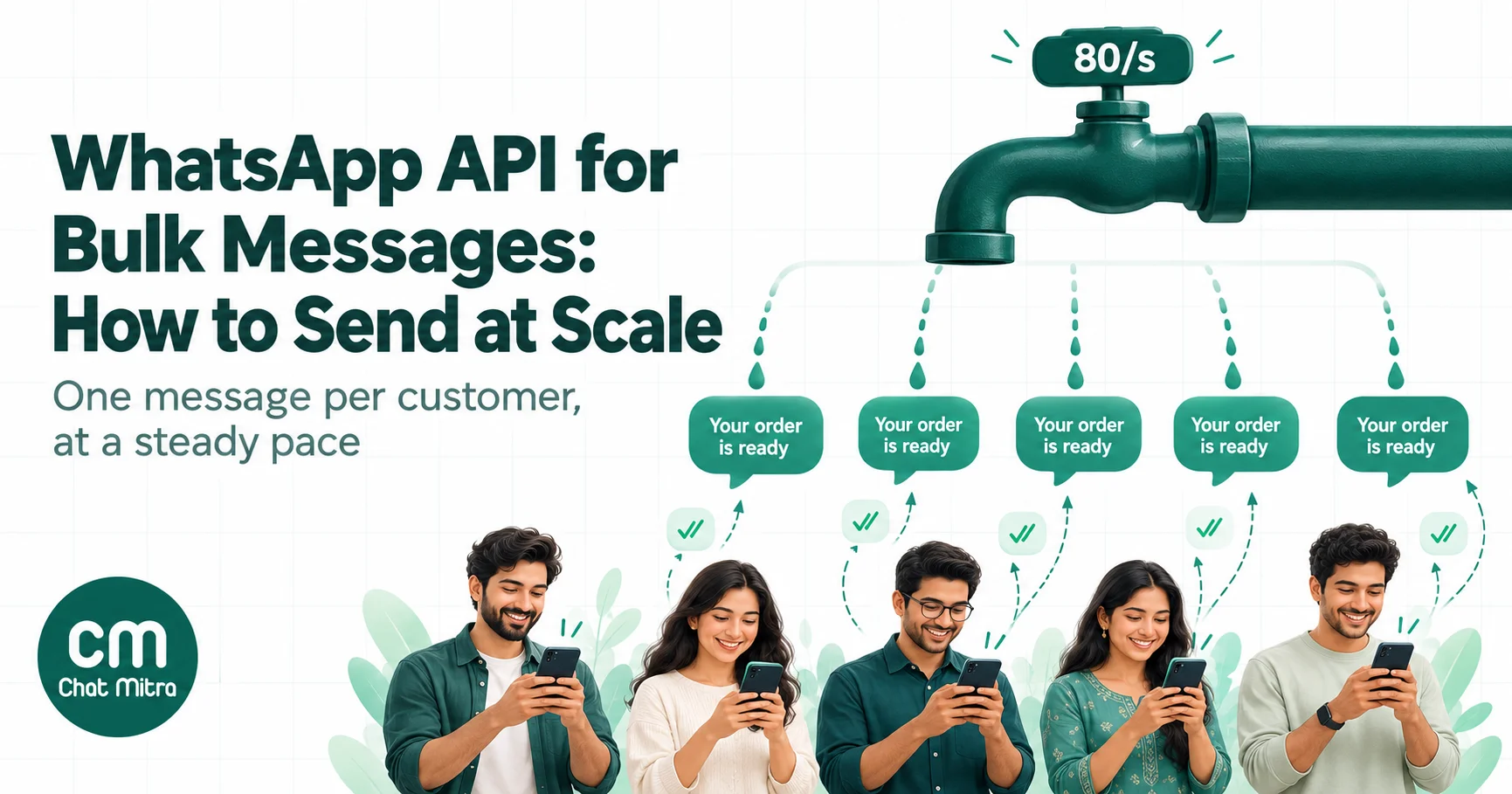
Meta’s Cloud API supports up to 80 messages per second for each registered business phone number by default. The count is shared between inbound and outbound messages of every type, so a busy support inbox on the same number eats into campaign speed.
Meta lifts a number to 1,000 messages per second on its own once three conditions hold: the business portfolio’s messaging limit is unlimited, the number has reached 100,000 or more unique users with business-initiated messages within one rolling 24-hour period, and its quality rating sits at Medium or above. The upgrade is free and doesn’t change pricing. It takes up to a minute, during which the number returns error 131057 (maintenance mode). Afterwards, a phone_number_quality_update webhook arrives with the event THROUGHPUT_UPGRADE.
Numbers used in both the WhatsApp Business app and the Cloud API (coexistence) are fixed at 20 messages per second. You can read any number’s current level with a GET on the phone number ID, requesting the throughput field.
Messaging limit
The messaging limit is about reach, not speed. It’s the number of unique people your business portfolio can deliver messages to outside a customer service window in any moving 24-hour period. New portfolios start at 250. Verifying your business, or sending 2,000 messages with high-quality templates in 30 days, puts you up for 2,000; Meta reviews your message quality before it approves the increase. After that, Meta raises the limit one level within six hours whenever you use at least half of it in seven days with good quality.
Two details matter for bulk senders. The limit belongs to the portfolio, so one number running a big campaign can use up the allowance for every other number in it. And replies inside an open service window don’t count against it. Our guide to messaging limits has the full tier ladder.
Pair rate limit
A business number can send about one message every six seconds to the same user, roughly 600 an hour. Short bursts of up to 45 messages are allowed, but they borrow from future capacity: after a burst of 20, you wait about two minutes before that person can receive another message. Meta’s guidance for recovering from 131056 is to retry after 4^X seconds, starting at X = 0 and adding one after each failure.
Campaigns rarely hit this, because each recipient gets one message. It bites when a workflow fires several templates at one person in quick succession, or when a bug sends the same message repeatedly.
Per-user marketing limits
WhatsApp may limit how many marketing templates a person receives from all businesses over a period, starting with people who are less likely to engage. When it applies, the message fails with 131049. Meta’s advice is to wait at least 24 hours before trying that person again; retrying sooner just produces the same error.
There’s one more limit that isn’t about messages. API calls to WhatsApp Business Account management endpoints (templates, phone numbers, subscribed apps) are capped at 200 requests per hour per app per account, rising to 5,000 for active accounts. A sender that fetches the template list before every message will hit errors 80007 or 4 long before it hits throughput. Cache that data.
How long does a bulk send take?
Do the arithmetic before you promise anyone a launch time.
Example: 50,000 recipients, one marketing template, a number at the default 80 messages per second.
- Raw send time: 50,000 ÷ 80 = 625 seconds, about 10½ minutes.
- Leave headroom. Inbound messages share the same throughput, so run campaigns at around 60 to 70 messages per second rather than exactly 80. At 65 per second, the send takes about 13 minutes.
- Check reach before speed. If the portfolio’s messaging limit is 10,000, only the first 10,000 new recipients can be reached in this 24-hour window, however fast you send. The other 40,000 either wait or fail.
- Size the webhook side. Meta advises webhook servers to handle three times the outgoing message rate, plus the incoming rate. At 65 messages per second with a 10% reply rate, that’s roughly 195 status webhooks and 6 inbound messages per second, sustained for the whole send and for a long tail afterwards as people open their phones.
At 1,000 messages per second the same campaign leaves the API in under a minute. Your webhook servers then need to absorb up to about 3,000 status updates per second, which is where most home-built senders break.
How a reliable bulk sender is built
Most failed bulk senders share one design: a loop that reads a list and calls the API as fast as it can. It works for 200 messages and falls apart at 20,000. A sender that holds up has five parts.
1. Freeze the audience, then validate it
When a campaign starts, take a snapshot of who it goes to. Don’t re-query a live contact list while sending, or people added mid-send get half a campaign and others get it twice.
Clean the snapshot before the first message goes out:
- Normalise every number to international format and drop duplicates.
- Remove people who opted out, and anyone who has previously returned
131050(stopped your marketing messages) or131026(can’t receive the message). - Count the unique recipients and compare them with your messaging limit. Better to know now than at message 10,001.
2. One job per recipient, with an idempotency key
Put each recipient into a durable queue as its own job, carrying the campaign ID, recipient, template name, language and variable values. Give every job a deterministic key, such as campaign ID plus recipient number.
That key is your protection against double sends. Workers crash. Network calls time out after Meta has already accepted the message. Without a key, the retry sends a second copy, and the customer gets two identical promotions and a reason to block you. With one, a worker checks whether that key already has a message ID before calling the API again.
3. Rate-limit per business phone number
The limit belongs to the phone number, so the rate limiter must too. A token bucket keyed by phone number ID, shared by every worker through something like Redis, lets you run ten workers without ten times the speed. Set it below the number’s real throughput to leave room for inbound traffic. If you send for several clients, give each number its own bucket so one client’s campaign can’t slow another’s.
Don’t treat 130429 as your rate limiter. Hitting it means you’ve already sent too fast; your own limiter should keep you just under it.
4. Upload media once
For image, video or document headers, upload the file to Meta once and send the returned media ID with every message. Meta recommends this specifically for high throughput. Sending a link instead makes Meta fetch the file from your server for each message, which turns your file host into part of the campaign’s critical path. If you must use links, enable HTTP caching on the files.
5. Record the message ID, not just “sent”
A successful API response contains a WhatsApp message ID (wamid) and, for templates, a message_status of accepted or held_for_quality_assessment. It does not mean the message was delivered. Store the wamid against the recipient and campaign straight away, because every later status webhook refers to it. A sender that only records “API call succeeded” can never answer “how many people actually got this?”
Error handling: retry, slow down or stop
Each failure needs one of three responses. Retrying everything is the most expensive mistake a bulk sender can make, because some errors get worse the more you retry. This table covers the codes you’ll meet most during bulk sends, with Meta’s meaning and the sensible action.
| Code | What Meta says it means | Action |
|---|---|---|
130429 | Cloud API message throughput has been reached | Slow down. Reduce the send rate for that number and retry after a short backoff |
131056 | Too many messages to the same recipient in a short time | Retry later for that recipient only. Other recipients are unaffected. Back off 4^X seconds |
131057 | Business account is in maintenance mode (for example, a throughput upgrade) | Pause the number for a minute, then resume |
131000, 131016 | Unknown error; service temporarily unavailable | Retry with backoff. Check Meta’s status page if it persists |
80007, 4 | WhatsApp Business Account or app API rate limit reached | Slow down management calls; cache template and number data |
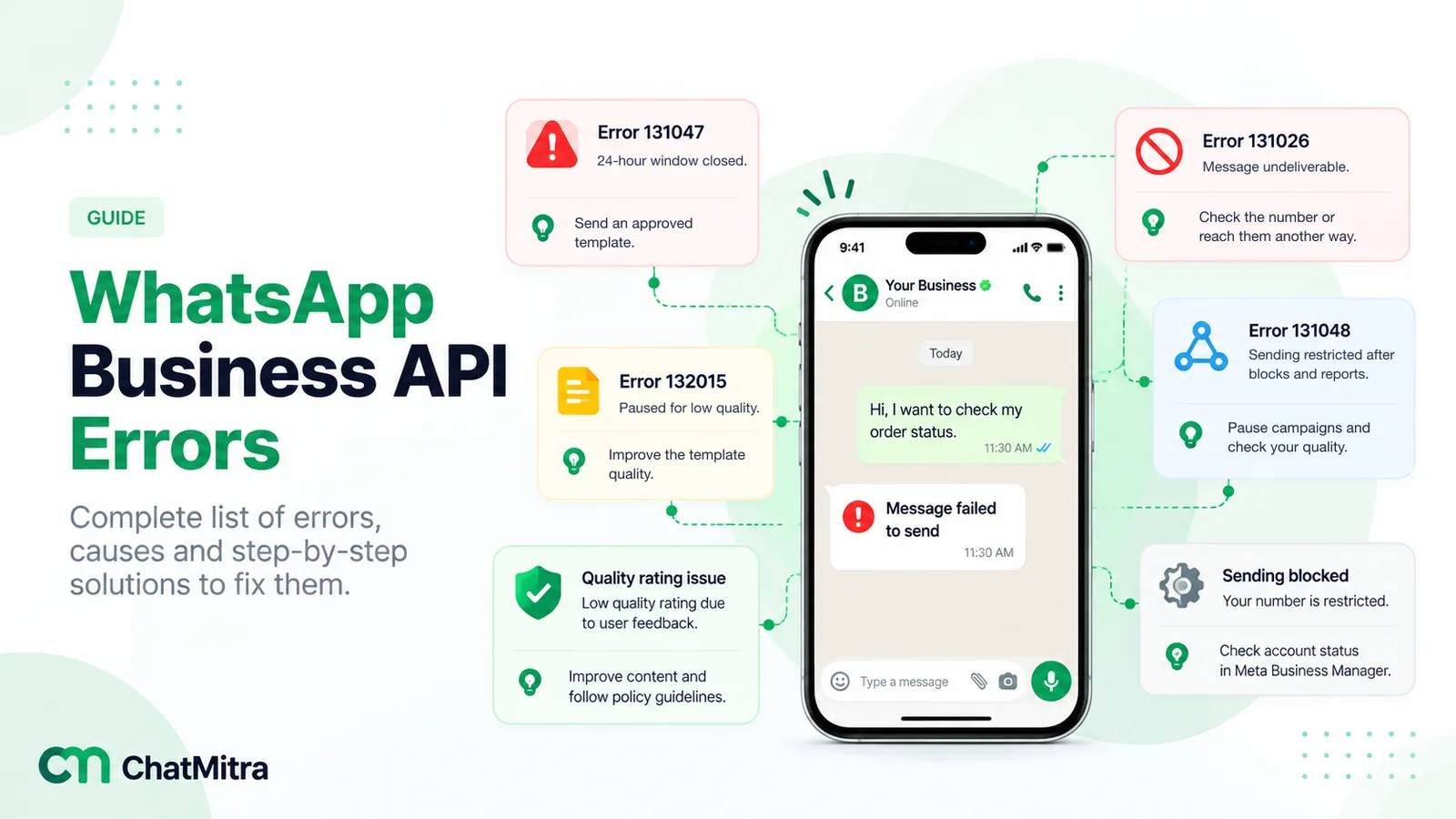
131048 | Sending restricted because too many earlier messages were blocked or flagged as spam | Stop the campaign. Check quality in WhatsApp Manager before sending more |
131049 | Not delivered to maintain healthy ecosystem engagement (per-user marketing limit) | Don’t retry for at least 24 hours |
131050 | Recipient stopped marketing messages from your business | Never retry. Suppress marketing to this person |
131026 | Message undeliverable (not on WhatsApp, old app version, terms not accepted, and similar) | Don’t retry. Mark the number invalid |
130403 | Your business has blocked this user | Don’t retry. Unblock first if the block was a mistake |
131047 | More than 24 hours since the user last replied | Send a template instead of free-form text |
132015 | Template was paused after poor feedback during pacing | Stop using that template; fix it before resending |
Some of these come back in the API response. Others, such as 131049, 131050 and 132015, often arrive later in a status webhook with status: failed. Your error handling has to run in both places. For a deeper troubleshooting guide by symptom, see WhatsApp Business API errors and the error code reference.
The retry trap
Retries feel like safety. At scale, careless retries are often what turns a small problem into an outage.
Here’s how it happens. Meta slows down for a minute, or your network has a hiccup. Ten thousand requests time out at once. Every worker retries immediately, so the load on the struggling system doubles, more requests time out, and those retry too. The queue fills with retries of retries. Meanwhile, some of the timed-out requests actually succeeded, so without idempotency keys, customers start getting duplicates.
Four habits prevent it:
- Exponential backoff with jitter. Wait longer after each failure, and add a random spread so thousands of jobs don’t retry in the same second.
- A cap on attempts. After five or so tries, move the job to a dead-letter queue for a person to look at. Don’t retry forever.
- A circuit breaker per phone number. If most recent sends from a number are failing, stop sending from it for a while instead of hammering the API.
- Retry only what’s retryable. Throughput, maintenance and temporary errors are worth another try. Opt-outs, invalid numbers and spam restrictions are not, and retrying them can damage your quality rating.
Webhooks: the other half of bulk sending
The API response tells you Meta accepted a message. Everything after that (sent, delivered, read, failed) arrives as status webhooks, plus any replies from customers. In a large campaign, the webhook traffic is bigger than the sending traffic, and it keeps arriving for hours.
Meta sets clear expectations for your webhook servers:
- Capacity: handle three times your outgoing message rate, plus your incoming message rate.
- Speed: median response time no more than 250 milliseconds, with fewer than 1% of responses over one second. Meta sends webhooks concurrently, so load-test for parallel requests.
- Retries: if your endpoint doesn’t return HTTP 200, Meta retries with decreasing frequency for up to seven days.
- Duplicates: retries go to every app subscribed to the account, so the same notification can arrive more than once.
- Size: a single webhook payload can be up to 3 MB.
Five rules follow from those numbers:
- Acknowledge first, process later. Verify the request, put the raw payload on a queue and return 200 immediately. Doing database work inside the request handler is the fastest way to miss the latency target, which triggers retries, which add load. That’s the retry trap again, in reverse.
- Verify the signature. Meta signs each webhook with your app secret in the
X-Hub-Signature-256header. Reject anything that doesn’t match. Meta also supports mutual TLS, and recommends it over IP allow-lists because its IP addresses change. - Deduplicate. Treat each combination of message ID and status as one event. If you’ve already applied “delivered” for a
wamid, a second copy should change nothing. - Expect statuses out of order. “Read” can arrive before “delivered”. Apply statuses by rank (sent, then delivered, then read) and never move a message backwards. Treat “failed” as final, with its error code.
- Don’t assume silence means success. Messages that can’t be delivered are retried until their time-to-live runs out (30 days for most messages, 10 minutes for authentication templates) and then dropped. If no “delivered” status arrives by then, count the message as not delivered.
The basics of what each status means are in our guide to webhooks and message status.
Template pacing: why some messages wait
Marketing templates can be paced when they’re new, recently unpaused, or lack a high quality rating. Utility templates are paced in the same way only for seven days after one of your utility templates has been paused. Meta sends the first part of the campaign normally, then holds the rest while it collects early feedback from the people who received it.
You’ll see this in the API response: held messages come back with message_status: held_for_quality_assessment instead of accepted. If feedback is good, Meta releases them and the usual status webhooks follow. If it’s bad, the template is paused, and each held message fails with error 132015. Meta says its goal is for even paced campaigns to be delivered within an hour at the 99th percentile.
For a bulk sender, that means three things. Don’t count “held” as failed. Don’t resend held messages, or you’ll create duplicates when Meta releases them. And for a critical launch, send with a template that already has a high quality rating rather than one you created that morning.
Storing millions of statuses without melting the database
Every message produces a record and several updates. A month of regular campaigns can mean millions of rows, each updated three or four times within hours of sending. These patterns keep that manageable:
- Write in batches. Collect status events from the webhook queue and apply them as bulk updates every second or two, instead of one database round trip per webhook.
- Index for the lookup you actually do. Status updates find a message by its
wamid, so that field needs a unique index. Campaign reports filter by campaign and status, so index those together. - Keep counters separately. Updating a campaign’s delivered count by scanning all its messages on every page load doesn’t scale. Increment counters as statuses are applied, and rebuild them from message records only when you need to audit.
- Separate hot and cold data. Recent messages are read and updated constantly. Messages from last quarter are read rarely and never updated. Archive or partition old records so routine queries don’t wade through them.
- Make writes idempotent. Because webhooks repeat and arrive out of order, every update should be safe to apply twice.
Sending for many businesses on one platform
If you’re a provider, an agency or a SaaS product sending for many clients, add fairness to the design. Without it, one client’s 200,000-message campaign sits at the front of a shared queue and every other client’s order confirmations wait behind it.
- Queue per phone number (or per client). Workers pull from many queues in rotation, so a large campaign moves at its own number’s speed without blocking anyone else.
- Separate transactional from promotional traffic. OTPs and order updates should never wait behind a sale announcement. A dedicated high-priority lane for utility and authentication sends solves most complaints before they start.
- Respect the portfolio’s shared messaging limit. If a client has several numbers in one portfolio, a campaign on one number can use up the daily reach for all of them. Warn them before it happens.
- Isolate failures. A number that starts returning
131048should be paused on its own without affecting other clients.
What to monitor during a bulk send
You can’t fix what you can’t see. Watch these numbers live during every large campaign:
| Metric | Why it matters | Worry when |
|---|---|---|
| Accepted rate (API successes ÷ attempts) | Catches token, template and payload problems immediately | Below about 98% |
130429 rate | Shows your limiter is set too high | More than occasional |
| Delivered rate (delivered ÷ accepted) | The real outcome of the campaign | Drops sharply against your usual baseline |
| Failure codes by type | Tells you why messages fail | Any 131048, or a jump in 131049 or 131050 |
| Queue depth and age | Shows whether sending is keeping up | Grows steadily after the send should have finished |
| Webhook lag and response time | Early warning of the retry trap | Median above 250 ms |
| Held messages | Pacing is active on the template | Still held after an hour |
Read rate matters too, but as a quality signal for the next campaign rather than a live alarm. Templates with low read rates lose quality rating, and low-quality templates get paced or paused.
Build it yourself or use a provider?
Everything above is buildable, and developers do build it. The question is whether it’s the best use of your time.
| Build on the Cloud API directly | Use a provider’s API or dashboard | |
|---|---|---|
| You manage | Queue, rate limiter, retries, idempotency, webhook servers, status storage, dashboards | Your audience, templates and timing |
| Speed to first campaign | Weeks of engineering | Hours |
| Control | Total: every queue, every retry rule | Within the provider’s features |
| Cost | Meta’s per-message fees plus your infrastructure and engineering time | Meta’s per-message fees plus the provider’s fee |
| Best for | Large engineering teams with unusual requirements or very high volume | Most businesses, agencies and product teams |
Many teams mix the two: they send campaigns from a provider’s dashboard, and use its API for transactional messages triggered by their own systems. Our Python and PHP guides show both the direct Cloud API calls and the provider route.
How ChatMitra sends bulk messages
ChatMitra runs on Meta’s official platform, so its campaigns face the same limits described above. Here’s how the production pipeline handles them, as of October 2026.
Launching a campaign. When you start a broadcast, ChatMitra removes duplicate numbers from the audience, reserves the message credits and creates the campaign record in one step, then hands the send to a background worker. Scheduled campaigns wait in the same queue until their start time. Marketing templates go out through Meta’s Marketing Messages API, and utility and authentication templates through the standard Cloud API messages endpoint.
Pacing. The worker sends in batches and paces each batch to a messages-per-second ceiling, rather than firing the whole list at once. Numbers that are also connected to the WhatsApp Business app are detected and held to a lower rate automatically, below Meta’s 20-per-second cap for those numbers. Team members with permission to configure campaigns can adjust the speed within a fixed maximum.
Throttling and failures. Messages that come back with 130429 are marked as throttled rather than failed. After the main pass, they get up to three short retry passes with growing waits, and the rate drops when throttling is heavy. If ten sends fail in a row, the campaign pauses for a minute before trying again, so a broken token or template doesn’t burn through the whole list.
No double sends on resume. Each campaign keeps a record of the numbers it has already messaged. If a campaign is stopped and resumed, or a worker restarts, numbers that already received the message are skipped.
Retry rounds. You can schedule up to three automatic retry rounds for failed messages, at least an hour apart. Retry rounds skip failures that will never succeed, such as recipients who stopped your marketing messages, numbers that aren’t on WhatsApp and paused templates.
Status tracking. Meta’s webhooks land on a dedicated webhook service, separate from the app you use, and status updates are processed through a queue. Statuses only move forward (sent, then delivered, then read), so duplicate or late webhooks can’t make a read message look undelivered. You can watch progress live in the dashboard while a campaign runs, and a report email follows shortly after it finishes. For the feature overview, see WhatsApp broadcasting.
Sending from your own systems. On the Pro and Enterprise plans, the ChatMitra developer API gives you a single send_message endpoint authenticated with an API key. It applies a per-phone-number rate gate and returns HTTP 429 with RATE_LIMITED when you send faster than that number’s allowance, so your code can back off. It accepts an Idempotency-Key header: if a request is retried with the same key within a few minutes, you get the original result back instead of a second message. Responses carry the WhatsApp message ID once a message is sent, and you can receive status events at your own URL through webhooks. The API reference documents the payloads.
A checklist before your next big send
- The template is approved, in the right category, and ideally already has a high quality rating.
- The audience is frozen, deduplicated, in international format, and cleaned of opt-outs and known invalid numbers.
- Unique recipients fit within today’s messaging limit, or you’ve planned to spread the send over several days.
- Media is uploaded once and referenced by ID.
- The rate limiter is set per phone number, below its throughput.
- Every job has an idempotency key, and retries use backoff with jitter and an attempt cap.
- The webhook endpoint acknowledges in well under 250 ms, verifies signatures and deduplicates.
- You know which error codes stop the campaign, and someone is watching while it runs.
Summary
- The WhatsApp API has no bulk endpoint. A bulk send is one template request per recipient, paced to Meta’s limits.
- Throughput (80 to 1,000 messages per second per number) decides how fast you can send. The messaging limit (250 to unlimited unique users per portfolio per 24 hours) decides how many people you can reach. The pair rate and per-user marketing limits protect individual recipients.
- Build the sender around a queue of per-recipient jobs, a per-number rate limiter, idempotency keys and a clear rule for every error code. Retry only what’s retryable.
- Expect about three status webhooks per message, plus duplicates, out-of-order arrival and retries for up to seven days. Acknowledge fast and process from a queue.
- If building and running all of this isn’t your core work, a provider on the official platform gives you the same pipeline without the engineering.