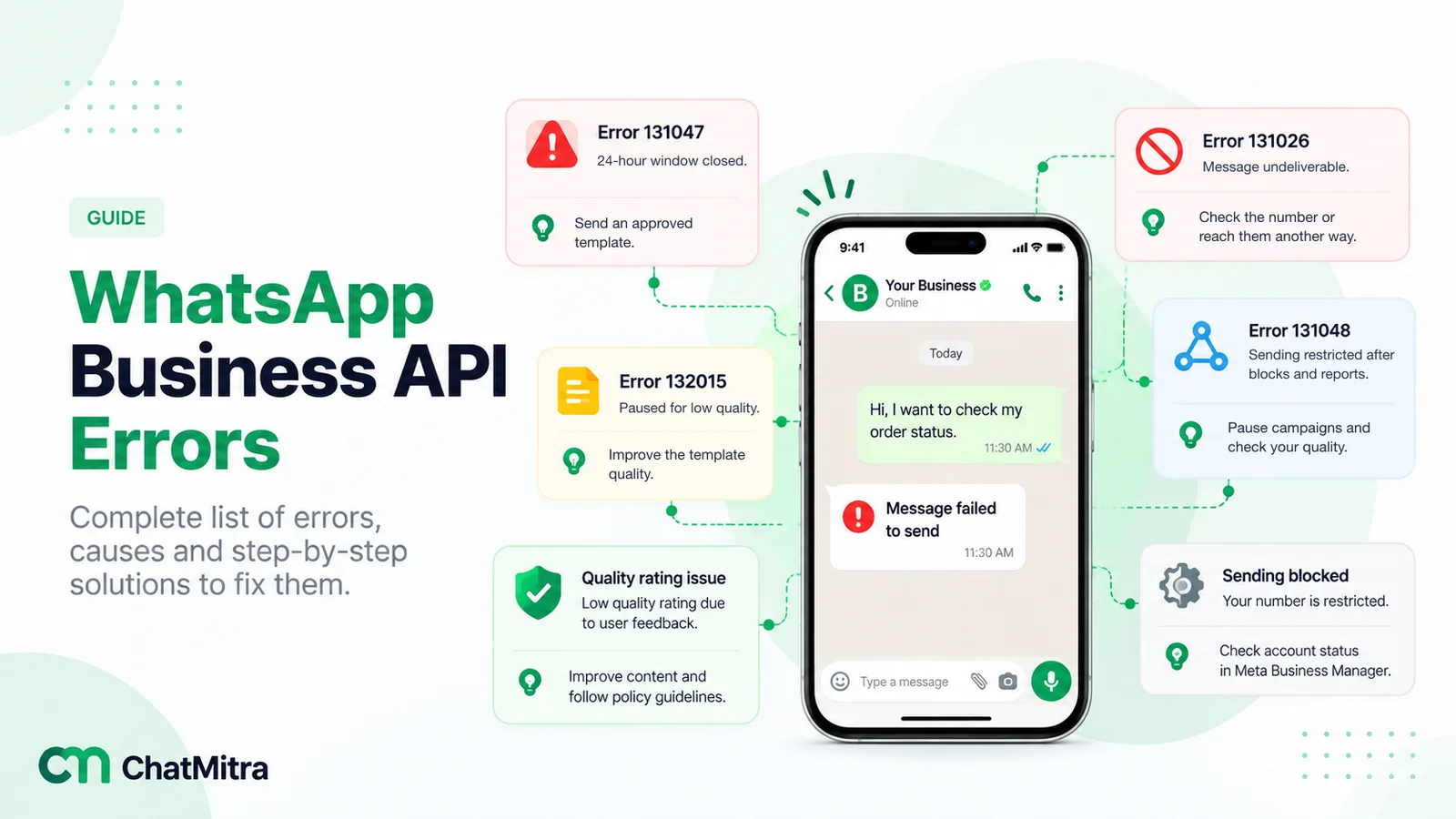
WhatsApp Business API errors happen in four places: the send request is rejected, the message fails after Meta accepts it, it sits undelivered without any error, or your account or template is blocked. Find which one you’re facing, read the error code if there is one, then retry, fix or stop. Most repeat failures trace back to lists, templates, timing or sending speed.
When messages fail, the error codes get all the attention. In practice, you rarely start with a code. You start with a symptom: a campaign report that looks wrong, a customer who says they never got their order update, a developer who says “the API returned 200, so it was sent”. This guide works from those symptoms back to their causes, and then to the fix.
If you already have a code and just want its meaning, our WhatsApp API error codes reference lists more than 45 of them. This article is about the troubleshooting around the codes: how to diagnose a problem quickly, which failures to retry, how to spot trouble early, and how to stop the same errors coming back.
Key takeaways
- An HTTP 200 and a message ID only mean Meta accepted the message. Delivery is reported later by webhook.
- "Sent" with no error isn't a failure. The phone just hasn't received the message yet.
- Group failures by code before you fix anything. One code usually explains most of them.
- Retry temporary errors with a cap; fix everything else first; never resend to opt-outs.
What is a WhatsApp Business API error?
A WhatsApp Business API error is Meta’s report that a message couldn’t be sent or delivered, or that your account, number or template can’t be used right now. Each error has a numeric code, a short title and a details text.
Errors aren’t the whole story, though. Some of the most confusing problems produce no error at all. It helps to separate four kinds of trouble, because each one shows up in a different place:
| Kind of problem | Where you see it | Typical examples |
|---|---|---|
| The request is rejected | Straight away, in the API response. No message ID is returned. | Expired access token, missing parameter, throughput limit (130429), template not found (132001) |
| The message fails after it's accepted | Later, in a status webhook marked failed | Number can't receive WhatsApp (131026), window closed (131047), per-user marketing limit (131049) |
| The message is never delivered, with no error | The status stays at sent | Phone switched off, no data connection, app rarely opened |
| The account, number or template is blocked | Every send fails, plus notices in WhatsApp Manager | Payment problem (131042), policy restriction (368), paused template (132015) |
The first two kinds come with a code. The third doesn’t. The fourth often starts before your first failed message, with a quality warning or an email from Meta that nobody read.
Sent, delivered, read, failed: what each status means
Every message you send through the Cloud API gets a message ID (a wamid) the moment Meta accepts it. After that, Meta reports its progress through status webhooks. Meta’s reference lists five statuses:
- sent: the message left Meta’s servers.
- delivered: it reached the customer’s phone.
- read: it was displayed in an open chat on the phone.
- failed: it couldn’t be sent or delivered. The webhook includes an
errorsarray. - played: the customer played a voice message for the first time.
Two details save a lot of confusion.
First, “sent” is not a problem. A message stays at sent until the phone connects and receives it. If the customer’s phone is off, or they’re on a flight, or they only open WhatsApp once a day, the message waits. Meta keeps trying until the message’s time-to-live (TTL) expires. Meta’s defaults are 30 days for utility and marketing templates and 10 minutes for authentication templates (for authentication templates created from 23 October 2024). You can set a custom TTL: 30 seconds to 15 minutes for authentication, 30 seconds to 12 hours for utility, and 12 hours to 30 days for marketing. When the TTL runs out, Meta drops the message.
That’s why an OTP that arrives 20 minutes late is worse than useless, and why a short TTL on time-sensitive messages is a good idea. If a message can’t arrive while it still matters, it’s better that it never arrives.
Second, you won’t always get every status. Meta notes that when a customer receives a message while they’re already in the chat, it’s delivered and read at the same moment, and only the read status is sent. Your reporting should treat read as implying delivered.
A failed status carries an errors array. Each entry has a code, a title, a message, an error_data.details text and an href link to Meta’s documentation. Store the code and the details text. The details text is often the most specific part of the answer, and Meta advises against building logic on the titles.
A five-minute triage for any WhatsApp API problem
Before you open a single log file, answer these six questions. Together they narrow almost any problem to one or two causes.
- Is every message failing, or only some? Everything failing points to the account, the number, billing, the access token or a Meta incident. Some failing points to recipients, templates or timing.
- Did the request fail, or the message? If you have no message ID, the request was rejected, and the reason is in the API response. If you have a message ID, look for its status webhook.
- Is it one template or all of them? A problem limited to one template is almost always that template: its name, language, variables, category or quality.
- Is it the same people every time? Repeat failures for the same contacts point to the numbers themselves, or to people who have opted out.
- What changed just before it started? A new template version, a new contact import, a new automation, a larger campaign, an expired card. Most sudden problems have a recent cause.
- Is Meta having an incident? A sudden rise in server errors across many customers usually means a platform problem. Check the status of the WhatsApp Business Platform before you change anything. Our system status page explains where to look.
Write the answers down. If you end up contacting support, they’re exactly what a support engineer will ask for.
Troubleshooting WhatsApp API errors by symptom
Here are ten common situations, with the likely causes, what to check and the fix.
1. Every message is failing
When everything fails at once, look at the whole account before individual messages.
- Rejected with codes 0, 190 or 200: the access token has expired, been revoked or wasn’t sent. Temporary tokens from the App Dashboard expire quickly; production systems should use a system user token.
- Codes 3, 10 or 200–299: a permission is missing from the token.
- 131042: a problem with the payment method on the WhatsApp Business Account. An expired card stops every paid message.
- 368 or 131031: the account is restricted, disabled, or the request doesn’t match it. Look for an enforcement notice in WhatsApp Manager.
- 1, 2, 131016 or 133004 for everyone: probably a temporary Meta problem.
Fix: sort out the account-level cause first. Don’t retry thousands of messages until a single test message goes through.
2. Messages stay on “sent” and are never delivered
This is the “single tick” problem, and it’s usually not an error. The message is waiting for the customer’s phone to come online.
Check the pattern:
- A handful of recipients: normal. Some people are offline for days.
- Every recipient of one template, while other templates deliver fine: the template may have a problem on Meta’s side. Check its status and quality in WhatsApp Manager, and send yourself a test.
- Every message from your number: check for account notices and billing problems, and check that you’re still receiving webhooks at all (see symptom 9). A missing webhook looks exactly like “sent forever”.
Fix: there’s nothing to fix for offline customers. Set a sensible TTL on time-sensitive messages so they expire instead of arriving late, and use a second channel, such as SMS or email, for anything critical that hasn’t been delivered in time.
3. A broadcast or campaign has lots of failures
A campaign with a high failure rate rarely has many different problems. Usually one error code accounts for most of them. Export the failures, count them by code, and deal with the biggest group first.
| If most failures are… | It usually means… | Do this |
|---|---|---|
| 131026 | The list has numbers that aren't on WhatsApp, badly formatted numbers or old contacts | Clean the list: add country codes, remove landlines and dead numbers |
| 131049 | Meta's per-user marketing limit kept your message from some people | Wait at least 24 hours before trying them again; send fewer, better-targeted offers |
| 131050 | People used WhatsApp's option to stop your marketing messages | Mark them as opted out of marketing and stop sending offers |
| 130429 | You sent faster than your number's throughput | Pace the send through a queue; retry the rejected messages |
| 131048 | Sending is restricted because too many messages were blocked or reported | Pause campaigns and look at quality before sending more |
| 132xxx | A template problem | See symptom 5 |
If you send marketing to people who haven’t heard from you in months, expect all three of 131026, 131049 and 131050 to rise at once. That combination is the sign of a list that needs rebuilding, not a technical fault. Our guide to WhatsApp opt-in covers how to collect permission that holds up.
4. Replies to a customer fail
Your agent types a reply, and it fails with 131047. More than 24 hours have passed since the customer last messaged or called you, so their customer service window has closed. Only approved templates can be sent outside the window.
Fix: send an approved template instead. For an order update or an appointment change, that’s a utility template. If the customer replies to it, the window opens again and the conversation can continue normally. Good inbox tools warn the agent before this happens, so the reply isn’t lost.
5. One template keeps failing
When one template fails and others don’t, the problem is in the template or in the request that sends it:
- 132000: the request sends the wrong number of variables. This often follows an edit that added a variable while the campaign, automation or code still sends the old number.
- 132001: the template doesn’t exist in that language, or isn’t approved.
enanden_USare different languages to Meta. - 132012: a variable value is in the wrong format for that parameter.
- 132015: Meta paused the template because its quality dropped. 132016 means it has been paused too often and is permanently disabled.
- 132007: the template content breaks a WhatsApp policy.
Fix: compare the request with the template exactly as it’s approved in WhatsApp Manager: name, language, number of variables, header type and buttons. For paused templates, look at who received them and how often before you rewrite the wording. Low quality is usually about audience and frequency, not just words.
6. The same contacts fail every time
If the same people fail in campaign after campaign, stop sending to them until something changes.
- 131026 repeatedly: the number isn’t on WhatsApp, or the person hasn’t accepted WhatsApp’s latest terms, or their app is too old. Reach them another way and ask them to update the app, or mark the number as unreachable.
- 131050: they stopped your marketing. They can still get genuine utility messages, such as order updates.
- 130403: your business blocked this person. Unblock them only if you meant to.
Fix: feed these results back into your contact list. Every campaign that ignores them repeats the same failures.
7. Failures come in bursts during large sends
Burst failures during big sends are usually speed limits, not content problems.
- 130429: you’ve reached your number’s throughput. Meta’s default is up to 80 messages per second per registered number, and up to 1,000 per second after an automatic upgrade for numbers that qualify.
- 131056: too many messages to the same person in a short time (the pair rate limit). This usually comes from an automation that sends several messages in a row.
- 80007 and 4: account-level and app-level API rate limits.
Fix: send large campaigns through a queue that paces requests, retry the rejected ones after an increasing wait, and combine back-to-back automated messages into one.
8. Marketing messages don’t reach some people
This is a frequent complaint about marketing on WhatsApp, and it’s usually intentional on Meta’s part.
- 131049: Meta didn’t deliver the message “to maintain healthy ecosystem engagement”. In practice this is its per-user limit on marketing messages: someone who has recently received several marketing messages from businesses may not get yours. Meta says to wait at least 24 hours before trying again.
- 131050: the person stopped your marketing messages.
- 130472: the person is part of a Meta marketing experiment and the message was held back.
- 131064: a messaging limit caused by template classification violations, for example promotional content sent as a utility template.
Fix: you can’t force delivery past these limits. You can make each marketing message count: send to engaged people, at a sensible frequency, with offers they asked for. Our marketing message errors guide explains frequency capping in more detail.
9. You never receive delivery statuses
If messages seem to stay at “sent” forever, check that statuses are reaching you at all. Every status arrives by webhook, and a broken webhook looks exactly like undelivered messages.
Check these in order:
- Your app is subscribed to the
messageswebhook field for this WhatsApp Business Account. - Your callback URL is reachable over HTTPS with a valid certificate.
- Your endpoint returns HTTP 200 quickly. Do the slow work after responding.
- Your code matches statuses to messages by the
wamidyou stored when you sent them.
Meta’s documentation says that if your endpoint doesn’t return 200, or the webhook can’t be delivered, Meta retries with decreasing frequency for up to seven days. Retries can produce duplicate notifications, so process each status so that receiving it twice does no harm. Webhook payloads can be up to 3 MB. Our guide to webhooks and message status covers the setup.
10. A template is rejected before you can send it
A rejected template isn’t a sending error, but it stops campaigns just the same. Meta says an approval decision can take up to 24 hours. The usual reasons are parameter formatting, content that breaks policy, character limits and duplicates of an existing template.
When you create or edit a template, the API can also return errors of its own. Two catch many first-time writers: a variable at the very start or end of the text, and too many variables for the amount of text.
Fix: edit the template, add clear sample values for every variable, and submit it again. If you’re sure the rejection is wrong, you can file an appeal with sample values; Meta usually decides within 24 hours. The template elements guide explains what each part of a template allows.
The WhatsApp API error codes you’ll see most
These are the codes behind most of the symptoms above. For the full list, grouped by type, see the error codes reference.
| Code | What it means | First thing to do |
|---|---|---|
| 131026 | Message undeliverable to this number | Check the number format; contact the person another way |
| 131047 | 24-hour customer service window closed | Send an approved template |
| 131049 | Held back by the per-user marketing limit | Wait at least 24 hours for that person |
| 131050 | Person stopped your marketing messages | Stop marketing to them |
| 130429 | Throughput limit reached | Slow down; retry with increasing waits |
| 131056 | Too many messages to one person, too fast | Pause messages to that number |
| 131048 | Sending restricted after blocks and reports | Check quality before sending more |
| 132000 | Wrong number of template variables | Match the request to the approved template |
| 132001 | Template missing in that language, or not approved | Check the exact name, language and status |
| 132015 / 132016 | Template paused / permanently disabled | Improve quality / create a new template |
| 131042 | Payment method problem | Fix billing for the account |
| 368 | Account restricted for a policy violation | Read the enforcement notice in WhatsApp Manager |
| 131000 | Unknown error | Retry a few times; escalate if it persists |
Retry, fix or stop: deciding what to do with a failed message
Every failed message belongs in one of three buckets. Decide the bucket before anyone presses “resend”.
| Bucket | Examples | What to do |
|---|---|---|
| Retry later | 130429, 131056, 131000, 1, 2, 131016 | Resend automatically after increasing waits, with a limit on attempts |
| Fix, then resend | 131047, 132000, 132001, 132012, 131042, expired tokens | Correct the template, request, window or billing, then send once |
| Don't resend | 131050, 132016, 130403, 131026 (until the person fixes it), 131049 (for at least 24 hours) | Update your lists or content and move on |
The retry limit matters more than it looks. An unlimited retry loop during a short Meta outage can flood customers with duplicate messages once the service recovers. The third bucket matters most of all. Resending to people who stopped your marketing, or through a disabled template, wastes money and tells Meta your messages aren’t wanted, which feeds straight into lower quality ratings and restrictions.
How to monitor WhatsApp API errors before customers notice
Most serious WhatsApp problems give warning signs days before they stop your sending. You only see them if someone is looking.
Track these every day:
- Failure rate by error code. Not just “failed”, but how many of each code. A single number hides the pattern.
- Failure rate by template. A template whose failures or blocks rise is heading towards a pause.
- Failure rate by campaign and by list. A new import with a high 131026 rate is a list-quality problem.
- Time from sent to delivered for time-sensitive messages such as OTPs and appointment reminders.
- Webhook health: when the last status arrived. A long silence during working hours is itself an alert.
Check these every week:
- The quality rating of each phone number and template in WhatsApp Manager.
- Your messaging limit. Meta applies it at the business portfolio level: the number of unique people you can reach outside a customer service window in a moving 24-hour period. The tiers are 250, 2,000, 10,000, 100,000 and unlimited. New portfolios start at 250 and reach 2,000 through business verification or by sending 2,000 high-quality template messages in 30 days. From 2,000 upward, Meta raises the limit automatically when your messages are high quality and you’ve used at least half of your current limit in the last seven days. Our messaging limits guide explains the tiers.
- Notices and emails from Meta about templates, policies or billing.
Alert on change, not on single failures. A few 131026 errors are normal on any list. What needs a person the same day is a sudden change: a campaign where one code jumps well above its usual share, the first appearance of 131048 or 132015, or any account-level error. Set your own baselines from a few weeks of normal sending, then alert when a code moves well outside them.
How to prevent WhatsApp API errors: a checklist by stage
Prevention is cheaper than troubleshooting. These habits remove most avoidable failures.
When you collect contacts
- Save numbers in full international format with the country code, and no leading zero.
- Record opt-in: when, where and for what. It protects your quality rating and your answers to complaints.
When you create templates
- Choose the category honestly. Offers belong in marketing templates, not utility.
- Avoid variables at the very start or end of the text, and give Meta clear sample values.
- Treat templates as versions. When you add a variable, update every campaign, automation and piece of code that sends it at the same time.
Before you send a campaign
- Send a test to your own number from the same template and list type.
- Remove contacts who opted out, and those who failed with 131026 last time.
- Check billing and the account’s status in WhatsApp Manager.
While it’s sending
- Pace large sends through a queue instead of firing them all at once.
- Watch the first few minutes. If one code dominates the early failures, pause and fix it before the rest go out.
After it’s sent
- Feed failures back into the list: opt-outs, unreachable numbers, blocks.
- Compare each code’s share with your normal levels, and note anything new.
Finding and fixing errors in ChatMitra
If you send through ChatMitra, you don’t need to read raw webhooks to find out what went wrong.
- Campaign reports: every campaign has Sent, Delivered, Read and Failed tabs. On the Failed tab, each contact shows the Meta error code and a plain-English reason, with a link to Meta’s documentation. For payment errors (131042), it links straight to Meta’s billing settings. Export the tab and an Excel file with the error code for every contact is emailed to you, ready to count by code.
- Team inbox: a failed message shows a red alert icon and a short reason under the message. After 24 hours without a customer message, the reply box switches to templates only, so agents don’t run into 131047.
- Throughput retries: when Meta returns a throughput error (130429) during a campaign, ChatMitra waits a few seconds and tries that message again, up to three times, before counting it as failed.
- Smart Auto-Retry: an optional campaign setting, off by default, that resends failed messages up to three times at intervals you choose (one retry after 24 hours by default), or starts the first retry soon after the campaign ends. It skips failures that Meta rejects outright as permanent, but failures reported later, such as 131026 and 131050, can still be retried. Before you switch it on for a marketing campaign, remove contacts who failed with those codes in earlier sends, so the retry only reaches people it can help.
- Your own systems: if you’ve set a webhook URL, ChatMitra can forward every status change, including failures with their reason, to your server. The developer API returns a
fail_reasonwith Meta’s message when a send fails. A few errors come from ChatMitra rather than Meta, such as an invalid API token, no connected WhatsApp number or insufficient credits. The API keys and webhook URL guide explains the setup. - Account health: the top bar shows your number’s quality rating (high, medium or low) and its daily limit. For a template’s rejection reason, check WhatsApp Manager.
ChatMitra connects directly to Meta’s Cloud API, so the codes you see are Meta’s own and match Meta’s documentation. When a customer stops your marketing messages, ChatMitra marks the contact as Opted Out and you can filter your contacts by it, but campaigns don’t leave them out automatically. Exclude them, and anyone who failed with 131050, from marketing lists.
When and how to escalate a WhatsApp API error
Escalate when a code isn’t documented, when a “retry later” error keeps coming back for more than an hour or so, or when your account is restricted and you don’t understand why.
To get a useful answer quickly, send:
- the error code and the full details text;
- the message ID (
wamid) of one affected message; - the fbtrace_id, if the error came back in an API response;
- the time, with time zone, and the phone number you sent from;
- your answers to the triage questions above, especially what changed just before the problem started.
“Messages are failing” gets a slow answer. “Since 10:40 IST, 60% of our order-update template sends fail with 132000; we added a variable to the template this morning” usually gets the fix in the first reply.
Common mistakes when handling WhatsApp API errors
- Treating HTTP 200 as delivered. It only means Meta accepted the request.
- Retrying everything. Resending opt-outs and disabled templates makes things worse.
- Building logic on error titles or throwing away the details text. Use the code, and keep the details: they often name the exact parameter that was wrong.
- Blaming the wording of a paused template. Low quality usually reflects who received it and how often.
- Not closing the loop. If failures never update the contact list, every campaign repeats the last one’s mistakes.
Where to start
If you have a problem right now, answer the six triage questions, find your symptom above and group the failures by code. If things are calm, set up the daily checks on failure rates by code, template and campaign, plus webhook health. They turn a WhatsApp outage from a customer complaint into a line in tomorrow’s report.
To see how campaign failure reports and retries fit your sending volume, compare ChatMitra’s plans.