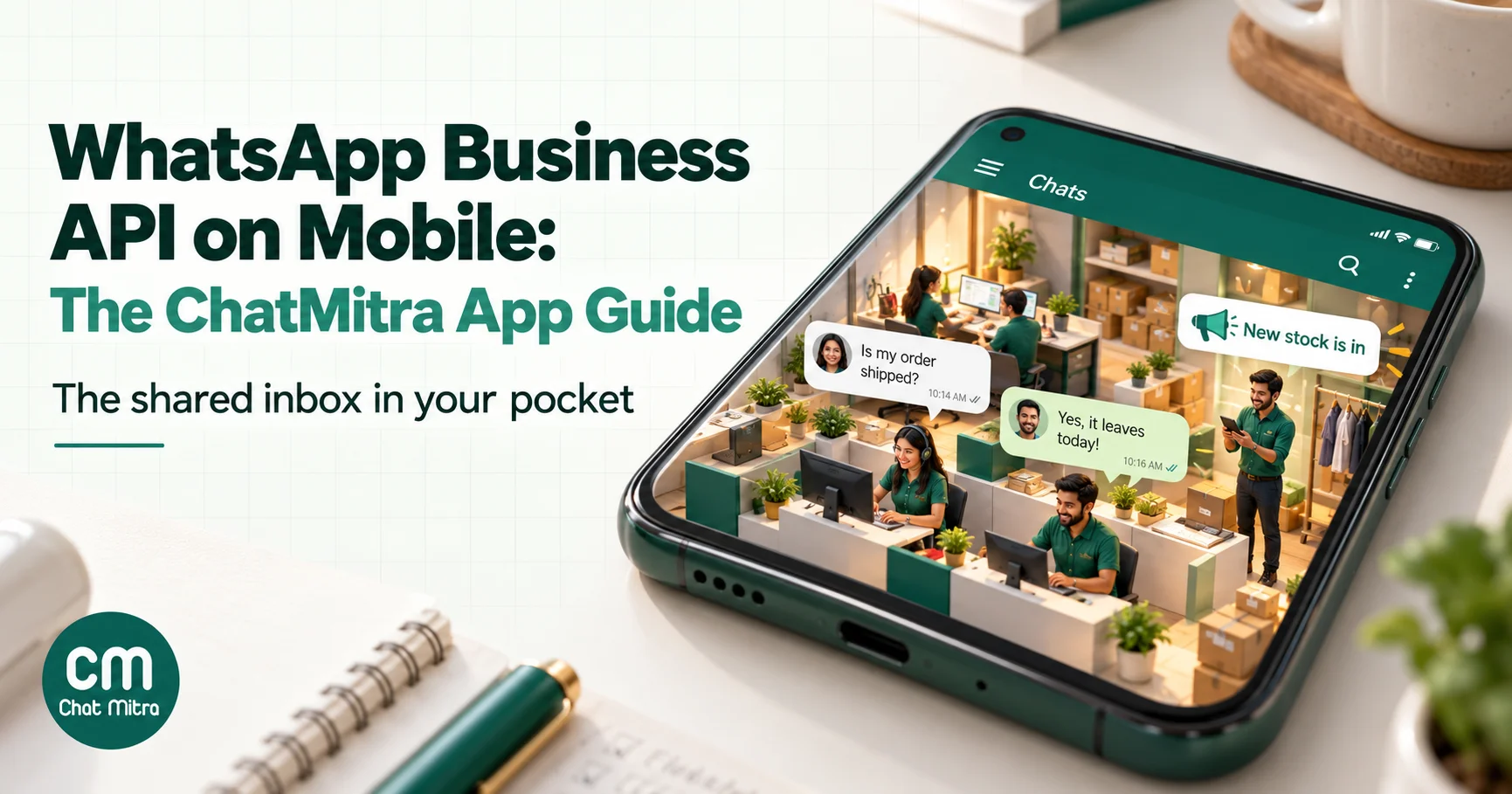
Yes, you can run a WhatsApp Business API number from your phone, but not with WhatsApp’s own app. The API is a connection with no chat screen of its own. You answer customers through your provider’s software, and ChatMitra’s version for phones is a free Android app on Google Play. It covers the shared inbox, templates, broadcasts, contacts and team roles. A few set-up jobs still need the web dashboard.
This guide is for owners, managers and agents who already use ChatMitra, or are thinking about it, and want to know what they can do away from a desk. It covers what the app does and doesn’t do, how to set it up, how the 24-hour window works on a small screen and what it costs. It also covers when to use the web dashboard instead, and how to fix the problems people hit in their first week. Every feature described here was checked against the app’s own code in September 2026, not taken from a feature list.
Key takeaways
- The API has no Meta-made app. You work in a provider's mobile app, a provider's web dashboard or, with coexistence, the WhatsApp Business app for one-to-one chats.
- The ChatMitra app is Android-only for now, in English, Hindi, Gujarati and Marathi.
- Use the phone for replying, templates, broadcasts and contacts. Use the web for connecting numbers, payments, automation rules and integrations.
- An open chat window means you may type freely, not that the reply is free. Meta charges service replies after 1,000 a month per number.
Can you use the WhatsApp Business API on a phone?
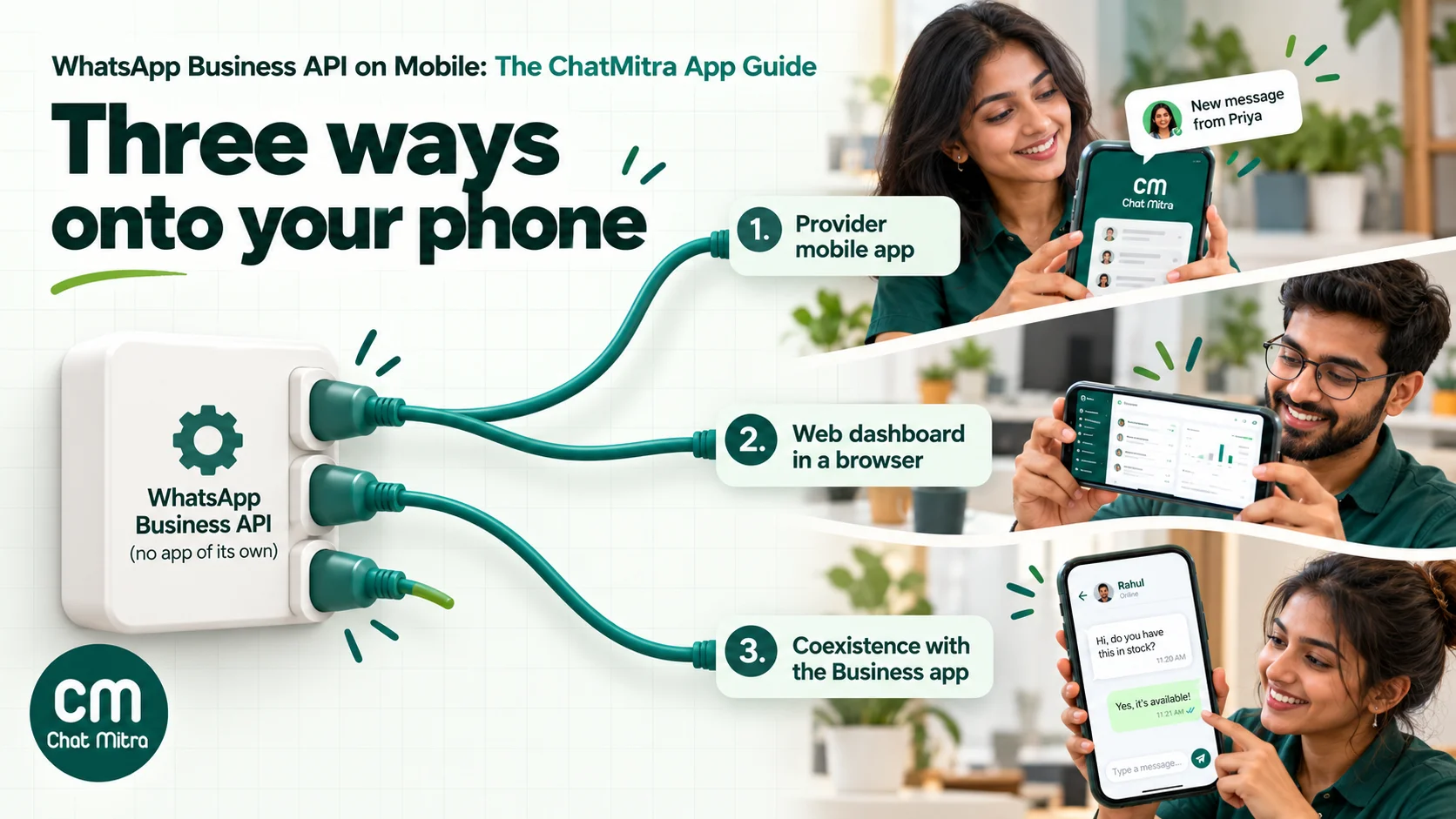
Most people who ask this are coming from the free WhatsApp Business app, where the phone is the whole product. The WhatsApp Business Platform, which most people still call the API, works differently. Meta hosts your number in the cloud and gives your software a way to send and receive messages. It doesn’t give you a screen to read them on. Whatever you see is built by a provider (also called a BSP, a Business Solution Provider): a web dashboard, a mobile app, or both.
So the real question is which route fits the way your team works. There are three.
| Route | What it is | Good for | Watch out for |
|---|---|---|---|
| Provider’s mobile app | A native app from your API provider, signed in with your provider account | Replying on the move, push alerts, quick broadcasts | Features vary by provider. Check what is web-only |
| Provider’s web dashboard in a phone browser | The same dashboard you use on a laptop | Occasional checks when no app exists for your phone | Built for big screens, and no push alerts |
| Coexistence with the WhatsApp Business app | Your existing Business app number connected to the API, so both work | Small teams who want to keep the familiar app for one-to-one chats | Meta switches off some app features and caps speed. Not every provider supports it |
The first route is what the rest of this guide covers. The third is explained in its own section below, because it changes what you’ll see in the inbox.
What the ChatMitra app is, and what it isn’t
The ChatMitra app is the phone version of the ChatMitra dashboard. You sign in with the same account and see the same numbers, chats, contacts, templates and campaigns. Anything you do on one shows up on the other, because both talk to the same backend.
The basics, as of 28 September 2026:
- Platform: Android, on Google Play. The listing shows 500+ downloads and a last update on 12 September 2026. There is no App Store listing yet, so iPhone users should use the web dashboard for now.
- Languages: English, Hindi, Gujarati and Marathi. The app picks your phone’s language on first launch, and you can switch from the login screen or the side menu. That matters when the person answering chats in the shop is more at home in Gujarati than in English.
- Cost: free to download. Your ChatMitra plan and Meta’s message charges apply exactly as they do on the web (more on that below).
- Data: the Play listing’s data-safety section says data is encrypted in transit and that you can ask for it to be deleted.
It isn’t a replacement for everything on the web. Automation rules, the AI chatbot, integrations and some billing tasks live on the dashboard, and the app marks a few of them as “coming soon”. That split is covered in the app vs web table.
What you can do in the ChatMitra app
The app has five main tabs for owners and admins (Home, Chats, Campaigns, Contacts and Hub), plus a side menu. Here is what each one does in practice.
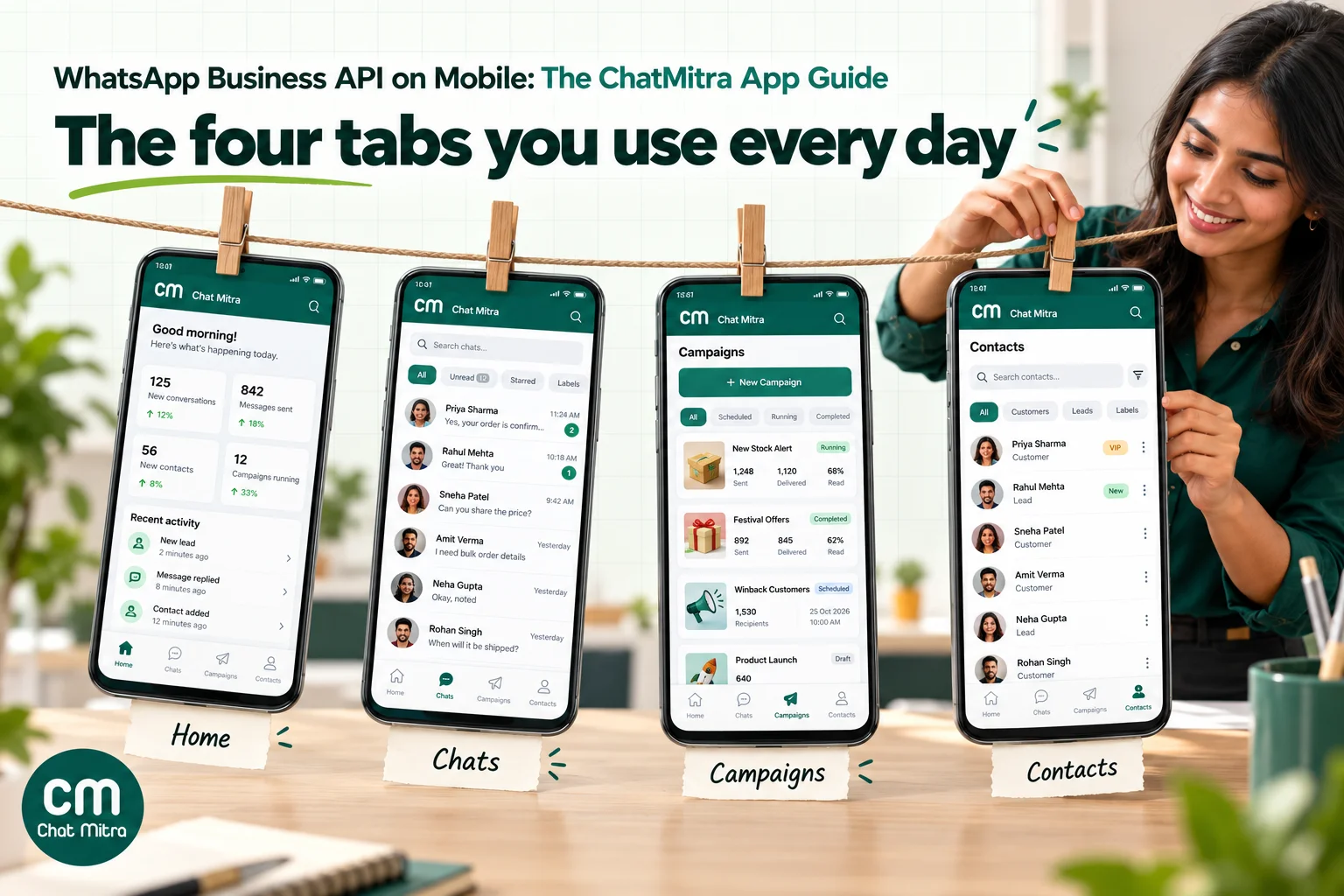
Home: the health of your number at a glance
Home is the screen to open first thing in the morning. It shows:
- whether your API connection is live;
- your number’s quality rating (High, Medium or Low);
- your daily messaging limit, meaning how many people you can start conversations with in a day;
- whether Meta has approved your display name;
- your wallet balance, plan status and renewal or trial end date.
A three-step setup checklist sits underneath until everything is done. The steps are applying for the API, raising your messaging limit and getting your display name approved, and adding a payment method in Meta Business Manager. Each step opens the page where the job is done: the ChatMitra web dashboard for the first, Meta’s WhatsApp account settings for the other two.
Don’t skip the payment step. Meta’s pricing page says that without a payment method on the WhatsApp Business account, it will deliver service replies within the monthly free tier but not after it’s used up.
If your quality rating drops, find out why before your next broadcast. Our guide to WABA health and quality rating explains what moves it.
Chats: the shared inbox in your pocket
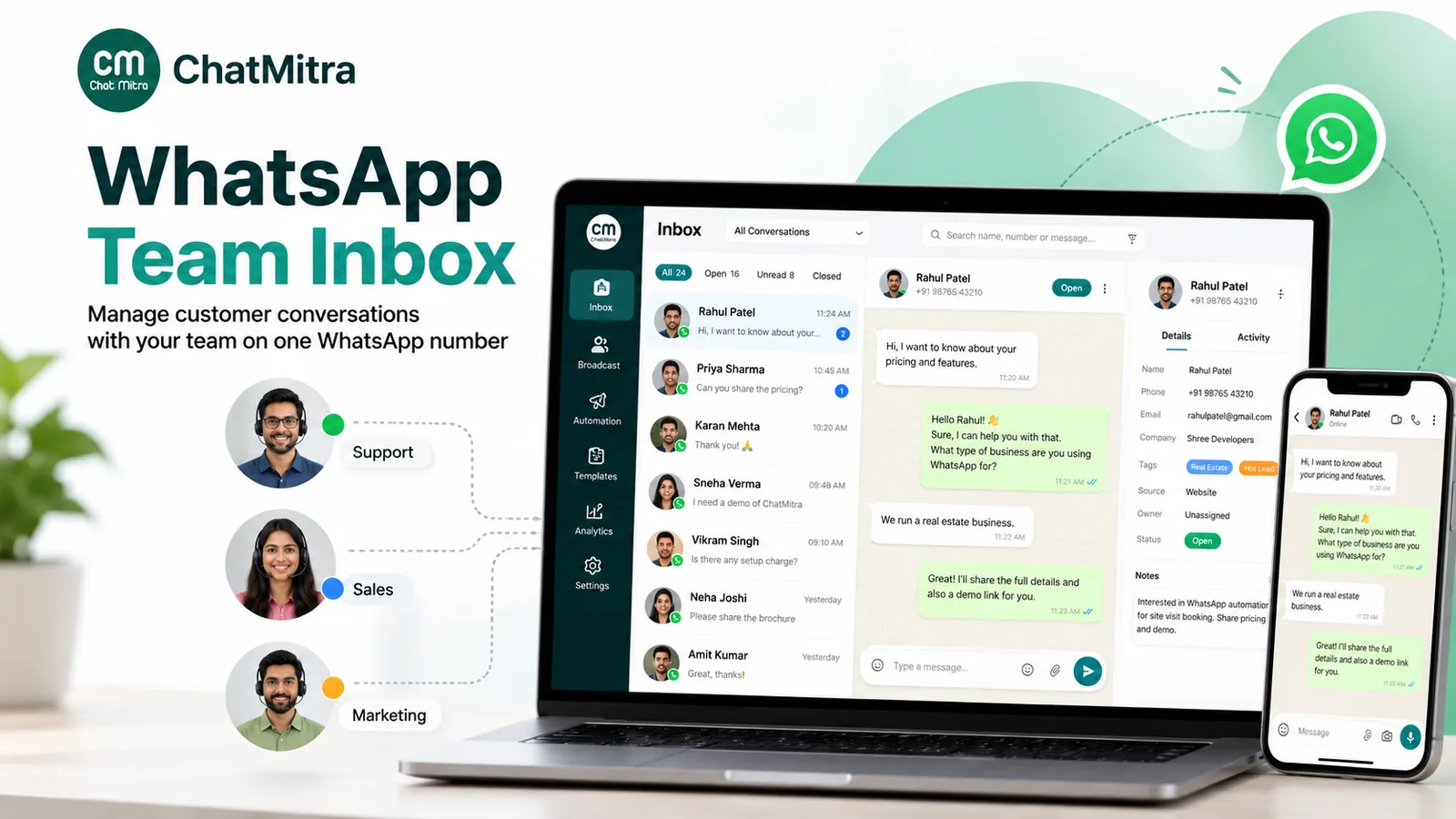
This is where most time goes. The chat list is shared by everyone on the number, and you can filter it to All, Unread or Replied, include or exclude contacts by tag, and search by name or number. Pinning a chat or marking it unread updates live for the whole team, so a pinned “call back after 5” stays visible to everyone.
Inside a chat you can send:
- text, with emoji;
- photos and videos from the gallery, or new ones from the camera;
- documents of any type, such as a quote PDF or a price list;
- your current location;
- a contact card from your phone;
- a voice note, recorded in the app.
You can reply to a specific message so the customer sees what you’re answering, and react to a message with an emoji. Delivery ticks (sent, delivered, read) update as the customer’s phone reports them.
Two shortcuts save the most typing. Type / to pull up your team’s quick replies, the saved answers for questions you get ten times a day. And the template button opens a searchable list of your approved templates, where you fill in the variables, attach the header image, video or document, and complete a dynamic link before sending.
Tap a customer’s name to open their profile. It has one notes field and their tags, plus buttons to call, copy the number or block them. You can also pause auto-replies for that customer for 1 hour, 8 hours, 24 hours or until you resume them, which keeps a bot from butting in while you handle a delicate conversation yourself.
Messages that customers send with buttons or lists display properly, but the app can’t compose interactive messages from scratch. Build those as templates or auto-reply payloads on the web.
Campaigns: broadcasts and their results
You can start a broadcast from the Campaigns tab, from a selection on the Contacts tab, or from the Home screen. The flow is the same:
- Pick an approved template.
- Choose the audience by tags, or pick contacts directly.
- Fill in the variables, using contact fields such as the name where you want personalisation.
- Send now or schedule it.
- Optionally turn on automatic retries, which try failed messages again up to three times.
The report shows sent, delivered, read and failed recipients, with a chart and the full recipient list. From there you can reschedule the failed ones, retarget one group from the report (for example, everyone who read the message, or everyone it failed to reach) with a new template, stop a scheduled campaign, or export the report by email.
Replies aren’t a campaign metric in ChatMitra. They arrive in the shared inbox like any other message, so judge a campaign by what happens in Chats, not only by the read count. For message ideas that stay within Meta’s rules, see our broadcast message examples.
Templates: create and track them without a laptop
The templates screen (in the side menu) lists every template with its status (Approved, Pending or Rejected), and a sync option pulls the latest decisions from Meta. You can also create new ones on the phone:
- Categories: Marketing or Utility. The app has no Authentication category, so OTP templates still need the web builder.
- Header: text, an image, a video or a document.
- Buttons: call and website buttons (including dynamic URLs), quick replies and a copy-code button.
- Language: pick one per template.
An “Explore” gallery of sample templates gives you a starting point. Getting the category right matters more than ever, because Meta charges utility and marketing at very different rates. Our guide to utility templates covers the test Meta applies.
Contacts: your customer list, tidied on the go
Add or edit a contact with name, number, email and tags. Import a CSV from your phone’s files, or export your contacts as a CSV sent to your email. Owners and admins can delete contacts one at a time or in bulk. Agents can’t, which is the right default when phones get passed around.
Tags are managed in one place (Hub, then Tags) and used everywhere: chat filters, campaign audiences and the welcome message. The app doesn’t bulk-import your phone’s address book. That’s deliberate, since contacts need WhatsApp opt-in before you message them. Our opt-in guide explains what counts as permission.
Hub: the settings you’ll actually change from a phone
- Quick replies: create, edit and delete the saved answers the whole team uses.
- Welcome message: set the automatic first reply for new customers, choose which tag they get, and send yourself a test.
- Media library: upload images and documents once, reuse them in chats and templates, and see how much storage you’re using.
- Business profile: edit the description, address, email and website customers see on your WhatsApp profile.
- Team and roles: invite team members, remove them and set what each role can do on each number (owners and admins only).
- Bill and pay: see your plan, recharge history and invoices, and switch to the free plan.
- Projects: switch between WhatsApp numbers if you run more than one, or create a new project.
Notifications
When a customer messages you, a push notification shows their name and the message. Tapping it opens that chat, and switches to the right number if you run several. A separate in-app notification centre keeps account alerts (recharges, plan changes, campaigns and template decisions), with a “mark all read” option.
One behaviour to know about. In the current version, new-message push alerts go to the devices signed in with the account owner’s login. Team members see new chats arrive live while the app is open. So on a shared shift, either the person on duty keeps the app open or the owner forwards urgent chats.
What still needs the web dashboard
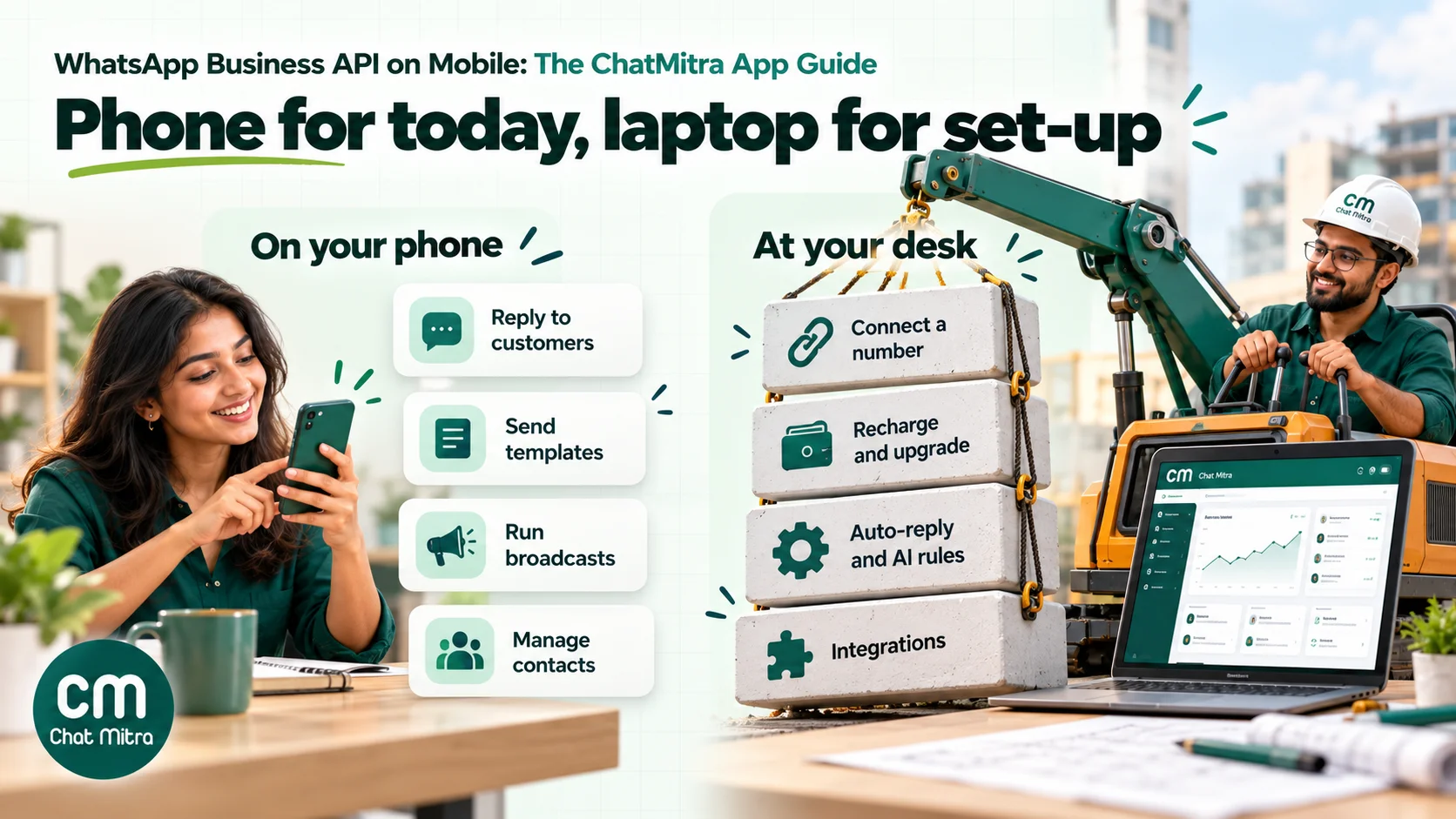
The app is built for daily work, not for set-up. Here is the split as it stands.
| Job | In the app | On the web dashboard |
|---|---|---|
| Reply to customers, send media and voice notes | Yes | Yes |
| Send an approved template in a chat | Yes | Yes |
| Create Marketing or Utility templates | Yes | Yes |
| Create broadcasts, schedule them, read reports, retarget | Yes | Yes |
| Contacts, tags, CSV import and export | Yes | Yes |
| Quick replies, welcome message, business profile | Yes | Yes |
| Invite team members and set permissions | Yes (owners and admins) | Yes |
| Connect a WhatsApp number to Meta | No. The app says this is done on the web for now | Yes |
| Recharge the wallet or buy a paid plan | Opens the website | Yes |
| Keyword auto-reply rules and the AI chatbot | No (“coming soon”) | Yes, on plans that include them |
| Google Sheets automation, Shopify and other integrations | No (“coming soon”) | Yes |
| API keys and webhooks for developers | No | Yes, on plans that include them |
| Edit a contact’s custom fields | No (used only for personalising campaigns) | Yes |
A useful rule of thumb: if the job changes how the system behaves for everyone (a rule, an integration, a connection, a payment), do it at a desk. If it’s about a customer or a campaign today, the phone is enough.
How to set up the ChatMitra app
The whole process takes a few minutes if your number is already connected. If you’re starting from zero, expect to finish the Meta side on a laptop.
- Install the app. Search “ChatMitra” on Google Play, or use the Play Store listing directly. Check the developer is “CHAT MITRA” before installing.
- Choose your language. English, Hindi, Gujarati or Marathi, from the language button on the login screen.
- Sign in, or sign up. Existing users sign in with their ChatMitra email and password. New users can create an account in the app: name, email, WhatsApp number, company, industry, website, time zone, country and state. The app verifies your WhatsApp number with a one-time code before creating the account. Forgot your password? Use the link on the login screen, and it’s handled by email.
- Allow notifications. Android will ask. Say yes, or you’ll miss new chats.
- Pick your number (project). If you manage more than one WhatsApp number, pick the one to work on. You can switch later from the Home screen.
- Finish the checklist. If Home shows unfinished setup steps, work through them. Connecting the number itself happens on the web dashboard. Our guide on how to get the WhatsApp API walks through the Meta side.
- Set up your quick replies and welcome message. Ten good quick replies will save your team more time than any other setting.
- Invite your team. From Hub, then Team, invite colleagues and give each role only the sections it needs. Details are in our guide to team and user management.
If someone leaves, remove them from the team and, if they used a personal phone, use log out from all devices on your own account when you change your password.
The 24-hour window on a small screen
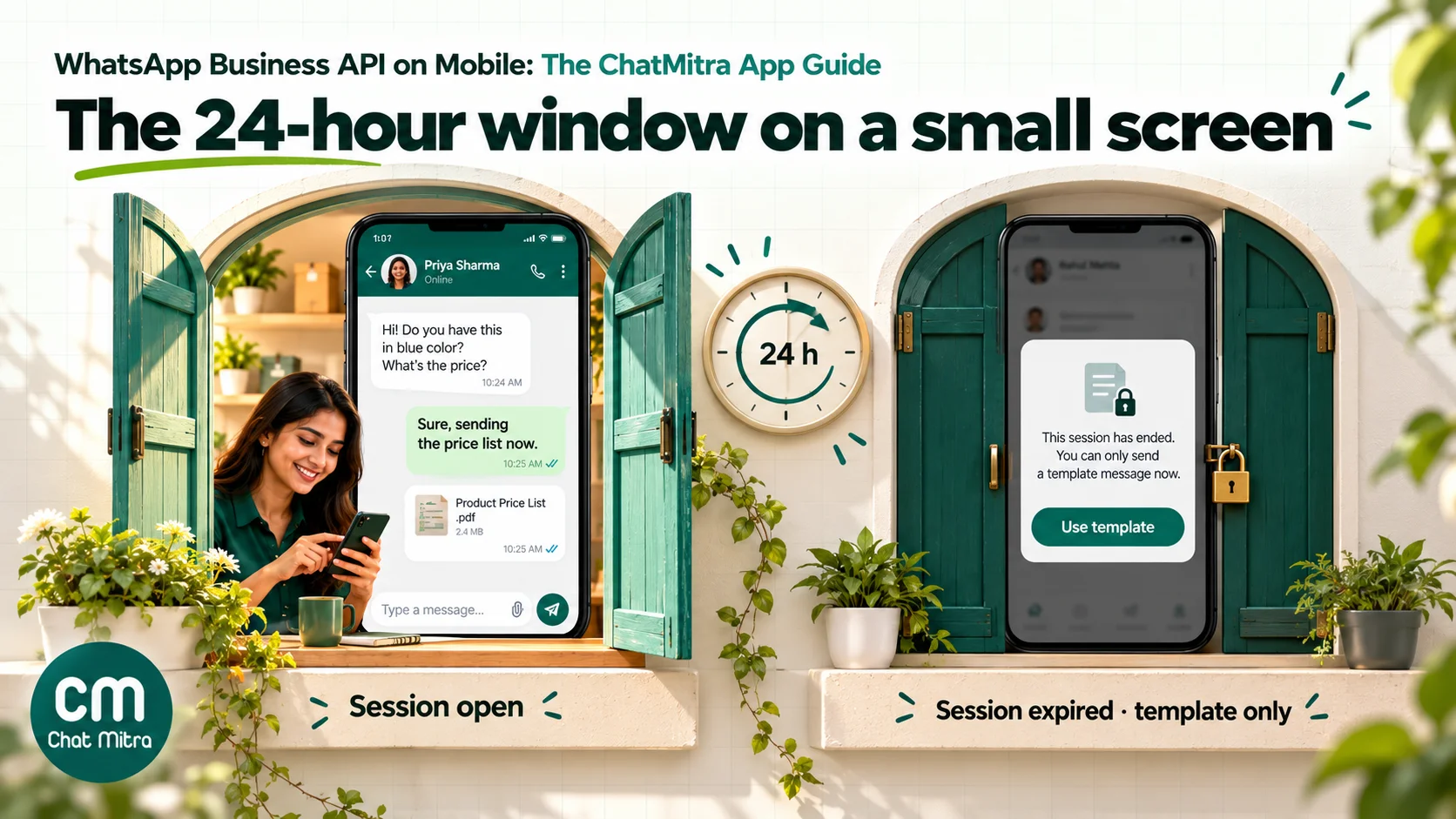
WhatsApp’s most important rule is easy to miss on a phone. When a customer messages you, a 24-hour customer service window opens. Meta says it “opens and resets with each user message”. Inside it you can type any reply. Outside it you can only send an approved template.
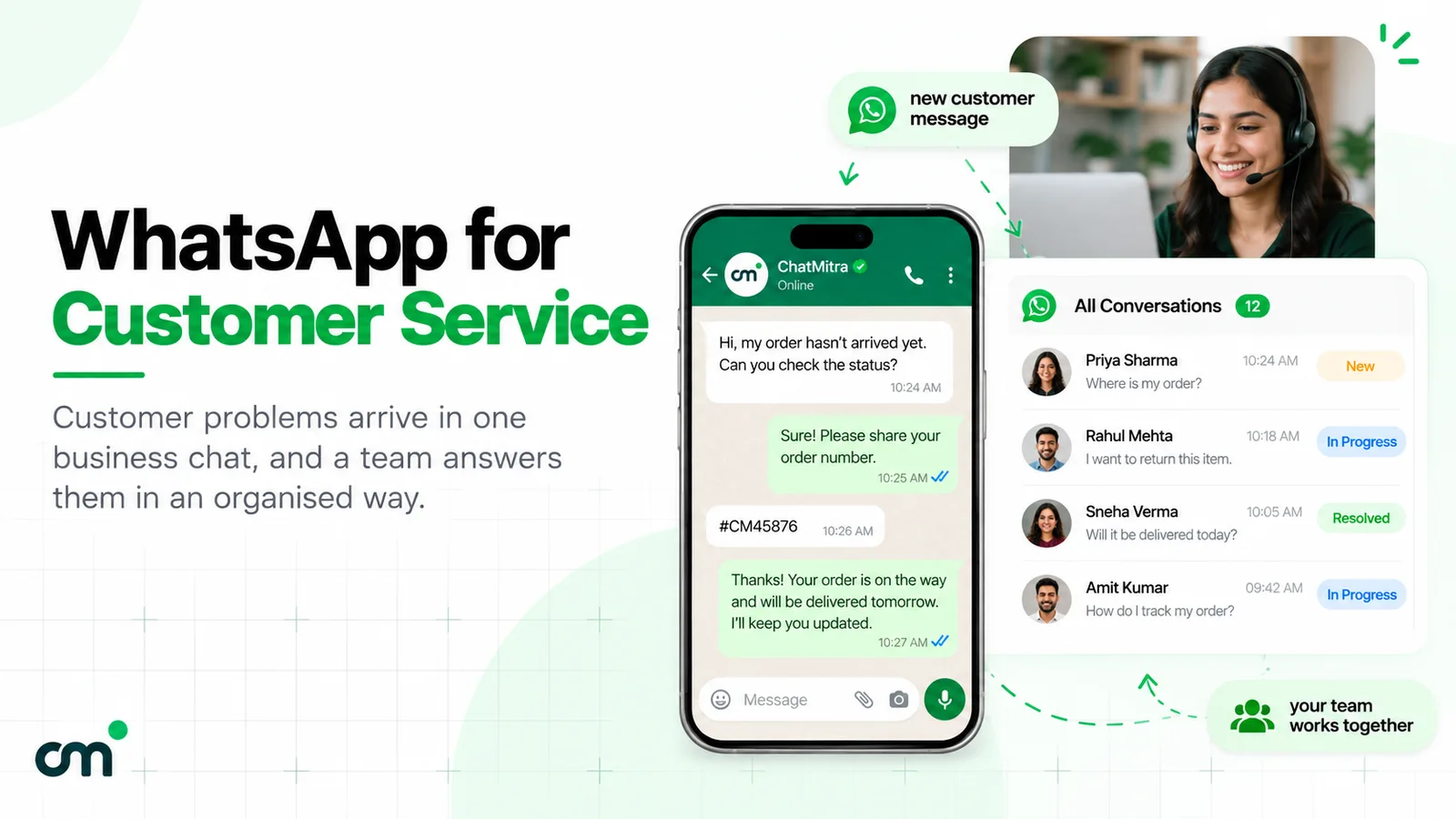
The ChatMitra app shows this as a bar at the top of each chat. When the window is open, you type as normal. When it has closed, the text box locks and a Use template button appears. Pick a template (a follow-up, a reminder or an order update) and send it. When the customer replies, the window opens again.
What trips people up is cost. “You may type” doesn’t mean “it’s free”. Since 1 October 2026 Meta charges for service messages (your free-form replies) after a free tier of 1,000 delivered service messages per business phone number per month. Unused ones don’t roll over. After the free tier, each reply is charged at the market’s utility rate, ₹0.1150 in India. Meta now also charges for utility templates sent inside an open window. The one exception is the 72-hour free entry point window: when a customer messages you from a Click-to-WhatsApp ad or a Facebook Page call-to-action button, your messages in that window stay free.
In practice this changes phone habits a little. The quick “ok 👍” followed by “thanks!” in a separate bubble is now two service messages. On a busy number, one complete reply beats three fragments.
What it costs to run WhatsApp from your phone
The app itself costs nothing. What you pay is the same as on the web.
| Cost | Who charges it | Amount (India, as of 1 October 2026) |
|---|---|---|
| App download | — | Free |
| ChatMitra plan | ChatMitra | Starter free; Pro ₹999 a month; Enterprise ₹2,499 a month |
| Platform fee | ChatMitra | ₹0.20 per conversation on Starter and Pro |
| Marketing template | Meta, at cost | ₹0.8631 per delivered message |
| Utility template | Meta, at cost | ₹0.1150 per delivered message, inside or outside the window |
| Service reply (free-form) | Meta, at cost | First 1,000 a month per number free, then ₹0.1150 each |
For a fuller breakdown with worked examples, see WhatsApp Business cost per message or the pricing page.
Three ways teams actually use it
Feature lists only go so far. These three set-ups show where a phone app earns its place, and where it doesn’t.
The owner who’s never at the desk. A furniture showroom owner spends most of the day on the shop floor and at the warehouse. Before opening she checks Home: API live, quality High, wallet topped up. At lunch she approves a new utility template her manager drafted and schedules Saturday’s broadcast to the “visited-showroom” tag. Replies come in while she’s with a customer, and push alerts let her pick the two that need her personally. Her staff handle the rest on the web dashboard at the front desk.
The field sales rep. A distributor’s rep visits 15 retailers a day. Between visits he sends a price-list PDF from the media library, a voice note explaining a scheme, and his location when a shopkeeper asks where he is. When a retailer hasn’t written for three days, the chat is locked, so he sends the approved “new stock arrived” template to reopen it. His role can see Chats and Contacts but not Campaigns or billing.
The after-hours cover. A clinic’s front desk closes at 7 pm, but patients still message. One team member keeps the app open for the evening, answers appointment questions with quick replies, and pauses the auto-reply for a patient who is upset, so the bot doesn’t send a cheerful menu at the wrong moment. Anything clinical waits for morning. The team agreed this rule in advance because ChatMitra doesn’t assign chats to named agents.
The pattern in all three: the phone handles people and timing. The set-up (templates, tags, rules) was done once, properly, somewhere with a keyboard.
ChatMitra app vs the WhatsApp Business app
People switching from the free app often expect the same thing with more features. They are different tools.
| WhatsApp Business app | ChatMitra app (WhatsApp Business Platform) | |
|---|---|---|
| What it runs on | Your phone number registered in the app | Your number registered on Meta’s Cloud API, managed through ChatMitra |
| People and devices | One phone plus up to four linked devices. Meta’s multi-agent feature (some Meta Verified plans) allows up to 10 | Each team member signs in with their own login. No device-count limit in ChatMitra’s code |
| Permissions | Everyone on a linked device sees everything | Per-role, per-number permissions set by the owner or admin |
| Messaging people who haven’t written first | Broadcast lists to people who saved your number, plus paid business broadcasts in some countries | Approved templates to opted-in contacts, at Meta’s per-message rates |
| Broadcast reporting | Basic | Sent, delivered, read and failed per recipient, retries and retargeting |
| Automation | Greeting, away and quick replies | Welcome message, quick replies and pausing bots per chat in the app. Auto-reply rules, the AI chatbot and integrations on the web |
| Cost | Free app. Some extras are paid | Plan plus Meta’s per-message charges |
| Groups, status, calls | Yes | No |
If one person answers every chat and you rarely message first, the free app may still be enough. Our guide to WhatsApp Business Web explains how far linked devices can stretch. Once several people share a number, or you send templates to hundreds of customers, the Platform route pays for itself in time saved.
Using the app with a coexistence number
Coexistence is Meta’s name for connecting a number that already runs on the WhatsApp Business app to the Cloud API, without moving it off the app. ChatMitra supports it. It’s useful if the owner wants to keep the familiar app while staff use the shared inbox. Meta’s documentation spells out the trade-offs:
- The business “can still send messages on a one-to-one basis using the WhatsApp Business app, and WhatsApp keeps messaging history between both apps in sync.” Messages you send from the phone’s WhatsApp Business app also appear in the ChatMitra inbox.
- Disappearing messages, view-once and live location are turned off for one-to-one chats in the app.
- Broadcast lists are disabled. Existing lists become read-only, and new ones can’t be created.
- Group chats aren’t supported through the API and don’t sync.
- The number has a fixed throughput of 20 messages per second, which slows very large broadcasts.
- Companion devices keep working, except WhatsApp for Windows and WhatsApp for Wear OS.
Two practical tips. First, decide which app handles which chats: two people answering the same customer from different apps is confusing for everyone. Second, on Starter and Pro, a conversation answered from the phone app still counts towards ChatMitra’s ₹0.20 per-conversation fee. The full details are in our coexistence guide.
Security on shared and personal phones
A business inbox on a phone that also holds family photos needs a few ground rules.
- Give each person their own login. Shared passwords make it impossible to remove one person without disrupting everyone.
- Set permissions per role and per number. An agent who only answers chats doesn’t need Campaigns, Templates or Settings. Agents can never see billing, and only owners and admins can delete contacts.
- Lock the phone. The app has no PIN of its own, so the phone’s screen lock is the barrier. Consider hiding notification content on the lock screen too, because push alerts show the customer’s message.
- When someone leaves, remove them from the team the same day. If you ever shared your own login, change your password and use “log out from all devices”.
- If a phone is lost or stolen, act from a laptop straight away. An owner or admin removes that person’s access from the team settings. If it was the owner’s own phone, change the password and use “log out from all devices”, then sign in again on the replacement phone. Your chats, contacts and campaigns live on ChatMitra’s servers, not on the handset, so nothing needs restoring once you’re back in.
- Don’t forward customer data to personal chats. Copying numbers into a personal WhatsApp to “follow up later” breaks the record your team relies on, and may breach your privacy commitments to customers.
Troubleshooting common problems
| Problem | Likely cause | What to do |
|---|---|---|
| No push notifications | Notifications blocked in Android, battery saver killing the app, or you’re signed in as a team member (alerts go to the owner’s login) | Allow notifications for ChatMitra, exclude it from battery optimisation, and keep the app open during your shift |
| Text box is locked | The 24-hour window has closed | Tap Use template and send an approved template |
| A template is missing from the picker | It’s still Pending, was Rejected, or hasn’t synced | Check its status on the Templates screen and use the sync option |
| ”Connecting a WhatsApp number is done on the web admin” | Number connection isn’t in the app yet | Sign in at app.chatmitra.com on a laptop |
| Recharge opens a browser | Paid recharges and upgrades are handled on the website | Complete payment there. The balance updates in the app |
| Offline banner at the top | No or weak connection | Recently loaded chats, contacts and campaigns stay readable. Tap retry when you’re back online |
| Broadcast shows many “failed” | Numbers not on WhatsApp, customers who stopped marketing messages, or your messaging limit | Open the Failed tab, clean the list, and reschedule only the numbers that should work |
| Can’t delete a contact | Your role is agent | Ask an owner or admin |
Mistakes to avoid
- Treating the app as the set-up tool. Build templates, tags and rules properly at a desk once. The phone is for using them.
- Sending replies in fragments. Since 1 October 2026, each service message beyond the first 1,000 free each month costs money. One clear reply beats three quick ones.
- Leaving the Meta payment method for later. Without one, service replies stop once the 1,000 free service messages for the month are used up.
- Everyone answering everything. With no chat assignment, agree an owner for each type of chat (sales, support, orders) and use tags and pins to make it visible.
- Broadcasting from the phone without checking the category. A promotional line in a “utility” template can get it reclassified as marketing, which costs about 7.5 times more in India.
- Forgetting iPhone users on the team. Until there’s an App Store version, plan for them to use the web dashboard.
Getting started
If your number is already on ChatMitra, install the app, sign in, allow notifications and set up ten quick replies. That alone changes how fast customers hear back. If you’re still on the WhatsApp Business app, read how to get the WhatsApp API first, and decide whether coexistence suits you. And if your team is growing past one phone, our guide to WhatsApp CRM software explains what a shared inbox should do for you.
Sources: Meta for Developers: Pricing updates on the WhatsApp Business Platform, Pricing changes for non-template messages, Onboarding WhatsApp Business app users (coexistence). WhatsApp Help Center: About linked devices on the WhatsApp Business app, About multi-agent. Google Play: ChatMitra listing (checked 28 September 2026). ChatMitra app features were checked against the app's source code in September 2026.