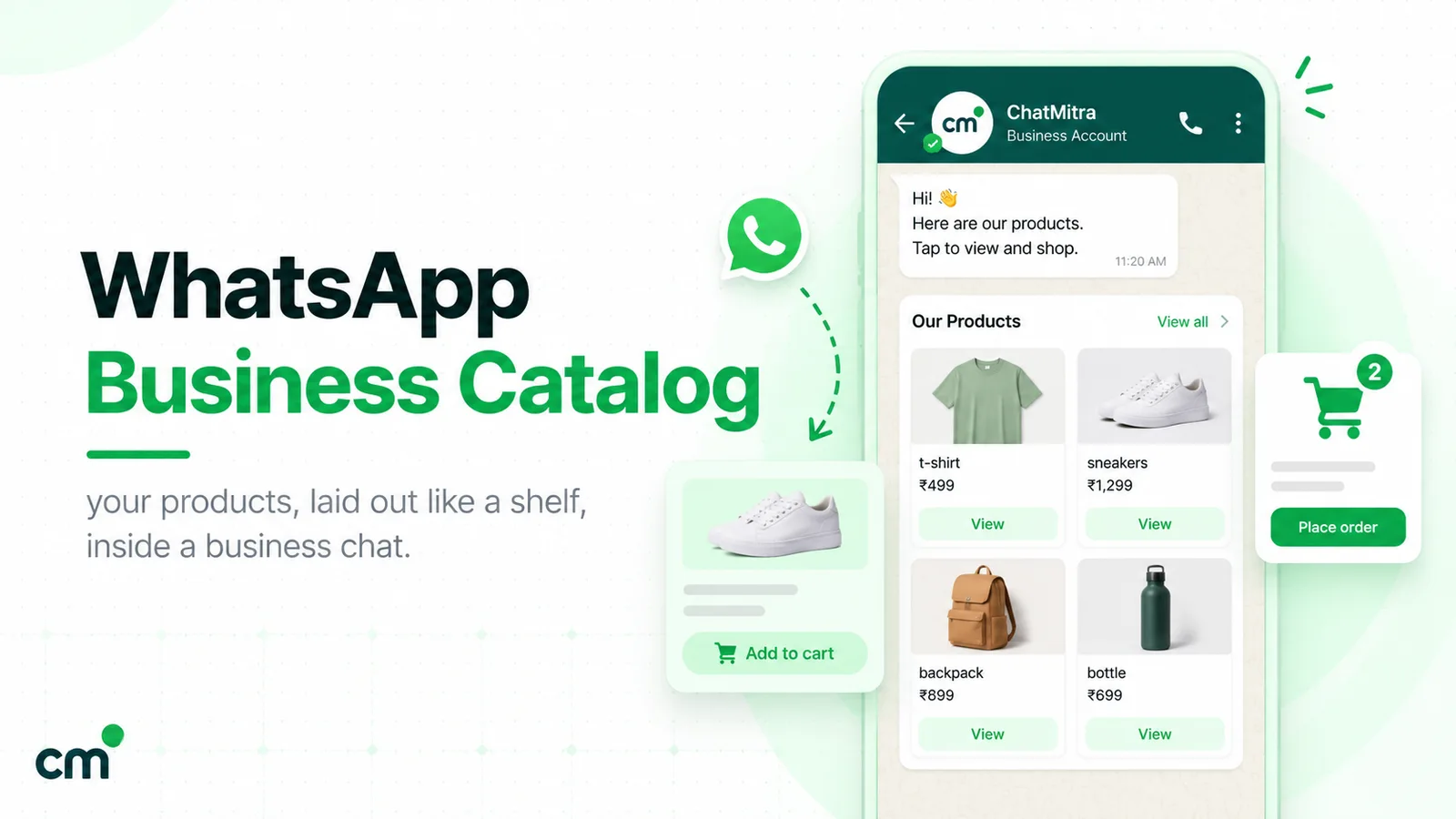
A WhatsApp Business catalog is a list of your products or services, with photos, prices and descriptions, that sits on your business profile. You build it in the WhatsApp Business app (up to 500 items) or in Meta Commerce Manager for the API. Customers browse it, add items to a cart and send you the order in chat.
This guide covers setup on Android and iPhone, collections, sharing, carts and the catalog’s limits, then what changes on the WhatsApp Business Platform: message formats, limits and what each costs in India since 1 October 2026.
Key takeaways
- Every item needs a unique name, one photo and a country of origin. Everything else is optional but helps customers decide.
- Collections are easy to skip and worth doing. Group items the way customers ask for them, not the way your stockroom is arranged.
- On the API, send product messages as replies inside an open chat when you can. Business-started catalog templates are billed as marketing.
What is a WhatsApp Business catalog?
WhatsApp’s Help Center describes it plainly: businesses on the WhatsApp Business app “can create a catalog to share their products and services with customers”, and “a business’s catalog is displayed on its business profile” (WhatsApp Help Center, about catalog). Some people spell it catalogue; it is the same feature.
Customers find it in three places:
- Your business profile. Tap the business name and the catalog preview appears.
- The shopping button in the chat. WhatsApp’s cart article says the shopping button next to your business name “appears in your chat or business profile” (WhatsApp Help Center, about cart).
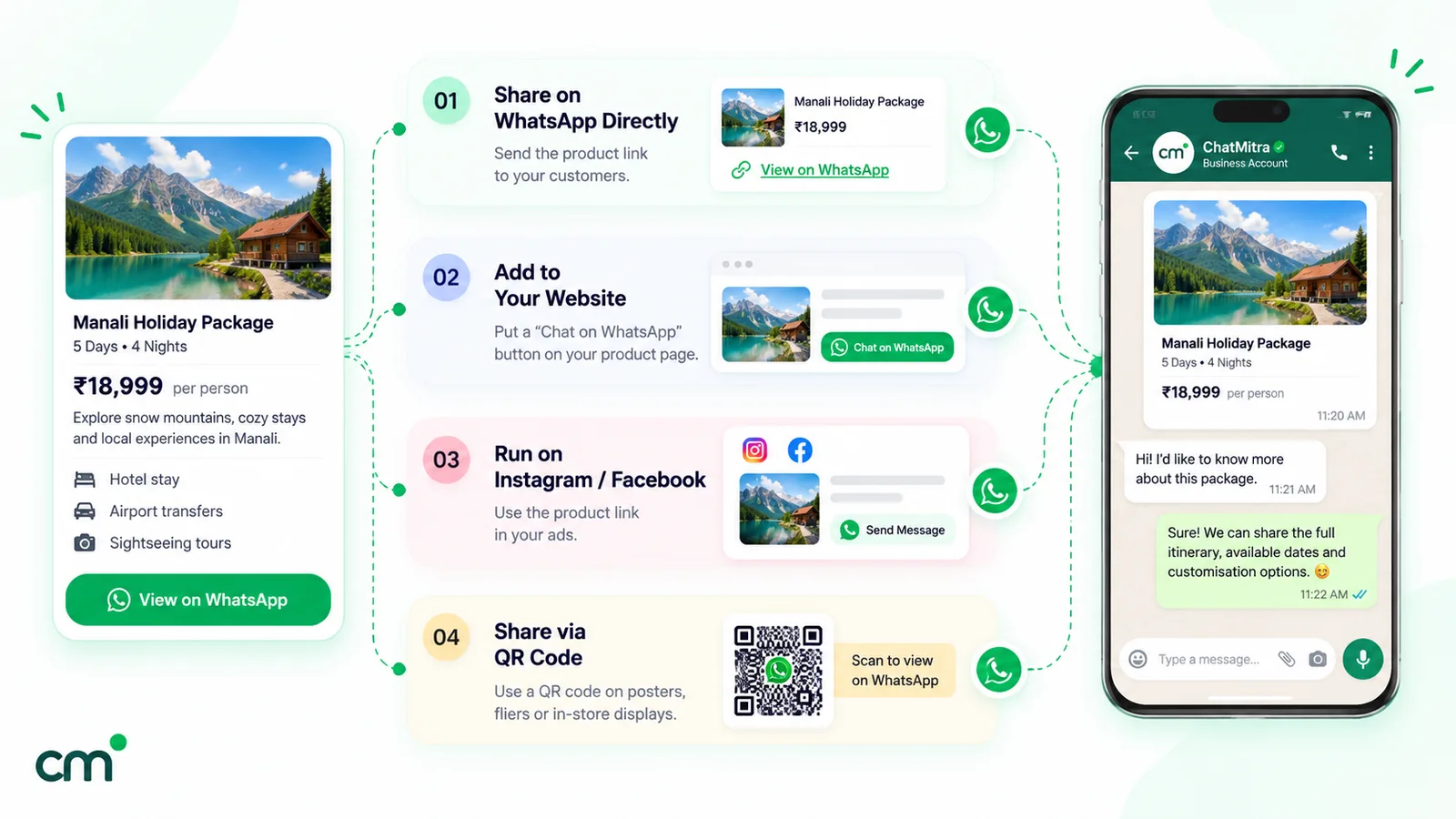
- A link you share. A link to the whole catalog, a collection or one item, sent in a chat, posted on your Status or pasted anywhere else.
WhatsApp’s business resources say you can “upload up to 500 items” to the app’s catalog (WhatsApp Business resources). That suits a boutique, a bakery or a salon’s service menu. A brand with thousands of SKUs usually builds its catalog in Meta Commerce Manager and uses it through the WhatsApp Business Platform, covered below.
What a catalog item can hold
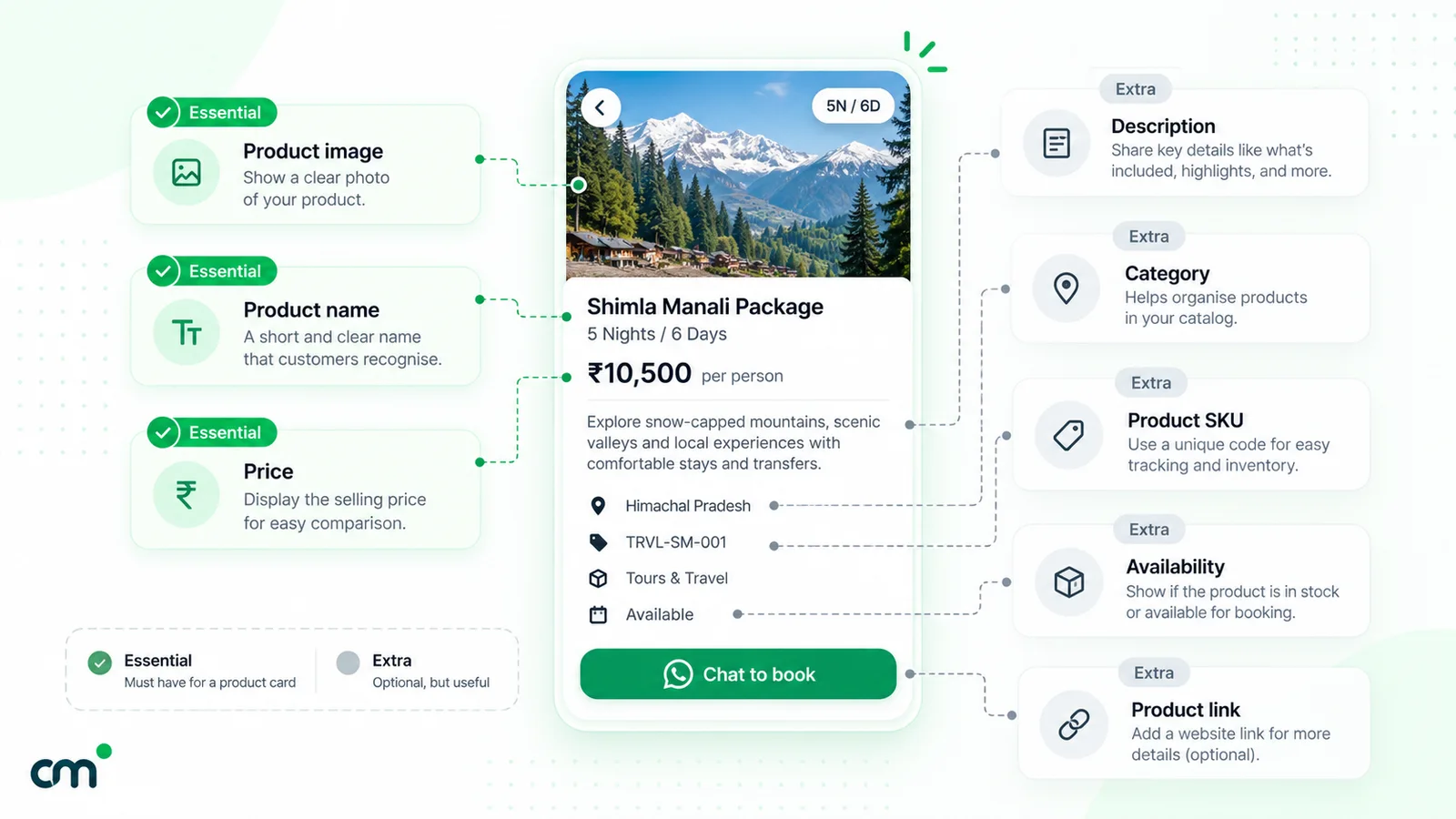
| Field | Required? | Notes |
|---|---|---|
| Unique name (title) | Yes | Name it the way customers search: "Cotton kurta, block print, blue" beats "Style 114". |
| At least one image | Yes | Up to 10 images or videos per item; videos up to 50 MB. |
| Country of origin | Yes | Selected every time you add or edit an item. |
| Price and sale price | Optional | WhatsApp notes that adding prices "is only available in certain countries". |
| Description | Optional | Size, material, what's included, delivery area. |
| Website link | Optional | Useful when the full checkout lives on your site. |
| Product or service code | Optional | Your SKU, so an order message maps to your stock sheet. |
The required fields come from the same About catalog page. The media limits come from WhatsApp’s create and maintain a catalog page. Services count too: a clinic can list consultations and a tutor can list course batches.
How to create a catalog in the WhatsApp Business app
The steps are nearly identical on Android and iPhone. WhatsApp’s instructions start from the Tools tab (Android, iPhone):
- Open the Tools tab and tap Catalog.
- Tap Add new item, then Add photos and videos. Pick from your gallery or take new photos.
- Enter the product or service name.
- Tap Country of origin, select the country and save.
- Add the optional details: price, sale price, description, website link, product or service code.
- Tap Save.
The item is not live yet. WhatsApp says every image and video “is subject to a review” against the WhatsApp Business Messaging Policy, and items “will only be visible to your customers after they have been approved by WhatsApp”. A rejected item shows a red exclamation icon. To appeal, tap the item, choose Request another review, give your reason and tap Continue.
Extra fields for sellers in India
Before the first item, Indian businesses see a business-details form. WhatsApp’s page on selling online in India lists what it asks for (WhatsApp Help Center, laws for selling online in India):
- legal name of the business and business type (sole proprietorship, partnership, LLP, private or public company, other)
- business address, matching the one on your profile
- customer care contact: an email address and at least one landline or mobile number
- grievance officer: a name and at least one contact method
For each product, if the country of origin is not India you also add the importer’s name and address. For services, select Not applicable. Keep these details ready before you start, so the setup doesn’t stop halfway through.
Hiding, editing and deleting items
Out of stock for a week? Hide the item instead of deleting it. On Android, open the item, tap the menu and Hide (press and hold to hide several). On iPhone, tap Edit and turn on Hide this item. Hidden items stay in your catalog manager. WhatsApp’s Android page notes that hiding “might not be available to you yet”. To delete, long-press (Android) or swipe left (iPhone), then tap Delete.
What image size should catalog photos be?
WhatsApp’s Help Center does not publish a pixel size for Business app catalog photos, only the count (up to 10) and the 50 MB video limit. Meta’s Commerce Manager rules are more specific: images “must be in JPEG or PNG format and 8 MB maximum”, and for Shops on Facebook and Instagram they “must be at least 500 x 500 pixels, but 1024 x 1024 pixels is recommended” (Meta, product image specifications). A square 1024 × 1024 photo on a plain background meets Meta’s spec and is a sensible choice for the app too. Meta’s page also advises against text over the product, watermarks and promo codes in the image.
How to organise items into collections
A catalog of 80 items scrolled top to bottom is a chore. Collections split it into groups a customer can open directly. WhatsApp’s steps (WhatsApp Help Center, collections):
- Go to Tools > Catalog.
- Open the menu, tap Collections, then the add icon.
- Name the collection and tap Next.
- Select the items to include and tap Done.
Collections are reviewed against the WhatsApp Commerce Policy. WhatsApp says the review “should take no more than 24 hours”. You can reorder collections, add or remove items, rename or delete them from the same menu.
Group items the way customers ask for them:
- By occasion: “Diwali gifting”, “Wedding guest”, “Back to school”.
- By price band: “Under ₹999”, “₹1,000–₹2,500”. Useful when prices can be shown.
- New and returning: “This week’s arrivals” for regulars, “Best sellers” for first-timers.
When someone asks “anything for a housewarming?”, one collection link answers in a single tap.
How to share your catalog, a collection or one item
There are two routes: from inside a chat, and from the catalog manager (WhatsApp Help Center, sharing products).
From a chat. Open the chat, tap the attach icon, then Catalog. Tap Send catalog to share the whole thing, or tap one or more items to send just those.
From the catalog manager. Open Business tools > Catalog, then share the whole catalog or open a single item and tap Share link. You get four options:
| Option | What it does | Best for |
|---|---|---|
| Send link via WhatsApp Business | Forwards the link to chats or groups | Answering "what do you have?" in several chats at once |
| Share to my status | Posts the link on your Status | New arrivals for people who watch your Status |
| Copy link | Copies the link to paste anywhere | Instagram bio, Google Business Profile, email signature |
| Share link | Opens your phone's share sheet | Email, SMS and other apps |
Three details from WhatsApp’s page on catalog links (WhatsApp Help Center, sharing catalog links). A shared link “will directly open the item or catalog” in WhatsApp; opened from email or a browser, it offers a choice of how to open it. The auto-generated link “can’t be customized, and may break if you attempt to change it”. And links “might not open if the recipient is using a version older than Android 6.0”.
For turning those shares into paid orders (first reply, quotes, follow-up), see our guide to WhatsApp for sales.
How customers order: the WhatsApp cart
With the cart on, a customer taps the shopping button, adds items, changes quantities and, when ready, sends the cart “to your business account as a WhatsApp message” (WhatsApp Help Center, about cart). You see what they want, in one message, instead of five screenshots.
To switch it on or off, go to Tools > Catalog, open the menu, tap Settings and toggle Show add to cart button. WhatsApp warns that a change “may take up to 24 hours” to take effect, and you may still receive carts during that time (WhatsApp Help Center, using cart). Both you and the customer need the latest version of WhatsApp.
A cart starts the order; it doesn’t finish it. Reply the way a shop assistant would: repeat the items and total, add the delivery charge, ask for the pin code and agree on payment.
What the WhatsApp catalog can’t do
- It doesn’t take payments. The cart is a message listing items. Payment happens somewhere else (see the India section below).
- It doesn’t track stock. Nothing links an item to your inventory. You hide or edit items by hand.
- Prices aren’t available everywhere. WhatsApp says adding prices is “only available in certain countries”.
- It isn’t an invoice. WhatsApp’s page on order details says that feature “is not a substitute for invoices, cash memo, bill, receipt, etc.” that businesses must issue under law (WhatsApp Help Center, order details).
- It doesn’t send itself. In the app, every share is a manual action by someone holding the phone.
- Facebook and Instagram Shops no longer show in the app. WhatsApp says businesses “are no longer able to display their Shops storefront on the WhatsApp Business app” and that the catalog is now the default commerce tool (WhatsApp Help Center, Shops integration). You can still connect an existing Meta catalog to the app.
Payments in chat, and the India picture
Meta’s developer documentation covers in-chat payments for two markets, India and Brazil. For India, the Payments API “enables you to accept payments from your customers through all UPI apps installed on their devices and other payment methods such as cards, NetBanking, and wallets”, using an order details message (Meta, Payments API — India). It runs on the WhatsApp Business Platform, not the Business app, in one of two modes:
- UPI Intent mode works “with any payment gateway that supports UPI Intent generation”; for cards, NetBanking and wallets, Meta’s alternative is to send payment links.
- Payment gateway deep integration is “currently supported for Razorpay, PayU, Billdesk, and Zaakpay only”, and adds payment status and refunds through WhatsApp’s APIs.
On the customer’s side, WhatsApp’s help page describes the flow: tap Pay with UPI > Review and pay, confirm, and enter the UPI PIN (WhatsApp Help Center, paying merchants).
Without the Payments API, the options are simpler: reply to a cart with your UPI ID or a payment link from your gateway, or accept cash on delivery and confirm the order in chat before dispatch. If you take COD, a short confirmation message before packing (“Reply YES to confirm your order of 2 items, ₹1,480, cash on delivery”) gives the customer an easy way to back out before the parcel leaves.
What changes on the WhatsApp Business Platform (API)
In the Business app, every share is a manual tap on a phone. When catalog enquiries come in faster than a team can tap “send catalog”, businesses move to the WhatsApp Business Platform (Cloud API), usually through a provider. Our guide on how to get the WhatsApp Business API covers that step.
On the Platform, the catalog is built differently:
- Where it lives. You “upload your product data to Meta through the Commerce API or the Meta Commerce Manager” (Meta, catalogs overview). A catalog already used for Facebook or Instagram can be connected instead.
- One catalog per account. Meta says “you can only upload one catalog per WhatsApp account hierarchy”, and “the same catalog serves every phone number in that hierarchy” (Meta, upload inventory).
- Storefront off by default. Per phone number, “the shopping cart is enabled and the storefront icon is hidden” by default. Both are switched through Meta’s commerce settings API. While the catalog is disabled, catalog links and the View catalog button show an “Invalid catalog link” warning, so turn catalog visibility on before you share links (Meta, set commerce settings).
- Catalog link. A link to the whole catalog is
https://wa.me/c/followed by your number with country code (Meta, catalog link messages). - Carts. Customers can add “up to 99 units of each single catalog item”, a sent cart can’t be edited, and “you cannot send carts to customers”. Meta also notes that messages sent through the Cloud API “do not display a shopping cart icon in the chat thread header” (catalogs overview).
- Live product data. Edit a product and messages showing it update; mark it unavailable and it drops out of carts.
The product message formats, compared
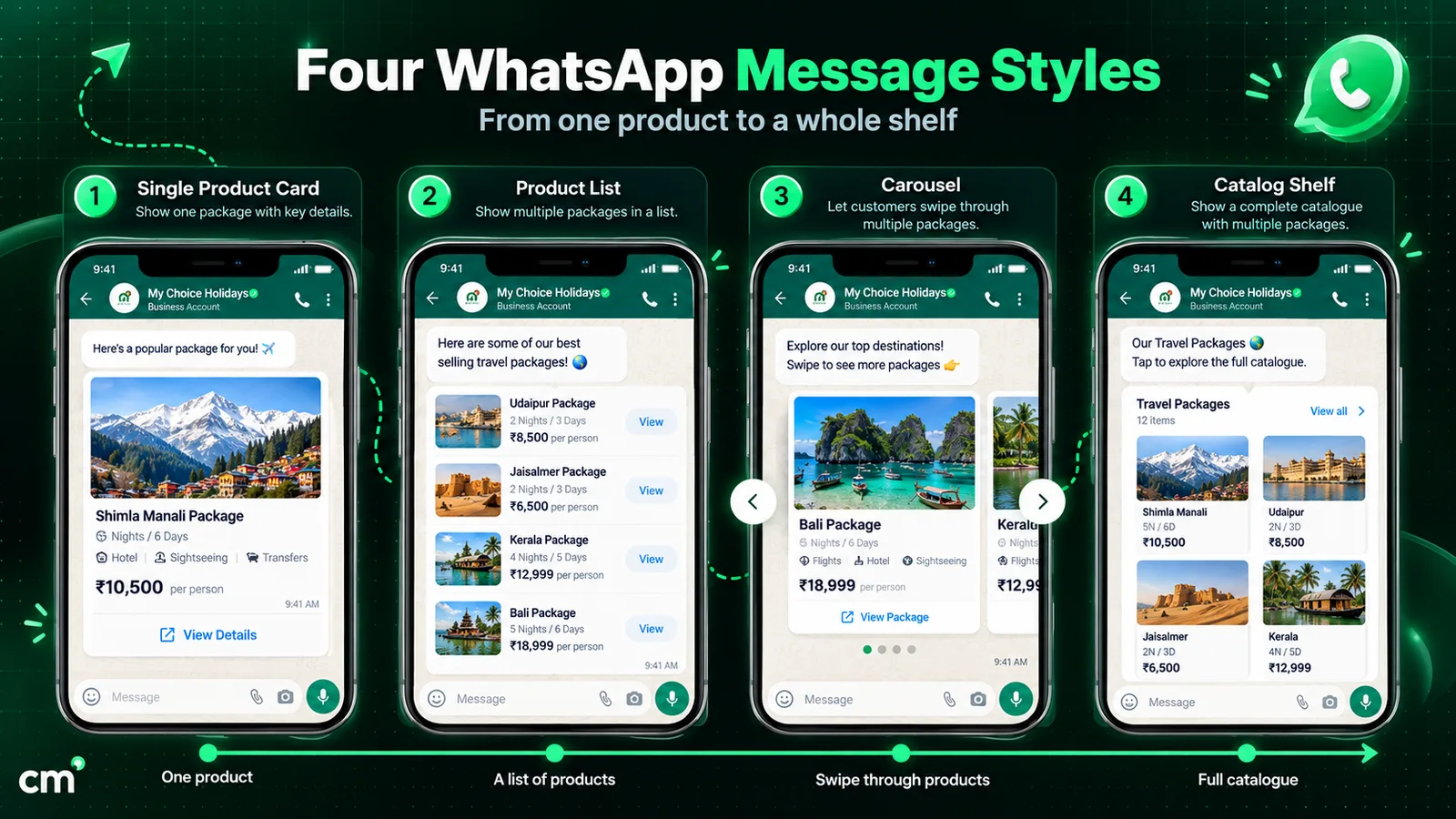
Besides the catalog link, Meta has four product formats that each come in two versions: an interactive message you send as a reply, and a template you use to start a conversation (Meta, share products).
| Format | What the customer sees | Limit | Template version |
|---|---|---|---|
| Catalog message | Thumbnail, your text, a View catalog button that opens the whole catalog | Whole catalog | Catalog template (marketing) |
| Single-product message | One product's image, title and price, with a View button | 1 product | SPM template (marketing) |
| Multi-product message | A list of products grouped into sections | Up to 30 products; templates up to 10 sections | MPM template (marketing) |
| Product carousel | Swipeable product cards | 2 to 10 cards from one catalog | Product card carousel template (up to 10 cards) |
Sources: Meta’s pages on multi-product messages, MPM templates, product carousels and product card carousel templates. India also has checkout button templates: marketing templates that let India-based businesses show products that customers with Indian numbers can buy without leaving WhatsApp.
Replies vs templates: the rule that decides everything
Interactive versions are replies. Meta lists what single- and multi-product messages cannot be: “Sent as notifications. They can only be sent as part of existing chat threads” (Meta, single-product messages). They need no approval and always show the latest price and stock. Meta reports that “during testing, businesses had an average 7% conversion of multi-product messages sent to carts received” (multi-product messages page). That is Meta’s own test figure, not a benchmark for your store.
The template versions start conversations. Catalog templates “are marketing templates” (Meta, catalog templates), and so are MPM and SPM templates. They need approval, opt-in and a connected catalog. The practical rule: invite people to message you, answer with product messages, and keep templates for moments when you must go first, such as a launch for customers who asked to hear about one.
What does it cost to send a catalog on WhatsApp in India?
This section is about the WhatsApp Business Platform, where Meta charges per message. Two facts set the price.
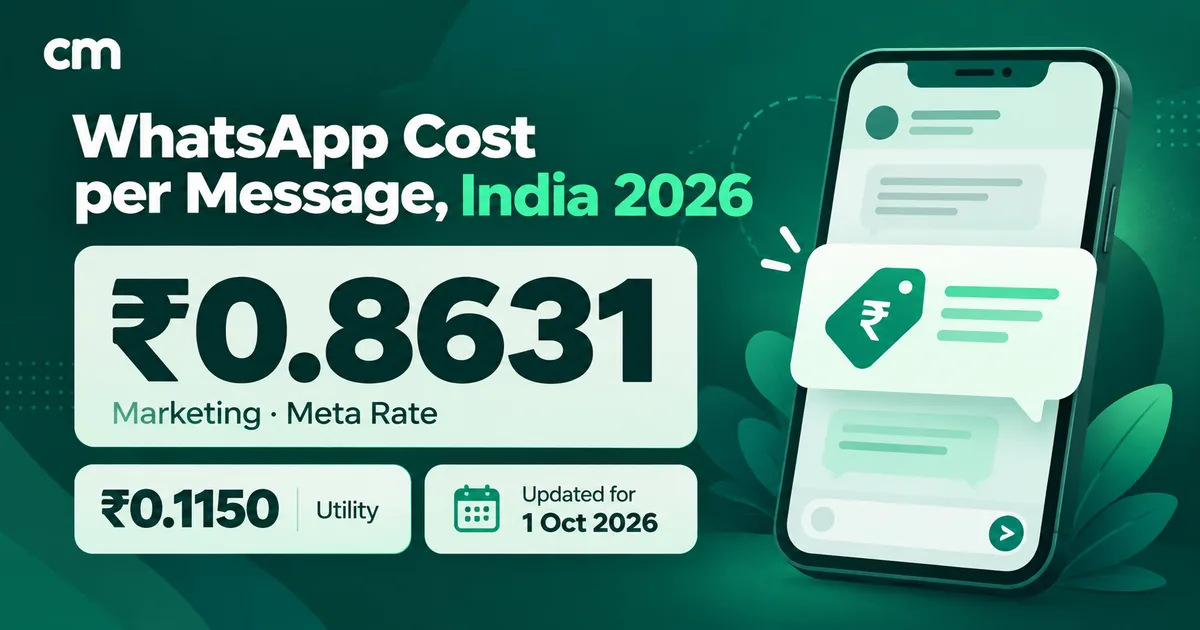
- Replies inside the 24-hour window are service messages. Since 1 October 2026 Meta charges them, with “one shared free tier of 1,000 delivered service messages per month” for each business phone number; unused free messages “do not roll over” (Meta pricing). Meta’s India rate card effective 1 October 2026 sets service at ₹0.1150. Messages customers send you are free.
- Catalog-type templates are marketing messages. The same rate card sets marketing at ₹0.8631 per delivered message.
ChatMitra’s Starter and Pro plans add a ₹0.20 platform fee once per contact per 24-hour conversation. Enterprise (₹2,499 a month) passes Meta’s rates through with no per-conversation fee. Here’s a worked month for a clothing store on Starter or Pro:
| Scenario | Meta charge | ChatMitra fee (at most) | Total | Per customer |
|---|---|---|---|---|
| A. Festive marketing template to 2,000 opted-in customers, with a "View catalog" button linking to your wa.me/c/ catalog link | 2,000 × ₹0.8631 = ₹1,726.20 | 2,000 × ₹0.20 = ₹400.00 | ₹2,126.20 | ≈ ₹1.06 |
| B. 600 customers message "catalog"; each gets a catalog message and two replies (1,800 service messages) | First 1,000 free, then 800 × ₹0.1150 = ₹92.00 | 600 × ₹0.20 = ₹120.00 | ₹212.00 | ≈ ₹0.35 |
Scenario B assumes no other service messages from that number that month; the 1,000 free messages are shared with every support reply. Scenario A reaches people first, but costs about three times more per customer and needs promotional opt-in from every recipient. An MPM or catalog template is billed the same, but ChatMitra’s broadcasts don’t support those template formats (see below), so the example uses a link, which only works while catalog visibility is on for the number. There is one more way to pay nothing. When someone messages you from a click-to-WhatsApp ad or a Facebook Page call-to-action button on WhatsApp’s Android or iOS app, and you reply within 24 hours, Meta opens a free entry point window that lasts 72 hours from your reply. In it, “you can send any type of message to the user at no charge” (Meta pricing). For the full rate card, see WhatsApp Business cost per message.
The Commerce Policy: what you can’t list
WhatsApp’s Business Messaging Policy says: “If you use Catalogs, or provide any other commerce experiences to sell goods or services, you must comply with the policies and prohibitions listed in the Meta Commerce Policy” (WhatsApp Business Messaging Policy). The same policy makes the business “solely responsible” for its transactions, and says WhatsApp is “not responsible for processing, paying for, or fulfilling any sales”.
Meta’s Commerce Policy names the WhatsApp Business catalog directly. Its prohibited categories include:
- adult products, alcohol, tobacco products and drugs, including prescription products
- medical and healthcare products, “including medical devices or ingestible supplements”
- weapons, ammunition and explosives; hazardous materials
- animals and animal parts; body parts and fluids
- real or fake documents, currency, financial instruments and virtual currency; gambling
- “downloadable digital content, digital subscriptions or digital accounts”
- job opportunities; recalled or stolen goods; items that infringe someone’s intellectual property; used cosmetics; certain vehicle parts
Event tickets, gift cards and vouchers, and pet adoption matching are restricted to approved sellers. Services are also on the restricted list, with an exception “on the WhatsApp Business app”. Read the full policy before listing anything near these lines.
Why is my WhatsApp catalog not showing? Troubleshooting
| Symptom | Likely cause | What to do |
|---|---|---|
| Item missing for customers | Still in review, or rejected (red exclamation icon) | Wait for review; for a rejection, tap the item and Request another review |
| Collection not visible | Collection review, which should take no more than 24 hours | Check again after a day before editing it |
| No price field | Prices aren't available in your country | Put the price in the description, or answer price questions in chat |
| Cart button gone or still showing | Cart setting changed recently | Allow up to 24 hours for the change to apply |
| API: no storefront icon | Catalog visibility is off by default | Turn on catalog visibility in commerce settings for that number |
| API: "Invalid catalog link" | Catalog disabled for the number | Turn catalog visibility back on for that number |
| Customer can't open product messages | Outdated WhatsApp version | Ask them to update; MPM and SPM templates need version 2.22.24 or later |
App or Platform: which catalog setup fits your business?
| If you… | Choose | Why |
|---|---|---|
| Sell under 500 items and answer chats yourself | WhatsApp Business app catalog | Free to build, no developer, shares in a tap |
| Already run a Facebook or Instagram catalog | Connect that Meta catalog | One product list across Meta's apps |
| Have a team answering one number, or hundreds of enquiries a day | WhatsApp Business Platform | Shared inbox, automation and product messages as replies |
| Want to start conversations with product cards | Platform with catalog templates | Only templates can go first; budget for the marketing rate |
| Need payment inside WhatsApp in India | Platform with the Payments API | The app's catalog and cart don't take payment |
For how the catalog fits alongside order updates, COD confirmation and cart reminders, see our pillar guide to WhatsApp for ecommerce.
Where ChatMitra fits, and where it doesn’t
ChatMitra runs on the WhatsApp Business Platform. Here is what it does, and doesn’t do, with catalogs.
| Need | ChatMitra | What to use |
|---|---|---|
| Build or sync a Meta catalog, or change its commerce settings | No | WhatsApp Business app, Meta Commerce Manager, or your store platform's own Meta sales-channel tool |
| Create or broadcast catalog, MPM or carousel templates | No (the template builder covers text and media templates with buttons) | Meta's WhatsApp Manager to create them; a tool that supports these template types to send them |
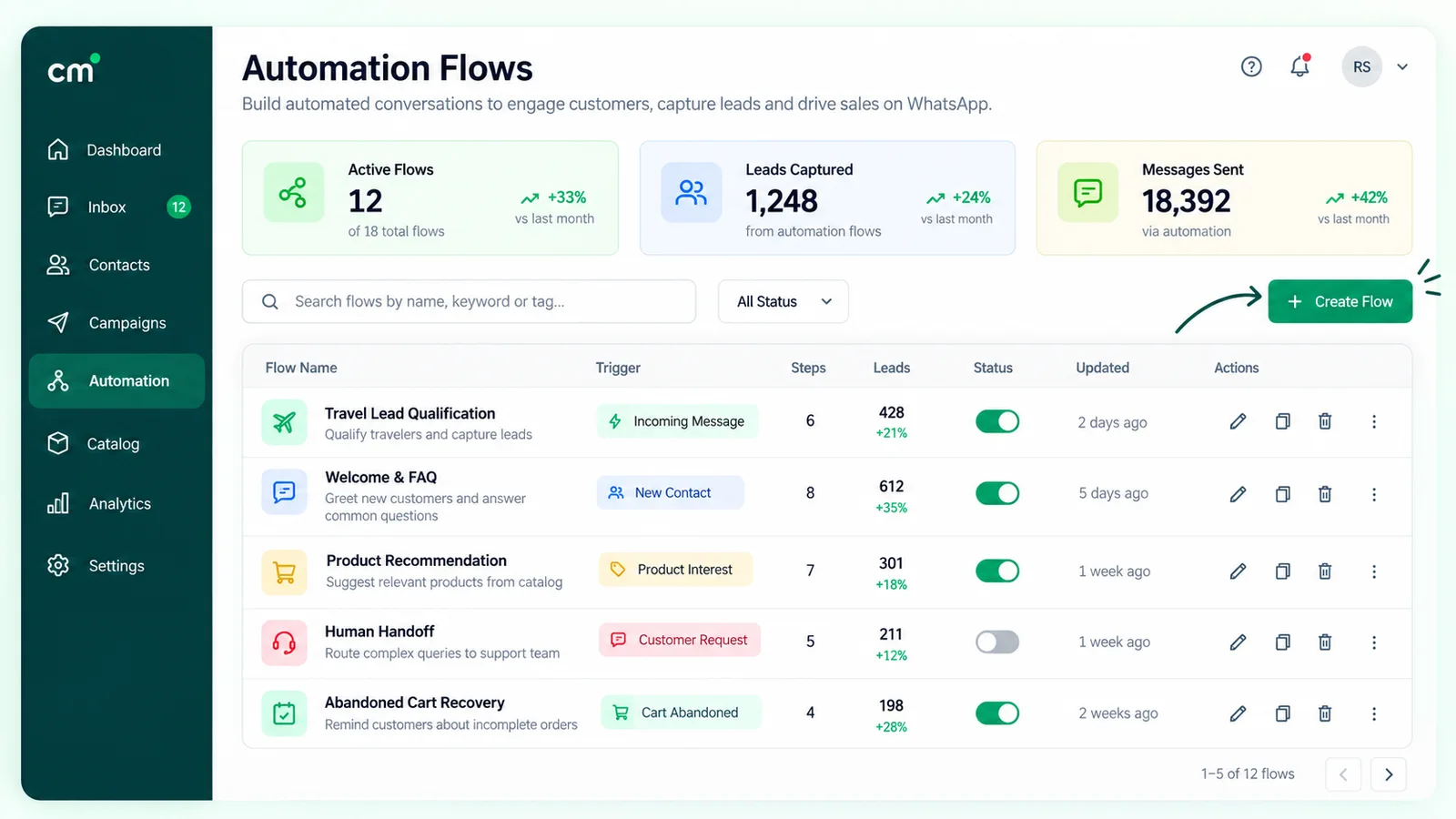
| Reply to a keyword with a catalog, single-product or multi-product message | Yes, with limits: you type your Meta catalog ID and product IDs by hand (there's no product picker), and a multi-product message needs header text, which Meta requires | ChatMitra keyword auto-reply |
| Broadcast your approved templates to tagged customers | Yes | ChatMitra broadcasts, with include/exclude tags |
| Order, COD and cart-reminder messages from a Shopify store | Yes (templates on order, COD, cancellation, fulfilment and abandoned checkout) | ChatMitra's Shopify integration |
| Show a customer's cart as an order, or collect payment in chat | No | Your store or order system; a payment gateway |
A setup that works: build the catalog in Commerce Manager, connect it to your WhatsApp account, turn on catalog visibility for your number in Meta’s commerce settings, and print a QR code from our free WhatsApp QR code generator with the pre-filled message “Catalog”. A keyword auto-reply (on the Pro plan, per ChatMitra’s pricing page) answers that word with a catalog message, and the conversation lands in the shared inbox where your team handles the questions and carts. Everyone who messaged you has an open 24-hour window, so the reply is billed as a service message, not marketing.
Before any template goes out, you need opt-in: WhatsApp’s policy allows contact only when “you have received opt-in permission” (see our WhatsApp opt-in guide). Staying on the app for now? Our WhatsApp broadcast list guide covers sending catalog links to saved contacts.
Common catalog mistakes
- Names that only you understand. SKU codes belong in the code field; the name should be what customers type.
- One collection called “All products”. It adds a tap and removes nothing.
- Listing prohibited products. Ingestible supplements and downloadable digital products are both on the Commerce Policy’s prohibited list.
- Launching the day you build it. Items and collections go through review. Build first, promote the next day.
- Sending catalog templates to cold lists. They are marketing messages and cost the most per message. WhatsApp’s policy notes that users “can block or report businesses”, and that its systems may then limit how many messages you can send.
Where to start
Build 20 items with clear names and square photos, group them into three or four collections and switch on the cart. Share collection links on your Status and social profiles. When one phone can’t keep up, move to the Platform, send product messages as replies, and save templates for launches. Compare ChatMitra’s plans when you’re ready to run it with a team.
Sources: WhatsApp Help Center: About catalog, Create and maintain a catalog, Collections, Sharing products, Catalog links, About cart, Selling online in India. WhatsApp Business: Catalog resources, Business Messaging Policy. Meta: Commerce Policy, Catalogs overview, Share products, Pricing, Payments API — India.
Facts checked against Meta's and WhatsApp's documentation on 25 September 2026. Rupee figures are Meta's India rates and ChatMitra's published fees, and exclude tax.