Use a square 640 × 640 px PNG or JPEG under 5 MB, with your logo centred inside the circle and a solid background colour. That file works in the WhatsApp Business app, in WhatsApp Manager and through API tools such as ChatMitra. Meta itself doesn’t publish a pixel size, which is why you’ll find 500, 640 and 1080 px recommended elsewhere; 640 px is the safe choice because it’s the largest size API upload tools accept.
This guide explains where those numbers come from, how to design a profile picture that survives the circular crop and the tiny chat-list thumbnail, how to change it in every place you might manage a WhatsApp number, and how it interacts with verification badges and usernames.
Using ChatMitra? Open your project’s dashboard and choose Edit profile to change the photo, about text, description, address, email, websites and category in one place. ChatMitra checks the image before sending it to Meta, so a file that’s too big, the wrong shape or the wrong format is caught with a clear message instead of a failed upload.
The short answer: profile picture specs
| WhatsApp Business app | WhatsApp Manager / Cloud API | ChatMitra profile editor | |
|---|---|---|---|
| Shape | Any photo; you crop it to a square in the app | Square recommended | Must be square (1:1) |
| Size we recommend | 640 × 640 px | 640 × 640 px | 640 × 640 px |
| Accepted range | Larger photos are fine; the app crops and compresses | 192–640 px is the range tools enforce | 192 × 192 to 640 × 640 px |
| Format | Photo from camera or gallery | JPEG or PNG (Meta’s upload API) | JPEG or PNG |
| File size | Not stated | Under 5 MB is the limit tools enforce | Up to 5 MB |
| Shown as | A circle | A circle | A circle |
If you only need the file, stop here: export a 640 × 640 px PNG of your logo on a solid background, with the mark inside the middle 80% of the width. The rest of this guide is about getting that image right and getting it onto your number.
Why there’s no single official size
Search for the right size and you’ll find guides recommending 500 × 500, 640 × 640 and 1080 × 1080 px, each stated as fact. The reason is simple: Meta’s current documentation doesn’t give one.
Meta’s guide to the Cloud API’s business profile explains how to update the photo: upload the image with the Resumable Upload API to get a profile_picture_handle, then include that handle in the profile request (Meta: business profile API). The upload API accepts JPEG and PNG (Meta: Resumable Upload API). Neither page states a pixel size or a file-size limit for profile photos.
The 640 px maximum, 192 px minimum and 5 MB limit that appear across the web seem to come from the documentation for WhatsApp’s old On-Premises API, which Meta has retired (Meta: On-Premises API sunset). Many tools still enforce those rules, ChatMitra’s editor among them, and third-party API guides repeat them (Ayrshare: WhatsApp media guidelines).
So what should you do with that uncertainty? Design to the strictest common rule. A 640 × 640 px square under 5 MB is accepted everywhere we’ve seen, looks sharp on high-resolution screens, and won’t be rejected by a provider that checks the old limits. A 1080 px file may be fine in the Business app but bounce off an API tool, and a 500 px file is slightly softer for no benefit.
Where your photo appears
Your profile picture isn’t one image in one place. It’s the same file shown at very different sizes:
- The chat list. The smallest and most important view: a small circle next to your name and the last message. This is where customers decide whether a message is from you.
- The chat header. A slightly smaller circle at the top of every conversation with you.
- Your business profile. A large circle at the top of the profile screen, above your name, category, description and links. The only place detail is visible.
- Group chats and calls, if your number takes part in them.
- Next to your username. As WhatsApp rolls out usernames, customers who haven’t saved your number will see your username instead of the number. Creating a username doesn’t change your display name or profile photo (WhatsApp Help: usernames for businesses).
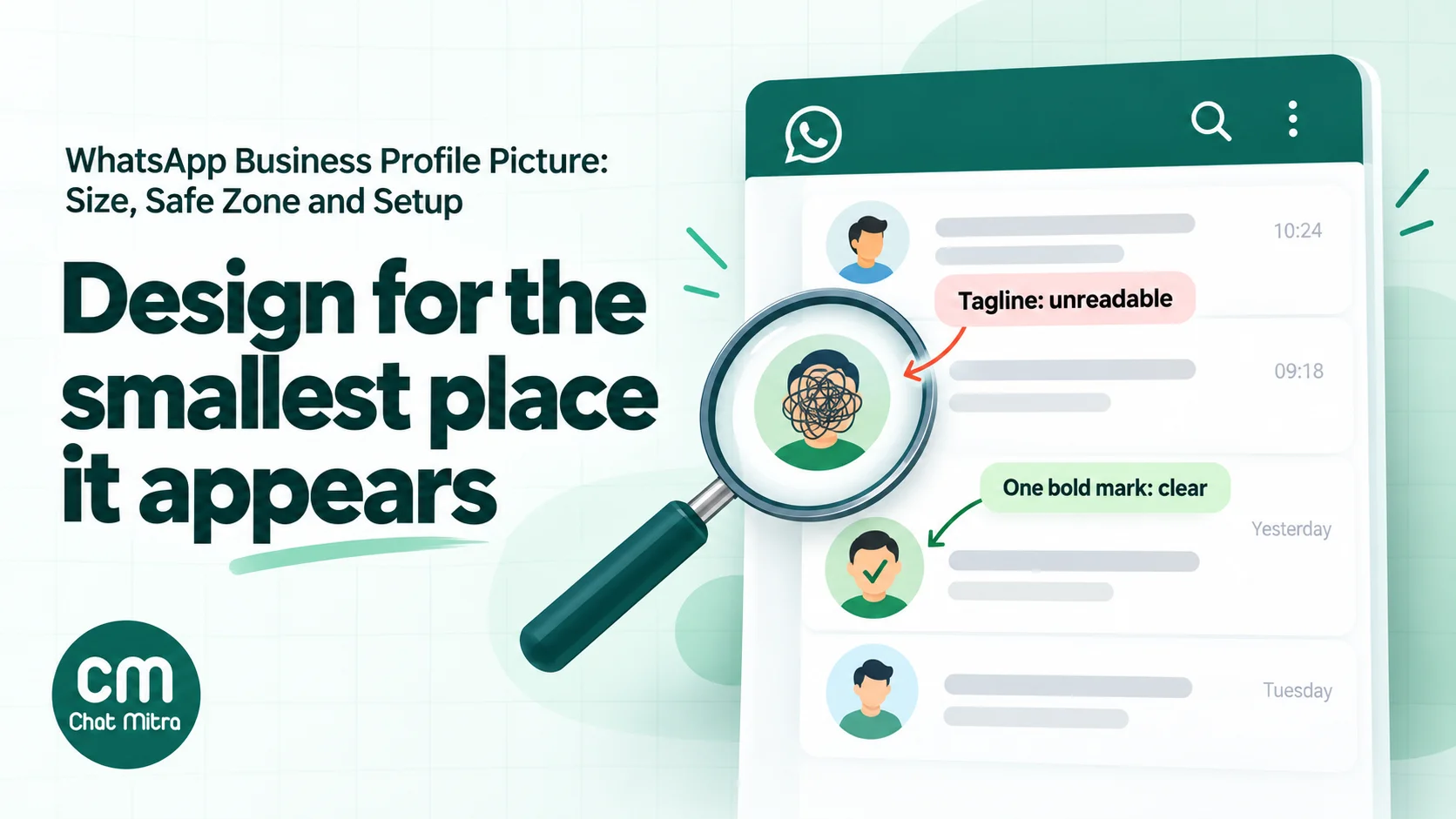
The practical consequence: design for the chat list, then check the large profile view. A photo that looks impressive on the profile screen but turns to mush in the chat list has failed at its main job.
Designing for the circle
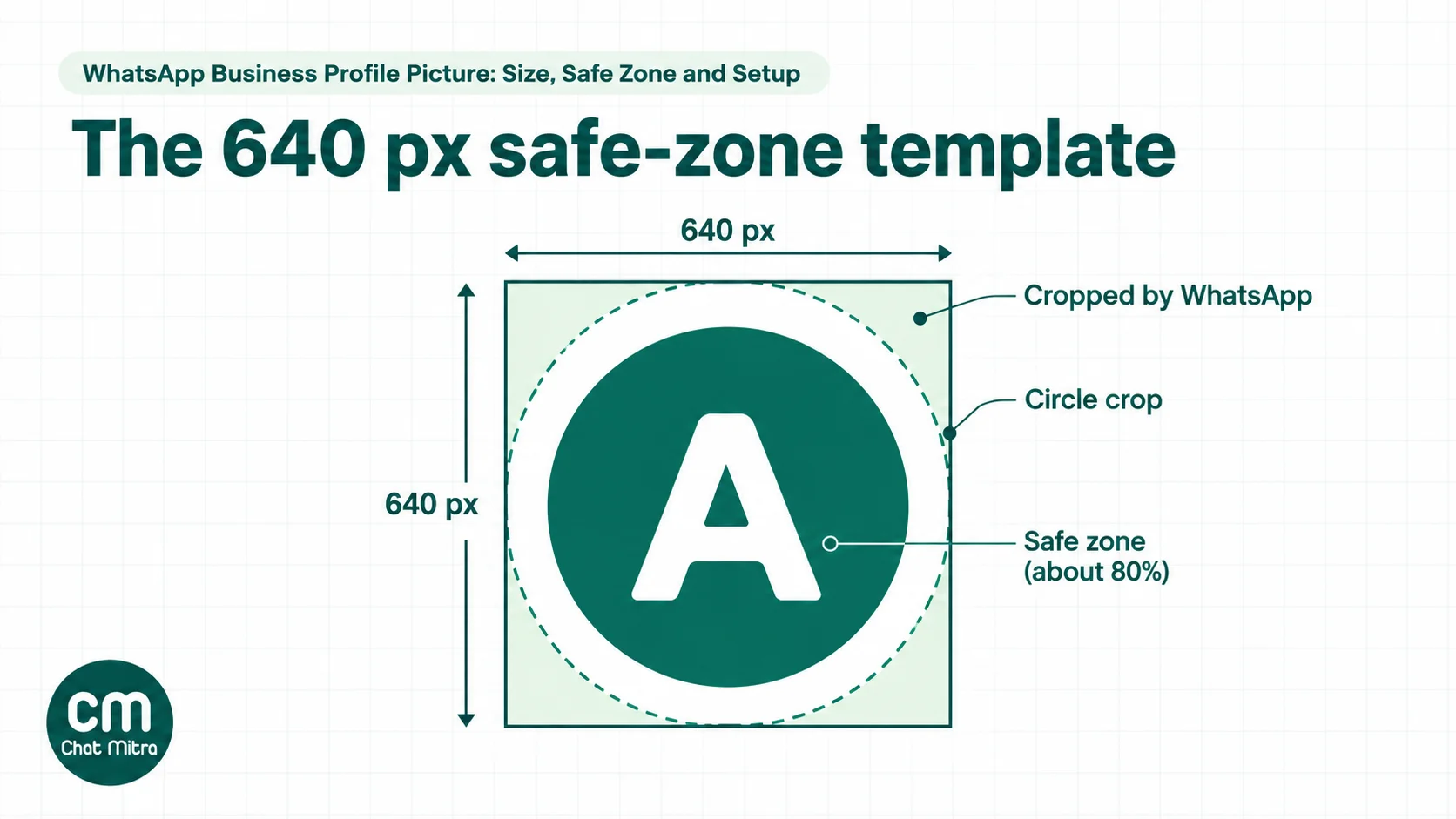
WhatsApp crops every profile photo to a circle. A square image loses its four corners, roughly a fifth of its area, and anything placed there disappears. Most bad business profile pictures are a rectangular logo that was simply dropped onto a square.
Build it in five steps
- Start with a 640 × 640 px canvas. In Figma, Canva, Photoshop or any editor, create the square first. Don’t crop a rectangle afterwards.
- Draw two guide circles. One touching all four edges (the crop), and a second, smaller circle at about 80% of the width (your safe zone). Some designers prefer 70% for logos with fine detail.
- Fill the whole square with a background colour. Use a solid brand colour or white. Avoid transparent PNGs: transparent areas don’t render predictably on every screen and theme, so flatten the image onto a solid colour before you export.
- Place your mark inside the safe zone. Centre it optically, not just mathematically: logos with a heavy left side or a descender often need a nudge.
- Export at 640 × 640 px as PNG, or as a high-quality JPEG if you’re over 5 MB (which a flat logo almost never is). If you start from a vector logo, export directly at 640 px rather than scaling up a small file.
Design rules that hold at every size
- Use your symbol, not your full lockup. If your logo is an icon plus a long name, use the icon. If you have no icon, use your initials or a monogram in your brand typeface.
- No taglines, phone numbers or offers. Your name already appears next to the photo. Text smaller than your main mark won’t be readable in the chat list, and a “50% off” badge looks like spam.
- Strong contrast. A pale logo on a pale background vanishes at small sizes and in dark mode. Check the image against both a white and a near-black background.
- One colour field, one mark. Gradients, photos behind logos and patterned backgrounds compete with the mark. Keep the background flat.
- Test it small. Shrink your export to about 40 px on screen, or look at it from across the room. If you can still tell what it is, it works.
A brief you can send your designer
If someone else is making the file, send them this, so you get the right asset the first time:
WhatsApp Business profile photo. Square canvas, 640 × 640 px. WhatsApp crops it to a circle, so keep the logo mark inside a centred circle about 80% of the width and put nothing important in the corners. Solid background in [our brand colour], no transparency. Use the icon or monogram, not the full wordmark, and no tagline or other text. It must stay recognisable at about 40 px and on both white and dark backgrounds. Deliver a PNG under 5 MB, plus a version on white.
Ask for both versions, so you can compare them side by side in a real chat list before choosing.
Logo, face or something else?
The right choice depends on what customers think they’re talking to: a brand or a person.
| Business | Best photo | Why |
|---|---|---|
| Shop, D2C brand, restaurant, multi-location clinic | Brand logo or icon | Customers recognise the brand, not the staff who answer |
| Consultant, solo doctor, coach, tutor, creator | A clear headshot on a plain background | Customers buy from the person and expect to see them |
| Agency or B2B service | Logo or monogram | Several people answer; the brand is constant |
| Local service with a strong shopfront identity | Logo, not the shopfront photo | A building photo is unreadable at thumbnail size |
| Multiple numbers for one brand (sales, support, regions) | The same logo on every number | Use the display name and about text to tell numbers apart; keep the photo consistent |
For a headshot, use a recent, well-lit photo with the face filling about half the circle, a plain background and no sunglasses or group crops. It should look like the person customers will meet.
Festive and seasonal versions
Some brands swap in a festive version of their logo for Diwali, Eid or Christmas. That’s fine if the mark itself stays recognisable: change the background colour or add a small motif outside the safe zone, never replace the logo. Two practical cautions. Customers find you in their chat list by the photo, so a radical change can make your messages look unfamiliar. And if you’re on Meta Verified, profile photo changes are limited to once every three days and need review, so plan festive swaps well ahead.
How to change your WhatsApp Business profile picture
In the WhatsApp Business app (Android)
- Open WhatsApp Business and tap the three-dot menu, then Settings.
- Tap your business name to open the profile.
- Tap your profile photo, then choose to take a photo or pick one from your gallery. You can also use an avatar.
- Crop or rotate the image so your mark sits in the middle of the circle, then tap Done.
To remove the photo, tap the photo and choose Remove (WhatsApp Help: edit your business profile).
In the WhatsApp Business app (iPhone)
- Open WhatsApp Business and go to Settings, then tap your business name.
- Tap Edit under your profile picture.
- Choose Choose photo, Take photo or Use avatar, then position the image and confirm.
To remove it, choose Delete Photo from the same menu. On WhatsApp Web and Desktop, you can view, take, upload or remove the photo from your profile too.
WhatsApp says a business profile photo is public by default, and the app’s privacy settings let you choose who can see it (WhatsApp Help: edit your business profile). For a business, leave it public; it’s how customers recognise you.
In WhatsApp Manager (WhatsApp Business Platform)
If your number runs on the WhatsApp Business Platform through a provider, you can change the photo in Meta’s interface: open WhatsApp Manager, go to Account tools, then Phone numbers, select the number and open the Profile tab (Meta: business profiles). Upload your 640 px square there.
Through the Cloud API
Developers update the photo in two calls. First, upload the file with the Resumable Upload API: start a session for your app, then send the bytes to that session to receive a handle. Then attach the handle to the number’s business profile (Meta: Resumable Upload API):
# 1. Start an upload session (user access token for your app)
curl -X POST "https://graph.facebook.com/v21.0/$APP_ID/uploads?file_name=logo-640.png&file_length=48211&file_type=image/png" \
  -H "Authorization: OAuth $USER_ACCESS_TOKEN"
# → {"id":"upload:<SESSION_ID>"}

# 2. Upload the bytes and receive a handle
curl -X POST "https://graph.facebook.com/v21.0/upload:$SESSION_ID" \
  -H "Authorization: OAuth $USER_ACCESS_TOKEN" -H "file_offset: 0" \
  --data-binary @logo-640.png
# → {"h":"<HANDLE>"}

# 3. Set the profile picture
curl -X POST "https://graph.facebook.com/v21.0/$PHONE_NUMBER_ID/whatsapp_business_profile" \
  -H "Authorization: Bearer $ACCESS_TOKEN" -H "Content-Type: application/json" \
  -d '{"messaging_product":"whatsapp","profile_picture_handle":"<HANDLE>"}'
A GET on the same profile endpoint returns profile_picture_url, which is a quick way to confirm the change. If a business photo is ever deleted, Meta sends a PROFILE_PICTURE_LOST account alert asking you to upload a new one (Meta: account alerts webhook).
In ChatMitra
- Open the project for your number and go to its dashboard.
- Click Edit profile.
- Upload your image. ChatMitra checks that it’s a square JPEG or PNG between 192 × 192 and 640 × 640 px and no larger than 5 MB, and tells you which rule a file breaks (“Must be square”, “Max 640x640px” and so on).
- Update the about text, description, address, email, websites and category if you need to, and save. ChatMitra uploads the image to Meta and updates the profile in one step.
Team members need permission to update project details (granted in Role Management) to save profile changes, so a junior agent can’t change your brand’s photo by accident.
Profile pictures, badges and verification
The photo interacts with WhatsApp’s trust signals in ways that catch businesses out.
Meta Verified (WhatsApp Business app). Meta Verified for business is a paid subscription for numbers registered on the WhatsApp Business app, and the terms require a complete profile, “including business name and image” (Meta Verified for Business terms). Once you subscribe, profile updates need review and approval. Profile information may be locked for up to 20 days, after which the profile picture can be changed once every three days and the business name once every 60 days. Some fields can’t be changed at all without losing verified status (WhatsApp Help: Meta Verified profile changes). Settle your final logo before subscribing.
Official Business Account (WhatsApp Business Platform). An Official Business Account shows a blue checkmark beside the business name. Meta’s guidance lists the profile picture, email, website and description as fields you can edit at any time (Meta: Official Business Accounts). The badge depends on your verified business and approved display name, not on the photo. Our Official Business Account guide covers eligibility.
Display names. Unlike the photo, a display name on the Platform is reviewed by Meta, and changes are limited. See display names for the rules. A customer who saved your number under their own label sees that label instead of your display name, but still sees your photo, which is one more reason to make the photo instantly recognisable.
Rebranding without confusing customers
A rebrand is the riskiest moment for a WhatsApp profile, because the photo and the name change on different timelines. On the WhatsApp Business Platform, you can change the photo whenever you like, but a new display name goes through Meta’s review first. If you swap the photo on day one and the name is approved a week later, customers spend that week seeing a new logo next to an old name, which looks exactly like an impersonation attempt.
Do it in this order:
- Submit the new display name and wait for approval.
- Change the photo the day the name goes live, on every number your brand uses.
- Update the about text, description and websites at the same time, so the profile tells one consistent story.
- Tell customers once, in your next message to them or in a Status update, that the business has a new name and logo but the same number.
On Meta Verified, add the review time for profile changes and the three-day limit on photo changes to your plan. And if you’re merging two numbers or brands, decide which number keeps the conversation history before you change either profile.
Rules your photo has to follow
Meta’s Business Messaging Policy says you may not use WhatsApp “to impersonate another business or entity” or misrepresent your affiliation, and requires you to keep your WhatsApp Business profile information accurate (WhatsApp Business Messaging Policy). In practice:
- Use your own brand. A reseller can’t use the manufacturer’s logo as its profile photo, and a franchisee should follow the franchisor’s rules for WhatsApp.
- Don’t use WhatsApp’s logo. WhatsApp’s brand guidelines say not to use logos or content that could be confused with WhatsApp, or that imply partnership or endorsement (WhatsApp brand resources). A green chat-bubble photo is both risky and meaningless to customers.
- Don’t imply verification. A tick or “official” badge drawn into your logo mimics WhatsApp’s own checkmark. Customers and Meta can read it as misleading.
- Keep it consistent with your display name. A photo of one brand next to the name of another looks like a scam to a customer, and to anyone reporting it.
Troubleshooting
| Problem | Likely cause | Fix |
|---|---|---|
| The logo’s edges are cut off | The mark extends into the corners of the square | Shrink the mark into the inner circle; fill the corners with background colour |
| The photo looks blurry | A small logo was scaled up, or a screenshot was used | Export from the original vector file at 640 × 640 px |
| Upload rejected by your provider | Larger than 640 px, not square, over 5 MB, or not JPEG/PNG | Resize to exactly 640 × 640 px and export as PNG or JPEG |
| Background turns an unexpected colour | Transparent PNG | Flatten onto a solid background before exporting |
| Customers still see the old photo | Their app hasn’t refreshed yet | Give it time; ask a colleague to check from a phone that hasn’t opened your chat recently |
| Some people see no photo at all (Business app) | Privacy setting limits who can see your photo | Set profile photo visibility to Everyone in the app’s privacy settings |
| Photo disappeared from an API number | The photo was deleted, triggering a PROFILE_PICTURE_LOST alert | Upload it again through WhatsApp Manager, the API or your provider |
| Can’t change the photo on Meta Verified | The three-day limit or a pending review | Wait for the review, and plan changes ahead |
The rest of your profile
The photo is the first thing customers see; the rest of the profile is what convinces them. On the WhatsApp Business Platform, the about text takes 1 to 139 characters, the description up to 512, the address up to 256, the email up to 128, and you can list up to two websites of up to 256 characters each, starting with http:// or https:// (Meta: business profiles). Links in the about text aren’t clickable, so put them in the website fields.
Our guides to setting up your business profile and writing a business description cover the words. If you’re also preparing images for templates, our WhatsApp marketing image size guide covers header images, which follow different rules.
Setting it up in ChatMitra
- Prepare the file: a 640 × 640 px PNG of your logo, mark inside the middle 80%, solid background.
- Open your project’s dashboard and click Edit profile.
- Upload the photo. If ChatMitra rejects it, the message tells you exactly why: fix that one thing and try again.
- Complete the profile in the same dialog: about text, description, category, address, email and up to two websites.
- Save, then open a chat with your number from another phone to check the photo in the chat list and on the profile.
- Limit who can edit it by giving the permission to update project details only to the people who manage your brand.
ChatMitra’s advantages for managing your profile:
| Advantage | What it means |
|---|---|
| Starter is free | Manage your official WhatsApp number’s profile with no subscription |
| Checks before upload | Size, shape, format and file-size problems are caught with a clear message, not a failed API call |
| Whole profile in one dialog | Photo, about, description, category, address, email and websites, with character counters at Meta’s limits |
| Role-based permissions | Only people you choose can change the brand’s photo and details |
| No API code | ChatMitra handles Meta’s upload session and handle for you |
Good to know: ChatMitra manages the profile of numbers on the WhatsApp Business Platform. It doesn’t manage the WhatsApp Business app or Meta Verified subscriptions, and the edit-profile dialog doesn’t change your display name, which goes through Meta’s review. The editor accepts a maximum of 640 × 640 px, so resize larger exports before uploading.
A quick checklist
- Square canvas, 640 × 640 px.
- Mark inside a circle about 80% of the width; nothing important in the corners.
- Solid background, no transparency.
- No tagline, phone number, offer or fake badge.
- Readable at about 40 px and on dark backgrounds.
- PNG or JPEG, under 5 MB.
- Same photo on every number your brand uses.
- On Meta Verified, the final version chosen before you subscribe.
Summary
A WhatsApp Business profile picture has one job: to let customers recognise you in a crowded chat list. Meta doesn’t publish an official pixel size, so design to the rule every tool accepts, a 640 × 640 px square under 5 MB, and design for the circle and the thumbnail rather than the large profile view. Use your symbol or a clear headshot, keep it inside the safe zone on a solid background, and keep it consistent with your name and your other numbers. Then change it wherever you manage the number: the Business app, WhatsApp Manager, the API or ChatMitra.