Disclosure
ChatMitra makes a WhatsApp Business API inbox with its own saved quick replies, and this guide says where it fits. WhatsApp Business app limits and Meta's API rules were checked against WhatsApp's and Meta's own pages on 15 October 2026. The 60 templates are original examples. Edit the details in [square brackets] before you save them.
WhatsApp Business quick replies are messages you save once and reuse in any chat: type ”/” and pick the shortcut, and the full message lands in your text box ready to edit and send. In the free WhatsApp Business app you set them up under Tools, then Quick replies, and you can store up to 50. Below are 60 ready-to-edit quick replies grouped by the situations that fill a business inbox. After them come the setup steps for the app and for a shared team inbox, a shortcut naming system your whole team will remember, and the limits most guides leave out.
Key takeaways
- A quick reply is sent by a person, not automatically. That's the difference from greeting, away and keyword auto-replies.
- The app allows 50 quick replies, 25-character shortcuts with no spaces, and up to three keywords per reply. Media works on phones but not on Web or Desktop.
- Deleted quick replies can't be recovered, so keep a master copy of your library outside WhatsApp.
- Name shortcuts by topic, in lowercase letters and numbers only, so they work in the app and in API inboxes alike.
- In any WhatsApp Business API inbox, free-form messages, including saved replies, can only go out within 24 hours of the customer's last message.
Using ChatMitra?
ChatMitra's inbox has its own Quick Reply library: one per WhatsApp number, shared with every teammate who has access, with no fixed limit on how many replies you save. Create replies under Settings → Quick Reply, then type / at the start of the message box in any chat. All 60 templates below fit ChatMitra's shortcut rules, so you can paste them in as they are. Jump to the ChatMitra setup steps.
What a WhatsApp quick reply is, and what it isn’t
A quick reply has two parts: a shortcut, such as /price, and the message it expands into. WhatsApp describes them as shortcuts “for the messages you frequently send to your customers”, which “can include media messages, such as images and videos” (WhatsApp Help Center, quick replies).
The important word is you. A quick reply never sends itself. Someone in your business sees the customer’s question, picks the right reply, adjusts it and presses send. That keeps a human in the conversation while removing the typing.
Three other WhatsApp features get confused with quick replies, and search results mix them up constantly:
| Feature | Who sends it | When it goes out | Best for |
|---|---|---|---|
| Quick reply (saved reply) | A person, in one tap | Whenever the person chooses, mid-conversation | Answering repeated questions fast and consistently |
| Greeting message | WhatsApp, automatically | On a customer's first message, and again after 14 days of inactivity | A welcome and setting expectations |
| Away message | WhatsApp, automatically | Always, on a custom schedule, or outside business hours | Saying when you'll be back |
| Quick reply buttons | Part of a message the customer receives | The customer taps one to answer | Fast choices: "Yes", "Track order", "Talk to us" |
Greeting and away messages are covered in our greeting message guide and our away message examples. The greeting schedule above is from WhatsApp’s greeting message page and the away options from its away message page. Keyword-triggered bots that answer without a person are a separate topic, and our auto-reply examples cover them.
Buttons are the most common mix-up. Interactive reply-button messages on the WhatsApp Business Platform allow “up to 3 buttons”, each with a label of “Maximum 20 characters” (Meta for Developers, reply buttons). They’re something the customer taps. A saved quick reply is something you insert. If buttons are what you’re after, see our tutorial on quick reply buttons in template messages.
Why a saved answer beats typing it again
Look at any busy WhatsApp Business inbox and most questions repeat: what does it cost, do you deliver to my area, when will it arrive, are you open on Sunday. Typing the same answer forty times a day costs minutes on each one, and every retyped version comes out a little different. One person says delivery takes “3–5 days”, another says “within a week”, and the customer notices.
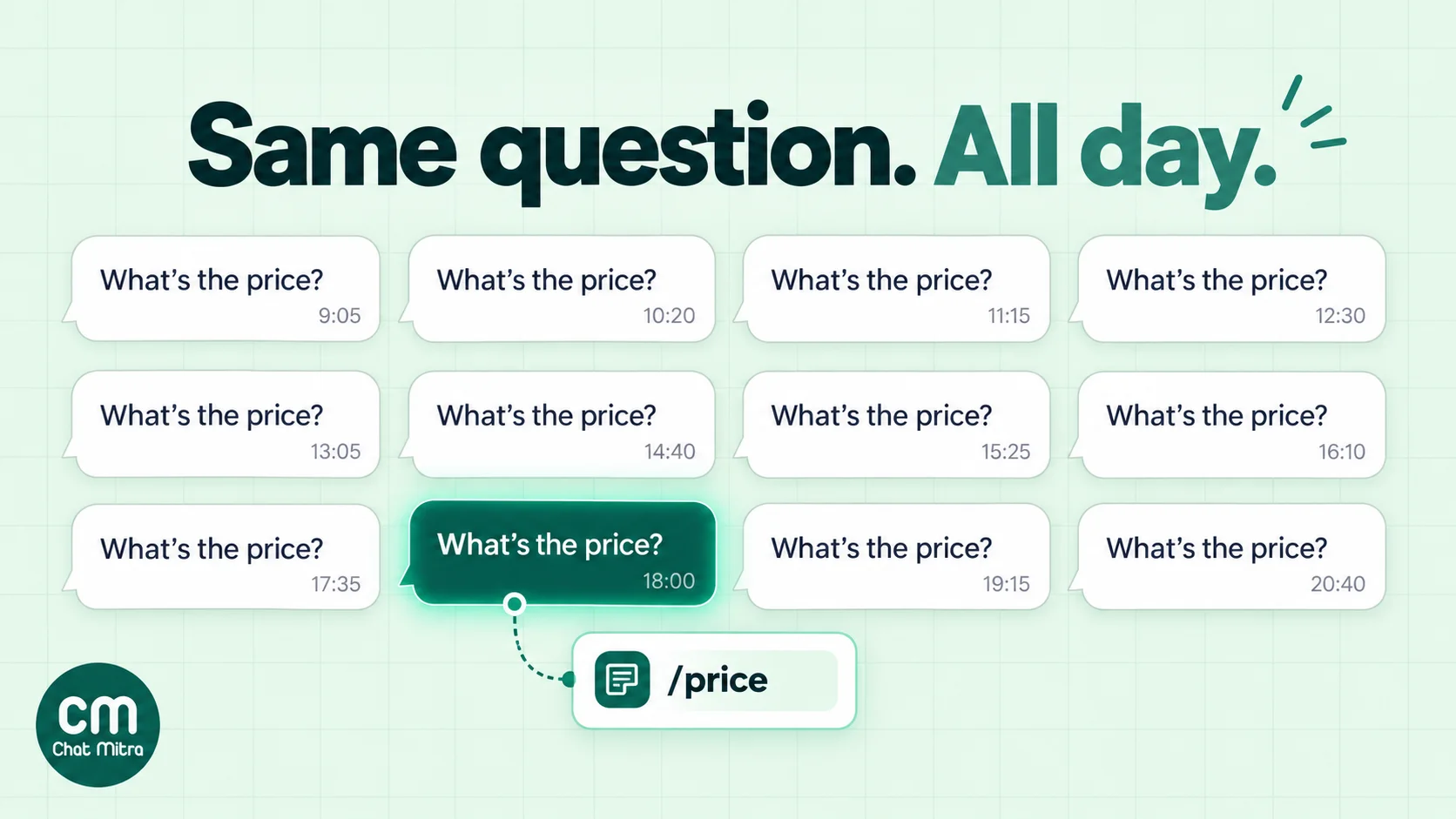
Speed matters to customers, too. In research Kantar conducted for Meta across 22 markets in 2025, 69% of consumers said waiting on hold is a waste of time (WhatsApp Business, State of Business Messaging). People pick messaging to avoid waiting. A reply that takes four minutes to type undoes that.
Quick replies give you three things at once:
- Speed. Common answers go out in seconds, so the customer gets a reply while they’re still in the chat.
- Consistency. Everyone sends the same prices, policies and timelines, and you update them in one place.
- Better first answers. You write each saved reply once, carefully, with the details people always forget, such as the PIN code, the cut-off time or the order number to send. Rushed typing leaves those out.
WhatsApp Business app quick reply limits
These limits come from WhatsApp’s own Help Center pages (how to use quick replies and can’t save or recover quick replies), checked on 15 October 2026. Many guides quote older or different numbers.
| Item | Limit or rule |
|---|---|
| Quick replies you can store | 50 |
| Shortcut length | Up to 25 characters |
| Shortcut format | Starts with a forward slash (/), no spaces |
| Keywords per quick reply | Up to 3 |
| Keyword length and format | Up to 15 characters; letters and numbers only, no spaces |
| Media (images, videos) | Supported on Android and iPhone; not supported on WhatsApp Web or Desktop |
| Default quick replies | Created from your business profile: your hours, your address, or the profile itself |
| Deleted or lost quick replies | Can't be recovered |
WhatsApp doesn’t publish a character limit for the message itself, so treat figures you see elsewhere as unofficial. Long replies are hard to read on a phone anyway. Keep most under five short lines and link to anything longer.
How to set up quick replies in the WhatsApp Business app
Create your first replies on the phone that runs the WhatsApp Business app. The steps below follow WhatsApp’s Help Center for Android and iPhone.
Create a quick reply
- Open WhatsApp Business and go to the Tools tab.
- Tap Quick replies, then tap Add.
- Tap Message (on iPhone, Enter message) and write the reply. On a phone you can attach an image or video.
- Tap Shortcut and type the word that will call it up, such as
/hours. - Optionally add up to three keywords, such as
timingoropen, so the reply also comes up for those words. - Tap Save.
Before you write your own, check the defaults. WhatsApp “creates quick replies based on the information in your business profile”, so a profile with hours and an address already gives you replies for both. Our WhatsApp Business features guide walks through completing the profile.
Send a quick reply
Open the chat, tap the message box and type /. WhatsApp shows all your quick replies, including the defaults. Keep typing to narrow the list, then tap the one you want. You can also tap the attach icon (the paper clip on Android, the plus sign on iPhone) and choose Quick reply. Either way, the reply appears in the text box, so fill in the [details] and adjust the wording before you press send.
Edit or delete a quick reply
Your replies live under Tools → Quick replies; open one there to change it. To delete one on Android, tap and hold it and tap the trash icon. On iPhone, tap it and choose Delete. WhatsApp warns: “You cannot recover a deleted quick reply”. Keep your full library in a notes app or a shared document so you can rebuild it on a new phone, a new number or a new platform.
Quick replies on WhatsApp Web and Desktop
Typing / works in WhatsApp Web and Desktop too, but WhatsApp says “Media files aren’t supported in quick replies on Web or Desktop”. If you answer from a laptop, keep replies text-only and put images behind a link. WhatsApp doesn’t document whether quick replies sync to every linked device, so after setting up, test a few on each device your team uses.
How to name shortcuts your whole team will remember
A library of 50 replies is useless if nobody remembers what to type. A naming system fixes that.

- Name the topic, not the wording.
/refundbeats/sorryforthedelay2. People remember what the customer asked about, not how you phrased the answer. - Use lowercase letters and numbers only. The app allows any characters except spaces, but API inboxes are often stricter. ChatMitra, for instance, accepts letters, numbers, hyphens and underscores, and lowercases everything. Plain lowercase words work everywhere, so you can move your library without renaming it.
- Share a starting word between related replies. Inboxes such as ChatMitra match suggestions on the start of the shortcut, so
/pay,/paylinkand/payfailedall appear as soon as someone types/pay. In the app, related names also sit together in the list. - Keep shortcuts short. Five to ten characters is plenty, well under the app’s 25.
- Keep variants side by side. Pairs like
/discountand/nodiscountsit together, which stops someone from sending the wrong one. - Write the list down. Pin a one-page shortcut list where agents can see it, and review it monthly.
60 WhatsApp Business quick reply templates
Each template is written to work as a quick reply: short enough to read on a phone, specific enough to answer the question, and with [placeholders] to fill in before sending. Replace the placeholders that never change (your hours, address, links) when you save the reply. Leave customer-specific ones, such as [Name] and [order number], to fill in each time.
First response (6)
| Shortcut | Message |
|---|---|
/hi | Hi [Name], thanks for messaging [Business]. I'm [Agent] and I'll help you today. What can I do for you? |
/hiorder | Hi [Name]! Is this about a new order or one you've already placed? If it's an existing order, please share the order number and I'll look it up. |
/busy | Thanks for waiting, [Name]. We're handling more chats than usual, so replies are taking about [time]. You haven't lost your place in the queue. |
/welcomeback | Good to hear from you again, [Name]! Last time we helped with [previous order or topic]. What do you need today? |
/lang | Happy to help in English or Hindi, whichever you prefer. Aap Hindi mein bhi likh sakte hain. |
/callback | Would a call be easier? Share a time between [hours] that suits you and we'll call you on this number. |
Pricing and catalog (7)
| Shortcut | Message |
|---|---|
/price | Here's our current price list: [link]. Prices include [what's included]. Tell me which item you're looking at and I'll confirm it's in stock. |
/catalog | You can browse everything we stock here: [catalog link]. Send me any item from it and I'll answer your questions. |
/quote | Thanks for the details. For [quantity] × [product], the price is [amount], including [delivery or installation]. This quote is valid until [date]. |
/bulk | We offer bulk pricing from [quantity] units. Share the product, quantity and delivery city, and I'll send a quote within [time]. |
/discount | Our current offer is [offer], valid until [date]. Use code [code] at checkout, or I can apply it to your order here. |
/nodiscount | We don't have an offer on [product] right now. Would you like me to message you when the next one starts? |
/compare | Both are good choices. [Product A] suits [use case], while [Product B] is better if you need [feature]. Which matters more to you? |
Price lists change, so /price and /discount are the replies most likely to go stale. Put a review date in your shortcut sheet. For catalog setup, see our WhatsApp Business catalog guide.
Orders and payment (8)
| Shortcut | Message |
|---|---|
/howtoorder | To place an order, please send: 1) product name, size or colour, 2) quantity, 3) delivery address with PIN code. I'll confirm the total before you pay. |
/orderok | Your order [order number] is confirmed: [items], total [amount]. We'll send tracking details here as soon as it ships. |
/paylink | Here's your secure payment link for [amount]: [link]. It's valid for [time], and your order is confirmed as soon as the payment goes through. |
/upi | You can pay by UPI to [UPI ID]; the name shown should be [account name]. Please send a screenshot of the payment here so we can match it to your order. |
/cod | Cash on delivery is available for your PIN code, with a charge of [amount]. Would you like COD, or would you prefer to pay online? |
/paycheck | Thank you! I'm checking the payment with our accounts team now and will confirm here within [time]. |
/payfailed | The payment hasn't reached us yet. If money left your account, check the status in your bank or UPI app first. Here's a fresh link to try again: [link]. |
/bill | Here's the bill for order [order number]: [link]. Let me know if any details need changing. |
Write /payfailed carefully. Never promise a refund timeline you don’t control; point people to their bank or UPI app, which shows the real status. Our WhatsApp payment link guide covers sending links properly, and the order confirmation message guide has longer confirmation formats.
Delivery and shipping (7)
| Shortcut | Message |
|---|---|
/shiptime | Orders placed before [cut-off time] ship the same day. Delivery takes [x–y] working days to [city or region] and [x–y] days elsewhere. |
/track | Your order [order number] has shipped with [courier]. You can track it here: [tracking link]. |
/pincode | Please share your 6-digit PIN code and I'll check whether we deliver there and how long it takes. |
/delay | I'm sorry your order is late. The courier shows [status]. I've raised it with them and will update you here by [time] today. |
/address | Could you confirm your full delivery address, including a landmark and PIN code? It helps the courier find you on the first attempt. |
/outofstock | [Product] is out of stock right now, and we expect it back around [date]. Shall I message you when it's in, or suggest something similar? |
/pickup | You can collect your order from [address] between [hours]. Please bring your order number, [order number]. |
Outside India, swap “PIN code” for “postcode” or “ZIP code”. For the stock conversation in more depth, see our out-of-stock message examples.
Returns, refunds and complaints (7)
| Shortcut | Message |
|---|---|
/returns | You can return unused items within [days] days of delivery. Our full policy is here: [link]. Would you like to start a return? |
/returnstart | To start the return, please send your order number, the item, the reason, and a photo if it's damaged. We'll arrange pickup within [time]. |
/refund | Your refund of [amount] was processed on [date] to your original payment method. Banks usually take [x–y] working days to show it. |
/damaged | I'm really sorry it arrived like that. Please send a photo of the item and the packaging, and I'll arrange a replacement or refund today. |
/sorry | You're right, and I'm sorry. This shouldn't have happened. Here's what I'm doing to fix it: [action]. You'll hear from me by [time]. |
/escalate | I've passed this to [Name], our [role], who can resolve it. They'll message you here by [time]. Your reference number is [reference]. |
/exchange | Happy to exchange it. Which size or colour would you like instead? If the new item costs more, I'll send a link for the difference. |
Complaints are where saved replies can backfire. An angry customer can tell when an apology is pasted. Use /sorry as a structure, not a script: always add one sentence that names their specific problem. Our apology message guide has fuller wording for serious cases.
Appointments and bookings (6)
| Shortcut | Message |
|---|---|
/book | You can book a slot here: [booking link]. Or tell me a day and time that works and I'll check availability. |
/slots | These slots are free on [date]: [time 1], [time 2] and [time 3]. Reply with the one you'd like. |
/bookok | You're booked for [service] on [date] at [time] with [staff name], at [address]. Reply here if you need to change anything. |
/reschedule | No problem at all. Your current slot is [date, time]. Which day and time would suit you better? |
/cancelpolicy | You can cancel or reschedule free of charge up to [hours] hours before your slot. Changes after that [policy]. |
/prepare | Before your visit, please bring [documents or items], arrive [minutes] minutes early, and [instruction]. See you on [date]! |
A confirmation typed into an open chat is fine. A reminder sent the day before, when the customer hasn’t written recently, usually needs an approved template if you use the API. See our booking confirmation messages and reminder message templates.
Hours, location and availability (5)
| Shortcut | Message |
|---|---|
/hours | We're open [days], [opening time] to [closing time]. Messages sent after hours are answered the next working morning. |
/location | We're at [address], near [landmark]. Map: [maps link]. Parking: [details]. |
/holiday | We're closed on [date] for [holiday] and reopen on [date]. Orders placed in the meantime will ship on [date]. |
/areas | We deliver to [areas or cities]. For anywhere else, share your PIN code and I'll check for you. |
/contact | For [department], you can also reach [name or team] at [phone or email]. This chat is still the quickest way to reach us about [topic]. |
In the app, your profile’s default hours and address replies may already cover /hours and /location. Check them before saving duplicates.
Sales and lead follow-up (6)
| Shortcut | Message |
|---|---|
/qualify | Happy to help you choose. Could you tell me: 1) what you'll use it for, 2) your budget range, and 3) when you need it? |
/demo | Would a short demo help? We can do [duration] by [video call or in store]. Share two times that work for you. |
/brochure | Here's our brochure with specifications and prices: [link]. Which model are you considering? |
/followup | Hi [Name], just checking whether you've had a chance to look at the quote I sent on [date]. Any questions I can answer? |
/thinking | No rush at all. I'll hold this price until [date]. If anything changes on your side, just reply here. |
/docs | To process your request, please share [documents] as clear photos or PDFs in this chat. Only send what's listed; we don't need anything else. |
/followup and /thinking only make sense as replies in a live conversation. If the lead has gone quiet for more than a day, an API follow-up needs a template. Our follow-up message guide explains the timing.
Closing a chat and asking for feedback (5)
| Shortcut | Message |
|---|---|
/anythingelse | Is there anything else I can help you with today? |
/resolved | Glad that's sorted! I'll close this chat for now. Message us here any time you need anything. |
/thanks | Thank you for your order, [Name]! We hope you love it. Here's how to get the most out of it: [tips or link]. |
/review | If we helped today, would you leave us a quick review? It takes about 30 seconds: [review link]. Thank you! |
/feedback | On a scale of 1 to 5, how happy are you with the help you got today? Your answer helps us improve. |
More closing ideas are in our thank-you message examples and our guide on asking customers for feedback.
Holding and handing over (3)
| Shortcut | Message |
|---|---|
/checking | Let me check that for you. Please give me [2–3] minutes. |
/transfer | I'm handing you to [Name] from our [team], who knows this best. They'll pick up right here in this chat. |
/needinfo | To look into this, I'll need [information]. Once you send it, I'll get back to you within [time]. |
That’s 60. Few businesses need all of them. Start with the 10 to 15 questions your inbox actually gets each week, and add more as patterns appear. In the app, 60 replies won’t fit under the 50 limit anyway.
How to personalise quick replies without sounding robotic
The fear with saved replies is sounding like a machine. That happens when a reply is pasted without a single change. A good quick reply works like a well-made form: the structure is fixed, and the blanks make it personal.
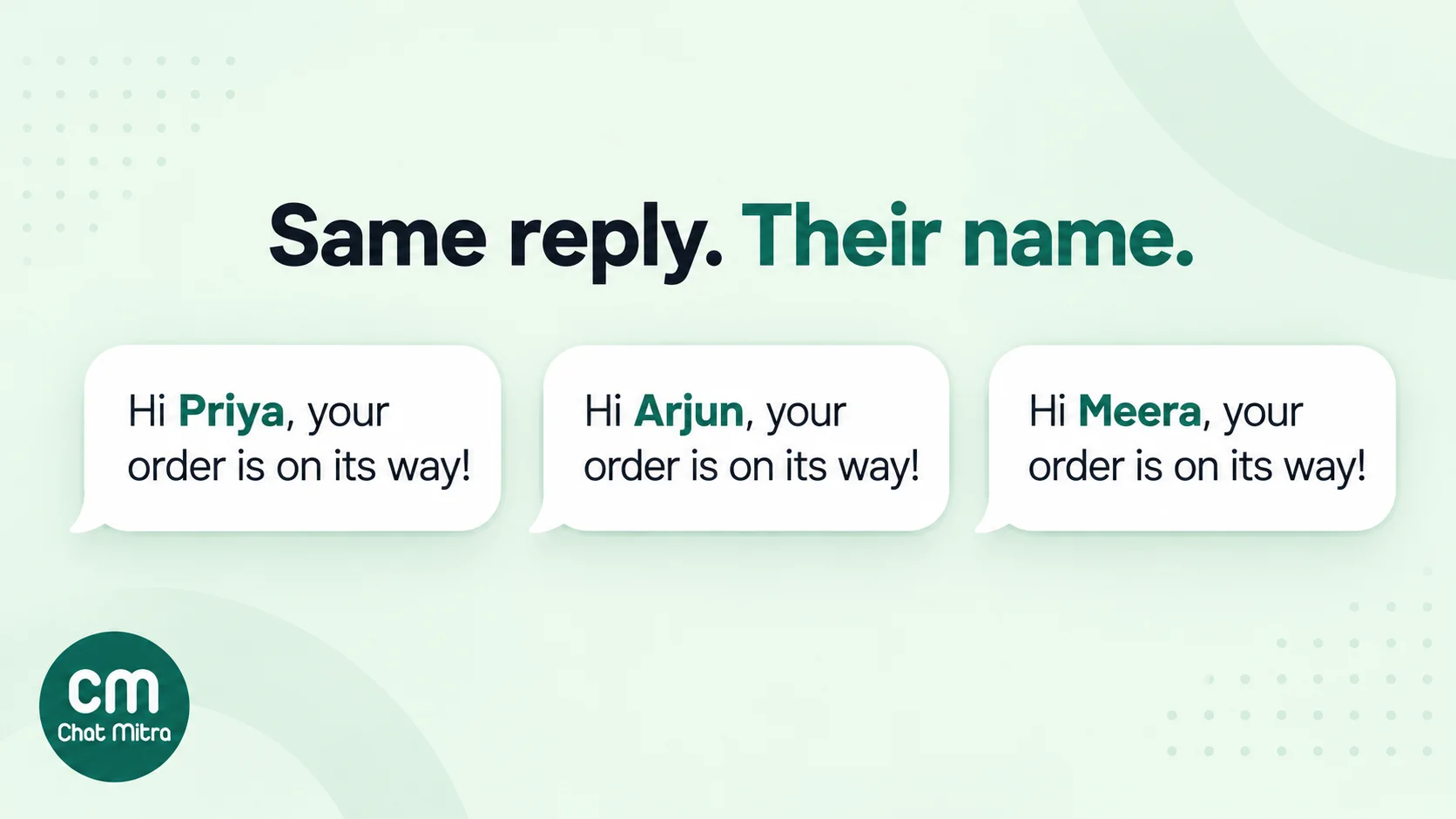
- Always fill the name. Don’t count on your tool to insert it. ChatMitra’s quick replies, for example, are plain text, so [Name] stays as typed until you replace it. A missed placeholder is the most obvious sign of a pasted reply.
- Add one specific line. Reference what the customer actually said: “the blue one in medium”, “your order from Tuesday”. One sentence turns a saved answer into a personal one.
- Match their language and tone. If a customer writes in Hinglish or very casually, a stiff corporate reply jars. Keep two versions of your top replies if your customers write in more than one language.
- Don’t stack replies. Sending three saved replies in a row reads like a bot. Combine them, or answer the question asked and offer the rest.
- Leave the apology personal. Saved replies are great for facts and weak for feelings. Write the “I’m sorry” part yourself.
Quick replies in a shared team inbox
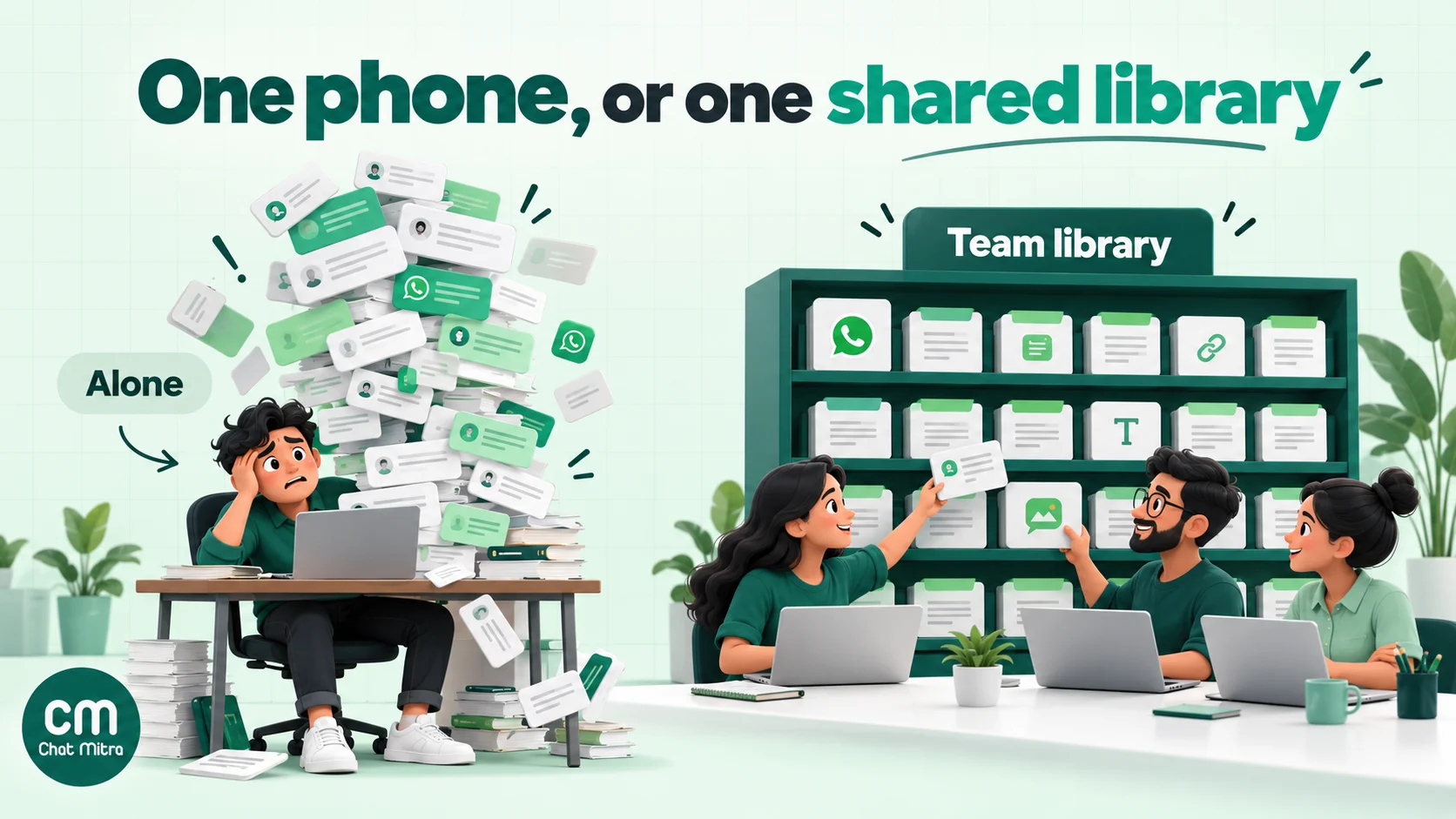
The app’s quick replies work well for one owner on one phone. They start to strain when a team answers the same number.
Here’s where the limits show:
- Devices. The app lets you link “up to four devices at a time to your primary phone” (WhatsApp Help Center, linked devices). That’s five screens at most, the phone included, for everyone who answers.
- The 50-reply cap. Fifty is plenty for one person, but tight once each department adds its own answers.
- No ownership. Two people can answer the same customer at the same time, and nothing records who sent which reply.
- Coexistence doesn’t carry them over. If you connect your Business app number to the WhatsApp Business Platform (coexistence), Meta’s own feature table lists messaging tools, including quick replies and labels, as “No change” in the app but “Not supported” on the Cloud API (Meta for Developers, onboarding WhatsApp Business app users). Your app replies stay in the app, so the API inbox needs its own library.
An API inbox solves this with a shared library: one set of replies per WhatsApp number that every agent uses, updated once for everyone. Our WhatsApp for customer service guide covers the wider move from one phone to a team. If you’re still choosing between the two, read our Business app vs API comparison.
How to set up quick replies in ChatMitra
ChatMitra’s inbox has its own Quick Reply library for each connected WhatsApp number. Here’s the setup, based on the product as it works today.
- Open the library. In your ChatMitra dashboard, go to Settings → Quick Reply.
- Add a shortcut and message. Shortcuts can be up to 40 characters: letters, numbers, hyphens and underscores, saved in lowercase (a leading ”/” is removed for you). Messages can be up to 4,096 characters, with a character counter as you type. Each shortcut must be unique for the number.
- Paste your templates. Every shortcut in this guide fits those rules, so you can paste the list as it is and fill in your fixed details first.
- Give your team access. Account owners can create, edit and delete replies by default. Agents get access when the owner grants them the Quick Reply permission. If a teammate doesn’t see a new reply straight away, a page refresh loads it.
- Use it in a chat. Type
/as the first character in the message box. Suggestions appear as you type, matched on the start of the shortcut, up to eight at a time. Use the arrow keys and Enter, or click. The reply fills the message box, and you can edit it before sending. - Fix replies mid-chat. The Edit option in the
/list opens a drawer where you can correct or add replies without leaving the conversation. - On the go. The ChatMitra mobile app has the same
/picker and a quick-replies screen where you can search by shortcut or message text and manage replies.
Good to know
ChatMitra quick replies are plain text: no images, files or buttons, and no automatic name filling. Send media separately, and replace [placeholders] by hand. There's no fixed limit on how many replies you save. Quick Reply is part of the inbox on every plan, including the free Starter plan.
ChatMitra also has separate automations, such as welcome messages and keyword-based Auto Reply rules, for answers that should go out with no one involved. Quick replies are for the moments when a person should still be in the conversation. See the Quick Reply feature page for an overview, or compare plans.
Quick replies and the 24-hour window
This rule catches every team that moves from the app to an API inbox. On the WhatsApp Business Platform, a customer’s message opens a 24-hour customer service window. “Service messages are free-form messages that you can send to WhatsApp users during a customer service window”, and “When the window closes, you can only send pre-approved template messages” (Meta for Developers, send messages).
A saved quick reply is a free-form message. So in an API inbox:
- Inside the window (the customer wrote within the last 24 hours), use any quick reply.
- Outside the window, quick replies can’t be sent. ChatMitra locks the message box with the note “24hr window expired — send a template”. Send an approved template instead, such as a follow-up or reminder, and switch back to quick replies once the customer answers.
The WhatsApp Business app has no such window for ordinary chats, which is why this surprises people.
What it costs. Meta has charged for service messages again since 1 October 2026. Each business phone number gets 1,000 free delivered service messages a month, and Meta charges from the 1,001st (Meta for Developers, pricing). India’s rate is ₹0.1150 per delivered service message; our WhatsApp cost per message guide has the full rate card. Quick replies add nothing to that: a saved reply costs the same as a typed one. On ChatMitra’s Starter and Pro plans, the platform fee is ₹0.20 per conversation, charged once per customer per 24 hours however many messages you exchange. Enterprise has no per-conversation fee.
Common quick reply mistakes
- Leaving placeholders in. “Hi [Name]” reaching a customer is the classic pasted-reply giveaway. Read every reply before you press send.
- Letting facts go stale. Prices, offers, delivery times and holiday dates change. Review time-sensitive replies monthly and after every policy change.
- Using shortcuts nobody can guess.
/r2means nothing to a new hire. Use topic words and keep a written list. - Writing walls of text. A 15-line reply on a phone screen gets skimmed or ignored. Answer the question, then link to the details.
- Pasting during complaints. Use saved replies for facts, then write the empathy yourself.
- Confusing quick replies with buttons or bots. If customers should tap options, use reply buttons. If messages should go out with no one there, use auto-replies.
- Not keeping a backup. Deleted app quick replies are gone for good. Keep the master list in a shared document.
- Trying to send outside the 24-hour window in an API inbox. Use a template, then continue with quick replies once the customer replies.
Quick reply checklist
- List the 10–15 questions your inbox gets most often this month.
- Check your app’s default hours and address replies before writing duplicates.
- Write each reply once, carefully, with the details customers usually have to ask for.
- Name shortcuts by topic, in lowercase letters and numbers, with shared starting words for related replies.
- Keep [placeholders] for anything that changes per customer.
- Save a master copy outside WhatsApp, with a review date for every price- or policy-based reply.
- Teach the team the shortcut list, and add one personal line to every reply.
- If a team shares the number, move the library to an API inbox and remember the 24-hour rule.
Sources: WhatsApp Help Center: how to use quick replies, can’t save or recover quick replies, greeting messages, away messages, linked devices; Meta for Developers: send messages, interactive reply buttons, onboarding WhatsApp Business app users, pricing; WhatsApp Business: State of Business Messaging (Kantar for Meta, 2025). All checked 15 October 2026.