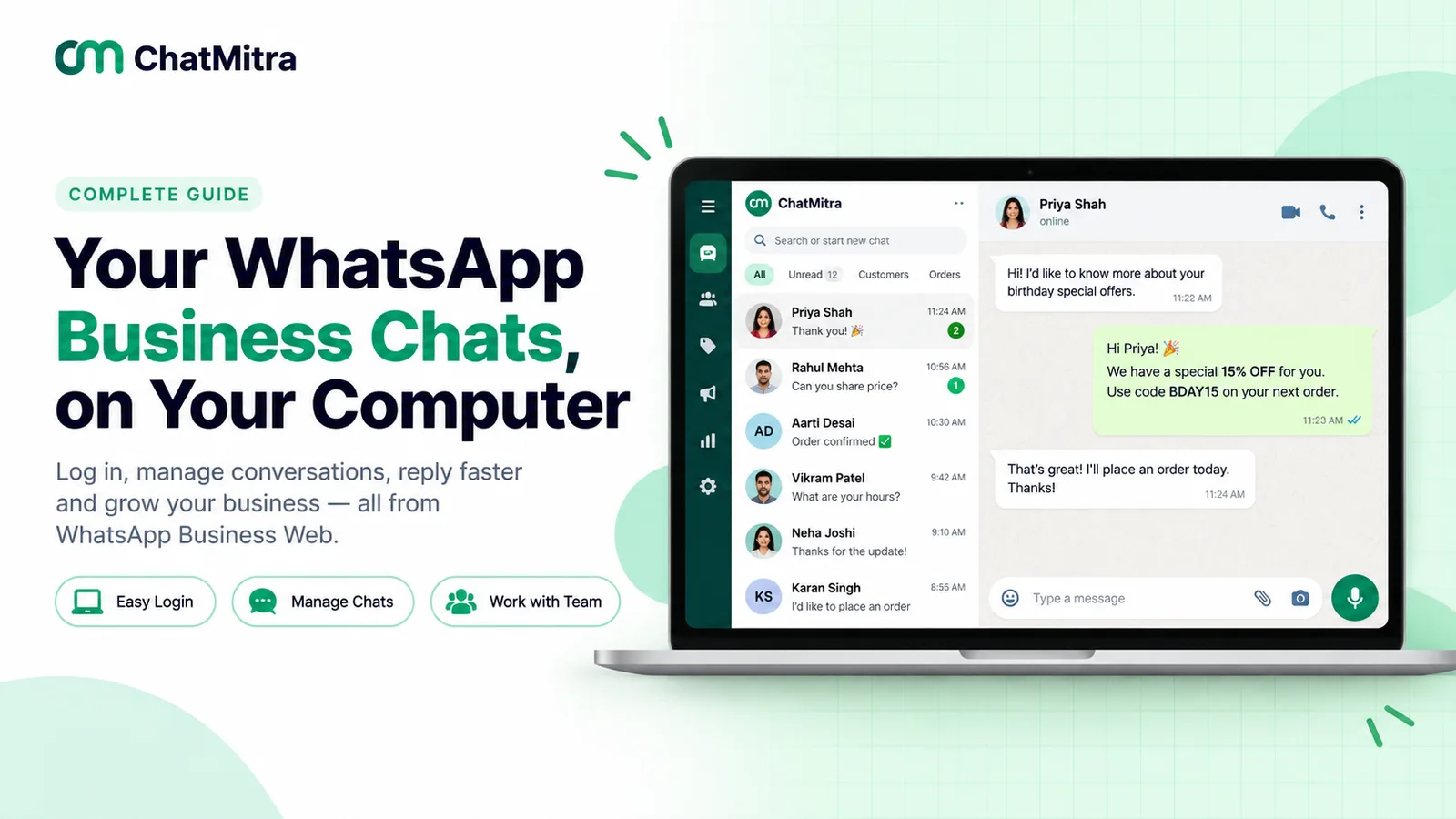
WhatsApp Business Web is your WhatsApp Business app account opened in a browser at web.whatsapp.com. It runs as a linked device: you scan a QR code or enter a one-time code on your phone, and your business chats appear on the computer. It is free, needs no download, and allows one phone plus four linked devices.
This guide covers how to log in with a QR code or phone number, whether to use the browser or the Windows and Mac apps, what works on a computer and what still needs the phone, how many people can reply, how to stay safe, and how to fix login problems.
Key takeaways
- There is no separate Business website or Business desktop edition. The account type comes from the phone you link.
- Keep the main phone in use. After more than 14 days without it, every linked computer logs out.
- Only link from web.whatsapp.com or the official desktop app. WhatsApp can ban accounts linked to unofficial apps or websites.
Facts checked against the WhatsApp Help Center, WhatsApp's download page and Meta's developer documentation on 27 September 2026.
What is WhatsApp Business Web?
WhatsApp Business Web is the browser version of the WhatsApp Business app. Strictly speaking, it isn’t a product of its own. WhatsApp Web is one website for everyone, and it becomes “Business” Web when you link it to a phone running the WhatsApp Business app. WhatsApp’s Help Center describes it this way: “Use WhatsApp Business on Web, Desktop, and other devices by linking them to your phone” (WhatsApp Help Center, linked devices on the WhatsApp Business app).
Three terms get mixed up in search results:
| Term | What it is | How you get it |
|---|---|---|
| WhatsApp Business Web | Your Business app account in a browser tab | Open web.whatsapp.com and link it from the phone |
| WhatsApp Desktop | An installed app for Windows or Mac, linked the same way | Microsoft Store, Mac App Store or WhatsApp's download page |
| WhatsApp Business Platform (API) | Meta's product for connecting software to a WhatsApp number, used by larger teams and automated systems | Directly from Meta or through a provider |
The first two show the same Business app account on a bigger screen. The third is a different product. WhatsApp itself draws the line: the Business app is for small businesses that “communicate with customers from a single device”, while the Platform “enables you to manage high volumes of conversations” (WhatsApp Help Center, business products). If you searched for WhatsApp Business Web because you want a team inbox, the last two sections of this guide are for you.
How it works behind the screen
Each linked device connects to WhatsApp independently. WhatsApp says it maintains “the same expected level of privacy and security through end-to-end encryption” on each one (WhatsApp Help Center, about linked devices). When you link a computer, your phone sends it an end-to-end encrypted copy of your recent message history, which is stored locally. Two practical consequences follow:
- The phone can be off. Linked devices “work without your phone online”, as long as the phone isn’t unused for more than 14 days.
- Not all history arrives. “Not all messages and chats are synced to linked devices from your phone. WhatsApp Desktop syncs more message history than WhatsApp Web” (WhatsApp Help Center, message history on linked devices). To search old chats, use the phone.
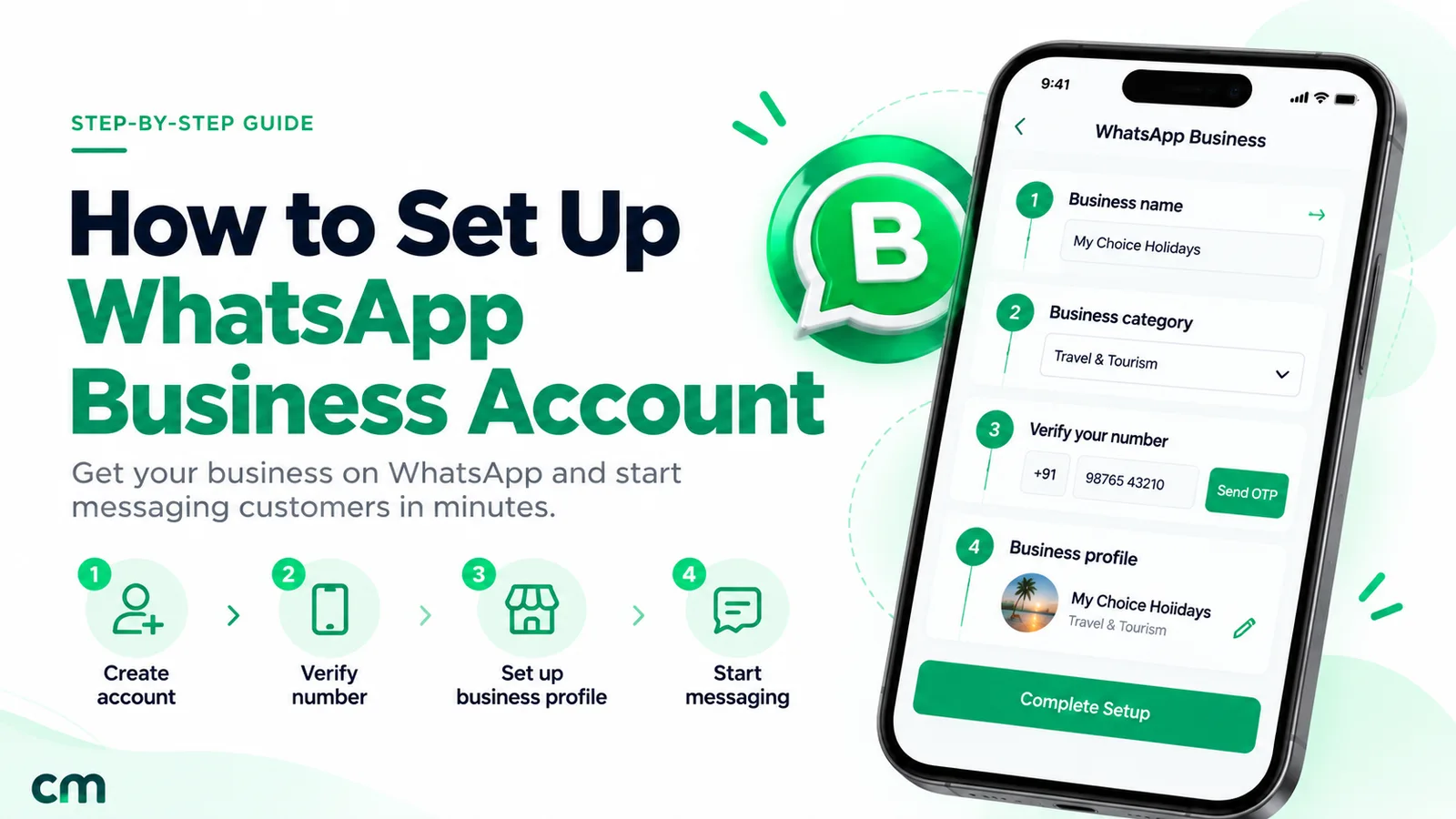
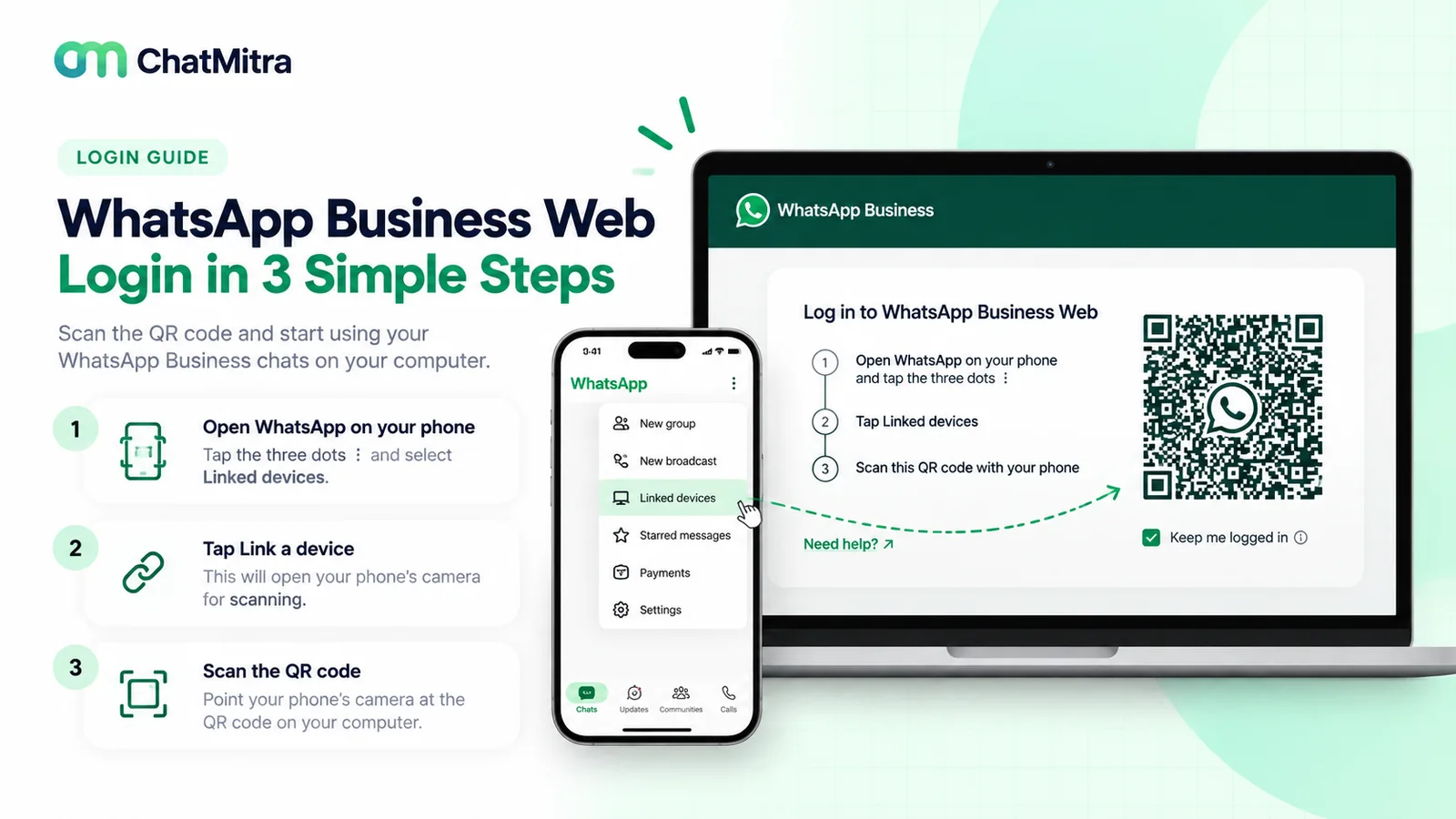
How to log in to WhatsApp Business Web with a QR code
This is the standard method. The same steps link WhatsApp Web, WhatsApp Desktop and tablets.
- On the computer, open web.whatsapp.com in an up-to-date browser. A QR code appears.
- Decide about “Stay logged in”. On a shared or public computer, untick it before you scan. The session then ends when you close the tab or browser (WhatsApp Help Center, checking linked devices).
- On the phone, open the WhatsApp Business app, not regular WhatsApp. If both apps are installed, this is the step people get wrong.
- Open Linked devices.
- On Android, tap the three-dot menu, then Linked devices > Link a device.
- On iPhone, go to Settings > Linked devices > Link a device.
- Unlock if asked. The phone may ask for biometric authentication or your phone PIN.
- Point the phone at the QR code on the computer screen. Your chats appear once the link completes; WhatsApp says older history “can take a few minutes” depending on how many messages you have.
These steps follow WhatsApp’s guide to linking a device with a QR code on the Business app. When the list of chats appears, check the name at the top of the chat list is your business, and then send yourself a test message from another phone.
How to log in with your phone number instead of a QR code
If the phone’s camera is broken, the screen is too far away, or the QR code won’t scan, WhatsApp offers a code-based alternative. For the Business app, WhatsApp notes: “This feature is currently only available on WhatsApp Web” (WhatsApp Help Center, link a device using a phone number).
- Open web.whatsapp.com. If the browser is already logged in to a personal WhatsApp account, log out of it first.
- Click Link with phone number.
- Choose your country, type the Business app’s phone number and click Next. An 8-character code appears on the computer.
- On the phone, tap the Enter code notification from the WhatsApp Business app.
- If no notification arrives, open Linked devices > Link a device > Link with phone number instead.
- Check the device name the phone shows, tap Confirm, and verify with your fingerprint or phone PIN if asked.
- Type the 8-character code on the phone.
Never type a linking code someone sends you
The 8-character code links a computer to your account. Only enter a code that is on a screen in front of you. If a "customer", "Meta support" or "delivery agent" asks you to enter or share a code, treat it as an attempt to take over your WhatsApp Business account.
WhatsApp Business on PC: Web or the Windows and Mac apps?
People searching for “WhatsApp Business app for PC” or “WhatsApp Business for Windows” are usually looking for a separate Business download. There isn’t one. You install the regular WhatsApp Desktop app and link it to your Business account with the same QR or phone-number steps. The Help Center lists WhatsApp Desktop as one of the places you can use WhatsApp Business by linking it to your phone.
Where to get it:
- Windows: the Microsoft Store.
- Mac: WhatsApp’s download page or the Apple App Store.
WhatsApp’s download page currently lists “Windows 10 or newer” and “macOS 12.1 or newer” (WhatsApp download page). Its Help Center article lists different minimums: macOS 11, and 64-bit Windows 10 version 1903 (WhatsApp Help Center, downloading WhatsApp Desktop).
| Question | WhatsApp Web (browser) | WhatsApp Desktop (Windows / Mac app) |
|---|---|---|
| Install needed? | No. Works in current Chrome, Firefox, Edge, Opera and Safari | Yes, from the Microsoft Store, Mac App Store or whatsapp.com |
| Message history on the computer | Recent history | More history than Web, per WhatsApp |
| Calls | Calls over your internet connection | Voice and video calls with up to 32 people |
| Link with phone number option | Yes (for Business accounts, Web only) | QR code only, for Business accounts |
| Best for | Shared, borrowed or locked-down computers; quick access | A dedicated work computer used every day |
| With a coexistence API number | Supported | Mac supported; Windows app not supported |
Sources: WhatsApp Help Center pages on connection issues (supported browsers), WhatsApp Web, linked devices and message history; Meta’s coexistence documentation (see the last sections).
Watch out for fake downloads. WhatsApp Web needs no download at all. Search results can lead to sites that have nothing to do with WhatsApp. In our SE Ranking capture of Google India’s results for “whatsapp business web” on 27 September 2026, one top-ten result on an unrelated domain was titled “Whatsapp Business Web - Download & Unlock Bonus”. Install the desktop app only from the stores named above or from whatsapp.com/download.
What you can and can’t do on WhatsApp Business Web
The computer is better for typing and files, and weaker for setup tools. WhatsApp added some of its most popular business features to Web and Desktop in January 2019: quick replies, labels and chat list filtering (WhatsApp Blog, 24 January 2019). Some tools have arrived since. Others still live only on the phone.
| Task | On WhatsApp Business Web? | Notes |
|---|---|---|
| Reply to customers, send photos and documents | Yes | Larger keyboard and screen for files |
| Use quick replies (type "/") | Yes, text only | "Media files aren't supported in quick replies on Web or Desktop" |
| Create or edit quick replies | Set up on the phone | WhatsApp's web article: "This feature isn't available on the web app" |
| Labels / lists | Yes | Create, apply and manage from Tools > Lists; up to 20 |
| Edit business profile and catalog | Yes | Profile photo, cover, description, categories, address, hours, email, website; "View or edit catalog" |
| Greeting and away messages | Set up on the phone | Both web articles: "This feature isn't available on the web app" |
| Broadcast lists | No | "Creating and viewing broadcast lists on linked devices" isn't supported |
| Paid business broadcasts | Yes, where offered | Tools > Business broadcasts; limited countries; reviewed by Meta |
| Post or delete Status | No | Not supported on Business linked devices |
| Live location | No | Not supported on linked devices |
| Calls | Yes | See the Web vs Desktop table; limits apply above four devices |
Sources: WhatsApp Help Center pages on quick replies, labels on Web, editing the business profile on Web, greeting messages, away messages, business broadcasts on Web and Business linked devices.
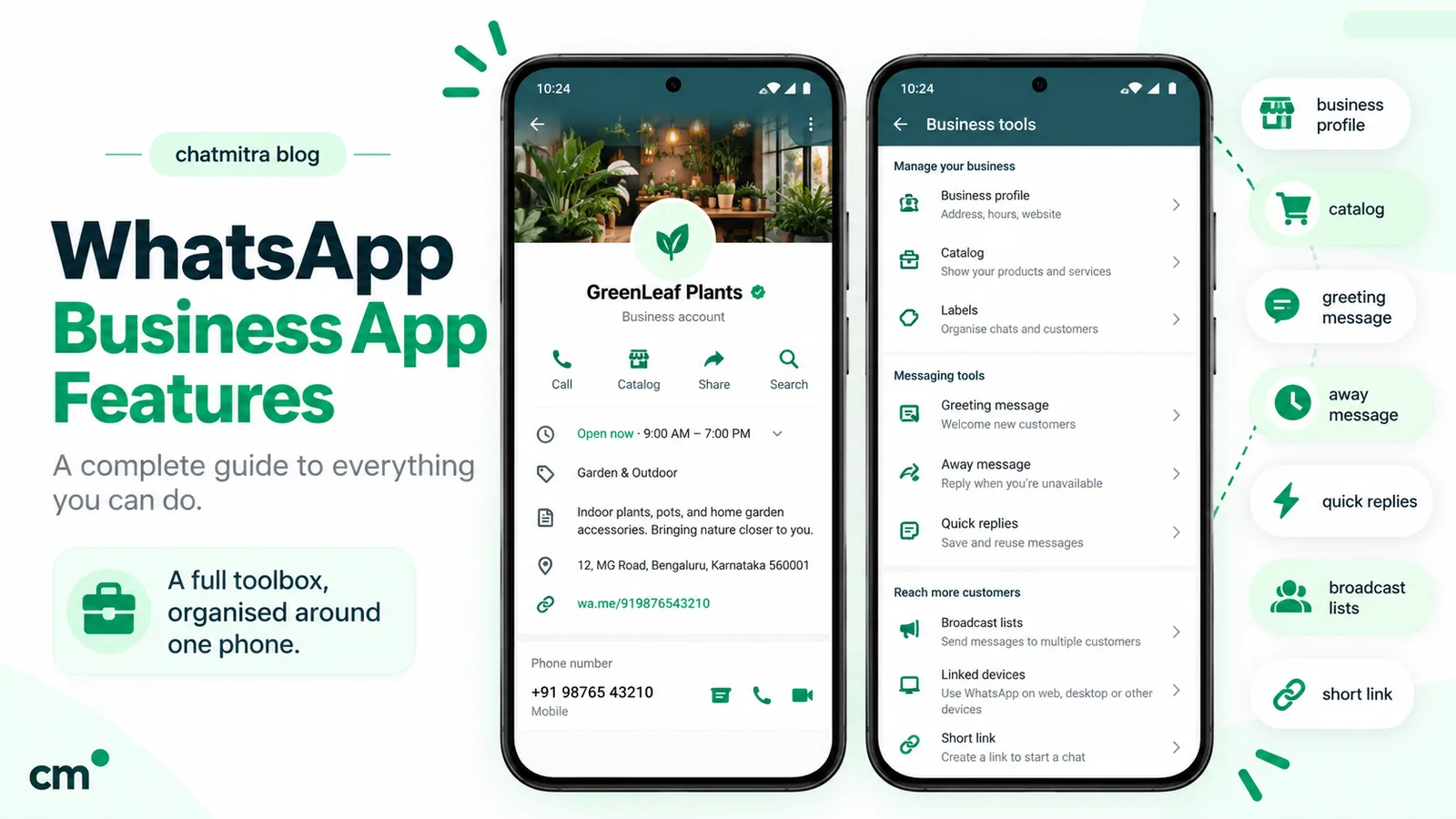
For what each tool does and its limits, read our guide to WhatsApp Business features.
Keyboard shortcuts worth learning
WhatsApp publishes a shortcut list for Web. These five save the most time in a busy business inbox (WhatsApp Help Center, keyboard shortcuts):
| Action | Windows | Mac |
|---|---|---|
| Mark as unread (a reminder to come back) | Ctrl + Alt + Shift + U | Cmd + Ctrl + Shift + U |
| Pin chat | Ctrl + Alt + Shift + P | Cmd + Ctrl + Shift + P |
| Archive chat | Ctrl + Alt + Shift + E | Cmd + Ctrl + Shift + E |
| New chat | Ctrl + Alt + N | Cmd + Ctrl + N |
| Lock the app (when app lock is on) | Ctrl + Alt + L | Cmd + Ctrl + L |
How many people can use WhatsApp Business Web at once?
On the free Business app, one phone and up to four linked devices can be active together. WhatsApp puts it plainly: “You can use up to four linked devices and one phone at a time” (WhatsApp Help Center). That could mean two browsers, a desktop app and a companion phone, each used by a different person.
The rules that come with it matter more than the number:
- The phone stays in charge. You “still need to register your WhatsApp Business account and link new devices with your phone”. A browser or desktop app can never become the main device.
- The 14-day rule. Linked devices “will log out if your phone is unused for over 14 days”. If the owner’s phone sits in a drawer during a holiday, the whole team is logged out.
- The 30-day rule. WhatsApp automatically disconnects any linked device after 30 days of inactivity, so a laptop used once a month will need relinking.
- Everyone is “the business”. On the free app, customers see replies from the business name, and nothing records who answered.
Multi-agent: up to 10 devices
Multi-agent raises the ceiling: WhatsApp says you can “Connect up to 10 devices to your account”, hand chats to specific agents and check which agent or device sent each message. Customers can’t see who replied or who the chat was assigned to. The exact device limit “is determined by the benefits included in your Meta Verified or Meta One subscription”, and WhatsApp warns that “the premium version of this feature may not be available to you yet”. Two details to plan for:
- If the subscription is cancelled or its benefits change, “only your four most recently active devices will remain linked”.
- Above four linked devices, incoming WhatsApp calls reach the primary device only.
All of these come from WhatsApp’s multi-agent article.
Linked devices are not user accounts
Each linked device is a window into one shared account, not a login for a person. There are no roles or per-person accounts, so anyone at a logged-in computer can read every chat, delete messages or edit the catalog. Treat each linked computer like a company key.
Is WhatsApp Business Web safe?
Each linked device keeps end-to-end encryption, so most real risks come from how the computer is used. Six habits cover them:
- Check your linked devices weekly. On the phone, open Linked devices and log out anything you don’t recognise. Turn on push notifications, and WhatsApp alerts you when a new device links, so you can remove it straight from the notification.
- Untick “Stay logged in” on shared machines such as a reception PC, a cyber café or a borrowed laptop.
- Turn on app lock for WhatsApp Web under Settings > Privacy > App lock.
- The password must be 6 to 128 characters.
- The app can lock itself after 1 minute, 15 minutes, 1 hour or 8 hours.
- Notifications are hidden while it is locked (WhatsApp Help Center, app lock).
- Turn on two-step verification on the account, which WhatsApp is upgrading from a 6-digit PIN to a password (WhatsApp Help Center, two-step verification).
- Only link official clients. WhatsApp says linking through unofficial apps or websites “may put your account at risk”, and that linking your account to one “now or in the past, may result in a temporary or permanent account ban” (WhatsApp Help Center, about linked devices). Its unofficial-apps page adds that bans can include “restrictions on your account, including the ability to link devices” (WhatsApp Help Center, unofficial apps).
- Know that WhatsApp can’t tell you who was in. “WhatsApp can’t provide information about who accessed your account or the time and location it was accessed.” Prevention is the only control you have.
Point 5 matters most for businesses. Browser extensions and “WhatsApp Web sender” tools that add bulk messaging or CRM features to your web session are not official WhatsApp clients, and the account at stake is your business number. Our comparison of official and unofficial bulk WhatsApp senders covers that trade-off in detail. If a number has already been restricted, see what to do when WhatsApp bans your number.
How to log out of WhatsApp Business Web
You can end a session from either end (WhatsApp Help Center, unlinking a device):
- From the phone (works remotely). Open the WhatsApp Business app, then Linked devices. Tap the device and tap Log out. Use this when a laptop is lost or an employee leaves.
- From the computer. Go to WhatsApp’s Settings > Log out > Log out.
When someone with access to a linked computer leaves, log that device out the same day, and change the phone’s screen lock if they knew it.
WhatsApp Business Web not working? Fixes by symptom
Most problems come down to one of three things: the network, the browser, or the link between phone and computer. Work down the table from your symptom.
| What you see | Likely cause | What to do |
|---|---|---|
| QR code won't load, or keeps refreshing | Slow or filtered network; old browser | Refresh the page; update the browser (Internet Explorer isn't supported); try another network |
| Phone won't scan the code | Dirty camera, glare, screen too small or zoomed | Zoom the browser to 100%, clean the lens, or use Link with phone number instead |
| Scanned from the wrong app | Personal WhatsApp opened instead of Business | Log out, then link again from the WhatsApp Business app |
| "Computer not connected" with a yellow icon | The computer has no working internet connection | Check the connection, restart the router or switch to a hotspot |
| Works at home, fails at the office | Office or campus Wi-Fi blocks WhatsApp | Ask IT to let traffic to "web.whatsapp.com" and ".whatsapp.net" through |
| Messages or media won't send | Poor connection or stale session | Refresh; clear the browser cache and cookies; log out and back in; restart the computer |
| Old chats missing on the computer | Only recent history syncs; a known issue affects some devices | Search the phone for older chats; use the desktop app, which syncs more history |
| Logged out without warning | Phone unused for 14+ days, device inactive for 30 days, or logged out from the phone | Open the Business app on the phone and relink; keep the phone in regular use |
| "You have been logged out" on the phone too | Number registered on a new phone, or the account inactive for over 120 days | Re-register the number on the phone, then relink each computer |
| "Link with phone number" not working | The browser is signed in to a personal WhatsApp account | Log out of that account first, then retry |
Sources: WhatsApp Help Center pages on connection issues, message history, Business linked devices, “You have been logged out” and linking by phone number. Zoom and camera tips are general troubleshooting advice, not WhatsApp instructions.
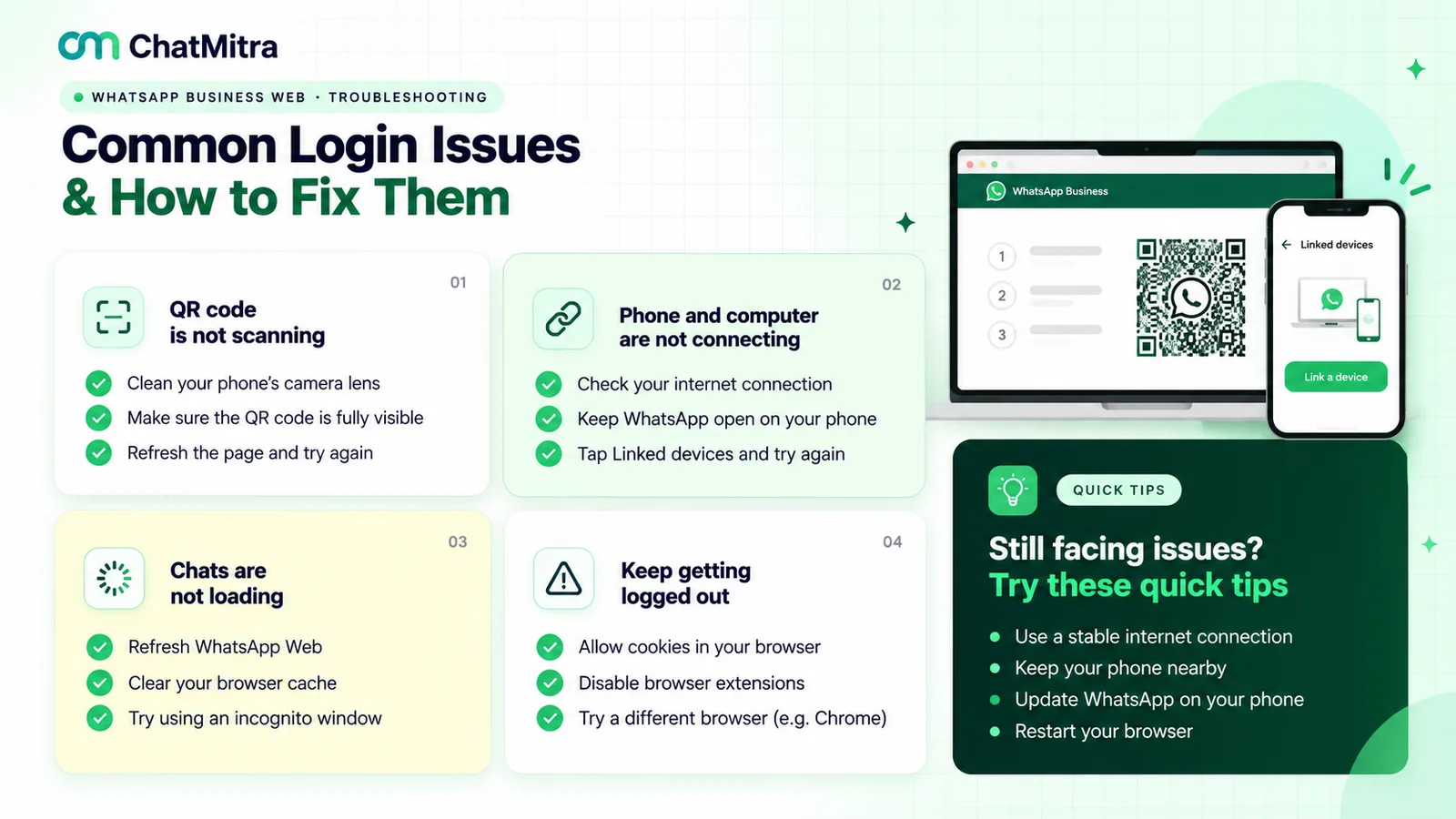
If nothing works, update the WhatsApp Business app, try a different browser, and restart both devices (WhatsApp suggests turning a device off for 30 seconds).
A WhatsApp Business Web setup that works for a small team
The friction comes from several people sharing one account. This setup suits a business with two to four people answering, such as a shop with a counter PC and a back office, or a coaching institute with two counsellors:
- One owner phone, always in use. It is the account’s anchor, so avoid a spare handset that nobody opens. Set a reminder if it might sit idle for two weeks.
- One linked device per person, never shared logins. Name the computer after the person in your own records, so you know which device to log out when they leave. WhatsApp lists device naming as available with or without multi-agent.
- Lists as a light pipeline. Create four or five lists, such as New enquiry, Quoted, Awaiting payment and Done, from Tools > Lists on the computer. Move chats along as you work.
- A shared quick-reply set, created on the phone. Prices, bank or UPI details, delivery areas, opening hours and the address. On the computer, anyone types ”/” to use them.
- Mark as unread instead of “I’ll do it later”. If you open a chat and can’t answer it, mark it unread with the shortcut so the next person sees it.
- A handover rule. Before you leave the desk, pin the chats you are in the middle of. The next person starts with pinned and unread chats.
- A weekly device check. Open Linked devices on the phone every Monday and log out anything stale or unknown.
This setup has a ceiling: no record of who answered, nothing to stop two people replying to one customer, and little automation beyond greeting and away messages. When those gaps cost sales, you need a different tool, not more browser tabs.
When WhatsApp Business Web stops being enough
These signs usually show up in this order:
| Sign | What the app offers | What a WhatsApp Business Platform inbox changes |
|---|---|---|
| More than four or five people answer | Four linked devices; up to 10 with paid multi-agent where available | A web inbox with its own user logins, not linked devices |
| The team logs out when the owner's phone is idle | Tied to the phone (14-day rule) | No phone tethering; the number runs in the cloud |
| You need to know who replied and control who sees what | No per-user access | Individual users with permissions set by the admin (varies by provider) |
| You send offers to hundreds of opted-in customers | Broadcast lists only reach people who saved your number; paid business broadcasts in limited countries | Approved message templates sent to opted-in contacts, charged per message by Meta |
| Orders, bookings or forms should trigger messages | No API | Messages from your store, sheet or CRM through the API |
Moving up doesn’t mean abandoning the app or its web access. A business can connect the number it already uses in the Business app to Meta’s Cloud API, a setup usually called coexistence. Meta’s documentation spells out what changes (Meta for Developers, Business app user onboarding, updated 26 June 2026):
- Linked devices are reset. Once the business onboards, “all companion apps will be unlinked from the account, and the business can then re-link any supported companion apps”. Supported means every companion client “except for WhatsApp for Windows and WhatsApp for WearOS”. On a Windows PC, that means using WhatsApp Web in the browser, not the Windows app.
- The app keeps working. You can still send one-to-one messages from the Business app. Those “will continue to be free”, while messages sent through the API are charged at Cloud API rates.
- Some app features switch off. You can no longer create broadcast lists, old ones turn read-only, disappearing messages are turned off in individual chats, and group chats aren’t synchronised.
The practical path usually starts with how to create a WhatsApp Business account (app or Platform) and then how to get the WhatsApp API. For a direct comparison of team inboxes, read our WhatsApp CRM software guide. For service workflows, read WhatsApp for customer service.
Where ChatMitra fits, and where it doesn’t
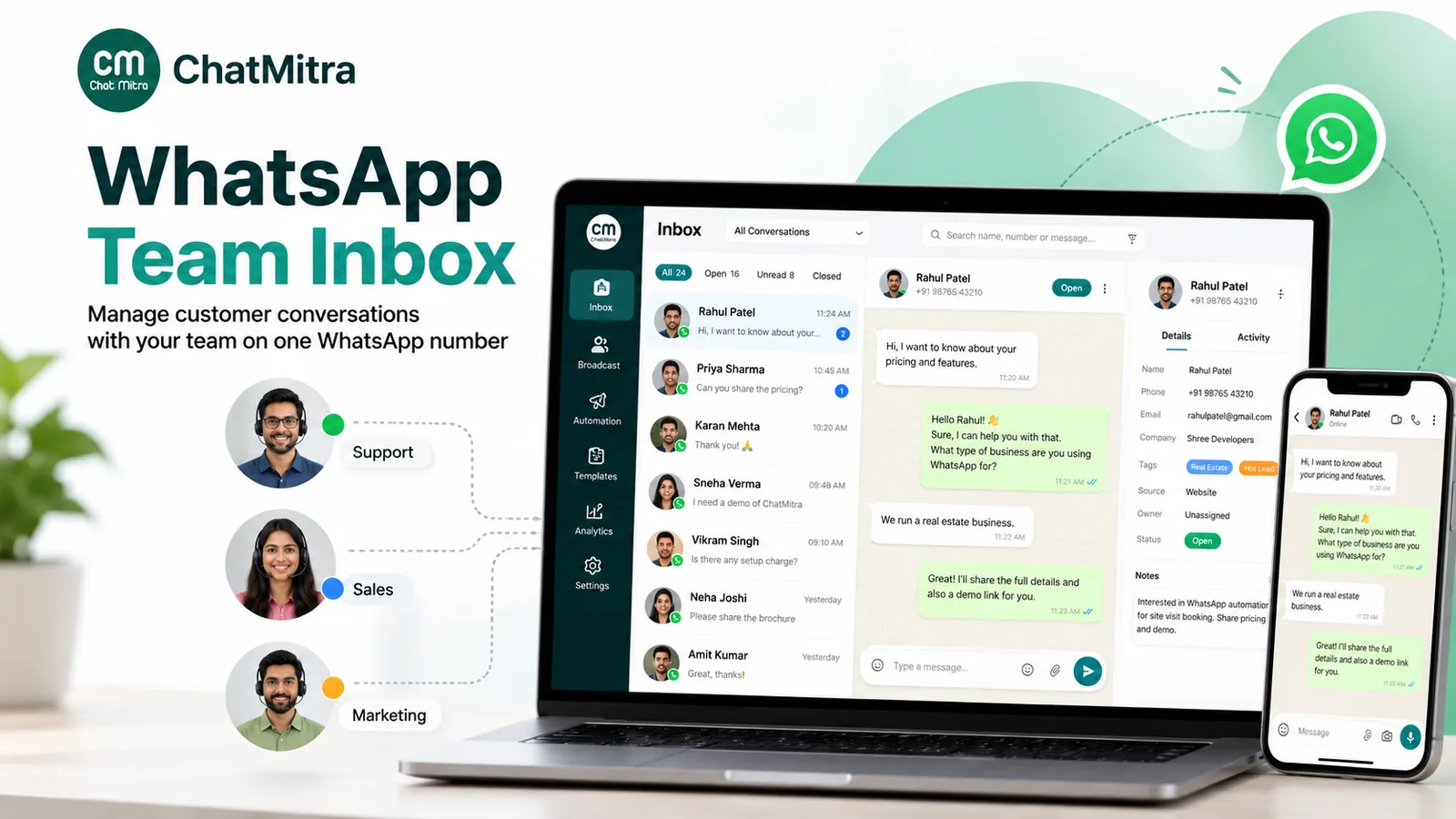
ChatMitra is a browser inbox built on the WhatsApp Business Platform, which removes the phone-tethering and shared-login problems described above. It doesn’t replace everything the app does.
| Need | ChatMitra |
|---|---|
| Many people answering one number from a browser | Yes. A shared team inbox with separate logins and no seat cap, on the free Starter plan |
| Control who sees what | Yes. Roles with view, edit, create and delete permissions per section |
| Keep using the Business app on the same number | Yes, through coexistence. Replies typed in the phone app show up in the ChatMitra inbox too; chats from before the switch are not imported |
| Saved replies, tags, contact notes | Yes. Team-shared saved replies inserted with "/", tags, one internal note per contact |
| Mobile access | Android app on the Play Store |
| Assign a chat to a specific agent | No. Chats aren't assigned; the inbox has pinned, unread and replied filters |
| WhatsApp calls, groups or Status | No |
On cost, ChatMitra’s Starter plan has no subscription. It adds a ₹0.20 fee per 24-hour conversation on top of Meta’s message charges, and a conversation can be opened by a customer’s message or by your reply. On a coexistence number, that includes a reply sent from the phone app when no conversation is open, even though Meta doesn’t charge for app messages. If four linked devices cover your team, stay on the free app. If you’ve outgrown it, compare ChatMitra’s plans.
Sources: the WhatsApp Help Center articles linked in each section, WhatsApp’s download page, the WhatsApp Blog and Meta’s coexistence documentation. Facts checked against the WhatsApp Help Center, WhatsApp’s download page and Meta’s developer documentation on 27 September 2026.