A WhatsApp Channel is a public, one-way feed that a business can post to for free. You post once, and anyone who follows you sees it in the Updates tab, with no limit on followers and no cost per post. It’s good for awareness: launches, offers, tips, schedules and news. It can’t hold a conversation, though. Followers can react and vote, but they can’t reply. The businesses that get value from a Channel use it to start one-to-one chats on their business number.
This guide is for marketers and owners deciding whether a Channel is worth the effort, and for teams that already have one and want more from it. It covers what a Channel can and can’t do compared with Status, Communities and broadcasts; setting one up safely; what to post; growing and measuring followers; the verified badge; Meta’s paid options; and the rules you have to follow. All features are checked against WhatsApp’s Help Center as of October 2026.
One note on wording: some software vendors use “WhatsApp channel” to mean WhatsApp as a messaging channel in their inbox. This article is about the Channels feature inside the WhatsApp apps.
Using ChatMitra? ChatMitra doesn’t post to Channels, because there’s no official API for it. It handles everything that happens after a follower taps your chat link: an inbox with unlimited team members, keyword replies, tags and opted-in campaigns on Meta’s rates at cost. Jump to using a Channel with ChatMitra.
What a WhatsApp Channel is
A Channel is a broadcast feed that lives in the Updates tab of WhatsApp and the WhatsApp Business app, next to Status. A business, creator or organisation creates it, and anyone can follow it. WhatsApp describes channels as a way to “share one-way updates to an unlimited audience” (WhatsApp Help Center, business channels).
Five facts shape everything else in this guide:
- Every channel is public. “All channels are public. You cannot create a code or password for a channel” (WhatsApp Help Center). Anything you post, a competitor can read.
- Updates last 30 days. Anyone can see updates from the past 30 days, and “all channel updates are removed from our servers after 30 days” (WhatsApp Help Center). A Channel is not an archive.
- Channels aren’t end-to-end encrypted, unlike your one-to-one chats (WhatsApp Help Center). Never post anything private.
- Followers can’t reply. “Followers can’t reply directly to updates or send messages to channel admins” (WhatsApp Help Center).
- Notifications are muted by default (WhatsApp Help Center). A follower sees your update when they open the Updates tab, unless they turn on notifications.
The audience is large. When Meta announced ads and subscriptions in the Updates tab in June 2025, it said the tab “is now used by 1.5 billion people per day globally” (Meta Newsroom). That’s people opening the tab, not people reading your channel. Your reach depends on how many follow you and how often they look.
What a Channel can and can’t do for a business
Most disappointment with Channels comes from expecting a marketing list. A Channel works more like a noticeboard that people chose to stand near.
| A Channel can | A Channel can’t |
|---|---|
| Reach any number of followers with one post, for free | Send a personal message, use a customer’s name or segment followers |
| Carry text, photos, videos, voice and audio, stickers, links, polls, quizzes and Questions | Share PDFs (“You can’t share PDFs to your channel”) |
| Show reaction counts, poll results and views per update | Show who opened an update, or count link clicks |
| Be found in WhatsApp’s channel directory, by link or by QR code | Guarantee that followers see an update (notifications are muted by default) |
| Have up to 16 admins in addition to the owner | Be run through an official API, chatbot or scheduler |
| Keep followers’ phone numbers hidden from everyone | Give you a contact list you can export or message later |
The last row matters most. A follower is not a contact. You can’t message the people who follow your channel unless they also give you their number and agree to hear from you, which is why the conversion section below matters.
Channel vs Status, Community, broadcast list and API broadcast
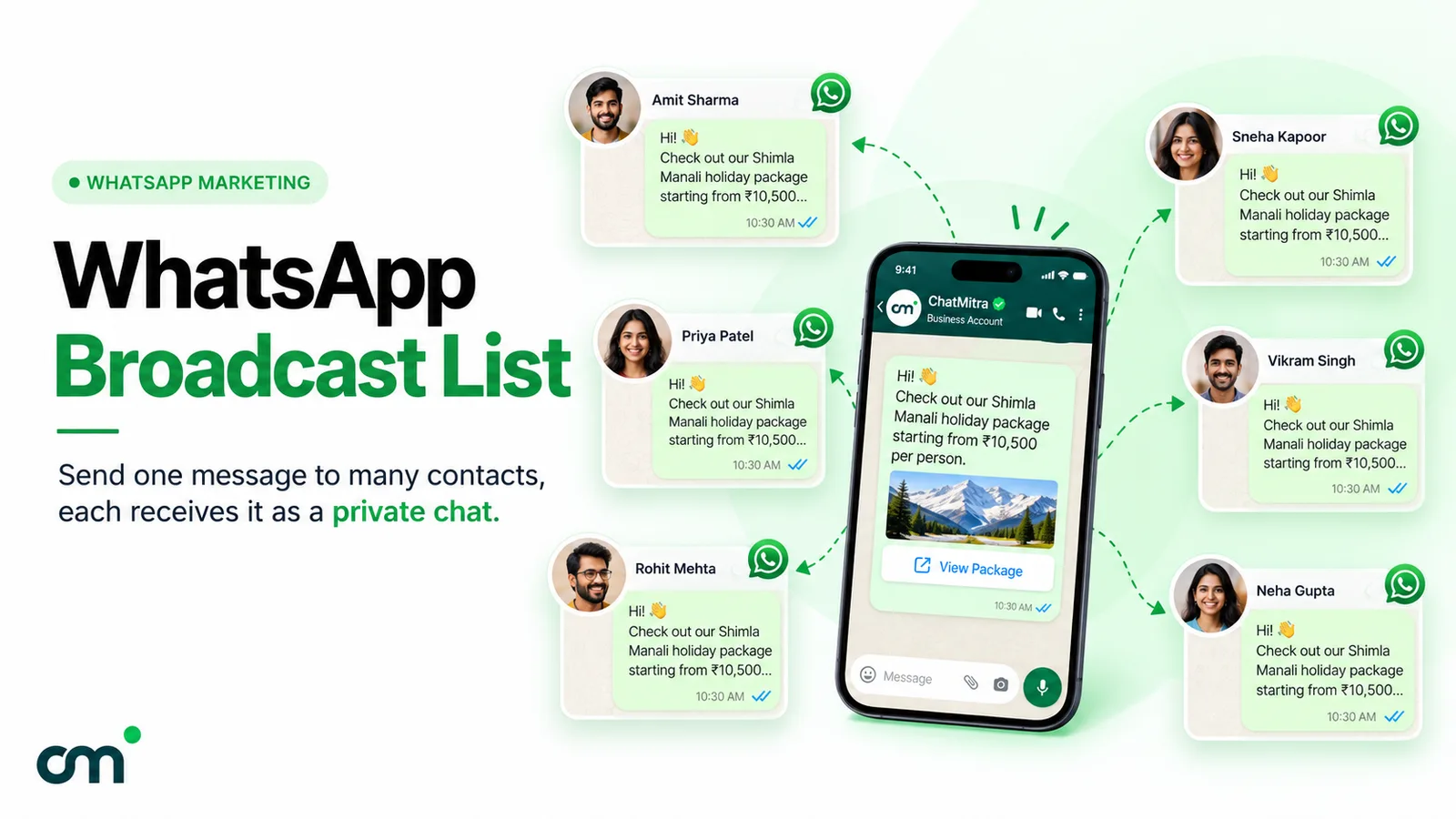
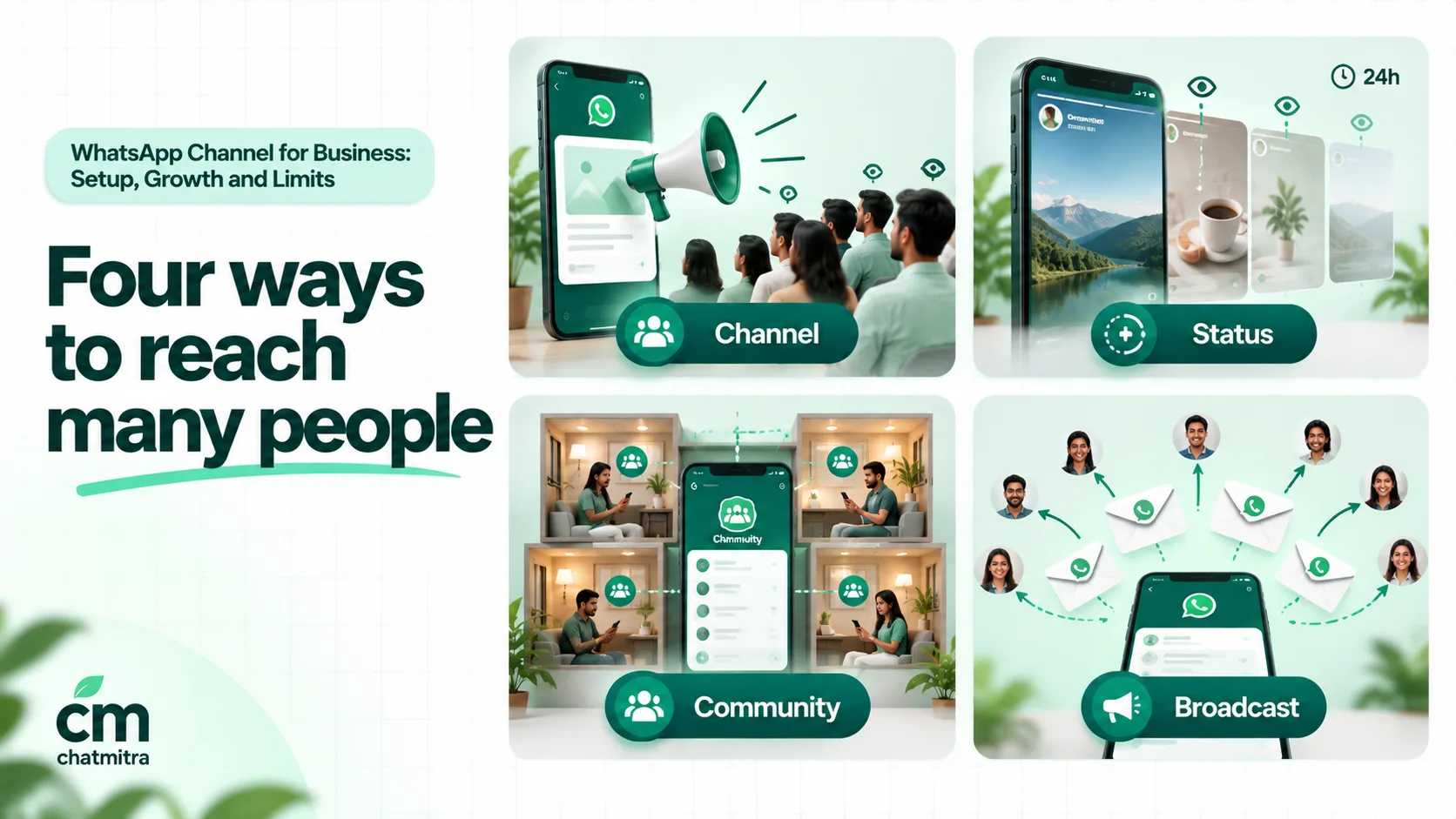
WhatsApp gives businesses several ways to reach many people, and they suit different jobs. Here is the short version; the broadcast list guide has the full table of limits.
| Tool | Who receives it | Can they reply? | Privacy | Cost | Best business job |
|---|---|---|---|---|---|
| Channel | Anyone who follows; no follower limit | No (reactions, polls, Questions only) | Followers can’t see each other | Free | Public news, launches, tips, schedules |
| Status | Your contacts who saved your number | Yes, privately | Viewers don’t see each other | Free | Short-lived updates to people who already know you |
| Community announcements | Members of your Community, up to 2,000 | Members can react and reply | Members in the same group see each other | Free | Organised member groups: schools, housing societies, clubs |
| Broadcast list (Business app) | Up to 256 contacts per list who saved your number | Yes, privately | Recipients don’t see each other | Free | Small groups of customers |
| API broadcast | Opted-in contacts, within your messaging limit | Yes, into your inbox | Private one-to-one | Meta’s rate per delivered message | Personal offers, reminders, orders, anything you must track |
A useful way to decide: if anyone in the world could read the post without harm, and you don’t need an answer, it belongs on a Channel. If it has a name, an amount, a date for one person, or needs a reply, it belongs in a one-to-one message.
Many businesses use both. Groups are covered in WhatsApp groups for business, and Status in WhatsApp Status marketing.
Which businesses a Channel suits
Channels reward businesses that have something new to say often, and an audience that wants to hear it without talking back. They do little for businesses whose every customer needs a conversation.
| Strong fit | Why | Weak fit | Why |
|---|---|---|---|
| Restaurants, bakeries and cafés | Daily specials, new menu items, festival pre-orders | B2B firms with a few dozen clients | Each client needs a personal update; a public feed adds nothing |
| Fashion and D2C brands | New drops, restocks, styling videos | Clinics and hospitals | Most messages are personal and sensitive |
| Coaching institutes and schools | Exam dates, timetables, study tips, results days | Lawyers and accountants | Public posts can look like solicitation; client work is confidential |
| Media, publishers and creators | Headlines, episodes, behind-the-scenes clips | Businesses with no regular news | A dormant channel looks abandoned |
| Real-estate developers | Project milestones, site photos, launch dates | Businesses that need every lead’s number | Followers stay anonymous |
| Events, gyms and clubs | Schedules, class changes, ticket windows | Anyone selling regulated goods | Channel Guidelines bar offering or transacting in regulated goods |
A simple test: write down the next ten things you’d post. If at least seven of them would interest a stranger who has never bought from you, a Channel is worth starting.
How to create a WhatsApp Channel for your business
You create a channel in the WhatsApp app or the WhatsApp Business app on your phone, or on WhatsApp Web or desktop once that device is linked to your account (WhatsApp Help Center, create a channel):
- Open the Updates tab.
- Tap + (or the channels menu) and choose Create channel, then Continue.
- Enter the channel name. It can be up to 100 characters, but keep it to your brand name plus, at most, what the channel is for (“Kanha Sweets – Daily Specials”).
- Add a description. Say what followers will get and how often: “Today’s specials at 11 am, festival pre-orders and new launches. 3–4 updates a week.”
- Add an icon: your logo on a plain background, readable at small sizes.
- Tap Create channel.
You can change the name, description and icon at any time. In Channel info, set which reactions followers can use (any emoji, default only, or none) (WhatsApp Help Center). Most businesses should keep reactions on, because reaction counts are one of the few signals you get.
If you only see “Find channels”, update the app. WhatsApp’s business help page says some features, “like being able to create a channel, might not be available to you yet” (WhatsApp Help Center).
Decide which account owns the channel
This step is easy to get wrong. A channel belongs to the WhatsApp account that created it, and “a WhatsApp channel can have one owner at a time” (WhatsApp Help Center). If an employee creates the channel on their personal number and later leaves, your channel leaves with them unless they transfer ownership.
- Create it from the business’s own WhatsApp Business app account, on a number the company controls.
- Don’t create it on a number that only runs on the API. Channels are created and managed in the WhatsApp apps, so the owner has to be an app account. If your business number runs on the WhatsApp Business Platform alongside the Business app, check whether the Create channel option appears in that app.
- Write down who the owner is, and make transferring ownership part of your process when staff leave.
Admins: who runs the channel
A channel can have one owner and up to 16 additional admins (WhatsApp Help Center). The roles differ:
| Action | Owner | Admin |
|---|---|---|
| Post, edit and delete any update | Yes | Yes |
| Change name, description, icon and settings | Yes | Yes |
| See insights and poll voters | Yes | Yes |
| Invite or remove admins | Yes | No |
| Transfer ownership or delete the channel | Yes | No |
Four details from WhatsApp’s admin pages that matter for teams (WhatsApp Help Center, admins):
- Invitations come from the owner’s own WhatsApp account as a chat message, and “invited admins can see your phone number.” Another reason to own the channel from a business number.
- You can invite anyone from your contacts. Invitations expire after seven days if they aren’t accepted.
- Admins’ posts go out without approval. Anyone you make an admin can publish to every follower immediately. Give the role only to people you’d trust with your brand’s public voice.
- Admins can set an admin profile with a separate name and photo. Followers never see admins’ numbers or account details, and admins can see each other.
WhatsApp encourages owners to ask every admin to turn on two-step verification. Make it a rule: a stolen admin account can post to all your followers.
What to post: formats and a content mix
Channels support text, images, videos, stickers, links, audio and polls (WhatsApp Help Center), as well as voice updates, quizzes, photo polls and Questions. Polls and quizzes can have up to 12 options (WhatsApp Help Center). With Questions, followers can answer and only admins see the answers (WhatsApp Help Center), the nearest thing to feedback a Channel offers.
| Format | Business use | Example |
|---|---|---|
| Photo with a short caption | New product, today’s special, before/after | A salon posts this week’s bridal look with “Slots for November open Monday” |
| Short video | Demo, behind the scenes, a 30-second tip | A hardware store shows how to fix a leaking tap |
| Poll | Let followers choose; learn preferences | A bakery asks which Diwali hamper to bring back |
| Quiz | Engagement and education | A coaching institute posts a daily practice question |
| Questions | Collect feedback, product requests, FAQs | A software company asks “What should we build next?” |
| Voice update | A personal note from the founder or teacher | A yoga studio’s instructor explains a new batch |
| Link | Send traffic to a page or a chat | ”Tap to book a site visit” with a click-to-chat link |
You can edit some text updates for up to 30 days, but not photos, videos, audio, polls or forwarded updates, and followers aren’t told about edits (WhatsApp Help Center). You can delete an update up to 30 days after posting. Proofread prices and dates before posting.
A four-week content plan
For a mid-sized restaurant posting four times a week, a workable rhythm might look like this:
| Day | Week 1 | Week 2 | Week 3 | Week 4 |
|---|---|---|---|---|
| Monday | This week’s specials (photo) | This week’s specials | This week’s specials | This week’s specials |
| Wednesday | Kitchen video: making the bestseller | Poll: which dish returns? | Chef’s voice note on a seasonal menu | Quiz: guess the spice |
| Friday | Weekend offer + “Tap to reserve” chat link | Weekend offer + chat link | Weekend offer + chat link | Weekend offer + chat link |
| Sunday | Customer photo (with permission) | Questions: “What should we add?” | Results of Wednesday’s poll | Next month’s events |
The repeating Monday and Friday posts teach followers when to look. The changing middle posts keep the feed alive. Every offer has one action, a chat link, so interest turns into a conversation you can see.
WhatsApp’s Channel Guidelines ask admins to avoid “too many or low-quality updates” (WhatsApp Channel Guidelines). Two to four good posts a week beat ten forgettable ones.
Privacy: what followers and admins can see
Privacy is the Channel’s strongest selling point for followers. People follow a brand more readily when no one else will see their number.
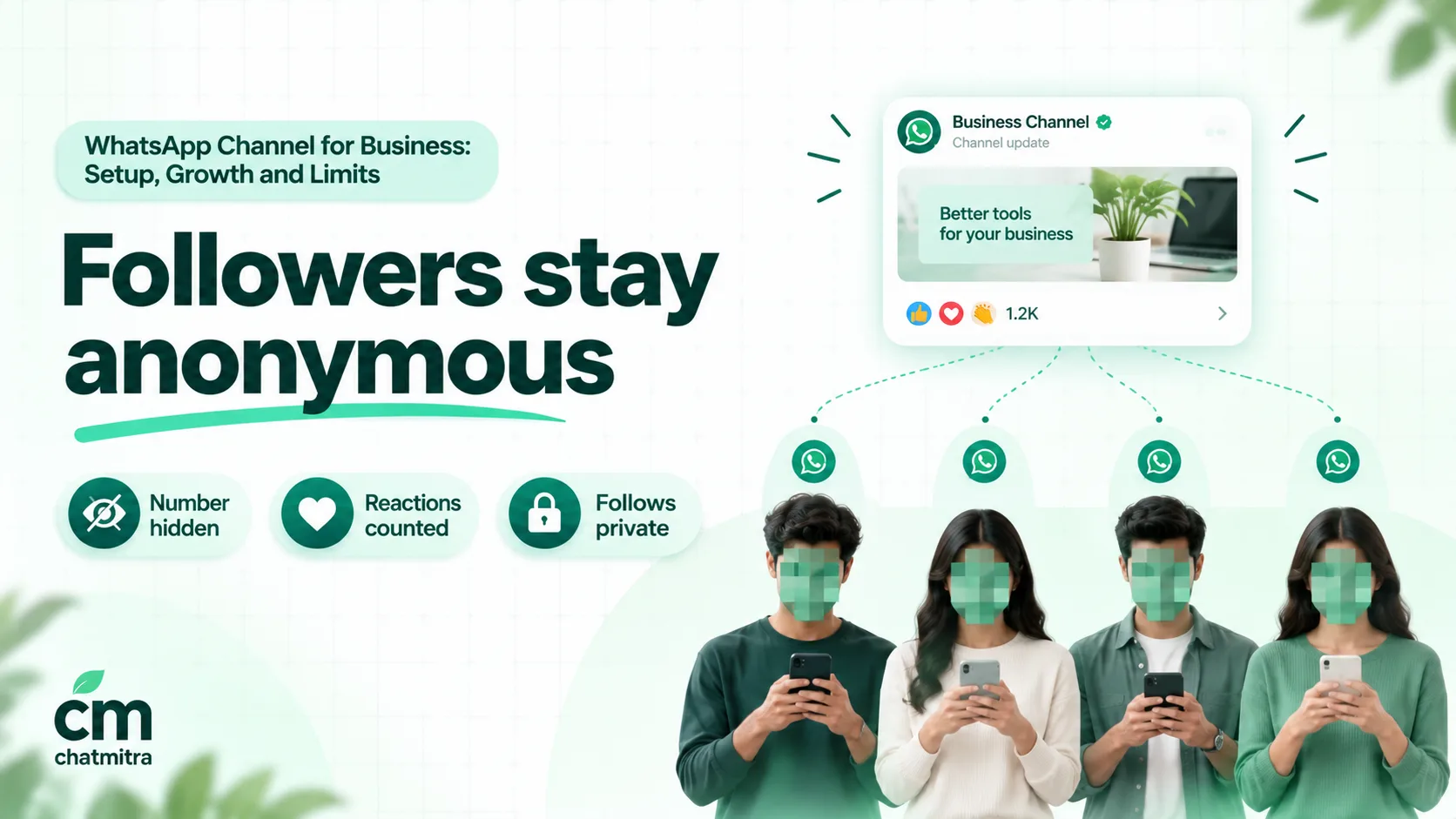
According to WhatsApp’s channel privacy page (WhatsApp Help Center):
- Other followers can’t see your name, phone number, profile photo, reactions or poll votes. Your contacts can’t see which channels you follow.
- Admins see a follower’s profile name and, depending on that follower’s settings, their profile photo. They see the full phone number only if the follower is already one of their contacts.
- Reactions show as counts per emoji. Nobody sees who chose which emoji.
- Poll votes: followers see only the totals per option. Admins can see who voted (WhatsApp Help Center).
- Forwards are labelled “Forwarded” and link back to your channel, and everyone sees the total forward count (WhatsApp Help Center).
- You can’t remove followers. Anyone can follow a public channel.
Two practical consequences. First, poll voters are visible to admins, so treat their names with the same care as any customer data and don’t use them for anything the poll didn’t mention. Second, admins can start a private chat with a follower who is already a contact, but that message “will come from your WhatsApp profile, not your channel” (WhatsApp Help Center). Don’t use this to cold-message people who followed you; a follow is not permission to message.
How to grow your followers
A channel is found in three ways: the directory inside WhatsApp, your channel link, and your channel QR code (WhatsApp Help Center). The directory lets people browse by category and sort by new, popular or most active, filtered by their country and language (WhatsApp Help Center). For most businesses, the link and QR code do far more than the directory, because your existing customers are the people most likely to follow.
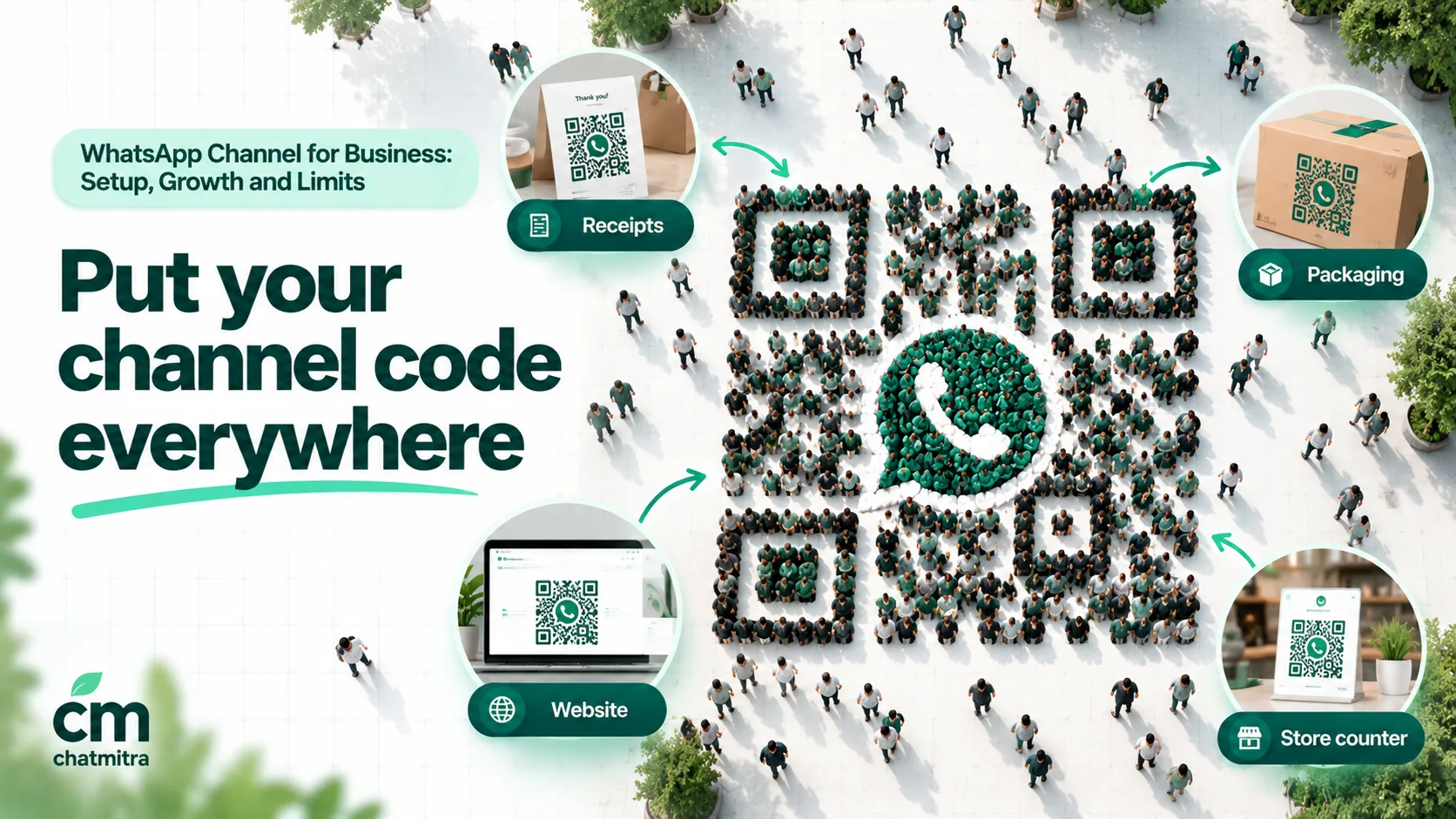
Places that work, roughly in order of effort:
- Your website. Add a “Follow us on WhatsApp” link in the header or footer and on the contact page.
- Point of sale. A QR standee at the counter, the code on bills and on packaging inserts. “Scan for today’s specials” converts better than “Follow our channel.”
- Your one-to-one chats. Add the channel link as one of the website links on your WhatsApp Business profile, and mention it in order confirmations. Keep this light: a promotion inside a utility template can change how Meta categorises the template.
- Other social profiles and email. Instagram bio, YouTube description, email signature, newsletter footer.
- Status, if your channel has it. In June 2026 WhatsApp began rolling out Status posting for channels, starting with football channels during the tournament; a channel’s statuses appear alongside contacts’ statuses, and followers can hide them (WhatsApp Blog). Check Channel info to see whether your channel can use it yet.
- Partners. A forwarded update links back to your channel, so a complementary business forwarding your post (a gym forwarding a nutritionist’s tip) brings you its followers.
- Paid promotion, where available. See Meta’s paid options below.
Give people a reason. “Follow for 10% off” works once and brings bargain hunters. “Follow to see tomorrow’s menu first” or “Follow for exam-date alerts” brings people who’ll stay.
Don’t buy followers. Bought followers never become customers, they push down your views per update, and they make your insights useless for deciding what to post.
The verified badge
A verified badge tells followers that a channel really belongs to your business, which matters if fake channels copy well-known brands. WhatsApp’s current rules (WhatsApp Help Center, verified channels):
- A verified channel “requires an active subscription and a verified business account”: Meta Verified or Meta One for Business.
- You create it from your subscription tools (Tools › Subscriptions › Verified channel).
- Your verified business name is always the prefix of the channel name, and the channel picture is your business picture.
- One subscription covers up to 10 verified channels, depending on the plan: 1 on Standard, 3 on Plus, 5 on Premium and 10 on Max. Meta says “plans and benefits may be limited to select businesses and/or locations” (WhatsApp Help Center).
- A badge “does not guarantee your channel will appear in search results.”
Some older WhatsApp help pages still say channel verification isn’t publicly available yet. The verified-channel page above is the current one. For what Meta Verified involves on the business side, see the Meta Verified for Business guide.
Measuring results: insights and links
Once you have 100 followers, insights appear in Channel info. Below that, “Channel insights aren’t available,” and reported numbers “may be delayed by about a week” (WhatsApp Help Center, channel insights). You get:
- Growth: follows, unfollows and net follows over 30 days.
- Reach: unique accounts reached (including admins and people who don’t follow), and the top regions.
- Followers: total, percentage change and top regions.
- Per update: views (only admins see them), reaction counts and poll voters.
What insights won’t tell you is whether anyone acted. Add that yourself:
- UTM-tag every website link (
?utm_source=whatsapp&utm_medium=channel&utm_campaign=diwali) so your analytics shows channel visits separately. The guide to sending links on WhatsApp covers link previews and tagging. - Use a different pre-filled message for each post’s chat link, such as “Hi! I saw the Diwali hamper on your channel.” When the chat arrives, you know which post brought it.
- Track three numbers weekly: net follows, average views per update divided by followers, and chats started from channel links. If views per update fall, you’re posting too much or too little of value. If chats stay at zero, your posts have no action.
Unfollows after a post are the clearest feedback you’ll get. A spike after a promotion-heavy week tells you more than any reaction count.
Meta’s paid options: subscriptions, promotion and Status ads
In June 2025, Meta announced three ways to make money from, or spend money on, the Updates tab, to be rolled out “slowly over the next several months” (Meta Newsroom). As of October 2026, WhatsApp’s own pages still describe all three as gradual rollouts:
| Option | What it does | Status per WhatsApp’s pages |
|---|---|---|
| Channel subscriptions | Followers pay a monthly fee for exclusive updates, billed through Google Play or the App Store and renewing automatically | Rolling out “to a select group of channels”; “aren’t available on the WhatsApp Business App yet” (source) |
| Promoted channels | Pay for a more visible spot in the channel directory | Rolling out gradually (source); listed as “coming soon” on WhatsApp’s business ads page |
| Ads in Status | An ad between Status updates, created in Meta Ads Manager; people who tap it are sent to a chat with your business | Rolling out; “may not be available in your region yet” (source) |
For a business, the practical reading is:
- Subscriptions suit creators and publishers, not shops. And they aren’t on the Business app yet.
- Promoted channels grow followers, not sales. Use them only if your channel already converts followers into chats.
- Status ads go straight to a chat, so they’re closer to Click-to-WhatsApp ads than to channel growth.
Meta also says, in the same announcement, that it “will never sell or share your phone number to advertisers.”
Channel Guidelines and what gets a channel closed
Every channel follows WhatsApp’s Channel Guidelines (last updated 16 February 2024) and Channels Terms, which say that “channel admins are responsible for the content on their Channels” (Channel Guidelines; Channels Terms).
The rules that most often catch businesses:
- Regulated and restricted goods. Channels must not “offer and/or transact in regulated or restricted goods.” A pharmacy, liquor shop or firearms dealer should check before posting product offers.
- Intellectual property. Reposting another brand’s video, a film clip or a news photo you don’t have rights to is a violation.
- Fraud and impersonation. Pretending to be another business, or using its name or logo, is prohibited. WhatsApp also asks admins to use a title that reflects the channel’s content, so don’t rename a channel to chase followers.
- Spammy behaviour. Too many or low-quality updates.
WhatsApp can respond with warnings, removing updates, removing the channel from the directory or search, revoking verification or the invite link, suspending the channel, or banning admins. Repeat violations lead to suspension. If your channel is restricted, the alert explains why. You can delete the update, request a review or appeal from Channel info, and “review requests can only be submitted once per alert” (WhatsApp Help Center).
Turn followers into conversations
A follower who only watches is worth little to a business. The value appears when a follower taps through to a one-to-one chat with your business number, where you can answer a question, take an order or ask permission to send personal updates.
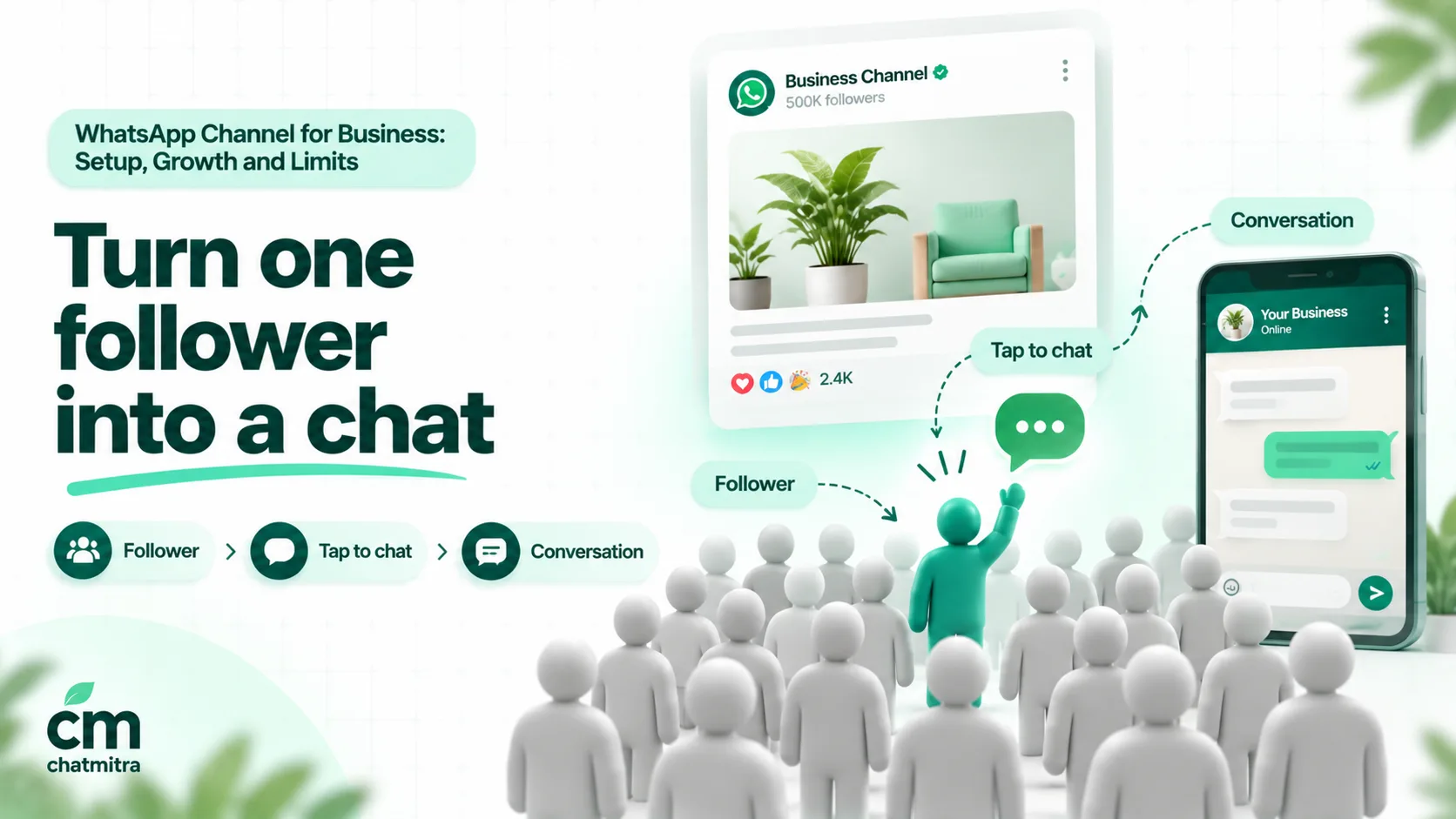
The route is simple:
- Make a click-to-chat link to your business number with a pre-filled message, for example
https://wa.me/91XXXXXXXXXX?text=Hi%2C%20I%27d%20like%20the%20Diwali%20menu. ChatMitra’s free WhatsApp link generator and QR code generator build these; the message links guide explains the format. - Put the link in the post, with one clear action: “Tap to reserve”, “Tap to get the price list”, “Tap to book a site visit”.
- Answer instantly. When a follower sends the pre-filled message, a 24-hour customer service window opens. Your replies in that window are service messages. Meta’s first 1,000 a month are free, and after that, ₹0.115 each in India.
- Ask for permission in the chat. “Want us to message you when the hampers are back? Reply YES.” A follow is not consent to marketing messages; an explicit yes in the chat is the record you need before sending templates later.
- Tag the contact by source (“Channel – Diwali”) so you know which posts bring buyers, and so later campaigns only go to people who said yes.
What it costs, side by side
Suppose a bakery has 5,000 channel followers in India and wants to announce its Diwali hampers.
| Route | Calculation | Cost |
|---|---|---|
| Post on the Channel | One post, any number of followers | ₹0 |
| Marketing template to 5,000 opted-in contacts on the API | 5,000 × ₹0.8631 (Meta, India marketing rate from 1 October 2026) | ₹4,315.50 |
| Plus ChatMitra Starter fee | 5,000 conversations × ₹0.20 | ₹1,000.00 |
| API total | ₹5,315.50 |
The Channel is free but uncertain: with muted notifications, many followers won’t see the post in time. The API costs money but reaches each person’s chat list, can carry their name and a button, and lets them reply. The smart setup uses the free post to make followers ask, and spends money only on people who said yes.
Using a Channel with ChatMitra
ChatMitra runs on the WhatsApp Business Platform. It doesn’t post to Channels, because Meta’s documentation lists no Channels API, and it doesn’t read channel followers or insights. Run the channel in the WhatsApp Business app, and let ChatMitra handle the conversations your channel creates:
- Connect your business number to ChatMitra and create the channel from the WhatsApp Business app on a company-owned account (see deciding who owns it).
- Generate chat links and QR codes for your posts in ChatMitra’s dashboard (WhatsApp Link & QR Generator), with a different pre-filled message for each campaign.
- Answer channel chats from one shared inbox, on the web or Android app, with unlimited team members on the same number.
- Set keyword replies on Pro: an Auto Reply rule that matches messages starting with your pre-filled text sends the menu, price list or booking options immediately, with buttons or a list.
- Tag and import. Tag contacts who arrive from the channel, and import existing opted-in customers from CSV (up to 10,000 rows per import).
- Send opted-in campaigns to the tagged contacts who said yes, scheduled up to two months ahead.
ChatMitra’s advantages for businesses running a Channel:
| Advantage | What it means |
|---|---|
| Starter is free | Answer every chat your channel creates without a subscription fee |
| Meta’s rates at cost | Service replies, utility and marketing templates at Meta’s price, plus ₹0.20 per conversation (once per customer per 24 hours) on Starter and Pro; no per-conversation fee on Enterprise |
| Unlimited team members | Sales, support and the channel admin answer from one number |
| Link and QR generator built in | A tracked chat link for every post in seconds |
| Keyword replies and tags | Know which post brought which chat, and reply before the follower loses interest |
Good to know: ChatMitra can’t schedule, post or analyse Channel updates; do that in the WhatsApp Business app. Campaigns don’t automatically skip people who turned off marketing messages in WhatsApp, so keep a “do not message” tag and exclude it. ChatMitra has no website chat widget, so put your chat link or QR code on your site instead. Keyword Auto Reply and the AI chatbot are on Pro.
Common mistakes
- Treating followers as a contact list. You can’t message them or export them. Build your contact list from the chats your posts create.
- Posting private information. Channels are public and not end-to-end encrypted. Order details, prices for one client or personal data belong in one-to-one chats.
- Letting an employee own the channel. Create it on a company account and keep ownership with the business.
- Making too many people admins. Every admin can post to every follower without approval.
- Posts with no action. An offer without a chat link or web link can’t be measured and rarely converts.
- Burst posting. Ten posts in a day, then silence for a month, teaches followers to mute or leave.
- Relying on the feed as an archive. Updates vanish after 30 days. Keep your own copy of anything you’ll need later.
- Expecting an API or chatbot to run it. There’s no official way to automate posting; tools that offer it aren’t using Meta’s platform.
- Buying followers or reposting other people’s content. Both damage the channel, and copyright and impersonation violations can get it suspended.
Sources
- WhatsApp Help Center: Business channels, Create a channel, Channel admins and settings, Channel owner, Invite admins, Update types, Polls and quizzes, Questions, Edit updates, Channel restrictions and retention, Channels on Web, Channel privacy, Poll votes, Forwarding, Directory, Link and QR code, Notifications, Channel insights, Verified channels, Meta Verified plans, Channel subscriptions, Promoted channels, Ads in Status.
- WhatsApp: Channel Guidelines (updated 16 February 2024), Channels Terms of Service.
- WhatsApp Blog: Celebrating football with new features on WhatsApp (June 2026).
- Meta Newsroom: Helping you find more channels and businesses on WhatsApp (16 June 2025).
- Meta for Developers: WhatsApp Cloud API overview and pricing.