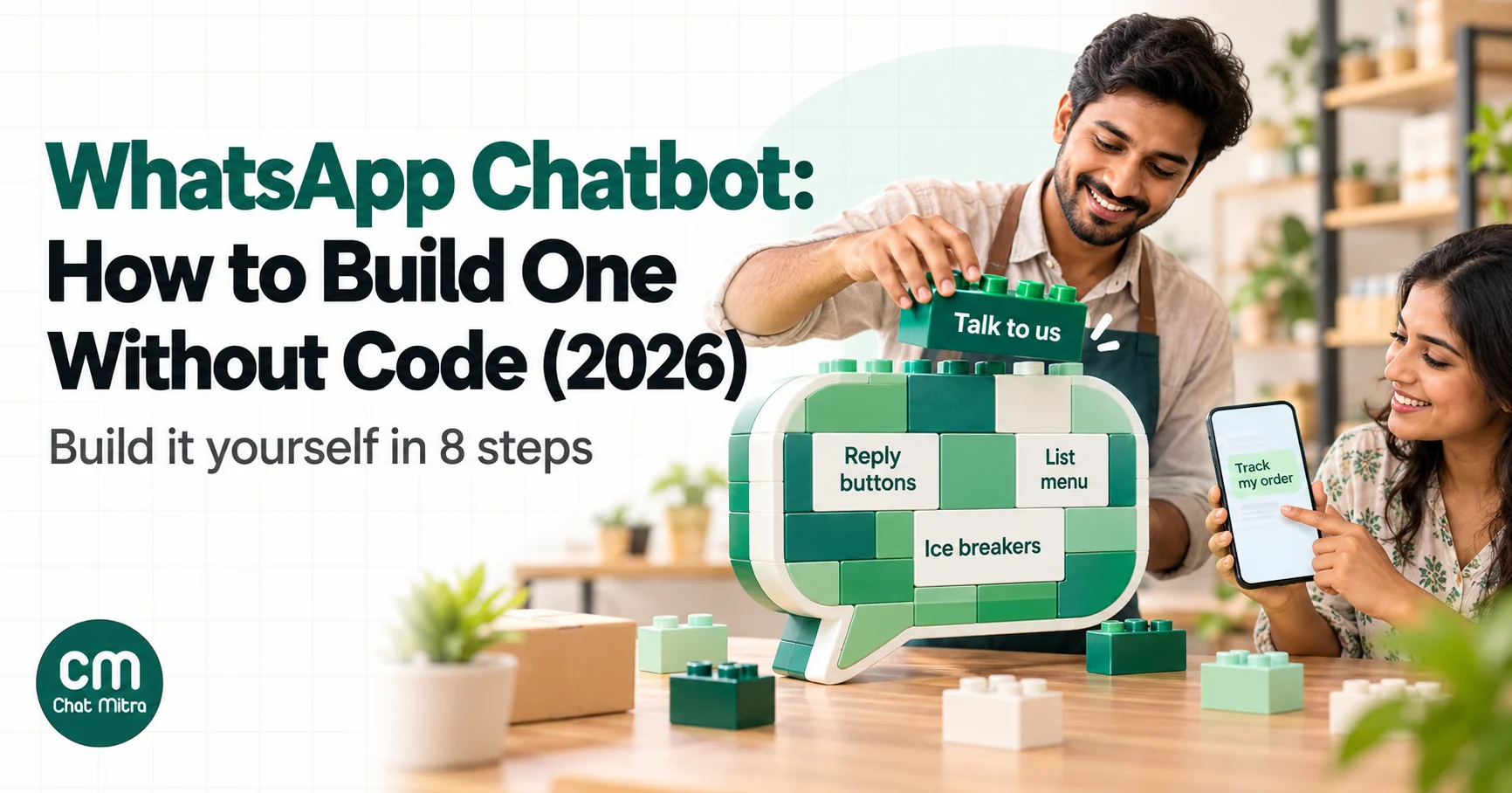
A WhatsApp chatbot is software on your business’s WhatsApp number that answers customers automatically, using buttons, list menus, keyword rules, AI or a mix of them. To build one without code, you need a WhatsApp Business Platform (API) number through a provider. Pick the three to five questions that fill your inbox, map each as a short path of taps, write the replies within Meta’s limits, and add a fallback plus a clear way to reach a person.
That’s the whole idea. Doing it well is harder, because most WhatsApp chatbots fail in the same few ways. The menu goes three levels deep and customers give up. The bot ignores anything typed in free text. Or there’s no way out to a human, which Meta’s own policy doesn’t allow. This guide walks through the build step by step, with the exact limits Meta sets, a complete example for an online store, what the bot costs you now that Meta charges for service replies, and how to tell whether it’s working.
Key takeaways
- It needs the API. The free WhatsApp Business app has greeting and away messages, not a chatbot. Unofficial automation on a normal account risks a ban.
- Small beats clever. Three to five jobs, at most two taps to an answer, and a fallback for everything else.
- Design inside Meta's limits: 3 reply buttons of 20 characters, or a list of up to 10 rows.
- Every reply has a price. From 1 October 2026, service replies beyond 1,000 a month per number cost ₹0.115 each in India, so shorter paths save money.
- A human route is mandatory. Meta requires a prompt, clear and direct escalation path whenever you automate.
What is a WhatsApp chatbot?
A WhatsApp chatbot is an automated responder connected to a business number on the WhatsApp Business Platform. When a customer sends a message, taps a button or picks from a list, Meta forwards it to the chatbot’s software, which decides what to send back.
What the bot “decides” depends on how it’s built. Most business chatbots are rule-based: every reply was written in advance, and the bot matches the customer’s tap or words to the right one. An AI chatbot uses a language model to understand free text and compose its own answer from your business information. Increasingly, businesses combine the two.
It helps to be clear about what a WhatsApp chatbot is not:
- It isn’t the WhatsApp Business app’s automation. The free app offers a greeting message (for a first message or after 14 days of silence), an away message and saved quick replies. Those are useful, but they can’t show a menu, react to keywords or follow a conversation.
- It isn’t Meta AI. Meta AI is the general assistant inside WhatsApp for personal use. Meta’s business offering is a separate product, Meta Business Agent, which we cover in our WhatsApp AI agent guide.
- It isn’t a browser extension or “WhatsApp Web bot”. Tools that automate an ordinary WhatsApp or WhatsApp Business account break WhatsApp’s terms, and numbers using them get banned. We explain the difference in official vs unofficial bulk WhatsApp senders.
The four types of WhatsApp chatbot
Vendors use a lot of labels, but in practice there are four designs. Most businesses start with the first or second and add AI later.
| Type | How the customer interacts | Best for | Main weakness |
|---|---|---|---|
| Menu (button) chatbot | Taps reply buttons or picks from a list | Order tracking, bookings, store timings, routing to a team | Menus that go too deep; customers who type instead of tapping |
| Keyword chatbot | Types a word such as "price", "menu" or "track" | Exact answers: fees, prices, policies, links | Misses spellings, synonyms and other languages |
| AI chatbot | Types anything, in their own words | Varied product questions, mixed-language chats | Can give a confident but wrong answer; needs review |
| Hybrid | Taps for common paths; typed questions go to AI or a person | Most businesses once volume grows | Needs clear rules so only one part replies to each message |
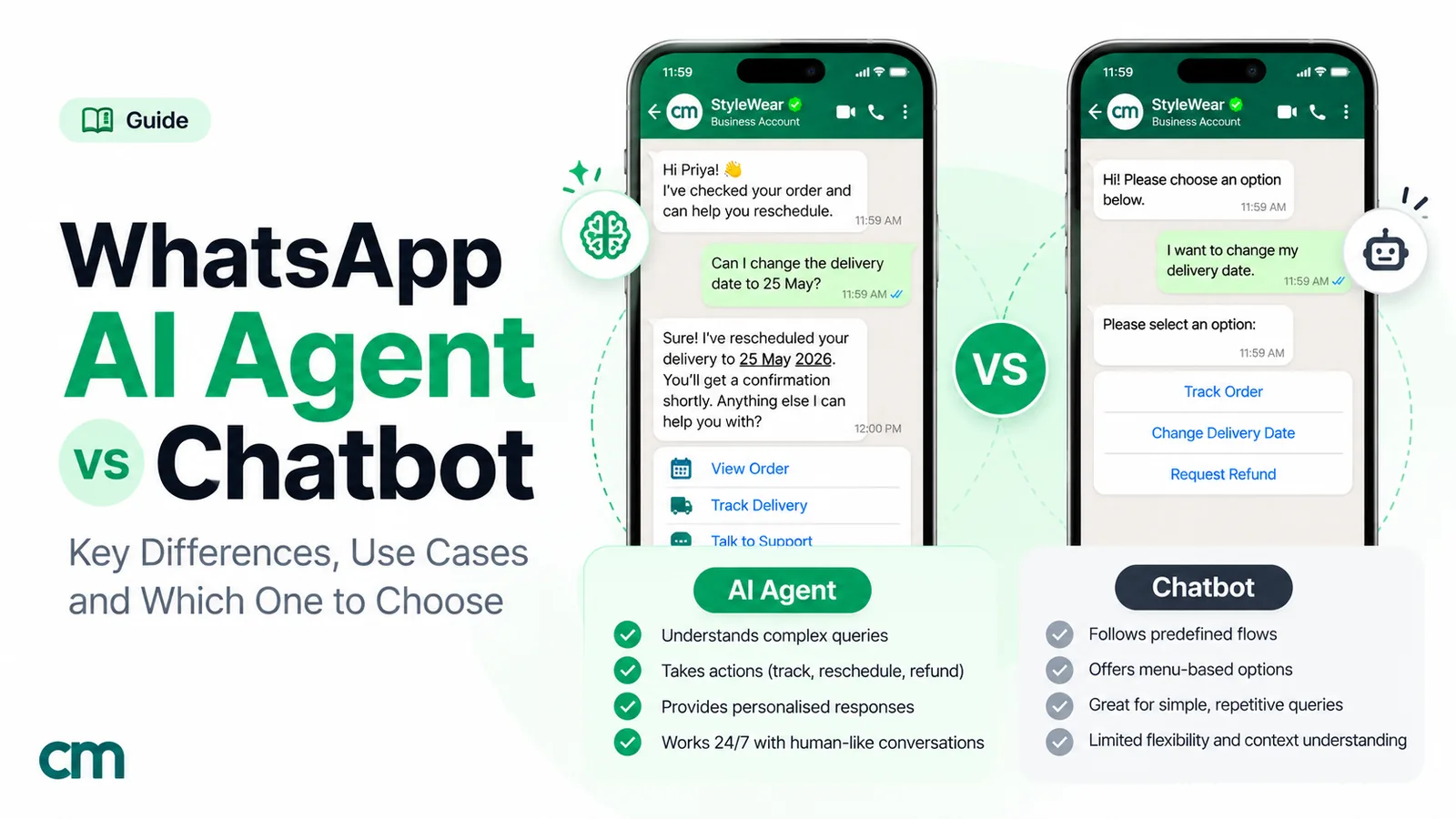
If you’re weighing rules against AI in depth, including costs and failure modes, read AI agent vs chatbot on WhatsApp. This guide focuses on building the bot, and the steps below apply to all four types.
What you need before you build one
Four things have to be in place first. None of them needs code.
- A WhatsApp Business Platform number. You get one through a Business Solution Provider or a platform built on Meta’s Cloud API. The number can be new, or one you move from the app. Some providers support coexistence, which keeps the app working on the same number. Our guide to getting the WhatsApp API covers the steps.
- An approved display name, and ideally a verified business. Meta reviews your display name. Business verification is one of two ways to raise a new number’s messaging limit above 250 people a day. That matters only when the bot starts conversations with templates, not for replies.
- A no-code builder. This is the platform feature where you set triggers, write replies and add buttons. Some platforms offer a visual drag-and-drop canvas, while others use a list of rules in which each reply can trigger the next. Both produce the same messages on the customer’s phone. We compare the options in best WhatsApp chatbot platforms.
- Permission to message people. A chatbot mostly replies, which needs no special consent, because the customer wrote first. If the bot will ever start a conversation, for example with a cart reminder or an appointment alert, you need opt-in and an approved template.
That last point shapes everything, so it’s worth stating plainly: a chatbot can only send free-form replies, including buttons and lists, while the customer’s 24-hour customer service window is open. The window opens when the customer messages you. Outside it, the only thing you can send is an approved message template.
The building blocks: what a WhatsApp chatbot can send
Every no-code builder is ultimately arranging Meta’s message types. Knowing their limits before you write saves a lot of rework. The figures below come from Meta’s Cloud API documentation.
| Building block | What it does | Meta's limits | Use it for |
|---|---|---|---|
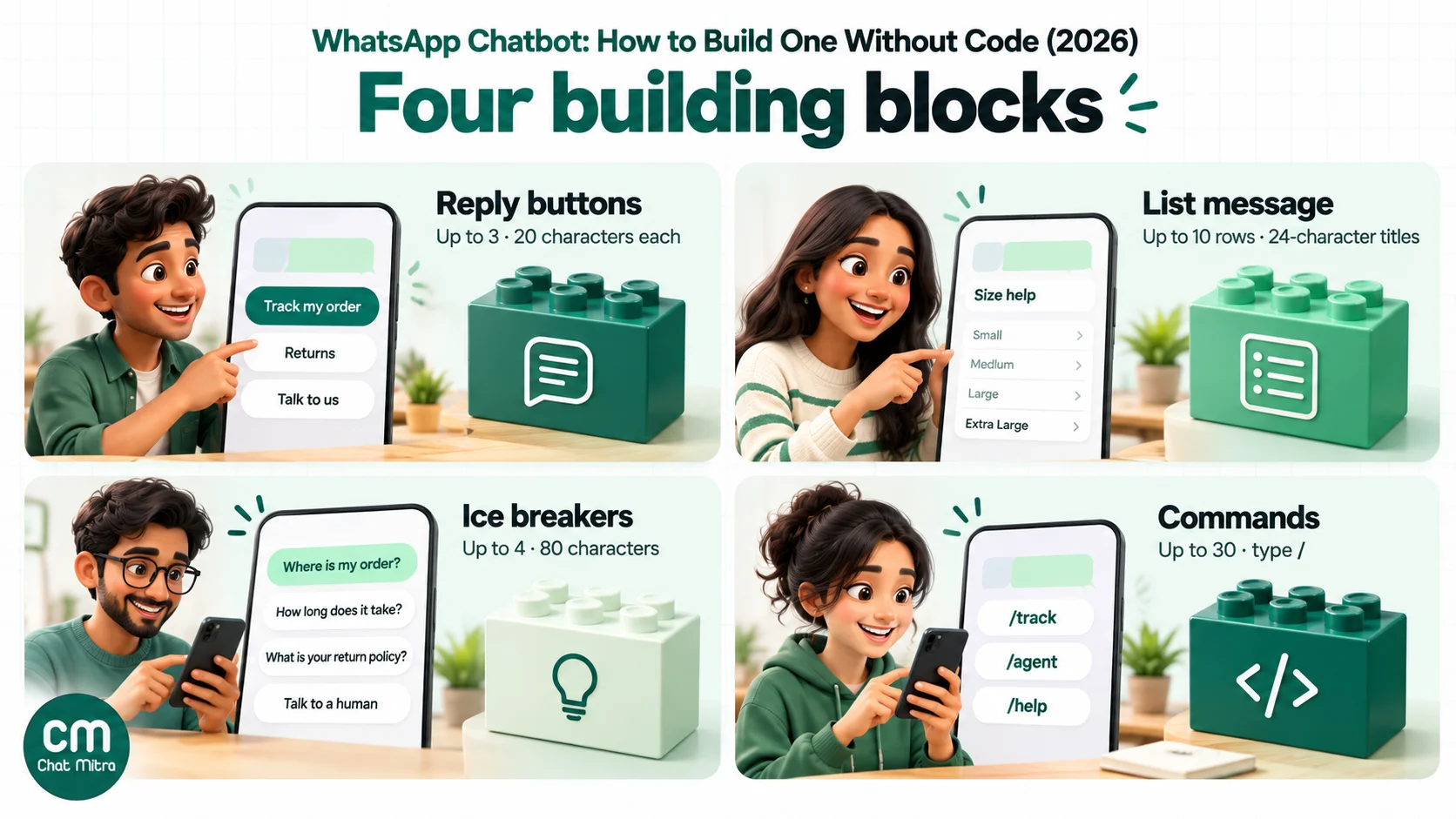
| Reply buttons | Up to three tappable options under a message | 3 buttons; label up to 20 characters; body up to 1,024 characters; optional text, image, video or document header; footer up to 60 characters | Yes/no, three-way choices, "Talk to us" |
| List message | A button that opens a menu of options | Up to 10 rows in total, across up to 10 sections; row title up to 24 characters, description up to 72; button text up to 20 | Main menus, product categories, time slots |
| Ice breakers | Suggested first messages shown to a customer opening a new chat | Up to 4, each up to 80 characters, no emojis | Getting the first message to match a path |
| Commands | Shortcuts shown when the customer types "/" | Up to 30; name up to 32 characters, hint up to 256 | Power users: /track, /menu, /agent |
| Media and documents | Images, video, PDFs, audio | Meta's file-size limits per type | Price lists, menus, brochures, invoices |
| Product and catalog messages | Cards from your WhatsApp catalog | Needs a connected catalog | Browsing products inside the chat |
| WhatsApp Flows | Multi-screen forms inside WhatsApp | Built and published separately in Meta's tools | Collecting several details at once: bookings, sign-ups |
| Templates | Pre-approved messages that can start a conversation | Approval required; charged by category | Reminders, confirmations, re-engaging past customers |
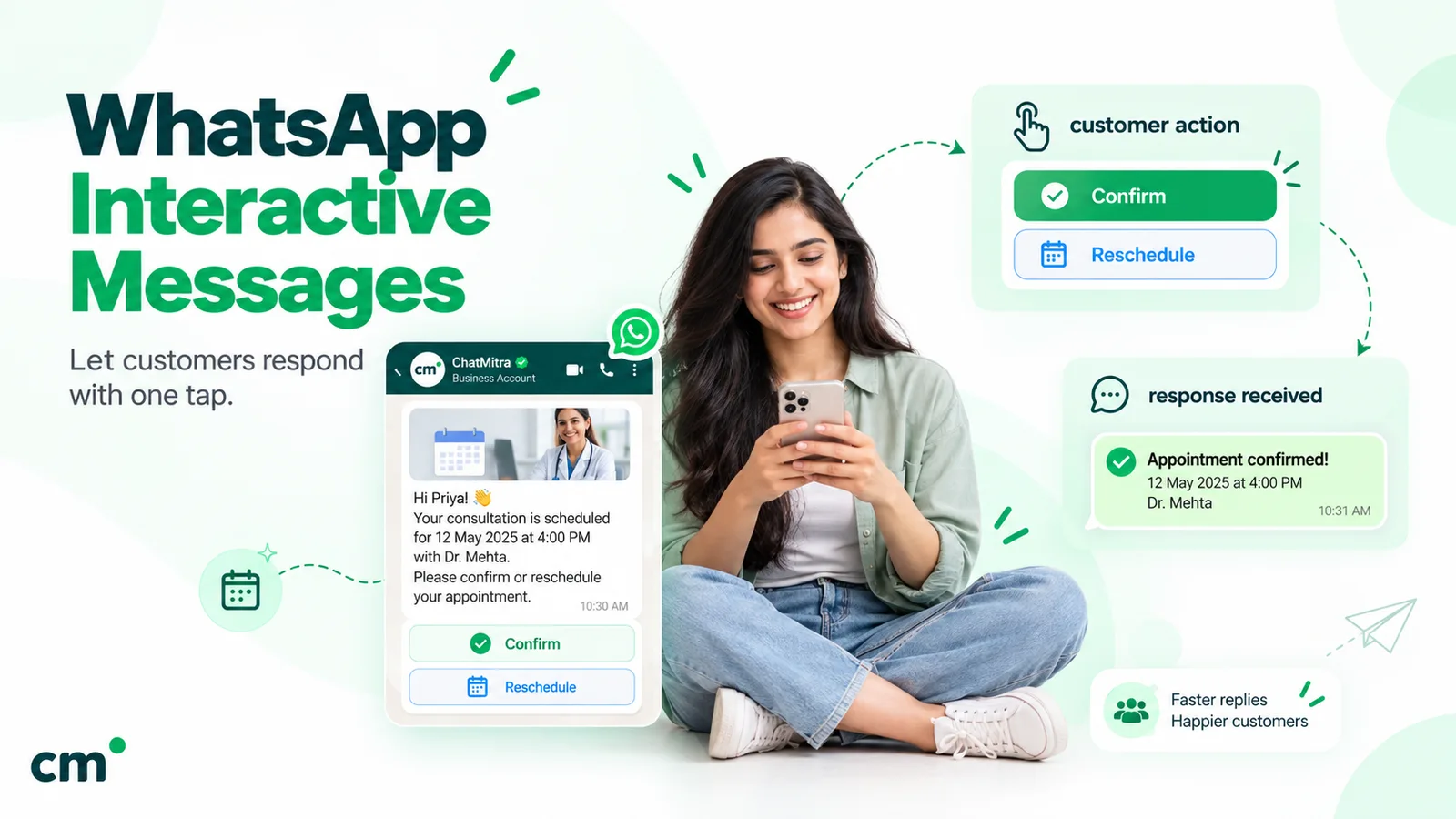
Two limits catch almost everyone. The first is the 20-character button label: “Track my order” fits, but “Where is my order right now?” doesn’t. The second is the 3-button cap. If a step needs four choices, switch to a list rather than splitting it into two messages. We cover the formats, with examples, in our guide to WhatsApp interactive messages.
How to build a WhatsApp chatbot without code: 8 steps
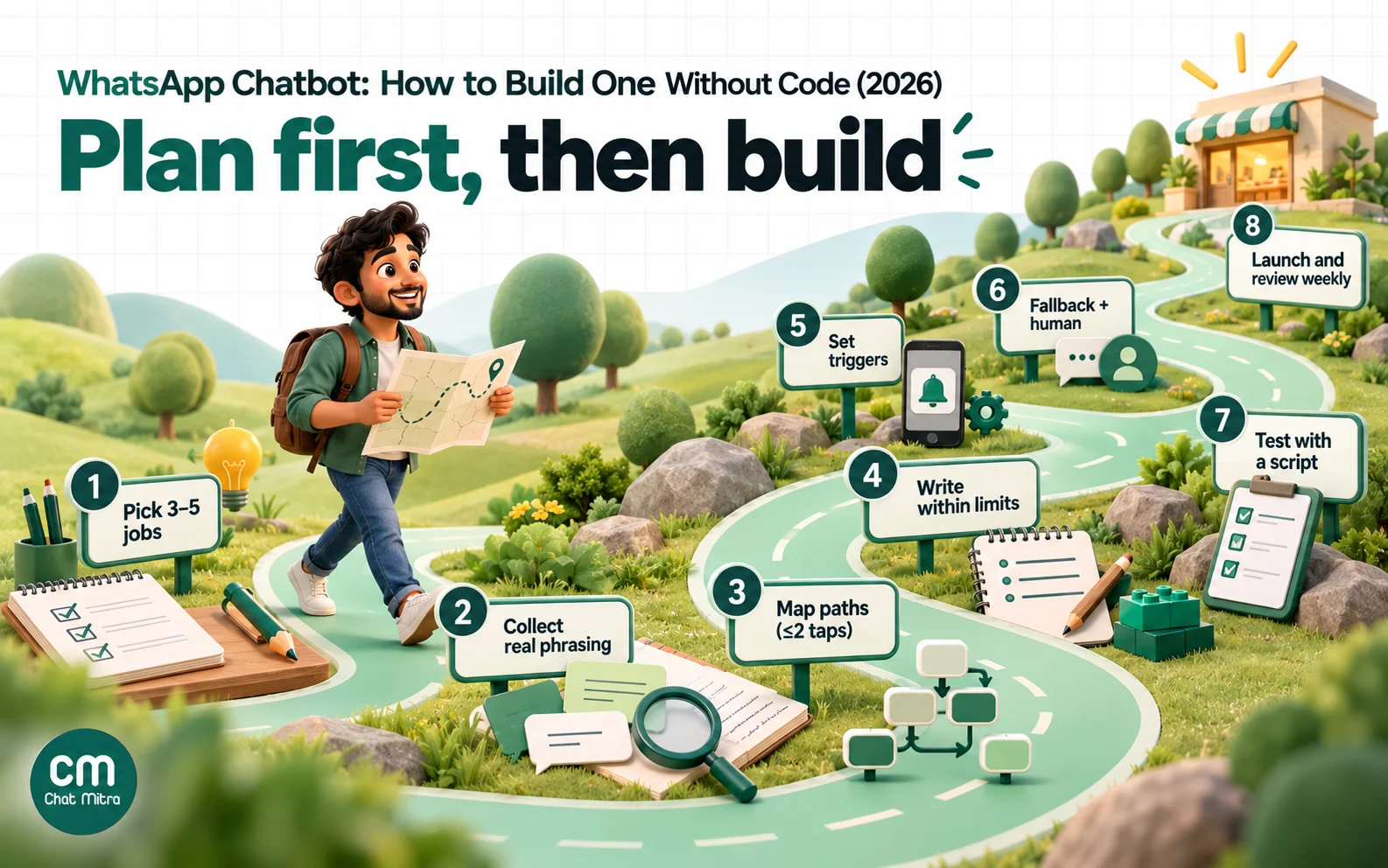
These steps work in any no-code builder. Budget a day for steps 1 to 4, which are thinking and writing, and an hour or two for steps 5 to 7.
Step 1: Pick three to five jobs, not twenty
List the reasons customers message you and count them. The quickest way is to scroll back through a month of chats and tally the first message of each one. In most businesses a handful of questions (“where’s my order”, “what’s the price”, “are you open”, “I want to book”) make up the majority, and those are the bot’s jobs. Everything else goes to a person, at least at first.
A bot that does four things reliably beats one that attempts twenty and gets stuck on half of them.
Step 2: Write down how customers actually phrase them
For each job, copy ten real first messages word for word. You’ll see spelling variants (“order status”, “oder”, “where is my parcel”), other languages (“mera order kaha hai”) and questions bundled together. These become your keyword lists and your test script. They also show you whether a keyword bot will cope, or whether customers write so freely that you’ll need buttons up front, or AI.
Step 3: Map each path in no more than two taps
Draw the conversation on paper before touching the builder. A good rule is that any answer should be reachable in at most two taps from the main menu. Each extra level loses customers, and each extra message is another service message on your Meta bill.
A simple map for a shop looks like this:
- Main menu (list): Track order · Returns and exchanges · Sizes and fit · Store timings · Talk to us
- Track order → ask for order number → send status and link
- Returns → reply buttons: Start a return · Return policy · Talk to us
Notice that “Talk to us” appears at more than one level. That’s deliberate.
Step 4: Write the messages within the limits
Now write every message, keeping to Meta’s limits: button labels of up to 20 characters, list rows of up to 24, and body text that fits on one phone screen. A few habits make a big difference:
- Lead with the answer. “Your order ships in 2–3 days” before the explanation.
- Put the next action in the buttons, not in the text. “Reply 1 for returns” belongs to SMS menus, not WhatsApp.
- Keep your voice. The bot speaks for your brand, so read every message aloud.
- Say it’s automated. A short line such as “I’m the store’s assistant, and a person can take over any time” sets expectations.
Step 5: Set the triggers
A trigger decides which message goes out. Most builders give you some of these:
- First message or welcome trigger: the main menu goes to anyone starting a new chat.
- Keyword rules: “track”, “price”, “menu”, with a matching mode such as exact, contains or starts with.
- Button and list taps: each option leads to its own next message.
- Ice breakers: suggested first messages that map straight to your top paths.
Match keywords loosely enough to catch real phrasing (“price” should catch “what’s the price?”) but not so loosely that “no” matches every word containing those letters.
Step 6: Add a fallback and a way out
Decide what happens when the bot doesn’t recognise a message. The worst answer is silence, and the second worst is repeating the same menu forever. A good fallback says what the bot can help with, shows the main menu once, and offers a person.
Then build the way out. WhatsApp’s Business Messaging Policy says that businesses using automation “must also have available prompt, clear, and direct escalation paths”, such as an in-chat transfer to a human agent, a phone number, email or a support form. Make “Talk to us” a button on the main menu, and tell the customer when someone will reply, especially outside business hours.
Step 7: Test with a script, then with real people
Take the real messages you collected in step 2, add some awkward ones (typos, emojis, a voice note, a photo, two questions in one), and send them all from a personal phone. For each, note what the bot did and whether it was right. Then check the edge cases that break most bots:
- a customer who types instead of tapping a button;
- a customer who returns after 24 hours and taps an old button;
- two automations that both reply to the same message;
- the hand-over, including at night.
When the script passes, switch the bot on for a slice of customers, or for a single campaign, before everyone.
Step 8: Launch, read the chats, and improve weekly
For the first month, read a sample of bot conversations every week. Look for where people drop off, what they type that the bot doesn’t understand, and which path generates the most “Talk to us” taps. Each of those is a fix: a new keyword, a clearer label, a path that needs a shortcut, or a question the bot should stop trying to answer.
A worked WhatsApp chatbot example: an online clothing store
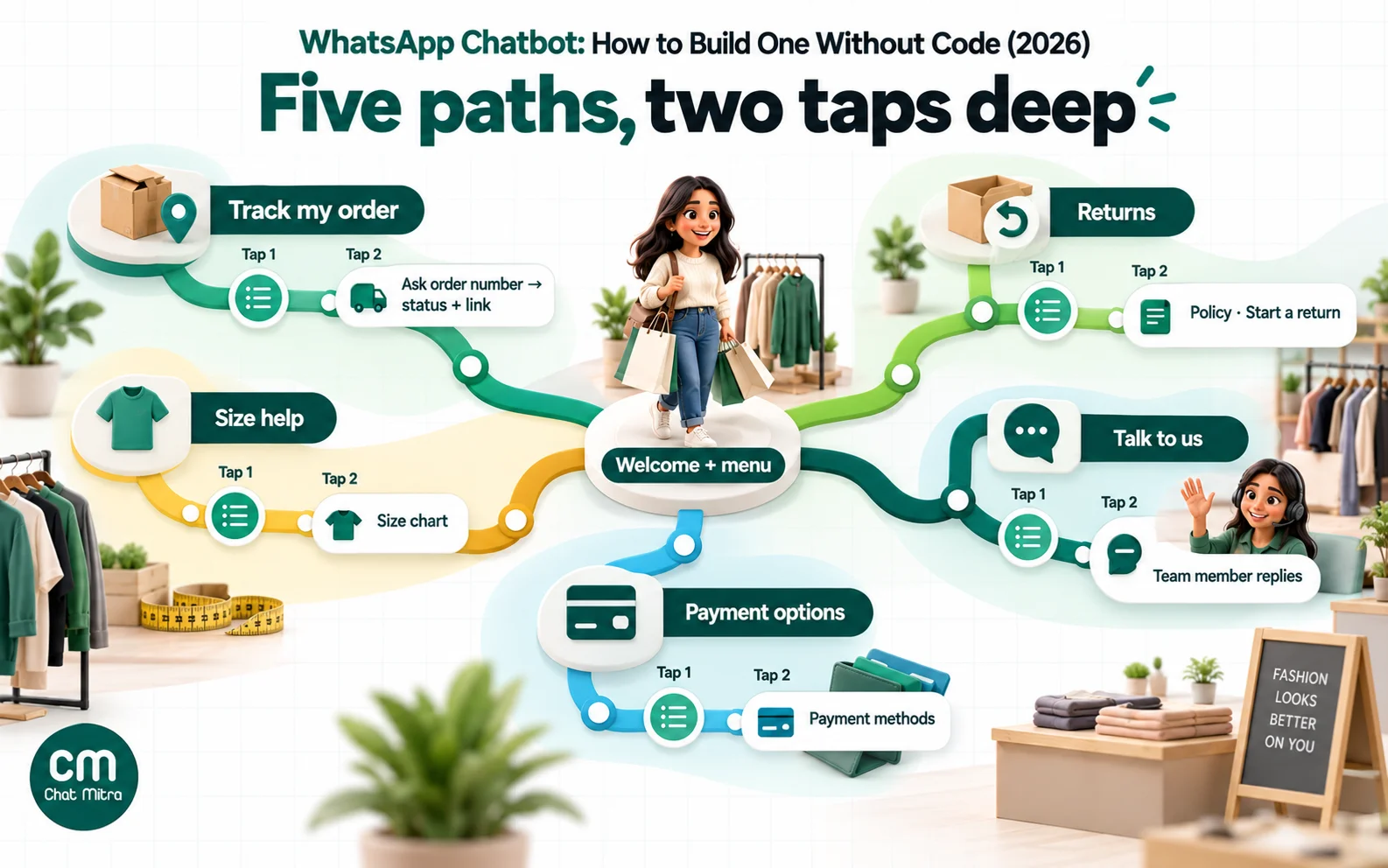
Here is the whole design for a small online clothing store that gets about 2,000 customer chats a month. The owner’s tally of first messages showed five main reasons: order status (about 40%), returns and exchanges, size questions, cash on delivery and “other”.
| Customer does | Bot replies with | Choices offered |
|---|---|---|
| Sends any first message, or taps an ice breaker | Short greeting that says it's automated, plus a list message | List: Track my order · Returns · Size help · Payment options · Talk to us |
| Picks "Track my order" or types "track", "order", "parcel" | "Send your order number (it starts with #)" | Buttons: Don't have it · Talk to us |
| Sends an order number | Status and tracking link, from the store's system or a person | Buttons: Main menu · Talk to us |
| Picks "Returns" | Two-line policy summary | Buttons: Start a return · Full policy · Talk to us |
| Picks "Size help" or types "size", "fit" | Size chart image with a one-line tip | Buttons: Main menu · Talk to us |
| Picks "Payment options" or types "cod", "cash" | Which payment methods are accepted, and any limit on cash on delivery | Buttons: Main menu · Talk to us |
| Picks "Talk to us", or the bot can't match twice | "A team member will reply by [time]" and the chat is flagged for an agent | None; the bot stays quiet until the agent finishes |
A few design choices are worth copying:
- Every answer is two taps or fewer from the first message, and most are one.
- Typed keywords lead to the same place as taps, so customers who don’t tap aren’t stuck.
- “Talk to us” is on every screen. Where the platform supports it, the bot also hands over by itself after two unrecognised messages.
- Order status depends on data. A rule-based bot can’t look up an order on its own. Either the platform connects to your store (through an integration or an API call), or the bot collects the number and a person replies. Be honest with customers about which one it is.
WhatsApp chatbot examples by industry
The same pattern works almost everywhere. What changes is the three to five jobs.
| Business | Main menu jobs | What stays with a person |
|---|---|---|
| Clinic or diagnostic lab | Timings, doctor availability, book a slot, report status, directions | Anything about symptoms, results or medication |
| Coaching institute or school | Courses, fees, batch timings, book a demo class | Scholarships, refunds, parent concerns |
| Restaurant or cloud kitchen | Menu, order link, delivery areas, table booking | Complaints about an order |
| Real estate | Projects, budget ranges, site-visit booking, brochure | Negotiation and site visits themselves |
| Travel agency | Popular packages, visa checklist, enquiry form | Custom itineraries and payments |
| Salon or spa | Services and prices, available slots, location | Rescheduling disputes, special requests |
| B2B supplier | Catalogue, price list request, order status, dealer enquiry | Quotes, credit terms |
For more ready-to-adapt wording, see our WhatsApp auto-reply examples for small businesses.
What a WhatsApp chatbot costs in 2026
A WhatsApp chatbot has up to three costs, and the first one changed recently.
1. Meta’s messaging charges. Meta’s pricing treats a reply sent inside the 24-hour window as a service message, whether a person, a rule or a third-party AI writes it. From 1 October 2026, each business phone number gets a free tier of 1,000 service messages a month, and after that each service message is charged at the utility rate. In India that’s ₹0.115 per message. Templates you send to start a conversation are charged separately, by category (marketing, utility or authentication). See our breakdown of WhatsApp Business cost per message for rates in other markets.
2. The platform. Your provider’s subscription, which usually decides whether a no-code builder, an AI feature or integrations are included.
3. AI usage, if any. An AI chatbot adds model charges. These are either included in the platform or billed per token on your own model account. Meta’s own Business Agent on the API is billed per token, which Meta estimates at about 4–5 US cents per message.
Here’s what the Meta part looks like for the clothing store above, at 2,000 chats a month:
| Design | Bot replies per chat | Replies a month | Charged after 1,000 free | Meta cost (India) |
|---|---|---|---|---|
| Deep menu (menu → sub-menu → sub-menu → answer) | 4 | 8,000 | 7,000 | ₹805 |
| Two-tap design | 3 | 6,000 | 5,000 | ₹575 |
| One-tap for the top path (order status straight from the welcome list) | 2 | 4,000 | 3,000 | ₹345 |
These are small sums for most businesses, but the direction matters. Every unnecessary menu step now costs money as well as patience, so the design that customers prefer is also the cheaper one. Replies your team types count towards the same free tier.
Is there a free WhatsApp chatbot?
Not a complete one. The WhatsApp Business app’s greeting and away messages are free but aren’t a chatbot. On the API, some platforms have free plans or trials, and Meta’s 1,000 free service messages cover a small business’s replies each month. Once you pass that, or send templates, Meta charges apply however the bot was built. Be wary of “free WhatsApp bot” tools that ask you to scan a QR code with your phone: that’s the unofficial route that gets numbers banned.
The rules your WhatsApp chatbot must follow
Meta’s rules are short, but breaking them can lower your quality rating or cost you the number.
- Reply freely, start conversations only with templates. Free-form replies, buttons and lists work only inside the 24-hour customer service window. Outside it, send an approved template.
- Get opt-in before messaging first. Anyone who receives a template from you should have agreed to hear from you on WhatsApp.
- Always offer a human. The Business Messaging Policy requires “prompt, clear, and direct escalation paths” whenever you automate replies.
- Respect opt-outs. If someone types “stop” or asks not to be contacted, stop sending templates to them and record it.
- AI must serve your business. Clause 4.7 of the Meta Terms for WhatsApp Business Platform restricts providers from offering AI, such as general-purpose assistants, when the AI is the main thing being offered. A chatbot that answers your customers about your business is an ancillary use; a public “ask me anything” bot is the risky kind.
- Watch your quality rating. Blocks and reports from customers annoyed by a bot can lower your number’s quality and messaging limits. Our guide to WABA health and quality rating explains the signals.
Common WhatsApp chatbot mistakes, and how to fix them
Most chatbot problems show up in the first week. These are the ones we see most often.
| Symptom | Likely cause | Fix |
|---|---|---|
| Bot doesn't reply at all | Number not connected to the platform, rule paused, or the customer's message doesn't match any trigger | Check the connection and the rule's status, then add a welcome trigger or fallback so nothing goes unanswered |
| Customer gets two replies | Two automations (for example a keyword rule and an AI chatbot, or a welcome message and a rule) both fire | Decide which one owns each type of message and switch the other off for it |
| Keyword fires on the wrong messages | A loose "contains" match on a short word | Use exact or starts-with matching for short words, and contains only for longer, distinctive ones |
| Buttons or list don't send | The 24-hour window has closed, or a label is over the character limit | Send a template to reopen the conversation; shorten labels to 20 (buttons) or 24 (list rows) characters |
| Customers keep typing instead of tapping | Menu options are unclear, or the bot asks an open question | Rename options using customers' own words, and add keyword triggers for the same paths |
| Lots of drop-offs mid-menu | Too many levels, or the answer isn't what the label promised | Cut to two taps, move the top answer into the welcome list |
| Angry customers stuck in loops | No hand-over, or it's hidden | Put "Talk to us" on every screen and hand over automatically after two misses |
One more mistake doesn’t show up as an error: building the bot and never reading its chats. The bot that launched is rarely the bot that works. Plan a weekly review for the first month.
How to tell if your WhatsApp chatbot is working
Skip vanity numbers like “messages sent”. These five tell you whether the bot is saving time without costing customers:
- Resolved without a person: the share of chats that end with the customer’s question answered and no agent involved.
- Hand-over rate: how often customers ask for a person. A very low number can mean they’re stuck, not satisfied.
- Drop-off by step: where people stop replying. A step that loses a lot of people needs a better label or a shortcut.
- Messages per resolved chat: menu depth in one number, and a direct driver of your Meta bill.
- Repeat contacts within 24 hours: customers coming back with the same question means the first answer didn’t work.
Compare them with the month before the bot, especially first-response time and the number of chats your team handled by hand.
Building a WhatsApp chatbot in ChatMitra
ChatMitra is a WhatsApp Business Platform provider, so here is how the steps above map onto it, including what it doesn’t do. ChatMitra has no drag-and-drop chatbot canvas. You build a menu chatbot from three pieces that work together:
- Welcome Message sends up to 20 messages in order to a customer’s first message, for example a greeting and then your main list menu. It can tag the contact, and it can greet returning customers again after a number of days you choose.
- Auto Reply rules fire on keywords. Each rule takes up to 10 keywords and matches them exactly, starts with or by regex (there’s no “contains”). Matching ignores capital letters and accents. A rule can send a sequence of messages: text, an approved template, an image or document, 1–3 reply buttons, a list of up to 10 rows, or product and catalog messages. It can also add a tag, make up to 2 API calls to your own systems, and use a per-customer cooldown so it doesn’t repeat itself.
- Chaining. When a customer taps a button or list row, the tap reaches ChatMitra as the option’s title, so a rule whose exact keyword is that title fires next. That’s how a menu becomes a chatbot. Keep every title unique, or two paths will collide.
For typed questions outside your menu, the AI chatbot replies to free text using a model provider you choose and your own API key, so model charges go to your account with that provider. You set its personality and tone, and it can call your systems through API actions. It only reads typed text; button and list taps go to your rules.
Know these three behaviours before you switch everything on:
- No catch-all fallback. A message that matches no rule gets no rule reply. The “Fixed Reply” setting isn’t a fallback: it answers every message and switches keyword rules off. Use the Welcome Message and the AI chatbot to cover unmatched text instead.
- Rules and AI can both answer. If the AI chatbot is on and a typed message also matches a keyword, the customer gets two replies. Decide which one owns typed questions.
- Hand-over is manual. From Live Chat, an agent can pause automation for one customer, for 30 minutes up to permanently. That stops the AI, keyword rules and the fixed and away replies for that chat. Replying as an agent doesn’t pause the bot by itself, so pause first. For the “Talk to us” button, a rule can send “A team member will reply by…” and tag the contact so your team can find the chat.
Auto Reply and the AI chatbot are part of the Pro plan (₹999 a month, with a 15-day free trial), according to our pricing page. Agents’ saved answers live in quick replies, which your team types with ”/” in the inbox and which aren’t automated.
Summary
A WhatsApp chatbot is simple to build and easy to build badly. Start on the WhatsApp Business Platform, not the free app or an unofficial tool. Give the bot three to five jobs, taken from what customers actually ask, and make each answer reachable in two taps. Write inside Meta’s limits: three buttons of 20 characters, or a list of ten rows. Add a fallback, a visible route to a person, and a test script built from real messages. Then read the chats every week and keep trimming. With service replies charged from 1 October 2026 past 1,000 a month, a short, clear bot is both the one customers prefer and the one that costs least to run.