
A WhatsApp Community is a container that links up to 100 related WhatsApp groups under one name, with an Announcements group that lets admins reach every member at once. Members pick the groups they want to join and can reply to announcements, while only admins can post them. WhatsApp’s Help Center caps a Community at 2,000 members, and you create one from the Chats tab of the standard WhatsApp app, not the WhatsApp Business app.
That’s the definition. What it means in practice depends on who you are. A school or a housing society gets a tidy way to run a dozen class or block groups. A business gets something narrower: a good fit for a dealer network or a course batch, and a poor fit for promoting to customers. This guide covers how a Community is built, the current limits, every feature worth knowing, step-by-step setup on phone and desktop, how to run one without it turning into noise, and where a business should use the WhatsApp Business Platform instead.
Key takeaways
- A Community organises groups. It doesn't make any single group bigger.
- The limits in 2026 are 100 groups and 2,000 members per Community, and 1,024 members per group. Check the Help Center, not old blog posts.
- You can't create a Community from the WhatsApp Business app. Plan which number will own it before you start.
- Use a Community for people who already belong together. Use one-to-one broadcasts for customers.
What is a WhatsApp Community?
WhatsApp describes Communities as a way to “bring members together in topic-based groups” (About communities). In plainer terms, a Community is a folder for groups. It has its own name, icon and description, and inside it sit three kinds of space:
- Announcements. Created automatically with every Community. Everyone who joins the Community is added to it, and only admins can post to it. One message here reaches every member.
- General chat. An optional open group for the whole Community, which new members can choose to join. It works like any other WhatsApp group.
- Linked groups. Up to 100 topic groups, new or existing. Members browse a list of “groups you can join” and pick the ones that matter to them.
The idea came from a specific problem. WhatsApp says it built Communities “for close-knit groups that need more tools to organize and manage their conversations”, naming parents, schools, local clubs and small workplaces (building private, safe and secure communities). Before Communities, the head of a school with eleven class groups had to paste the same holiday notice eleven times. Now it’s one announcement.
Two design choices shape everything else. First, nobody can find a Community by searching. WhatsApp states that it “will not support the ability to search for or discover new communities”. Every member arrives through an invite link or an admin. Second, the size is capped on purpose, because WhatsApp is aiming at groups “where many people know one another already”, not at open audiences. If you want to reach strangers, a Community is the wrong shape.
How a WhatsApp Community is structured
It helps to see who can do what in each space before you set one up. This table summarises the Help Center pages on announcements, General chat and group visibility.
| Space | Who's in it | Who can post | Can members leave it? | Size |
|---|---|---|---|---|
| Announcements | Every Community member, automatically | Admins post; members reply and react | Only by leaving the whole Community | All members, up to 2,000 |
| General chat | Members who choose to join | Everyone, unless admins restrict it | Yes, without leaving the Community | 1,024 members |
| Visible group | Members who join from the list | Set by that group's admins | Yes | 1,024 members |
| Hidden group | Invited members only (admins can always see it) | Set by that group's admins | Yes | 1,024 members |
A few consequences that catch people out:
- Announcements is not optional for members. Joining the Community means joining Announcements. If someone leaves Announcements, they leave the Community.
- Members can’t silence replies for everyone. Admins can delete or report a reply, but WhatsApp says “it’s not possible to turn off or disable replies in a community” (announcements for admins). Each member can still mute notifications for themselves.
- Hidden is a one-time choice. You set a group to Visible or Hidden when you add it. To change it later, you have to remove the group from the Community and add it again.
WhatsApp Community limits in 2026
These are the numbers on WhatsApp’s own Help Center as of October 2026. Many articles, including several that rank well, still quote 5,000 members and 50 groups. Those figures are out of date, so plan around the ones below and re-check them before a big launch.
| Limit | Value | Source |
|---|---|---|
| Groups per Community | Up to 100, plus Announcements | How to create a community |
| Members per Community | Up to 2,000, counting members of the groups and the Announcements group | Same page |
| Members per group (including General chat) | 1,024 (1,025 with the creator) | Join a group in a community |
| Community admins | Up to 20 | Manage community admins |
| Owners | One at a time; ownership can be transferred to an admin | Transfer community ownership |
| Community and group name | Up to 100 characters | Create a community, add a group |
| Event description | Up to 2,048 characters | Events in groups |
| Forwarding a forwarded message | One group at a time | Building safe communities |
The 2,000 figure is the one that matters most. It’s a ceiling on people, not on groups, so 100 groups of 1,024 is impossible inside one Community. When a Community is full, WhatsApp says new people “have to wait until someone leaves”. Big organisations run several Communities, one per region, campus or product line.
Key features of WhatsApp Communities
Most features come from ordinary groups. A few exist only because groups now sit inside a Community.
Announcements with replies and polls
Admins send text, media, documents and polls to everyone in one go. Members can reply, react and vote, and admins get a notification when someone replies. WhatsApp also notes that using announcements “instead of sending repeated messages to groups or members may help reduce the risk of being flagged as spam”. That’s a practical reason to use them rather than forwarding the same notice into every group.
An open General chat
General chat gives the whole Community one place to talk. Approve new members is off by default here, so anyone in the Community can drop in. Community admins become General chat admins automatically. The owner can’t leave General chat, and if an admin unlinks it, it’s deactivated and everyone is removed. Decide early whether you want one at all. A General chat in a 2,000-member Community can get loud.
Visible and hidden groups
Visible groups appear in the “groups you can join” list. Hidden groups don’t: only their invited members and the Community admins can see them. This is what makes Communities useful for organisations with layers, such as a franchise brand with a group per region that franchisees shouldn’t see across.
Member-suggested groups
By default, any member can add a new group to a Community. Admins can change that so only admins add groups. Members can also suggest an existing group, which then waits under Pending groups for an admin to approve (add or suggest a group). For any organisation with a reputation to protect, switch new-group creation to admins only on day one.
Events
Inside Community groups you can create events with a date, time, location, description and an optional call link. People answer Going, Maybe or Not going, and those who say Going or Maybe get a notification when it starts. Two limits matter for organisers: an event has one host (no co-hosts), and new members can’t see events created before they joined.
Admin and owner controls
A Community can have up to 20 admins and one owner. Admins invite people, change the description and icon, remove members and manage groups. Removing someone from the Community removes them from every group in it, which is the fastest way to deal with a bad actor. The creator can’t be removed by other admins. If the owner deletes their account and other admins exist, ownership passes automatically to one of them.
Invite links you can reset
Only admins can invite people to a Community, by link or by adding them. WhatsApp warns that anyone with the link can join, and that it can be forwarded beyond the people you meant. If it leaks, reset it, and the old link stops working.
Privacy and encryption
Messages in Communities are end-to-end encrypted. In the Announcements group, a member’s phone number is visible only to Community admins, people who have saved it, and people who know it from other chats. Inside a linked group, members see each other as they would in any group. Our guide to WhatsApp groups for business covers group-level privacy, usernames and the Past members list in more detail.
Community, group, Channel or broadcast: a quick comparison
People often reach for a Community when another WhatsApp tool fits better. The table below is the short version. For the full side-by-side, see our learn guide to WhatsApp Community vs group.
| Tool | Shape | Best for | Not for |
|---|---|---|---|
| Group | One chat, everyone talks | A single team, batch or club | Announcing to many groups |
| Community | Many groups plus Announcements | An organisation running several related groups | Reaching strangers or a customer list |
| Channel | One-way updates to followers | Public news anyone can follow | Conversations; followers can't reply directly (source) |
| Broadcast list (Business app) | Private one-to-one copies, up to 256 per list | Small sends to contacts who saved your number (source) | Large lists |
| Broadcast on the WhatsApp Business Platform | Approved template messages, one-to-one | Customers who opted in, at any scale | People who haven't opted in |
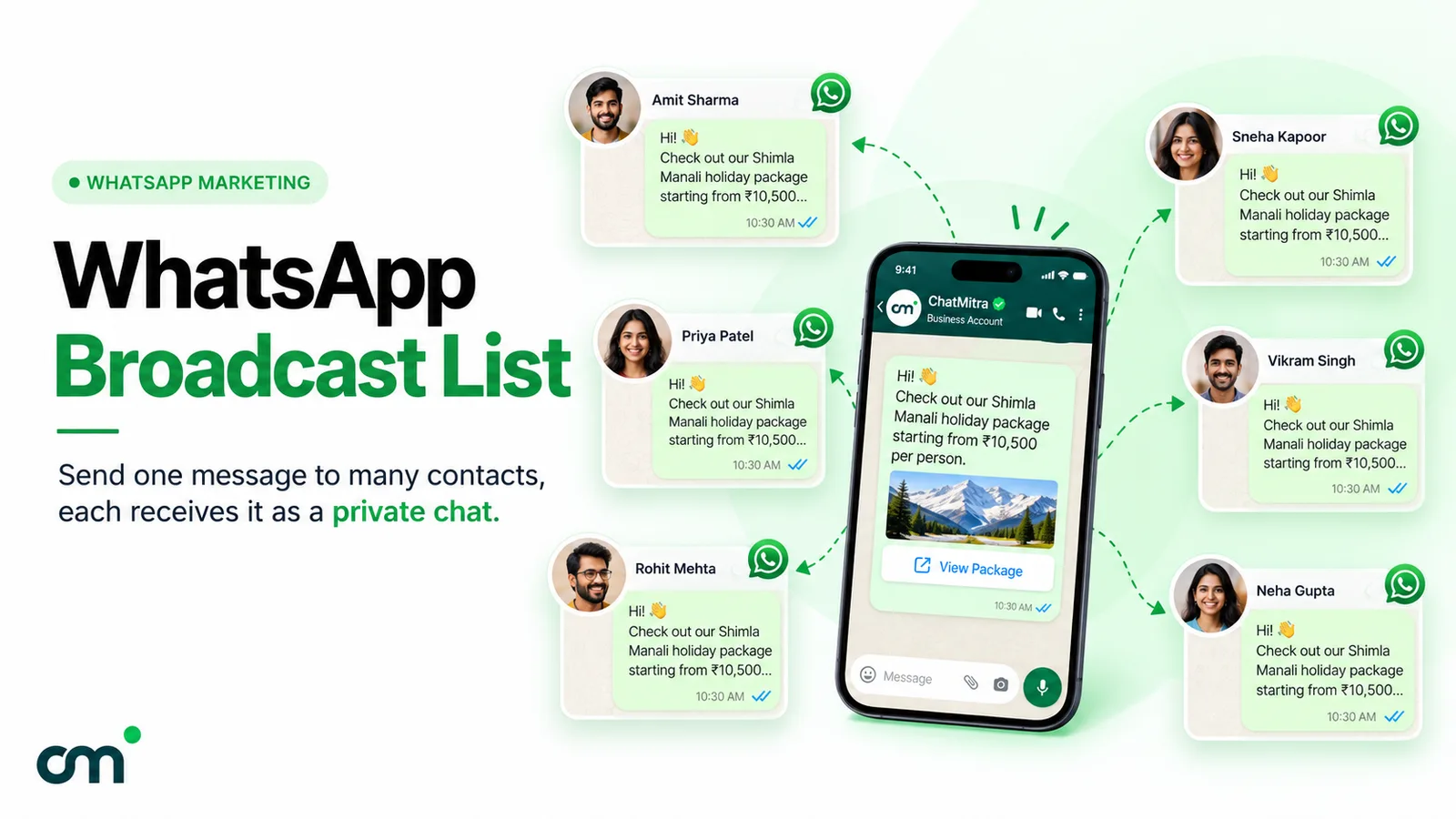
One test settles most cases: do the members need to talk to each other? If they do, you want a group or a Community. If they only need to hear from you and reply to you, you want a broadcast. Our broadcast list guide explains the one-to-one options.
How to create a WhatsApp Community
Before you start
Five decisions save you a rebuild later:
- Which number will own it. You can’t currently create a Community on the WhatsApp Business app, so it has to be a standard WhatsApp account. Avoid a staff member’s personal number. If they leave, so does your ownership, unless you transfer it first.
- Who the admins are. Pick at least two, up to 20. Admins see every hidden group and can remove anyone.
- The group map. List the groups you’ll start with, and mark each Visible or Hidden. Remember you can’t switch visibility without re-adding the group.
- Whether you want General chat. Useful for a club; risky for a customer group of 1,500 people.
- The rules. Write three to five lines on what the Community is for, what’s allowed and how to contact you privately. You’ll paste them into the description.
Steps on Android or iPhone
WhatsApp’s create a community page gives the same flow on every platform:
- Update WhatsApp to the latest version from the Play Store or App Store.
- Open the Chats tab and tap the new-chat icon.
- Tap New community, then continue past the introduction screen.
- Enter the Community name (up to 100 characters), a short description, and an icon. You can take a photo, upload one, or use an emoji or sticker.
- Confirm to create it. WhatsApp creates the Announcements group for you.
- Add groups. Choose Create new group, or Add existing group to link groups you already admin. Set each group’s visibility as you add it.
- Invite members from Community info > Invite, either by sending the link through WhatsApp or by copying it.
- Appoint admins from Community info > View members, then tap a member and choose Make admin.
Steps on WhatsApp Web or desktop
The flow is the same on Web, Windows and Mac: Chats tab, new-chat icon, New community, then name, description and icon. Desktop is easier when you’re writing a long description or rules, and when you’re adding many groups at once.
Can you create a Community on the WhatsApp Business app?
No. The Help Center note is direct: “You can’t currently create a community on the WhatsApp Business app.” Business app users can still take part in Communities they’re invited to, and they can create ordinary groups. If your Community must belong to the business, create it on a standard WhatsApp account registered to a business-owned number, and add your team as admins.
This changes as WhatsApp ships new features, so check the note again before you build around it.
How to turn an existing group into a Community
Most Communities start from a group that got too big or too busy. You don’t have to start again:
- Open the group you’re an admin of and tap the group name.
- Tap Add group to a community.
- Choose New community to build one around this group, or Existing community to link it to one you already run.
The group keeps its members and history. Two blockers to know about. Groups with pending join requests can’t be added, so clear the requests first. And WhatsApp may temporarily block linking as a security measure, triggered by spam reports or recently added members, for a few hours and up to 24 hours. If that happens, wait rather than retrying repeatedly.
Running a Community well
Creating a Community takes minutes. Keeping it useful takes a routine. WhatsApp’s own advice on community ownership covers the basics: clear rules, regular clean-ups and announcements for important updates. Here’s how that looks week to week.
On day one:
- Restrict new-group creation to admins.
- Put the purpose, rules and a private contact route in the description.
- Turn on Approve new members in each linked group where membership matters.
- Post a short welcome announcement that explains which groups exist and what each is for.
Every week:
- Keep announcements to things every member needs. If a notice only affects one region or batch, post it in that group instead.
- Answer replies to announcements, or move the conversation to a group or a private chat. Unanswered replies under a notice look like neglect.
- Check pending group suggestions and join requests.
Every month:
- Remove inactive groups and members. With a 2,000-member ceiling, space is a resource.
- Review the admin list. Remove people who’ve left the organisation.
- Reset the invite link if you suspect it has spread.
A Community description and rules template
The description is the first thing a new member reads, and the only rulebook most will ever see. Keep it short enough to read on a phone without scrolling. Here’s a template you can adapt:
[Organisation name] Community
For [who it's for] to [what they do here].

Groups: Announcements (notices from the team), [Group 1] for [purpose],
[Group 2] for [purpose]. Join only the groups you need.

Rules:
1. Stay on topic for each group.
2. No selling or forwarding chain messages.
3. Be respectful. Admins remove repeat offenders.
4. For account or payment questions, message us privately at [number or link].

Admins: [names or roles]
Swap the private contact line for whatever route your team actually answers. Point it to a support number, not to the Community itself, so personal details stay out of group chats.
Writing announcements people actually read
An announcement goes to every member, so a weak one costs attention 2,000 times over. A few habits keep members from muting the Announcements group:
- Lead with the action or the change. “Centre 2 is closed on 14 November” beats a paragraph that builds up to it.
- One topic per announcement. Two unrelated notices in one message means people act on the first and miss the second.
- Say who it affects. If it only affects one group, post it in that group instead.
- Use polls for decisions, not for chatter. A poll on a meetup date gets clean answers. A question in plain text gets fifty replies.
- Keep a rhythm. A predictable slot, such as Monday mornings for the week’s schedule, trains people to look rather than mute.
- Answer replies quickly. Members can reply to every announcement, and silence under a question invites more questions.
Compare two versions of the same notice. Weak: “Hello everyone, hope you’re all doing well. As you know we’ve been working on improving things and there are some updates regarding the timetable which will be shared soon, please stay tuned.” Better: “Timetable change from 17 November: Batch A moves to 4–6 pm. Batches B and C are unchanged. Questions? Reply here or ask your batch teacher.”
Hand-overs and endings. Transfer ownership before the owner leaves your organisation: open Community info, tap and hold an admin, then tap Assign new owner. And think hard before deactivating. WhatsApp says there’s “no way to reactivate a deactivated community”. Its groups carry on as ordinary groups, but Announcements and General chat go read-only for good.
How businesses can use WhatsApp Communities
Communities fit businesses where members belong to the same organisation or have chosen to join a group of peers. They fit badly where the “members” are simply customers you’d like to sell to. Here’s how that splits in practice.
| Business | How the Community is laid out | Why it works |
|---|---|---|
| Franchise or retail chain | Announcements for head office; hidden group per region; a group for store managers | Policy changes reach every outlet once; regions talk privately |
| Distributor or dealer network | Announcements for schemes and price lists; hidden group per territory | Dealers get the same update without seeing each other's territories |
| Coaching institute or online course | Announcements for timetables and holidays; one group per batch; a doubt-solving group | Cohorts stay separate; shared notices go out once |
| Co-working space, housing society or gym | Announcements for maintenance and events; groups per floor, block or class | Members already share a place and want to coordinate |
| Events and conferences | Announcements for schedule changes; groups per track or city; event invites inside groups | Logistics reach everyone; attendees network in topic groups |
| Customer club or user community that people opted into | Announcements for product news; groups for tips, beta testers and local meetups | Members want to hear from each other, not just from you |
| Internal teams | Announcements for company notices; groups per team or site | Quick coordination for staff who already use WhatsApp |
Notice what’s missing: “send offers to my customer list”. That’s deliberate. Adding customers to a Community without asking breaks WhatsApp’s guidance on group consent, exposes them to strangers in linked groups, and invites reports. Our WhatsApp opt-in guide covers what valid consent looks like.
An example layout: a coaching institute with two centres
Here is an illustrative example, not a customer story. A coaching institute runs two centres with three batches each, about 600 students and parents in total. Before Communities, staff posted notices into six batch groups and two parent groups, and parents in one batch asked questions about another.
With a Community:
- Announcements carries holidays, fee deadlines and exam dates, once.
- Six visible batch groups hold class discussion, moderated by each batch’s teacher.
- Two hidden groups, one per centre, let the centre heads coordinate with the director.
- No General chat, because 600 students and parents in one open chat helps nobody.
- Admins: the director, both centre heads and one office manager. Teachers are admins of their batch groups only.
The result is fewer duplicate messages and a cleaner record of what was announced. What it doesn’t do is send personalised fee reminders to each parent, show who read the timetable, or reply automatically at 10 pm. Those jobs need one-to-one messaging, which is where the next section comes in.
The disadvantages of WhatsApp Communities for business
Communities are free and familiar, which makes their limits easy to overlook. Weigh these before you commit:
- No Business app creation. The owner account has to be a standard WhatsApp account, which sits awkwardly with the rest of your business messaging.
- A hard ceiling. 2,000 members per Community. Growth means splitting into several Communities, each with its own Announcements group.
- No discovery. Nobody finds you by search. Growth depends on invite links, which can also leak to the wrong people.
- Replies can’t be switched off. A complaint under an announcement is visible to everyone who opens that reply thread.
- Members see each other in linked groups. Fine for colleagues; awkward for customers who never agreed to meet.
- No scheduling, automation or analytics. You can’t schedule an announcement, trigger a message from your store, or see delivery and read rates per member.
- Personal accountability. If people report the Community, the owner’s and admins’ accounts carry the risk, and WhatsApp says it can ban members or disband Communities that break its rules.
- Permanent endings. A deactivated Community can’t be brought back.
When a business needs the WhatsApp Business Platform instead
A Community is a many-to-many space. Most customer messaging is one-to-one: an order update, a reminder, an answer to a question, a campaign to people who opted in. That’s what the WhatsApp Business Platform (often called the WhatsApp Business API) is built for.
| Need | WhatsApp Community | WhatsApp Business Platform |
|---|---|---|
| Reach | Up to 2,000 members per Community | Grows with Meta's messaging limits as your quality holds |
| Privacy between recipients | Members see each other in linked groups | Each customer sees a private chat with you |
| Consent model | People join through a link or are added | Opt-in required before you message first |
| Automation | None | Triggered messages, chatbots and integrations |
| Team access | Up to 20 admins on personal accounts | Several agents in a shared inbox on one number |
| Reporting | No per-member delivery or read data | Sent, delivered, read and reply data |
| Cost | Free | Meta charges per delivered template (₹0.8631 for marketing in India), plus your provider's plan |
The Platform does have a group feature, Meta’s Groups API, but it’s built for small invite-only groups of up to 8 participants on the Cloud API (Meta: Groups API), not for Community-style audiences.
Many businesses end up using both. The dealer network or the course batch lives in a Community, run by the people who manage those relationships. Customer messages, such as order updates, reminders and campaigns to opted-in buyers, run on the Platform. The marketing messages guide explains how Meta prices those campaigns.
Where ChatMitra fits, and where it doesn’t
ChatMitra runs on the WhatsApp Business Platform, so it doesn’t create or manage WhatsApp Communities or groups. If what you need is a Community, the free WhatsApp app is the right tool, and you don’t need us.
Where ChatMitra helps is the customer side: broadcasts that reach each opted-in customer as a private message, scheduling, auto-replies, and a shared inbox your team answers from one number. If you’re weighing the costs, the pricing page lists the plans, and our guide to getting the WhatsApp API walks through setup.
Troubleshooting common Community problems
| Problem | Likely cause | What to do |
|---|---|---|
| No New community option | You're on the WhatsApp Business app, or an old app version | Use the standard WhatsApp app and update it |
| Can't add a group | The group has pending join requests, or WhatsApp has paused linking | Clear the requests; if linking is paused, wait up to 24 hours |
| Can't add new members | The Community has reached 2,000 members | Remove inactive members or start a second Community |
| A member can't join a group | The group is full at 1,024 | They can request to join once space frees up |
| Can't remove a member | They own one of the linked groups | Unlink that group from the Community first |
| A member wants to stop announcements but stay | Leaving Announcements means leaving the Community | Suggest muting the Announcements group instead |
| Strangers joining | The invite link has been forwarded | Reset the link and re-invite the people you want |
| The owner is leaving the organisation | Ownership sits with one account | Transfer ownership to another admin before they go |
A quick checklist before you launch
- The Community is owned by a number the organisation controls.
- At least two admins, and new-group creation limited to admins.
- A description with the purpose, three to five rules and a private contact route.
- Every group marked Visible or Hidden on purpose.
- A decision on General chat.
- A welcome announcement that explains the groups.
- Members invited by link, never added without asking.
- A plan for customer messaging that doesn’t depend on the Community.
Summary
A WhatsApp Community is the right tool when you run several groups for people who already belong together and you’re tired of repeating yourself. It gives you one Announcements group for everyone, topic groups members choose, hidden rooms for sensitive conversations and up to 20 admins to share the work, all for free.
It isn’t a marketing channel. It stops at 2,000 members, can’t be created from the WhatsApp Business app, shows members to each other inside groups and offers no automation or reporting. Build your organisation’s Community in the WhatsApp app, and handle one-to-one customer messages on the WhatsApp Business Platform.
Sources
- WhatsApp Help Center, Communities section: About communities, How to create a community, About community announcements, Announcements for admins, General chat, Group visibility, Add or suggest a group, Manage admins, Invite members, Remove a member, Deactivate a community, Exit a community, Community ownership, Building safe communities (all checked 1 October 2026).
- WhatsApp Help Center: Events in groups, Join a group in a community, Business Channels, Broadcast lists.
- Meta for Developers: Groups API.