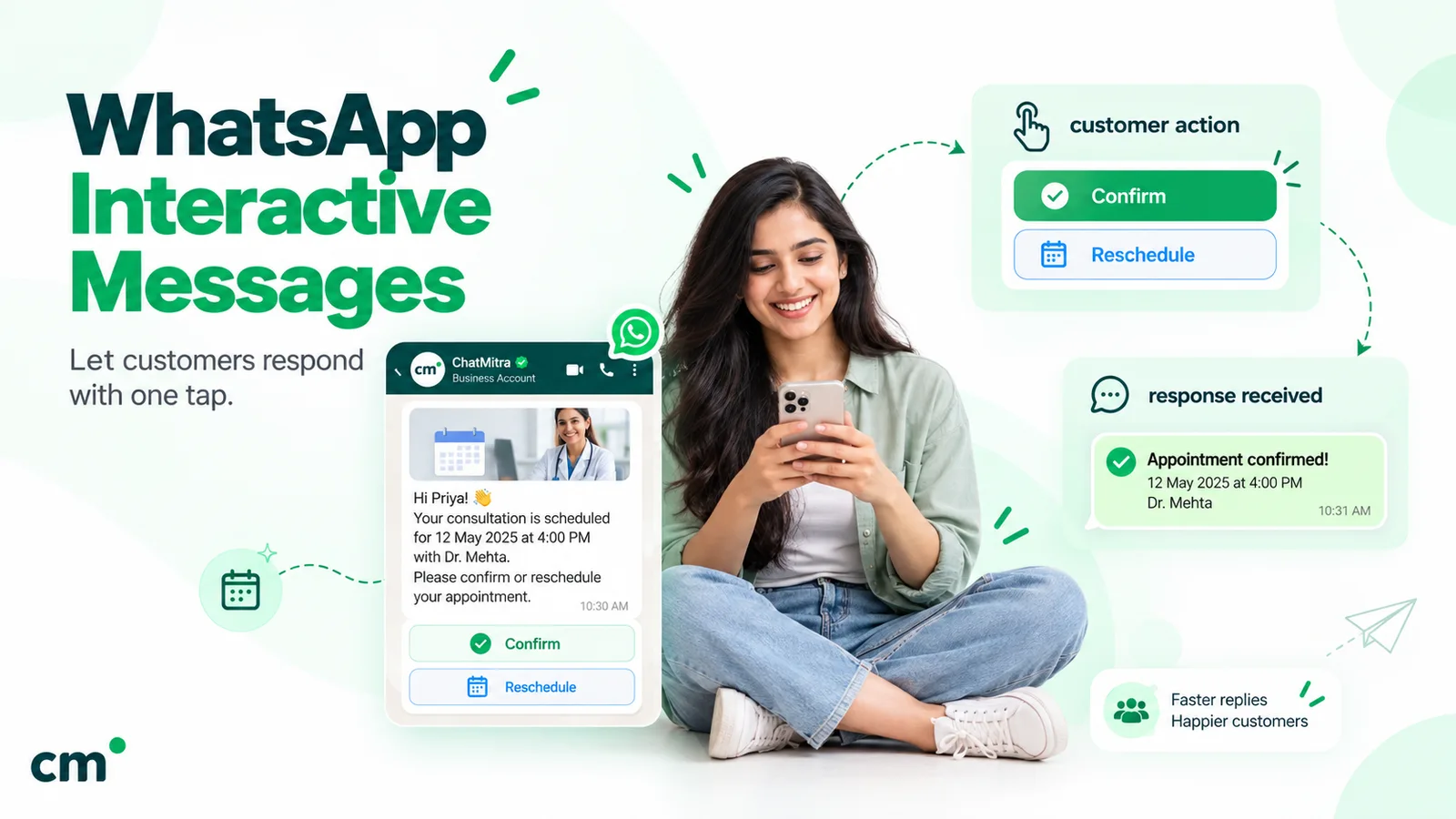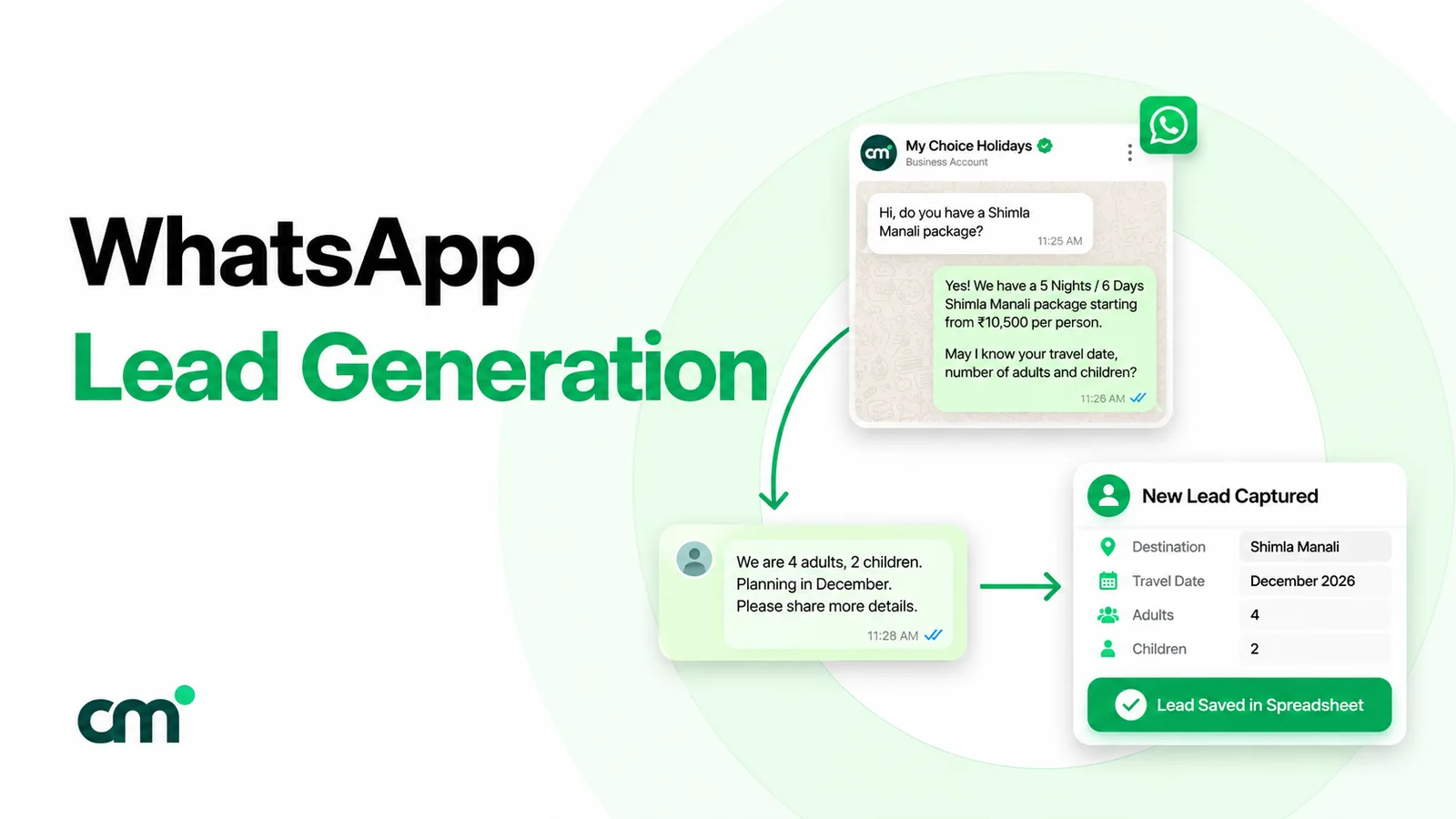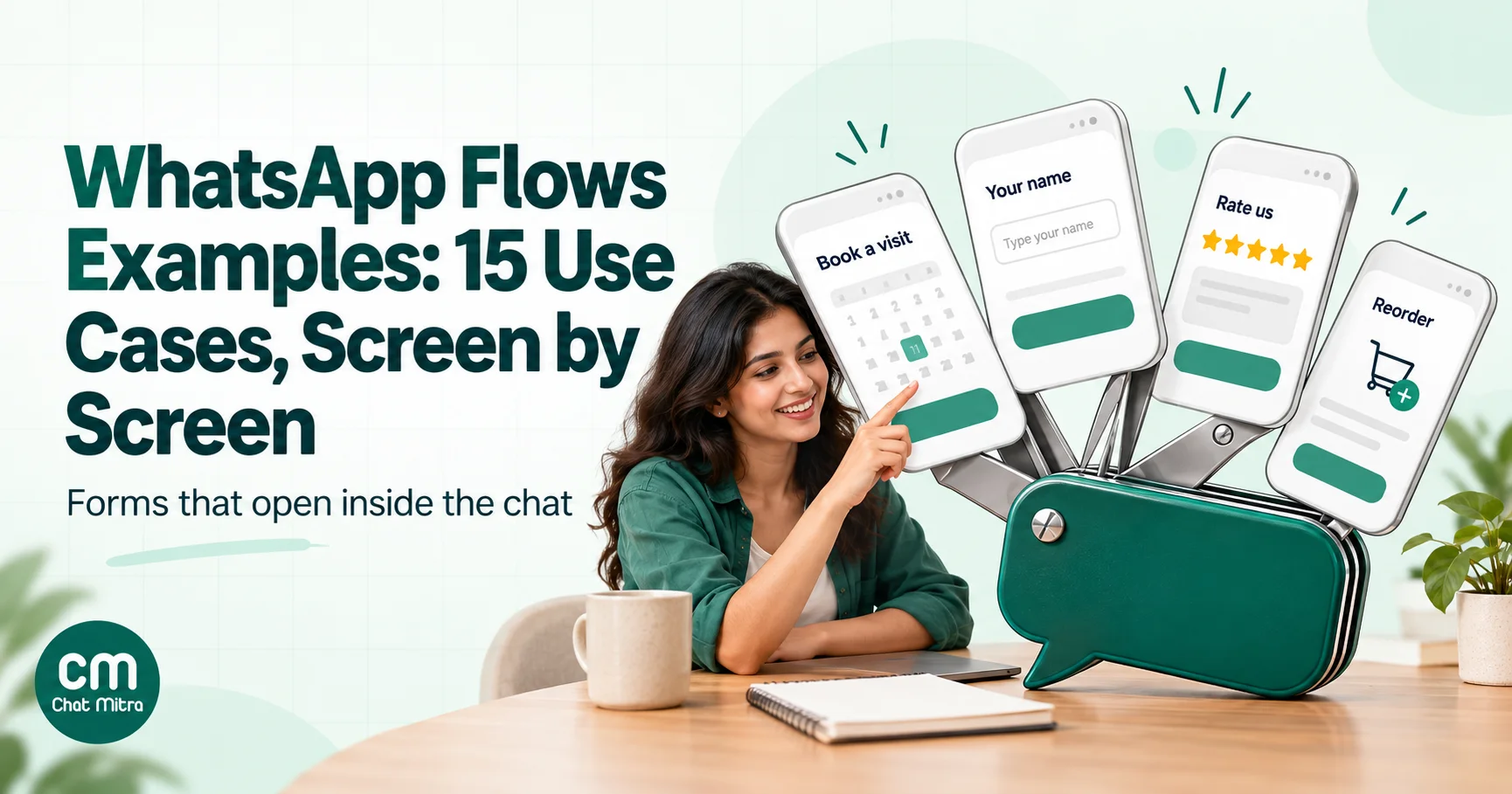
WhatsApp Flows are multi-screen forms that open inside a WhatsApp chat. Businesses use them to qualify leads, book appointments, take reservations, collect quotes and orders, log support tickets, run surveys and sign customers up. A Flow is sent either inside an approved template with a Flow button, or as an interactive message during the 24-hour customer service window. The answers come back to your system in a single submission. The 15 examples below show what each Flow looks like screen by screen.
Most lists of Flow examples stop at a sentence per use case. That’s not enough to build one. For every example here, you get the screens in order, the components each screen uses, whether the Flow needs a live data endpoint, how to send it, and what to do with the answers. After the examples come Meta’s design rules, the build-and-send process, what Flows cost, and how to tell if one is working.
Key takeaways
- A Flow beats a chatbot when you need several clean fields at once: names, dates, choices, files.
- Most Flows can be static. Add an endpoint only for screens that need live data, like open slots or prices.
- Meta's rules of thumb: under five minutes, one task per screen, 10 options or fewer, and a summary screen at the end.
- Meta lists no separate charge for Flows. You pay for the template or service message that carries the Flow.
- Plan where responses go before you build. A Flow nobody reads is worse than a phone call.
What a WhatsApp Flow is, in one minute
A Flow is a set of screens defined in Flow JSON and published on the WhatsApp Business Platform. The customer sees a message with a button such as “Book a visit”. Tapping it opens a full-screen form inside WhatsApp. No browser, no app download, no login. Meta’s WhatsApp Flows overview describes them as a way “to build structured interactions for business messaging”.
Three facts shape every example below:
- How it’s sent. Outside the 24-hour customer service window, a Flow travels inside an approved message template with a button of type
FLOW. Inside the window, after the customer has messaged you, you can send it as an interactive message of typeflow. Meta advises keeping the button text to 30 characters or fewer, with no emoji. - Static or endpoint. A static (“endpointless”) Flow carries everything it needs, and you can inject data when you send it. An endpoint Flow calls your server while the customer moves between screens, for live data such as open slots. Meta recommends endpointless Flows wherever possible because they open faster and are quicker to build.
- How answers come back. On submit, your webhook receives an interactive message of type
nfm_reply, with the answers in aresponse_jsonfield and theflow_tokenyou set when sending. That token is how you match a response to a customer, an order or a campaign.
For a plain-English introduction, our Knowledge Hub page on WhatsApp Flows and webviews covers the basics. Our guide to WhatsApp interactive messages compares Flows with buttons, lists and the other interactive types.
When to use a Flow, and when not to
A Flow is one of four ways to collect information on WhatsApp. Picking the wrong one is the most common reason a Flow underperforms.
| Need | Best tool | Why |
|---|---|---|
| One choice from three options | Reply buttons | One tap, stays in the chat |
| One choice from up to ten options | List message | A menu, no form needed |
| Three or more fields, dates, files or validation | WhatsApp Flow | Structured screens, one submission |
| Long forms, payments, logins or sensitive data | Your website via a URL button | Your security, your analytics, no screen limits |
| Open questions in the customer's own words | A person or an AI chatbot | Forms are bad at "tell me what's wrong" |
A rule that holds up: if you’d use a paper form for it in a shop, it’s probably a Flow. If you’d just ask the question across the counter, use buttons or a list.
15 WhatsApp Flows examples, screen by screen
The examples are grouped by goal. Every screen list follows Meta’s advice to keep one task per screen and end with a summary. The component names are Meta’s own.
Capture and qualify leads
1. Lead qualification form
For: B2B services, real estate, education, agencies, anyone running click-to-WhatsApp ads. Screens: (1) Name, company and email (TextInput). (2) What you need (RadioButtonsGroup) and budget range (Dropdown). (3) Timeline (RadioButtonsGroup) and a marketing opt-in (OptIn). (4) Summary and submit. Endpoint: not needed. Sent by: an interactive Flow message, right after the customer’s first message from an ad. With the answers: score the lead from budget and timeline, then route hot leads to a salesperson within minutes. Our guide to WhatsApp lead generation covers the rest of the funnel. Watch out: asking for budget on screen 1 feels like an interrogation. Ask it after the customer has said what they need.
2. Callback request
For: insurance, loans, B2B, high-ticket services. Screens: (1) Topic (RadioButtonsGroup). (2) Preferred day (DatePicker) and time window (RadioButtonsGroup). (3) Confirm phone number (TextInput, pre-filled when you send) and submit. Endpoint: not needed. Inject your available days at send time. Sent by: a utility template after an enquiry, or an interactive message in the window. With the answers: create a task for the team and send a confirmation with the slot. Watch out: only promise windows you can staff.
3. Event or webinar registration
For: event organisers, SaaS webinars, coaching institutes, retailers’ in-store events. Screens: (1) Session choice (RadioButtonsGroup), with an Image of the speaker or venue. (2) Name, email and role (TextInput, Dropdown). (3) Reminder opt-in (OptIn) and summary. Endpoint: only if seats are limited and you need live availability. Sent by: a marketing template to opted-in contacts. With the answers: add the person to the attendee list and schedule utility reminders before the event. Our webinar invitation message guide has wording for the invitation itself. Watch out: registration reminders are utility. “Join our next event too” is marketing.
Book and reserve
4. Appointment booking
For: clinics, salons, consultants, car service centres. Screens: (1) Service (RadioButtonsGroup or Dropdown). (2) Date (CalendarPicker), with unavailable days blocked. (3) Time slot (RadioButtonsGroup, filled from your calendar). (4) Name and notes (TextInput, TextArea). (5) Summary and confirm. Endpoint: yes, for screen 3. Slots change by the minute. Meta built its own appointment tutorial around an endpoint for this reason. Sent by: an interactive message when someone asks to book, or a utility template for re-booking reminders. With the answers: write the booking to your calendar and send a confirmation template with “Reschedule” and “Cancel” buttons. Watch out: hold the slot only once the customer submits, and handle the case where it’s taken in the meantime by sending the customer back a screen, as Meta’s guidance suggests. Healthcare providers should read WhatsApp for healthcare before collecting any medical details.
5. Restaurant table reservation
For: restaurants, cafés, bars, banquet halls. Screens: (1) Date (DatePicker) and party size (Dropdown). (2) Time (RadioButtonsGroup) and seating preference (RadioButtonsGroup). (3) Occasion and special requests (Dropdown, TextArea). (4) Summary. Endpoint: yes if you show only free tables; no if you treat it as a request you confirm by message. Sent by: an interactive message from your WhatsApp link on Google Maps or Instagram. With the answers: confirm with a utility template, then remind on the day. Watch out: many small restaurants do better with “request” mode. It’s honest, simple and needs no integration.
6. Travel or hotel enquiry
For: travel agencies, hotels, homestays, tour operators. Screens: (1) Destination or property (Dropdown). (2) Check-in and check-out dates (CalendarPicker in range mode). (3) Adults, children and rooms (Dropdown). (4) Budget band and interests (RadioButtonsGroup, CheckboxGroup). (5) Summary. Endpoint: optional. Static works well when an agent sends the quote manually. Sent by: an interactive message from click-to-WhatsApp ads or a marketing template to past travellers. With the answers: reply with a quote or itinerary PDF in the same chat. Watch out: Meta notes that the DatePicker returns correct dates only under certain time-zone conditions. Test with customers in other time zones before launching abroad.
Sell and take orders
7. Product finder or personalised offer
For: D2C brands, electronics, beauty, furniture, insurance. Screens: (1) Who it’s for and the main need (RadioButtonsGroup). (2) Preferences (CheckboxGroup, at most 10 options). (3) Budget (Dropdown). (4) A recommendation screen built from your rules, with an Image and an EmbeddedLink. Endpoint: not needed if the rules are simple and can travel in the Flow. Needed for large, live catalogues. Meta publishes a “Personalised Offer” guide for exactly this case. Sent by: a marketing template to opted-in customers. With the answers: send the product link or a catalog message, and tag the customer’s preferences for future campaigns. Watch out: three questions is the sweet spot. Five feels like a survey.
8. Reorder form
For: B2B distributors, water and gas delivery, pharmacies with repeat customers, stationery suppliers. Screens: (1) Items from the customer’s last order (CheckboxGroup, injected at send time). (2) Quantities (Dropdown per item). (3) Delivery date (DatePicker) and address confirmation. (4) Summary. Endpoint: useful for live stock and prices. Sent by: a utility template tied to the customer’s previous order, or an interactive message when they ask. With the answers: create the order and send a confirmation with the total and a payment link. Watch out: WhatsApp’s Business Messaging Policy requires commerce on WhatsApp to follow Meta’s Commerce Policy, and regulated products such as prescription medicines can’t be sold through commerce features.
9. Quote request with file upload
For: printers, interior designers, contractors, logistics, manufacturers. Screens: (1) Service type (RadioButtonsGroup). (2) Specifications (TextInput, Dropdown). (3) Upload drawings or photos (DocumentPicker or PhotoPicker). (4) Deadline (DatePicker) and contact details. (5) Summary. Endpoint: needed for uploads sent via data exchange. Otherwise the files arrive with the final response. Sent by: an interactive message from your website’s WhatsApp button. With the answers: forward the files to your estimator and reply with a quote. Watch out: a screen can hold only one picker. Files default to a 25 MiB maximum each, and a response carries up to 10 files and 100 MiB in total.
10. Loan pre-approval
For: banks, NBFCs, lenders. This is one of Meta’s four published use-case guides. Screens: (1) Pre-approved amount with an adjustable term (Dropdown). (2) Disbursement and repayment method (RadioButtonsGroup). (3) Identity confirmation. (4) Summary and acceptance (OptIn for terms). Endpoint: yes. Offers are personal and must be calculated live. Sent by: a marketing template to eligible, opted-in customers. With the answers: continue the application in your secure systems. Watch out: WhatsApp’s policy tells businesses not to ask people to share full financial account numbers, payment card numbers or ID card numbers. Do identity checks the way your regulator requires, often on your own secure site.
11. Insurance quote
For: insurers and brokers. This is also one of Meta’s published guides. Screens: (1) Cover type and members (RadioButtonsGroup, Dropdown). (2) Key details (TextInput, DatePicker). (3) Plan options with prices from your endpoint. (4) Payment frequency (RadioButtonsGroup) and summary. Endpoint: yes, for pricing. Sent by: a marketing template, or an interactive message after a click-to-WhatsApp ad. With the answers: send the policy proposal and payment link, and hand complex cases to an adviser. Watch out: health questions in insurance Flows are sensitive data in most countries. Collect only what the quote needs.
Support and service
12. Support ticket with photo
For: electronics, appliances, telecom, property management. Screens: (1) Product or account (Dropdown). (2) Issue type (RadioButtonsGroup). (3) Description (TextArea) and photo (PhotoPicker). (4) Preferred contact time and summary. Endpoint: not needed. Sent by: an interactive message when the customer types “help” or taps “Report a problem”. With the answers: create a ticket, reply with the ticket number, and route it to the right team. Our WhatsApp customer service guide covers running that inbox. Watch out: don’t force the photo. Make it optional, as Meta advises for non-critical fields.
13. Return or exchange request
For: e-commerce and retail. Screens: (1) Order and item (Dropdown, injected from the order at send time). (2) Reason (RadioButtonsGroup) and a photo of any damage (PhotoPicker). (3) Refund or exchange choice and pickup date (RadioButtonsGroup, DatePicker). (4) Summary. Endpoint: optional, for checking return eligibility live. Sent by: an interactive message when the customer asks, or a utility template linked to the delivered order. With the answers: book the pickup and send the return label or instructions. Watch out: state your return policy on screen 1 with an EmbeddedLink, so customers don’t fill four screens to learn they’re outside the window.
Feedback, research and accounts
14. Satisfaction or NPS survey
For: any business after delivery, service or a support case. Screens: (1) Score (RadioButtonsGroup, 0–10 or five options). (2) What drove the score (CheckboxGroup). (3) Comments (TextArea, optional). (4) Thank-you screen. Endpoint: not needed. Sent by: a template a few days after delivery. A survey tied to a specific order or service is usually utility; a general “rate us” with offers is marketing. With the answers: follow up personally on low scores, and send a review link to everyone, not only happy customers, because review platforms such as Google prohibit selectively soliciting positive reviews. Our guide to asking customers for feedback covers wording and timing. Watch out: Meta’s own tutorial builds a survey as a first Flow. It’s the easiest place to start.
15. Sign-up with marketing consent
For: retailers, clubs, gyms, loyalty programmes, newsletters on WhatsApp. Screens: (1) Name and birthday (TextInput, DatePicker). (2) Interests (CheckboxGroup). (3) Consent (OptIn, with a “Read more” EmbeddedLink to your terms). (4) Welcome screen. Endpoint: not needed. Sent by: an interactive message from a QR code in-store or a website widget. With the answers: tag the contact with interests and the consent timestamp. That record matters later. See our WhatsApp opt-in guide. Watch out: the OptIn label is limited to 120 characters, and a screen can hold up to five opt-ins. Say plainly what the customer is agreeing to.
How to design a Flow people actually finish
Meta’s Flows best practices are unusually specific. The ones that matter most:
- Under five minutes. Meta says tasks in a Flow should take “no longer than 5 minutes to complete”.
- One task per screen. Split multi-part forms across screens. Answers are cached as the customer moves forward, so a long single screen loses everything if they exit.
- Set expectations. Say how long it takes (“about two minutes”) and show progress in titles, such as “Question 1 of 3”.
- 10 options or fewer per screen. Use a dropdown only when there are eight or more options, radio buttons for one choice, and checkboxes for several.
- The right component for the job. A date picker for dates, a text area for long answers, helper text for formats such as phone numbers.
- Make non-critical fields optional.
- No surprises. The first screen should match the button the customer tapped. If they tapped “Book a table”, don’t open with a newsletter sign-up.
- Logins late, not early. Meta’s research found login screens confuse users, so put any login near the end, once the benefit is clear.
- End with a summary screen so customers can review before submitting.
- Sentence case for titles, headings and buttons.
Write the message that opens the Flow
Customers decide whether to tap before they see a single screen, so the opening message carries as much weight as the form. Meta’s guidance is that the chat should feel conversational, explain the task, and use a button that says exactly what happens next. Three examples written for this guide:
Hi {{1}}, thanks for your interest in our interiors service. Tell us about your room in about two minutes and we’ll send a rough quote today. Button: “Get my quote”
Hello {{1}}, your order {{2}} was delivered yesterday. How did we do? It takes 30 seconds. Button: “Rate your order”
Hi! Book your car service in a few taps: choose the service, pick a date and we’ll confirm the slot. Button: “Book a service”
Each one names the task, sets the time it takes, and uses a button of a few words that matches the Flow’s first screen. Avoid vague buttons like “Click here” or “Continue”: they give the customer no reason to tap.
The hard limits are worth knowing too:
| Element | Limit |
|---|---|
| Components per screen | 50 maximum |
| Heading and subheading | 80 characters |
| TextInput label / helper text | 20 / 80 characters |
| Radio button and checkbox options | 1 to 20 |
| Dropdown options | Up to 200 (100 if options have images) |
| OptIn label | 120 characters, up to 5 per screen |
| Embedded links | 25 characters, up to 2 per screen |
| Photo or document picker | 1 per screen; 25 MiB per file by default |
| Endpoint response time | Requests time out after 10 seconds |
How to build and send a WhatsApp Flow
- Pick one use case and write the screens on paper. List every field, then cut the ones you won’t act on.
- Build the Flow. Use Flow Builder in WhatsApp Manager, try layouts in Meta’s Flows Playground, or write Flow JSON and create it through the Flows API. Meta also lets you start a simple Flow from the message templates page.
- Decide static or endpoint. If you need an endpoint, your developer sets up the server, uploads and signs a public key for your phone number (Flows requests are encrypted), and implements Meta’s health check.
- Test in draft. A draft Flow can be sent for testing only, and WhatsApp shows a banner on it. Test on Android and iPhone, and in every language you’ll use.
- Publish. A published Flow can be sent to real customers. If you edit it later, the changes sit in draft and sends keep using the last published version until you publish again. Once a Flow is deprecated, it can’t be sent again, though customers may still submit copies they already have.
- Attach it to a template or send it in the window. For outbound sends, create a template with a Flow button, choose the first screen, and get it approved. Inside the window, send an interactive Flow message.
- Handle the response. Parse
response_jsonfrom thenfm_replywebhook, match it to the customer with theflow_token, save it, and send a confirmation message. - Subscribe to Flows webhooks. They alert you to endpoint errors, latency and availability problems before Meta restricts the Flow.
Meta’s prerequisites for sending Flows include a verified business and high message quality.
When your Flow needs an endpoint
Endpoint Flows are where most problems start, because WhatsApp now depends on your server’s speed. Meta monitors the endpoint’s error rate, latency and availability. If they get significantly worse, the Flow moves to Throttled, where you can send only 10 Flow messages per hour, and then to Blocked, where new sends stop and customers can’t open Flows they already received. When your endpoint recovers, the Flow moves back to Throttled and then to Published.
Meta’s advice is to answer in under a second, cache data that doesn’t change, call slow third-party systems asynchronously, and keep the first screen endpoint-free so the Flow opens instantly. Set flow_token expiry to two or three days, so customers who open the message later can still finish.
What WhatsApp Flows cost
Meta doesn’t list a separate fee for Flows. You pay for the message that carries it:
| How the Flow is sent | How it's billed | India rate (Meta, from 1 October 2026) |
|---|---|---|
| Marketing template with a Flow button | Per delivered marketing template | ₹0.8631 |
| Utility template with a Flow button | Per delivered utility template | ₹0.1150 |
| Interactive Flow message inside the window | Service message | 1,000 free per number each month, then ₹0.1150 |
So 2,000 sign-up Flows sent as a marketing campaign in India cost Meta about ₹1,726, whether or not anyone opens them. The same Flow sent to customers who messaged you first would fall under service pricing. Templates are categorised by their content like any other, and our WhatsApp cost-per-message guide has the full rate card for other countries.
How to measure a Flow
Track four numbers for each Flow, and compare versions rather than guessing:
| Metric | What it tells you |
|---|---|
| Open rate (opens ÷ messages delivered) | Whether the message and button made the task clear |
| Completion rate (submissions ÷ opens) | Whether the Flow is too long or confusing |
| Drop-off screen | Which question costs you the most people |
| Outcome rate (bookings, sales, resolved tickets ÷ submissions) | Whether you're acting on the answers |
Meta deprecated its Flows Metrics API on 30 April 2026, so don’t build reporting on it. Flows webhooks still alert you to endpoint problems, but opens and drop-offs by screen need your own tracking, through the endpoint, the flow_token or your provider’s reports.
Common WhatsApp Flow mistakes
- Building a Flow for a two-option question. Reply buttons are faster.
- Copying a web form field for field. If your website form has 14 fields, the Flow needs about five.
- Asking for data you won’t use. Every field lowers completion, and some fields, such as health details or ID numbers, carry legal duties.
- No owner for the responses. Submissions land in a webhook. If nobody routes them to a person, a sheet or a CRM, customers wait for replies that never come.
- Forgetting the confirmation. Always reply after a submission with what happens next and when.
- Slow endpoints. A 10-second timeout and Meta’s throttling make a slow server visible to every customer.
- Marketing dressed as utility. A “survey” that ends in an offer is a marketing template. Categorise honestly, or Meta will do it for you.
Where ChatMitra fits, and where it doesn’t
We’d rather be clear: ChatMitra doesn’t support WhatsApp Flows today. Its template builder offers quick-reply, URL and phone buttons, but no Flow button, and Flow submissions aren’t recorded in its inbox. If Flows are central to your plans, choose a provider with a Flow builder, and ask it to show a Flow being sent and its responses arriving in the inbox.
Many of the jobs above can still be done in ChatMitra without a Flow:
| Flow example | ChatMitra alternative |
|---|---|
| Lead qualification, callback, product finder | Reply-button and list menus chained by Auto Reply keyword rules, with tags for each answer (Pro plan) |
| Bookings, registrations, quotes, sign-ups | A template with a URL button to your own web form, writing rows to a Google Sheet that triggers the confirmation through Google Sheets automation |
| Support tickets with photos | Customers send photos in chat; agents handle them in the shared inbox |
| Surveys | Reply buttons for the score, then a follow-up question for low scores |
Plans and fees are on our pricing page.
Summary
- WhatsApp Flows are multi-screen forms inside the chat. They suit any job where you’d hand a customer a short paper form.
- The 15 examples cover leads, bookings, sales, support and feedback. Most can start static and add an endpoint only where live data is essential.
- Send Flows inside approved templates with a Flow button, or as interactive messages within the 24-hour window, and handle responses from the
nfm_replywebhook. - Follow Meta’s rules: under five minutes, one task per screen, 10 options or fewer, and a summary screen.
- You pay for the message that carries the Flow, not for the Flow itself.
Sources: Meta for Developers: WhatsApp Flows overview (updated 21 May 2026), sending a Flow, best practices, components, media upload, Flows webhooks, health and monitoring, lifecycle of a Flow, examples and tutorials, and WhatsApp Business Platform pricing. WhatsApp Business Messaging Policy (updated 23 September 2026). ChatMitra template builder and webhook behaviour checked in ChatMitra's code on 1 October 2026.
Facts checked against Meta's WhatsApp Flows documentation on 1 October 2026.