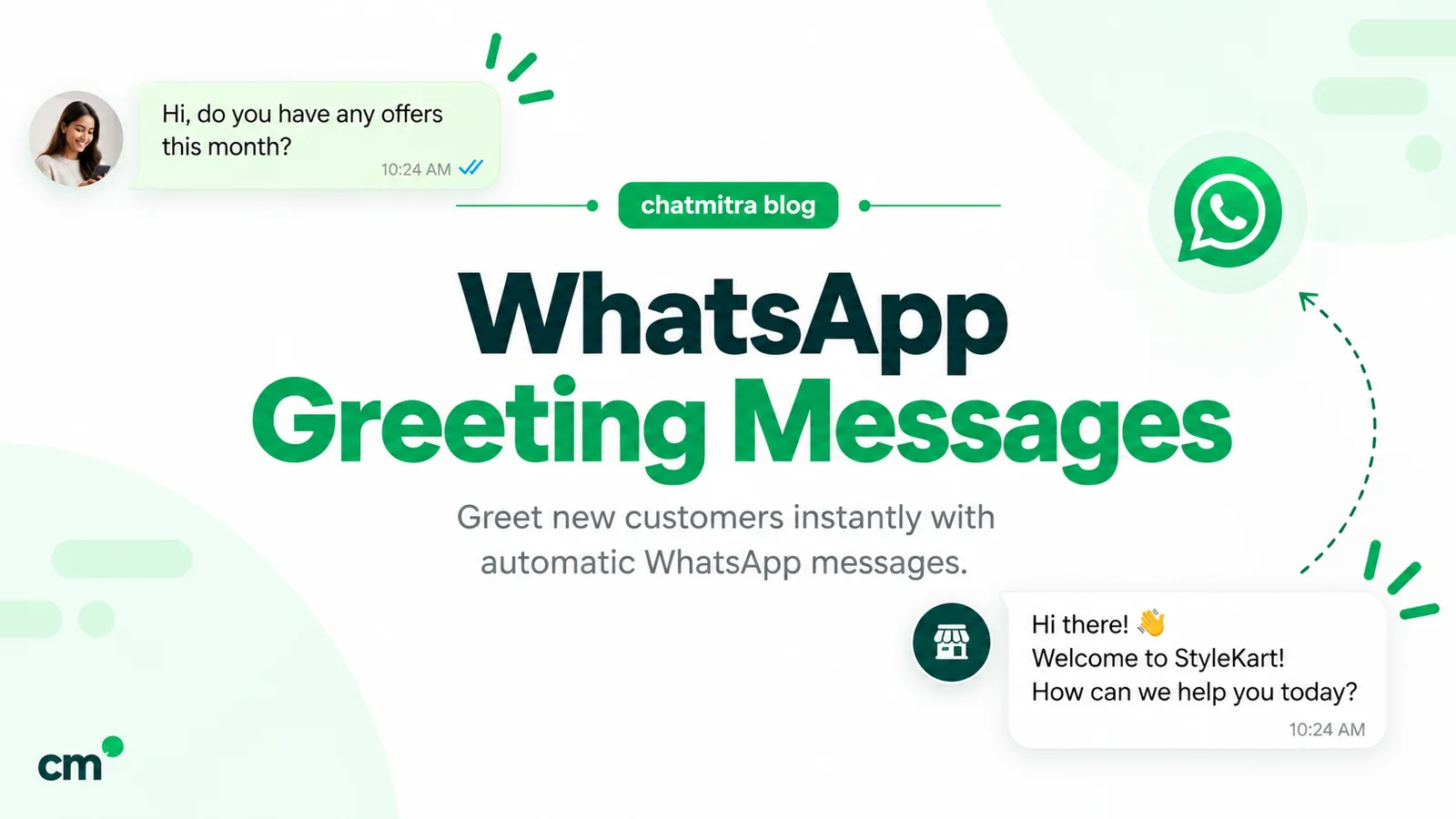
A greeting message for WhatsApp Business is the automatic reply a customer gets when they message you for the first time, or after 14 days without messages in that chat. In the WhatsApp Business app you switch it on under Tools > Greeting message. On the API, your software sends a welcome instead.
Most people searching for this want two things: wording they can paste today, and the switch that makes it work. This guide gives you both. It starts with how the feature behaves, then gives a simple way to write a greeting, then more than 40 original examples grouped by business type, including lead-capture, after-hours, festive and Hinglish versions. After that it covers welcome messages on the WhatsApp Business Platform, what they cost since 1 October 2026, and what to check when a greeting doesn’t arrive.
Key takeaways
- The app's greeting follows fixed rules: first message, or a return after 14 quiet days. You choose who receives it, not when.
- The first two lines do the work: who they've reached, and what happens next.
- On the Platform, a welcome is an ordinary reply inside the 24-hour window, so it needs no template.
What is a greeting message on WhatsApp Business?
WhatsApp’s Help Center defines it as “a customizable message that’s automatically sent to your customers when they first message you”. It adds that greeting messages “are also sent when customers message you after 14 days of inactivity in their chat with you” (WhatsApp Help Center, greeting messages).
Four details follow from that page and are worth knowing before you write anything:
- It only answers. The greeting goes out when the customer messages you. You can’t use it to message someone first.
- The 14-day rule works per chat. A customer who wrote to you last week won’t get it again. One whose chat with you has had no messages for 15 days will.
- You pick the audience. Everyone, everyone not in your address book, everyone except chosen contacts, or only chosen contacts.
- Your phone must be online. The page notes, “Your device must have an active internet connection in order to send greeting messages.”
“Welcome message” usually means the same thing. WhatsApp calls the app feature a greeting message. Software built on the WhatsApp Business Platform (the API) usually calls its version a welcome message, because the Platform has no built-in greeting and each tool builds its own.
| Greeting message (Business app) | Welcome message (Platform tools) | |
|---|---|---|
| Who builds it | WhatsApp, as an app setting | Your software provider or your developer |
| When it fires | First message, or after 14 days of inactivity in the chat | Whatever the tool is set to: usually the first message, sometimes a return after a set gap |
| Content | One text message | Depends on the tool: text, media, buttons, sometimes several messages |
| Personalisation | None documented | Often the contact's name or other saved fields |
| Cost | No charge listed by WhatsApp | A Meta service message (first 1,000 a month free, then per message), plus any provider fee |
How to set up a greeting message in the WhatsApp Business app
These are the steps on WhatsApp’s Help Center page, rendered on 25 September 2026.
- Open the Tools tab and tap Greeting message.
- Turn on Send greeting message.
- Tap the message to edit it. On Android, tap OK; on iPhone, tap Save.
- Tap Recipients and pick one of the four options below.
- Tap Save.
| Recipients option | Who gets the greeting | When to use it |
|---|---|---|
| Everyone | Anyone who messages you | Most shops, clinics and service businesses |
| Everyone not in address book (iPhone: Exclude my contacts) | Only numbers you haven't saved | When your saved contacts are regulars, suppliers or family, who don't need a welcome |
| Everyone except… | All customers apart from the ones you pick | To leave out a few VIP clients or staff |
| Only send to… | Just the contacts you pick | Rarely useful; new customers aren't on your list yet |
Older guides tell you to open Settings > Business tools first. The current Help Center starts from the Tools tab, so if your menus look different, update the app.
Two things the Help Center doesn’t mention: a character limit and a fee. You’ll see limits such as 140 or 250 characters quoted online, but WhatsApp publishes none, so don’t plan around a number. Aim for a message that fits one phone screen.
Greeting, away message or quick reply: which one does what?
The WhatsApp Business app has three messaging tools that people often mix up. Each one solves a different moment.
| Tool | What starts it | What it's for |
|---|---|---|
| Greeting message | A first message, or one after 14 quiet days | Welcoming someone and setting expectations |
| Away message | Any message while you're away: always, on a custom schedule, or outside the business hours in your profile | Saying you're unavailable and when you'll reply |
| Quick replies | You, typing "/" in a chat | Sending saved answers by hand, up to 50 of them |
The away message’s schedule options come from WhatsApp’s away messages page; the “outside of business hours” option appears only if you’ve set hours in your business profile. The quick replies page says, “The maximum number of stored quick replies allowed is 50,” and the app also creates default replies from your profile, such as your hours and address (WhatsApp Help Center, quick replies).
In practice: the greeting says hello, the away message covers the hours you’re offline, and quick replies save your typing once a real conversation starts. For after-hours wording, see our away message examples. The app’s other tools, such as lists (formerly labels), catalogue and business broadcasts, are covered in our WhatsApp Business features guide.
Why set up a greeting message at all?
A greeting doesn’t answer the customer’s question. What it does is fill the gap between their first message and your first real reply, and that gap is where many enquiries go cold. Someone who writes to three shops about the same product often buys from whichever one makes them feel heard first.
In practical terms, a good greeting earns its place in four ways:
- It confirms the number. New customers often find you through a Google listing, a flyer or a friend’s forward. “You’ve reached [Business name], [area]” removes the doubt straight away.
- It sets a reply time. A customer who knows you answer between 10 am and 7 pm waits. One who hears nothing wonders whether the number still works.
- It collects the first detail. Asking for the order number, the product, or the preferred appointment day means your first human reply can be an answer, not a question.
- It works when nobody is free. The app sends it while your phone is online, even if everyone is busy with walk-in customers.
It also has limits worth being honest about. The app’s greeting is one fixed text with no name, no buttons and no way to act on the reply. It fires for first-time customers and returns after 14 quiet days, not on a schedule you choose. And it never replaces a person: if the greeting promises a reply within an hour, someone has to deliver it.
How to write a greeting message people actually read
Most customers read the first two lines of an automatic reply and then decide whether to wait, answer or leave. So build the greeting around those two lines.
Line 1: confirm who they’ve reached. Use your business name and, if it helps, your branch or trade. “Hi, you’ve reached Sharma Opticals, Andheri West” stops the “is this the right number?” doubt.
Line 2: say what happens next. Give a realistic reply time or the one thing you need from them. “We reply within an hour, 10 am to 8 pm” is useful. “We’ll get back to you soon” isn’t.
Then, optionally, one shortcut. A price list link, your hours, or one question that speeds things up (“Which product are you asking about?”). One shortcut, not five.
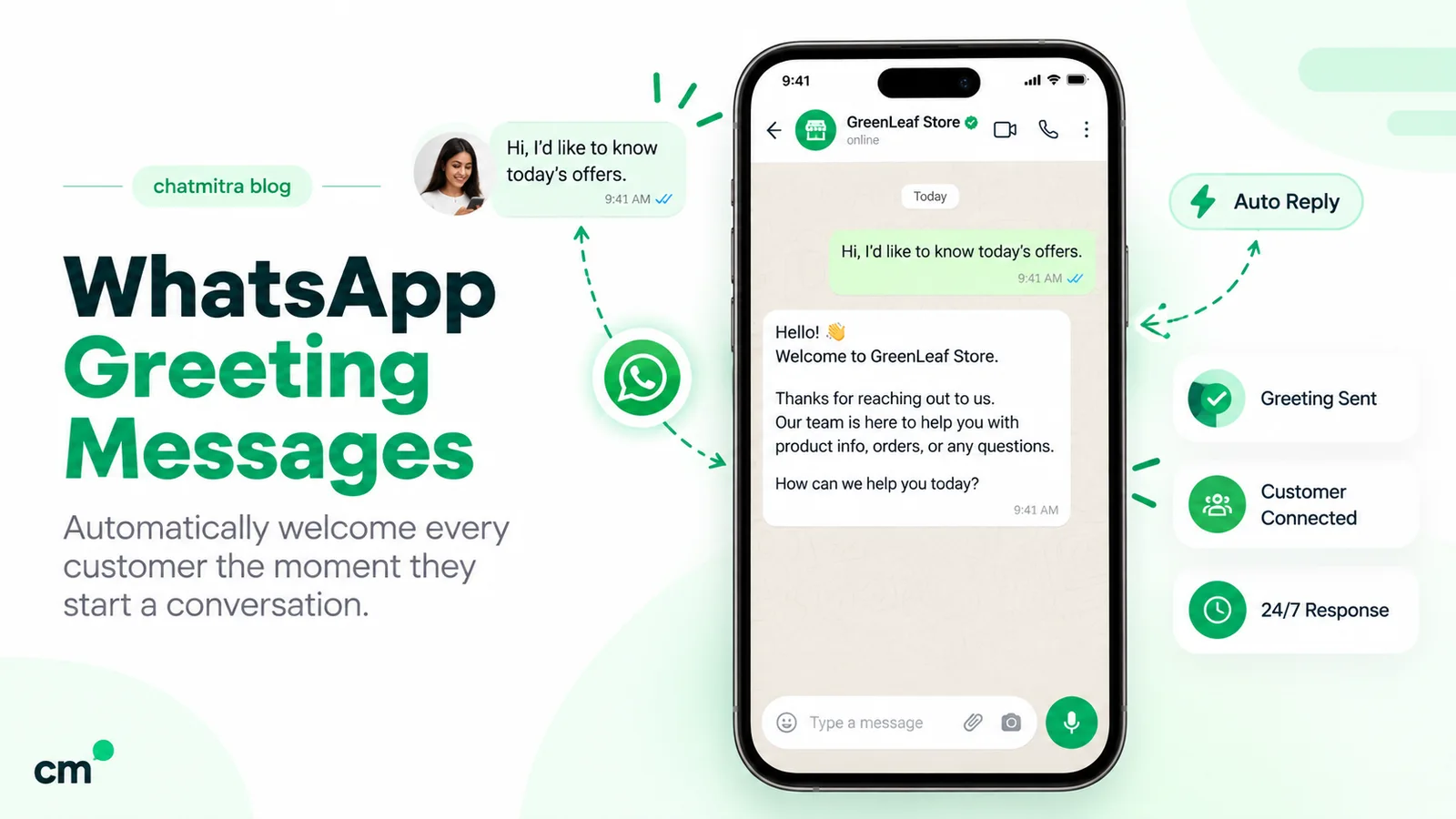
A few more rules that keep a greeting useful:
- Two to four short lines. On a phone, a paragraph of eight lines reads like terms and conditions.
- Promise only what you can keep. If you say “within 10 minutes” and reply in three hours, the greeting did harm.
- Write for someone you don’t know. The app can’t insert a name, so avoid anything that sounds odd to a stranger, like “Welcome back!”
- One emoji at most, if it fits your brand. A clinic or a CA firm can skip them.
- No offers in the greeting. A discount line makes an enquiry feel like an advert, and the offer goes stale faster than the rest of the message.
- Ask one question, not a form. “What are you looking for?” gets answers. “Please share name, city, budget, requirement and timeline” gets silence.
WhatsApp Business greeting message examples by business type
Every example below was written for this guide. Replace the words in square brackets and trim anything you don’t need. The app sends one message, so each example is complete on its own.
Not sure where to start? Match your situation to a group:
| Your situation | Start with | Why it fits |
|---|---|---|
| Most enquiries are "price?" or "in stock?" | Retail shop, or Online store (D2C) | Asks for the item or order number up front |
| You work by appointment | Clinic, Salon, Gym, Car service | Asks for the preferred day, so your reply can offer a slot |
| Enquiries need sorting before anyone replies | Lead-capture greetings | Numbered options send each customer down the right path |
| Many messages arrive at night | After-hours greeting | Says when you'll reply without repeating your away message |
| You handle money, health or legal matters | Clinic, Financial services | Adds a safety line and keeps sensitive details out of chat |
| Your customers write in Hindi or Hinglish | Hindi and Hinglish greetings | Invites them to use whichever language is easier |
General greetings for any business
Hi, thanks for messaging [Business name]! We’ve got your message and reply between [10 am and 7 pm], Monday to Saturday. Tell us what you need and we’ll take it from there.
Hello from [Business name]. A real person reads every chat here, usually within [an hour]. To save time, tell us what you’re asking about in one line.
Thanks for reaching [Business name]. Reply with what you’re looking for, and we’ll send prices, hours or directions, whichever you need.
Retail shop and showroom
Hi! You’ve reached [Shop name], [area]. Send a photo or name of the item you want, and we’ll confirm the price and stock. Shop hours: [11 am to 9 pm], closed [Tuesday].
Welcome to [Store name]. We keep limited sizes in store, so share the item and size you need and we’ll check before you visit.
Namaste from [Shop name]! Looking for something specific or just browsing? Tell us your budget and occasion, and we’ll suggest a few options.
Online store (D2C)
Hi, this is [Brand] support. For an order question, send your order number and we’ll check it. For product questions, tell us which product and we’ll help you choose.
Thanks for writing to [Brand]! We reply within [2 working hours]. If this is about a delivery, the tracking link in your order email is the quickest way to see where it is.
Clinic or doctor
Hello, you’ve reached [Clinic name]. To book, reply with the patient’s name, preferred day and time, and we’ll confirm a slot. For a medical emergency, please call [emergency number] or go to the nearest hospital.
Thank you for contacting [Dr Name]‘s clinic. Consultations run [Mon–Sat, 10 am–1 pm and 5–8 pm]. Our front desk replies to messages during these hours.
Salon and spa
Hi! Welcome to [Salon name]. Tell us the service you’d like and a day that suits you, and we’ll share the open slots. Our price list: [link]
Hello from [Salon name], [area]. We’re usually busy with clients, so replies can take [30 minutes]. Share your preferred service and time, and we’ll hold a slot for you.
Coaching and education
Hi, thanks for contacting [Institute name]. Tell us the course or class you’re interested in, and the student’s current grade, and our counsellor will share batch timings and fees.
Welcome to [Academy name]! Our office replies between [9 am and 6 pm]. Want a free demo class? Reply DEMO with the student’s name and we’ll arrange it.
Restaurant and cloud kitchen
Hi, you’ve reached [Restaurant name]! For table bookings, send the date, time and number of guests. Kitchen hours: [12–3 pm and 7–11 pm].
Hello from [Kitchen name]. Today’s menu: [link]. Reply with your order and delivery address, and we’ll confirm the total and delivery time.
Real estate
Hello from [Agency name], [locality] property desk. Which locality and budget do you have in mind, and is it for your own use or investment? We’ll send a shortlist, usually the same day.
Welcome to [Project name] enquiries. Our site team replies between [10 am and 7 pm]. For a site visit, reply with your preferred day and we’ll confirm a time.
B2B distributor or wholesaler
Hello, you’ve reached [Company name], distributors of [product range] in [city/region]. For rates, send the product code or name and quantity. Existing dealers, please mention your firm name.
Thanks for writing to [Company name]. Our sales desk replies between [10 am and 6 pm], Monday to Saturday. Send your requirement and delivery location, and we’ll share a quotation.
Local services (repairs, CA, travel, events)
Hi, this is [Business name], [service] in [area]. Describe the problem in a line or two (a photo helps) and we’ll share the visit charge and the earliest slot.
Thank you for contacting [Firm name]. For a quick answer, tell us whether this is about tax filing, an audit or bookkeeping, and one of our team will reply today.
Travel agency, hotel and homestay
Hi, thanks for messaging [Agency name]! Tell us where you’d like to go, your travel dates and how many people are travelling, and we’ll send a few options with prices, usually within [3 hours].
Welcome to [Hotel/Homestay name], [location]. For a booking, reply with your check-in and check-out dates and the number of guests. Already booked? Send your booking name and we’ll help with anything you need.
Financial services and insurance
In money-related greetings, say clearly what you will never ask for. It protects your customers and your name, because fraudsters often pose as finance businesses on WhatsApp.
Hello, you’ve reached [Firm name]. Tell us what you need help with (a new policy, a renewal, a claim or something else) and an adviser will reply between [10 am and 6 pm]. We will never ask for your OTP, PIN or password on WhatsApp.
Thanks for contacting [Firm name], [city]. Please don’t send bank or card details in this chat. Share your query in a line, and our team will call or message you back today.
Gym and fitness studio
Hi, welcome to [Gym name]! Want to try a session first? Reply TRIAL with your preferred day and time. For membership plans, reply PLANS and we’ll send the details.
Hello from [Studio name]. Our front desk replies between [6 am and 9 pm]. Tell us whether you’re asking about classes, personal training or a membership, and we’ll take it from there.
Car dealer and service centre
Hi, you’ve reached [Dealer name], [brand] showroom in [area]. Tell us the model you’re interested in, and whether you’d like a test drive, and we’ll share prices and a slot.
Welcome to [Service centre name]. To book a service, reply with your car model, registration number and preferred date. For breakdown help, call [number].
Lead-capture greetings with numbered options
When your enquiries fall into a few clear types, a short menu sorts them before anyone replies. Keep it to three or four options, and remember that in the WhatsApp Business app a person still answers each reply. On the WhatsApp Business Platform, keyword auto-replies can answer each number automatically, and a welcome can use tappable reply buttons instead.
Hi, thanks for messaging [Business name]! Reply with a number so we can help faster:
1 Prices and offers
2 Order status
3 Talk to our team
Welcome to [Institute name]. What would you like to know?
1 Courses and fees
2 Batch timings
3 Book a free counselling call
Reply with 1, 2 or 3.
Hello from [Company name]. Are you a:
1 New customer
2 Existing dealer
3 Supplier
Reply with the number and our [sales/purchase] desk will reply between [10 am and 6 pm].
After-hours greeting
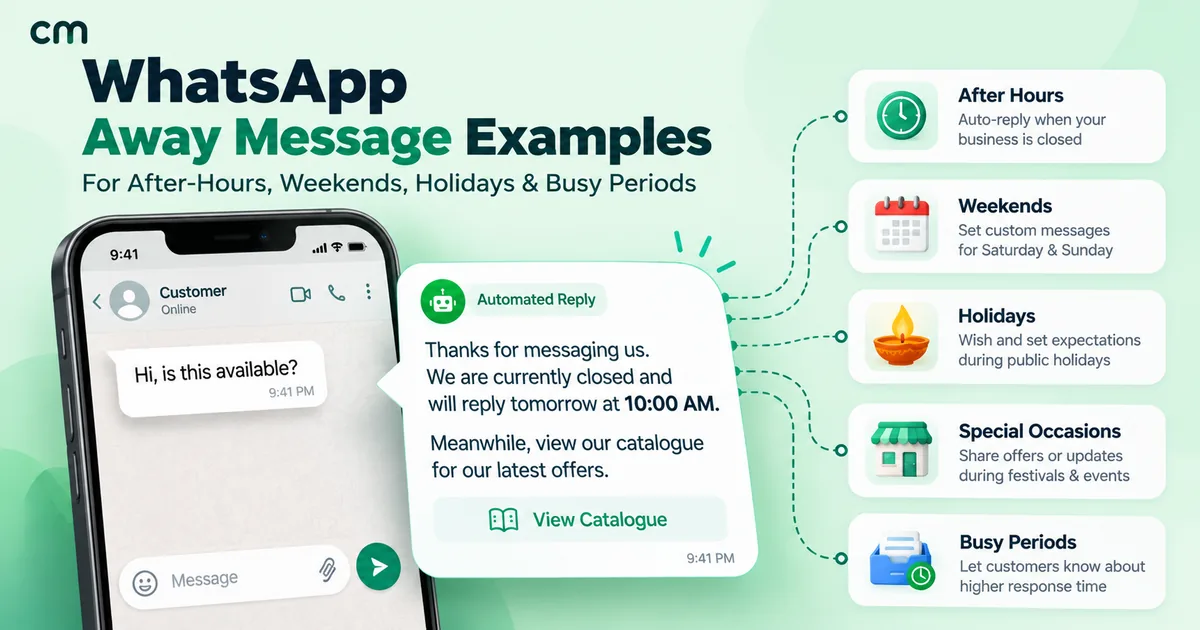
The greeting and the away message can both reach a customer who writes to you for the first time at night, so keep this version short and don’t repeat what your away message says.
Hi, thanks for messaging [Business name]. We’re closed now and reply from [10 am] tomorrow. Leave your question here and it’ll be the first thing we answer.
Hello! You’ve reached [Business name] after hours. Your message is safe with us, and we’ll reply when we open at [9 am]. For urgent [service] help, call [number].
Festive greeting
Change the greeting for a festival week and set a reminder to change it back.
Happy Diwali from [Business name]! 🪔 Our shop is open [till 10 pm] this week. Tell us what you’re shopping for and we’ll help you find it.
Eid Mubarak from all of us at [Business name]! We’re closed on [date] and back on [date]. Leave your message and we’ll reply as soon as we reopen.
For customer wishes you send yourself, rather than an automatic greeting, see our Diwali and Navratri wishes for customers.
Hindi and Hinglish greetings
नमस्ते! [Business name] में आपका स्वागत है। अपना सवाल यहाँ लिखिए, हम [सुबह 10 से शाम 7 बजे] के बीच जवाब देते हैं।
Hi! [Shop name] mein aapka swagat hai. Aapko kaunsa product chahiye? Naam ya photo bhej dijiye, hum price aur stock bata denge.
Namaste, aap [Business name] se baat kar rahe hain. Hum [1 ghante] mein reply karte hain. English ya Hindi, jo aapko aasaan lage, usi mein likhiye.
Returning customer (after 14 days)
The app’s greeting also reaches customers who come back after 14 quiet days, so avoid wording that only makes sense to strangers, like “Nice to meet you”. This version works for both:
Hi, thanks for messaging [Business name]! Whether it’s your first time or you’ve shopped with us before, tell us what you need and we’ll help within [an hour].
Greeting messages on the WhatsApp Business Platform (API)
If your business runs on the WhatsApp Business Platform through a provider, there is no greeting switch to turn on. Meta’s coexistence documentation, which lists what changes when a WhatsApp Business app number is connected to the Cloud API, puts “greeting message, away message, quick replies, labels” under messaging tools with “No change” in the app and “Not supported” on the Cloud API (Meta for Developers, onboarding WhatsApp Business app users).
What Meta does offer at the start of a chat are conversational components, configured per phone number (Meta for Developers, conversational components, updated 16 June 2026):
- Ice breakers: tappable prompts that appear “the first time you chat with a user”. You can set “up to 4 ice breakers”, each up to 80 characters, with no emojis. A tap arrives as a normal text message.
- Commands: shortcuts a customer sees after typing ”/”. Up to 30 commands; each command up to 32 characters and each hint up to 256.
That page doesn’t describe a welcome-message setting, and the messages webhook reference lists no welcome-request message type (both checked 25 September 2026). Meta’s changelog explains why: on 27 March 2026 it “Removed the request_welcome webhook and welcome message feature from conversational components” (Meta for Developers, changelog). Guides that still tell you to switch on Meta’s welcome message are out of date.
The one Meta-built welcome left on the Platform is tied to ads. When you create a Click-to-WhatsApp ad, “you can connect a Welcome Message Sequence”, which “can include text, prefilled message, and FAQs” (Meta for Developers, welcome message sequences). It only appears for people who tap that ad, so it doesn’t replace a welcome for everyone else. One limit matters if you promote a chat link: when a customer opens a wa.me or api.whatsapp.com link with pre-filled text, “WhatsApp automatically dismisses the user interfaces for ice breakers”. So if your ads and QR codes use pre-filled text, as links built with our free WhatsApp chat link generator can, customers won’t see your ice breakers. Our learn page on ice breakers and commands covers when each one helps.
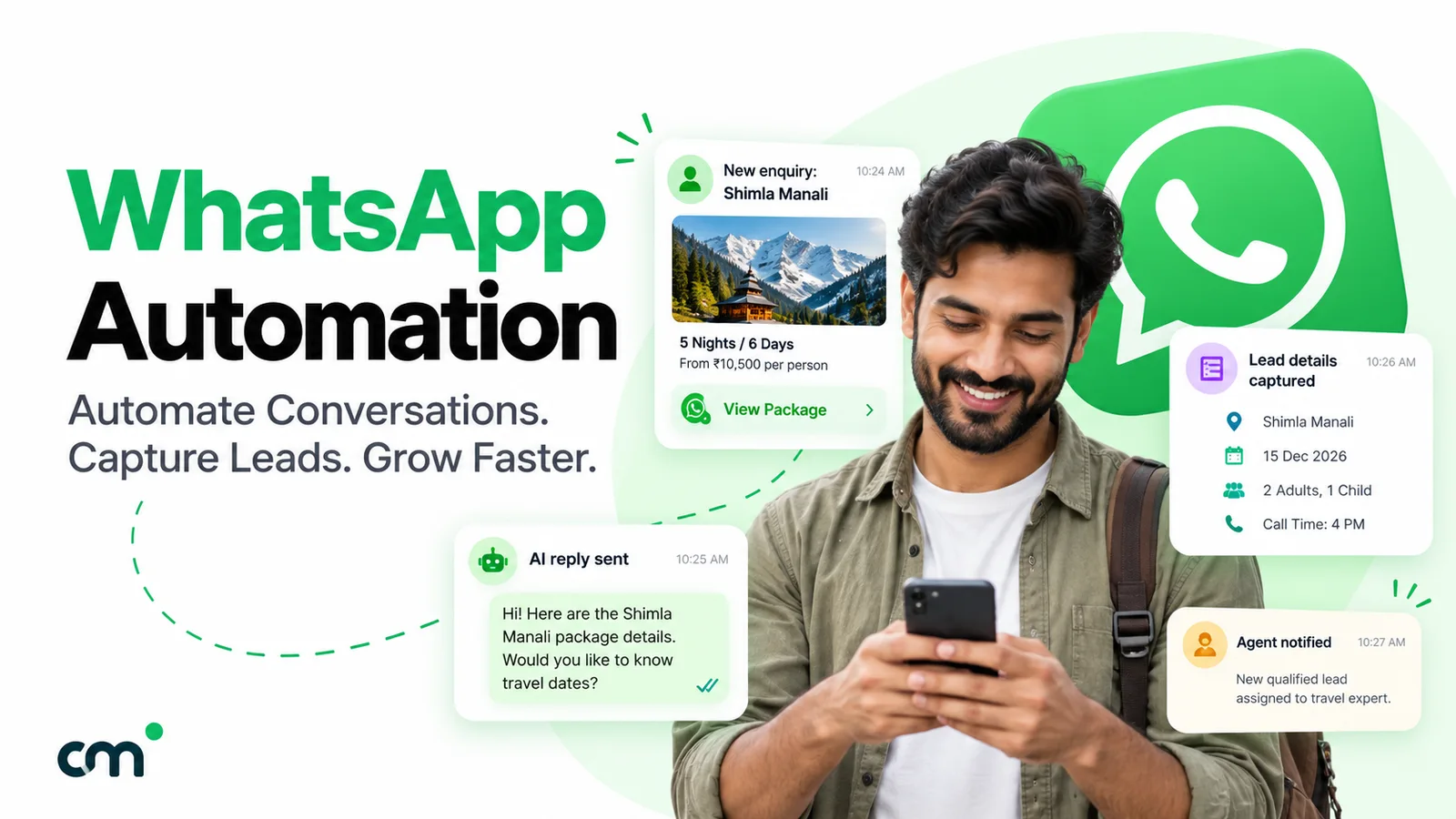
How platform tools send a welcome
Every tool builds the welcome in roughly the same way:
- The customer’s message reaches the provider through Meta’s webhook.
- The tool checks whether this contact has been welcomed before, and when.
- If a welcome is due, it sends one or more ordinary messages (text, image, buttons, a list) straight away.
Does a welcome message need a template?
No. The customer’s message opens Meta’s 24-hour customer service window, and Meta’s pricing page says non-template messages “can only be sent within an open customer service window” (Meta for Developers, pricing). A welcome sent seconds after the customer writes is well inside that window, so plain text, media and interactive buttons all work, with no approval needed.
A template is needed only when you message first, for example to welcome someone who filled in a form on your website but hasn’t written to you. That is a different message with different rules. Meta’s template categorisation guidelines list “Build Customer Relationships”, described as “Strengthen customer relationships through personalized messages or by prompting new conversations”, under marketing (Meta for Developers, template categorisation). A welcome that introduces your business or invites a chat fits that description, so expect it to be categorised and billed as marketing. The utility exceptions are narrow: a plain confirmation of an opt-in you collected elsewhere, or a message continuing a conversation the customer asked to move to WhatsApp, with nothing promotional in it. Either way, send it only to people who opted in.
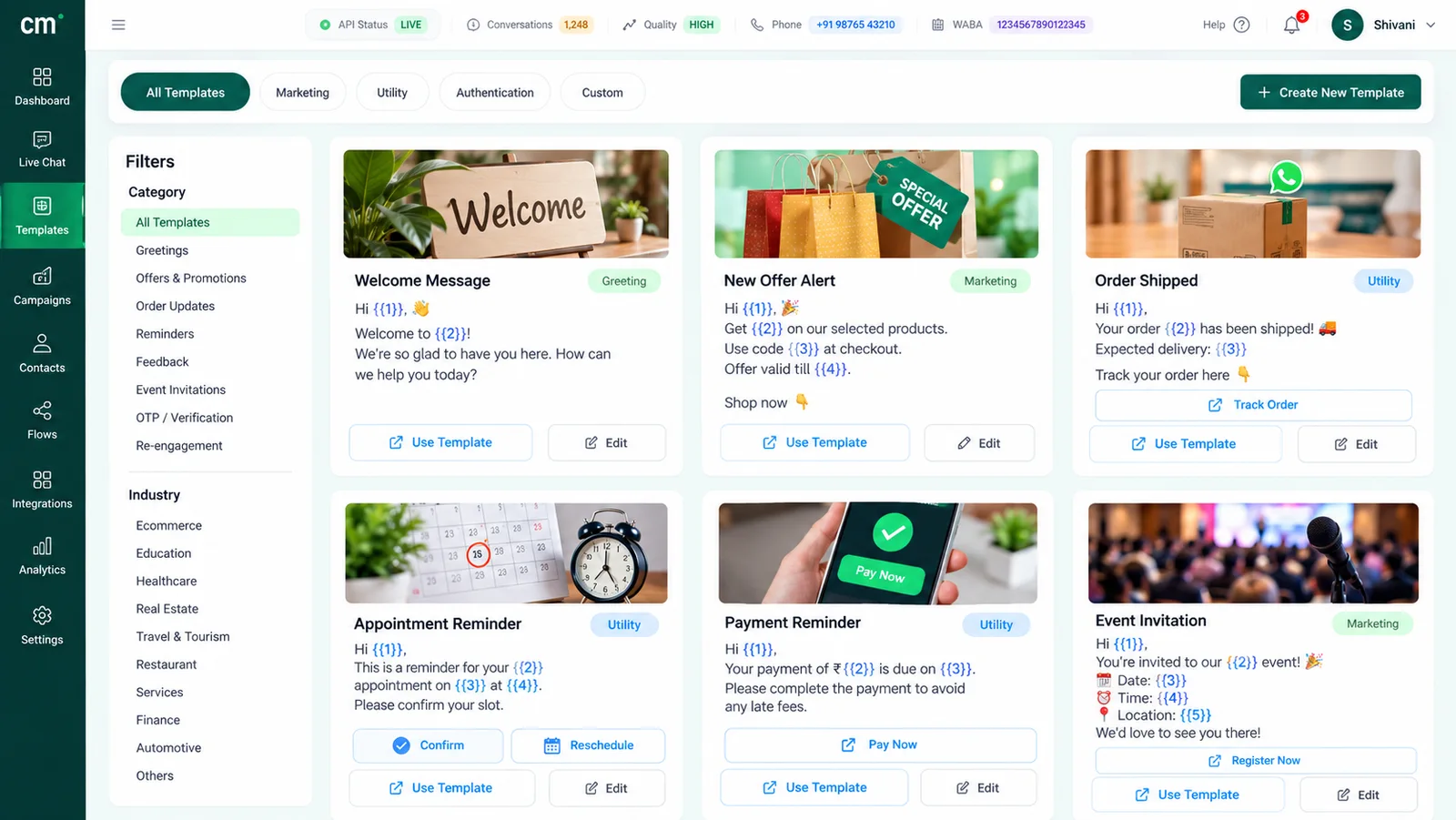
Does an automated greeting cost money?
In the WhatsApp Business app, neither the greeting page nor the away page mentions any charge.
On the WhatsApp Business Platform, a welcome is a service message, and service messages have been charged since 1 October 2026. Meta’s pricing page says:
- “Each business phone number has one shared free tier of 1,000 delivered service messages per month.”
- “Meta charges for service messages after the free tier has been used.”
- “Unused service messages in the free tier do not roll over.”
In India, Meta’s rate card effective 1 October 2026 sets the service rate at ₹0.1150 per delivered message.
Three things follow for a welcome:
- Each message in a sequence counts. A welcome of a text plus an image is two service messages.
- The free tier is shared. Your team’s replies, keyword auto-replies and AI replies draw from the same 1,000.
- Ad leads are the exception. When someone messages you from a Click-to-WhatsApp ad on WhatsApp’s Android or iOS app, your reply inside the customer service window is free and opens a free entry point window, which Meta says “may remain open for up to 7 days”. Meta doesn’t charge for their welcome. Messages from other entry points, such as a website button or a QR code, don’t qualify.
A worked example. A coaching centre’s team already sends about 2,000 service replies a month, which uses up the free tier. It gets 600 new enquiries a month, none from ads, and sends each one a two-message welcome: 1,200 extra messages × ₹0.1150 = ₹138 a month. Cut the welcome to one message and it’s ₹69. For the full picture of what WhatsApp messages cost, see our guide to WhatsApp Business cost per message.
How ChatMitra’s welcome message works
ChatMitra builds the welcome for you on the Platform. Here is how it behaves, checked in ChatMitra’s code on 30 September 2026.
| Setting | How it works |
|---|---|
| Where | Settings > Welcome Message, one configuration per WhatsApp number (project). It is off until you switch it on. |
| Who gets it | A contact's first message after you switch it on. People who messaged while it was off aren't welcomed later. |
| Content | A sequence of up to 20 messages, sent in order: text, media, buttons, lists, a location, a contact card or an approved template |
| Personalisation | $name, $mobile and $email in text messages. For a new contact, $name is their WhatsApp profile name. |
| Re-welcome | Never, or after 1, 3, 7, 14 or 30 days, counted from the last welcome sent, not from the customer's last message |
| Tags | Optional tags added to the contact once the welcome has gone out |
| Testing | Save & Send Test saves your changes, then sends the sequence to a number you enter |
Three behaviours are worth knowing before you switch it on:
- The re-welcome interval is not WhatsApp’s 14-day rule. With “After 7 days”, a customer who chats with you every day is welcomed again about once a week, because the clock starts at the last welcome. For regular customers, “After 30 days” or “Never” is usually kinder.
- It runs alongside your other automations. A first-time customer who writes during your away hours gets the welcome and the away message. One whose first message matches a keyword rule gets the welcome and that keyword reply. Write them so they read well together.
- Pausing automation for a contact doesn’t stop the welcome. The per-contact pause covers keyword, away and AI replies, not the welcome.
ChatMitra doesn’t set up Meta’s ice breakers, commands or ad welcome sequences; you configure ice breakers and commands in WhatsApp Manager. On cost, Meta’s service rates apply as above. On the Starter plan, ChatMitra’s ₹0.20 platform fee is charged once per contact per 24-hour conversation. The welcome goes out inside the conversation the customer’s own message has just opened, so it doesn’t add a second fee. Plan details are on the ChatMitra pricing page.
Greeting message mistakes to avoid
- A greeting that repeats the away message. When both fire at night, the customer reads the same “we’re closed” twice.
- A reply time you don’t meet. “Instant replies!” followed by silence is worse than no greeting.
- Asking for five details at once. Ask one question; ask the rest in the conversation.
- Leaving a festive or sale greeting running. A “Diwali offer” in December tells customers nobody is minding the shop.
- Links that break. Test every link in the greeting on a phone, from a number that isn’t yours.
- Welcoming regulars every few days. On Platform tools, choose a long re-welcome interval; in the app, the 14-day rule handles it.
- Treating the greeting as the answer. It buys you time. Someone still has to reply.
Greeting message not sending? What to check
For the WhatsApp Business app, the Help Center’s own troubleshooting list covers most cases:
- Meta Business Agent is on. “Greeting messages are automatically disabled when Meta Business Agent is connected.” You’d need to delete it to use greetings.
- The recipients setting excludes the customer, for example “Only send to…” or “Everyone except…”.
- The 14-day rule. “If a customer has messaged you within the last 14 days, they won’t receive a greeting message.” Test from a number that has never messaged you.
- Automatic events are on. WhatsApp says turning them on “may impact your ability to use” greeting and away messages (WhatsApp Help Center, automatic events).
- The phone is offline. The app needs an active internet connection to send it.
- Still stuck: toggle Send greeting message off and on, update WhatsApp Business, and restart the phone. These three steps are WhatsApp’s own suggestions.
If your number is connected to the Platform through coexistence, the app’s greeting keeps working in the app, and your provider’s welcome may fire too. Pick one, or customers get two hellos.
For ChatMitra’s welcome message, check these:
- The switch was off when the customer first wrote. They’re marked as skipped and won’t be welcomed later. Test with a new number.
- The re-welcome interval is “Never”. Returning customers won’t get it again, by design.
- “Always — every message (testing only)” is still selected. Every message the customer sends, even a button tap, re-sends the welcome. Switch it off before going live.
- The test fails or skips messages. Meta delivers non-template messages only inside the 24-hour window, so message your business from the test number first, then press Save & Send Test.
Where to start
Write one greeting today using the two-line rule: who they’ve reached, and what happens next. Pick the example closest to your business, change the brackets, and send yourself a test from a friend’s phone. Add an after-hours version and a festive variant only once the basic one reads well.
When one number is shared by a team, or you want welcomes with buttons, names and tags, the greeting becomes part of a wider setup. Our WhatsApp automation guide shows how greetings fit with away messages, keyword replies, notifications and AI. For keyword and order-update wording, see the auto-reply examples.
Sources: WhatsApp Help Center: greeting messages, away messages, quick replies, automatic events. Meta for Developers: conversational components, the WhatsApp changelog, Click-to-WhatsApp welcome message sequences, onboarding WhatsApp Business app users (coexistence), messages webhook reference, pricing and the India rate card effective 1 October 2026, template categorisation. ChatMitra behaviour verified in ChatMitra’s code on 30 September 2026.
Facts first checked against Meta's and WhatsApp's documentation on 25 September 2026; the greeting help page and Meta's pricing page (updated 28 September 2026) were re-checked on 30 September 2026. Rupee figures are Meta's India rates.