A WhatsApp group for business works when the members need to talk to each other as well as to you: a class batch, an owners’ club, a dealer network, event attendees or your own team. It is the wrong tool for promotions. Groups show members to each other, stop at 1,024 people and put every reply in front of everyone.
Behind that answer sit several decisions: group or Community, who can post and add people, what happens to customers’ phone numbers, and when a broadcast, Channel or Status update fits better. This guide covers each, with WhatsApp’s current limits, a setup and moderation routine, a rules template, and Meta’s Groups API for businesses on the WhatsApp Business Platform.
Key takeaways
- Ask one question first: do members need to talk to each other? If not, a group is the wrong tool.
- Set permissions before the first member joins, and invite people with a link rather than adding them.
- Treat every group as a place where customers meet each other, because they do.
Facts checked against Meta's and WhatsApp's documentation on 25 September 2026.
What is a WhatsApp group for business?
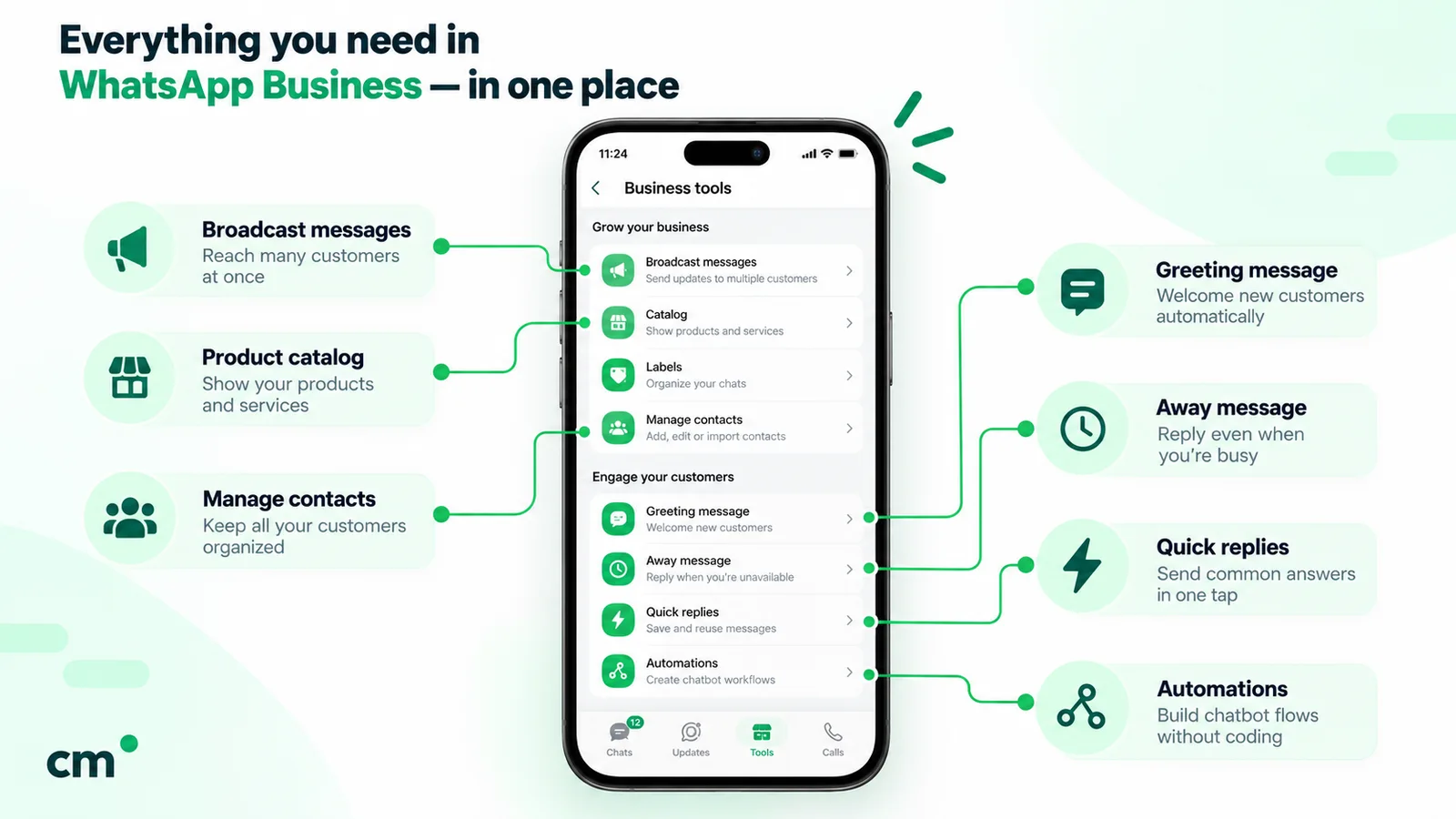
It’s an ordinary WhatsApp group that a business creates or runs. There is no separate “business group” product: a Business app account creates groups the same way anyone does, under the same limits, permissions and privacy rules. The Business app adds tools around one-to-one chats (lists, formerly labels; quick replies; greeting messages), which our guide to WhatsApp Business app features covers.
Two things make a business group different in practice:
- The members are customers, not friends. They didn’t choose each other. Whatever one member posts, every other member sees.
- The business carries the risk. When WhatsApp reviews a reported group, it checks whether the group or a group admin broke its terms, and the admin’s number is usually the one on your packaging and invoices.
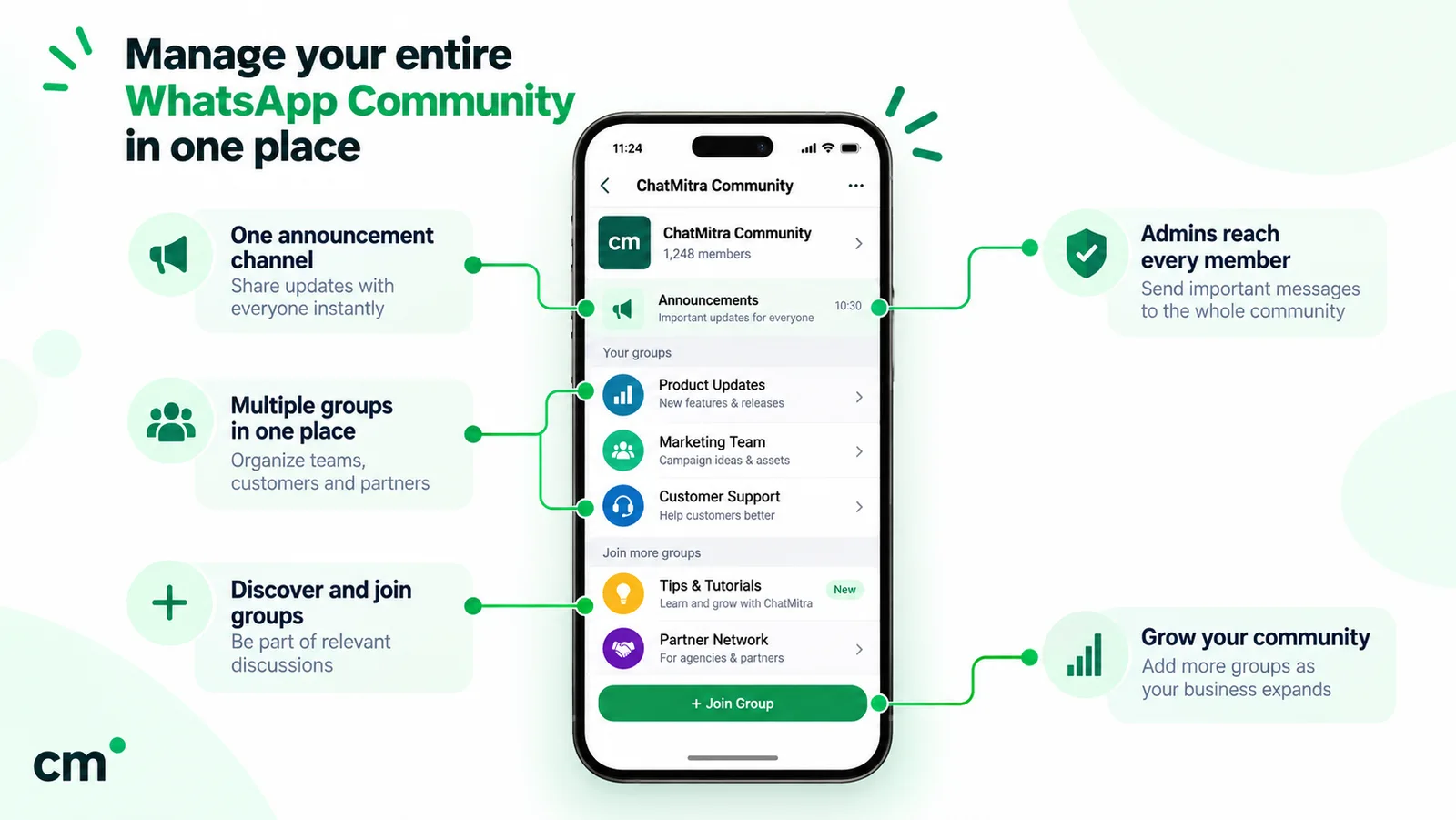
A WhatsApp Community sits one level up. According to WhatsApp’s page on creating a community, it links up to 100 groups and adds an Announcements group “where community admins can send messages to all community members”. The same page notes: “You can’t currently create a community on the WhatsApp Business app.” A business that wants a Community has to create it from the standard WhatsApp app.
Group, Community, broadcast, Channel or Status: which one fits?
Each tool answers a different question. Our WhatsApp broadcast list guide compares broadcast lists, groups, Communities and Channels side by side. Here is the short version, framed around what a business needs.
| Tool | Who talks to whom | Pick it when | Avoid it when |
|---|---|---|---|
| Group | Everyone to everyone | Members benefit from talking to each other: a batch, a club, a dealer network | You only want to announce things, or members must stay private from each other |
| Community | Admins announce to all; members talk inside sub-groups | You already run several related groups and repeat the same notice in each | You have one group, or you need to create it from the Business app |
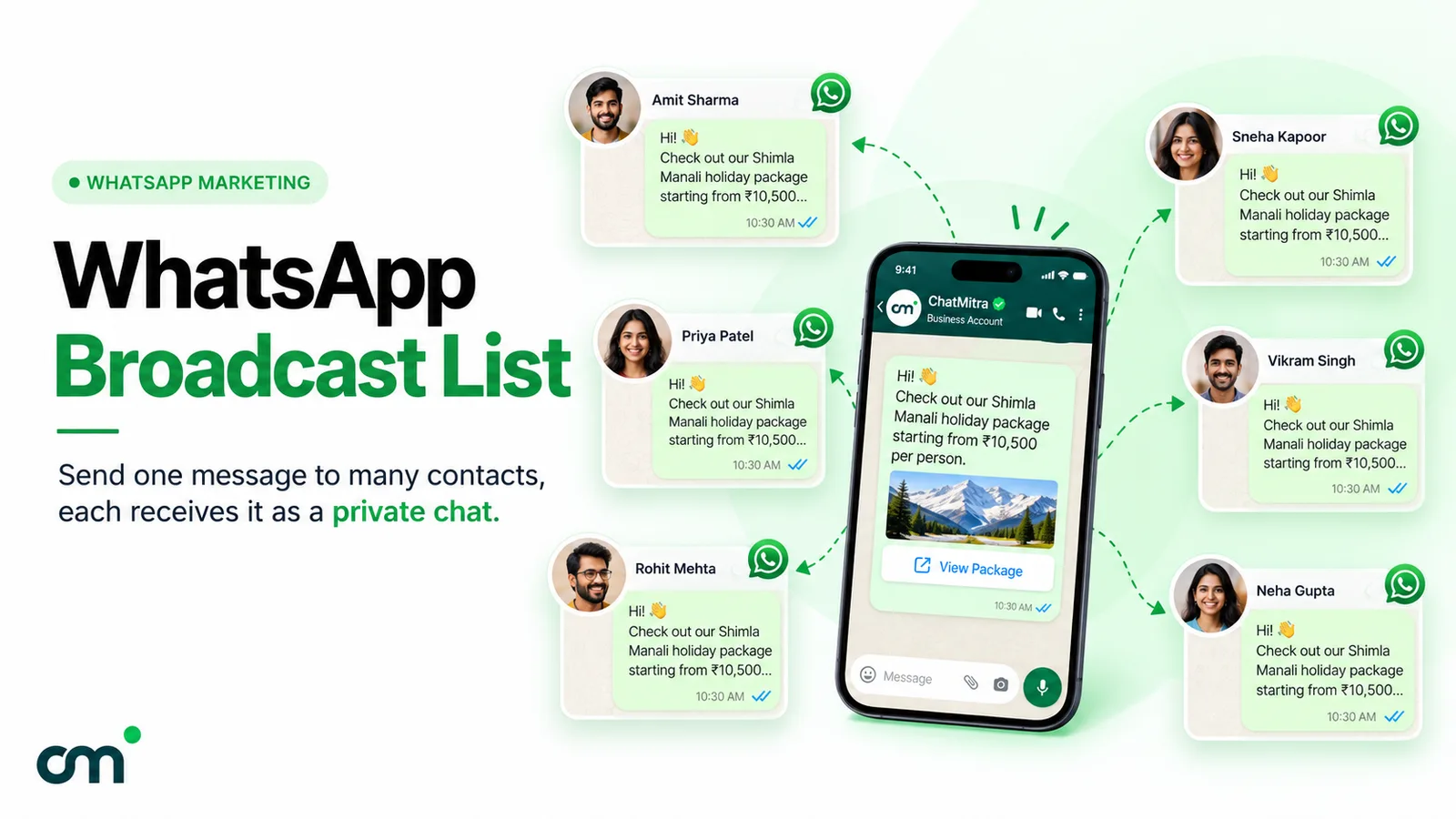
| Broadcast (Business app list, or templates on the Business Platform) | You to each person, privately | The same update goes to many customers who each reply to you alone | People haven't opted in |
| Channel | You to followers, one way | Public news for anyone who chooses to follow | You need replies or conversation |
| Status | You to your contacts, for 24 hours | Quick daily updates to people who saved your number | The update must reach everyone or stay up |
A few details behind the table. WhatsApp’s broadcast list page says recipients get your message “as an individual message”, only if they’ve saved your number, with up to 256 contacts per list. On a business Channel, followers “can’t reply directly to updates” and “won’t see your WhatsApp Business profile name, picture, or your phone number”. Status updates “disappear after 24 hours” (About status); our Status marketing guide covers who sees them.
Three questions settle most cases:
- Do members gain anything from talking to each other? If no, rule out groups and Communities.
- Is it private to a known set of people, or open to anyone? Known set: group or broadcast. Anyone: Channel.
- Do you need a reply from each person? Yes: broadcast, where each reply comes to you alone. No: Channel or Status.
WhatsApp group and Community limits in 2026
These are the numbers WhatsApp publishes today. Several older guides still quote higher Community limits, so check against the Help Center rather than a blog.
| Limit | Value | Source |
|---|---|---|
| Members per group | Up to 1,024 | Create and invite into a group |
| Groups per Community | Up to 100 | Create a community |
| Members per Community | Up to 2,000; the limit "includes the total number of members in the sub-groups and announcement groups" | Same page |
| Community general chat | 1,024 members, like other groups | General chat for communities |
| Who can create invite links | By default, admins and members in groups with fewer than 33 members | Create and invite into a group |
| Who can edit group info in large groups | Defaults to Only admins above 256 members | Group admin settings |
| Poll options | Up to 12, question up to 255 characters | How to use polls |
| Message history for a new member | Pinned messages and up to 100 messages | Message history in groups |
| Groups API (Cloud API) | Up to 8 participants per group; 10,000 groups per business number | Meta: Groups API |
“How do I add 1,000 members to a WhatsApp group?” is a common question. You can’t add them in bulk, and shouldn’t try. WhatsApp’s page on adding members warns that if you’ve “added too many members to groups”, you “might need to wait 24 hours to add more members to groups and create additional groups”. Share an invite link instead. Reaching thousands of people is a job for opted-in broadcasts, not a group.
Where a group works for a business
Groups shine when the value comes partly from the other members. These are the patterns that hold up.
| Use case | Why a group suits it | Settings that matter |
|---|---|---|
| Class, batch or cohort (coaching, fitness, workshops) | Learners help each other; the tutor posts once | Admin-only messages during sessions; a new group per batch |
| Owners' or customers' club (cars, appliances, a skincare range) | Peer tips answer many questions before support does | Approve new members; rules pinned; product experts as co-admins |
| VIP or early-access list | Members opted in to hear first and like the insider feel | Admin-only messages; polls for what to stock next |
| B2B dealer, distributor or reseller network | Scheme updates, stock alerts and questions in one place | Hidden groups per region inside a Community; strict admin list |
| Event or trip attendees | Logistics, meeting points and changes reach everyone at once | An event in the group; close or delete the group afterwards |
| Internal team or project with a client | Quick coordination among people who already work together | Admins from both sides; disappearing messages if the content is sensitive |
A few notes on these:
- Cohorts beat one giant group. A group per batch keeps talk relevant and ends cleanly. A Community can link the batches and carry shared notices such as holidays.
- Dealer networks are where Communities earn their keep. WhatsApp lets you mark a group inside a Community as Hidden, so only its invited members and the Community admins can see it (group visibility in communities). Regional dealers can then have their own rooms without seeing each other’s.
- Events have their own tools. WhatsApp’s group events let members answer Going, Maybe or Not going, and those who answer Going or Maybe are notified when the event starts. WhatsApp’s January 2026 update added custom early reminders for events and member tags, which let a member label their role in a group (for example “Store manager” or “Batch 7”).
When a group is the wrong tool
Most failures come from using a group as a megaphone:
- Adding customers to a “promotions” group. They didn’t ask to meet each other, they get notifications from strangers, and the fastest way out is Exit and Report. WhatsApp shows people who are added by someone not in their contacts an option to exit the group and report it (How to stay safe in groups).
- Posting in other people’s “business” or “promotion” groups. Searches for business group links are common, and the groups behind them tend to be full of people advertising to each other. Your post lands among dozens of others, from an account strangers can report.
- Buying group links or member lists. WhatsApp’s responsible-use page says: “Don’t share phone numbers without consent or use data obtained from illicit sources to message users on WhatsApp or add them to groups.”
- Customer support. A support queue in a group means one customer’s order problem is broadcast to 300 others, and nobody can tell which questions are answered. Support belongs in one-to-one chats; see our guide to WhatsApp for customer service.
- Anything sensitive. Health, finance, legal and children’s data don’t belong in a room where members see each other.
How to set up a business WhatsApp group, step by step
The order matters: set the rules and permissions before anyone joins. In a group started with fewer than 33 members, every member can add people, send messages and change the name, icon and description until an admin changes the permissions.
- Write the purpose in one sentence. “Owners of our water purifiers swap tips and get service notices” is a purpose. “Stay connected with us” isn’t. If you can’t write it, you probably want a broadcast.
- Choose the account. Use the business number people already know. If you’ll need a Community later, remember it must be created from the standard WhatsApp app.
- Create the group with a clear name, icon and description. Put the purpose, the posting rules and your support channel in the description. Group names can be up to 100 characters (WhatsApp).
- Set Group permissions (group admin settings):
- Edit group settings: off, so only admins change the name, icon and description.
- Send new messages: on for a discussion group; off for an announcement-style group.
- Add other members and Invite via link: off, so only admins bring people in.
- Approve new members: on. WhatsApp notes it is “turned off by default” (approving new members).
- Send message history: off unless you’re sure older messages suit newcomers.
- Turn on Send for admin review. Members can then flag a message to admins instead of arguing in the group. Admins have “about two days before review requests expire” (managing send for admin review).
- Decide on disappearing messages. Groups can use 24 hours, 7 days or 90 days, and any member can switch the setting unless admins restrict it (disappearing messages in groups). They suit short-lived logistics; note that WhatsApp says you might not be able to create events in advance while they’re on.
- Appoint at least two admins. If the only admin leaves, WhatsApp picks a new admin at random from the members (WhatsApp). That can hand your customer group to a stranger.
- Pin the rules and a welcome message, then invite people with the link or its QR code, only after they’ve said yes (see the consent section below).
To collect the “yes”, let people message you first. A WhatsApp chat link or WhatsApp QR code on packaging or a sign-up form opens a one-to-one chat; explain the group there and send the invite only to people who ask.
A moderation playbook for group admins
Left alone, a group drifts into forwards and complaints. This routine keeps it on track.
Every day
- Read flagged messages under Sent for admin review before they expire.
- Answer in the group only if the answer helps everyone; take order questions private: “I’ve messaged you directly.”
- Approve pending join requests. WhatsApp shows admins “the source of the request”, such as the invite link or a member who invited them (group join requests).
Every week
- Post something useful that isn’t an offer: a how-to, a poll, an event.
- Check View member changes, which shows “updates from the last 60 days, like username changes and members who left or were removed” (How to see group members). A wave of exits after a post tells you something.
When something goes wrong
- Spam or abuse: delete the message for everyone, remove the member, and report the message if it’s a scam. WhatsApp lists these tools in its group safety guide.
- The invite link leaks to a public site: reset it. WhatsApp says that once a link has been reset, “the previous link can’t be restored” (WhatsApp). Send the new link privately to people still waiting.
- A heated thread: switch Send new messages to admins only for an hour, post a calm note, then reopen.
- An admin leaves the business: remove their admin role the same day.
Group rules template you can copy
Pin a short version and put the full version in the group description. Edit the brackets.
Welcome to [Group name] This group is for [who] to [purpose]. It’s run by [Business name]; admins are [names].
- Stay on topic: [topics]. Everything else, please take to a private chat.
- No selling, links to other groups or forwards from unknown sources.
- Order, billing or complaint questions: message us privately at [chat link]. We don’t discuss orders in the group.
- Other members can see your name, and your phone number unless you use a WhatsApp username. Don’t share anyone’s details outside this group.
- We post [what] about [how often]. Offers are [occasional / never].
- See something wrong? Use Send for admin review, or message an admin.
- Admins may remove messages or members who break these rules. You can leave at any time.
Keep rule 4: it tells members exactly what others in the group can see.
Consent and privacy: numbers, opt-in and India’s DPDP Act
A group joins people to each other, so consent covers more than “you may message me”.
Phone numbers are visible. WhatsApp’s page on usernames describes them as a way “to keep your phone number private”, and says people who don’t have your number saved will see your username instead, “when you participate in group chats”. Without a username, members see the number. Usernames are “rolling out gradually”, so assume most of your members don’t have one yet. Numbers also outlive membership: a removed member’s “profile name and phone number will be shown in the Past members list” for up to 60 days (WhatsApp).
People control whether you can add them. By default anyone with a number can add someone to a group, but users can restrict it to My contacts or My contacts except… (group privacy settings). Those people get a private invite instead, with three days to accept. Invite links work regardless of these settings, and “joining a group through an invite link is always your choice”, so an invite link is the respectful default.
WhatsApp asks for permission. The responsible-use page says “You should get permission from contacts before you add them to a group”, and “if you add someone to a group and they remove themselves, honor their decision.” The WhatsApp Business Messaging Policy (updated 23 September 2026) lets businesses contact people only if they have given you their mobile number or username and “you have received opt-in permission from the recipient confirming that they wish to receive subsequent messages or calls from you.”
India’s DPDP Act, 2023. The Act defines personal data as “any data about an individual who is identifiable by or in relation to such data”, and processing includes “sharing, disclosure by transmission, dissemination or otherwise making available” (s.2(t) and s.2(x)). A business group makes each member’s number available to the others, and the exemption for a “personal or domestic purpose” (s.3(c)(i)) doesn’t fit it. Most consent and notice duties start eighteen months from 13 November 2025, per the commencement note in the Act’s India Code text. Our WhatsApp opt-in guide covers the timeline, the consent test and wording; it isn’t legal advice, and neither is this.
In practice:
- Ask before you invite, and say what the group is for.
- Tell people that members can see their number, and mention usernames.
- Keep a record of how each member was invited (a form, a chat, a sign-up sheet).
- Remove people who ask to leave any business list, from the group too.
WhatsApp group marketing: what works without getting reported
“WhatsApp group marketing” works when the group is the product: people join because the group itself is useful, and sales follow from trust. For the wider plan (which channel does which job, budgets and the paid Business Platform), see our WhatsApp marketing strategy guide.
What tends to work in a group:
- A ratio in your favour. Most posts are help, answers, previews, polls and events. Offers are the exception, and the rules say how often they come.
- Polls and events give quiet members an easy way to take part, and they show interest you can count.
- Community announcements for notices that apply to several groups. WhatsApp says using them “instead of sending repeated messages to groups or members may help reduce the risk of being flagged as spam” (community announcements for admins). Note that replies can’t be switched off there.
What gets groups reported: daily offers, forwarded chains, adding people who never asked, and ignoring complaints in the chat.
How to measure a business group without invented numbers
WhatsApp gives group admins no analytics dashboard, so measure what you can count honestly:
- Membership trend: members at the start and end of each month, plus exits from View member changes.
- Join requests from each invite source (link, QR code on packaging, a member invitation).
- Poll votes and event answers (Going and Maybe).
- Replies and questions per post, noted weekly.
- Sales you can trace: a group-only coupon code or a tracked link (UTM parameters) in posts that do sell.
Compare the group with your broadcasts on the same measure, such as orders per offer, not with a benchmark from a blog.
Ban and suspension risks
Groups carry their own enforcement. WhatsApp’s page on group suspensions says members may see “This group is suspended” when a group violates its terms, and that WhatsApp uses machine learning to “evaluate basic information about a group – like its subject, or profile photo”. Only group admins can request a review.
The Business Messaging Policy adds that WhatsApp may use “automated processing techniques and human review teams” to review “account, group, business profile information as well as reported messages”. When someone reports a group, WhatsApp receives “up to five of the last messages sent to you in the reported group” (WhatsApp).
The practices WhatsApp’s responsible-use page says “may cause your account to be banned” are the ones to design out:
- Messaging people who asked you to stop.
- Using contact lists that aren’t yours, including to add people to groups.
- Creating groups “in unauthorized or automated ways”, or using modified versions of WhatsApp.
- Bulk or automated messaging from the app.
The same page’s best practices add: get permission before adding someone to a group, and if they remove themselves, don’t add them back.
One more caution: message history. If a new member you sent history to reports something in it, WhatsApp says “you’ll be reported”, not the original sender (message history in groups).
The WhatsApp Groups API on the Business Platform
Groups on the Cloud API are a different product from app groups. Meta’s Groups API overview (updated 16 June 2026) says:
- Eligibility: “open to all businesses with an Official Business Account (OBA)”. Groups “are not available for WhatsApp Business app phone numbers” or numbers onboarded to Multi-solution Conversations.
- Size: “Max group participants: 8”, up to 10,000 groups per business number, and one Cloud API business per group.
- Joining: groups are “an invite-only experience where participants join using a group invite link you send them”. Meta’s group management reference adds that “you cannot manually add participants” and that a group can require join approval.
- Messages: text, media, and text- or media-based templates. Not supported: calling, disappearing messages, view-once, authentication, commerce and interactive messages, and editing or deleting messages.
- Invites: a utility template for group invite links is in Meta’s Template Library, and you can also send the link in a one-to-one chat (Groups API FAQ).
Pricing works per member. Meta’s Groups API pricing page says you are “charged each time a billable message is delivered to someone in the group”. Its example: a marketing template delivered to 4 of 5 members is 4 charges, each at the marketing rate for that member’s country code. When any member messages the business, a customer service window opens with the whole group. Since 1 October 2026, utility templates sent in that window are charged, and non-template messages are free only while the number is within its free tier, “shared with 1:1 service messages”, with each group send using “one unit per delivered recipient”. Groups use the Cloud API’s per-message pricing model; see our cost per message guide.
A cap of 8 participants rules out communities and classes. It fits small, high-touch groups: a client with a relationship manager and assistant, a wedding with its planner and vendors, or a B2B account with a few buyers. OBA status isn’t automatic. Meta’s OBA page lists the criteria (Business Verification, 30 days on the Platform, two-step verification, an approved display name) and says it doesn’t grant OBA to Business app numbers.
Members notice the difference: WhatsApp’s Help Center says that in such groups some features “may not be available” and members “may not be able to become admins” (group chats with business representatives).
Where ChatMitra fits, and where it doesn’t
Plainly: ChatMitra doesn’t manage WhatsApp groups. It doesn’t use the Groups API, and group chats don’t appear in its inbox. If your number runs on both the WhatsApp Business app and ChatMitra (coexistence), your groups stay in the app. Meta’s coexistence documentation says “Group chats will not be synchronized” with the Cloud API (Meta).
What ChatMitra does cover is the work that shouldn’t happen in a group:
| Need | In ChatMitra? | Detail |
|---|---|---|
| Create or moderate WhatsApp groups | No | Use the WhatsApp or WhatsApp Business app |
| Groups API (Cloud API groups) | No | Not built |
| Communities, Channels, Status posting | No | Use the apps |
| Same message to many opted-in customers, privately | Yes | Template broadcasts with include/exclude tag filters; reports show sent, delivered, read and failed |
| One-to-one support with a team | Yes | Shared inbox for one number, tags, saved replies, Android app |
| Keep groups on the app while automating 1:1 chats | Yes | Coexistence; groups are not synced |
| Links and QR codes that open a chat with you | Yes | Free chat-link and QR code tools |
A common set-up is a small owners’ club or batch group run from the app, with order updates, offers and support handled one-to-one through the Platform. If you move announcements out of a group and into opted-in broadcasts, exclude people who opted out using tags; ChatMitra doesn’t remove them automatically. Plans and per-message fees are on the ChatMitra pricing page.
Where to start
Pick one audience that already talks to each other, such as this month’s batch or your top resellers. Write the purpose, lock the permissions, pin the rules and invite only people who said yes. Run it for four weeks and count members, exits, questions and traceable sales. If most of what you post is announcements nobody replies to, the group is really a broadcast list, and should become one.
Sources: WhatsApp Help Center pages on groups, Communities, group privacy and safety, usernames, broadcast lists, Channels and Status; the WhatsApp blog (7 January 2026); the WhatsApp Business Messaging Policy; Meta’s Groups API, Official Business Account and coexistence documentation; the DPDP Act, 2023 (India Code). ChatMitra behaviour verified in ChatMitra’s code on 25 September 2026.
Facts checked against Meta's and WhatsApp's documentation on 25 September 2026.