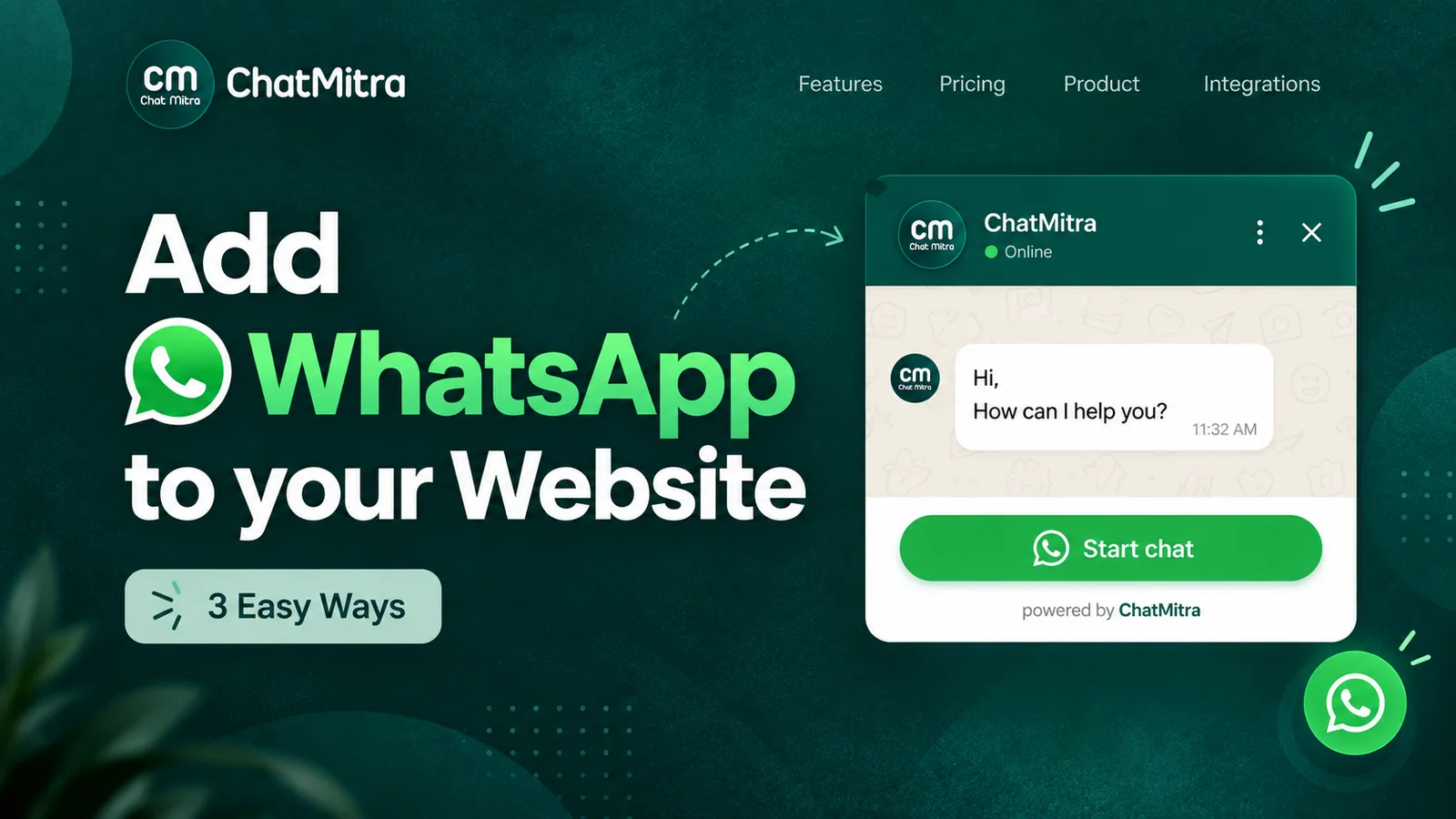
To integrate WhatsApp with your website, add a click-to-chat link in the format https://wa.me/<number> behind a button, a floating icon or a QR code, so visitors can start a chat in one tap. For messages your business sends first, such as a WhatsApp confirmation after a form is submitted, you need the WhatsApp Business Platform, opt-in and approved templates.
Whether the button brings in conversations comes down to details: the exact number format, a route for desktop visitors, a button that stays clear of your checkout, and someone ready to answer. Below are paste-ready code, steps for WordPress, Shopify and custom sites, and the Meta rules that apply once your website sends messages itself.
Key takeaways
- Start with a plain link or a floating HTML/CSS button. Both are free and need no plugin or script.
- Give desktop visitors a QR code, because not all of them are logged in to WhatsApp Web.
- Pre-fill the first message with page context, so chats start with a real question.
Facts in this guide were checked against WhatsApp’s Help Center, Meta’s developer documentation and WhatsApp’s Business Messaging Policy on 25 September 2026.
What does “WhatsApp integration with a website” actually mean?
The phrase covers two different jobs.
- The visitor starts the chat. Your site shows a link, button, floating icon or QR code; the visitor taps it and WhatsApp opens a chat with your number. This is what almost everyone means by a “WhatsApp button for website”. It works with any WhatsApp number, including one on the free WhatsApp Business app.
- Your website or business sends the message. A form submission, an order or a booking triggers a WhatsApp message to the customer. This needs the WhatsApp Business Platform, often called the WhatsApp Business API.
The first kind rests on a WhatsApp feature called click to chat. WhatsApp’s Help Center describes it as a way to “begin a chat with someone without having their phone number saved in your phone’s address book”, and notes that “Click to chat works on both your phone and WhatsApp Web” (WhatsApp Help Center, How to use click to chat).
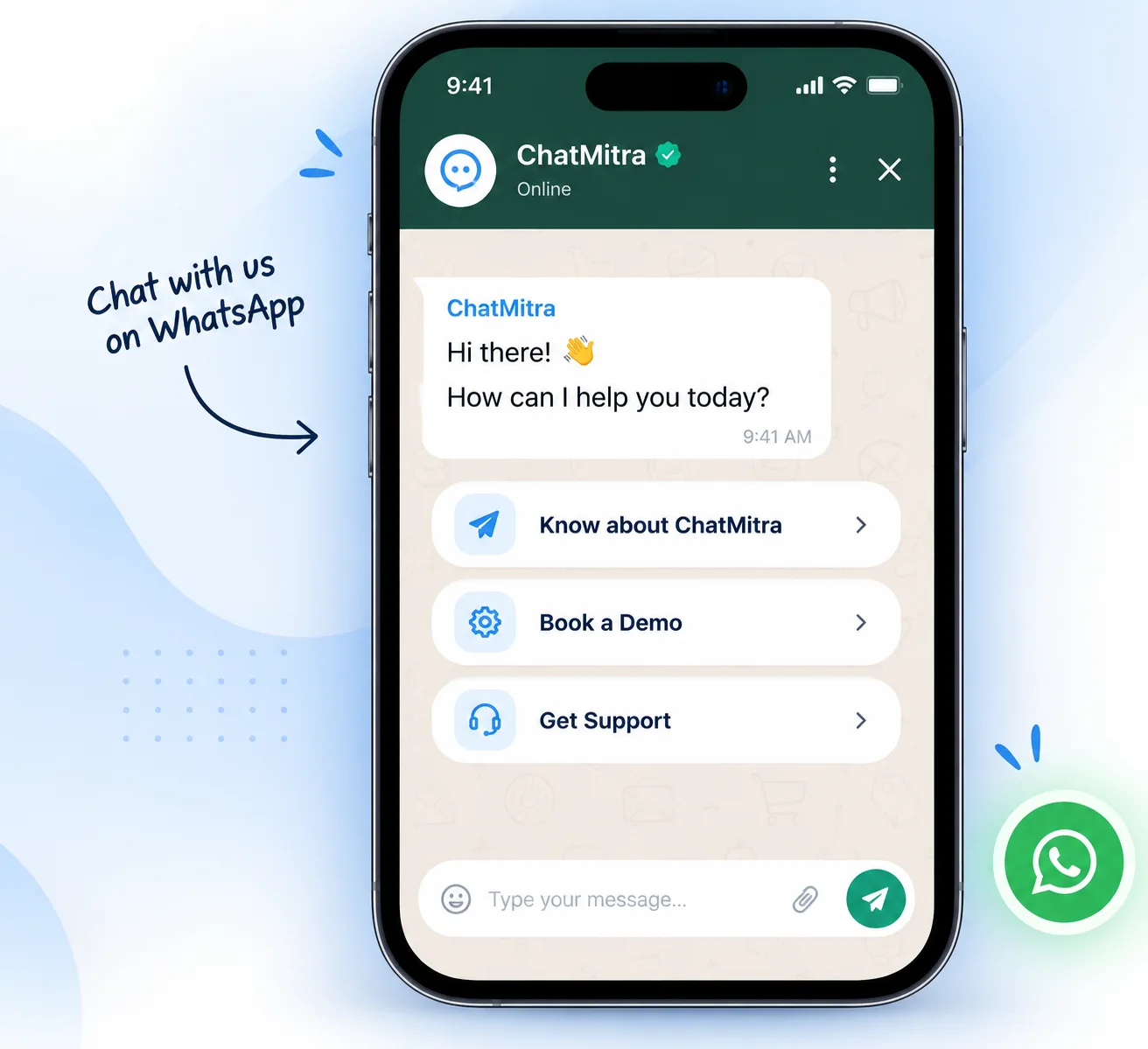
It does not put a live WhatsApp conversation inside your page: every button and widget, however it looks, hands the visitor over to the WhatsApp app or WhatsApp Web. For channels beyond your website, such as packaging, social bios or ads, see our guide to driving customers to WhatsApp.
Which method should you choose?
Most sites end up with two of these: a button everywhere, and either a QR code on the contact page or an API flow behind the forms. Here’s how they compare.
| Method | Setup effort | Cost | Can the business message first? | Needs the Business Platform (API)? | Best for |
|---|---|---|---|---|---|
| Click-to-chat link or inline button | Very low; paste a URL | Free | No | No | Contact pages, product pages, email signatures |
| Floating button (your own HTML/CSS) | Low; one snippet in the footer | Free | No | No | Every page, especially on mobile |
| Widget from a plugin or third-party script | Low; install and configure | Free or paid, by vendor | No | No (some vendors bundle it with their API product) | Greeting pop-ups, business hours, several numbers |
| QR code | Very low; generate and place an image | Free | No | No | Desktop visitors, print, packaging, shop counters |
| API integration (forms, orders, events) | Medium to high; a developer or a no-code automation | Meta's per-message charges plus your provider's fee | Yes, with opt-in and an approved template | Yes | Form confirmations, order and booking updates, team support |
If you answer from one phone, a link plus a floating button is enough. Add a QR code if many visitors browse on laptops, a widget plugin only if you need greeting bubbles, business hours or several departments, and the API route when you want automatic confirmations, with an opt-in checkbox on every form that feeds it.
How do you add a WhatsApp button to your website?
The button is just a link. Build the link correctly and the rest is styling.
Step 1: Write the number in international format
WhatsApp’s rule is short: use https://wa.me/<number> “where the <number> is a full phone number in international format. Omit any zeroes, brackets, or dashes when adding the phone number in international format” (WhatsApp Help Center). In practice that means digits only, country code first, and no plus sign.
| Number as people write it | What goes after wa.me/ | What was removed |
|---|---|---|
| +91 98765 43210 | 919876543210 | Plus sign and spaces |
| 098765 43210 (with the domestic zero) | 919876543210 | Leading zero replaced by the 91 country code |
| +1 (555) 123-4567 | 15551234567 | Plus sign, brackets, spaces and dash |
| 07700 900123 (a UK mobile written the domestic way) | 447700900123 | Leading zero replaced by the 44 country code |
Your final link looks like https://wa.me/919876543210. The number must be registered on WhatsApp, or the visitor sees an error instead of a chat.
Step 2: Pre-fill a first message
Add ?text= followed by a URL-encoded message. In WhatsApp’s words, “The pre-filled message will automatically appear in the text field of a chat”; the visitor can still edit it before sending.
URL encoding replaces characters that would otherwise break or change the web address. The ones you’ll meet most:
| Character | Encoded | Character | Encoded |
|---|---|---|---|
| space | %20 | & | %26 |
| , | %2C | # | %23 |
| ? | %3F | line break | %0A |
| % | %25 | ₹ | %E2%82%B9 |
JavaScript’s encodeURIComponent() handles all of this, including Hindi, Gujarati or any other script, or use ChatMitra’s free WhatsApp chat link generator, which formats the number and encodes the message for you.
Use the message to carry context. “Hi” tells you nothing; a product page can pre-fill the product, a pricing page the plan, a booking page the service:
https://wa.me/919876543210?text=Hi%2C%20I%20have%20a%20question%20about%20the%20Cotton%20Kurta%20(SKU%201042)Your team then knows what the visitor was looking at before anyone types a word.
Step 3: Put the link behind a button
Any element that can hold a link will do. A plain HTML version:
<a href="https://wa.me/919876543210?text=Hi%2C%20I%20have%20a%20question"
   target="_blank" rel="noopener">
  Chat with us on WhatsApp
</a>
target="_blank" opens WhatsApp Web in a new tab on desktop, so your page stays open. MDN notes that modern browsers already treat target="_blank" links as if rel="noopener" were set; writing it out covers older browsers.
If you’d like the recognisable green button, WhatsApp publishes an official “Chat on WhatsApp” button in green and white and three sizes. Its guidance is to “Use the button as is. Don’t change the button” and to use the latest version from WhatsApp’s brand resources (WhatsApp Help Center). That’s safer than drawing your own version of the WhatsApp logo.
Leave the number out (https://wa.me/?text=...) and WhatsApp shows a contact list instead, so the visitor can forward your message to a friend. That suits “share this product” buttons, not chats with you.
How do you add a floating WhatsApp button with HTML and CSS?
A floating button stays in a corner as the visitor scrolls, and it needs no plugin or JavaScript. This snippet is keyboard-accessible and keeps clear of the notch and home indicator on modern phones.
Paste the HTML once, just before the closing </body> tag of your site template, with your own number in place of 91XXXXXXXXXX:
<a class="cm-wa-fab"
   href="https://wa.me/91XXXXXXXXXX?text=Hi%2C%20I%20have%20a%20question%20about%20your%20products"
   target="_blank" rel="noopener"
   aria-label="Chat on WhatsApp (opens WhatsApp)">
  <svg class="cm-wa-fab__icon" viewBox="0 0 24 24" width="22" height="22"
       aria-hidden="true" focusable="false">
    <path fill="currentColor"
      d="M12 3C6.9 3 3 6.6 3 11c0 2.4 1.2 4.6 3.1 6.1L5.4 21l4.2-2.1c.8.2 1.6.3 2.4.3 5.1 0 9-3.6 9-8.2S17.1 3 12 3z"/>
  </svg>
  <span class="cm-wa-fab__label">Chat on WhatsApp</span>
</a>
Then add the CSS to your stylesheet:
.cm-wa-fab {
  --cm-wa-gap: 16px;          /* raise to 88px or so if a cookie bar or sticky cart sits at the bottom */
  position: fixed;
  right: calc(var(--cm-wa-gap) + env(safe-area-inset-right, 0px));
  bottom: calc(var(--cm-wa-gap) + env(safe-area-inset-bottom, 0px));
  z-index: 40;                /* keep this lower than your modals and cookie banner */
  display: inline-flex;
  align-items: center;
  gap: 8px;
  min-height: 48px;
  padding: 0 18px;
  border-radius: 999px;
  background: #075E54;
  color: #FFFFFF;
  font: 600 15px/1.2 system-ui, sans-serif;
  text-decoration: none;
  box-shadow: 0 6px 18px rgba(2, 60, 54, 0.25);
}
.cm-wa-fab:hover { background: #023C36; }
.cm-wa-fab:focus-visible { outline: 3px solid #4A9A8F; outline-offset: 3px; }

@media (max-width: 520px) {
  .cm-wa-fab { width: 56px; height: 56px; padding: 0; justify-content: center; }
  .cm-wa-fab__label { display: none; }   /* the aria-label still names the link */
}
@media (prefers-reduced-motion: no-preference) {
  .cm-wa-fab { transition: background-color 0.15s ease; }
}
@media print { .cm-wa-fab { display: none; } }
Why each choice:
env(safe-area-inset-*)keeps the button clear of the notch, rounded corners and home indicator. On desktopsafe-area-inset-bottomis 0; on phones that need room at the bottom it holds a value that leaves that space free (MDN, env()). It matters most if your viewport meta tag usesviewport-fit=cover, as edge-to-edge designs do.- The
--cm-wa-gapvariable is your one dial for moving the button up when a cookie banner, sticky “Add to cart” bar or accessibility toolbar sits at the bottom of the screen. aria-labelstarts with the visible label, so voice-control users can say what they see, and adds that the link opens WhatsApp. The icon isaria-hiddenso it isn’t read out twice.- A visible text label on wider screens, because an unlabelled round icon is ambiguous to some visitors. On phones it hides to save space.
:focus-visibleshows a clear ring for keyboard users without adding one on every mouse click.- A generic chat-bubble icon, not WhatsApp’s logo. If you want WhatsApp’s own glyph, take it from WhatsApp’s official brand assets and follow their rules.
White text on #075E54 has a contrast ratio of roughly 7.7:1, comfortably above the 4.5:1 WCAG AA level for normal text. If you change the colours, check contrast again.
How do you add WhatsApp to a WordPress website?
Without a plugin (recommended for most sites):
- Build your wa.me link with the pre-filled message (Step 1 and Step 2 above).
- For a button inside a page or post, add a Custom HTML block (type
/htmlin the editor) and paste the link HTML. - For a floating button on every page in a block theme, open the Site Editor, edit the Footer template part, and add a Custom HTML block containing the floating-button HTML.
- Add the CSS. Since WordPress 7.0 the Custom HTML block has its own CSS panel, but “the CSS and JavaScript panels are only available to users with the unfiltered_html capability”, so an administrator may need to do this (WordPress.org, Custom HTML block). Your theme’s Additional CSS setting works too.
- In a classic theme, place the HTML in a footer widget area or through your theme’s footer settings, and the CSS in Additional CSS.
- Clear any caching plugin, then test on a phone and a desktop.
With a plugin: we won’t rank the many WhatsApp button plugins here. Judge them on what you can check on each plugin’s official listing page:
- When it was last updated, and whether it’s tested with your WordPress version.
- Whether it loads its script on every page or only where the button appears.
- Whether it lets you set a different pre-filled message per page or product.
- What data it collects and whether it sets cookies (check its privacy notes).
- Whether the features you need, such as business hours or several agents, are free or paid.
A plugin earns its place when you need scheduling or a choice of departments. For one number and one button, the snippet is lighter and needs no updates.
How do you add WhatsApp to a Shopify store?
Shopify gives you three places to put it.
- A menu link. In your Shopify admin, go to Content > Menus, open your header or footer menu, and add a menu item whose link is your wa.me URL. Shopify’s help centre confirms a menu item can point to “A website address for an external website” (Shopify Help Center, Menus).
- A floating button with the snippet. Go to Online Store > Themes > Edit theme. If your theme offers a Custom Liquid section, add it to the footer and paste the HTML with the CSS wrapped in a
<style>tag. Shopify notes that this lets you add code “in the theme editor instead of editing your theme code directly” (Shopify Help Center). Not every theme has the section; check your theme’s documentation. - An app from the Shopify App Store. Many chat-button apps add themselves as an app embed, which Shopify describes as elements that “float or display as an overlay in your theme”. You switch them on under App embeds in the theme editor. The same checklist as for WordPress plugins applies.
On product pages, pre-fill a message that names the product. Shoppers ask about sizes, delivery dates and cash on delivery, and naming the product saves a round of back-and-forth.
The button handles questions before the sale. Store-event messages after it, such as abandoned-cart reminders and order confirmations, are a separate job for the Business Platform. ChatMitra’s Shopify integration covers that side: its setup guide describes abandoned-cart, cash-on-delivery confirmation and order flows sent with approved templates.
What about custom-built sites and other builders?
The same two pieces apply everywhere: the link HTML and the CSS.
- Hand-coded or server-rendered sites: put the floating button in the shared layout or footer include, so it’s on every page from one place.
- React, Next.js, Astro and similar: render the anchor in your root layout component and keep the CSS in your global stylesheet. It needs no client-side JavaScript, so don’t wrap it in a hydrated component.
- Hosted builders: many have a “custom code” or “embed HTML” setting for the site footer. Paste the HTML and CSS there.
Consider hiding the button on checkout and payment pages: a visitor halfway through paying shouldn’t be pulled into a different app.
Should desktop visitors get a QR code instead?
On a phone, the button opens the WhatsApp app and the chat is ready. On a laptop it opens WhatsApp Web or the desktop app, and that only helps visitors who are already logged in there. Everyone else hits a login screen asking them to link a device.
A QR code fixes this: the visitor scans it with their phone camera and carries on in WhatsApp there. Good places: the contact page, a “talk to sales” section and order confirmation pages.
- Generate the QR code from the same wa.me link, pre-filled message included, that your button uses.
- Show it on wide screens only: a QR code is useless on the phone displaying it, so hide it below tablet width with a media query.
- Leave a clear white margin round the code and don’t place it on a busy background.
- Add a short line beside it, such as “Scan with your phone camera to chat on WhatsApp”.
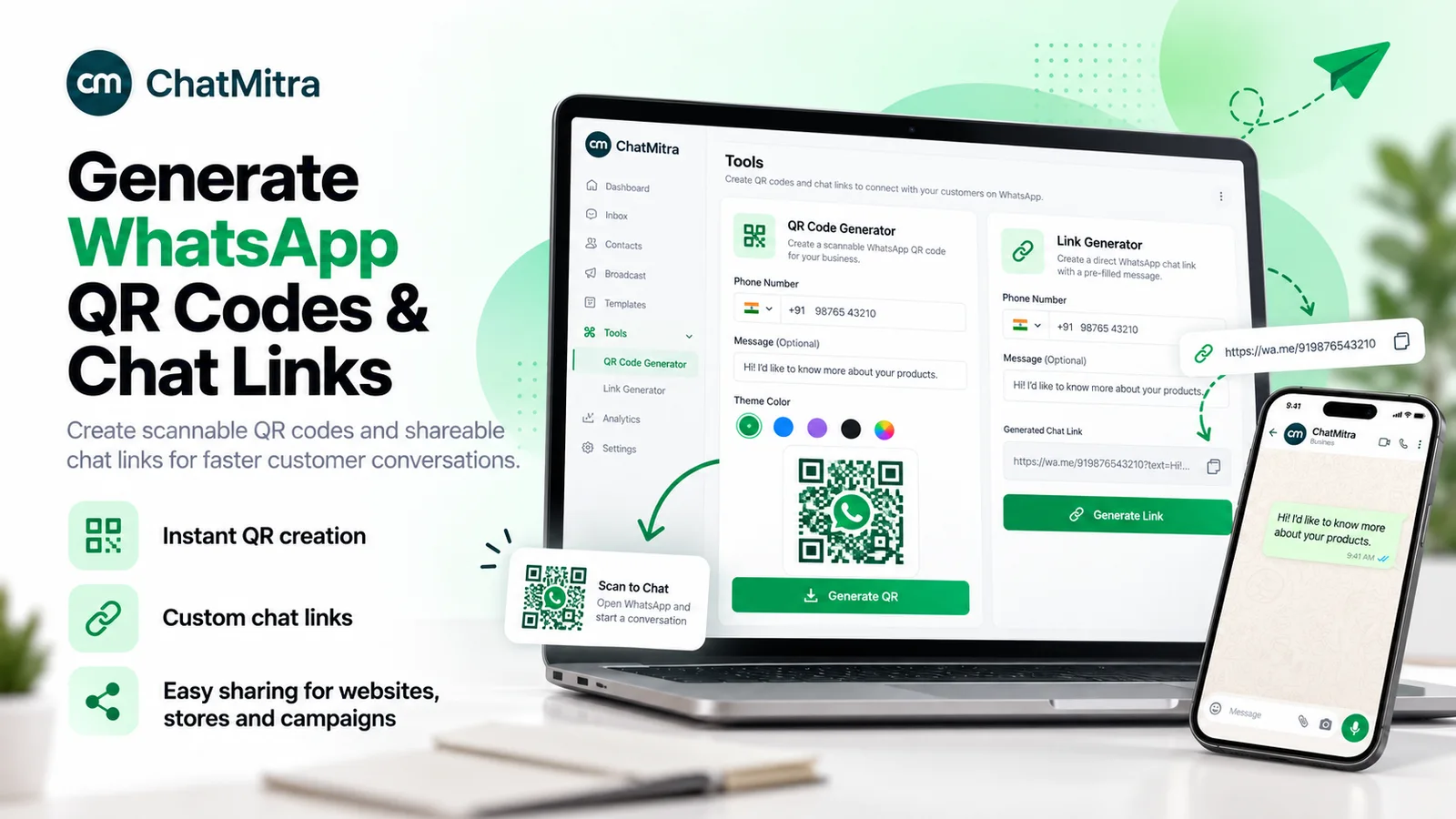
ChatMitra’s free WhatsApp QR code generator builds the wa.me link from your number and message and lets you download the QR code as PNG or SVG. SVG stays sharp at any size, which suits print.
If your number is on the WhatsApp Business Platform, Meta can also create QR codes and short links for you, in Meta’s Business Manager or through its API. Meta’s documentation lists the limits: a QR code scan “can initiate a pre-filled message containing up to 140 characters of text”, one business phone number can have up to 2,000 QR codes and short links, and “Analytics are not available for QR Codes and Short Links” (Meta, QR codes and short links). So keep QR messages short, and don’t expect scan counts from Meta.
Who answers when a visitor clicks the button?
The chat goes to whichever WhatsApp account holds the number, so decide this before you launch.
| WhatsApp Business app | WhatsApp Business Platform (via a provider) | |
|---|---|---|
| Where chats arrive | The phone, plus linked devices | A shared web inbox (and your provider's mobile app, if it has one) |
| How many people can answer | One phone and up to four linked devices; up to 10 devices with the paid multi-agent subscription where offered | Set by your software, not by the phone |
| Automated replies | Greeting and away messages, quick replies | Rules, chatbots and AI agents, depending on the software |
| Messaging many customers first | Free broadcast lists reach only contacts who saved your number; paid business broadcasts, where available, reach others | Approved templates to opted-in customers |
| Cost of answering chats | Free | Since 1 October 2026, Meta charges service replies after 1,000 free per business phone number per month (₹0.1150 each in India), plus the provider's fee |
Sources: WhatsApp Help Center, linked devices on the WhatsApp Business app (“You can use up to four linked devices and one phone at a time”) and About multi-agent; broadcast lists on the WhatsApp Business app (“as long as they have your number saved in their phones’ address book”); Meta’s WhatsApp pricing page, checked 25 September 2026.
A small shop answering from the owner’s phone is fine on the app. Once a team shares the replies and wants automation, or you want chats logged against customer records, the Business Platform with a shared inbox fits better. Our guide to WhatsApp CRM software covers what to look for, and how to get the WhatsApp API covers the sign-up. If you want to keep using the app on the same number, read about coexistence first.
Whatever you choose, tell visitors when you reply. A line under the button such as “We reply 9 am to 7 pm, Monday to Saturday” sets expectations and cuts down on “hello??” follow-ups.
How do you send WhatsApp messages from a website form?
This part needs the API, and two rules apply that no tool can bypass.
Rule 1: you need opt-in. WhatsApp’s Business Messaging Policy says: “You may only contact people on WhatsApp if: (a) they have given you their mobile phone number or username; and (b) you have received opt-in permission from the recipient confirming that they wish to receive subsequent messages or calls from you” (WhatsApp Business Messaging Policy, last updated 23 September 2026). Meta’s opt-in guide adds that businesses must make clear that the person is opting in and “must clearly state the business’s name”, and it lists a website among the supported opt-in methods (Meta, Get opt-in for WhatsApp).
Rule 2: the first message must be a template. Meta’s documentation explains that when a user messages you, “a 24-hour timer called a customer service window starts”, and “When the window closes, you can only send pre-approved template messages” (Meta, Send messages). A form submission doesn’t open that window, so your confirmation has to be an approved message template.
The form-to-WhatsApp flow, step by step
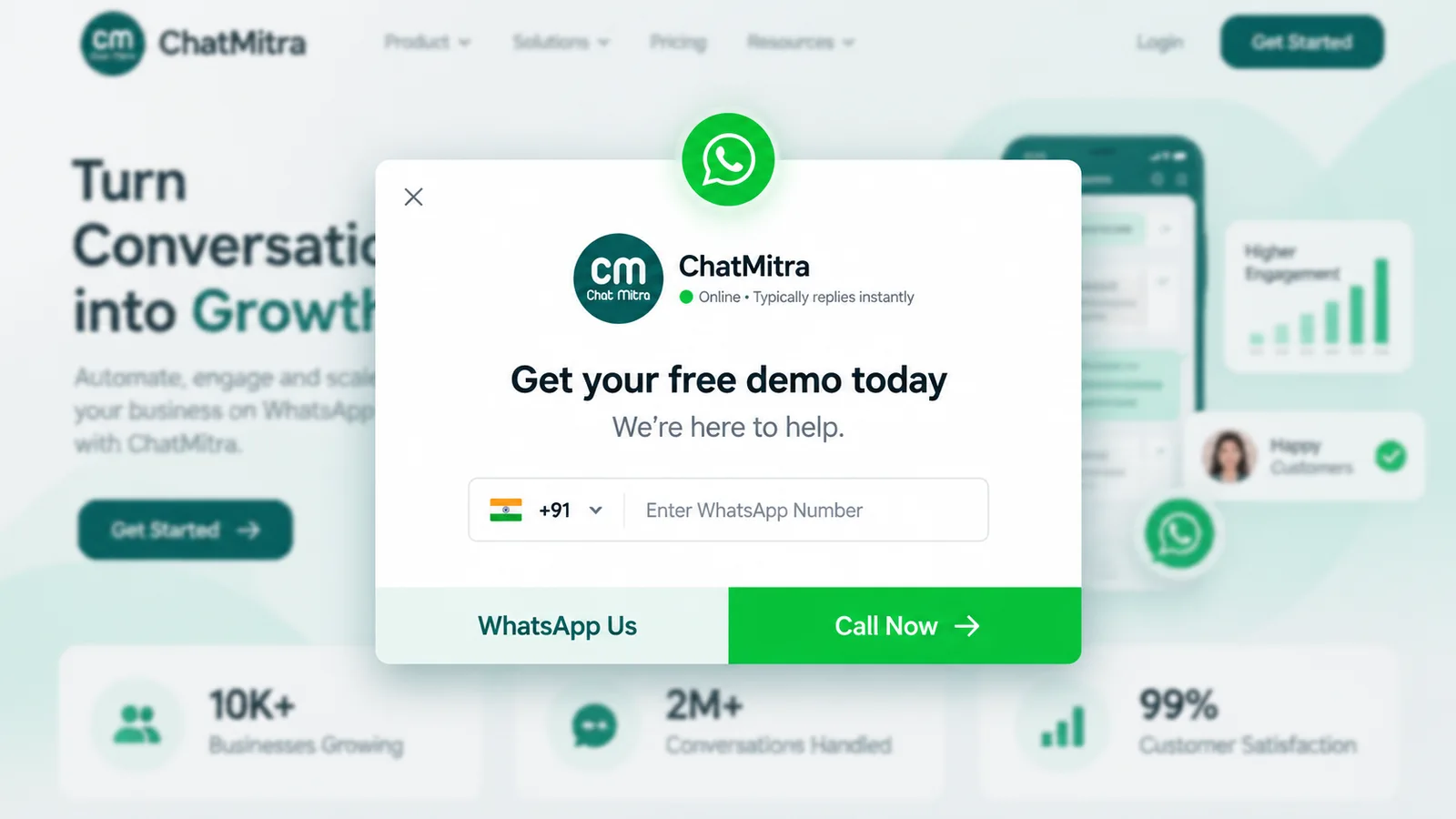
- The form asks for consent. Add a phone field and a separate, unticked checkbox. Example wording: “Send me updates about this enquiry on WhatsApp from Sharma Interiors. I can opt out at any time.” Name your business, say what the messages are about, and never pre-tick the box.
- Your server records the consent. Store the number (in international format), the checkbox wording shown, the page URL and a timestamp. If someone asks why they were messaged, this record is your answer.
- Your server or automation calls your provider’s API. It sends the approved template name and the variables: the customer’s name, the enquiry type, a reference number.
- Meta delivers the template. A plain “we received your enquiry” confirmation is usually submitted as a utility template. Meta decides the final category, though, and anything promotional in it makes it marketing, which costs more. See utility messages for where Meta draws the line.
- The customer replies, and the 24-hour window opens. Your team can now answer in free-form text from the inbox.
- Status updates flow back. Webhooks tell your system when the message was sent, delivered or read, and when the customer replied, so your CRM or sheet stays current.
Costs, for budgeting in India: Meta charges ₹0.1150 per delivered utility template and ₹0.8631 per marketing template (rate card effective 1 July 2026, unchanged on 1 October 2026). Your provider’s fee comes on top. On ChatMitra’s Starter and Pro plans that fee is ₹0.20, charged once per contact per 24-hour conversation, so a utility confirmation comes to about ₹0.32. The Enterprise plan has no platform fee.
Order confirmations, appointment reminders and delivery updates follow the same pattern. Our WhatsApp opt-in guide covers consent wording and record-keeping in depth, including India’s Digital Personal Data Protection Act.
Don't send first and ask later
Messaging leads who didn't tick the WhatsApp box, or sending offers to people who asked for a callback, is how numbers collect blocks and reports. WhatsApp's policy also requires you to respect every request to stop, on or off WhatsApp, so build the opt-out path with the opt-in.
No-code and developer routes on ChatMitra
On ChatMitra there are two ways to run the API side, and customer replies land in the shared team inbox:
- Little or no code: ChatMitra’s Google Sheets automation has an Incoming Webhook trigger, a secure URL that “any external app (store, form, CRM)” can send data to, and its actions include sending an approved WhatsApp template. Each call must carry the workflow’s security key in a request header, so a plain HTML form can’t post to it directly, and the key must never sit in your page’s code. Send the data from a form tool whose webhook settings let you add a custom header, or from a small server or serverless function.
- Developer: a REST API authenticated with a Bearer token, where template messages are sent with
POST /developer/api/send_message, plus outbound webhooks formessage.received,message.sentandmessage.status.updatedevents. The API documentation has the request formats. API access and webhooks are on the Pro plan, per ChatMitra’s pricing page.
How do you track clicks on a WhatsApp button?
The conversation happens inside WhatsApp, so nothing after the click can be tagged. UTM parameters are read when a page on your site loads, and a wa.me link never loads one of your pages, so UTM tags on it send nothing back to your analytics. Measure the click itself instead.
Option 1: GA4 enhanced measurement. If enhanced measurement is on, GA4 records a click event “each time a user clicks a link that leads away from the current domain”, with the link URL as a parameter (Google Analytics Help, enhanced measurement). Filter the link URL for wa.me and you have your WhatsApp clicks, with no code.
Option 2: a named custom event. To separate the floating button from the product-page button in reports, send your own event with gtag('event', '<event_name>', {...}) (Google Analytics developer docs):
<script>
  document.addEventListener('click', function (e) {
    var link = e.target.closest('a[href^="https://wa.me/"]');
    if (!link || typeof gtag !== 'function') return;
    gtag('event', 'whatsapp_click', {
      button_location: link.dataset.waLocation || 'unknown'
    });
  });
</script>
Add data-wa-location="floating" or data-wa-location="product-page" to each link, and register button_location as a custom dimension in GA4 if you want it in reports. This listener must sit after your Google tag.
Option 3: tell the chats apart. Slightly different pre-filled messages per page, such as “about the Pro plan” or “about delivery to Pune”, show your team where each conversation came from. Keep them natural, because the customer sees and sends that text.
Visitors who decline analytics cookies may not be counted by any of these methods, so treat the numbers as a trend, not a full count.
Do WhatsApp widget scripts slow down your site or affect privacy?
The HTML and CSS button above has no script, so it adds no performance or tracking footprint. Check a third-party widget before you install it.
- Loading: a widget is extra JavaScript, and often extra fonts, images and network requests. Google’s web.dev guidance is to “Load the script using the async or defer attribute to avoid blocking document parsing” (web.dev, third-party JavaScript).
- Test before and after: run your key pages through PageSpeed Insights or Lighthouse on mobile settings, with and without the widget, rather than trusting a vendor’s claims.
- Cookies and data: some widgets set cookies, log visitor IDs or ask for a phone number inside a pop-up. If yours does, your cookie banner and privacy notice must cover it. A widget blocked until consent may never show for visitors who decline, so keep a plain link on your contact page too.
- One chat entry point: if you already run a live-chat tool, two floating bubbles in the same corner compete and cover each other. Pick one, or place the WhatsApp link inside the existing widget.
What are the most common mistakes?
| Mistake | What the visitor experiences | Fix |
|---|---|---|
| Plus sign, zero, spaces or dashes in the number | An error instead of your chat | Digits only, country code first: 919876543210 |
| Number not registered on WhatsApp | An error instead of your chat | Test the exact number on WhatsApp before publishing |
| Button covers the cookie banner, cart bar or "Buy" button | Can't accept cookies or complete checkout on mobile | Raise the button offset; hide it on checkout |
| Form sends WhatsApp without a consent checkbox, or with a pre-ticked one | Unexpected messages; blocks and reports follow | Separate, unticked checkbox that names your business |
| Button live, nobody assigned to answer | Messages go unanswered for hours | Show reply hours; route chats to a shared inbox |
| Changing numbers without updating printed QR codes | Old codes open the wrong chat | Keep one long-term business number, or reprint |
Testing checklist before you go live
Run through this once on launch and again after any theme or plugin update:
- Tap the button on an Android phone and an iPhone. WhatsApp should open on your business chat with the message pre-filled.
- Click it on a desktop that’s logged in to WhatsApp Web, and on one that isn’t. Check that the QR code is visible on the second.
- Try a pre-filled message containing ₹, an apostrophe and a non-English script, if you use them.
- Tab to the button with a keyboard: the focus ring should show and Enter should open the link. With VoiceOver or TalkBack on, the button should be announced by name.
- Shrink the browser to 320 px wide. The button shouldn’t hide text, form fields or the checkout button.
- Load a page with the cookie banner showing and make sure both can be tapped.
- If you send form confirmations, submit a test lead with the checkbox ticked and one with it unticked. Only the first should get a WhatsApp message.
- Check that your analytics event, if you added one, arrives in GA4.
Where ChatMitra fits
ChatMitra does not provide an embeddable website chat widget; for the floating button, use the snippet above or a plugin you trust. It covers what sits around the button: the free link and QR generators, a shared team inbox on the WhatsApp Business Platform where the chats arrive (the Starter plan is free; you pay Meta’s rates plus the ₹0.20 platform fee per conversation), and the API and Sheets automation that send approved templates when your website asks.
Ready to move your button’s chats into a team inbox? Compare ChatMitra’s plans. If automating the first replies comes next, our WhatsApp AI agent guide explains what’s allowed and how it works.
Sources: WhatsApp Help Center: click to chat, linked devices, multi-agent, broadcast lists · WhatsApp Business Messaging Policy · Meta: opt-in, send messages, QR codes and short links, pricing · MDN: env(), rel=“noopener” · Google Analytics: enhanced measurement, events · web.dev: third-party JavaScript · WordPress.org: Custom HTML block · Shopify Help Center: menus, apps and Custom Liquid. All checked on 25 September 2026; Meta’s INR rate card was downloaded on 24 September 2026.