WhatsApp interactive messages are free-form messages that carry tappable elements: up to three reply buttons, a list of up to ten options, a link button, a location or address request, a form (WhatsApp Flow), product cards or a call button. You send them through the WhatsApp Business Platform, only while the customer’s 24-hour service window is open.
This guide is for support and operations leads, product managers and developers. It covers the main interactive types Meta documents, the limits of each, when you may send them, what they cost since 1 October 2026, how a tap comes back to your system, and how they differ from template buttons.
Key takeaways
- Buttons for two or three choices, a list for up to ten, a URL button when the next step lives on a web page.
- No open 24-hour window, no interactive message. Use a template with buttons instead.
- Give every button and row a stable ID and route on it.
What is a WhatsApp interactive message?
An interactive message is a message object with "type": "interactive" that you send through the Cloud API’s Messages endpoint. Unlike a template, it needs no approval from Meta: you compose it on the fly, as a reply to someone who has just written to you. Meta groups interactive messages with text, media, location and reaction messages under service messages, which it defines as “free-form messages that you can send to WhatsApp users during a customer service window” (Meta for Developers, send messages).
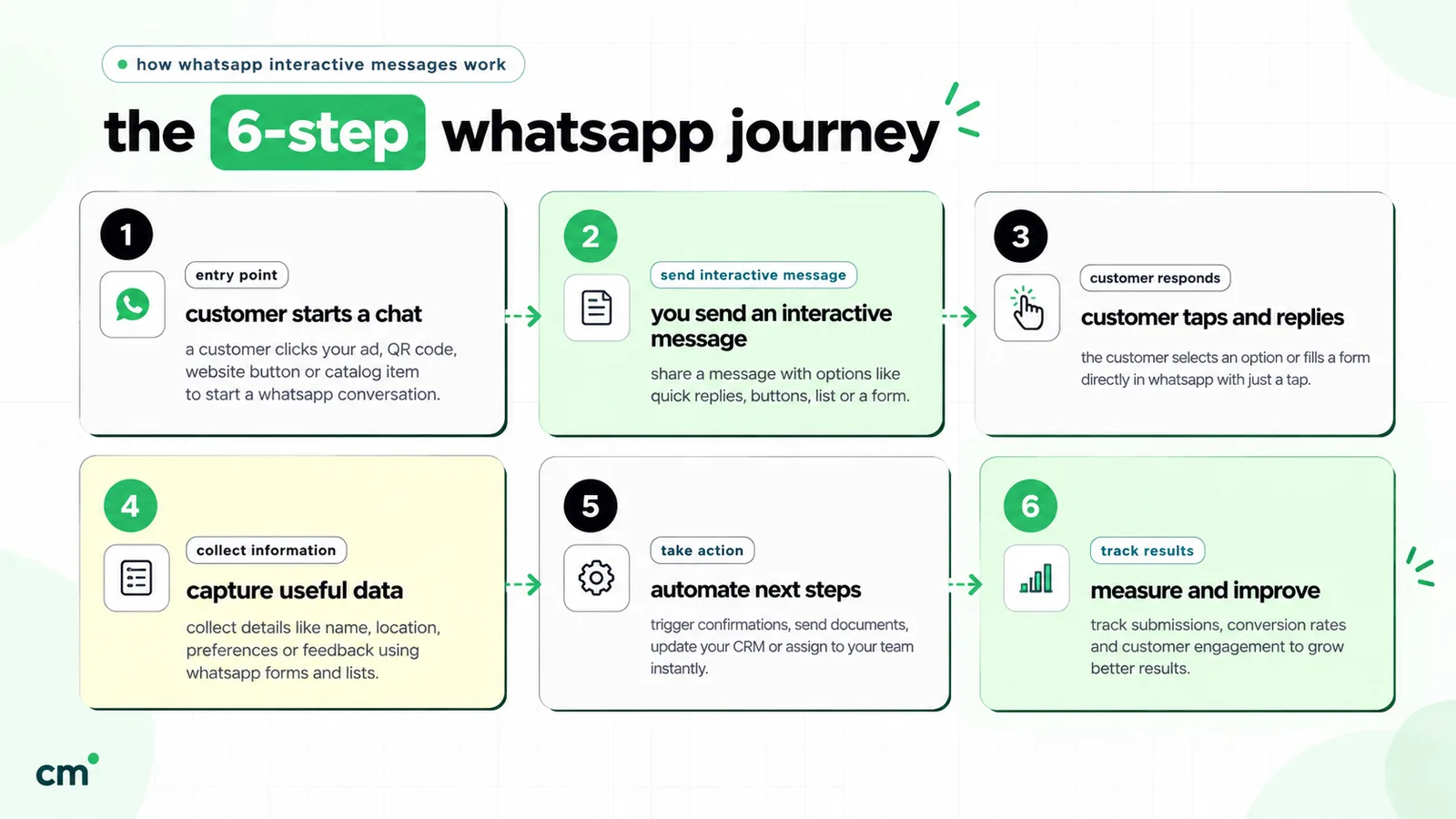
The reply is what makes them useful: a tap reaches your webhook as a structured message carrying the ID you assigned, so software can act on it without guessing what “ya the second one” means.
Three things are easy to confuse with interactive messages:
- Template buttons. Quick-reply, URL, phone, copy-code and Flow buttons on an approved template. Different rules, covered below.
- Ice-breakers and commands. Conversation starters configured on your business number, not messages you send. See conversational components.
- Business app quick replies. Saved text shortcuts for your team. Customers never see a button.
For where interactive messages sit among text, media and templates, start with the overview of WhatsApp message types.
Every interactive message type at a glance
Meta’s documentation describes these main interactive types for the Cloud API (checked 25 September 2026). All of them need an open customer service window. The “reply” column is what your webhook receives when the customer acts.
Type (interactive.type) | Best for | Key limits | What comes back |
|---|---|---|---|
Reply buttons (button) | Yes/no, confirm/reschedule, two or three paths | Up to 3 buttons; label 20 chars; body 1,024; footer 60 | button_reply with id and title |
List (list) | Menus: services, slots, departments, branches | 1 button (20 chars); up to 10 sections and 10 rows in total; row title 24, description 72; body 4,096 | list_reply with id, title, description |
CTA URL (cta_url) | Hiding a long link behind a clear label | 1 button, label 20 chars; header text 60 | Nothing: the link opens in the browser |
Media carousel (carousel) | Showing a few options side by side | 2–10 cards with image or video; card text 160 | Not described on Meta's carousel page; test before relying on it |
Location request (location_request_message) | Pickup, delivery or visit address | Body only, 1,024 chars | A location message with coordinates |
Address (address_message) | Structured delivery address | India-based businesses and India customers only | nfm_reply with the address as JSON |
Flow (flow) | Multi-screen forms: bookings, applications, surveys | Needs a Flow you've built; button text advised ≤30 chars | nfm_reply with the form data |
| Product, product list, catalog, product carousel | Selling from a Meta catalog | Multi-product up to 30 items; product carousel up to 10 cards | Carts arrive as order messages |
Voice call button (voice_call) | "Call us on WhatsApp now" | Needs Cloud API Calling; label 20 chars | Call webhooks, with an optional payload |
Call permission request (call_permission_request) | Asking before you call the customer | Max 1 request per 24 hours, 2 per 7 days | The customer allows (temporarily or permanently) or declines |
Reply buttons: up to three one-tap answers
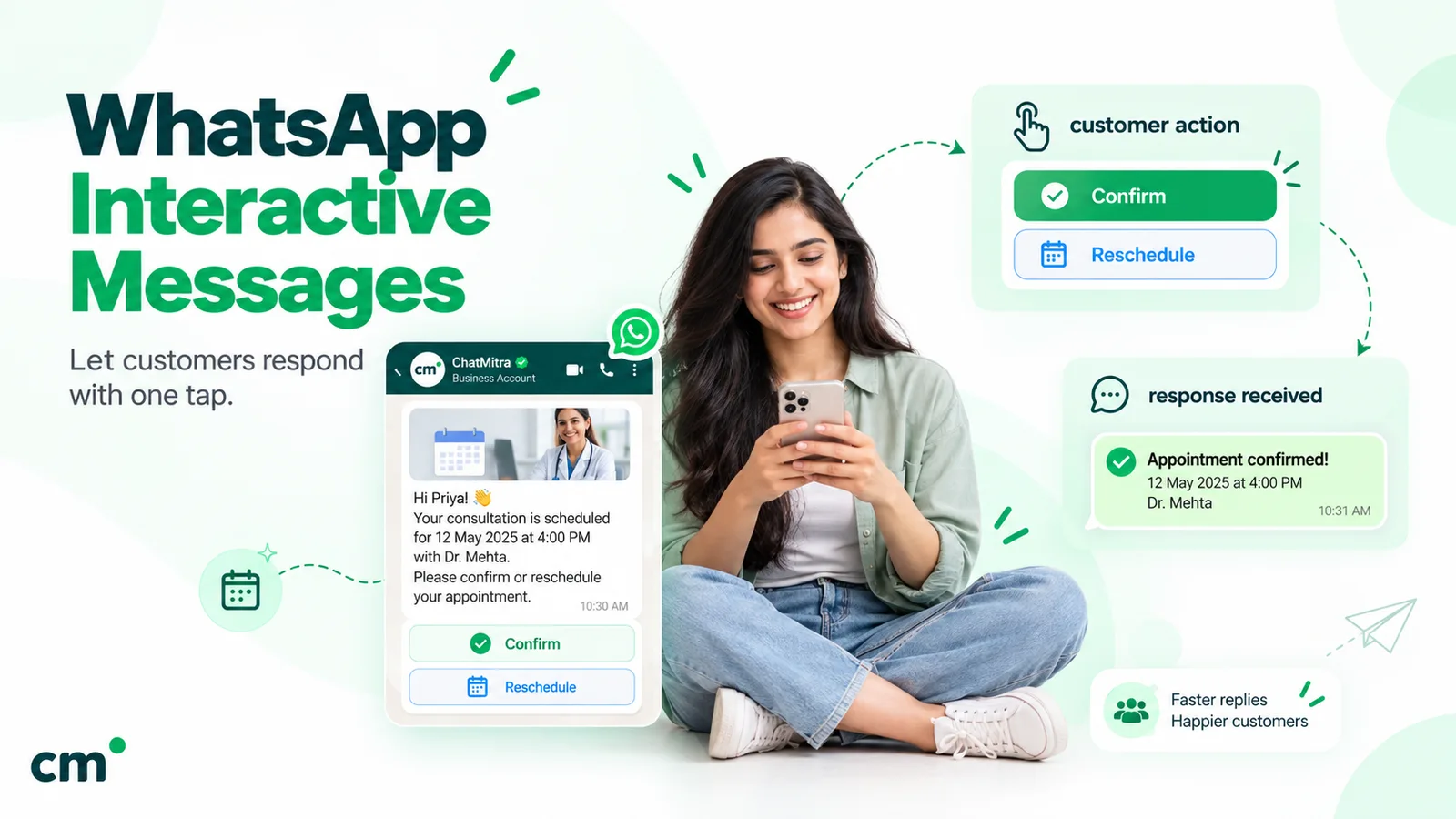
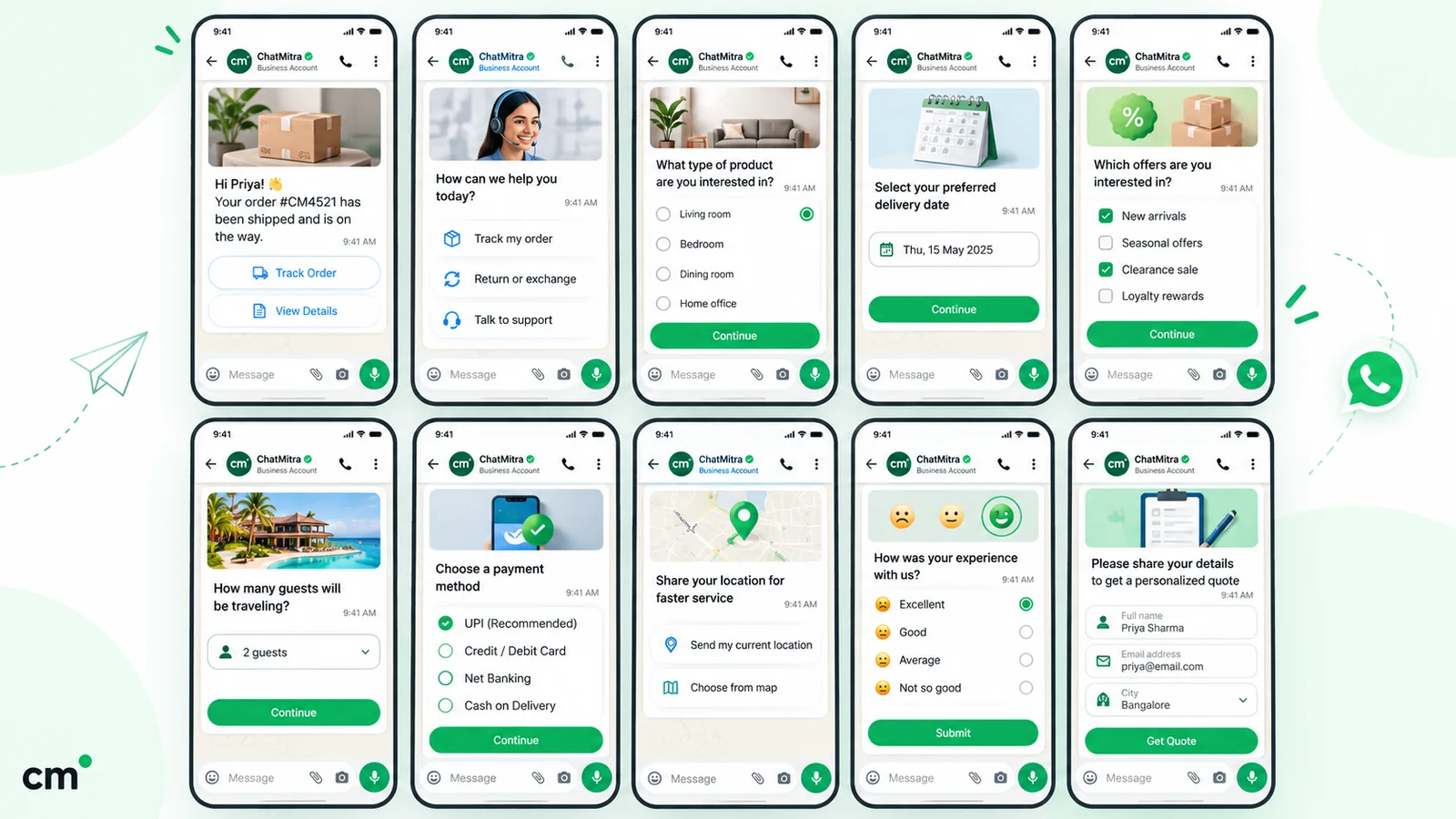
Reply buttons are the workhorse. Meta’s reference allows “up to three predefined replies”, each with a label of at most 20 characters that “must be unique if using multiple buttons”, and an ID of up to 256 characters. The body can be 1,024 characters, the optional footer 60, and the optional header can be text, an image, a video or a document (Meta, reply buttons).
A minimal example for a clinic confirming tomorrow’s appointment. Placeholder values are in capitals; the IDs are yours to choose.
{
  "messaging_product": "whatsapp",
  "recipient_type": "individual",
  "to": "CUSTOMER_PHONE_NUMBER",
  "type": "interactive",
  "interactive": {
    "type": "button",
    "body": { "text": "Your appointment with Dr Mehta is tomorrow at 11:30. Will you make it?" },
    "footer": { "text": "Reply anytime before 9 pm" },
    "action": {
      "buttons": [
        { "type": "reply", "reply": { "id": "appt_confirm", "title": "Yes, I'll come" } },
        { "type": "reply", "reply": { "id": "appt_resched", "title": "Reschedule" } },
        { "type": "reply", "reply": { "id": "appt_cancel", "title": "Cancel" } }
      ]
    }
  }
}
When the patient taps “Reschedule”, your webhook receives "type": "interactive" with "button_reply": { "id": "appt_resched", "title": "Reschedule" }, plus a context object carrying the ID of the message that held the button. That context lets you tie the tap to the right appointment even if the patient has two.
Use them for: confirmations, a first “what do you need?” fork, feedback on a scale of three, “talk to a person” as an always-present exit.
List messages: a menu of up to ten options
When three buttons aren’t enough, a list message puts one button under the text, and tapping it opens a menu. Meta’s limits: “up to 10 sections, with up to 10 rows for all sections combined”. The button label is capped at 20 characters, section titles and row titles at 24, row descriptions at 72, and row IDs at 200. The header is optional and text-only (60 characters), and the body can run to 4,096 characters, four times the 1,024 allowed on reply-button and CTA URL messages (Meta, list messages).
A coaching institute offering demo-class slots:
{
  "messaging_product": "whatsapp",
  "recipient_type": "individual",
  "to": "CUSTOMER_PHONE_NUMBER",
  "type": "interactive",
  "interactive": {
    "type": "list",
    "header": { "type": "text", "text": "Free demo class" },
    "body": { "text": "Pick a batch that suits you. Each demo runs 45 minutes." },
    "action": {
      "button": "See batches",
      "sections": [
        { "title": "Weekdays", "rows": [
          { "id": "demo_wd_0700", "title": "Mon–Fri 7:00 am", "description": "Online, JEE Physics" },
          { "id": "demo_wd_1800", "title": "Mon–Fri 6:00 pm", "description": "Centre, JEE Physics" }
        ]},
        { "title": "Weekend", "rows": [
          { "id": "demo_we_1000", "title": "Saturday 10:00 am", "description": "Centre, NEET Biology" }
        ]}
      ]
    }
  }
}
The student’s pick comes back as list_reply with the row’s id, title and description (Meta, interactive messages webhook).
Ten rows is the whole budget, not ten per section. Two sections of six rows (12 in total) break the limit. If your menu is longer, split it: first ask the category with buttons, then send a list for the chosen category.
CTA URL button: a link without the raw URL
A CTA URL message maps a URL to a single labelled button, because, as Meta puts it, “WhatsApp users may be hesitant to tap raw URLs containing lengthy or obscure strings” (Meta, CTA URL messages). The label is capped at 20 characters, the body at 1,024 and the footer at 60. The header can be text (60 characters), an image, a video or a document.
{
  "messaging_product": "whatsapp",
  "recipient_type": "individual",
  "to": "CUSTOMER_PHONE_NUMBER",
  "type": "interactive",
  "interactive": {
    "type": "cta_url",
    "body": { "text": "Your invoice for September is ready." },
    "action": {
      "name": "cta_url",
      "parameters": { "display_text": "View invoice", "url": "https://example.com/invoice?ref=INVOICE_REF" }
    }
  }
}
The tap opens the link in the phone’s default browser. Meta’s interactive webhook reference lists only three triggers (a list row, a reply button and a single-product message), so a URL tap doesn’t come back to you as a message. If you need to know who clicked, put a reference in the URL and read it on your own page, as Meta’s own example does with a clickID parameter.
The other interactive types
Media carousel
A carousel shows “a set of horizontally scrollable media cards”. A message must have “between 2 and 10 cards”, each with an image or video header and optional text of up to 160 characters. Each card carries either one URL button or quick-reply buttons, and the button types and counts must match on every card. The main message has a required body (1,024 characters) and no header or footer (Meta, media carousel messages). Good for three room types, four gift boxes or a short course list.
Location request
This shows your text with a “send location” button. When the customer shares, you receive an ordinary location message with latitude and longitude; the address and place name appear “only if the WhatsApp user chooses to share it” (Meta, location request messages). Couriers, cab services, home-service businesses and anyone with a service radius can use it instead of “please type your full address”.
Address message (India only)
Meta states plainly: “This feature is only available for businesses based in India and their India customers.” The customer fills a native form with name, phone, PIN code (up to 6 characters), flat, floor, tower, building, address, landmark, city and state. You can prefill values and send back validation errors. The reply arrives as an nfm_reply whose response_json holds the fields (Meta, address messages). For Indian D2C brands, that is cleaner than parsing a typed address.
WhatsApp Flows
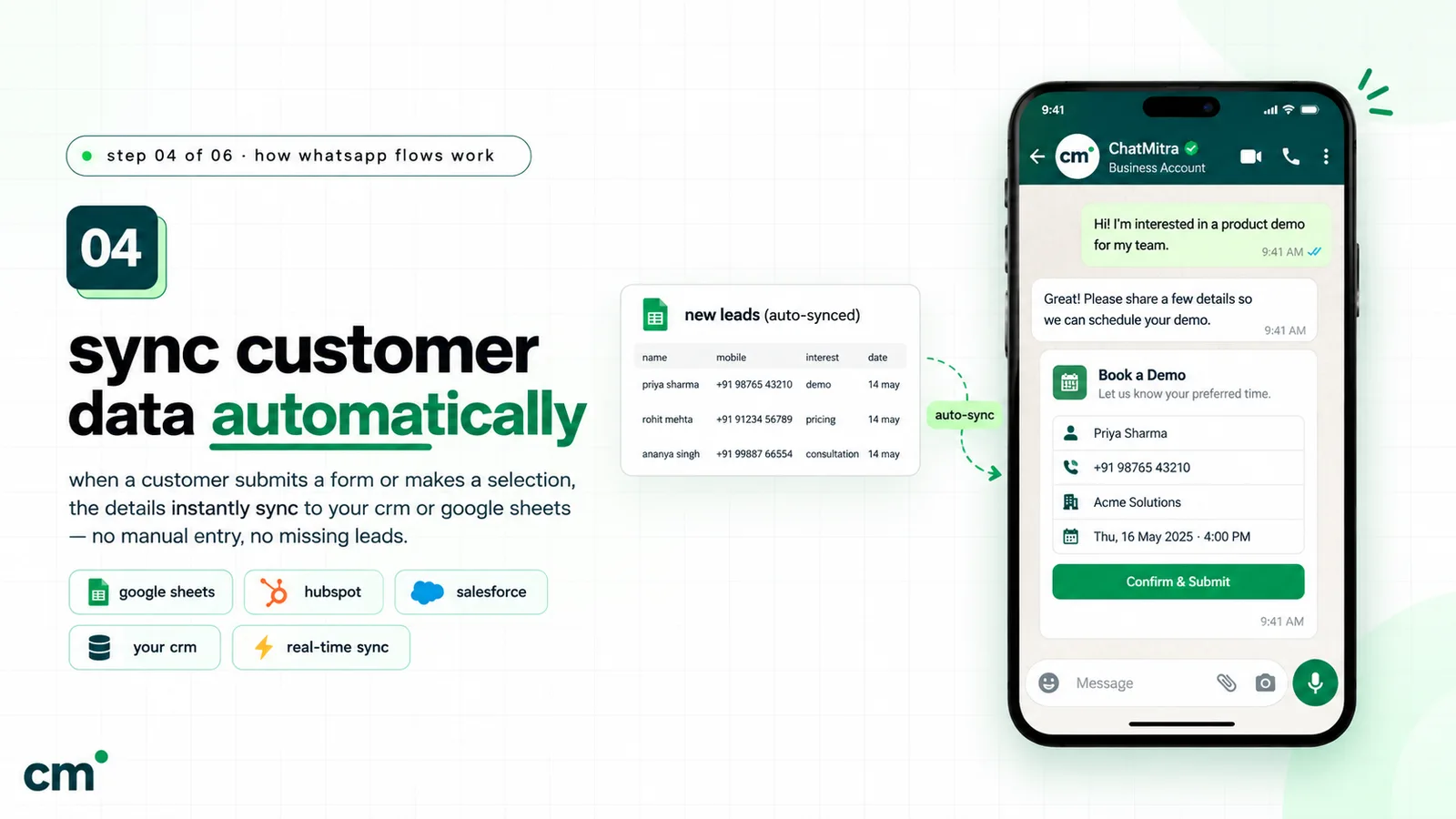
A Flow message opens a multi-screen form inside WhatsApp: pick a service, choose a date, enter details, submit. Inside the window you send it as "type": "flow" with the Flow’s ID or name and a button label that Meta advises keeping to “30 characters or less (no emoji)”. Outside the window you attach it to a template with a FLOW button. Meta’s prerequisites include business verification and “a high message quality” (Meta, send a Flow message). The submission comes back as an nfm_reply with name: "flow" and the data in response_json (Meta, Flows webhooks). For what Flows are good for, see the use cases in Meta’s WhatsApp Flows overview.
Product, catalog and product carousel messages
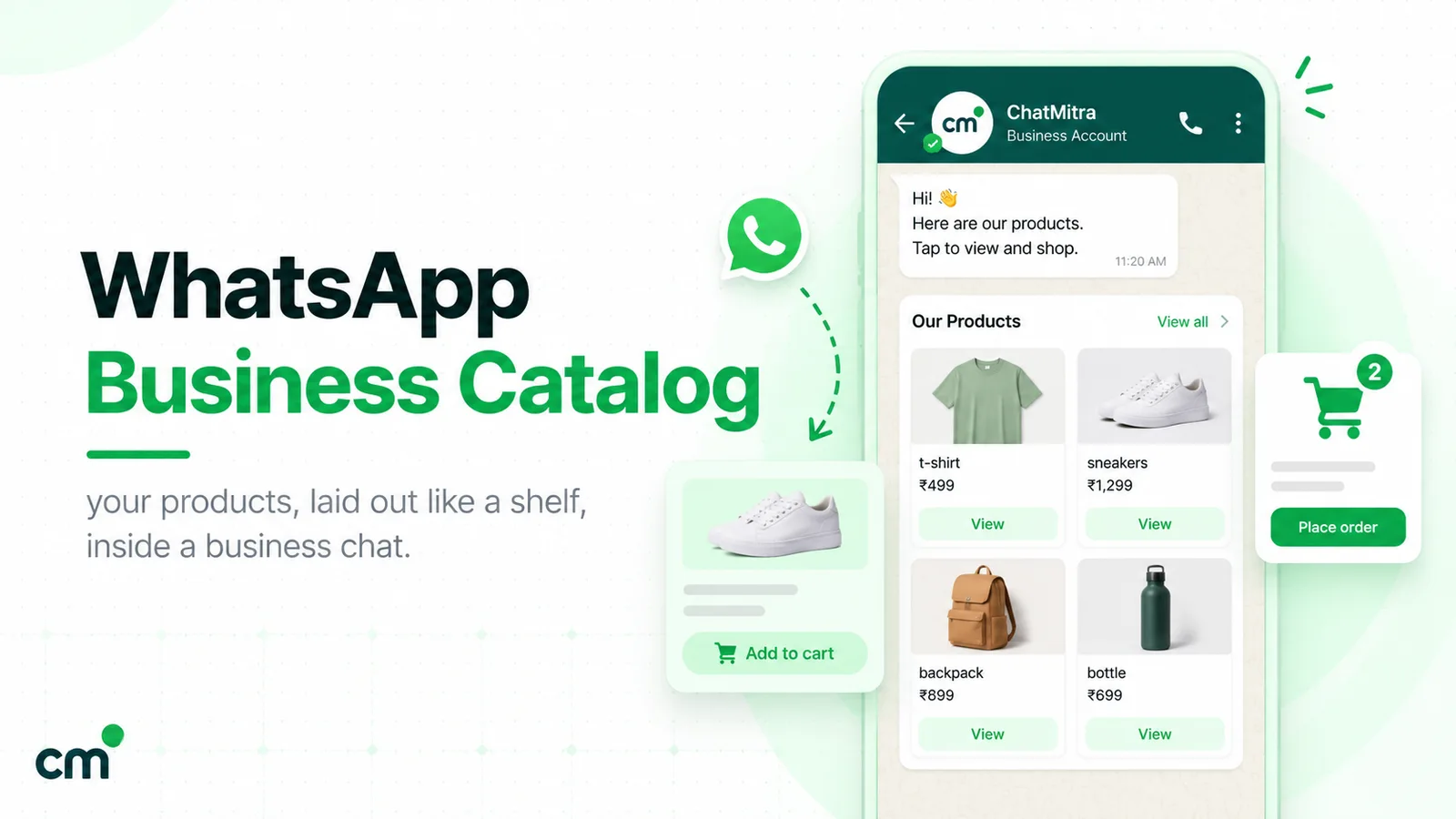
If your products are in a Meta catalog connected to your number, you can send a single product, a multi-product message of “up to 30 products” in sections, a catalog message with a View catalog button, or a product carousel of “up to 10 product cards” (Meta, share products). Our WhatsApp Business catalog guide covers setup and each format in detail.
Call buttons and call permission requests
If you’ve adopted Cloud API Calling, a voice_call message adds a “Call on WhatsApp” style button (label up to 20 characters, default “Call Now”) that stays active for 7 days by default and up to 30 (Meta, call button messages). To call the customer yourself, you first need their permission. A free-form call_permission_request asks for it, and Meta limits these to “1 permission request in 24 hours” and “2 permission requests within 7 days” per customer (Meta, user call permissions). Business-initiated calling isn’t available for business numbers in the United States, Canada, Egypt, Vietnam or Nigeria; India isn’t on that list (Meta, Calling overview).
When can you send interactive messages?
Only inside an open customer service window. Meta: “When a WhatsApp user messages you or calls you, a 24-hour timer called a customer service window starts. If the user messages or calls you again before the timer expires, the timer resets to 24 hours.” And: “When the window closes, you can only send pre-approved template messages” (Meta, send messages).
In practice:
- The customer writes “Hi” at 10:02 on Monday. The window runs to 10:02 on Tuesday.
- You can send any mix of buttons, lists, links and forms in between. Each customer reply (including a button tap, which is a message) resets the clock.
- After the window closes, an interactive send fails with error 131047: “More than 24 hours have passed since the recipient last replied to the sender number.” Meta’s fix: “Send the recipient a template message instead” (Meta, error codes).
- Opt-in still applies. Meta reminds businesses that “you can only send messages to WhatsApp users who have opted in to receiving messages from you.”
What they cost since 1 October 2026
Interactive messages are billed as service messages. Meta’s pricing page: “Effective October 1, 2026 – Meta will charge on a per-message basis for service messages”, at rates “the same as those of utility and authentication, by market”. Each business phone number gets “one shared free tier of 1,000 delivered service messages per month”, and unused messages “do not roll over” (Meta, pricing). Meta’s INR rate card effective 1 October 2026 lists India’s service rate as ₹0.1150. Rupee figures exclude tax.
So a clinic that sends 3,000 button and list messages in October pays for 2,000 of them: about ₹230. Call permission requests are “subject to messaging charges” too. The full breakdown, templates included, is in our WhatsApp cost-per-message guide.
Interactive messages vs template buttons
Template buttons solve the other half of the problem: reaching someone whose window is closed. The buttons are fixed when Meta approves the template; only variable parts (a URL suffix, a coupon code, a Flow token) are filled in at send time.
| Interactive message | Template with buttons | |
|---|---|---|
| Approval | None | Template reviewed by Meta first |
| When you can send | Only inside the 24-hour window | Any time, to opted-in customers |
| Cost (India, since 1 Oct 2026) | Service: 1,000 free per number per month, then ₹0.1150 | By template category: utility ₹0.1150, marketing ₹0.8631 |
| Button types | Reply buttons, list rows, one URL button, carousel buttons, call button | Quick reply, URL, phone number, copy code, Flow, voice call, OTP, multi-product and single-product buttons |
| Button limits | 3 reply buttons; 10 list rows | Up to 10 buttons in total; max 2 URL, 1 phone, 1 copy code, 10 quick replies |
| Label length | 20 characters | 25 characters (20 for a voice-call button) |
| Reply in your webhook | interactive: button_reply / list_reply with your ID | button: text and payload |
Template limits are from Meta’s template components page. Two rules there trip people up. Buttons must be grouped, quick replies together and other types together, or “the API will return an error indicating an invalid combination”. And if a template has more than three buttons, “two buttons appear in the delivered message”, with the rest behind See all options. Our template elements guide walks through each part.
A common pattern combines both. A utility template (“Your order has shipped”) carries a quick-reply button, “Where is it?”. The tap reaches you as a message from the customer, which opens a customer service window, so your answer can be a list of options.
How replies come back to your system
Every tap arrives on the messages webhook. The shape depends on what was tapped:
| Customer action | message.type | Fields to read |
|---|---|---|
| Taps a reply button | interactive | interactive.button_reply.id, .title |
| Picks a list row | interactive | interactive.list_reply.id, .title, .description |
| Taps a template quick-reply button | button | button.text, button.payload |
| Shares a location after a request | location | latitude, longitude, optional name, address |
| Submits a Flow or address form | interactive | interactive.nfm_reply.response_json (a JSON string) |
Sources: Meta’s button webhook reference and the interactive webhook reference linked above. Each reply also carries context.id, the ID of the message the customer responded to.
Three habits save debugging time:
- Route on IDs, display titles. Titles get edited, translated and shortened. An ID like
appt_reschednever changes. - Store the outgoing message ID from the send response, so
context.idtells you which booking, order or ticket the tap belongs to. - Expect old taps. A customer can tap a button from yesterday’s message. Check that the action still makes sense (the slot is still free, the order hasn’t shipped) before acting.
Examples by business type
- Clinic or diagnostic lab. After “Hi”: reply buttons Book test, Get report, Talk to us. Book test leads to a list of tests; the chosen test leads to a location request for home collection.
- Coaching institute. A list of courses, then reply buttons Free demo / Fees / Call me back. Call me back leads to a call permission request where calling is set up.
- Restaurant or cloud kitchen. A carousel of the day’s three specials with quick replies, or a catalog message if the menu lives in a Meta catalog. After an order question: a CTA URL button to live tracking.
- D2C brand in India. After a customer confirms a cash-on-delivery order: an address message to capture a clean delivery address, then reply buttons Confirm order / Change address.
- Real estate developer. A list of projects by locality, then reply buttons Site visit / Brochure / Price list. Site visit leads to a Flow that collects a date and the number of visitors.
- Home services (AC repair, pest control). A location request to check the service area, then a list of slots.
If you want these branches to answer themselves, that’s WhatsApp automation; the WhatsApp automation guide covers keyword rules, AI replies and when a person should take over. Your first automated reply is a natural home for the opening buttons; our guide to WhatsApp greeting messages covers what that first message should say.
Writing button and row labels people actually tap
Twenty characters is short. Some rules that help:
- Start with a verb or the answer. “Reschedule”, “Track order”, “Yes, I’ll come”. Not “Click here” or “Option 2”.
- Make labels distinct at a glance. “Book test” and “Book a test visit” side by side cause mis-taps.
- Put the most common answer first. Order sets expectation.
- Keep one exit to a human. “Talk to us” as a button or last row stops people feeling trapped.
- Use row descriptions for the detail (time, price, location), not the title.
- Don’t rely on emoji for meaning. A ✅ alone tells a screen-reader user little. If you use emoji, pair them with words.
- Leave headroom for variables. “Confirm ₹{amount} order” fits at ₹1,499 but not at ₹12,499. Test the longest value.
- Write the body so it stands alone. If the buttons fail to render, the text should still say what you need.
- Localise labels and keep IDs in one language. A Hindi title and an English ID route the same way.
Fallbacks, errors and older clients
Meta documents a few failure cases worth designing around:
- Old app versions. Error 131026 covers undeliverable messages, including a recipient “using an old WhatsApp version”. For voice-call buttons, Meta says sending to “users on older app versions” returns 131026.
- Address messages on unsupported clients. WhatsApp “silently drops the messages” and sends a failed status with error 1026, “Receiver Incapable”.
- WhatsApp desktop and template buttons. Templates “composed of 4 or more buttons, or a quick reply button and one or more buttons of another type, cannot be viewed on WhatsApp desktop clients”; the user is asked to view them on a phone. If many customers use WhatsApp Web, keep templates to three buttons of one kind.
| Error | Meta's description | Likely cause with interactive messages |
|---|---|---|
| 131047 | More than 24 hours have passed since the recipient last replied | Window closed; send a template |
| 131008 | The request is missing a required parameter | No body, no button ID, no action.name |
| 131009 | One or more parameter values are invalid | Label over 20 characters, duplicate titles, more than 10 rows, header type the message doesn't allow |
| 131051 | Unsupported message type | A message type the API doesn't support |
| 131026 | Unable to deliver message | Not a WhatsApp number, or an old app version |
| 131053 | Unable to upload the media used in the message | Header image or video in an unsupported format |
Source: Meta’s error codes. Errors can arrive in the API response or later in a status webhook, so log both.
Build checklist
- The customer messaged or called in the last 24 hours, and has opted in.
- Right type: ≤3 choices → buttons; 4–10 → list; a web page → CTA URL; structured data → location request, address or Flow.
- Labels ≤20 characters (≤24 for list rows) after variables are filled in.
- Every button and row has a unique, stable ID that your code handles.
- List rows total 10 or fewer across all sections.
- Header type is one the message allows (lists: text only).
- The body makes sense without the buttons.
- One path to a human.
- Your webhook handles
button_reply,list_reply,button,locationandnfm_reply, plus replies to old messages. - Failures (131047, 131009, 131026) are logged and trigger a fallback such as a template or a plain-text reply.
Sending interactive messages with ChatMitra
Which of these types can you build in ChatMitra without code? Here’s what its code supports today.
| Where | What it can send | Limits |
|---|---|---|
| Keyword auto-reply ("Payload" response) | Reply buttons, lists, single-product, multi-product and catalog messages, plus text, media, location, contacts and stickers | Reply-button header is text only; product messages need your Meta catalog ID and product IDs typed in |
| Welcome message | The same payload types | Check label lengths yourself before saving |
| Team inbox (web and Android) | Text, media, location, contacts, templates and saved replies | Agents can't compose buttons or lists |
| Broadcasts | Approved templates only | A template's URL-button suffix can be filled in at send time |
| Template builder | Quick-reply, URL (up to 2) and phone (1) buttons | No Flow, voice-call, catalog or copy-code buttons |
| REST API | Templates, and raw messages including reply buttons and lists | ChatMitra checks button and list payloads (for example, no emoji in button titles); other interactive types are passed to Meta unchecked |
| No builder in ChatMitra | CTA URL, media carousel, location request, address, Flow, call-button and call-permission messages | Use a tool built for Flows or calling if you need them |
Two behaviours matter when you design menus in ChatMitra:
- Chaining works on titles, not IDs. When a customer taps a button or list row, ChatMitra matches the tapped title against your keyword rules (exact, starts-with or regex). To make Book test open the next step, create a rule whose keyword is “Book test”. The button ID isn’t used for matching, so keep titles unique across your menu.
- The inbox shows the tapped title as the customer’s message, and ChatMitra’s outbound
message.receivedwebhook includes the button or row ID for your own systems. Flow and address-form submissions aren’t recorded in the inbox.
Auto Reply, API access and webhooks come with the Pro plan, per ChatMitra’s pricing page. If your use case depends on Flows, calling or carousels, a platform with a Flow builder will serve you better today.
Where to start
Pick the question your team answers most often and turn it into three buttons: the two most common answers and “Talk to us”. After two weeks, turn the most-tapped path into a list or a second step. Keep every ID in one shared sheet.
When you’re ready to build menus in ChatMitra, compare plans. For running the conversations that follow, the WhatsApp customer service guide covers staffing, the window and escalation.
Sources: Meta for Developers: send messages; reply buttons, list, CTA URL, media carousel, location request and address messages; interactive, button and order webhook references; Flows overview, send a Flow message and Flows webhooks; share products; call button messages, user call permissions and Calling overview; template components; error codes; pricing and the INR rate card effective 1 October 2026. ChatMitra behaviour verified in ChatMitra’s code on 25 September 2026.
Facts checked against Meta's and WhatsApp's documentation on 25 September 2026. Rupee figures are Meta's India rates and exclude tax.