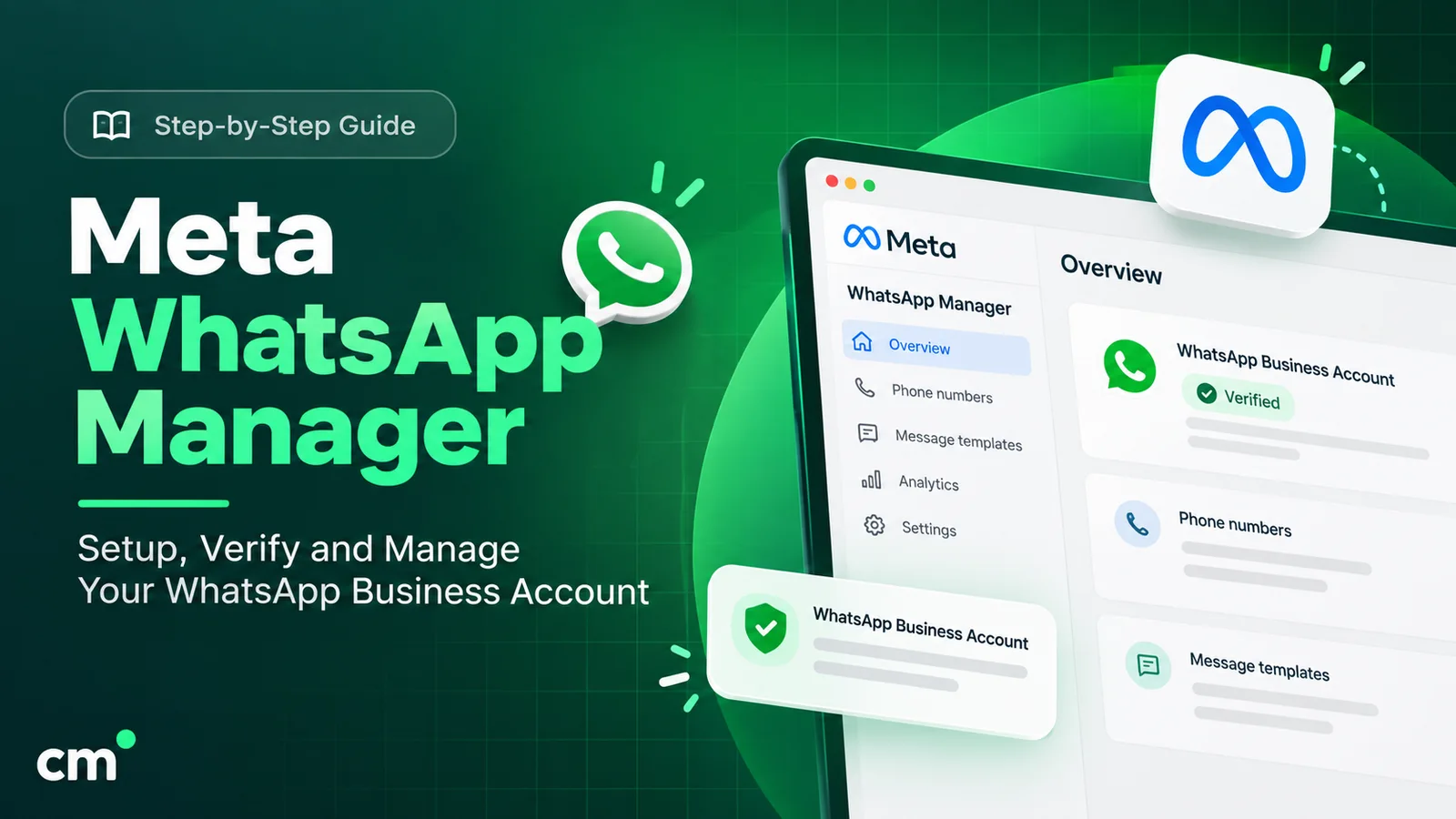
WhatsApp Manager is Meta’s admin area for the WhatsApp Business Platform. It sits inside Meta Business Suite, and it is where a business manages its phone numbers, display names, message templates, messaging limits, quality ratings, insights and billing. You open it from Meta Business Suite. Access depends on your role in the business portfolio.
One naming note first. Search for “WhatsApp manager” and you’ll also find third-party dashboards that run several WhatsApp numbers or WhatsApp Web sessions from one screen. This guide is about Meta’s own tool, the one every WhatsApp Business Platform (API) account has, whichever provider you use.
Key takeaways
- WhatsApp Manager is an admin console, not a chat inbox. You reply to customers in your provider's inbox or your own app.
- Meta's 2026 account change split the old WhatsApp Business account in two. Expect some Help Center menu names to lag behind what you see on screen.
- Payment method, display name changes, the blue checkmark and partner access are handled in Meta's tools unless your provider has built them in.
What is WhatsApp Manager (and what isn’t it)?
WhatsApp Manager is the part of Meta Business Suite where you look after your business’s WhatsApp Business Platform assets. Meta’s developer documentation describes it as the place to see “basic information like business phone number status, messaging metrics, and to perform basic tasks like template creation and editing” (Meta, WhatsApp accounts and Messaging accounts).
Four names get mixed up:
| Name | What it is | Used for |
|---|---|---|
| Meta Business Suite | The umbrella for your business portfolio (much of what people still call Business Manager) | People, permissions, pages, ad accounts, business verification, Billing Hub |
| WhatsApp Manager | A tool inside Meta Business Suite | Phone numbers, display names, templates, messaging limits, insights, WhatsApp payment settings |
| WhatsApp Business app | The free phone app for small businesses | Chatting from a phone; it doesn't need WhatsApp Manager |
| Third-party "WhatsApp manager" tools | Other companies' software | Varies; not Meta's console |
What WhatsApp Manager does not do: it doesn’t give your team a shared inbox, run broadcasts to contact lists or build chatbots. Those come from your provider’s software or your own code on top of the API. If you haven’t set up API access yet, start with our guide to getting the WhatsApp Business API. If you’re still choosing between the free app and the API, our sibling guide on creating a WhatsApp Business account covers both routes.
What changed in 2026: WhatsApp accounts and Messaging accounts
Guides written before this change describe one “WhatsApp Business account” (WABA) holding everything. That is no longer how Meta structures it.
Meta says the old account is “evolving into two unique accounts: one for phone numbers, one for template messages and billing”. The new model became generally available on 23 September 2026, and Meta migrates businesses in stages, reaching all of them “by mid-October 2026” (Meta, Updates to WhatsApp Business accounts). Meta’s Help Center gives the window as 23 September to 15 October 2026 and says no action is required (Meta Business Help Center, Updates to account structure). Until a business is migrated, WhatsApp Manager keeps showing the old single-account view.
| What | Before (one WABA) | Now |
|---|---|---|
| Phone number, display name, business profile, quality rating | WABA | WhatsApp account (one number each) |
| Message templates and Flows | WABA | Messaging account |
| Payment method, invoices, currency | WABA | Messaging account |
| Conversation, template and billing insights | WABA | Messaging account |
| Business verification, messaging limit | Business portfolio | Business portfolio (unchanged) |
Three practical consequences:
- The names differ between Meta’s own pages. The developer docs call the phone-number container a “WhatsApp account (WAAC)”. The Help Center calls the same thing a “WhatsApp Business account”. Both call the other one a “Messaging account”, and the Messaging account keeps your old WABA ID.
- WhatsApp Manager is now organised by Messaging account. Meta says “the account selector in the top-right corner lets you switch between them.”
- One number can now work with more than one provider. Each provider gets its own Messaging account, with separate templates and billing, so customers still see one contact.
How do I access WhatsApp Manager?
You need a business portfolio that owns (or was shared) a WhatsApp account and a Messaging account, and a login with access to them. Then use either route.
Route 1: from All tools (Meta’s Help Center wording)
- Go to Meta Business Suite and select your business portfolio.
- Click All tools.
- In the Engage customers section, click WhatsApp Manager.
- Choose the account you want to work on.
(Meta Business Help Center, connect your phone number)
Route 2: from Settings (Meta’s developer documentation wording)
- Sign in to Meta Business Suite and pick the portfolio from the top-left menu.
- Open Settings (gear icon) > Accounts > Messaging accounts.
- Select your Messaging account, or click its Details link.
- In the Summary tab, click WhatsApp Manager.
(Meta, WhatsApp accounts and Messaging accounts)
Meta’s own documentation also links straight to business.facebook.com/wa/manage/home/, which is handy to bookmark. Inside the tool, the developer docs place phone numbers, message templates and messaging limits under Account tools (a toolbox or suitcase icon). The Help Center puts payment settings in the account’s Settings tab. Meta’s menu wording may differ on your screen, especially while the account change settles in.
If WhatsApp Manager doesn't appear
Check three things: that you've selected the right business portfolio (top-left), that your provider completed onboarding into that portfolio, and that someone with full control has assigned you to the WhatsApp or Messaging account. Meta's Help Center notes that if you can't see WhatsApp accounts under Settings, "you may not have full control of the business portfolio" (Meta Business Help Center).
Who can access WhatsApp Manager? Roles and permissions
Access comes from your business portfolio in Meta Business Suite, not from WhatsApp itself. Meta uses two levels: full control and partial access, both for the portfolio and for each asset in it (Meta Business Help Center, full control and partial access).
| Access | What Meta says it allows | Typical WhatsApp use |
|---|---|---|
| Full control of the portfolio (formerly business admin) | Manage everything: settings, people, assets and partner access | Owner or IT lead; can add accounts and share with partners |
| Partial access: basic (formerly employee) | Work only on assets they are assigned | Team members who manage templates for one account |
| Partial access: apps and integrations (formerly developer) | Edit apps and create access tokens | Developers connecting the API |
| Finance access (add-on) | View or manage transactions, invoices, spend and payment methods | Accounts team |
| Full control of a WhatsApp account (asset level) | All permissions on that asset, and can give others access to it | A branch manager who owns one number |
A few WhatsApp tasks need specific access, according to Meta:
- Adding a card needs the “Manage WhatsApp account” permission (add a credit card).
- Viewing insights needs access to manage finance in the portfolio (message insights).
- Viewing invoices needs full control of the business portfolio and access to manage finance (view your invoices).
- Deleting a phone number is limited to business portfolio admins (Meta, business phone numbers).
Keep the list of people with full control short, and give everyone else only the tasks they need. Meta also offers temporary access, which lasts between 3 and 75 days.
Phone numbers: status, display name, quality rating and PIN
Status and quality rating
Each number shows a Status in the Phone numbers panel, and it must be “connected” to send and receive through the API. Meta says the status reflects the number’s quality rating and current messaging limit (Meta, business phone numbers).
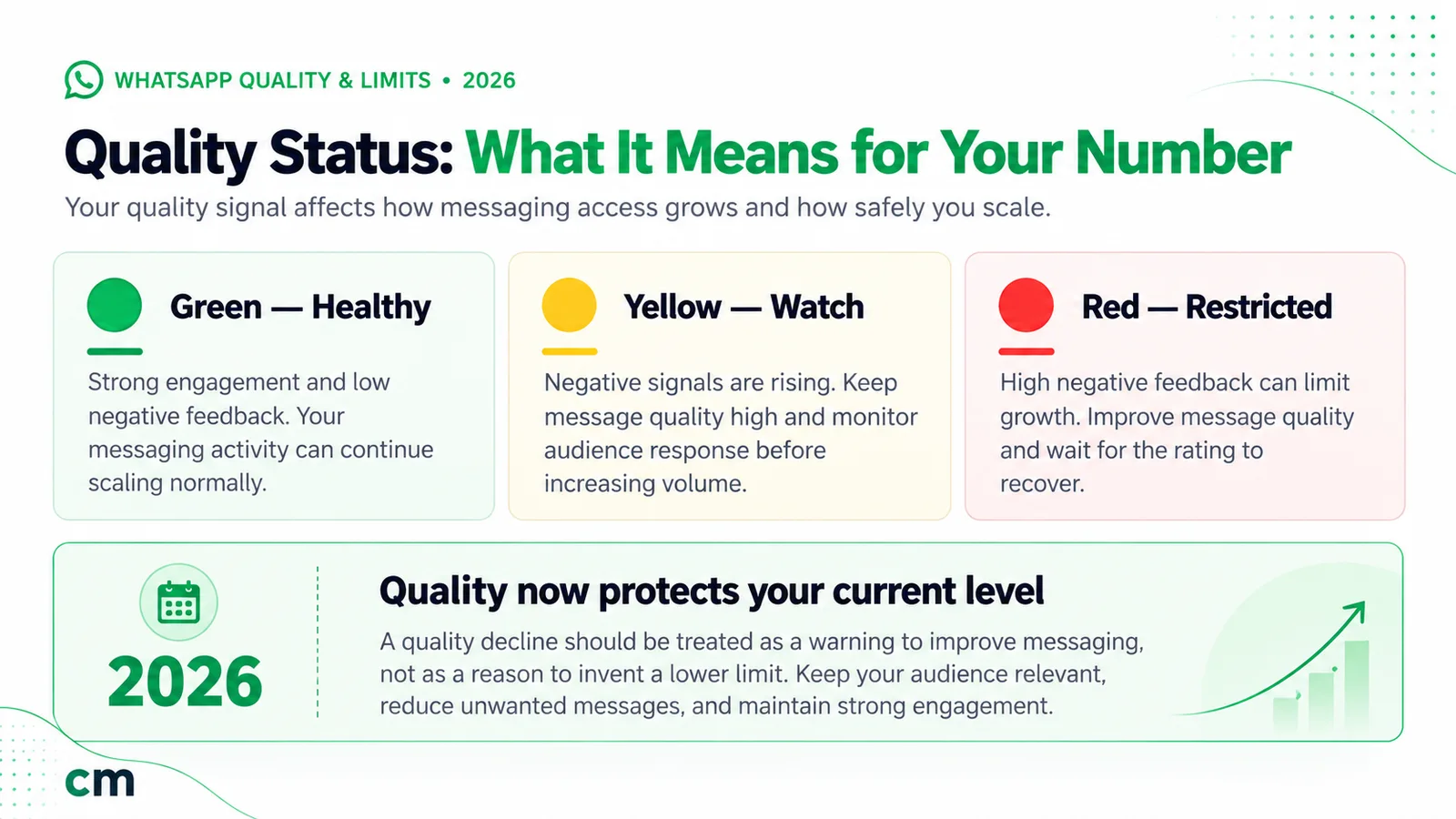
The quality rating is Green (high), Yellow (medium) or Red (low). Meta’s Help Center says it is based on messages customers received “over the past seven days”, driven by feedback such as block reasons. Hover over a Yellow or Red rating to see block reasons where available. The icon in the Settings column shows the lowest daily score over the past 30 days. Meta also notes that the old Flagged and Restricted statuses “have been discontinued as of 7 October 2025” (Meta Business Help Center, quality rating). The best protection is messaging people who asked to hear from you (see our WhatsApp opt-in guide).
Display name and its review
The display name appears on your number’s WhatsApp profile. You can start messaging before it is reviewed. Meta says that when you reach a higher messaging limit, the name “automatically undergoes verification”, and the result arrives as a Meta Business Suite notification (Meta, display names). The name shows in the Name column of the Phone numbers panel.
Changes have limits:
- up to 10 changes per 30-day period;
- after approval, the number must be re-registered within 14 days, or you submit the name again;
- a number with the blue checkmark (Official Business Account) must contact Meta’s direct support to change its name.
Two-step verification PIN
API numbers have had a six-digit PIN, needed to change the PIN or delete the number. You change it under Phone numbers > your number > Two-step verification > Change PIN; Turn off two-step verification emails a link to your business portfolio’s address.
Meta is now deprecating the PIN for eligible Cloud API numbers, and says: “If the tab is absent, the change has already been applied and there is no PIN to create, reset, or disable” (Meta, Updates to WhatsApp Business accounts).
Official Business Account (blue checkmark)
You request the blue checkmark from WhatsApp Manager > Overview > your number > Phone numbers > Profile > Official business account. Meta’s criteria include a verified business portfolio, an approved display name, two-step verification and at least 30 days on the platform. A rejected request can be repeated after 30 days (Meta, Official Business Accounts).
Messaging limits and throughput
A messaging limit is “the maximum number of unique WhatsApp user phone numbers your business can deliver messages to, outside of a customer service window, within a moving 24-hour period” (Meta, messaging limits). Replies inside an open window don’t count.
- It is set for the business portfolio, and all its numbers share it. One busy number can use up the whole allowance.
- New portfolios start at 250. Verifying the business, having your provider verify it, or sending 2,000 delivered messages outside customer service windows to unique users in 30 days with high-quality templates can raise it to 2,000.
- After that it steps up automatically, through 10,000 and 100,000 to unlimited. Meta raises it one level within 6 hours when your quality is high and you’ve used at least half the current limit in the last 7 days.
- WhatsApp Manager shows it under Account tools > Messaging limits.
Throughput is different: it is speed, not reach. Cloud API allows up to 80 messages per second per number by default. Eligible numbers are upgraded automatically to 1,000. Numbers shared with the WhatsApp Business app (coexistence) are fixed at 20 (Meta, throughput).
Message templates: create, categories, statuses and pausing
Templates are the only messages you can send outside a customer service window. Each one is categorised as marketing, utility or authentication, and the category also affects the price (Meta, templates overview). New to templates? Our message templates explainer covers the parts of a template.
In WhatsApp Manager, the template list shows these statuses:
| Status in WhatsApp Manager | Can you send it? | What it means |
|---|---|---|
| In-Review | No | Meta is reviewing it; this can take up to 24 hours |
| Rejected | No | Failed review; edit and resubmit, or appeal |
| Active – Quality pending | Yes | Approved, no feedback yet |
| Active – High / Medium / Low quality | Yes | Rated on feedback and read rates; Low risks pausing |
| Paused | No | Stopped for a while after repeated negative feedback or low read rates |
| Disabled | No | Switched off after repeated negative feedback |
| Appeal Requested | No | You've appealed a decision |
Pausing works in steps. The first time a template drops to Low quality, it is paused for 3 hours, the second time for 6 hours, and the third time it is disabled (Meta, template pausing). Sending to a paused template isn’t charged, but the API rejects it. Templates paused during template pacing must be unpaused by hand, which WhatsApp Manager offers as a “manually unpause” link.
Limits to plan around:
- An unverified portfolio’s Messaging accounts hold up to 250 templates each. Once the portfolio is verified and has a number with an approved display name, the cap rises to 6,000.
- You can create at most 100 templates per Messaging account per hour.
- Templates unused for 12 months are archived, and then deleted after 28 days unless you unarchive them.
- After you delete a template, its name can’t be reused for 30 days (Meta Business Help Center, delete templates).
- Templates don’t carry across Messaging accounts. Meta notes that copied templates start again at baseline quality.
Insights: messages, spend and template performance
The Insights tab offers “real-time monitoring of messaging and spending analytics” (Meta Business Help Center, message insights). It breaks messages into all, free and paid, shows approximate charges, and has an All messages view with sent, delivered and received counts. You can export by phone number, country or date.
Read the numbers with two cautions from Meta:
- “All insights data is approximate and may differ from what’s on your invoice”.
- Meta no longer shows approximate charges in WhatsApp Manager for businesses that pay through a partner. Those businesses must ask their partner.
Template analytics (reads, clicks and more) must be confirmed on the Messaging account first, in WhatsApp Manager or through the API. You can look back 90 days in template analytics and up to one year in messaging and pricing analytics (Meta, analytics). Treat Meta’s invoice as the final word on cost.
Billing and payment methods: who pays Meta?
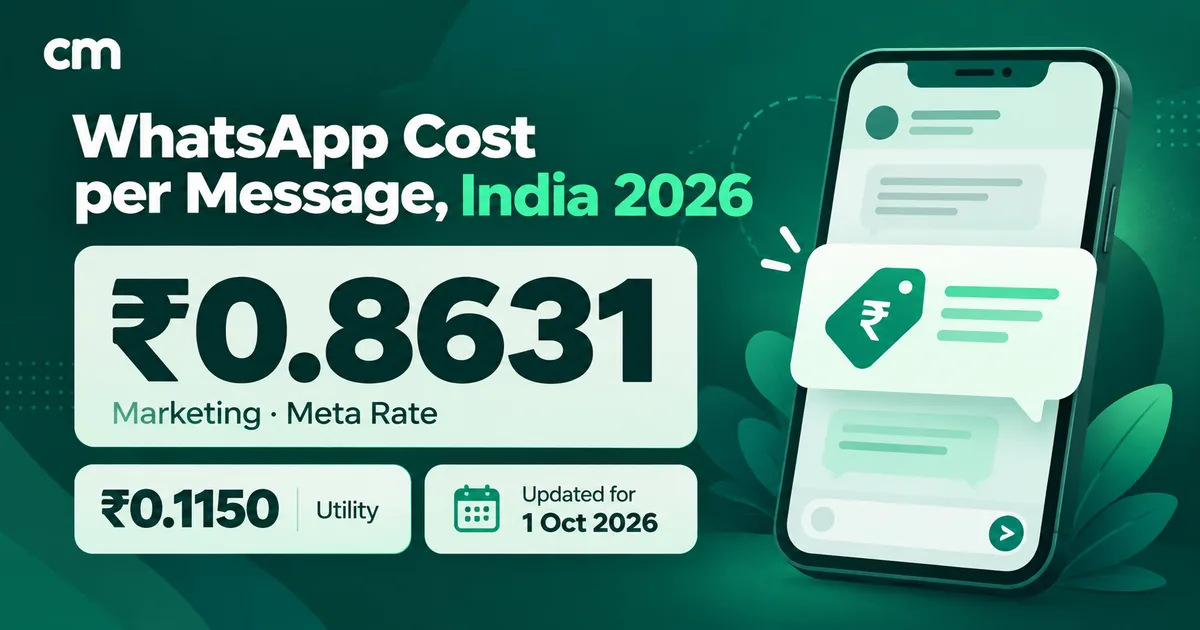
Meta charges per delivered message, by category and by the recipient’s country. For India, the rate card effective 1 October 2026 lists ₹0.8631 per marketing message and ₹0.1150 per utility, authentication or service message. Each business phone number gets 1,000 free service messages a month, and utility templates sent inside an open window are now charged (Meta, pricing). Our WhatsApp Business cost per message guide works through the maths.
Who pays depends on how you were onboarded:
| Setup | Who Meta bills | What you do in Meta's tools |
|---|---|---|
| You use the API directly | You | Add a card, prepaid funds (India) or a line of credit to your Messaging account |
| Provider is a Solution Partner sharing its credit line | The partner, who invoices you | Nothing for payment; ask the partner for costs |
| Provider is a Tech Provider (no credit line) | You | Add your own payment method to the Messaging account before paid messages |
Meta’s developer docs spell out the last row: if your provider is not a Solution Partner or partnered with one, “the customer must first attach a payment method to their Messaging account before they can begin messaging” (Meta, Embedded Signup overview).
Payment options:
- Card. Direct developers can pay by Visa or Mastercard. Meta says it doesn’t accept American Express or digital payments such as PayPal, and lists INR among the supported currencies (add a credit card). Card billing also depends on your country being on Meta’s list of supported countries. When we checked on 25 September 2026, that list did not include India.
- Line of credit. Eligible businesses are invoiced monthly and have 30 days to pay by bank transfer. A business that already has a line of credit for Meta ads uses that one instead of applying separately (line of credit).
- Prepaid (India). A Messaging account in India can instead be funded in advance by UPI in Billing Hub. Meta says “Adding funds by UPI puts the account on prepaid billing; saving a card puts it on invoiced billing”, and the choice can’t be changed later (Meta, prepaid billing).
Each Messaging account holds one payment method, separate from your ad accounts. Without one, Meta says it will deliver service messages within the free tier “but not deliver them after the free tier has been used.” Meta also sets a currency deadline for businesses whose Sold-To country in Billing Hub is India (it names Solution Providers and directly integrated businesses): all their Messaging accounts must be in INR by 31 December 2026, or Meta stops delivering messages from the non-INR ones.
Help Center pages lag the price list
When we checked on 25 September 2026, Meta's Help Center billing and insights articles still described utility replies inside the 24-hour window as free. Meta's developer pricing page is newer and says those have been charged since 1 October 2026. Trust the pricing page and your invoice.
Partners: sharing your account with a provider
To let a provider work on your number, share both accounts from Meta Business Suite. The WhatsApp account gives access to the phone number. The Messaging account gives access to templates and the payment method. Meta says messaging “does not work unless the partner has access to both” (Meta, WhatsApp accounts and Messaging accounts).
- A WhatsApp account can be shared with up to five Solution Partners. A Messaging account can be shared with up to two partners.
- If a partner attaches its credit line to a Messaging account you own, that Messaging account can’t be shared with another partner.
- Moving a number from one Solution Partner to another “is not supported in the new account model”. You share your WhatsApp account with the new partner instead, and the number doesn’t move.
- With several providers on one number, you can set up conversation routing to control which of them can view and answer messages.
Common WhatsApp Manager tasks, step by step
Add a payment method
- Confirm you have the Manage WhatsApp account permission (or own the account).
- In WhatsApp Manager, open Overview, click the three-dot icon next to the account, and choose Manage account settings.
- In the Settings tab, click Payment settings, then Add payment method.
- Add your card details and business information, then save.
- If your screen differs after the account change, open Billing Hub in Meta Business Suite and select the Messaging account instead. In India, this is also where you choose prepaid UPI funding.
Change your display name
- Check the new name against Meta’s display name guidelines.
- Go to WhatsApp Manager > Account tools > Phone numbers and select the number.
- Open the Profile tab and click Edit in the Display name section.
- Wait for approval, then re-register the number within 14 days. Re-registering before approval has no effect (Meta, display names).
Create a message template
- In WhatsApp Manager, open Message templates (under Account tools). If you have several Messaging accounts, pick one from the top-right menu.
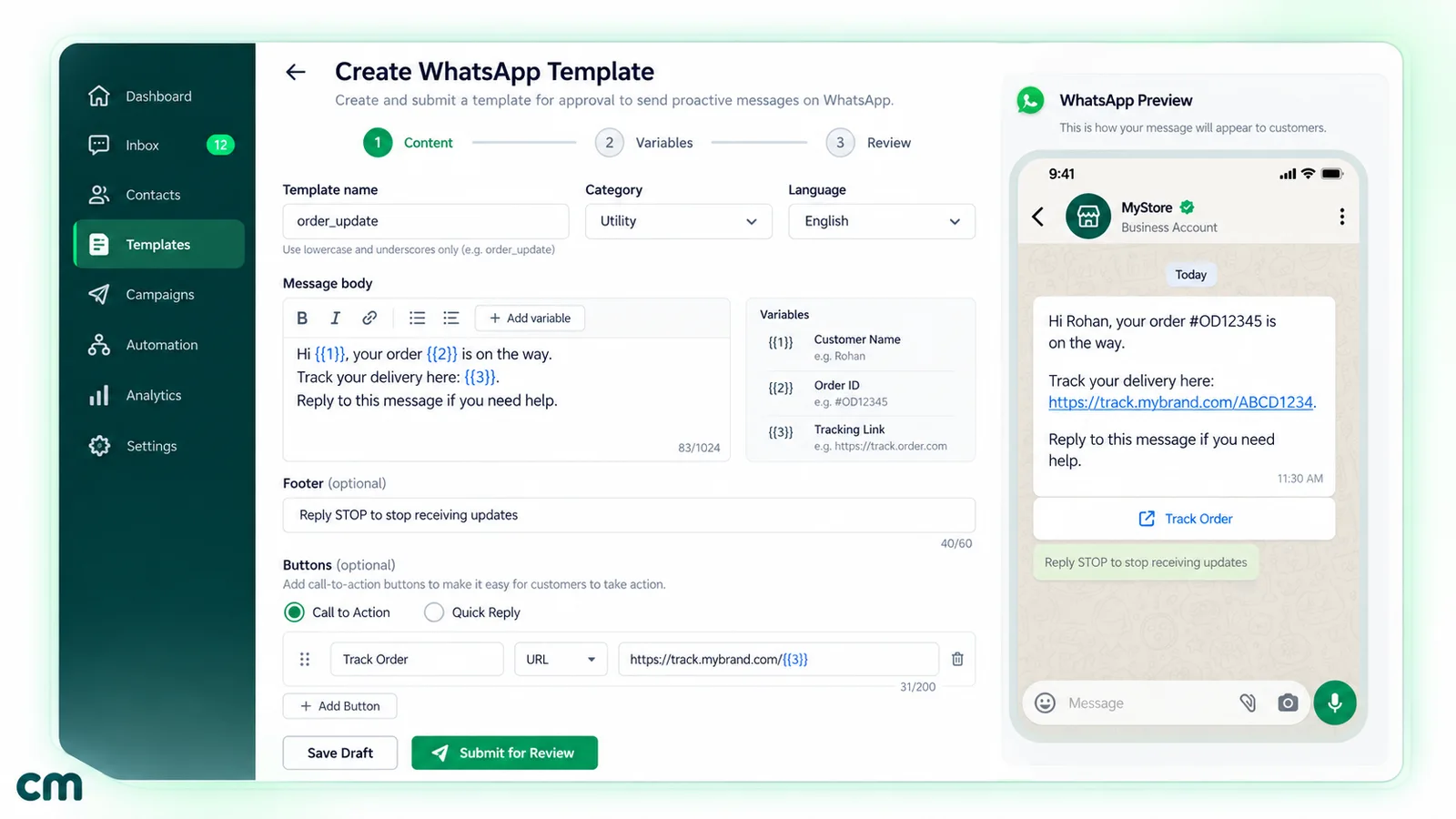
- Click Create message template, then choose the category, a lowercase name and the languages.
- Add a header, body, footer and buttons. Use Add sample for every variable or media header.
- Submit, then watch the status change from In-Review (Meta Business Help Center, create templates).
Share or remove a partner
- Ask the partner for their business portfolio ID.
- In Settings > Accounts, open WhatsApp accounts (or Messaging accounts), select the account and click Assign partner.
- Enter the ID, choose permissions with the toggles and click Assign. Repeat for the other account type.
- To remove a partner, open the account’s Partners tab, click the bin icon next to their name and confirm (Meta Business Help Center, remove a partner).
Delete a phone number
- Make sure no paid messages were sent from it in the last 30 days. Meta blocks deletion until then.
- Go to Account tools > Phone numbers, click the number’s bin icon and complete the flow. You’ll need the PIN if the number still has one.
Troubleshooting common WhatsApp Manager problems
| Problem | Likely cause | What to do |
|---|---|---|
| Can't see WhatsApp Manager or the account | Wrong portfolio selected, or no asset access | Switch portfolio (top-left); ask someone with full control to assign the WhatsApp and Messaging accounts to you |
| Card won't save | Card type not accepted, or your country isn't on Meta's list for card billing | Use a Visa or Mastercard; in India, use prepaid UPI funding in Billing Hub; elsewhere, ask Meta about a line of credit |
| Messages fail with error 131042 | A payment problem: no payment method attached, credit line over its limit, currency or time zone not set, or not enough prepaid balance | Check the Messaging account's payment method in Billing Hub; for prepaid, check Available funds and add money before resending |
| Display name rejected | Generic word or place name, "Official" or "Verified", a WhatsApp or Meta reference, promotional wording, a URL or email, or no visible link to your legal name | Match the name to your website and legal entity, use "by [company name]" for sub-brands, resubmit, or appeal through Meta support |
| Template rejected | Broken or badly placed variables, too many variables for the text, sensitive data requests, a policy breach, or a duplicate of an existing template | Read the reason in Business Support Home, fix and resubmit, or appeal with a sample; appeals are decided within 24 hours |
| Template paused | Low quality from blocks or low read rates | Stop campaigns using it, revise the content or audience, and unpause manually if it was paused during pacing |
| Error 131048 or sends restricted | Too many messages blocked or reported as spam | Check quality in WhatsApp Manager; pause cold sends and message only opted-in contacts |
| Two-step verification tab missing | The PIN has been retired for this number | Nothing to do; Meta says there is no PIN to reset |
Sources: Meta, error codes, Meta, template review and the display name guidelines linked above. For account restrictions and appeals, see our guide to Business Support Home.
What you do in ChatMitra vs in WhatsApp Manager
If you use ChatMitra, day-to-day work happens in ChatMitra and the Meta-only jobs stay in Meta’s tools. We checked this against ChatMitra’s code, not its marketing pages.
| Task | In ChatMitra | In WhatsApp Manager / Meta Business Suite |
|---|---|---|
| Connect a number | Yes: Meta's Embedded Signup inside the app or a manual connect with your WABA ID and Phone Number ID (ChatMitra sets which one your account uses) | Created in your portfolio by the signup |
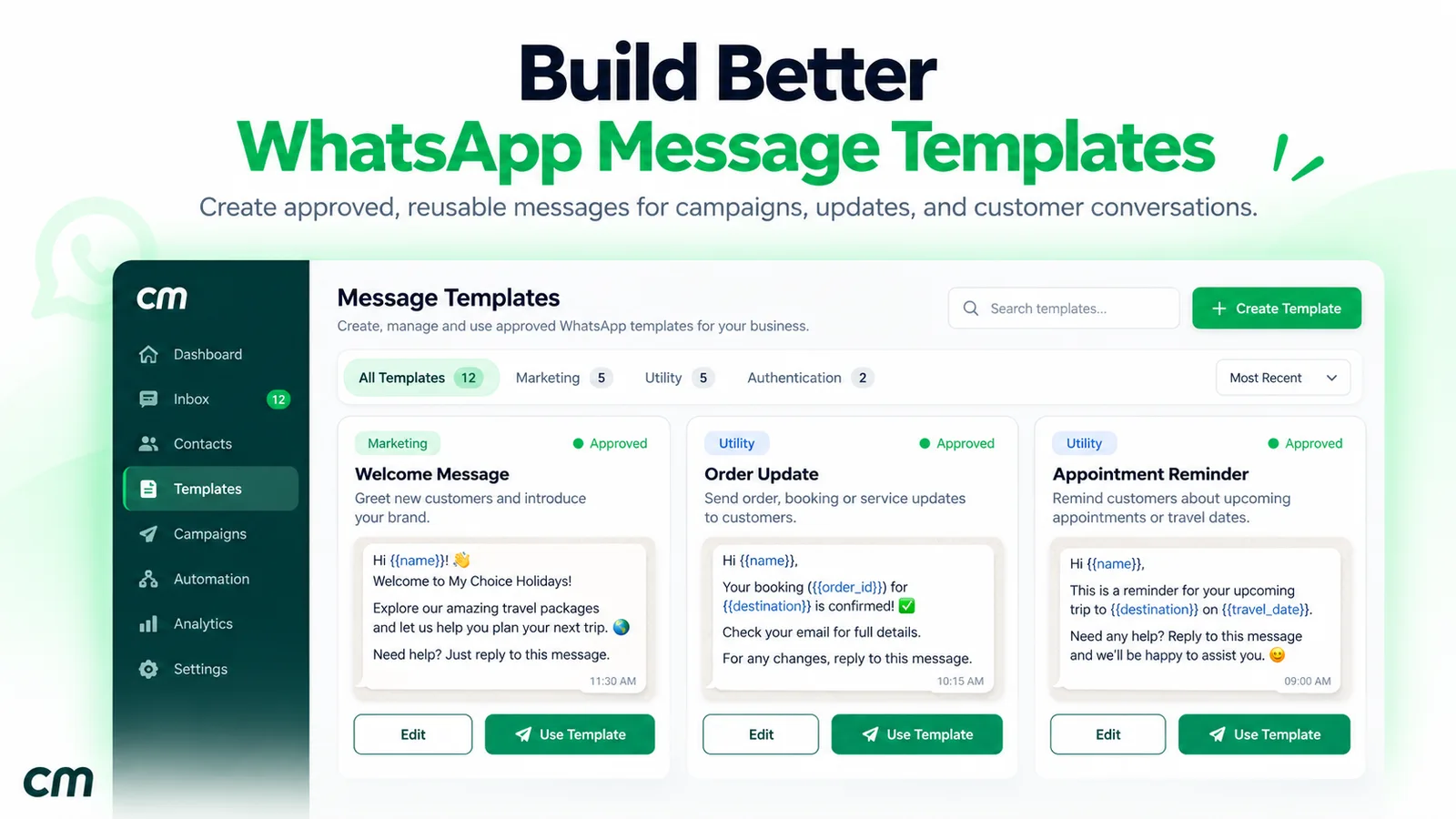
| Create, sync and delete templates | Yes: marketing, utility and authentication, with Pending, Approved and Rejected tabs | Also possible; editing a template and reading the rejection reason or template quality happen here |
| Appeal a template's category | A "Request Review Template Category" button opens Meta's Business Support Home | The review itself |
| Send templates, broadcasts and inbox replies | Yes | No (not a messaging tool) |
| Number status, messaging limit, quality rating | Shown in the top bar as API Status, Conversations (the limit tier) and Quality | Full detail, history and block reasons |
| Business profile (about, description, address, email, websites, category, photo) | Yes, editable from the dashboard | Also possible |
| Display name | Shows whether the name is approved, in review or rejected; after Meta's decision on a change, ChatMitra re-registers the number automatically | Request the change here |
| Payment method and Meta invoices | An onboarding step links you to Meta's Billing Hub | Here: ChatMitra customers pay Meta directly |
| Business verification, blue checkmark, partners, deleting a number | No | Here |
| Calling settings and Flows | Not supported in ChatMitra | Here, if you use another tool for them |
How the money flows for ChatMitra customers. ChatMitra doesn’t pay Meta on your behalf, and it doesn’t share a credit line. Its onboarding asks you to add a payment method to your own account in Meta’s Billing Hub, so Meta bills you directly for delivered messages. Separately, ChatMitra charges its own fee on the Starter and Pro plans: ₹0.20 (one credit) once per contact per 24-hour conversation window, taken from your ChatMitra credits. A customer’s incoming message can open a window too. Enterprise has no per-conversation fee. Rupee figures are Meta’s India rates and exclude tax.
ChatMitra’s per-project roles and permissions are separate from Meta Business Suite access, so remove leavers from both.
If you want templates, broadcasts and a team inbox in one place while paying Meta directly, compare ChatMitra’s plans. If you need calling or Flows, choose a provider that supports them; our WhatsApp Business Calling API guide explains what calling involves.
Facts checked against Meta's and WhatsApp's documentation on 25 September 2026. Menu names are quoted from Meta's Help Center and developer documentation on that date; your screen may use different wording.
Sources: Meta, Updates to WhatsApp Business accounts · Meta, pricing · Meta, messaging limits · Meta, templates overview · Meta Business Help Center, quality rating