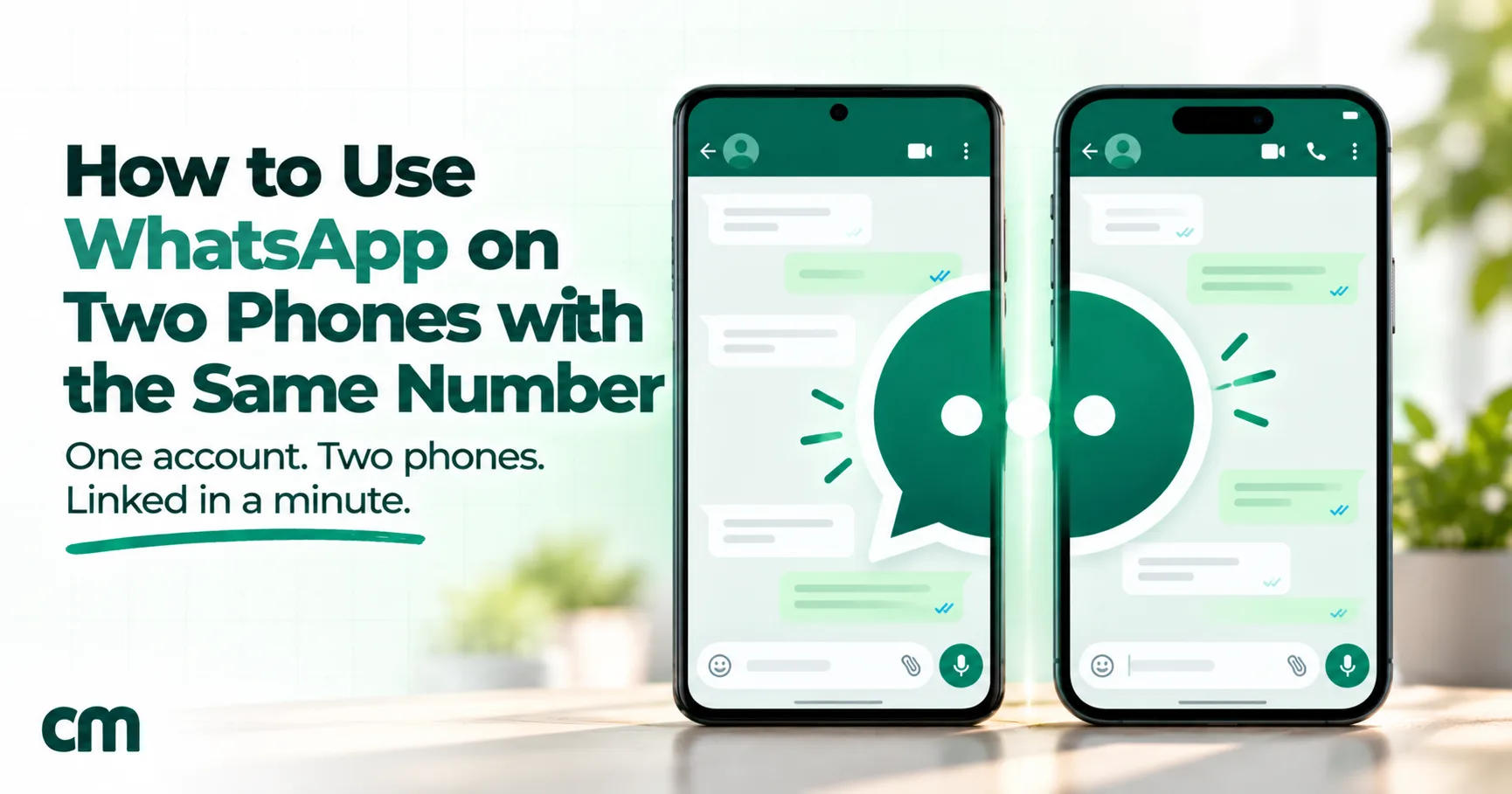
Yes, you can use one WhatsApp account on two phones. Install WhatsApp on the second phone, tap Agree and continue, open the menu, choose “Link as companion device”, and scan the QR code it shows with your main phone. It works on Android and iPhone, for both WhatsApp and the WhatsApp Business app. The main phone stays in charge: it can link up to four devices, and if it sits unused for more than 14 days, the second phone is logged out.
That covers the most common case. People who search for “WhatsApp on two phones” usually want one of three different things, though, and they have different answers. This guide covers each one: the linking steps for Android and iPhone, what works on the second phone and what doesn’t, the rules that keep it connected, two accounts on one phone, fixes for common problems, and what changes when the two phones belong to a business team rather than one person.
Running a business number? Two phones work well for an owner and one helper. If more people need to answer customers, each with their own login, ChatMitra gives your number a shared inbox on the WhatsApp Business Platform with unlimited team members. With coexistence, you can keep using the WhatsApp Business app on the same number. Starter is free; you pay Meta’s rates at cost plus ₹0.20 per conversation. Jump to two phones for a business team.
Which “two phones” do you mean?
| What you want | What it’s called | Official? | Section |
|---|---|---|---|
| The same number and chats on two phones | A linked companion phone (sometimes called companion mode) | Yes, since April 2023 | How to link a second phone |
| Two different numbers in WhatsApp on one phone | Multiple accounts (Add account) | Yes: Android since 2023, iPhone since March 2026 | Two WhatsApp accounts on one phone |
| A personal number and a business number on one phone | WhatsApp plus the WhatsApp Business app | Yes, with two numbers | Same section |
| Several staff answering one business number | Linked devices, multi-agent, or the WhatsApp Business Platform | Yes, with different limits | Two phones for a business team |
| Moving WhatsApp to a new phone for good | Chat transfer | Yes | Linking isn’t transferring |
Before you start
You need:
- Your main phone, where your WhatsApp account is registered, unlocked and updated to the latest version of WhatsApp. It will scan a QR code.
- The second phone, with WhatsApp (or WhatsApp Business) installed and not registered to any number. If WhatsApp is already set up on it with another number, that account has to be removed first, or you’ll need to use the two-accounts route instead.
- An internet connection on both phones. The second phone doesn’t need a SIM card, because it’s linked by QR code rather than verified by SMS.
- The same app on both. Link a WhatsApp Business account with the WhatsApp Business app on the second phone, and a WhatsApp account with WhatsApp.
How to link a second phone (Android)
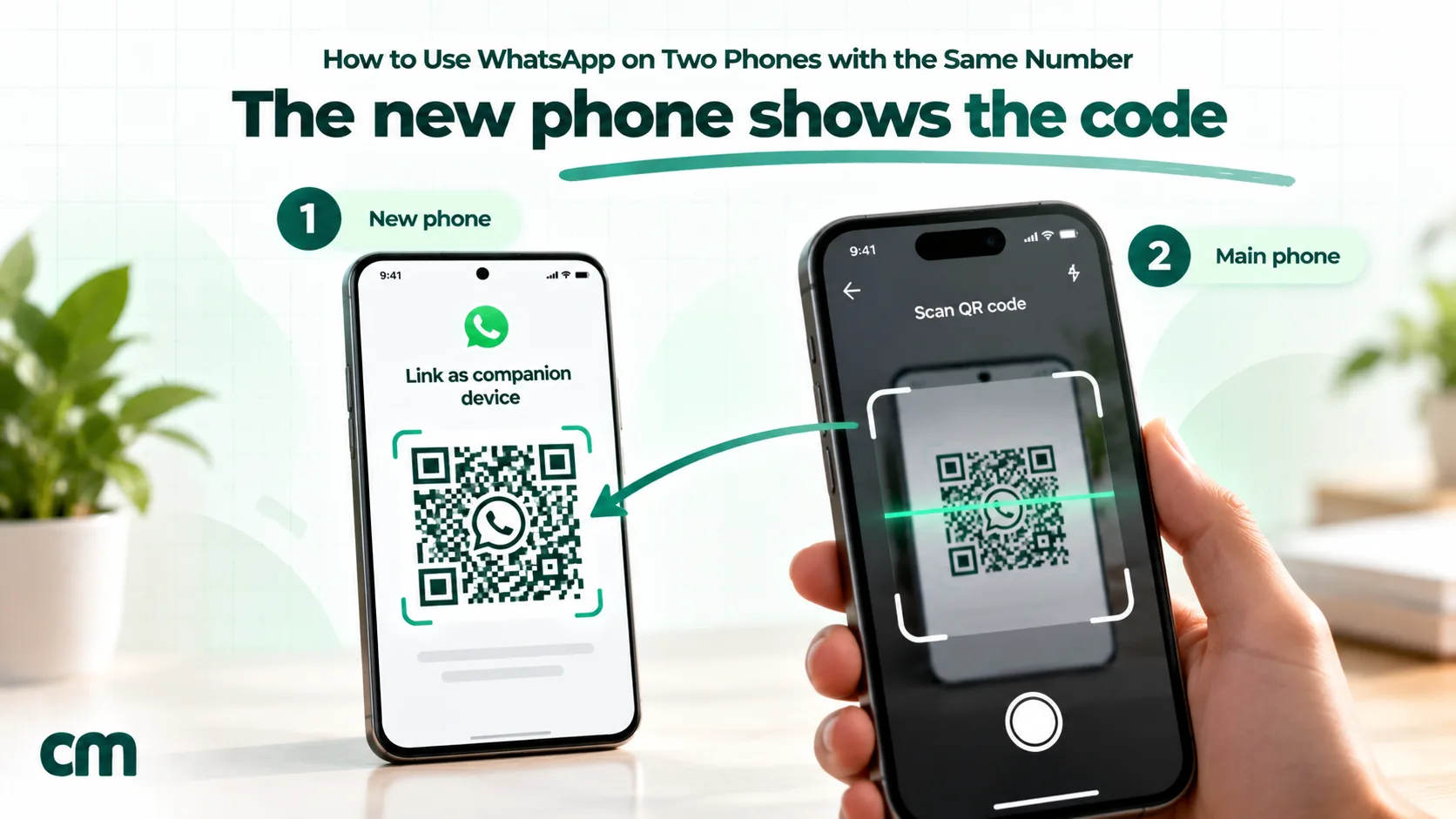
WhatsApp introduced the feature in April 2023, calling it the ability to “link your phone as one of up to four additional devices” (WhatsApp blog). One detail catches people out: the new phone shows the QR code, and your main phone scans it. A chat transfer works the other way round.
On the second phone:
- Install WhatsApp from the Play Store and open it.
- Choose your language, then tap Agree and continue.
- Don’t enter a phone number. Tap the menu (⋮) at the top right and choose Link as companion device. A QR code appears.
On your main phone:
- Android: open WhatsApp, tap ⋮ > Linked devices > Link a device. iPhone: open WhatsApp, go to Settings > Linked devices > Link device.
- Unlock with your fingerprint, face or PIN if asked.
- Point the camera at the QR code on the second phone.
Your recent chats then load on the second phone. That’s the whole process (WhatsApp Help Center, link a companion phone).
How to link an iPhone as the second phone
Older articles say only Android phones can be companions. That’s no longer true. The iPhone flow is nearly the same:
- Install WhatsApp from the App Store and open it.
- Tap Agree & continue.
- If you’re asked for a number, tap Use a different number instead of entering one.
- Tap the menu and choose Link as companion device. A QR code appears.
- On your main phone, go to Linked devices and scan it, as in step 4 above.
WhatsApp gives main-phone steps for both Android and iPhone, so an Android main phone can link an iPhone and the other way round.
How to link the WhatsApp Business app on a second phone
WhatsApp’s help centre says it plainly: “You can now connect your WhatsApp Business account to companion phones” (WhatsApp Business help, linking devices). Install the WhatsApp Business app on the second phone and follow the same steps: Agree and continue, the menu, Link as companion device, then scan from Linked devices on the main business phone.
Your customer chats then appear on both phones. Keep in mind that live location and adding a status aren’t available on a companion phone, and broadcast lists can’t be created or viewed on any linked device (details below).
Check that it worked
A linked phone says so. Open Settings on the second phone and you’ll see “This is a linked device”. On the main phone, Linked devices lists every device connected to your account, with when it was last active. Tap any device there to log it out. Do this whenever a phone is lost, sold or handed back by a staff member.
What works on the second phone, and what doesn’t
Most of WhatsApp works the same on a companion phone: chats, groups, photos, voice messages, documents, reactions and message deletion, which syncs across your devices. WhatsApp’s help centre lists the exceptions, and they differ slightly between the two apps.
| Feature | WhatsApp (linked device) | WhatsApp Business (linked device) |
|---|---|---|
| Chats, groups, media, documents | Yes | Yes |
| Live location | Can’t view | Can’t share or view |
| Broadcast lists | Can’t create or view | Can’t create or view |
| Status | Not listed as a limit | Can’t add or delete a status |
| WhatsApp Flows (forms from businesses) | Can’t use | Not listed |
| Calls | Not stated in WhatsApp’s FAQ | Ring on all devices when 4 or fewer are linked |
Sources: About linked devices and linked devices on the Business app.
Two practical consequences. If you run promotions through broadcast lists on the Business app, that work has to happen on the main phone. And if you share your live location for deliveries or site visits, share it from the main phone too.
What happens to your chat history
When you link a phone, “your primary phone sends an end-to-end encrypted copy of your most recent message history to your newly linked device” (WhatsApp Help Center). That’s recent history, not the full archive, and WhatsApp adds that “not all messages and chats are synced”. Its linked-device pages also carry a known-issue notice: some linked devices don’t display up to a year of chat history.
So don’t use a companion phone as a backup. Your complete history lives on the main phone and in its chat backup. Messages that arrive after linking appear on both phones normally.
Privacy doesn’t change when you link. “Each linked device connects to WhatsApp independently, maintaining the same expected level of privacy and security through end-to-end encryption”, according to WhatsApp.
The rules that keep it working
| Rule | What it means in practice |
|---|---|
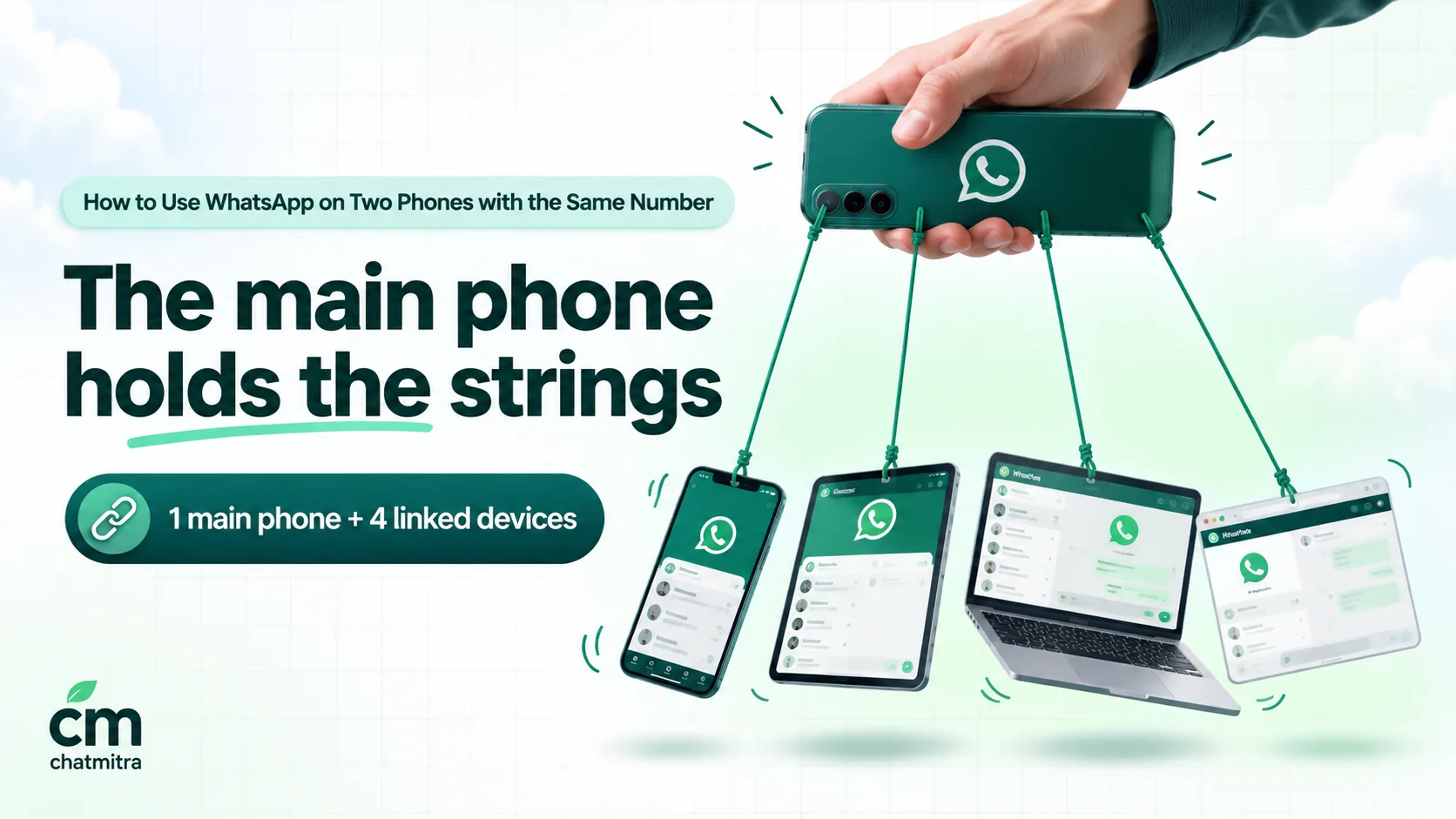
| One main phone plus four linked devices | ”You can use up to four linked devices and one phone at a time.” The four can be any mix of phones, tablets, computers and browsers. |
| The 14-day rule | Linked devices “work without your phone online, but will log out if your phone is unused for over 14 days”. A main phone left in a drawer during a long trip logs out every other device. |
| The 30-day rule | WhatsApp disconnects a linked device after 30 days of inactivity. A spare phone opened once a month needs relinking. |
| The main phone can’t be replaced by a linked one | Computers, browsers, iPads and wearables can only ever be linked devices. Only the phone you registered with can link new ones. |
| Multi-agent: up to 10 devices | Business app only, through a Meta Verified or Meta One subscription. With more than four linked devices, calls ring only on the main phone. |
For the business side of these limits, including multi-agent and how WhatsApp Web fits in, see our WhatsApp Business Web guide.
Linking isn’t transferring
Three actions look similar but do different things:
| Action | What happens | When to use it |
|---|---|---|
| Link a companion phone | Both phones work on the same account at the same time | You want WhatsApp on two phones |
| Transfer chats to a new phone | Your old phone scans a QR code shown on the new phone, and the account and chats move over | You’re replacing your phone |
| Register the number on another phone | ”You will be logged out on your old phone as soon as re-registration is complete” | Only when moving the account for good, and the old phone is gone |
The third one causes most “my WhatsApp disappeared” moments. If you type your number into the second phone and verify it by SMS, you haven’t added a phone: you’ve moved the account and logged out the first one. WhatsApp also warns that switching an account between devices too often can block you from re-verifying (WhatsApp Help Center). Always use Link as companion device on the second phone.
Two WhatsApp accounts on one phone
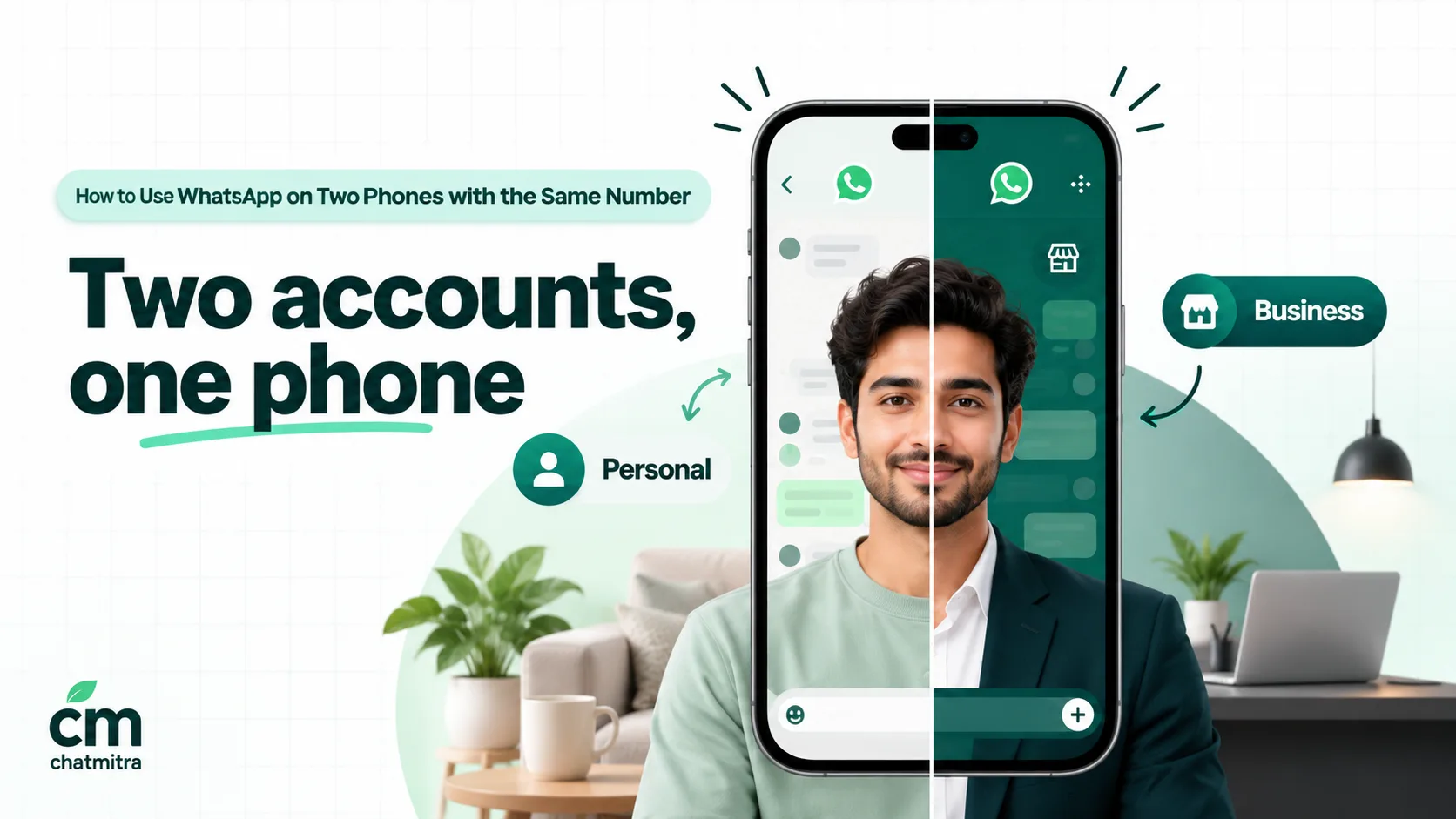
The reverse setup is useful if you carry a work number and a personal number but only want one handset. You need two phone numbers, either two SIMs, a dual-SIM phone or an eSIM. WhatsApp is tied to the number, not the SIM slot, and one account can’t hold two numbers.
Option 1: two accounts in WhatsApp. Android got this in October 2023 (Meta newsroom), and WhatsApp brought it to iPhone in March 2026: “You can now have two WhatsApp accounts logged in at the same time on iOS—just like on Android” (WhatsApp blog).
- Open WhatsApp and go to Settings.
- Tap the arrow next to your name, then Add account.
- Verify the second number by SMS, as you would on a new phone.
- Switch between accounts from the same menu. Each account has its own chats, notifications and privacy settings.
Limits: “This feature supports a maximum of two accounts”, account switching “isn’t currently available on the WhatsApp Business app”, and on iPhone a secondary account can’t connect a payment method yet (WhatsApp Help Center).
Option 2: WhatsApp and WhatsApp Business side by side. Install both apps and register each with a different number: personal on WhatsApp, work on WhatsApp Business. This is the usual choice for shop owners and freelancers, because the work number gets the business profile, catalogue, labels and away messages (WhatsApp Business app features). One number can’t run in both apps at once: “You can’t use the same phone number with each app simultaneously, but it is possible to move between them.”
Skip the clone apps
Before the official options existed, people used app cloners and modified apps to get a second account. Don’t. WhatsApp names “GB WhatsApp, FM WhatsApp, TeleMessage, TM WhatsApp” as examples of unofficial apps and warns that users “might also be temporarily or permanently banned”, or face restrictions “including the ability to link devices” (WhatsApp Help Center, unofficial apps). For a business number, a ban means customers can’t reach you until it’s resolved.
Troubleshooting
| Problem | Likely cause | Fix |
|---|---|---|
| No “Link as companion device” option | WhatsApp is out of date, or the phone already has a registered account | Update the app. Remove the existing account, or use Add account for a second number instead |
| iPhone asks for a phone number | That’s the default first screen | Tap Use a different number, then use the menu to choose Link as companion device |
| The QR code won’t scan | Brightness, glare or an expired code | Raise the second phone’s brightness, avoid reflections, and wait for a fresh code |
| You can’t link another device | Four devices are already linked | On the main phone, open Linked devices and log out one you no longer use |
| The second phone was logged out | The main phone wasn’t used for more than 14 days, or the linked phone was idle for 30 | Open WhatsApp on the main phone, then link the second phone again |
| Old chats are missing | Only recent history syncs | Read older messages on the main phone; restore its backup if needed |
| Calls don’t ring on every phone | More than four devices are linked (multi-agent) | Calls go to the main phone only above four devices |
| Can’t send a broadcast from the second phone | Broadcast lists aren’t supported on linked devices | Send broadcasts from the main phone |
| Notifications are late | Battery saving is pausing WhatsApp | Exclude WhatsApp from battery optimisation (Android) or turn on Background App Refresh (iPhone) |
Tablets and computers count too
The four linked-device slots aren’t reserved for phones. Many people who search for a “second phone” actually want WhatsApp on a tablet or a laptop, and these follow slightly different rules.
- iPad. The WhatsApp app for iPad launched in May 2025 and links to your phone like a companion, syncing up to a year of history (WhatsApp Help Center, iPad). It needs iPadOS 15.1 or later. In July 2026 WhatsApp added the option to register an account directly on an iPad (WhatsApp blog), though some help pages still describe the iPad as a linked device only.
- Android tablet. You can link it to your phone, which syncs up to two years of recent history, or register it as its own account with its own number (WhatsApp Help Center, Android tablets).
- Computers. WhatsApp Web in a browser and the desktop apps for Windows and Mac are linked devices. They take one of the four slots each, and they can never become the main device.
A practical split for one person: the main phone in your pocket, a second phone or tablet at home, and WhatsApp on your work computer. That uses three of the four slots and leaves one spare.
Setups that work in real life
A work phone and a personal phone, one account. Many people carry a company phone and a personal one but use a single WhatsApp number. Keep the account registered on the phone you always carry, and link the other as a companion. Remember that live location and broadcast lists stay on the main phone, and that leaving the main phone unused for more than 14 days logs the companion out.
A shop owner and one assistant. The owner’s phone stays the main device. The assistant’s phone is linked as a companion, and WhatsApp Web runs on the billing counter’s computer. Agree a simple rule using labels: the assistant handles “order status” chats and the owner handles “new enquiry” and “complaint” chats. Broadcasts to regular customers go from the owner’s phone.
A freelancer with two numbers. Use one dual-SIM phone. Put the personal number in WhatsApp and the work number in the WhatsApp Business app, so clients see a business profile with hours and a catalogue, while friends and family stay in a separate app. Add the work account to WhatsApp Web on your laptop for longer replies.
A business with several branches. Each branch wants its own staff answering, but customers know one number. Linked devices top out quickly here (four, or about 10 with multi-agent), and every branch sees every other branch’s chats. This is the point to move to a team inbox, with tags for each branch.
Two phones for a business team
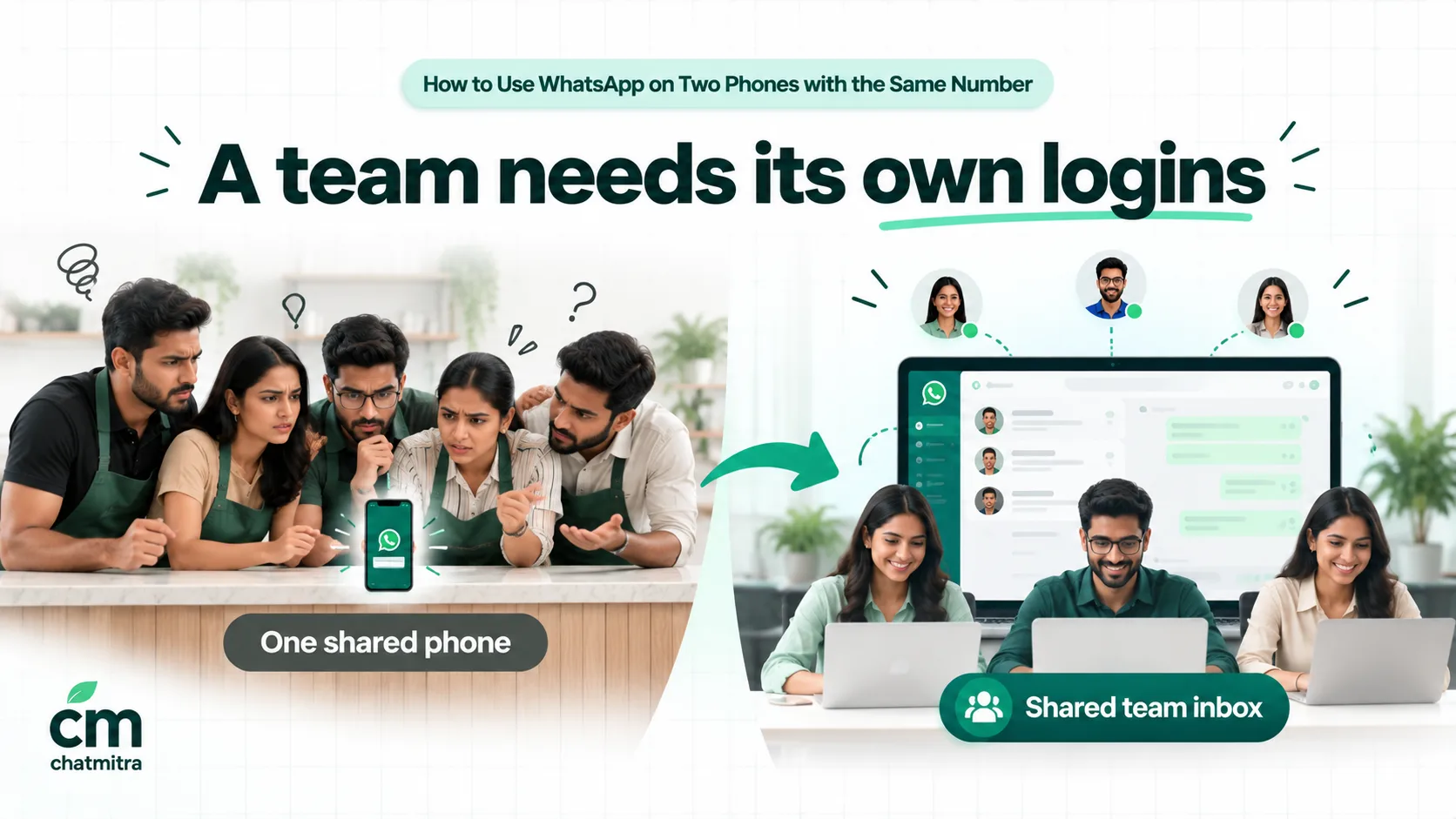
Linking a second phone is a good fix for a small business: the owner keeps the main phone and a manager or shop assistant answers from a second one. A third device, such as WhatsApp Web at the counter, works too. The problems start as the team grows, because linked devices are windows into one shared account, not separate logins.
| What a growing team needs | Linked devices on the Business app | WhatsApp Business Platform with a team inbox |
|---|---|---|
| More than five people answering | Capped at four linked devices, or about 10 with multi-agent | No device cap from Meta; your provider sets the user limit |
| Separate logins and permissions | No. Everyone on a device sees every chat, label and catalogue item | Yes, per user |
| Knowing who replied | Not on the free app; multi-agent shows which agent or device sent a message | Depends on the provider |
| A staff member leaves | Log their device out, then hope nothing was forwarded or deleted | Remove their user |
| The owner’s phone is off for two weeks | Every linked device logs out | No phone involved |
| Automated confirmations and reminders | Not possible | Templates, automations and an API |
| Cost | Free (multi-agent needs a subscription) | Meta charges per template; service replies have a free monthly tier |
Rules of thumb:
- One or two people: the free Business app on a main phone plus one companion phone is enough.
- Three to five people: link the rest as devices, agree who handles which customers using labels, and log devices out when people leave.
- More than five, or any need for automation: move to the WhatsApp Business Platform.
Keeping the WhatsApp Business app and adding a team inbox
You don’t have to give up the app to get a team inbox. With coexistence, a number can stay in the WhatsApp Business app and connect to the WhatsApp Business Platform at the same time. Meta’s onboarding rules matter for anyone using two phones: when the number is connected, “all companion apps will be unlinked”, and you then re-link them. All companion devices are supported except WhatsApp for Windows and WhatsApp for Wear OS (Meta, onboarding Business app users). Broadcast lists in the app become read-only, so bulk sends move to campaigns.
What it costs to move a small team to an inbox
On the WhatsApp Business Platform, Meta charges per delivered template message by category, and replies within 24 hours of a customer’s message are service messages: the first 1,000 a month are free, then ₹0.115 each in India. Take a clinic where three receptionists answer about 1,500 patient chats a month and send 400 appointment reminders:
| Item | Calculation | Per month |
|---|---|---|
| Meta, service replies | 1,000 free, then 500 × ₹0.115 | ₹57.50 |
| Meta, reminders (utility templates) | 400 × ₹0.115 | ₹46.00 |
| ChatMitra, Starter plan | about 1,900 conversations × ₹0.20 | ₹380.00 |
| Total | ₹483.50 |
A conversation is counted once per customer per 24 hours, however many messages are exchanged. On Pro (₹999 a month), 1,000 conversations a month are included. Try your own numbers in the WhatsApp pricing calculator.
Setting it up with ChatMitra
- Ask ChatMitra support to enable coexistence onboarding if you want to keep the app, then connect the number.
- Re-link your companion phones once the number is connected (not WhatsApp for Windows or Wear OS).
- Add team members in ChatMitra, each with their own login and permissions per section, so a sales assistant can use the inbox without seeing settings or exports. There’s no limit on team members.
- Reply from the shared inbox on the web or the Android app. Messages you send from the WhatsApp Business app also appear in the inbox, so the conversation record stays complete. Chat history from before you connected isn’t imported.
- Split the work with tags, such as by branch or product, since ChatMitra has no chat assignment.
- Automate the routine with approved templates for order updates and reminders, and on Pro, keyword auto-replies and an away message.
| Advantage | What it means |
|---|---|
| Unlimited team members on one number | No four-device ceiling, and each person has their own login |
| Permissions by section | Staff get the inbox; the owner keeps settings, exports and templates |
| Coexistence | Keep the WhatsApp Business app on the same number while the team uses the inbox |
| Starter is free | Meta’s rates at cost plus ₹0.20 per conversation (once per customer per 24 hours) |
Good to know: ChatMitra has no chat assignment or per-agent reply record, so agree who answers what using tags. The mobile app is on Android only, and push notifications go to the account owner’s devices, so other team members should keep the web inbox open. Login is by password, without two-step verification. Coexistence doesn’t bring over your older chat history. See ChatMitra pricing for plan details.
Is it safe to use WhatsApp on two phones?
Yes, as far as WhatsApp itself is concerned: each linked device is end-to-end encrypted on its own, and linking needs the main phone to be unlocked and to scan a code shown on the new device. The real risk is physical. A companion phone has the whole account on it, so anyone who picks it up unlocked can read, send and delete messages as you. For a business number, that includes every customer conversation.
A safety checklist for any shared number
- Review Linked devices every month on the main phone, and log out anything you don’t recognise or no longer use.
- Log out a device the day a staff member leaves. On the free app, that phone can read every chat until you do.
- Lock every linked phone with a PIN or fingerprint. Anyone holding an unlocked companion phone has the business’s whole WhatsApp.
- Turn on two-step verification on the main phone (Settings > Account > Two-step verification), so nobody can register your number elsewhere with a stolen SMS code.
- Keep the main phone in regular use. Open WhatsApp on it at least once a week to avoid the 14-day logout.
- Back up from the main phone. Linked phones don’t hold the full history.
- Never install modified WhatsApp apps on a business phone.