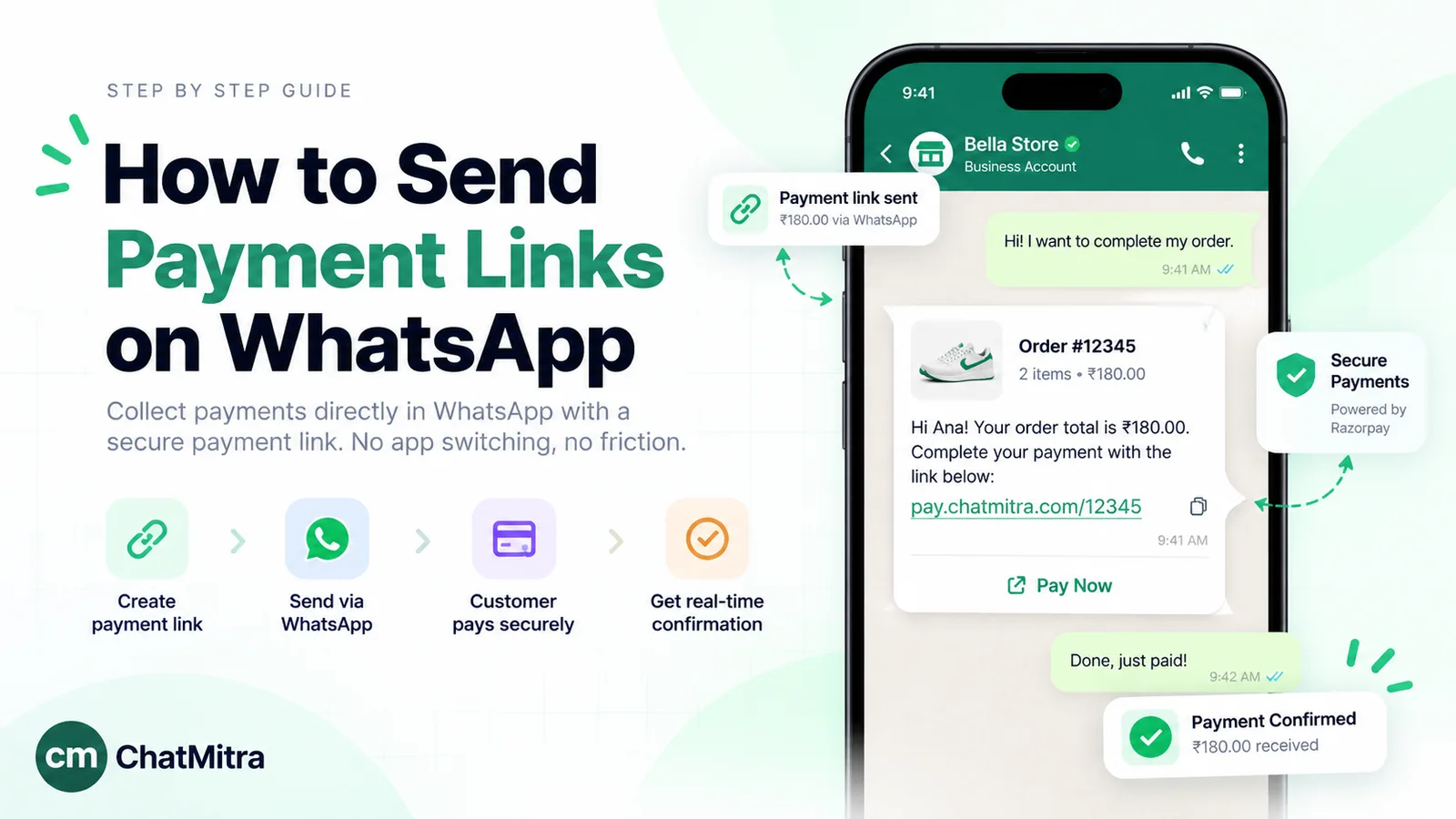
To send a WhatsApp payment link, create the link in your payment gateway (Razorpay, Cashfree, PayU, Stripe or PayPal) with the amount, a description and an expiry, then send it in the chat with one line explaining it. On the WhatsApp Business Platform, once a day has passed since the customer last wrote, the link has to travel in a Meta-approved template, usually as a URL button. Confirm payment from the gateway, not a screenshot.
Getting paid is often the step where WhatsApp sales slow down. The customer has said yes, and now needs a clear, safe way to pay without hunting for your bank details. This guide covers creating the link, sending it from the app and through the API, the template rules that decide whether it arrives, the newer payment cards Meta offers in India, copy-ready messages, and what to do after the customer pays.
Key takeaways
- WhatsApp carries the link. The gateway handles the payment and tells you when it's done.
- On the API, the 24-hour window decides between a plain message and an approved template.
- Treat the gateway's confirmation as the source of truth, and always send a receipt.
What is a WhatsApp payment link?
A WhatsApp payment link is a URL for a hosted checkout page, created by a payment gateway or bank, that you send to a customer on WhatsApp. The customer taps it, pays on the gateway’s page by UPI, card, net banking or wallet, and the gateway records the payment against that link.
It’s one of four ways to collect money through WhatsApp, and they’re often confused:
| Method | What the customer sees | Where it works | Best for |
|---|---|---|---|
| Payment link from your gateway | A link or button that opens a checkout page | Anywhere; any WhatsApp account | Most businesses, any amount, any country your gateway supports |
| Payment QR code in the WhatsApp Business app | A QR code shared in the chat | India, small businesses on the Business app | Shops and services paid in person or in chat |
| Enhanced Payment Links (Meta) | A payment card with the amount and a Pay Now button | India, Business Platform, Razorpay, PayU or Cashfree, account enabled by Meta | Businesses already sending gateway links at volume |
| Payments API order details (Meta) | An invoice-style message with a review-and-pay button | India (and Brazil), Business Platform, supported gateways | Fixed-price orders and tickets with a fully integrated checkout |
“WhatsApp Pay” is a different thing again: the UPI payments feature inside the regular WhatsApp app, which WhatsApp describes as a way to “send and receive money right where you chat” (WhatsApp, payments in India). It isn’t how a business sends payment links.
The rest of this guide is about the first row, the method almost every business can use today, and how the Meta features in rows three and four build on it.
How to create a payment link
Every major gateway follows the same pattern. The labels differ, but the steps are these:
- Open Payment Links in your gateway’s dashboard, or use its API if you’ll create links in bulk.
- Enter the exact amount and currency. Round figures cause fewer questions than “₹1,999.50 incl. charges”.
- Describe it in the customer’s words: “Order #4821: 2 cotton kurtas” beats “Payment”.
- Add the customer’s name and number if the gateway lets you, so the payment is easy to match later.
- Set an expiry. Razorpay, for example, lets you “set due dates for Payment Links after which the links expire” (Razorpay, payment links).
- Decide on partial payment. Useful for advances and deposits. Razorpay lets customers “make partial payments” and lets you set the first instalment.
- Add your own reference ID (order or invoice number), so the gateway’s webhook can tell your system which order was paid.
- Create the link and copy it.
Single-use or reusable? Decide before you create it. Stripe’s documentation draws the line clearly: an invoice is for “specific individuals or businesses”, while a payment link can be used by “anyone with the link” and re-used “multiple times with multiple customers” (Stripe, payment links). Use a single-customer link or invoice for anything tied to one order. Keep reusable links for fixed-price products, deposits or donations, where it doesn’t matter who pays.
UPI-only links. If your customers mostly pay by UPI, some gateways offer a UPI-only link. Razorpay documents both “Standard Payment Links and UPI Payment Links” (Razorpay, create payment links), and says customers paying through its payment links can use “Card, UPI, NetBanking, Wallet, EMI, Pay Later and Bank Transfer”.
Outside India, the same approach works with Stripe, PayPal or any gateway that issues hosted links. Check the currencies and payment methods your gateway supports in each country.
Which kind of link for which situation?
The right link depends on who pays and how often. This is our rule of thumb:
| Situation | Link to use | Why |
|---|---|---|
| One customer, one order or invoice | Single-use link with the order number as reference, short expiry | Reconciles itself; can't be paid twice by mistake |
| Booking advance or deposit | Single-use link, partial payment switched on if the balance is also collected online | The deposit and balance stay on one record |
| Fixed-price product, workshop seat or donation | Reusable link | One link works for everyone; sales are counted by the gateway |
| Monthly fees or subscriptions | The gateway's subscription or recurring-payment product | Customers approve once instead of paying a new link each month |
| Customer standing at your counter | A payment QR code | Faster than typing a number or opening a link |
| Customer paying from abroad | A gateway link that supports their currency and cards | Local UPI or wallets may not be available to them |
How to send a payment link from the WhatsApp Business app
For a small team replying by hand, the routine is short:
- Create the link as above.
- Open the customer’s chat and write the context first: what it’s for, the amount and the due date.
- Paste the link on its own line, starting with
https://, so WhatsApp shows it as tappable. - Say what happens after payment: “We’ll dispatch within 24 hours and send the tracking link here.”
- When the gateway shows the payment as captured, reply with a confirmation and a receipt.
In India, there’s also a built-in option. Meta announced in September 2025 that small businesses “can now quickly share QR codes in one tap for fast and efficient sales closures, enabling customers to pay directly within WhatsApp using their preferred payment method” (Meta, September 2025). A QR code suits customers who are in front of you or paying a known amount. A gateway link suits invoices, deposits and anything you need to reconcile automatically.
The Business app has limits at scale: every link is created and matched by hand, one chat at a time. Once you’re sending dozens a day, the Business Platform and a tool that fills links automatically start to pay off.
How to send payment links on the WhatsApp Business Platform
On the Business Platform (the API), one rule decides how you send: the customer service window. Meta explains that “when a WhatsApp user messages you or calls you, a 24-hour timer called a customer service window starts,” and that once it closes, “you can only send pre-approved template messages” (Meta, send messages).
Inside the window (the customer wrote to you in the last 24 hours), you can reply with a normal text message containing the link, or with a call-to-action URL message that shows a button instead of the raw URL. Our guide to WhatsApp interactive messages covers the CTA URL format.
Outside the window, you need an approved template. The cleanest design puts the link in a URL button:
Building the payment template
- Body: name the customer, the order or invoice number, the amount and the due date, all as variables. For example: “Hi {{1}}, your invoice {{2}} for {{3}} is ready. Please pay by {{4}} using the button below.”
- Button: add a URL button labelled “Pay now”. Meta says URL buttons support “1 variable, appended to the end of the URL string”, and “templates are limited to two URL buttons” (Meta, template components). So enter your gateway’s fixed prefix, then the variable, such as
https://rzp.io/rzp/{{1}}. - Samples: give a realistic sample value for every variable, including the link’s ending, or Meta won’t approve the template. Our explainer on template elements covers variables and samples in more detail.
- At send time: pass only the variable part (the link ID) for the button. Meta warns that special characters in button parameters must be percent-encoded, because “unencoded special characters can cause the generated URL to fail validation”.
- Header: leave it out if you want to qualify for Enhanced Payment Links (below). Otherwise a text header such as “Payment due” is fine.
If your gateway’s links don’t share a fixed prefix, or you wrap them in your own domain, use your own stable prefix, such as https://pay.yourdomain.com/{{1}}, that redirects to the gateway link.
Utility or marketing?
The category decides the price and whether per-person marketing limits apply. Meta’s utility test has two parts: the template “must be non-promotional, not containing any promotional or persuasive intent”, and must be “specific to or requested by the user”, such as their order, account or transaction (Meta, template categorisation).
| Message | Likely category | Why |
|---|---|---|
| "Your invoice #4821 for ₹6,400 is ready. Pay by 12 March." | Utility | Specific to the customer's transaction, no persuasion |
| "Your booking is held until 6 PM. Pay the ₹2,000 advance to confirm." | Utility | Completes a booking the customer asked for |
| "Pay now and get 10% off your next order!" | Marketing | Contains an offer |
| "Your plan expires soon. Renew today to keep saving." | Marketing | Meta lists attempts "to renew subscriptions" under marketing |
| "You left items in your cart. Complete payment here." | Marketing | Meta treats cart reminders as retargeting, "marketing even if requested by users" |
In India, since 1 October 2026, Meta charges ₹0.1150 per delivered utility template and ₹0.8631 per marketing template, and normal replies inside an open window count as service messages, with 1,000 free per business number each month (Meta, pricing). Sending 500 invoice links as utility templates costs 500 × ₹0.1150 = ₹57.50 in Meta charges, before your provider’s fee. Our Cloud API pricing guide explains the rest.
Enhanced Payment Links: a Pay Now card instead of a plain link (India)
Meta has a newer option that upgrades an ordinary gateway link. It “transforms existing payment gateway URLs into rich, native payment experiences within WhatsApp”. When a supported link is sent in a template, it “automatically renders as a structured payment bubble” showing the amount and currency and a “Pay Now” button, with checkout by UPI app or a hosted payment page (Meta, Enhanced Payment Links).
What Meta requires, per its documentation:
- An enabled account. “This feature is not publicly available yet.” Your messaging account must be allowlisted through your solution partner or Meta, with a sample link and your preferred gateway.
- A supported gateway: Razorpay, PayU or Cashfree.
- A compliant template: no header, and “exactly one dynamic URL button with a supported PG link prefix”. Meta’s requirements table only rules out a media header, but its limitations list says “No header components allowed” and “Single button required”, so leave the header out entirely. For Razorpay, the listed prefixes are
https://rzp.io/rzp/andhttps://rzp.io/i/. PayU and Cashfree have their own. - A live, direct link: from the production environment, active and unexpired. Links “wrapped” under your own domain or redirected from a hosted page won’t render as a card.
What you gain: Meta says the card updates itself when the payment completes or expires, and “disables the ‘Pay Now’ button to prevent duplicate payments”. Your gateway’s webhooks and reconciliation don’t change. What to check: Meta says “enhanced rendering depends on recipient’s WhatsApp version”, so the template’s text must make sense without the card.
Meta’s Payments API and order details messages
For a fully integrated checkout, Meta’s Payments API in India lets businesses “accept payments from your customers through all UPI apps installed on their devices and other payment methods such as cards, NetBanking, and wallets via WhatsApp” using invoice (order_details) messages. Meta offers two integration models: UPI Intent mode, for “any payment gateway that supports UPI Intent generation”, and a deeper integration “currently supported for Razorpay, PayU, Billdesk, and Zaakpay only” (Meta, Payments API India).
Payment links fit inside this too. Meta’s payment-links integration for India uses the gateway link inside an order_details message: the business generates the link “by providing the unique ‘reference-id’ and other information like amount and validity”, and the customer pays in an in-app browser. Meta marks that integration “not publicly available yet” (Meta, payment links (India)). In Brazil, Meta documents a similar payment-links flow, where “WhatsApp only facilitates the communication between merchants and buyers” (Meta, payment links (Brazil)).
The deeper integration also brings payment status and refunds into WhatsApp’s own APIs, which UPI Intent mode doesn’t. Whichever route you pick, you need a provider and gateway that support it. For most businesses, a template with a URL button is the practical starting point, with Enhanced Payment Links as the upgrade. For online stores, our WhatsApp for ecommerce guide covers where checkout fits in the wider customer journey.
Payment link message examples
Each of these can be sent as a free-form reply inside the 24-hour window, or turned into a template with the link in a URL button. The square brackets are your variables.
1. Product order (after the customer confirms)
Hi [Name], thanks for confirming. Your order [#number] comes to [amount] including delivery. You can pay securely here: [link]. We’ll pack it as soon as the payment comes through.
2. Service advance or booking deposit
Hi [Name], your [service] on [date] at [time] is held for you. To confirm it, please pay the [amount] advance here: [link]. The balance is due on the day.
3. Invoice for a completed job
Hi [Name], invoice [#number] for [work done] is ready. Amount: [amount], due by [date]. Pay by UPI or card here: [link]. Reply here if anything on the invoice looks wrong.
4. Payment reminder (polite, factual)
Hi [Name], a reminder that invoice [#number] for [amount] is due on [date]. You can pay here: [link]. If you’ve already paid, please ignore this message.
5. A payment that didn’t go through
Hi [Name], it looks like the payment for order [#number] didn’t complete, and no money was taken. You can try again here: [link]. The link is valid until [time].
6. Cash on delivery to prepaid (no incentive)
Hi [Name], your order [#number] is set to cash on delivery. If you’d rather pay online now, you can use this link: [link]. Otherwise, no action is needed.
7. Event or class ticket
Hi [Name], your seat for [event] on [date] is reserved until [time] today. Complete your [amount] payment here to confirm: [link].
8. B2B invoice with partial payment
Hello [Name], invoice [#number] for [amount] is attached. As agreed, you can pay [first instalment] now and the rest by [date] using this link: [link]. Our bank details are also on the invoice if you prefer a transfer.
9. International customer
Hi [Name], your order [#number] total is [currency amount]. You can pay by card or [local method] here: [link]. Your bank may show the charge as [merchant name].
10. Payment received
Hi [Name], we’ve received [amount] for order [#number]. Thank you! Your receipt is here: [receipt link]. We’ll update you when it ships.
Examples 1 to 5, 7, 8 and 10 are tied to the customer’s own order or booking, so as templates they’re candidates for utility. Example 6 stays utility only if you don’t add a discount or cashback. With one, it’s marketing. For longer reminder sequences, see our WhatsApp reminder messages guide. For order confirmations and COD, see these order confirmation message examples.
After the customer pays: confirm and reconcile
A payment link is only half the job. The other half is knowing, reliably, that it was paid.
- Use the gateway’s webhooks. Razorpay sends
payment_link.paidwhen a link “is successfully paid”, pluspayment_link.partially_paid,payment_link.expiredandpayment_link.cancelled(Razorpay, payment link webhooks). Other gateways have equivalents. - Match by reference ID, not by amount. Two customers can owe the same amount on the same day.
- Reply on WhatsApp with the amount received, the order number and a receipt. If the customer has messaged you in the last 24 hours, a normal reply works. Otherwise, use a utility template.
- Handle the other outcomes. For a partial payment, confirm the balance and due date. For an expired link, send a new link instead of reviving the old one. For a cancelled link, tell the customer it no longer works.
- Never accept a screenshot as proof. Screenshots are easy to fake or reuse. Check the gateway.
Keeping payment links safe
Customers are rightly wary of links asking for money: “fake payment link” gets about 140 searches a month in India, according to SE Ranking. A few habits protect your customers and your reputation:
- Use the gateway’s own domain where you can. Customers learn to recognise it, and Enhanced Payment Links needs it anyway. Avoid generic link shorteners.
- Always state the amount and the reason in the message, so a customer can spot a mismatch before paying.
- Send from your verified business number with a complete business profile, and tell customers which number you’ll use for payments.
- Never ask for OTPs, card numbers, CVVs or UPI PINs in chat. A legitimate checkout collects these on the payment page or in the customer’s own UPI app.
- Set short expiries on order-specific links, and cancel links you’ve replaced.
- Keep single-customer links single-use. Don’t forward one customer’s link to another.
How to automate payment links with ChatMitra
ChatMitra doesn’t create payment links and has no built-in payment-link integration with your gateway, so the link always comes from your gateway, your spreadsheet or your own system. What it does is put the right link in the right customer’s WhatsApp message:
- From the inbox: when you send a template with a dynamic URL button, the send screen asks for the button’s value. Paste the customer’s link ID and send.
- From a Google Sheet or webhook: the automation’s “send template” step can fill a URL button’s value from a sheet column or webhook field, written as
{{Column}}, so each row gets its own link. A condition step can skip rows marked as paid. - From your own system: on the Pro plan, per ChatMitra’s pricing page, the REST API sends templates with a URL-button parameter, so your billing system can send each link the moment it’s created.
The template builder accepts one variable at the end of a URL button, as Meta requires, so you can build a template to the Enhanced Payment Links shape: no header, and a single dynamic URL button with your gateway’s prefix. Whether it renders as a payment card depends on Meta enabling your account, and we haven’t tested that with ChatMitra.
What it doesn’t do: it doesn’t show payment status or reconcile payments. The campaign screen’s button field also has no contact-attribute picker, so for a different link per customer, use the Sheet or webhook automation or the API, and keep broadcasts for a shared checkout link. If you need link creation, reminders and reconciliation in one place, billing software with its own WhatsApp sending, or the gateway’s own tools, may fit better. For wider automation ideas, see our WhatsApp automation guide, and for the full sales process, our guide to WhatsApp for sales. To try it, compare ChatMitra’s plans.
Mistakes to avoid
- Sending a bare link. Without the amount and the reason, the customer can’t tell a real request from a scam.
- Using one reusable link for order-specific payments. You won’t know who paid for what.
- Putting a discount in a payment template. It becomes marketing, costs more and is subject to per-person marketing limits.
- Forgetting the 24-hour window. A plain text link to a customer who last wrote three days ago won’t send on the API.
- Trusting screenshots. Always confirm in the gateway.
- Not closing the loop. No confirmation leads to “did you get my payment?” messages and repeat payments.
- Wrapping links for Enhanced Payment Links. Wrapped or redirected links won’t render as a card.
Troubleshooting payment links on WhatsApp
The link isn’t tappable. Put it on its own line, starting with https://, with no spaces. On the API, move it into a URL button.
The template was rejected. Check that the URL variable is at the very end, that every variable has a realistic sample, and that the body doesn’t start or end with a variable. If it was approved as marketing, remove promotional words and tie the text to a specific order or invoice.
The button opens a broken page. The value you passed at send time probably contains characters that weren’t percent-encoded, or duplicates part of the prefix. Pass only the link ID.
The Pay Now card doesn’t appear. Confirm that your account is enabled for Enhanced Payment Links, that the template has no header and only one button, a dynamic URL button, that the link is live, unexpired and direct from Razorpay, PayU or Cashfree, and that the customer’s WhatsApp is up to date.
The customer says they paid, but there’s no webhook. Search the gateway dashboard by reference ID, phone number or amount. Check your webhook endpoint’s logs, then confirm or ask for the transaction reference before shipping.
Sources: Meta's WhatsApp Business Platform documentation (send messages, template components, template categorisation, pricing and the India INR rate card, Payments API India, payment links for India and Brazil, Enhanced Payment Links); Meta's September 2025 India announcement; WhatsApp's India payments page; Razorpay's payment links, creation and webhook documentation; and Stripe's payment links documentation. All are linked above. Facts checked against Meta's, WhatsApp's, Razorpay's and Stripe's pages on 28 September 2026.