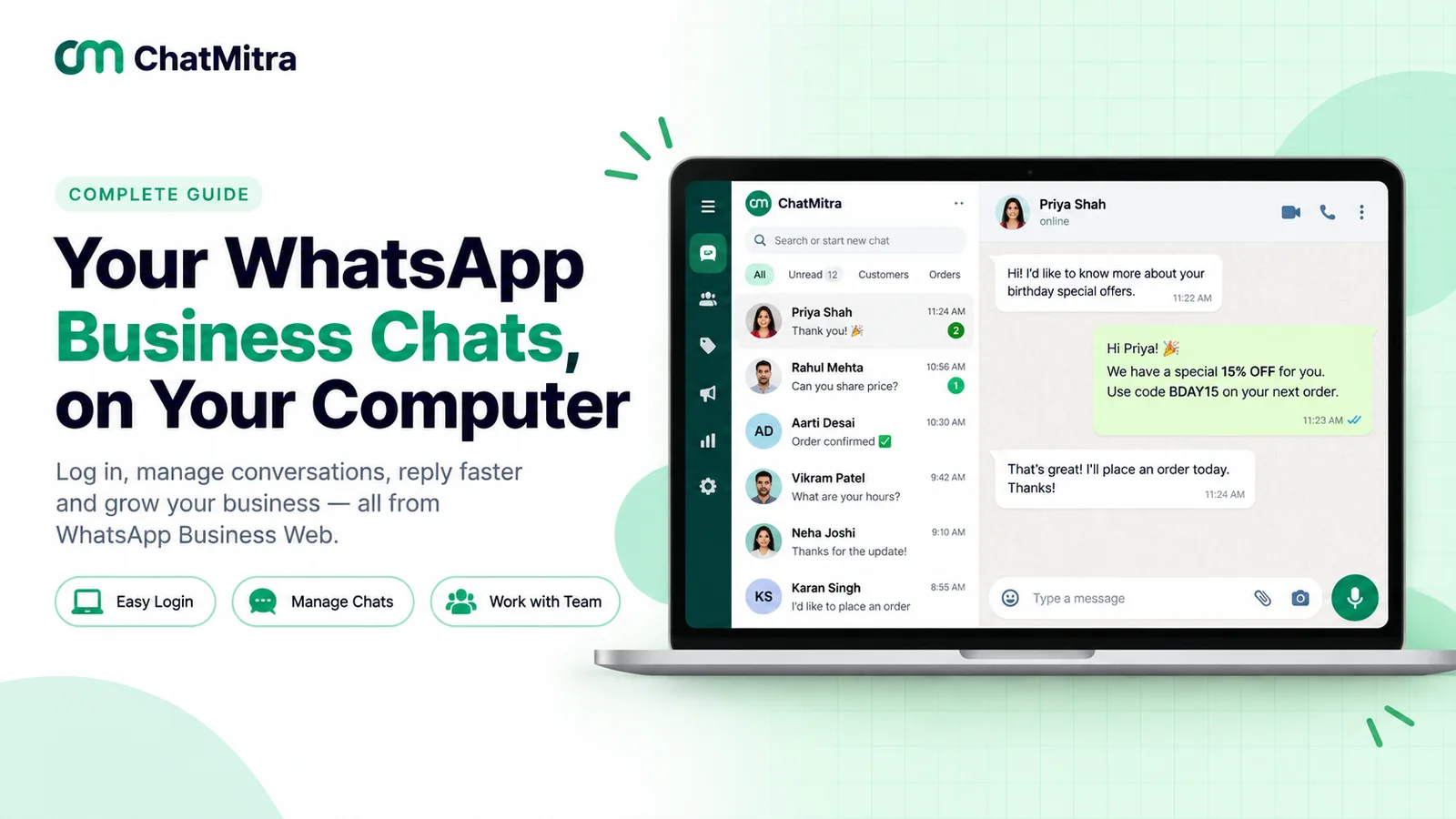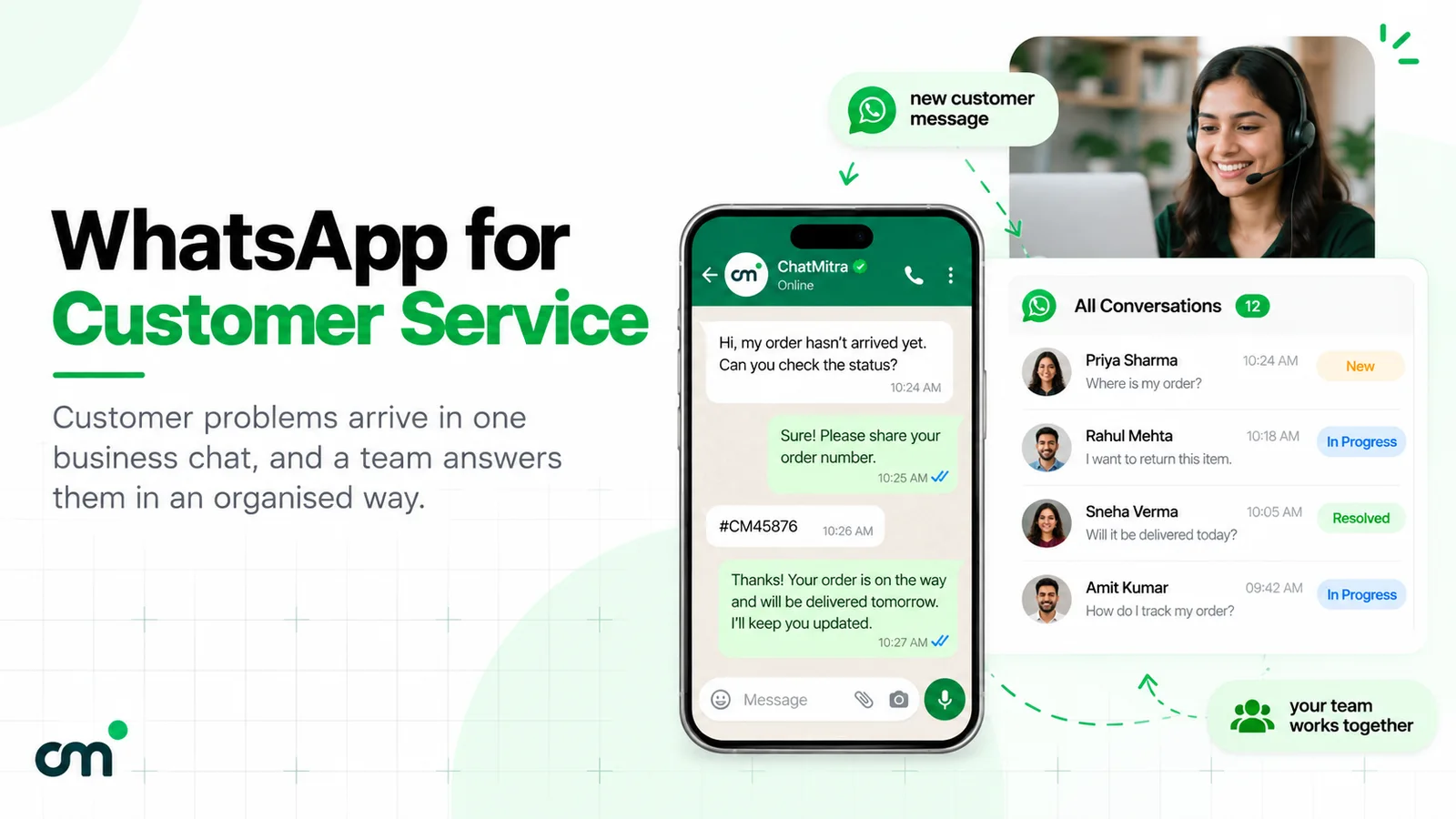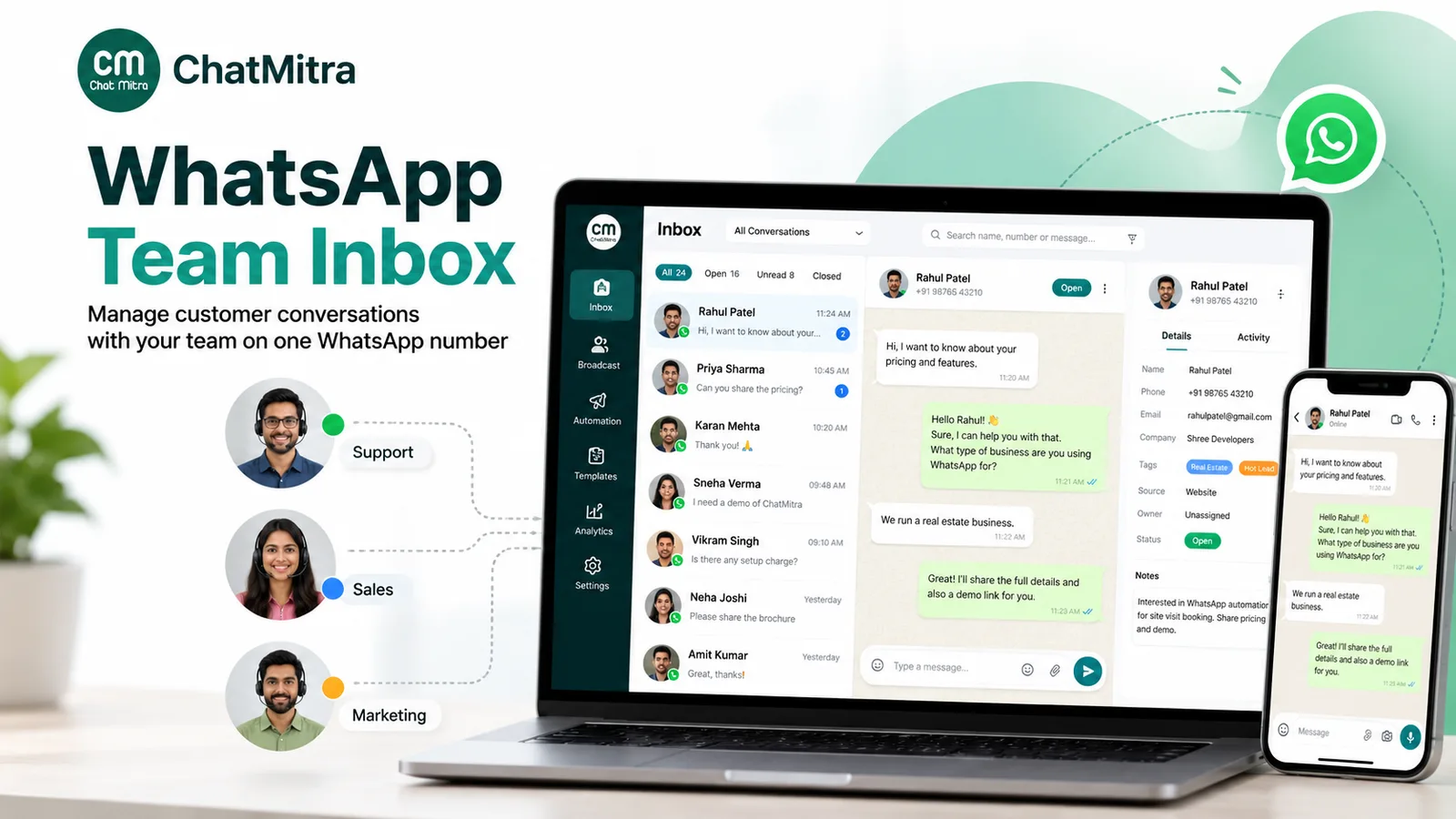
A WhatsApp team inbox is one business number that several people answer from a shared list of chats, each signed in as themselves. Every customer message lands in one place, any agent with access can reply, and the customer sees one ordinary chat with your business. It is what a business needs once one phone, passed between staff, stops keeping up.
Using ChatMitra? ChatMitra’s team inbox has no per-agent fee: add as many agents as you need, give each one access only to the numbers and sections they work on, and pay Meta’s rates plus ₹0.20 per conversation. Jump to setting it up.
What a team inbox is, and what it isn’t
Three things get confused with a team inbox:
- A WhatsApp group. Customers in a team inbox never see each other. Each one has a private chat with your business.
- Linked devices. These let more screens use one WhatsApp account. Everyone shares one identity and one chat list, and nobody can be given less than full access.
- Your personal WhatsApp on many phones. A team inbox is for a business number, and it works best on the WhatsApp Business Platform (the API), where the number lives in the cloud rather than on a phone.
The test is simple: can you add a new agent without handing over a phone, and remove one without touching anyone else’s access? If yes, it’s a team inbox.
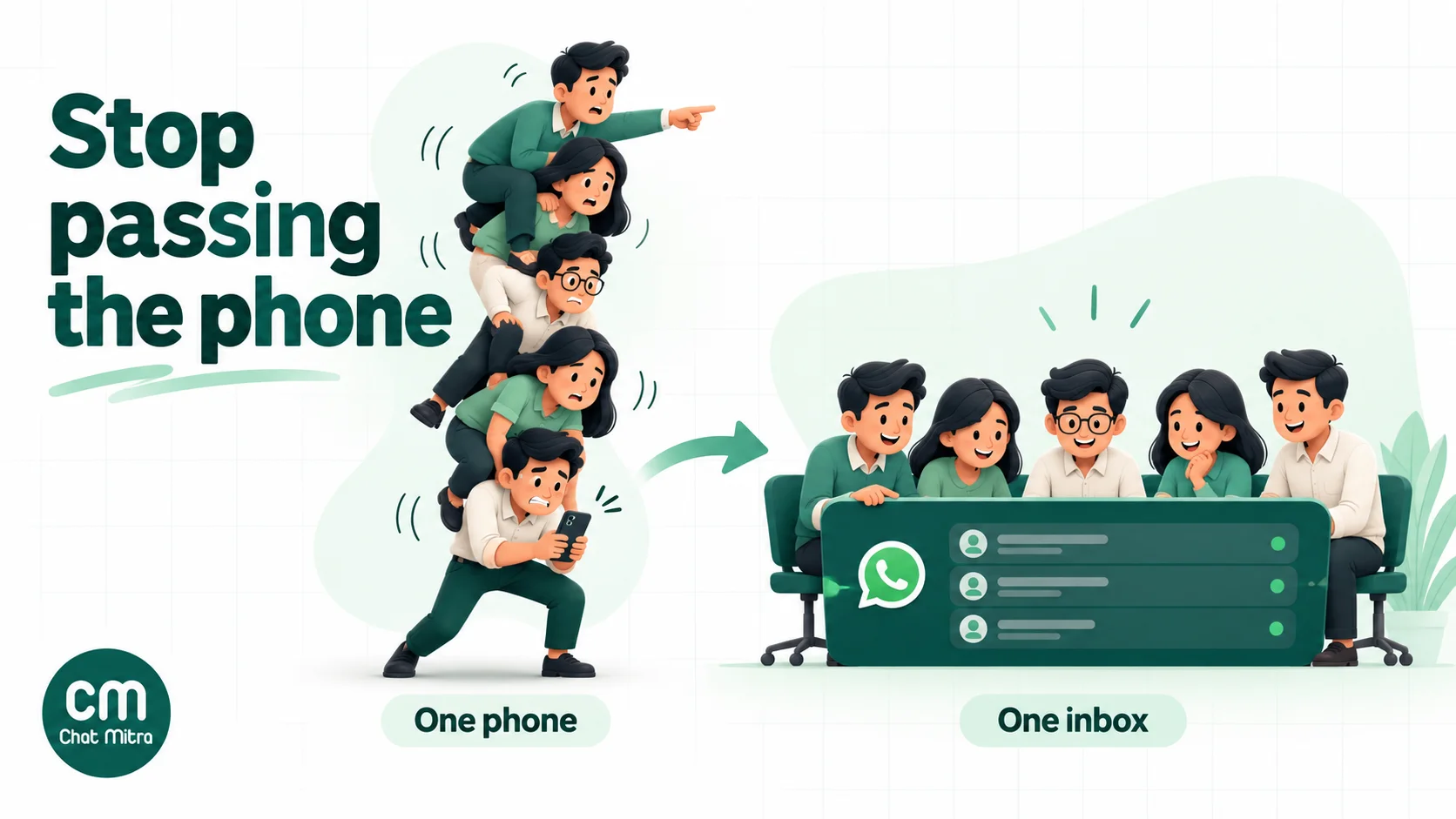
Three ways to share one WhatsApp number
| Route | How many people | What it costs | What you give up |
|---|---|---|---|
| WhatsApp Business app + linked devices | The phone plus 4 linked devices; up to 10 with Meta’s paid multi-agent feature | Free (multi-agent needs Meta Verified or Meta One) | No templates for contacting customers first, no automation beyond greeting and away messages, no per-person permissions |
| Meta Business Suite inbox | Team members you invite to your business portfolio | Free | No templates, chatbots or integrations; must open the app every 20 days |
| WhatsApp Business Platform + a provider’s team inbox (for example ChatMitra) | Whatever your provider allows; unlimited on ChatMitra | Provider plan + Meta’s per-message charges | The free WhatsApp Business app, unless you use Coexistence |
The WhatsApp Business app
WhatsApp’s help centre says you can use “up to four linked devices and one phone at a time”, and that linked devices “log out if your phone is unused for over 14 days”. Broadcast lists, live location and Status aren’t available on linked devices.
Meta’s paid multi-agent feature raises the limit to 10 devices and adds chat assignment, so an owner can assign a chat to an agent and see which device sent each message. It comes with a Meta Verified or Meta One subscription. Meta’s own page notes that the premium version “may not be available to you yet”, and Meta One is in limited testing, so check your app before planning around it. If the subscription lapses, only the four most recently active devices stay linked.
The app’s limit is not really the device count. It’s that every device is the same account: there are no separate logins, no permissions, and an agent who leaves still knows how to reach every customer until you unlink their device.
For the app-only setup, our WhatsApp Business Web guide covers linked devices in detail.
Meta Business Suite
Meta Business Suite’s inbox can manage a WhatsApp Business app number alongside Facebook and Instagram messages. Its help article describes “inviting multiple team members to help manage messages”. It syncs up to six months of individual chat history, doesn’t show groups or Status, and requires you to open the WhatsApp Business app at least once every 20 days. It isn’t offered in several countries, including the UK, the EU, Australia and South Africa. It’s a reasonable free step for a two- or three-person team answering chats, but it adds no templates, automation or integrations.
A WhatsApp Business Platform team inbox
On the API, your number is hosted by Meta and managed through a provider, so there is no phone to log out and no device limit. The provider’s inbox decides how many people can sign in, what each can see, and how chats are shared. This is also the only route that lets your team contact customers first with approved templates, and connect chats to your CRM or store.
The catch used to be losing the WhatsApp Business app. Meta’s Coexistence removes that: with app version 2.24.17 or later, a provider can connect the same number to the API while you keep the app. Messages sent from the app stay free and appear in the provider’s inbox, the number’s throughput is fixed at 20 messages per second, and broadcast lists in the app become read-only. On ChatMitra, messages you send from the app show up in the team inbox, but earlier chat history isn’t imported. Our Coexistence explainer has the details.
What a good team inbox has to do
Before comparing tools, list the jobs the inbox must do for your team. These are the ones that matter in practice:
- One login per person. So you can remove someone in seconds when they leave.
- Permissions by number and section. A support agent shouldn’t see broadcasts or billing; a branch agent shouldn’t see the other branch’s chats.
- Views that show what needs a reply. Unread and replied views, search, and filters by tag.
- Context on the customer. Tags, a note, order details and the full chat history in one panel.
- Fast, consistent answers. Saved quick replies and approved templates inside the chat screen.
- A guard on the 24-hour window. Free-form replies are allowed only within 24 hours of the customer’s last message, so the inbox should stop agents from typing into a closed window and offer a template instead.
- A clean bot-to-human handover. Pausing the chatbot for a customer while a person handles them.
- Ownership. Assignment, routing or at least a way to see who is handling a chat.
- Notifications that reach the person who needs to answer.
- Reporting on response times by agent, if you manage to targets.
No tool is perfect on all ten. Decide which three your team can’t work without, and test those first.
Where ChatMitra fits
ChatMitra is an official WhatsApp Business Platform provider for Indian businesses. Its team inbox is built around one rule: you don’t pay per person.
| ChatMitra advantage | What it means for a team | How the alternatives compare |
|---|---|---|
| Unlimited team members, no per-agent fee | Add part-timers, branch staff and seasonal help without a seat bill | Several providers charge ₹750 to ₹2,199 a month for each extra agent (see the cost section) |
| Permissions per number and per section | An agent gets View or Create on Chats for one project only, and nothing else | The free app gives every device full access |
| Several numbers under one account | Separate sales and support numbers, or one per branch, switched from the top bar | The app is one number per phone |
| Quick replies on ”/” and templates in the chat screen | Consistent answers without copy-paste | The app has quick replies but no templates for contacting customers first |
| 24-hour window guard | The composer tells agents the window has closed and offers a template | On the app, the 24-hour rule doesn’t apply, but nor do templates |
| Chatbot pause per customer | Pause automation for 30 minutes up to “until I turn it back on” while a person handles a chat | Bot-and-human handover varies widely between tools |
| Meta’s rates plus ₹0.20 per conversation on Starter and Pro, no platform fee on Enterprise | A conversation is charged once per customer per 24 hours, however many agents reply | Some providers add a markup to every service message |
Good to know: ChatMitra’s inbox doesn’t assign or route chats to agents, doesn’t show which agent sent a message, has no “someone else is typing” warning, and has no open or closed status for chats. Mobile push notifications go to the account owner only. The next sections show the working rules that cover these gaps.
How to set up a team inbox in ChatMitra
- Connect your number. Either a new number on the API, or your existing WhatsApp Business app number through Coexistence.
- Create each agent. In the sidebar, open Role and choose Create Agent. Enter the agent’s name, email and a password, then share the login with them privately. Use one login per person, never a shared one.
- Give the smallest access that works. For each project (number), tick the sections the agent needs. To answer customers, an agent needs View and Create on Chats. Leave broadcasts, templates and settings off unless the job needs them. Analytics, roles and project settings stay with the owner.
- Save your quick replies. Store answers to your ten commonest questions, so agents type ”/” and pick one instead of improvising prices or policies.
- Set your away message. Customers who write outside working hours should learn when someone will reply. Our away message examples have wording for different businesses.
- Agree tags before day one. For example
sales,support,owner-priya,waiting-on-customer. Tags only help if everyone uses the same ones. - Test with two agents. Send a message from a test phone, have both agents watch it arrive, and practise one taking ownership and the other leaving it alone.
When someone leaves, delete their agent login. Their past replies stay in the chat history.
How to stop two agents answering the same customer
Double replies are the commonest team-inbox complaint, and they happen in every tool: two people see the same unread chat, both type, and the customer gets two different answers. Assignment features reduce it. Habits prevent it.
If your inbox assigns chats, use it, and still set a rule for unassigned chats: who picks them up, and how fast.
If it doesn’t, as in ChatMitra today, use one or more of these:
- Split by number. A sales number on your ads and website, a support number on invoices and order messages. Give each team access only to its own project. This removes most collisions on its own.
- Tag to claim. Before replying to a new chat, add your owner tag. Anyone who sees an owner tag that isn’t theirs leaves the chat alone. Filter by your own tag to see your chats.
- Check Replied before Unread. In ChatMitra, read status is shared by the whole project: once one agent opens a chat, it’s no longer unread for anyone. An agent who sees a chat disappear from Unread should assume a colleague has it.
- Sign your name. Customers can’t see which agent replied, so a first name at the end of a message (”— Priya”) tells the customer who is helping, and tells the next agent who to ask.
- Hand over in writing. Before a shift ends, write the state of each open chat in the contact’s note: what was promised and what’s pending.
Handovers: from bot to agent, and from sales to support
Bot to agent. WhatsApp’s Business Messaging Policy allows automation inside the 24-hour window but says you “must also have available prompt, clear, and direct escalation paths”, such as a transfer to a human agent in the chat, a phone number, email or a support form. In practice: tell customers how to reach a person, and when a person takes over, pause the bot for that customer first. In ChatMitra, a human reply doesn’t pause the chatbot automatically; use Pause chatbot in the contact panel, or the bot may answer over your agent. Our guide to the WhatsApp AI agent covers when to automate and when to hand over.
Sales to support. Once a lead becomes a customer, change their tag from sales to support and add a note with the order or plan they bought. The support agent then starts with the context instead of asking the customer to repeat it. If sales and support use different numbers, tell the customer which number to message for help, in the welcome or order message.
The 24-hour window, for teams
Free-form messages (anything that isn’t an approved template) can only be sent within 24 hours of the customer’s last message. Every new customer message resets the clock. For a team this has two consequences.
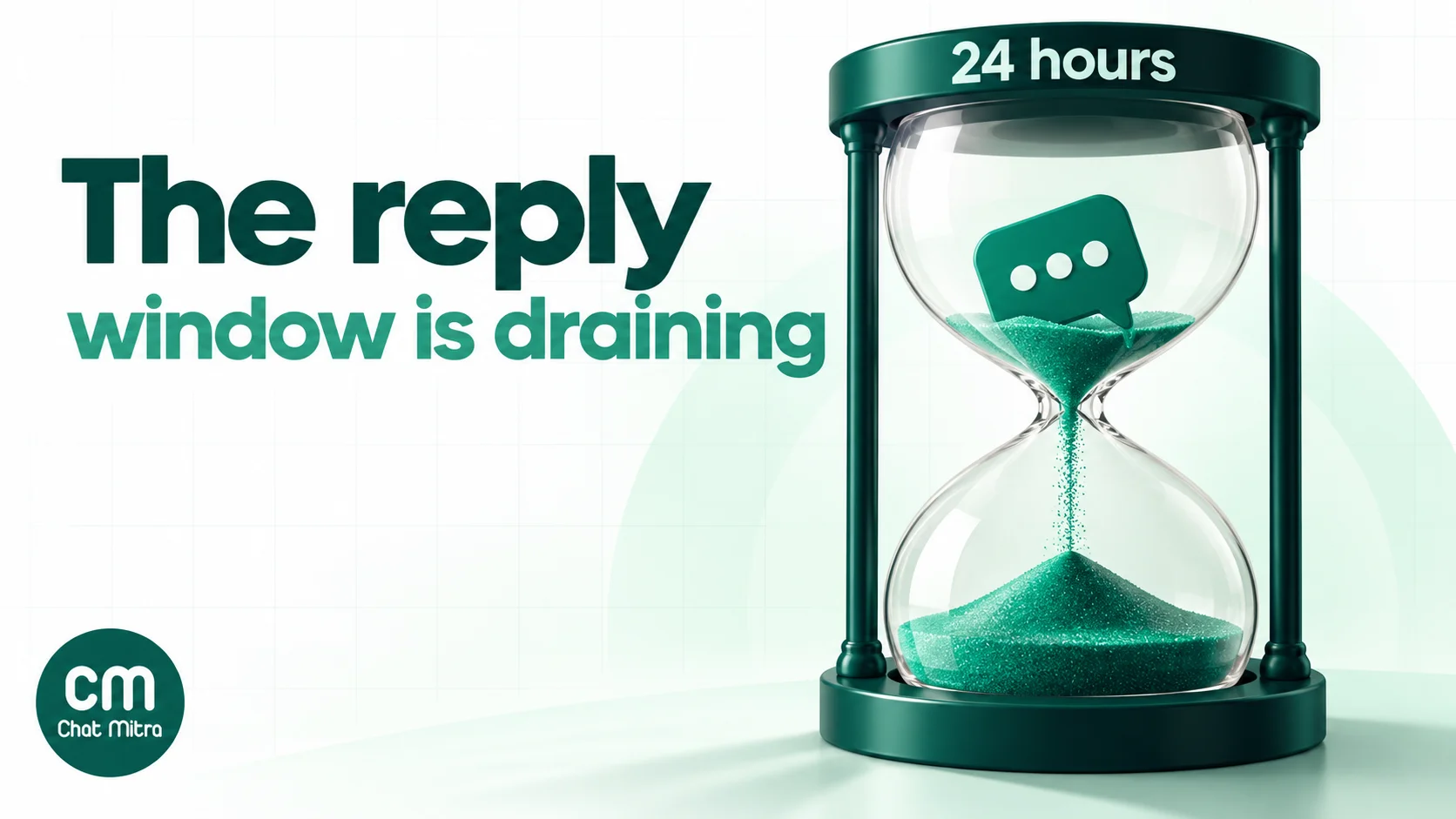
- Unanswered chats get more expensive and harder. After 24 hours, an agent can’t just reply; they must send a template, which the customer may ignore. Weekend backlogs are the usual cause. Plan cover, or at least an away message and a Monday template.
- Service replies are cheap but not unlimited. Replies inside the window are service messages. Meta gives each number 1,000 free service messages a month and charges ₹0.115 for each one after that in India (rate card effective 1 October 2026). Since 1 October 2026, utility templates sent inside the window are charged too. A busy support team passes 1,000 in a few days, so count replies when you budget.
ChatMitra’s composer shows when a chat’s window has expired and offers the template picker, so agents don’t lose time on replies that won’t send.
What a WhatsApp team inbox costs in India
Two bills apply on the API: the provider’s plan, which may include a seat charge, and Meta’s per-message charges, which are the same whichever provider you choose.
Seat costs at four providers (list prices read on 15 October 2026):
| Provider | Plan and included users | Extra user |
|---|---|---|
| ChatMitra | Starter free; Pro ₹999 a month; Enterprise ₹2,499 a month. Unlimited team members | None |
| Interakt | Starter ₹3,499 a quarter with unlimited agents (owner roles); Growth ₹7,699 a quarter with unlimited agents (all roles) | None |
| AiSensy | Basic ₹1,500 a month with 1 owner and 5 agents | ₹750 per seat a month |
| WATI | Growth ₹2,699 a month with 3 users and no extra users; Pro ₹5,799 with 5 users (billed quarterly) | ₹1,299 a month on Pro |
| Gallabox | Basic ₹2,399 a month with 3 users (hard cap); Essential ₹5,599 with 6 users (billed annually) | ₹1,200 a month on Essential |
A worked example. A 12-person team (an owner and 11 agents) handles 2,500 customer conversations a month.
- ChatMitra Pro: ₹999 including 1,000 conversations, plus 1,500 × ₹0.20 = ₹300. ₹1,299 before Meta’s charges, with no seat cost.
- AiSensy Basic: ₹1,500 covers the owner and 5 agents; 6 more seats × ₹750 = ₹4,500. ₹6,000 in plan and seats.
- WATI Pro: ₹5,799 covers 5 users; 7 more × ₹1,299 = ₹9,093. ₹14,892.
- Gallabox Essential: ₹5,599 covers 6 users; 6 more × ₹1,200 = ₹7,200. ₹12,799.
Plans differ in more than seats: message markups, chatbot add-ons and integration limits all vary, so compare the whole bill for your volume. But for a team that grows by people faster than by messages, a per-seat price is the line that grows fastest. The ChatMitra pricing page has current plans, and the pricing calculator estimates Meta’s side.
Three team setups that work
The right structure depends less on the tool than on how your customers arrive. Three common shapes:
An online store with a support desk (5–15 agents). Customers write mostly after order messages: “where is my order”, “change my address”, “return this”. Put order and shipping templates on a support number and keep the store’s ads and website button on a sales number, as separate projects. Support agents get Chats on the support project only. Tag every chat by issue type (delivery, return, payment), so the owner can see which problems cost the most replies and fix them at the source, for example by adding the tracking link to the shipped message. The WhatsApp for customer service guide has reply-time targets for this kind of team.
A clinic, salon or coaching centre with a front desk (2–6 people). Most chats are bookings, reschedules and fee questions, and the same few people answer all day. One number is enough. Use quick replies for timings, fees and the address, and keep the chatbot for after-hours enquiries, paused the moment the front desk picks a chat up. Weekend cover matters most here: a Saturday enquiry answered on Monday morning has usually booked elsewhere.
A business with branches (one owner, several locations). Each branch has its own staff and its own customers. Give each branch its own number, as its own project, and give branch agents access to their project only. The owner switches between projects from the top bar and sees every branch’s chats. Customers get a local number on the branch’s posters and receipts, and a branch agent never answers a customer of another branch by mistake.
In all three, start with fewer permissions than you think people need. Adding a section to an agent takes a minute; recovering from a broadcast sent by mistake takes much longer.
Common team-inbox mistakes
- Sharing one login. You lose any record of who did what, and you can’t remove one person. Create a login per agent.
- Giving everyone full access. A new hire who can send broadcasts to your whole list is a risk you don’t need. Start with Chats only.
- No ownership rule. Without assignment or a tag rule, the fastest typist answers and the customer gets two replies.
- Leaving the bot on during a human chat. The bot replies over the agent and the customer loses trust. Pause it first.
- Ignoring the window. A chat left over the weekend needs a template on Monday. Cover weekends or set expectations in your away message.
- Improvising prices and policies. Put them in quick replies, review them monthly, and update them when prices change.
Choosing your WhatsApp team inbox
- Two or three people, one number, no automation needed: the WhatsApp Business app with linked devices, or Meta Business Suite’s inbox, is enough. Add Meta’s multi-agent feature if it’s available to you and you want assignment.
- A growing team, templates, chatbots or integrations: move to the WhatsApp Business Platform with a provider’s team inbox. Keep the app through Coexistence if you rely on it.
- A team that grows by headcount: prefer a provider with no per-seat charge, and check how its inbox handles ownership, because that’s where seat-free tools differ.
If you’re also choosing where customer records live, our WhatsApp CRM software guide compares inbox-first tools with full CRMs, and WhatsApp for customer service covers response targets and support workflows. To try a team inbox without a seat bill, see ChatMitra’s plans.