Ask three people what “types of WhatsApp templates” means and you’ll get three answers. One person means marketing, utility and authentication. Another means text versus image versus video. The third is thinking of carousels and countdown offers they saw from a big retailer.
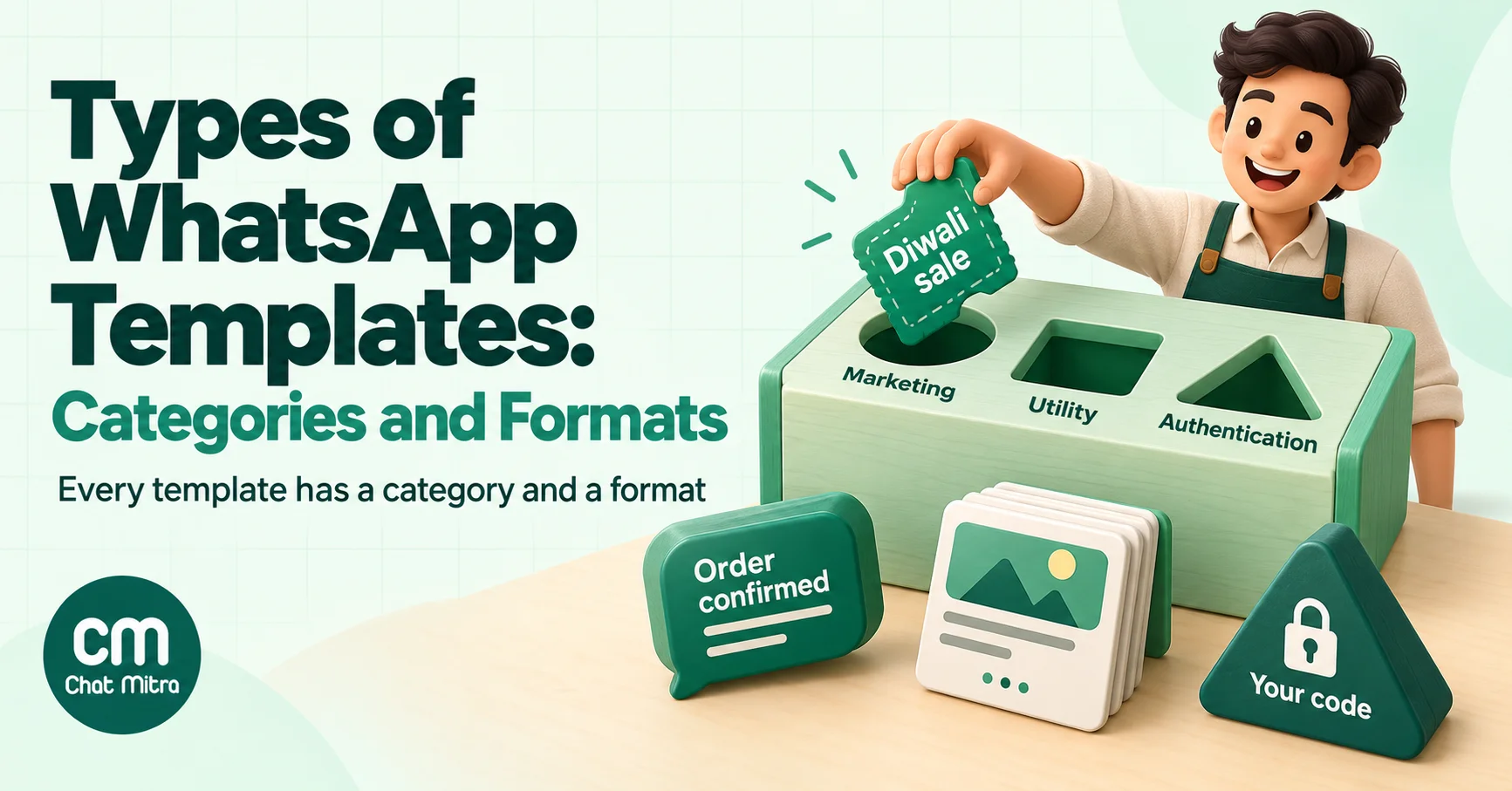
All three are right, and that’s the problem. Meta sorts templates in two separate ways, and most guides blend them together. This guide pulls them apart. (For the full section on templates, start at our templates hub.) First the categories, which decide what a template is allowed to say and what each message costs. Then the formats, which decide what the customer actually sees on their screen. After that, a table of which pairs Meta allows, and a short method for picking the right type for any message.
Everything here refers to the WhatsApp Business Platform (the API). The free WhatsApp Business app has no templates at all, only quick replies and broadcast lists.
What is a WhatsApp template?
A WhatsApp template is a message format that a business writes in advance and submits to Meta for review. Once approved, it can be sent to any customer who has opted in, with placeholders such as a name or order number filled in for each send.
Templates exist because of one rule: on the WhatsApp Business Platform, a template is the only kind of message you can send outside a customer service window. That window opens for 24 hours each time a customer messages you. Inside it, you can reply in your own words. Outside it, including the very first message to a new customer, you need an approved template.
If you want the basics of approval and the parts of a template, our explainer on message templates covers them. For ready-to-adapt wording, see 100 WhatsApp template messages sorted by customer journey. This post is about choosing which kind of template to build.
Two ways to sort templates: category and format
Think of every template as having two labels.
| Label | Question it answers | Who decides | Options |
|---|---|---|---|
| Category | Why are you sending this? | You choose it; Meta checks it against its guidelines | Marketing, utility, authentication |
| Format | What will the customer see and tap? | You, when you build the template | Standard (text or media header plus buttons), coupon code, limited-time offer, media card carousel, product card carousel, catalog, single-product, multi-product, call permission request |
The category matters more, for two reasons. It sets the price of every message you send with that template, and it limits what the message may contain. The format matters for engagement: a carousel of six products gets a different response from a block of text, but it costs the same as any other marketing template.
Types of WhatsApp templates by category
Meta introduced the three categories in June 2023, and every template must belong to one of them. For how each category is priced across countries, see WhatsApp message categories. You pick the category when you create the template. Meta then checks your choice against the content.
Marketing templates
Marketing is the broadest category. Meta’s guidelines describe it as covering “a wide range of goals, from generating awareness to driving sales and retargeting customers”. In practice it’s anything with a promotional or persuasive purpose.
Meta groups marketing messages under five objectives:
- Awareness: news about your business, a new branch, an upcoming event.
- Sales: offers, coupons, sale announcements, upgrade pitches.
- Retargeting: nudging people who visited, browsed or bought before. Cart reminders and renewal reminders sit here.
- App promotion: asking customers to install your app or use a feature in it.
- Customer relationships: birthday wishes, thank-you notes, year-end messages, introducing a virtual assistant.
Two rules catch businesses out. First, mixed content is marketing. An order update with a discount code at the bottom is a marketing template, not a utility template with a bonus. Second, vague content is marketing. A template whose body is only {{1}}, or just “Congratulations!”, gives Meta nothing to judge, so it’s treated as marketing.
Marketing templates also carry restrictions the other categories don’t:
- Per-user limits. WhatsApp may cap how many marketing templates one person receives from all businesses in a period. It starts by delivering fewer to people who are less likely to engage.
- Customer opt-out controls. In the “Offers and announcements” setting, a customer can stop marketing messages from your business. A marketing template sent to that person isn’t delivered. The status webhook reports error
131050. - The highest price. In India, Meta’s October 2026 rate card lists ₹0.8631 per delivered marketing message.
Marketing is also the only category that can go through Meta’s Marketing Messages API as well as the Cloud API. We cover that route in our guide to the Marketing Messages Lite API.
Utility templates
Utility templates respond to a customer’s own action or request. Meta sets a two-part test, and a template must pass both parts:
- It must be non-promotional: no offer, no upsell, no cross-sell, no persuasive intent.
- It has to relate to this particular customer (their order, account, booking or transaction, or something they asked for), or be essential or critical to them, such as a severe weather alert.
Meta lists five utility objectives: opt-in management (confirming an opt-in or opt-out), order management, account alerts and updates, feedback surveys about a specific order or interaction, and continuing a conversation the customer started on another channel.
The feedback rule is narrower than many people expect. “How was your delivery of order 4471?” can be utility. “Tell us what you think of our brand” is a generic survey, and Meta won’t approve it as utility.
Since 9 April 2025, if you submit a template as utility and Meta decides it’s marketing, Meta doesn’t reject it. It approves it as marketing, and every message sent with it is billed at the marketing rate. You have 60 days from that change to request a category review. Approval isn’t the end of it, either: Meta keeps reviewing templates that are already live. A utility template that should be marketing normally gets a day’s notice before it’s switched. Businesses that have been warned for misuse get no notice at all.
For businesses that keep mislabelling marketing as utility, Meta now applies escalating penalties:
- A written warning.
- A cap on utility volume.
- A 7-day block on utility templates, or 30 days for repeat violations.
- A 30-day restriction across the whole business portfolio.
In India, a utility message costs ₹0.1150 on the October 2026 rate card. From 1 October 2026 Meta bills utility templates even when a customer service window is already open, so the old “free in the window” rule is gone. We go deeper on wording that stays utility in how to write WhatsApp utility templates.
Authentication templates
Authentication templates do one job: deliver a one-time passcode so a customer can prove who they are. Meta’s rule is strict. Only authentication templates may carry a passcode for identity verification; you can’t use a marketing or utility template for it.
They’re also the most locked-down category:
- The body is Meta’s preset wording (”
is your verification code.”), with optional add-ons for a security disclaimer and an expiry warning. You can’t write your own body. - A one-time password button is required: copy code, one-tap autofill or zero-tap.
- URLs, media and emojis aren’t allowed in the content or parameters, and parameters are limited to 15 characters.
In India, authentication messages cost ₹0.1150 each on the October 2026 rate card. Our guide to authentication templates explains the three button types and when each one works.
The three categories side by side
Marketing Utility Authentication Purpose Promote, re-engage, build relationships Follow up on a customer’s action, or send a critical alert Deliver a one-time passcode Typical examples Sale launch, cart reminder, birthday offer, renewal nudge Order confirmed, delivery update, payment receipt, appointment reminder Login code, signup verification, password reset Content freedom Most flexible Free wording, but nothing promotional Fixed Meta wording Formats available All formats Standard templates, location header, call permission request Code buttons only India price (Oct 2026) ₹0.8631 ₹0.1150 ₹0.1150 Extra limits Per-user marketing limits, customer can stop them Misuse penalties No media, URLs or emojis; 15-character parameters
Types of WhatsApp templates by format
Format is about the experience: what appears at the top, what the customer can tap, and whether they stay inside WhatsApp. There are nine formats. The first, the standard template, is the one most businesses use for nearly everything. The rest are specialty formats with their own rules.
1. Standard templates
A standard template (Meta’s name for it is a “custom” template) is built from four parts: header, body, footer and buttons. You can skip everything except the body.
The header (optional) can be one of these:
Header type What it shows Notes Text A bold title line 60 characters, one variable Image A photo or graphic Uploaded as a sample when you create the template Video A short clip Same upload process as images Document A file such as a PDF invoice or ticket Useful for receipts and itineraries GIF A looping animation Only through the Marketing Messages API; an MP4 up to 3.5 MB Location A map pin that opens the customer’s map app Utility and marketing only; the location is set when you send, and live location isn’t supported
The body holds up to 1,024 characters with as many variables as the message needs. Variables can be numbered ({{1}}, {{2}}) or named ({{first_name}}). Every variable needs a sample value when you submit.
The footer (optional) is a small grey line of up to 60 characters. It’s often used for an opt-out hint.
Buttons (optional) let the customer act with one tap. A template can carry up to 10 buttons in total:
Button What it does Limit per template Quick reply Sends a preset reply back to you Up to 10 URL Opens a web page; can end with one variable, such as a tracking ID 2 Phone number Starts a regular phone call to your number 1 Copy code Copies a code to the clipboard 1 Voice call Starts a WhatsApp call to your business Covered in our Calling API guide
Button labels are capped at 25 characters, and the template elements guide lists every component limit. Template buttons are not the same as the reply buttons and lists you can send inside an open chat; WhatsApp interactive messages explains the difference. Two behaviours affect design. When a template has more than three buttons, the customer sees two of them plus a See all options button that reveals the rest. A template with four or more buttons, or one that mixes quick replies with other button types, can’t be viewed on WhatsApp desktop, so the customer is asked to open it on a phone.
Standard templates work in marketing and utility. With the fixed body and a code button, the same building blocks become an authentication template.
2. Coupon code templates
A coupon code template is a marketing template with a single copy code button. You set the code (up to 20 characters) when you send, so one template can deliver a different code to each customer. When the customer taps the button, the code goes to their clipboard, ready to paste at checkout.
Three limits to plan around (our coupon code template guide has the setup): the button text can’t be customised, there’s only one copy code button per template, and WhatsApp Web doesn’t support coupon code templates.
3. Limited-time offer templates
A limited-time offer template adds an expiry section to a promotion: a short offer headline (up to 16 characters), the offer code (up to 15 characters) and an optional countdown timer. You supply the code and the expiry timestamp at send time. If the customer opens the message with less than an hour left, the timer turns red.
These templates are marketing only. They can’t have a footer, the body is capped at 600 characters, and the header can only be an image or a video. The big catch: on WhatsApp Web and desktop, the customer sees a notice that the offer isn’t supported instead of the offer itself. If many of your customers read WhatsApp on a laptop, a plain marketing template with the code in the body may perform better. The limited-time offer guide shows how the expiry fields work.
4. Media card carousel templates
A media card carousel sends one message with a row of 2 to 10 cards the customer swipes sideways. Each card has an image or video header, optional card text, and up to two buttons (URL, phone or quick reply).
The rules are rigid:
- You set the exact number of cards when you create the template, and every send must use that number.
- Every card must have the same parts. If one card has body text, all of them must.
- URL buttons open a browser, so any purchase happens on your website. WhatsApp sends you no order webhook.
Carousels suit a handful of things that look good side by side: new arrivals, travel packages, course batches, property listings. Media card carousels are marketing only.
5. Product card carousel templates
This looks like a media carousel but pulls each card from your product catalog: image, title and price. The difference is the View button. It opens the product inside WhatsApp, where the customer can add it to a cart and place an order without leaving the chat. That order arrives at your system as an order webhook.
You define two product cards when you create the template, and the approved template can send up to 10. If you’d rather send people to your site, you can use URL buttons instead of View buttons. Purchases then happen outside WhatsApp and trigger no order webhook. Product card carousels are marketing only and need an ecommerce catalog connected to your WhatsApp Business account. See product card carousel templates for the card structure.
6. Catalog templates
A catalog template promotes your whole catalog rather than individual products. The message shows a product thumbnail of your choice, fixed header text, your body copy and a View catalog button that opens the catalog inside WhatsApp. It’s a good “we’re now taking orders on WhatsApp” message. It’s marketing only and needs a connected catalog with inventory. More in our catalog templates guide.
7. Single-product message (SPM) templates
An SPM template features one product from your catalog, with its image, title and price pulled in automatically, plus your own body text and an optional footer. Tapping the button opens the product so the customer can add it to their cart and order. It works well for a restock alert or a “the item you viewed” reminder. Customers need WhatsApp version 2.22.24 or later. SPM templates are marketing only (single-product templates explained).
8. Multi-product message (MPM) templates
An MPM template shows up to 30 products in up to 10 sections in a single message, such as “Bestsellers”, “New in” and “Under ₹999”. The customer browses, builds a cart and submits it, and you receive the order by webhook. MPM templates are marketing only, need WhatsApp 2.22.24 or later, and can’t be forwarded to other people. Our multi-product templates guide covers sections and product limits.
9. Call permission request templates
This format asks the customer for permission to call them on WhatsApp outside a customer service window. It’s a body plus a call permission request component, and the customer can grant or decline.
It’s one of the few specialty formats that works in both marketing and utility, so the category depends on why you want to call. Calling about a support case the customer raised can be utility. Calling to pitch a VIP preview is marketing. It can’t be combined with other interactive components in the same template.
Authentication button types
Authentication templates don’t use these formats. They choose between three code buttons instead:
- Copy code: the customer taps to copy the code. Works everywhere.
- One-tap autofill: the code fills straight into your Android app.
- Zero-tap: your Android app receives the code with no tap at all.
The choice depends on whether you have an app and which platforms your customers use. Our authentication guide walks through it.
Which formats work with which categories
This is the table to bookmark. It’s built from Meta’s template documentation as of October 2026.
Format Marketing Utility Authentication Needs a catalog Desktop and Web Standard: text, image, video or document header Yes Yes No (fixed format) No Yes, up to 3 buttons without mixed types Standard: location header Yes Yes No No Yes GIF header Yes (Marketing Messages API) No No No Shown as video if large Coupon code Yes No No No Not on WhatsApp Web Limited-time offer Yes No No No Offer hidden on web and desktop Media card carousel Yes No No No Not stated by Meta Product card carousel Yes No No Yes Not stated by Meta Catalog Yes No No Yes Not stated by Meta Single-product (SPM) Yes No No Yes Not stated by Meta Multi-product (MPM) Yes No No Yes Not stated by Meta Call permission request Yes Yes No No Not stated by Meta Copy code, one-tap, zero-tap No No Yes No Copy code works everywhere
The pattern is easy to remember. Utility gets standard templates, location headers and call permission requests. Authentication gets code buttons. Everything else is marketing.
How to choose the right template type
Use this order. It saves you from designing a beautiful carousel for a message that has to be utility.
- Write down the message’s job in one sentence. “Tell Priya her order shipped” and “Get Priya to buy again” are different jobs, even if they go out on the same day.
- Pick the category from that sentence. Is it a passcode? Then it’s authentication. Is it tied to something the customer did, with no promotion at all? Then it’s utility. Is it anything else? Then it’s marketing. If you’re tempted to add “and here’s 10% off”, you’ve just made it marketing.
- Decide what the customer must do next. Read and move on? Tap a link? Reply? Call? Buy inside the chat? The action decides the buttons.
- Pick the simplest format that supports that action. Text or image header plus one or two buttons covers most messages. Reach for a specialty format only when it does something the standard one can’t: a countdown, a copyable code, several products side by side, or checkout inside WhatsApp.
- Check where your customers read WhatsApp. If a real share of them use WhatsApp Web or desktop (common in B2B and office-hours retail), avoid limited-time offers and coupon templates, and keep to three buttons or fewer.
- Check what you need behind it. Product carousels, catalog, SPM and MPM templates need a connected catalog with accurate prices and stock. Without that, use a media carousel or an image template with a URL button.
- Write it so the category is obvious. For utility, put the specific order, booking or account detail in the body. For marketing, be honest that it’s an offer. Ambiguity pushes templates into marketing anyway.
Worked example: one store, one week, five template types
Here’s how the types fit together for a mid-sized online store selling home décor. It sells across India, and some of its buyers are offices that order during work hours.
Moment Message job Category Format Customer signs up on the website Send a login code Authentication Copy code button Customer places an order Confirm order and share invoice Utility Document header (PDF invoice), body with order number, URL button to track Parcel is out for delivery Tell them it arrives today Utility Text header, body with the delivery window, quick reply “Reschedule” Customer left items in the cart Bring them back Marketing Single-product template for one item, or media carousel for several Diwali sale starts Announce the sale Marketing Image header with a URL button. A limited-time offer would hide the countdown from office buyers on desktop
Notice what isn’t there. The delivery update doesn’t mention the sale. The moment it does, Meta treats it as marketing and it costs about seven and a half times more to send in India (₹0.8631 against ₹0.1150). The cart reminder is marketing even though the customer added the items themselves. Meta’s guidelines put cart reminders under retargeting. If carts are your main use case, our abandoned cart recovery guide goes through timing and wording.
Rules that apply to every template type
Whatever the type, these account-level rules apply.
- Template count. A WhatsApp Business Account under an unverified business portfolio can hold 250 templates. Once the portfolio is verified and at least one number has an approved display name, the limit rises to 6,000. Each language version counts separately.
- Creation rate. You can create up to 100 templates per WhatsApp Business Account per hour.
- Names. Lowercase letters, numbers and underscores only. The same name can exist once per language.
- Review time. Meta says a review can take up to 24 hours. Many templates come back in minutes.
- Editing. Only approved, rejected or paused templates can be edited. An approved template can be edited up to 10 times in 30 days, and at most once in 24 hours. An edit replaces all components and sends the template back through review.
- Category is fixed once approved. You can’t change an approved template’s category. Create a new template instead.
- Archival. Templates unused for 12 months or more are archived automatically, then deleted 28 days later unless you unarchive them.
- Quality and pausing. Templates that collect negative feedback or low read rates drop in quality rating and can be paused, then disabled. A paused template can’t be sent.
- Messaging limits. Templates sent outside a customer service window count against your number’s messaging limit. Our guide to messaging limits explains the tiers.
- Delivery order isn’t guaranteed. If you send several templates in a row, they may arrive out of order. Meta’s advice is to wait for a
delivered status before sending the next one when order matters.
Common mistakes when choosing a template type
Hiding a promotion inside a utility template. It’s the most expensive mistake, because Meta’s checks catch it and the template is billed as marketing anyway. Repeat it and you risk a utility restriction across your account.
Treating a “requested” message as utility. A customer asking to be told when a sale starts doesn’t make the sale announcement utility. Meta is explicit that retargeting and renewal messages are marketing “even if requested by users”.
Using a specialty format because it looks impressive. A limited-time offer that half your audience can’t see on desktop isn’t impressive. Neither is a carousel whose cards all link to the same page.
Building product templates on a messy catalog. Product carousels, SPM and MPM templates show whatever price and image your catalog holds. A wrong price inside WhatsApp’s own checkout is worse than no message.
Writing vague templates to “keep them flexible”. A body that’s mostly variables, or a single {{1}}, is treated as marketing and often rejected. Templates are meant to be specific, and the specific ones get approved.
Making one template do two jobs. “Your order shipped, and here’s what’s new” should be two templates: a utility update now, and a marketing message later if the customer engages.
Forgetting the button limits on desktop. If your template has a quick reply plus a URL button, desktop users are asked to open it on their phone. For B2B audiences, that small step can cost replies.
Building template types in ChatMitra
ChatMitra runs on the WhatsApp Business Platform, so every template you create goes through Meta’s review in the usual way. Here’s what the template builder covers today, so you can plan around it:
- Categories: marketing, utility and authentication.
- Headers: text, image, video and document.
- Body and footer: numbered variables with sample values, and a live preview as you type.
- Buttons: quick replies, up to two URL buttons and one phone number button.
- Authentication: copy-code authentication templates.
The builder doesn’t currently create carousels, coupon code or limited-time offer templates, catalog or product templates, or call permission requests. You can still use WhatsApp Manager to create any template type Meta supports on your account. Once your templates are approved, the ChatMitra template library and the templates feature help you plan and reuse the standard ones.
Category is what drives your bill, so check it before you submit. Our cost-per-message guide shows how category and country combine into what you actually pay.
Summary
- WhatsApp templates have a category and a format. The category (marketing, utility or authentication) sets the price and what the message can say. The format sets what the customer sees.
- Marketing covers anything promotional, including cart reminders, renewals and relationship messages. Utility must be non-promotional and tied to the customer’s own action, or be critical to them. Authentication is for one-time passcodes only, in Meta’s fixed wording.
- Nine formats are available. Standard templates (text, image, video, document, GIF or location header plus up to 10 buttons) cover most needs. Coupon code, limited-time offer, media and product carousels, catalog, single-product and multi-product templates are marketing-only. Call permission requests work in marketing and utility.
- Choose the category first, then the simplest format that supports the next step you want the customer to take. Check desktop support and catalog readiness before you commit to a specialty format.