Most people know one WhatsApp formatting trick: put asterisks around a word and it turns bold. Businesses run into trouble with everything after that. A coupon code with an underscore turns half-italic. A template that looked perfect in the editor is rejected for “formatting”. A campaign fails for a few hundred contacts because their names were imported with a line break. An AI assistant’s reply arrives covered in double asterisks and hash signs.
This guide covers every formatting code WhatsApp supports, how to apply each one on a phone and on a computer, and, the part most guides skip, which codes work in which part of a WhatsApp Business template and an API message. It finishes with examples for Indian businesses, the common mistakes with their fixes, and a testing routine you can use before any template goes to customers.
Using ChatMitra?
Type formatting codes straight into the template body: the live preview shows bold, italics, strikethrough and line breaks as customers will see them, and the editor flags a variable at the start or end of the body before you submit. Messages from the team inbox go out exactly as typed, up to WhatsApp's 4,096-character limit. ChatMitra charges ₹0.20 per conversation, never per message. See Formatting in ChatMitra.
WhatsApp formatting codes at a glance
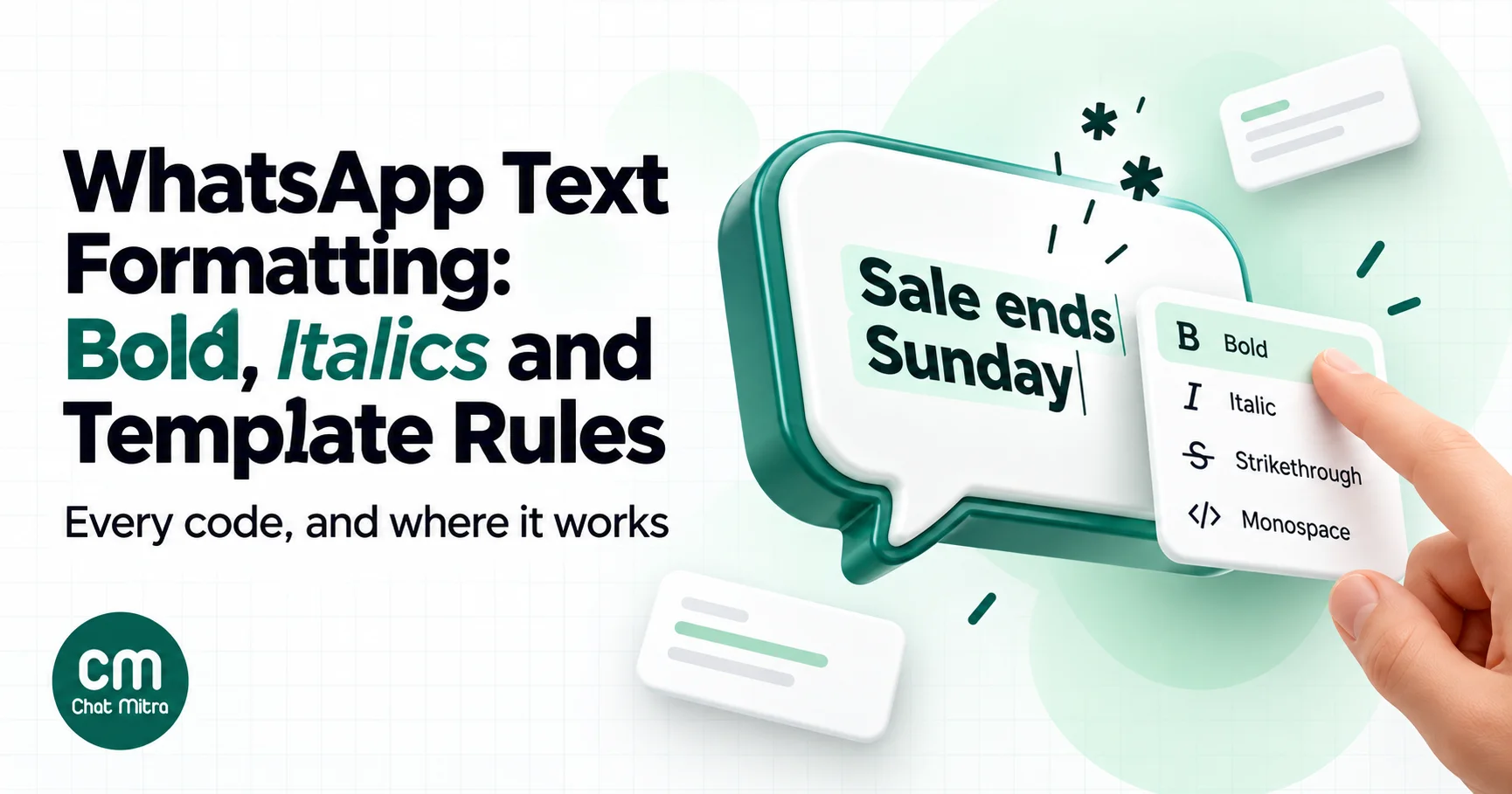
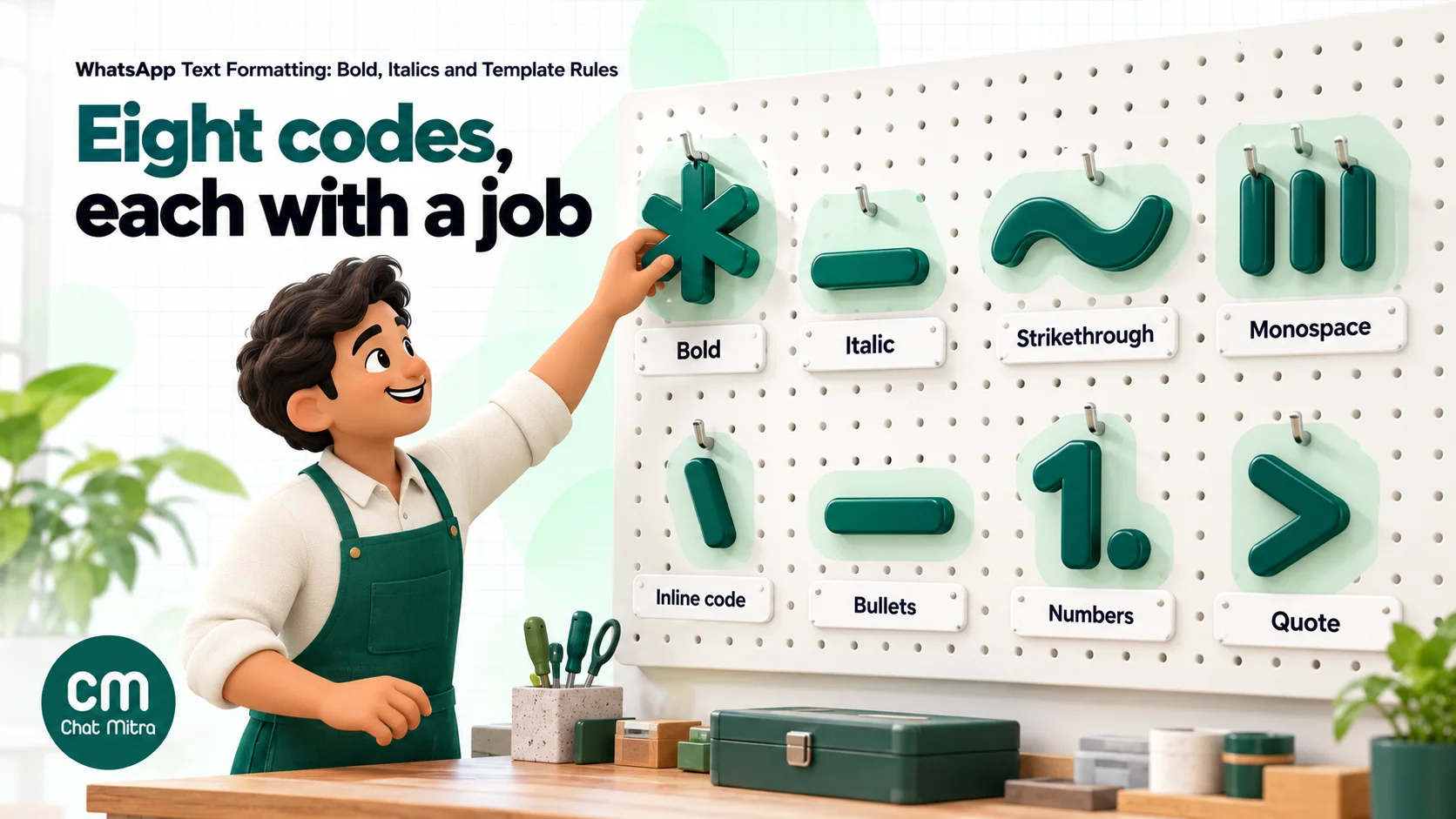
WhatsApp formats text with plain keyboard characters placed around a word or at the start of a line. The recipient’s app reads those characters and shows the styled result. WhatsApp’s help centre lists eight options (WhatsApp Help Center):
| Style | What you type | Example as typed | Good business use |
|---|---|---|---|
| Bold | An asterisk on both sides | *Sale ends Sunday* | The one fact the customer must not miss |
| Italic | An underscore on both sides | _Prices include delivery_ | A quiet aside or a term in another language |
| Strikethrough | A tilde on both sides | ~₹1,299~ ₹899 | An old price next to a new one, if the old price was real |
| Monospace | Three backticks on both sides | ```DIWALI25``` | Coupon codes, order IDs, booking references |
| Inline code | One backtick on both sides | `INV-20431` | A short reference inside a sentence |
| Bulleted list | An asterisk or hyphen and a space at the start of a line | - Aadhaar card | Documents to bring, options to choose from |
| Numbered list | A number, a full stop and a space at the start of a line | 1. Open the link | Steps that must happen in order |
| Quote | An angle bracket and a space at the start of a line | > Delivered in 2 days! | A customer review or the question you’re answering |
The first four have worked for years. Bulleted lists, numbered lists, quotes and inline code arrived in February 2024, rolling out to Android, iPhone, WhatsApp Web and the Mac app (AlternativeTo, 22 February 2024). WhatsApp’s own help page for the desktop apps notes that the new formatting is available on Web and Mac desktop, so check how it looks in the Windows app if many of your customers read messages there.
One more point from the help page matters for businesses: there’s no option to switch formatting off. If a message contains the right characters in the right places, the customer sees them formatted, whether you meant it or not.
How to format text on a phone, WhatsApp Web and desktop
You can type the codes yourself on any device. Each app also has a shortcut menu, according to WhatsApp’s help centre:
- Android: tap and hold the text you’ve typed, open the menu and choose Bold, Italic, Strikethrough or Monospace.
- iPhone: double-tap the text you’ve typed, tap Format, then choose Bold, Italic, Strikethrough or Monospace.
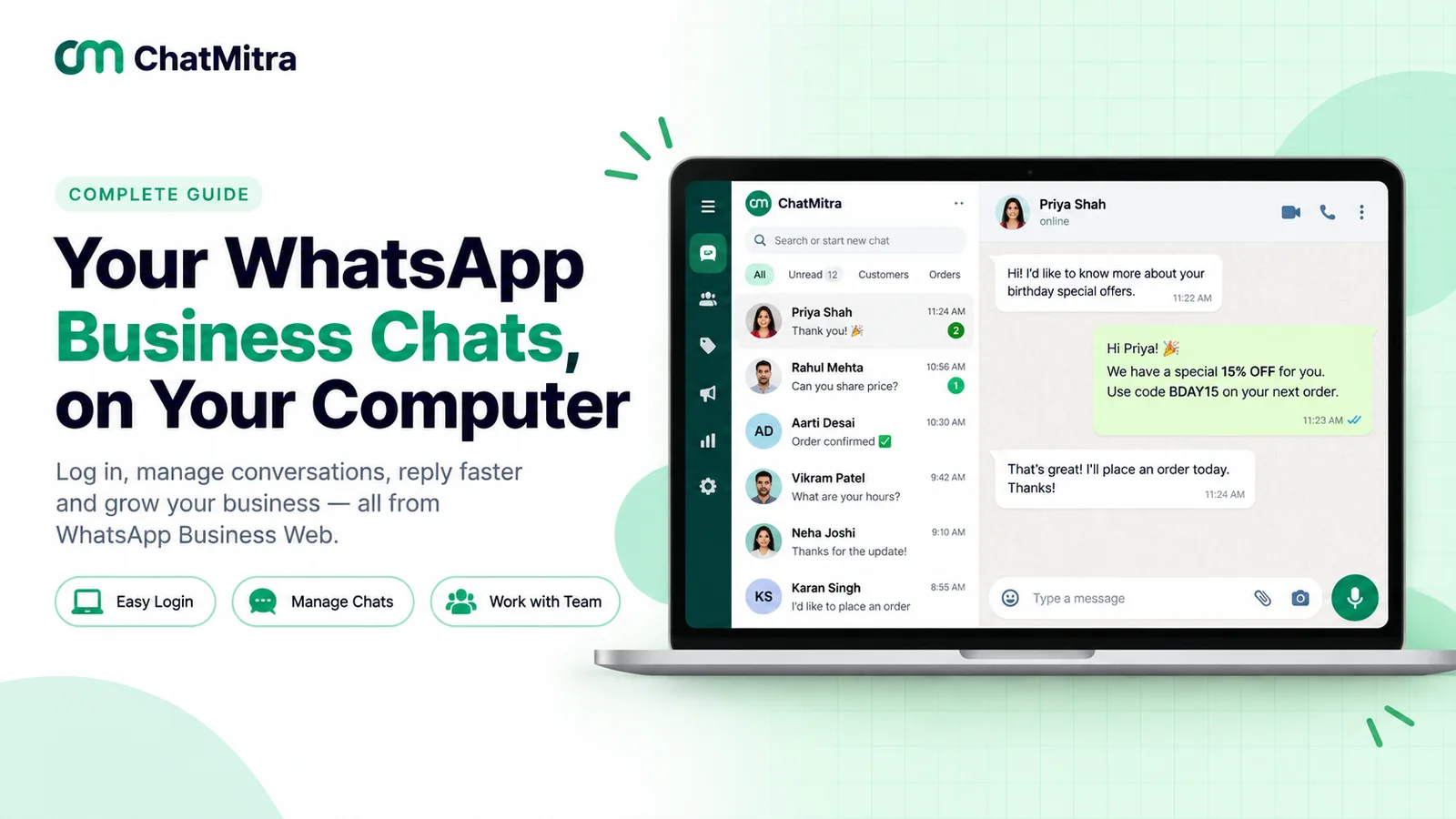
- WhatsApp Web and Mac: double-click the text and choose Bold, Italic, Strikethrough or Inline code. Our WhatsApp Business Web guide covers the desktop setup.
The menus insert the same characters you’d type, so the result is identical. For lists and quotes there’s no menu: type the marker at the start of the line.
Rules that decide whether formatting appears
WhatsApp doesn’t publish detailed parsing rules, but the same few habits fix nearly every “it didn’t work” case:
- Let the markers touch the text.
*Free delivery*works.* Free delivery *, with spaces inside the asterisks, shows the asterisks. - Close what you open. A missing closing asterisk or underscore leaves a stray symbol in the message.
- Put line markers at the very start of the line. A hyphen in the middle of a sentence stays a hyphen. A bulleted list needs each item on its own line, starting with the marker and a space.
- Combine styles by nesting them. Bold italic is typed as
*_Last day_*. If a combination doesn’t display as you expect on a particular device, use a single style. - Use monospace when the text itself contains symbols. Text inside three backticks generally isn’t reformatted, which makes monospace the safest way to show codes that contain asterisks, underscores or tildes.
- Send it to yourself first. WhatsApp is a mix of phone models, app versions and desktop apps. Your own phone is the only reliable preview.
Where formatting works in a WhatsApp Business template
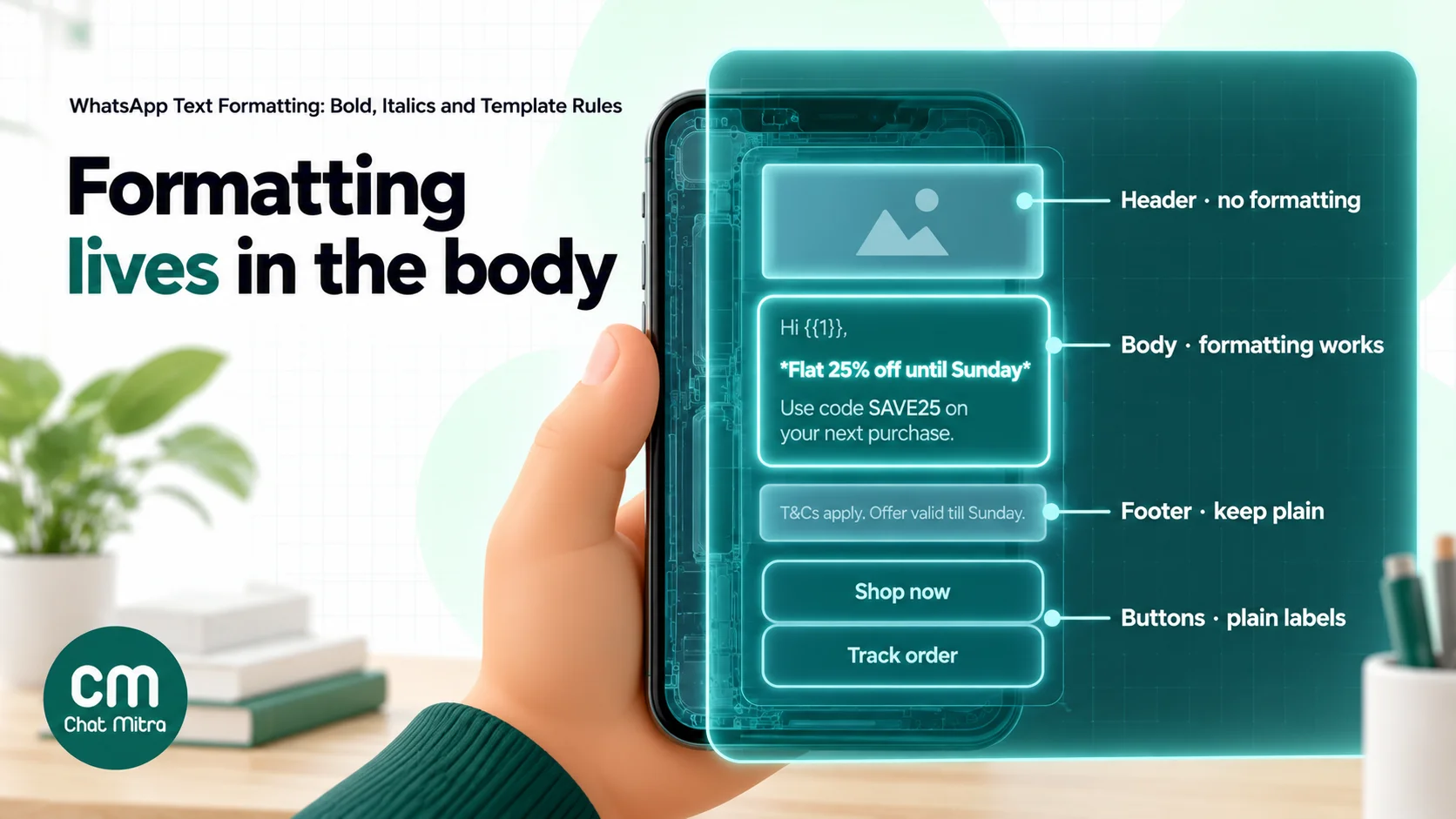
Outside the 24-hour customer service window, a business can only message a customer with a pre-approved template. Templates are made of four parts, and they don’t all treat formatting the same way. Meta’s template documentation sets the limits (Meta for Developers: Template components):
| Template part | Meta’s limit | Formatting | What to do |
|---|---|---|---|
| Text header | 60 characters, 1 variable | Meta: “Do not use Markdown special characters in this component” | Write a short plain label, or use an image, video or document header |
| Body | 1,024 characters, multiple variables | Supported (Meta: you can “edit text formats” in the body) | This is where formatting belongs |
| Footer | 60 characters | Not documented by Meta | Keep it plain: validity, terms or how to stop offers |
| Button labels | 25 characters each; up to 10 buttons | Not documented by Meta | Keep them plain and specific: “Track order”, “Book a slot” |
| Copy-code value | 20 characters | Not applicable | The code is copied to the clipboard as is |
Meta’s Business Help Center confirms that when you create a template you can “edit text formats, add emojis or include variables” in the body, and warns that a template can be rejected “due to formatting concerns such as excessive line breaks” (Meta Business Help Center: Create message templates). It also points out that the preview in WhatsApp Manager doesn’t check formatting, so a template that previews well can still be rejected.
Some template types leave no room to format at all. Authentication templates use fixed, non-customisable preset text such as “<VERIFICATION_CODE> is your verification code” (Meta for Developers: Authentication templates). Our WhatsApp authentication templates guide explains what you can still configure.
The newer codes (lists, quotes and inline code) aren’t mentioned in Meta’s template documentation. They are plain characters in the body, so nothing stops you using them, but test a sample send on Android, iPhone and desktop before you rely on them in a template that goes to thousands of people.
For the full breakdown of each component, button groupings and what “See all options” means, see the template elements page in the ChatMitra Knowledge Hub.
Variables and formatting: the rules that cause rejections
Variables are the placeholders, such as {{1}} or {{first_name}}, that you fill with each customer’s details when you send. They interact with formatting in three ways.
Meta’s variable rules
Meta lists these as common reasons for rejecting a template (Meta for Developers: Template review):
- Missing or mismatched curly braces. The positional format is
{{1}}. - Special characters inside the braces, such as
#,$or%. - Variables that aren’t sequential, for example
{{1}},{{2}},{{5}},{{4}}. - Too many variables for the length of the message.
- A template that starts or ends with a variable. Meta calls these “dangling parameters”.
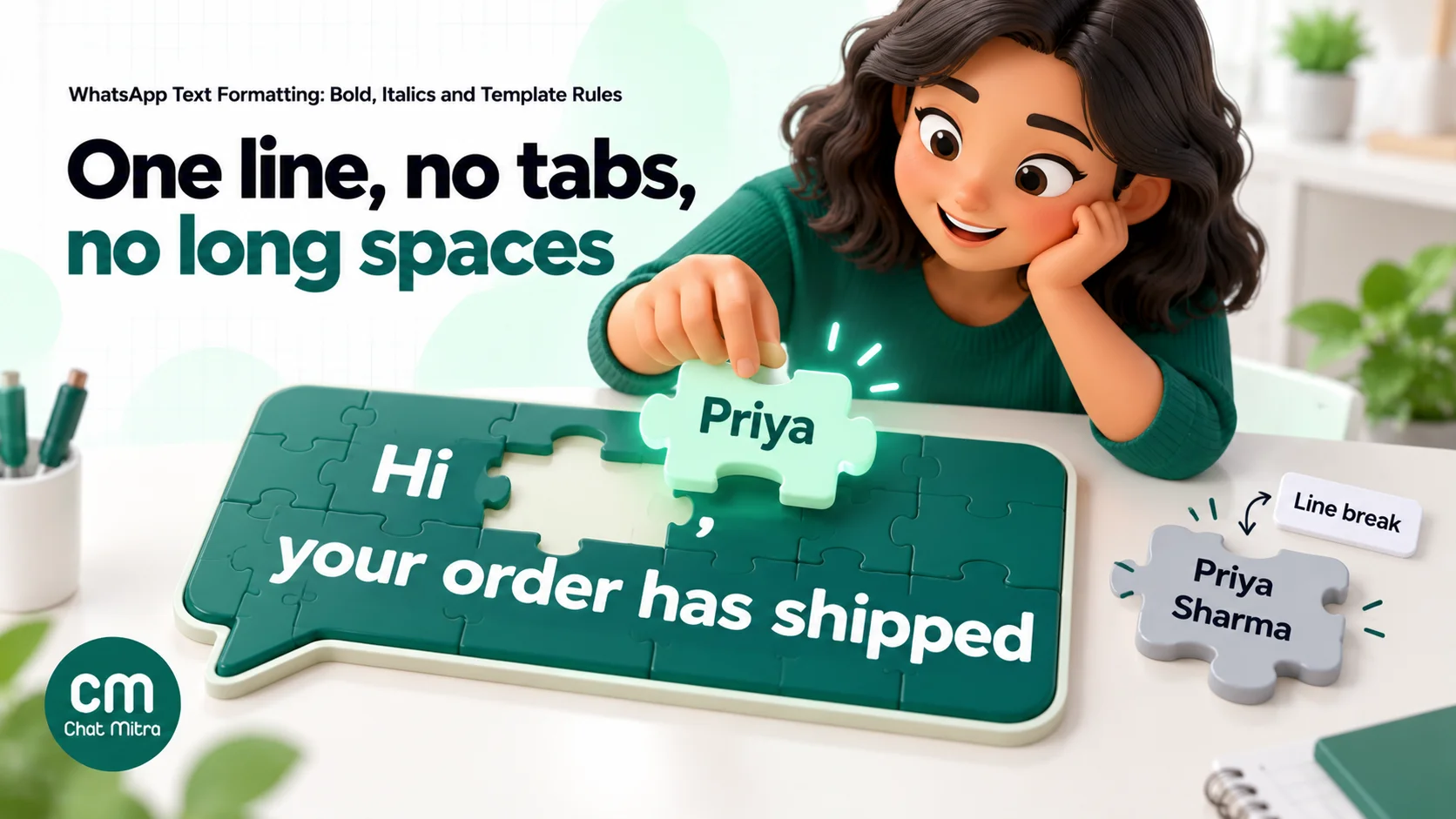
The last one catches people who format a greeting. *{{1}}*, your order has shipped still starts with a variable, because the asterisk doesn’t count as text. Write Hi *{{1}}*, your order has shipped instead, or leave the name unformatted.
Meta also checks that the body text isn’t a duplicate of another template in your account: a template with the same body and footer wording as an existing one is rejected, regardless of formatting.
Keep line breaks out of variable values
The body of a template can contain line breaks. The values you send into its variables shouldn’t. When a variable’s value contains a newline, a tab or more than four consecutive spaces, the message can fail at sending time rather than at approval. Twilio, which also sends WhatsApp templates, documents a rejection “if more than 4 consecutive whitespaces replace a placeholder in a WhatsApp message body” (Twilio error 63013). Meta’s own error list includes 132018, “There’s an issue with the parameters in your template”, and 132012, for variable values “formatted incorrectly” (Meta for Developers: Error codes).
In practice, this hits campaigns built from spreadsheets. A customer’s address copied from a form with a line break, or a product name pasted with extra spaces, can make that one message fail while the rest of the campaign is delivered. Before a campaign, clean the columns you’ll use as variables:
- Replace line breaks inside cells with a comma or a space. In Google Sheets or Excel, a find-and-replace on the line-break character does it, or
=CLEAN(TRIM(A2))in a helper column. - Trim spaces at the start and end of each value.
- Check for empty cells. A blank first name produces “Hi , your order…”, which isn’t an error but looks careless.
If an order summary really needs several lines, put the line breaks in the template body and use one variable per line, rather than sending a multi-line value into one variable.
Formatting characters inside the values
Because formatting can’t be switched off, a variable value can format itself. A coupon code such as SAVE_20_NOW or a product name with asterisks may turn partly italic or bold on the customer’s phone. Two fixes work:
- Wrap the variable in monospace in the template body:
```{{2}}```, so whatever arrives is shown literally. - Avoid underscores, asterisks and tildes in codes you generate. Hyphens are safer:
SAVE-20-NOW.
Line breaks, spacing and length
Line breaks are the most useful formatting tool WhatsApp has, and the easiest to overuse. A blank line between the offer and the instructions makes a message easier to scan on a small screen. Five blank lines to push the call-to-action down look like spam and, as Meta’s help article warns, can get a template rejected.
A workable rule for templates: no more than one blank line between paragraphs, and no more than four or five short paragraphs in total. ChatMitra’s template editor, for example, flags three or more consecutive line breaks.
Length limits depend on the kind of message:
| Message type | Text limit | Source |
|---|---|---|
| Template body | 1,024 characters | Meta, template components |
| Template header (text) | 60 characters | Meta, template components |
| Template footer | 60 characters | Meta, template components |
| Template button label | 25 characters | Meta, template components |
| Text message inside the service window | 4,096 characters | Meta, text messages |
| Reply-button message body | 1,024 characters; button labels 20 | Meta, interactive reply buttons |
| List message body | 4,096 characters; row titles 24, row descriptions 72 | Meta, interactive list messages |
Formatting markers are characters in the text you send, so plan for them when a body is close to 1,024 characters. Emojis count too, and Meta’s review page notes that the number of emojis allowed in a body may be limited.
Long isn’t the same as useful. A 1,024-character marketing template is allowed; it’s rarely read to the end. The messages that work in Indian inboxes tend to be three to six lines: what’s happening, why it matters to this customer, what to do next. For copywriting beyond formatting, our guide to attractive messages for customers rewrites fifteen real examples.
Formatting messages inside the 24-hour window
When a customer messages you, a 24-hour customer service window opens. Inside it you can reply with ordinary text messages, which aren’t reviewed by Meta, so you have more freedom:
- Agent replies. Agents can type formatting codes exactly as they would in their own WhatsApp. A bold order number or a numbered list of return steps makes a support reply clearer.
- Saved replies. Write formatting into the saved text once, and every agent sends it consistently. See our WhatsApp Business quick replies guide for building a library.
- Chatbot and auto-reply messages. Bot text is plain text too, so the same codes work. Keep bot messages shorter than agent messages: people skim automated replies.
- Interactive messages. Button labels (20 characters) and list row titles (24 characters) are short labels. Formatting there isn’t documented by Meta, so keep them plain and put any emphasis in the message body.
AI replies need WhatsApp’s codes, not Markdown
AI models usually write Markdown: **bold** with double asterisks, # headings, and [text](link) links. WhatsApp uses none of those. A reply written in Markdown can reach the customer with stray symbols, or with a heading that’s just a line starting with ”##”.
If an AI assistant answers on your WhatsApp number, add a line to its instructions such as: “Format for WhatsApp: use a single asterisk on each side for bold, hyphens for lists, no headings, and paste links as plain URLs.” Then test a few replies on your phone. Our guide to AI prompts for WhatsApp chatbots has more instruction examples.
Fancy fonts aren’t formatting
Search for “WhatsApp bold text” and you’ll find generator sites that turn your words into 𝗯𝗼𝗹𝗱, 𝘪𝘵𝘢𝘭𝘪𝘤 or 𝓈𝒸𝓇𝒾𝓅𝓉 letters that you copy and paste. They look like formatting, but they aren’t: each “letter” is a different character from Unicode’s Mathematical Alphanumeric Symbols block. The Unicode Consortium says these characters “are intended for use only in mathematical or technical notation; they are not intended for use in non-technical text” (Unicode Technical Report #25).
For a business, that causes three practical problems:
- Customers can’t find the message. If your offer says 𝗗𝗜𝗪𝗔𝗟𝗜 in mathematical bold, a customer searching their chats for “Diwali” won’t find it.
- Screen readers struggle. Assistive software may read out the symbol names, spell the word letter by letter or skip it, so a customer who relies on one may not hear the most important word in your message.
- Display varies. Older phones and some fonts show empty boxes for characters they don’t support.
WhatsApp’s own asterisks and underscores avoid all three, because the underlying text is still ordinary letters. There’s also no underline code in WhatsApp, so any “underlined” text you’ve seen in a chat was made with special characters.
How to use formatting in marketing and service messages
Formatting is a way of telling the reader what to look at first. A few patterns cover most business messages.
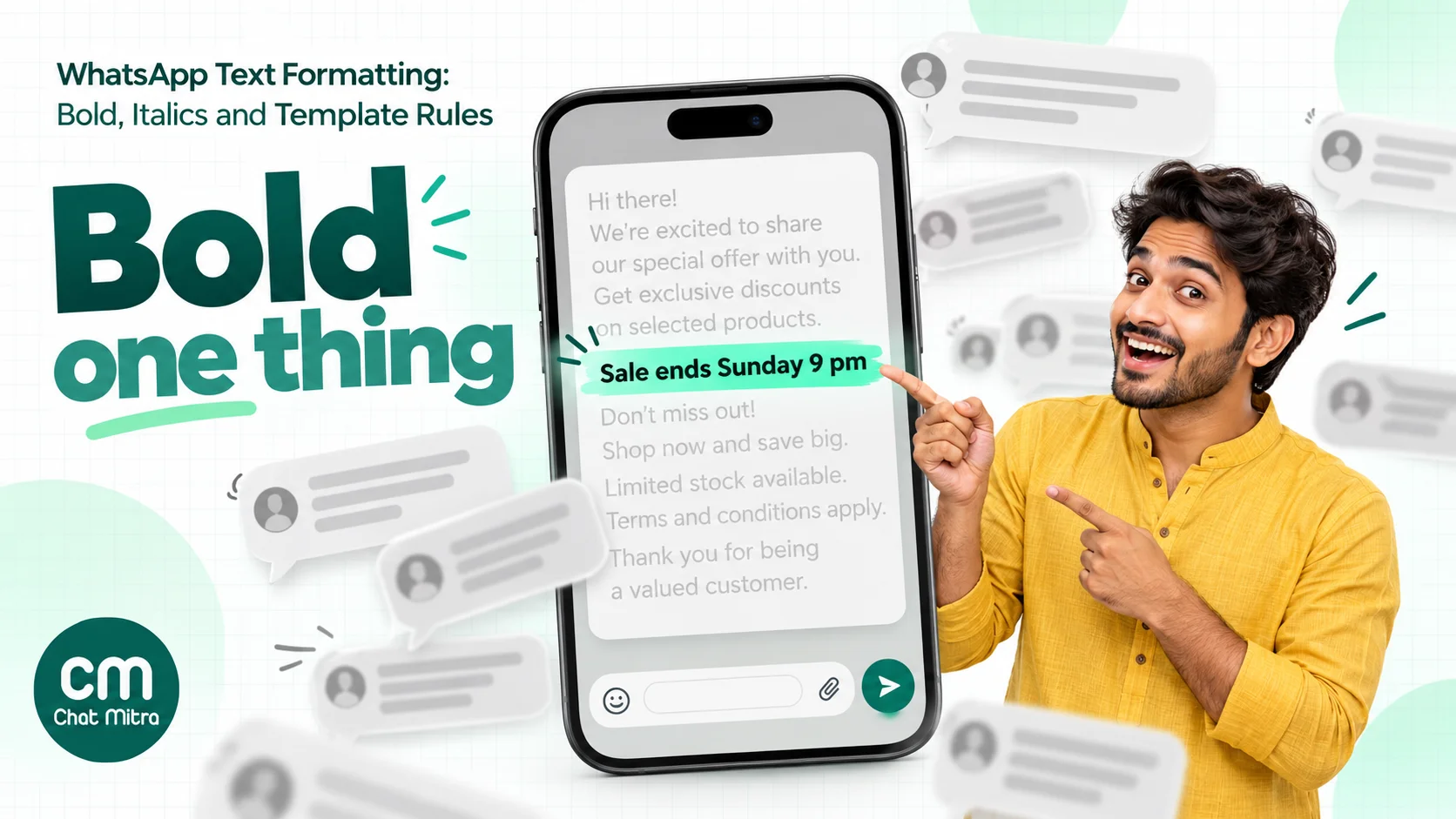
Bold one thing. The price, the deadline, the order status or the action. When three phrases are bold, none of them stands out. Many businesses bold the opening line because the chat list shows the start of the message, but the line still has to be worth reading.
Use strikethrough only for real prices. ~₹1,299~ ₹899 is persuasive because it’s specific. It’s also a claim: the old price should be one you genuinely charged, or the comparison misleads the customer.
Put anything the customer has to type or quote in monospace. Coupon codes, booking references, order IDs and UPI reference numbers are easier to read and copy in a fixed-width font, and monospace stops underscores in them from turning into italics. If the code should be copied with one tap, a copy-code button in a marketing template does that better; see coupon code templates.
Number steps, bullet options. “1. Download the form 2. Attach your PAN 3. Reply DONE” is a sequence. ”- Size S - Size M - Size L” is a set of choices. Numbered lists also make it easy for a customer to reply “step 2 isn’t working”.
Quote the question you’re answering. In a long support thread, starting a reply with a quoted line from the customer’s message (> Can I change the delivery address?) makes the answer unambiguous.
Use italics sparingly. Italic text is harder to read on small screens. It suits a short aside, a Hindi or regional word in an English message, or a disclaimer, not the offer.
Let emojis do one job each. An emoji can replace a word or set a tone; a row of them adds noise. Our guide to emojis in WhatsApp marketing covers where they help and where they get templates rejected.
Before and after: formatting examples for Indian businesses
The examples below show the text exactly as you’d type it. On the customer’s phone, the asterisks become bold, the backticks become monospace, and so on. Variables are shown as {{1}}, {{2}}.
A D2C sale announcement (marketing template)
Before:
Hi {{1}} BIG DIWALI SALE!!! FLAT 25% OFF ON EVERYTHING USE CODE DIWALI25 SHOP NOW VALID TILL SUNDAY HURRY!!!After:
Hi {{1}}, our Diwali sale is live 🪔

*Flat 25% off everything until Sunday, 9 pm.*

Use code ```DIWALI25``` at checkout. Free delivery on orders above ₹999.
Capitals are replaced by one bold line, the code is in monospace, and the deadline is specific. The body starts with “Hi”, so the variable isn’t dangling.
A coaching institute fee reminder (utility template)
Hello {{1}},

This is a reminder that the second instalment of *₹{{2}}* for the {{3}} batch is due on *{{4}}*.

To pay:
1. Tap *Pay now* below
2. Enter your student ID ```{{5}}```
3. Choose UPI or card

Already paid? Please ignore this message.
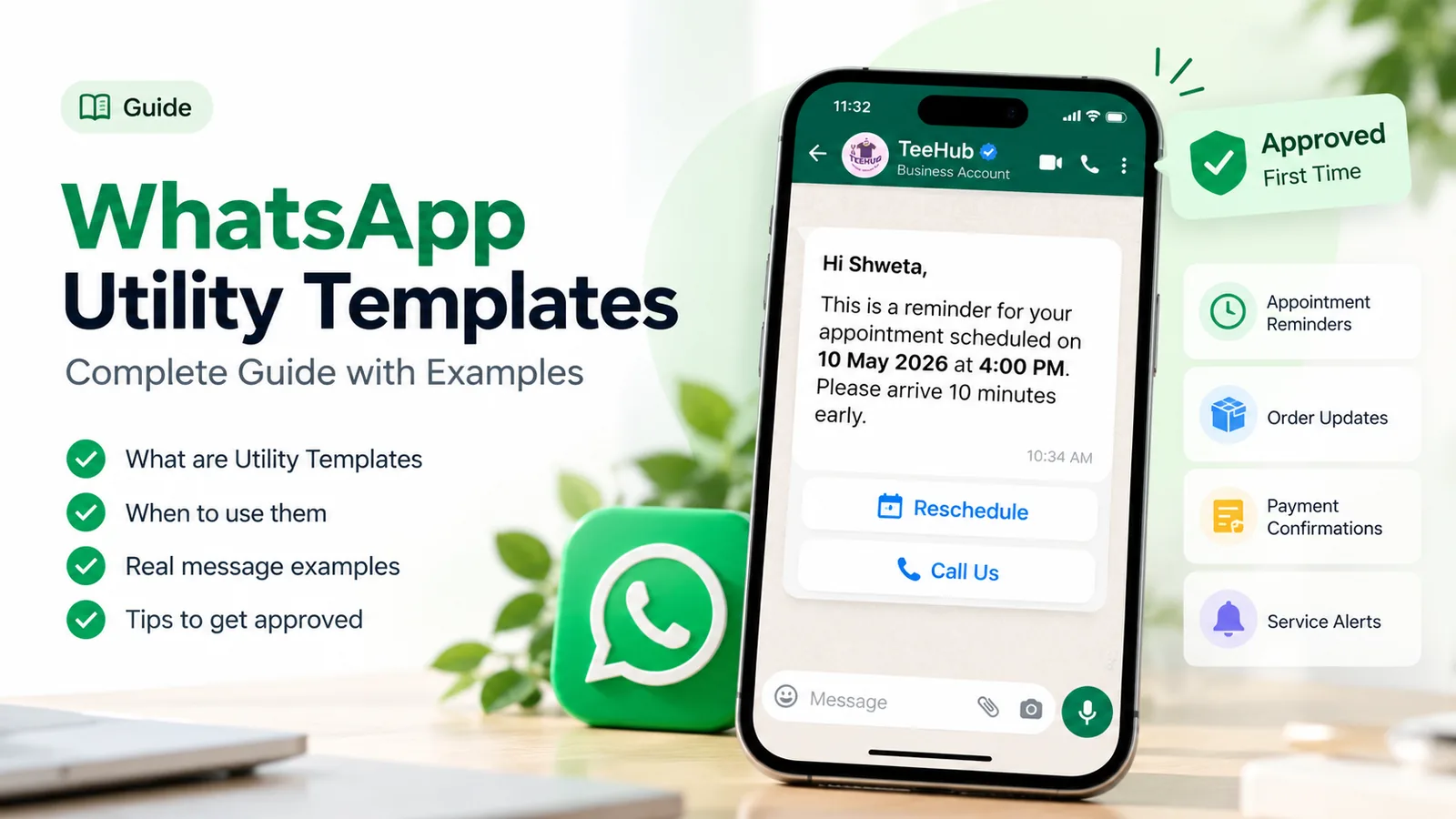
A fee reminder about an existing enrolment is a utility message, so keep any promotion out of it: a “refer a friend” line would turn it into marketing. Our WhatsApp utility templates guide explains where Meta draws that line.
A clinic appointment confirmation (utility template)
Hi {{1}}, your appointment is confirmed.

*{{2}} at {{3}}*
Dr {{4}}, {{5}} branch

Please bring:
- Previous prescriptions
- Any recent test reports

Reply 1 to confirm or 2 to reschedule.
The date and time are the only bold text. The list tells the patient exactly what to carry.
A support reply inside the service window
> I received the wrong size, can I exchange it?

Yes, of course. Your exchange request for order `ORD-58213` is open.

1. Keep the item unused with tags attached
2. Our courier partner will collect it within 2 working days
3. The new size ships once the pickup is scanned

You'll get a WhatsApp update at each step.
The quote anchors the reply to the customer’s question, and the numbered steps answer the follow-up questions before they’re asked.
Common formatting mistakes and how to fix them
| Mistake | What the customer sees | Fix |
|---|---|---|
Spaces inside the markers: * Offer * | Raw asterisks | Let the markers touch the words: *Offer* |
| Missing closing marker | A stray asterisk or underscore | Check each pair before submitting |
| Formatting in a text header | Template rejected or raw symbols | Plain text in headers, emphasis in the body |
| Variable at the start or end, even inside asterisks | Template rejected | Add words before and after: Hi *{{1}}*, … |
| Line breaks or tabs in a variable value | That customer’s message fails | Clean the spreadsheet column before sending |
| Underscores in coupon codes | Part of the code in italics | Put the variable in monospace or use hyphens |
| Bold on every line | Nothing stands out | Bold one fact per message |
| Several blank lines between paragraphs | Spam-like layout; possible rejection | One blank line at most |
| Fancy Unicode fonts | Unsearchable text; screen-reader problems | Use WhatsApp’s own codes |
Markdown from an AI tool (**bold**, ##) | Stray symbols | Instruct the AI to use WhatsApp formatting |
| Trusting the editor preview | Surprises on some devices | Send a test to your own phone and a colleague’s |
If Meta rejects a template, the rejection reason appears in Business Support Home and in an email, and you can edit and resubmit or appeal with a sample. Our guide to a rejected WhatsApp template walks through each reason in more detail.
Test before you send
A two-minute routine prevents most formatting surprises:
- Read the raw text once. Check every pair of markers and every line that starts with a list or quote marker.
- Count the body. Stay comfortably under 1,024 characters, including markers and emojis.
- Fill the variables with real data. Use your longest customer name and an address with a comma in it, not “John”.
- Send it to yourself. After approval, send the template to your own number and a colleague’s. Check an Android phone, an iPhone and WhatsApp Web or desktop if your customers use them.
- Check the chat-list preview. Look at what shows before the customer opens the chat. Make sure the first words are the ones you want seen.
- Send a small batch first. For a large campaign, send to a few hundred contacts, check the failures, then send the rest.
Formatting in ChatMitra
ChatMitra passes your formatting to WhatsApp exactly as you type it, in templates, team inbox replies, saved replies, auto-replies and chatbot messages. Here’s what each part of the product does with it.
| Where | What ChatMitra does |
|---|---|
| Template editor | A hint under the body reminds you of the codes. The live preview shows bold, italics, strikethrough and line breaks |
| Template limits | Counters for the 1,024-character body; header limited to 60 characters with no emojis; footer 60; button labels 25 |
| Template checks | The body is flagged red for a variable at the start or end (including one wrapped in formatting characters), a body that’s only variables, three or more consecutive line breaks, empty or duplicate placeholders, more than 20 placeholders or more than 10 emojis |
| Team inbox | Replies go out as typed, with a 4,096-character counter and an emoji picker. Shift+Enter adds a new line |
| Saved replies, auto-replies, chatbot | Text messages keep your formatting codes |
| Campaigns | Contact fields and CSV columns fill template variables |
Setting up a formatted template:
- Go to Templates and create a new template. Choose the category that matches the message.
- Add a header if you need one: plain text of up to 60 characters, or an image, video or document.
- Write the body with formatting codes, using
{{1}},{{2}}for variables. Watch the live preview and the character counter. - Add sample values for each variable, then a plain footer and buttons if you need them.
- Submit for Meta’s review, and send a test to your own number once it’s approved.
Good to know:
- The editor’s checks are warnings. They colour the field red but don’t stop you submitting; Meta’s review makes the final decision, so fix anything flagged first.
- The live preview doesn’t render monospace, inline code, lists or quotes. Your customer’s WhatsApp does, so test those on a phone.
- The web inbox shows bold text formatted but displays other markers (underscores, tildes, backticks) as typed. The ChatMitra mobile app shows bold, italics and strikethrough. Customers see the full formatting in WhatsApp either way.
- Campaign variables are inserted exactly as they appear in your contact data, without removing line breaks or extra spaces. Clean the columns you’ll use before importing the CSV.
- AI replies are sent as the model writes them. Tell the model in its instructions to use WhatsApp’s formatting rather than Markdown.
- Template features, broadcasts and automation depend on your plan. Check the pricing page.
A formatting checklist
- Bold appears once per message, on the fact that matters most.
- Codes, IDs and references are in monospace.
- Steps are numbered; options are bulleted, one per line.
- The template header, footer and button labels are plain text.
- The body doesn’t start or end with a variable, and the variables are numbered in order.
- There’s no more than one blank line between paragraphs.
- The body is under 1,024 characters, including markers and emojis.
- Variable data has no line breaks, tabs or long runs of spaces.
- No text comes from a fancy-font generator.
- The template has been sent to your own phone and checked before the campaign.
Formatting won’t rescue a message nobody wanted, but it does decide whether the right words are seen first. Use a little, use it consistently, and check it on a real phone.
Sources
- WhatsApp Help Center: How to format your messages (Android, iPhone and Web versions).
- Meta for Developers: Template components, Template review, Authentication templates, Text messages, Interactive reply buttons, Interactive list messages, Error codes.
- Meta Business Help Center: Create message templates for your WhatsApp Business account.
- Twilio: Error 63013: Channel policy violation.
- Unicode Consortium: Unicode Technical Report #25, Unicode Support for Mathematics.
- AlternativeTo: WhatsApp introduces four new advanced text formatting features (22 February 2024).
- All sources read on 22 October 2026.