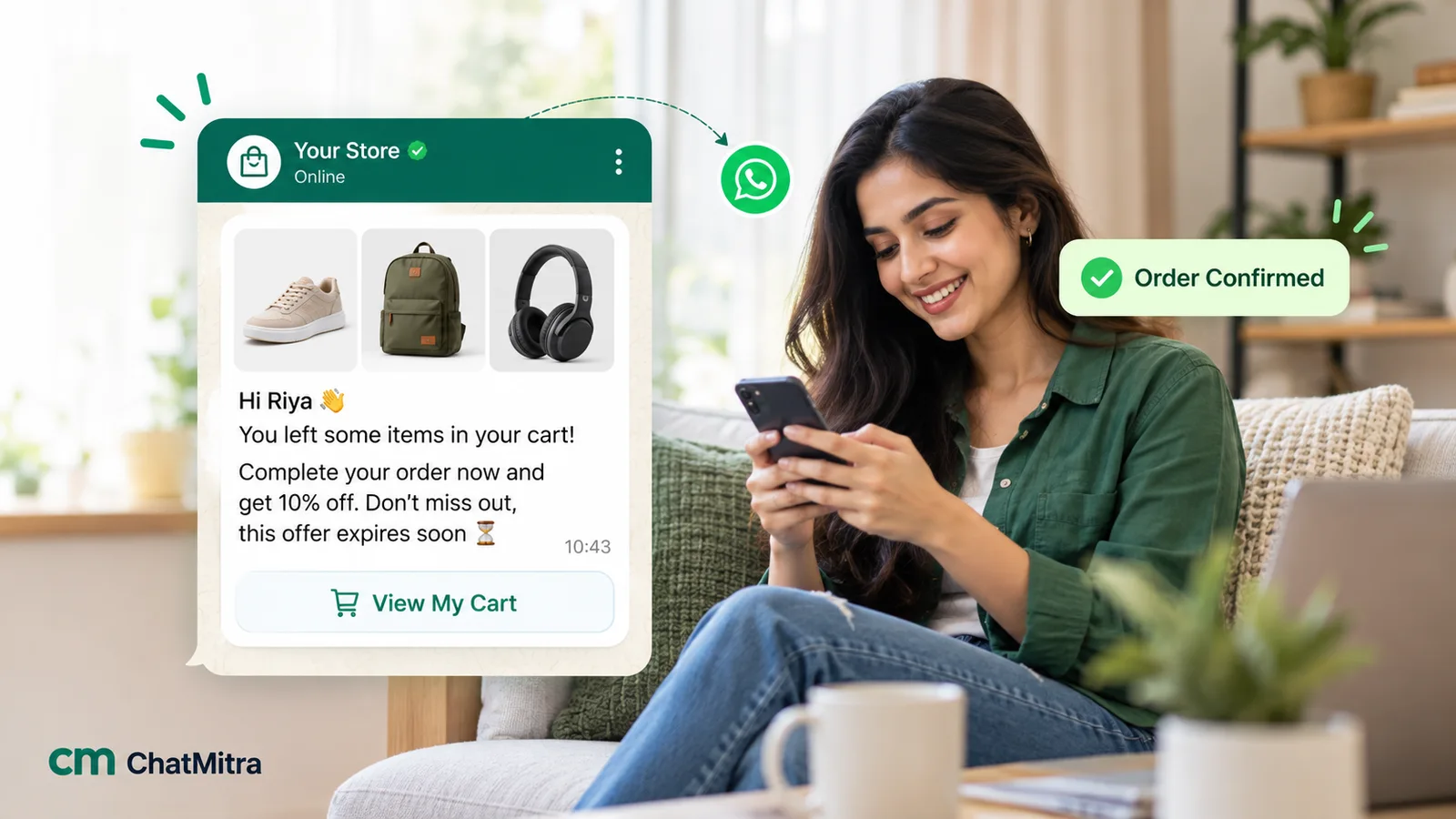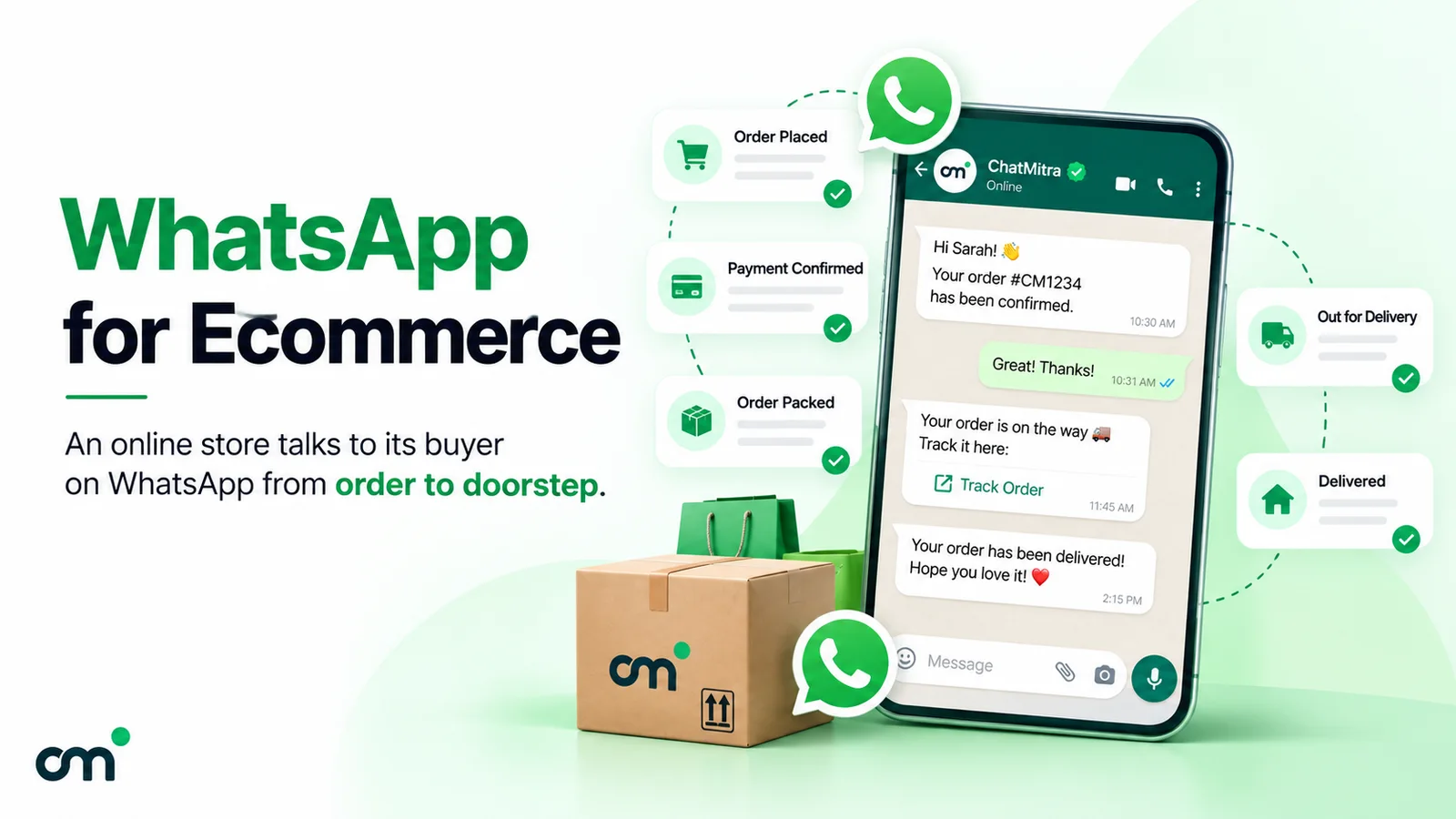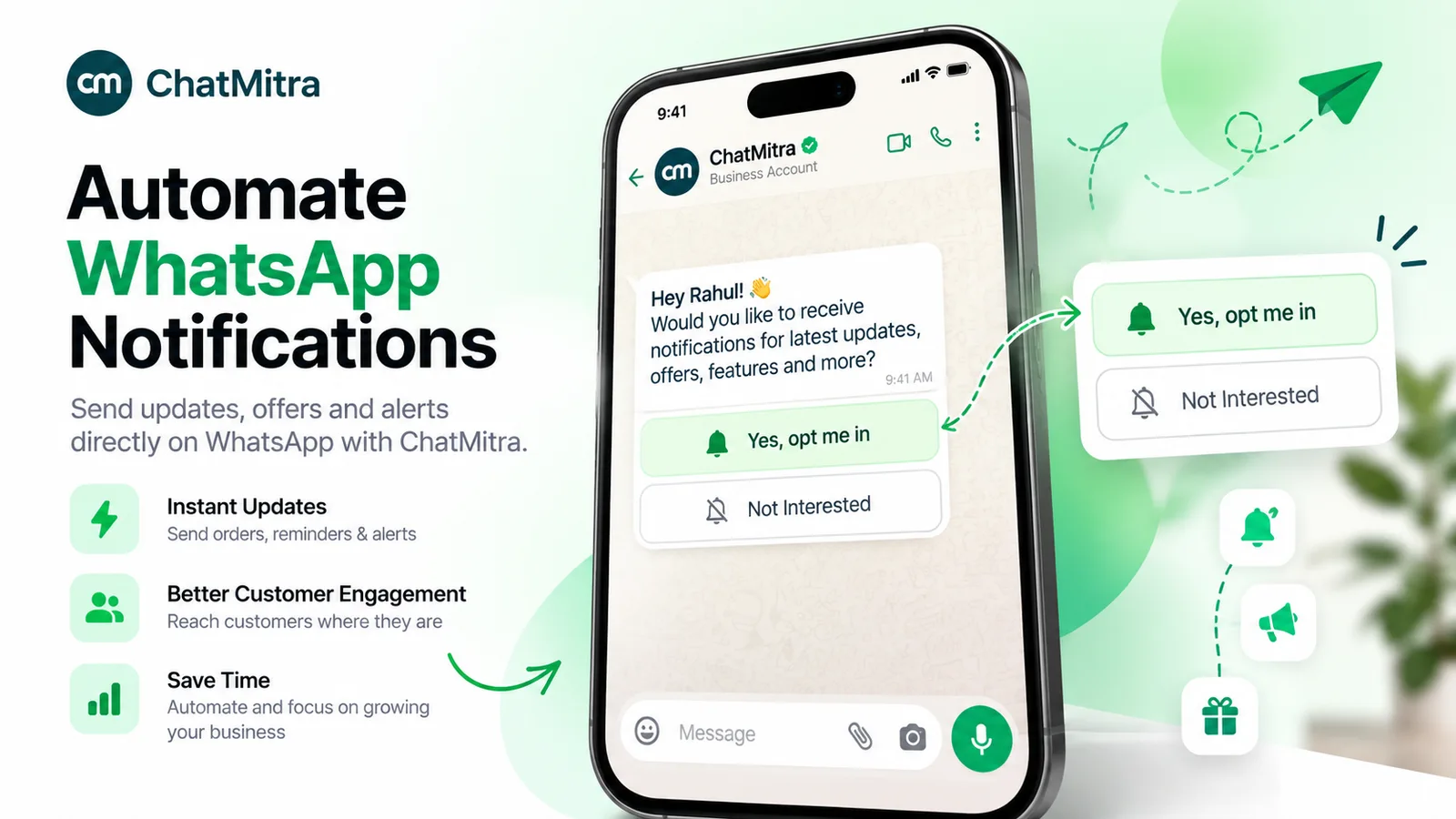
To send WooCommerce abandoned cart notifications on WhatsApp, you need three pieces: a plugin that saves the cart while the shopper types at checkout, an approved WhatsApp marketing template with a link back to that cart, and something that sends the template when the plugin says the cart was abandoned. WooCommerce does none of this on its own. The good news is that the free parts do most of the work, and the setup takes an afternoon.
This guide is the WooCommerce half of the story. It covers the plugin settings, the data the plugin actually sends, the workflow that turns it into a WhatsApp message, and the traps we found by reading the plugin’s code. For the strategy that applies to any store (who to message, what to write, how many reminders, how to measure recovery honestly), see our WhatsApp abandoned cart recovery guide.
Using ChatMitra? ChatMitra has no WooCommerce app, so you don’t install a ChatMitra plugin. Instead, the free CartFlows cart plugin sends each abandoned cart to a WorkflowMitra workflow, which sends your approved template through ChatMitra and checks for a purchase before the second reminder. Replies arrive in the same shared inbox as the rest of your WhatsApp chats. You’ll need ChatMitra Pro (₹999 a month), which includes API access, and a WorkflowMitra plan. Jump to the workflow.
Why WooCommerce needs an extra piece for cart reminders
Two facts about WooCommerce shape everything else.
Core doesn’t track abandoned carts. A WooCommerce cart lives in the shopper’s session until they place the order. There’s no list of abandoned carts in the admin, and WooCommerce sells cart recovery through extensions such as AutomateWoo.
There’s no cart webhook. WooCommerce’s built-in webhooks (WooCommerce → Settings → Advanced → Webhooks) cover coupons, customers, orders and products. WooCommerce’s webhook documentation suggests the “Action” topic with a hook such as woocommerce_add_to_cart for cart events, but an add-to-cart event has no phone number and no way to tell later whether the shopper paid.
Draft orders don’t fill the gap either. The Checkout block creates a temporary draft order, but current versions create it only when the customer clicks Place Order, and a daily clean-up deletes inactive drafts (WooCommerce order statuses). A shopper who leaves halfway through the form leaves no draft at all.
So the job falls to a cart plugin. It watches the checkout form, saves what the shopper types, decides when the cart counts as abandoned and tells you about it.
What you need before you start
| You need | Why | Where it comes from |
|---|---|---|
| A WhatsApp Business API number | Automated messages to customers need the API, not the WhatsApp Business app | A provider such as ChatMitra; see how to get the WhatsApp API |
| A cart-capture plugin with a webhook or WhatsApp sender | WooCommerce can’t detect abandoned carts | This guide uses the free Cart Abandonment Recovery for WooCommerce by CartFlows |
| A phone number field at checkout, ideally required | You can only message shoppers whose number you captured | WooCommerce checkout settings |
| WhatsApp consent that names your business | Meta requires opt-in before you message people | Checkout wording or a checkbox; see our opt-in guide |
| An approved marketing template with a URL button | Cart reminders are marketing messages | Your provider’s template builder |
| Something that sends the template | The plugin’s webhook needs a receiver | A workflow tool, or a developer calling your provider’s API |
Three ways to send WooCommerce cart reminders on WhatsApp
| Route | How it works | What it costs | Best for |
|---|---|---|---|
| 1. Cart plugin webhook → WorkflowMitra → ChatMitra | The free CartFlows plugin posts each abandoned cart to a workflow, which sends the template and checks for a purchase before a second reminder | Free plugin; ChatMitra Pro ₹999/month; WorkflowMitra from ₹999/month for 10,000 credits; Meta’s rates plus ₹0.20 per conversation | Stores that want no code, a shared inbox for replies and the same WhatsApp number for broadcasts and other automations |
| 2. Cart plugin hook → ChatMitra API (developer) | A short PHP snippet in WordPress calls ChatMitra’s send-message API when the plugin marks a cart abandoned | Free plugin; ChatMitra Pro; developer time | Stores with a developer who would rather keep the logic in WordPress |
| 3. Paid plugin with WhatsApp built in | The plugin sends through Meta’s Cloud API with your own Meta app and token | CartFlows’ Cart Abandonment Recovery Pro, $99 for the first year; Tyche’s Abandoned Cart Pro, from $119 a year; Retainful, from a free plan; plus Meta’s rates | Stores comfortable setting up a Meta developer app themselves |
CartFlows’ WhatsApp feature is in its Pro plugin. The free plugin lists WhatsApp as “coming soon”. Tyche’s Pro plugin asks for a Meta phone number ID and access token. Retainful also connects your own Meta account. Before you choose route 3, check where customer replies go and who on your team will answer them. A cart reminder that gets a “Do you have this in blue?” back is a sale in progress.
Why we lead with route 1. It’s the only route here that needs neither code nor a Meta developer app. Your cart reminders also share one number and one inbox with everything else your team does on WhatsApp. Meta’s message rates pass through at cost. ChatMitra adds ₹0.20 per conversation, counted once per customer in any 24 hours, and Enterprise (₹2,499 a month) removes that fee.
How the pieces fit together
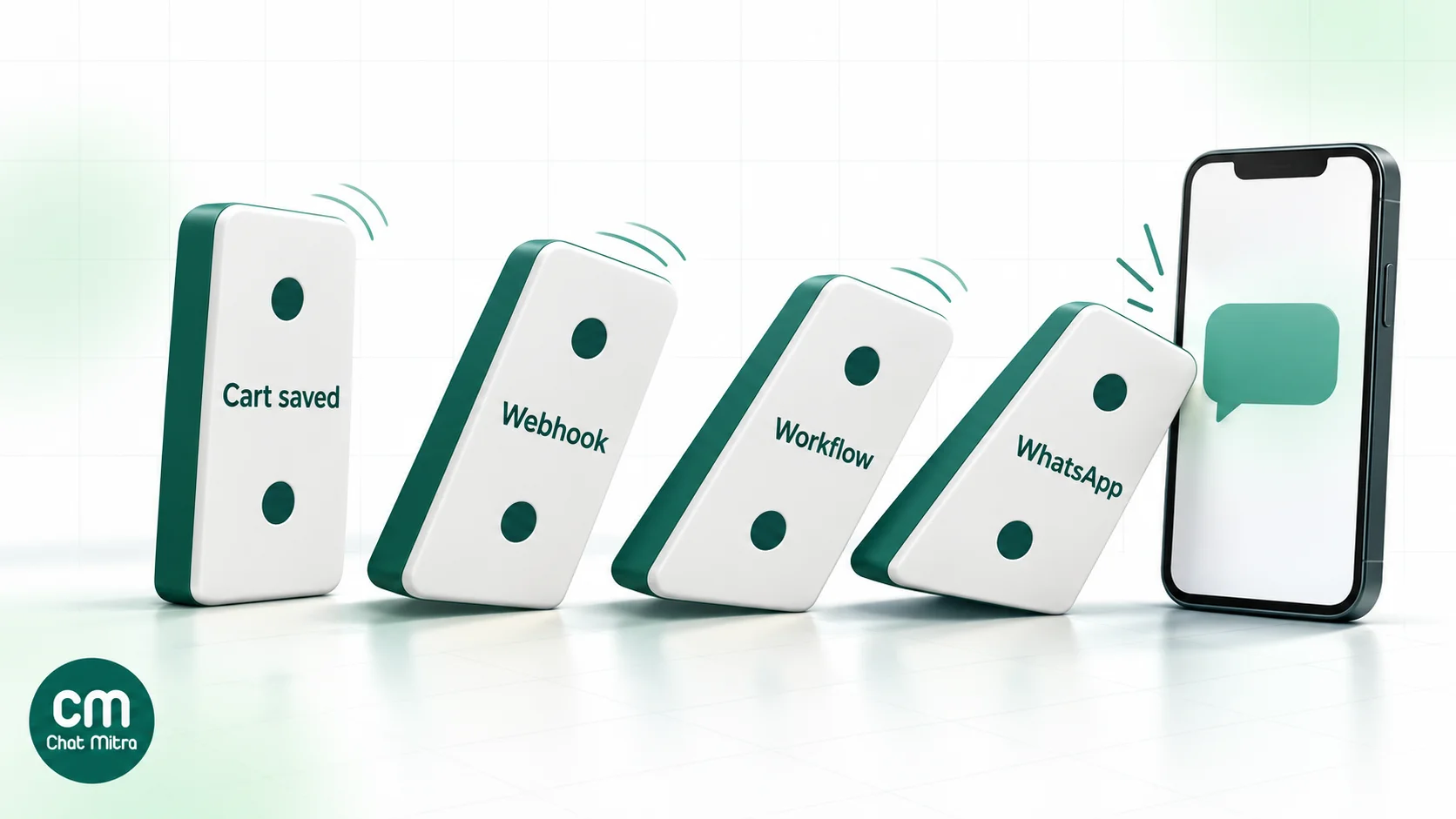
Here’s the whole journey for one cart on route 1:
- A shopper types their email and phone number on your checkout page. The plugin saves the cart straight away.
- They leave without paying. About 15 to 35 minutes later, the plugin marks the cart abandoned and posts it to your workflow’s webhook URL.
- The workflow checks that a phone number exists, fixes the country code and sends your first template, with a button that reopens their cart.
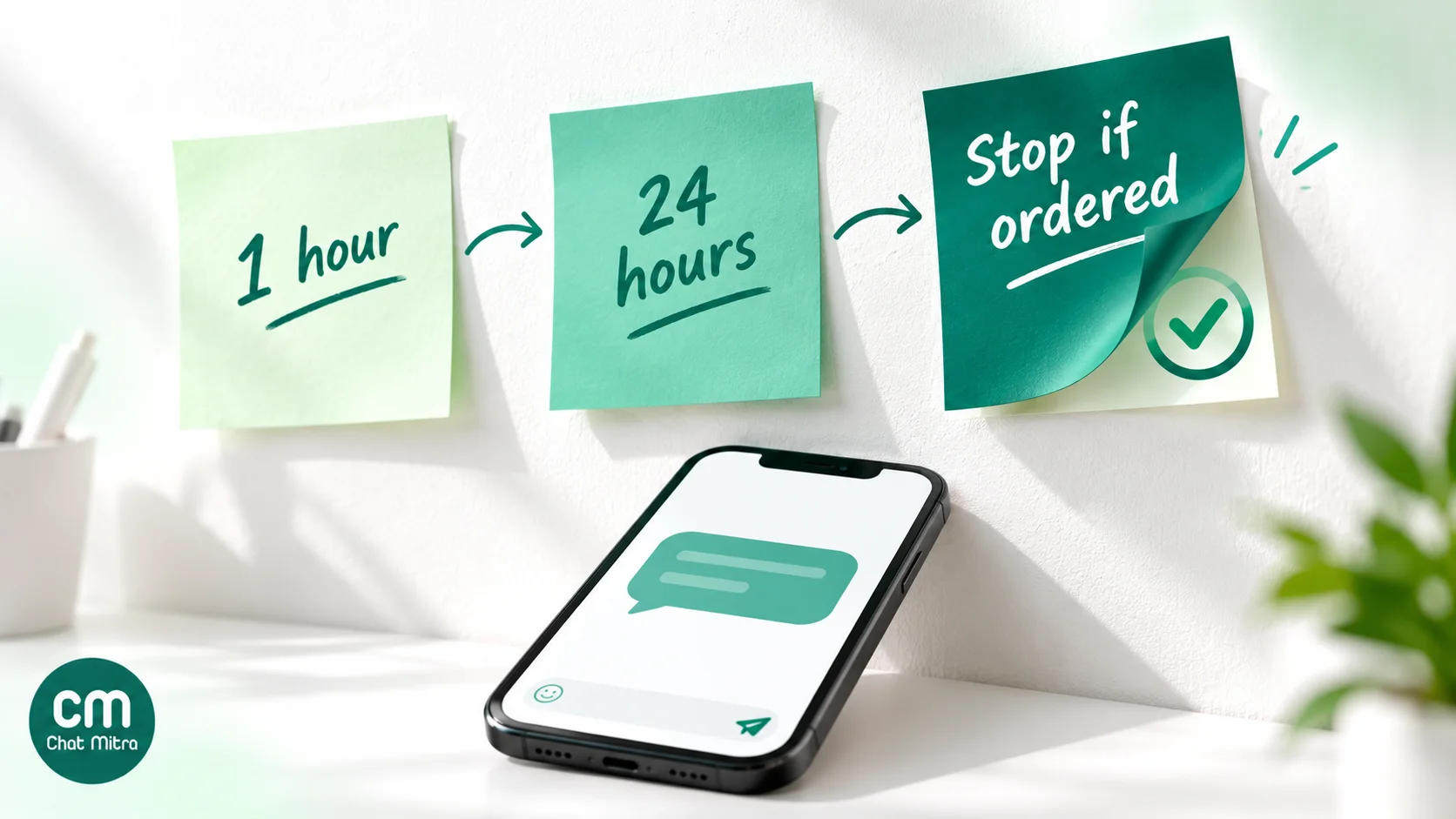
- The workflow waits about a day, then checks whether the cart was recovered.
- If the shopper bought in the meantime, the plugin has already sent a second webhook marked
completed, and the workflow has saved it. The waiting run sees the record and stops. If not, it sends one final reminder.
Step 1: Collect the phone number, and permission, at checkout
The plugin can only pass on what the shopper typed before leaving, so the checkout form decides how many carts you can reach.
Make the phone field required. WooCommerce’s two checkouts start from different defaults. In the Checkout block, phone is optional out of the box. In the older shortcode checkout, it’s required (WooCommerce developer advisory). In the block checkout, open the checkout page in the editor, select the Checkout block and set Phone to required under its address-field settings (Checkout block guide). Since WooCommerce 9.6 this setting is shared by both checkouts.
Know the plugin’s email rule. CartFlows’ free plugin sends a cart to its database only once the email field holds a valid address. We checked this in the plugin’s tracking script (version 2.1.4). A shopper who types a phone number but no email is never saved. In the block checkout the email field sits at the top of the form, which helps. Don’t move it below the phone number.
Ask for numbers with a country code. WooCommerce stores the phone number exactly as typed, and the plugin passes it on unchanged. “98765 43210” is a fine number for a courier and a useless one for the WhatsApp API, which needs the country code. Placeholder text such as “+91 98765 43210” nudges people the right way, and the workflow in step 4 repairs the common Indian cases.
Get consent that names you. Meta requires an opt-in before you message someone, and the opt-in must make clear they’ll hear from your business on WhatsApp. A line next to the phone field, such as “We’ll send order updates and a reminder if you leave items in your cart, on WhatsApp from Asha Fabrics”, is the simplest version. A separate checkbox is stronger evidence, and the law where you sell may require one (GDPR in Europe, for example). Adding a checkbox to the block checkout takes code through WooCommerce’s Additional Checkout Fields API (WooCommerce 8.9 or later) or a field-editor plugin that supports the block checkout. CartFlows’ phone-consent checkbox is a Pro feature; the free plugin’s consent option covers email only.
Step 2: Install and configure the cart-capture plugin
Install Cart Abandonment Recovery for WooCommerce by CartFlows from Plugins → Add New. It has over 300,000 active installs, and version 2.1.4 was updated on 9 October 2026 (wordpress.org listing). It supports both the Checkout block and the shortcode checkout.
Then go through these settings:
| Setting | What to choose | Why |
|---|---|---|
| Cart abandoned cut-off time | Leave at 20, or lower to the minimum of 10 | Despite the name, this sets how often the plugin checks for abandoned carts. The abandonment rule itself is fixed at 15 minutes without activity in the plugin’s code |
| Disable Tracking For | Leave empty, or pick staff roles only | Ticking a customer role stops those carts being saved at all |
| Exclude email sending For | Keep Processing and Completed | These are the statuses that count as “recovered”. An abandoned cart whose shopper’s order reaches one of them triggers the plugin’s completed webhook. Cash-on-delivery orders become Processing, so they count |
| UTM parameters | Leave empty | Anything here is added to the restore link after it has been HTML-escaped, which leaves & in the URL your workflow receives. Put tracking parameters in the template’s button URL instead |
| Webhook → Enable Webhook | On | Sends a webhook “upon cart abandonment and recovery” |
| Webhook → Webhook URL | Your workflow’s URL from step 4 | Must be public: the plugin refuses localhost and private addresses |
| Create Coupon Code (Webhook tab) | Off to start | When on, the plugin creates a unique coupon for each abandoned cart and sends it as coupon_code |
| Follow-up emails | Your choice | The plugin’s own email reminders run separately from WhatsApp. If you keep them, make sure email and WhatsApp don’t both arrive in the same minute |
What the webhook sends. We read the plugin’s source to see exactly what arrives. The webhook is a form-encoded POST (not JSON) with these fields:
| Field | Example | Notes |
|---|---|---|
order_status | abandoned or completed | completed means an abandoned cart was later recovered |
first_name, last_name | Asha, Mehta | Often blank if the shopper left early |
phone_number | 98765 43210 | Exactly as typed, with no country-code fixing |
email | [email protected] | Always present, because the plugin needs it to save the cart |
checkout_url | https://yourstore.com/checkout/?wcf_ac_token=… | Reopens the shopper’s cart. The token is derived from the cart session, so the same cart gets the same link in both events |
product_names | Cotton Kurta & Dupatta | Comma-separated |
cart_total | 1499.5 | A plain number, with no currency |
coupon_code | ABCD1234 | Empty unless Create Coupon Code is on |
billing_address, shipping_address, product_table | The product table is HTML meant for emails, so ignore it |
One trap to avoid. The plugin’s Trigger Sample button doesn’t send the same data as a real cart. Its test sends a field called phone, not phone_number, and a total with a currency symbol, as multipart form data. If you build your workflow from the sample, the phone field will be empty on every real cart. Use the sample only to confirm the URL works, then map fields from a real test checkout (step 5).
Step 3: Get a marketing template approved
Every cart reminder is a marketing message. Meta’s template guidelines use “You left items in your cart” as an example of marketing, and submitting it as utility risks a category change or a rejection. Marketing templates cost more (₹0.8631 per delivered message in India) and are subject to Meta’s per-user limits. WhatsApp doesn’t deliver them to US numbers at all (Meta: per-user limits).
Build two templates in ChatMitra’s Templates section, in the Marketing category.
Reminder 1 (about an hour after they leave):
Hi {{1}}, you left {{2}} in your cart at Asha Fabrics. We’ve saved it for you, and your total is {{3}}. Questions about sizing, delivery or cash on delivery? Just reply here and our team will help.
Button (URL): Complete my order
Reminder 2 (about a day later, and the last one):
Hi {{1}}, your cart at Asha Fabrics is still saved, with a total of {{2}}. If something stopped you at checkout, reply and tell us. We read every message. This is our last reminder about this cart.
Button (URL): Return to my cart
Set up the button as a dynamic URL. A WhatsApp URL button can end in one variable, which is added to the end of the address you enter when you create the template (Meta: template components). For CartFlows links, set the base URL to your checkout address up to the token:
https://yourstore.com/checkout/?utm_source=whatsapp&utm_medium=cart_reminder&wcf_ac_token={{1}}Your workflow then fills in only the token, which keeps the link on your own domain and puts your tracking parameters in front of it.
Writing tips that matter on WooCommerce:
- Don’t lean on product names alone.
product_namescan be long, and Meta rejects messages whose variables push past its limits. “Cotton Kurta & Dupatta” is fine; a cart with eleven items isn’t. Fall back to “your items” when the cart is large. - Answer the real reasons people stop. Shipping cost, delivery time, payment trust and COD are the common ones. One line inviting a reply does more than a countdown timer.
- Keep the discount for later, if you use one at all. If you switch on the plugin’s coupon, put
{{coupon_code}}in reminder 2’s body text. Through ChatMitra, the code goes in the message text, because copy-code coupon buttons aren’t supported.
Step 4: Build the reminder workflow
This is route 1 in WorkflowMitra, ChatMitra’s automation product. Every expression below was run through WorkflowMitra’s expression engine with sample cart data before publishing.
4a. Create a webhook trigger
Create a workflow and choose Webhook as the trigger, with “Something else” as the source. Copy the URL into the plugin’s Webhook URL field and save.
The plugin can’t add a secret header or a signature, so leave the trigger’s verification options off. Treat the URL like a password: it’s long and unguessable, and anyone who has it can start your workflow. Once everything works, you can add an IP allowlist containing your web server’s address. Turn it on only after testing, because the Trigger Sample button posts from your browser, not your server.
The trigger reads form-encoded bodies, so the fields from step 2 arrive by name. WorkflowMitra answers with HTTP 202 straight away and runs the rest in the background. It accepts up to 120 requests a minute per webhook, far more than a store’s abandoned carts usually reach.
4b. Split abandoned from recovered
Add a Switch on order_status with two routes: abandoned and completed. Switch and IF steps use no credits.
4c. Recovered route: remember the cart
On the completed route, add a Data Store step with Create or update (upsert). Use this key:
cart-{{ $trigger.checkout_url }}Put any fixed record data, such as {"recovered": true}. Record data isn’t filled from variables, which is why the cart’s identity lives in the key. That’s the whole route: one record per recovered cart. Records don’t expire, so you can review them later.
4d. Abandoned route: skip carts with no phone number
Add an IF: $trigger.phone_number is not empty. Use “is not empty” rather than “exists”, because a blank phone field still exists as an empty value and would pass an “exists” check. Carts without a number end here, having used one credit for the trigger.
4e. Send reminder 1
Wait about an hour from the moment the shopper left. Because the plugin already took 15 to 35 minutes to send the cart, a Delay of 30 minutes here gives roughly the first-hour reminder that the pillar guide’s schedule recommends. Delay costs nothing.
Then add a WhatsApp step, choose ChatMitra as the sender and pick reminder 1. Map the slots:
| Slot | Value | Becomes |
|---|---|---|
| Recipient | The phone expression below | 919876543210 |
| Variable 1 | {{ capitalize($trigger.first_name) | there }} | Asha, or “there” if blank |
| Variable 2 | {{ $trigger.product_names | your items }} | Cotton Kurta & Dupatta |
| Variable 3 | {{ formatCurrency($trigger.cart_total, "INR") }} | ₹1,499.50 |
| Button variable | {{ replace($trigger.checkout_url, "https://yourstore.com/checkout/?wcf_ac_token=", "") }} | the token only |
For an India-focused store, use this as the recipient:
{{ if(length(replace(replace(replace($trigger.phone_number, " ", ""), "-", ""), "+", "")) = 10, padStart(replace(replace($trigger.phone_number, " ", ""), "-", ""), 12, "91"), if(length(replace(replace(replace($trigger.phone_number, " ", ""), "-", ""), "+", "")) = 11, padStart(substring(replace(replace($trigger.phone_number, " ", ""), "-", ""), 1), 12, "91"), $trigger.phone_number)) }}It removes spaces and dashes. If ten digits remain, it adds 91; if eleven remain, it drops a leading trunk zero and adds 91. Anything else passes through, and the WhatsApp step strips the plus sign and other symbols. In our test, “98765 43210” and “098765 43210” both became 919876543210, while “+91 98765-43210” and a UK number passed through to be cleaned by the WhatsApp step. Stores that sell abroad should collect numbers with country codes instead, because a foreign ten-digit number would wrongly get 91.
The | there and | your items fallbacks matter. Meta refuses a template message with an empty variable, and shoppers who leave early often haven’t typed their name.
4f. Wait, then check for a purchase
Add a Delay of 24 hours. In WorkflowMitra, a paused run can’t be cancelled and resumes on the version of the workflow that was live when it started. So instead of trying to stop it, check again when it wakes up.
After the delay, add a Data Store step with Check if exists and the same key, cart-{{ $trigger.checkout_url }}. Then add an IF: the result’s exists is false. If the shopper bought, the recovered route has saved the record and the run ends quietly.
4g. Send reminder 2
On the IF’s true route, add a second WhatsApp step with reminder 2. Use the same recipient expression, first name and button variable, plus the formatted total. Stop there. A third message rarely earns back its marketing rate and its risk to your number’s quality rating.
Step 5: Test with a real checkout
Don’t trust the sample. Run a real cart through:
- Confirm the URL. Press Trigger Sample once and check that the workflow’s run history shows a run. Ignore its field values.
- Abandon a real cart. In a private browser window, add a product, go to checkout, type a real email and your own WhatsApp number, then close the window.
- Wait 15 to 35 minutes. WordPress runs scheduled tasks when someone visits the site (WordPress cron documentation), so on a quiet test site, load a page now and then, or ask your host about a real server cron.
- Check the run. You should see
order_status=abandoned, your number inphone_numberand acheckout_url. If you mapped fields from the sample, fix them now. - Check the message. Reminder 1 should arrive after your delay. Tap the button: it should open checkout with your items in the cart.
- Test recovery. Abandon a second cart with the same email, then complete the order and set it to Processing. A
completedrun should appear and write the Data Store record. When the 24-hour delay ends, that run should stop before reminder 2. For a faster check, shorten both delays to a few minutes while testing. Runs already waiting keep their test delays, because each run keeps the version it started with.
Option for developers: send from WordPress with the ChatMitra API
If you’d rather keep the logic on your own server, the CartFlows plugin fires a WordPress action, wcf_ca_process_abandoned_order, each time it marks a cart abandoned. A small snippet can call ChatMitra’s send-message API from there. This is a sketch to adapt, not a drop-in plugin. Test it on staging first.
add_action( 'wcf_ca_process_abandoned_order', function ( $cart ) {
    $fields = maybe_unserialize( $cart->other_fields );
    $phone  = preg_replace( '/\D/', '', $fields['wcf_phone_number'] ?? '' );
    if ( strlen( $phone ) === 10 ) { $phone = '91' . $phone; } // India-only shortcut
    if ( strlen( $phone ) < 8 ) { return; }

    $link = Cartflows_Ca_Helper::get_instance()->get_checkout_url(
        $cart->checkout_id, [ 'wcf_session_id' => $cart->session_id ]
    );
    parse_str( (string) wp_parse_url( html_entity_decode( $link ), PHP_URL_QUERY ), $query );
    $token = rawurlencode( $query['wcf_ac_token'] ?? '' );
    $name  = ( $fields['wcf_first_name'] ?? '' ) ?: 'there';
    $total = html_entity_decode( wp_strip_all_tags( wc_price( $cart->cart_total ) ) );

    wp_remote_post( 'https://backend.chatmitra.com/developer/api/send_message', [
        'timeout' => 10,
        'headers' => [
            'Authorization' => 'Bearer ' . CHATMITRA_API_KEY,
            'Content-Type'  => 'application/json',
        ],
        'body' => wp_json_encode( [
            'recipient_mobile_number' => $phone,
            'customer_name'           => $name,
            'request_id'              => 'cart-' . $cart->session_id,
            'messages' => [ [
                'kind'     => 'template',
                'template' => [
                    'name'       => 'cart_reminder_1',
                    'language'   => 'en',
                    'components' => [
                        [ 'type' => 'body', 'parameters' => [
                            [ 'type' => 'text', 'text' => $name ],
                            [ 'type' => 'text', 'text' => 'your items' ],
                            [ 'type' => 'text', 'text' => $total ],
                        ] ],
                        [ 'type' => 'button', 'sub_type' => 'url', 'index' => 0,
                          'parameters' => [ [ 'type' => 'text', 'text' => $token ] ] ],
                    ],
                ],
            ] ],
        ] ),
    ] );
} );
A few notes on the API. It needs a ChatMitra plan with API access (Pro or Enterprise); see the API reference. It answers 202 once the message is queued, and a repeated request_id isn’t sent twice. Keep the key in wp-config.php, not in the snippet. This sends only the first reminder. A second one needs a scheduled check of your own, such as Action Scheduler, that confirms the cart is still abandoned. That’s the part route 1 handles for you.
Pending-payment orders are a separate job
Some shoppers get further. They place the order, then fail or abandon the payment step at the gateway. Those aren’t abandoned carts; they’re orders with the status Pending payment (“the order has been received, but no payment has been made”). WooCommerce’s own order webhooks can reach them, so no cart plugin is needed. Send a utility-style payment reminder about that specific order, or offer to switch it to cash on delivery. If many of your orders are COD, our COD to prepaid guide covers the other direction.
What it costs: a worked month
Take a store whose cart plugin saves 1,000 abandoned carts a month. All of them have an email, and 600 have a phone number with WhatsApp consent. To illustrate the arithmetic, suppose 90 of those 600 buy before the second reminder; this is an assumption, not a benchmark. All numbers are Indian, and every message is assumed delivered.
| Item | Calculation | Cost |
|---|---|---|
| Meta, marketing templates | (600 + 510) × ₹0.8631 | ₹958.04 |
| ChatMitra conversation fee | 1,110 conversations × ₹0.20 (the two reminders are a full 24 hours apart, so each opens a new conversation) | ₹222.00 |
| Messages total | ₹1,180.04 | |
| WorkflowMitra credits | 400 runs with no phone × 1, plus 90 recovered × 3, plus 510 second reminders × 4, plus 120 completed events × 2 | 2,950 of the entry plan’s 10,000 |
Credits count one each for the trigger, Data Store and WhatsApp steps. Delay, Switch and IF are free. On top come ChatMitra Pro (₹999 a month) and the WorkflowMitra entry plan (₹999 a month for 10,000 credits, with a 14-day trial). A store on ChatMitra Enterprise (₹2,499) pays no conversation fee. Marketing rates vary by country, so check WhatsApp API pricing for yours.
Whether this pays off depends on your order value and your real recovery rate, so measure it rather than assuming. The pillar guide explains how to measure recovery honestly, including why “recovered” counts include people who would have come back anyway.
Troubleshooting
| Symptom | Likely cause | Fix |
|---|---|---|
| No run at all after abandoning a cart | No valid email was typed, or the scheduled check hasn’t run yet | Type a full email; load a page to wake WordPress’s scheduler; check the plugin’s cart list |
Run arrives but phone_number is empty | The phone field was optional and skipped, or the workflow reads phone from the sample | Make phone required; map $trigger.phone_number |
| WhatsApp step fails on the number | Missing country code, or fewer than 8 digits after cleaning | Use the recipient expression; ask for “+country code” at checkout |
| Template send rejected | The template isn’t approved, a variable is empty or a variable is too long | Check the template status; add fallbacks; shorten product_names |
| Button opens an empty cart | The base URL in the template doesn’t match your checkout address, or the plugin’s UTM field added & | Copy the exact checkout URL; clear the UTM parameters field |
| Second reminder sent after a purchase | The order status isn’t in “Exclude email sending For”, or the order used a different email | Keep Processing and Completed selected; the plugin matches recovery by email |
| No message to US customers | WhatsApp doesn’t deliver marketing templates to US numbers | Use email for US shoppers |
| Plugin refuses the webhook URL | The URL points to localhost or a private address | Use the workflow’s public URL |
Mistakes that cost more than they recover
- Messaging without consent. Blocks and reports lower your number’s quality rating, and that affects your order updates too.
- Sending within minutes. People who are still deciding don’t need a nudge yet, and the plugin’s own timing already adds 15 to 35 minutes.
- More than two reminders. Each one is a marketing charge, and the third rarely earns its keep.
- No stop rule. A reminder after a purchase makes a store look careless. The
completedroute and the Data Store check exist to prevent it. - Discounts in the first message. Shoppers learn quickly that leaving a cart earns a coupon.
- Nobody answering replies. A reminder that invites questions needs someone to answer them, or an AI chatbot for the common ones.
Where to start
Start small: make the phone field required, add a consent line, install the free cart plugin and get one marketing template approved. Build the workflow with reminder 1 only, test it with your own cart, then add the 24-hour check and reminder 2. Once real carts are flowing, compare a few weeks with reminders on against a similar period with them off, and decide on discounts from evidence rather than habit.
If you’d rather not build anything, ChatMitra’s Shopify integration has ready-made cart recovery flows. On WooCommerce, the workflow above gets you to the same place with about ten steps.