How to Create a Chat Mitra Account

Last Updated: 12 January 2026 4 min read
1

Enter Your WhatsApp Number
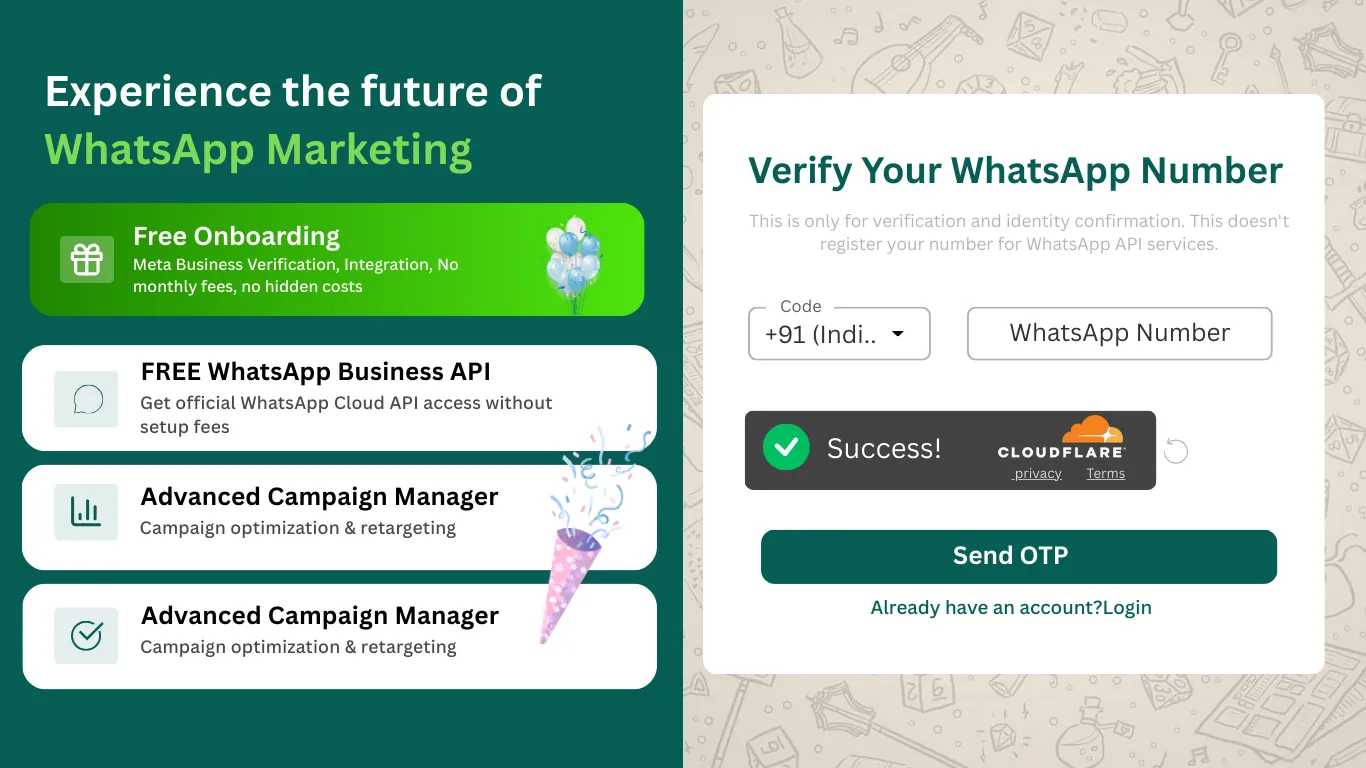
Step 1: Enter Your WhatsApp Number

Navigate to app.chatmitra.com/signup to begin creating your Chat Mitra account.

You will see the signup page with a field asking for your WhatsApp number. Enter the phone number associated with your WhatsApp account, including the country code (for example, +91 for India).

After entering your number, click the "Send OTP" button. You will receive a verification code on your WhatsApp within seconds.
2

Verify Your WhatsApp Number with OTP

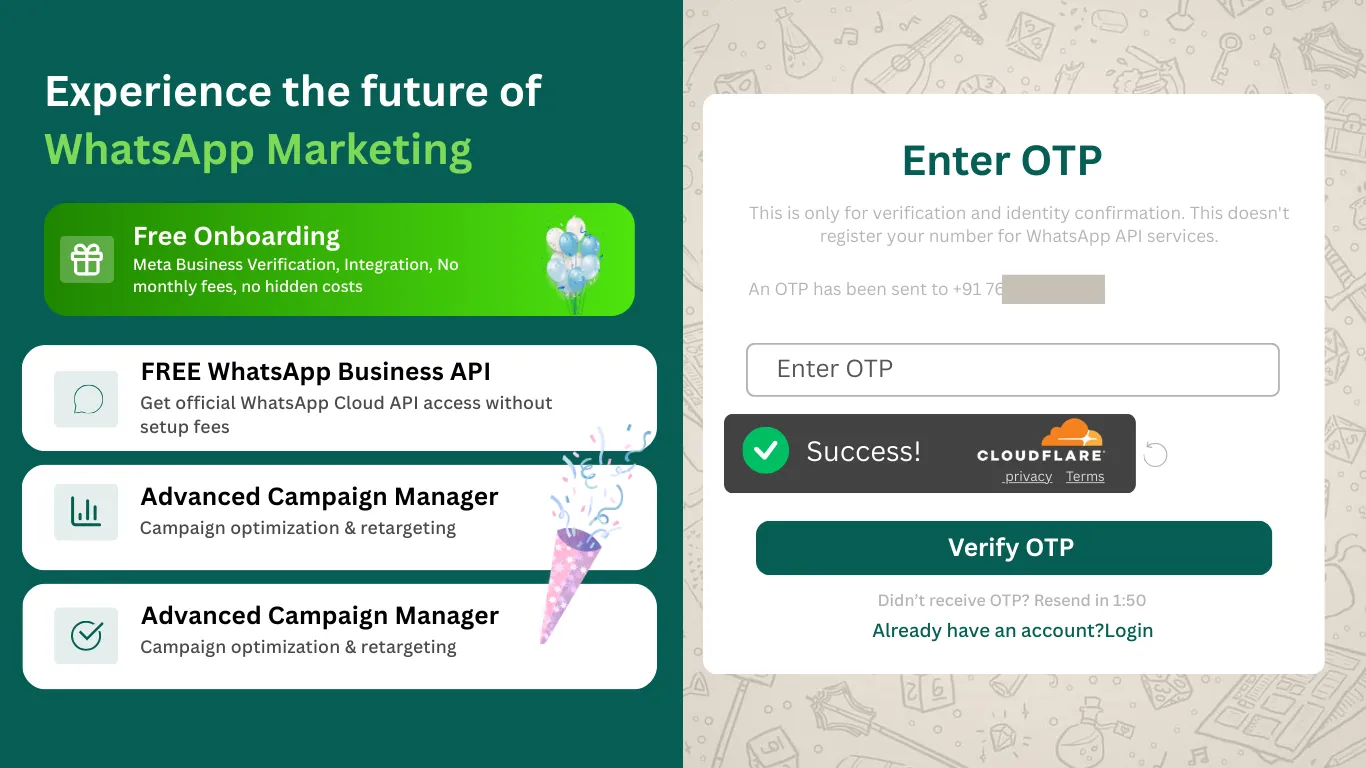
Step 2: Verify Your WhatsApp Number with OTP

Check your WhatsApp inbox for the verification code sent by Chat Mitra. The OTP is a six-digit number that confirms you own the phone number provided.

Enter this code in the OTP field on the signup page and click "Verify OTP" to confirm your WhatsApp number.

Tip: If you do not receive the OTP within 2 minutes, click the "Resend OTP" button. Make sure WhatsApp notifications are enabled on your phone.
3

Enter Personal and Business Information

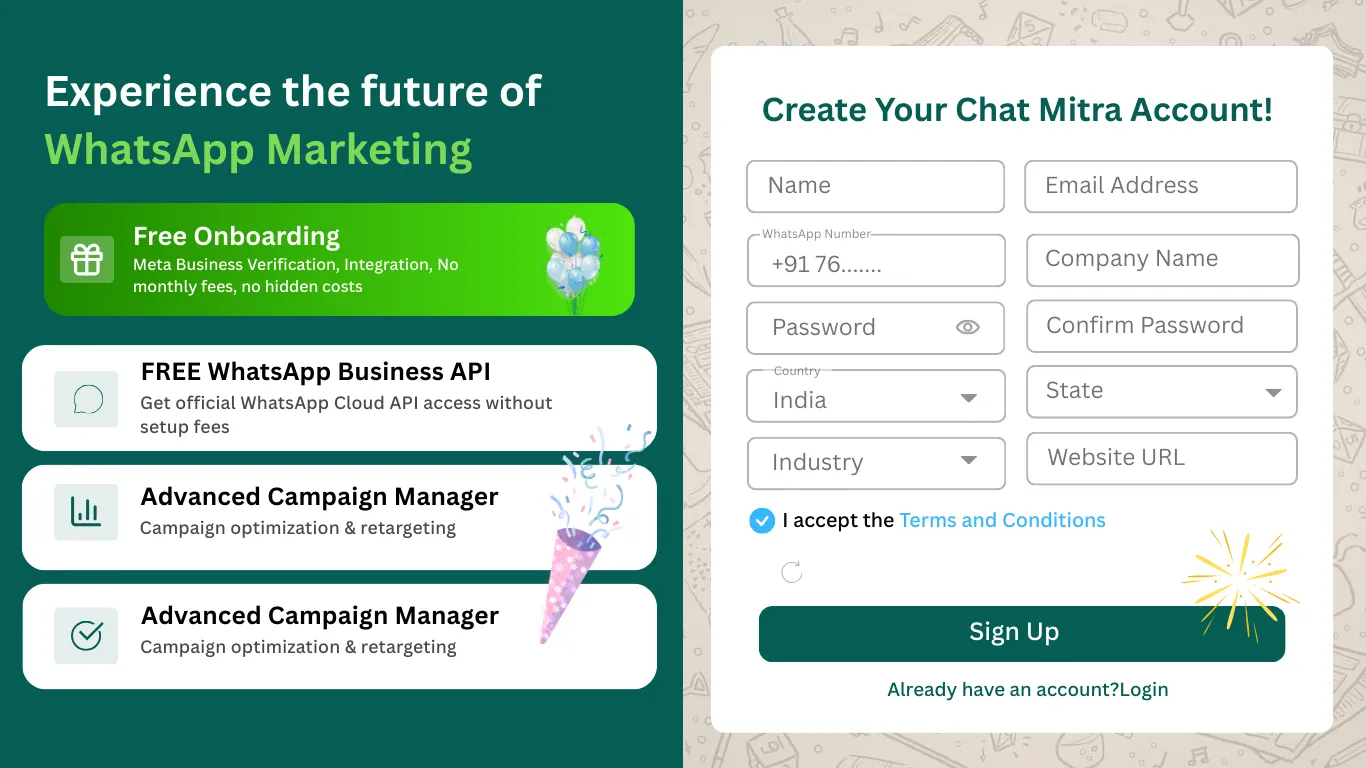
Step 3: Enter Personal and Business Information

After verifying your WhatsApp number, you will be taken to the registration form. Fill in the following information carefully:

  • Full Name: Your personal name as it will appear in your account profile.
  • Business Name: The name of your business or company.
  • Email Address: A valid email where you can receive account notifications and updates.
  • Business Industry: Select your industry category from the dropdown menu (e.g., E-commerce, Healthcare, Hospitality, Education).
  • Password: Create a strong password with at least 8 characters, including uppercase, lowercase, numbers, and special characters for security.

Double-check all details for accuracy before proceeding. Your business information helps Chat Mitra provide personalized features and support for your industry type.

4

Complete Signup and Access Your Dashboard

Step 4: Complete Signup and Access Your Dashboard

After filling in all required information, review the details one final time to ensure everything is correct.

Click the "Sign Up" button to complete your account creation. Chat Mitra will process your registration and take you to your personalized dashboard.

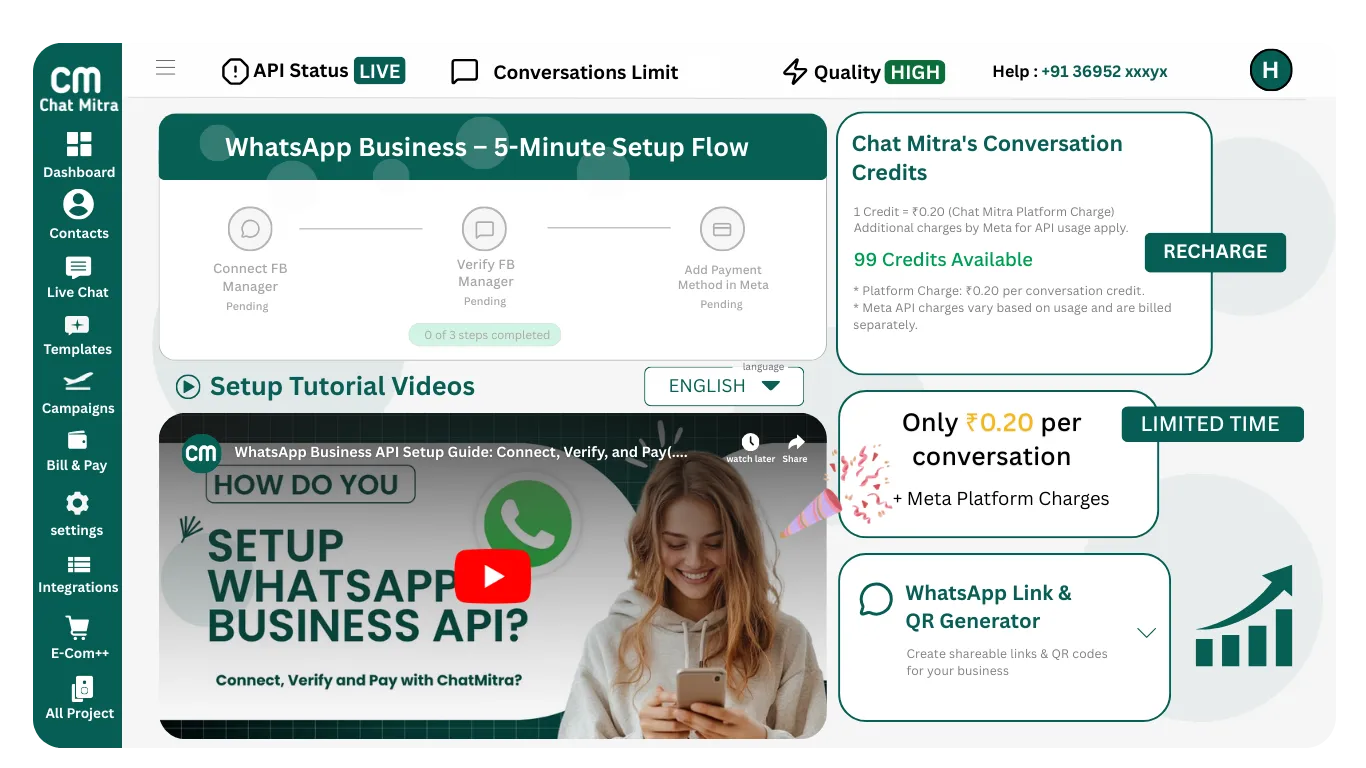
Success: Your Chat Mitra account is now active. From your dashboard, you can manage your WhatsApp communications, set up the WhatsApp Business API, create message templates, and track message analytics.

Your next step is to connect your Facebook Business Manager and set up the WhatsApp Business API to begin sending messages to your customers.

Next Step: Apply for WhatsApp Business API

Your Chat Mitra account is now active. To start sending messages to your customers, follow the complete WhatsApp Business API setup guide.

How to Apply for WhatsApp Business API

Frequently Asked Questions

What is Chat Mitra and how does it help my business?

Chat Mitra is a WhatsApp Business API platform that helps businesses automate, manage, and scale customer communications on WhatsApp. It enables you to send campaigns, automate responses, track message analytics, and integrate WhatsApp into your business workflow without technical setup complexity.

Do I need a WhatsApp Business account to use Chat Mitra?

You need a WhatsApp number to create a Chat Mitra account, but you do not need a WhatsApp Business app installed. Chat Mitra manages everything through the WhatsApp Business API, so your account works through the web platform instead.

Can I use my personal WhatsApp number?

It is recommended to use a dedicated business phone number for Chat Mitra to keep personal and business communications separate. However, Chat Mitra also allows you to add a virtual number provided by Meta for messaging without needing a personal phone number.

How long does account creation take?

The entire signup process takes approximately 3 to 5 minutes. You need to verify your WhatsApp number via OTP, fill in your business details, and set a password. Your account becomes active immediately after completing these steps.

Is Chat Mitra free to use?

Chat Mitra offers a free trial period for new accounts. After the trial, pricing depends on the plan you choose, which scales based on the number of conversations and features you need. Check the pricing page for current plan details.

What payment methods does Chat Mitra accept?

Chat Mitra accepts credit cards, debit cards, and bank transfers. You can view all accepted payment methods in your account settings. Billing occurs monthly or annually depending on your chosen plan.

What if I do not receive the OTP?

Wait at least 2 minutes before requesting a new code. Then click the Resend OTP button. Ensure WhatsApp notifications are enabled on your phone. If the issue persists, contact Chat Mitra support for assistance.

Can I change my WhatsApp number after signup?

Yes, you can update your WhatsApp number in your account settings. However, if you change the number associated with your WhatsApp Business API, you may need to reauthorize your account with Meta.

Is my data secure with Chat Mitra?

Chat Mitra follows industry-standard security protocols including encryption, secure data storage, and regular security audits. Your business data and customer conversations are protected and compliant with data privacy regulations.

Can I manage multiple WhatsApp numbers with one account?

Yes, Chat Mitra allows you to add and manage multiple WhatsApp Business accounts from a single Chat Mitra account. This is useful for businesses operating in different regions or managing separate product lines.

Do I need to be technical to use Chat Mitra?

No, Chat Mitra is designed for non-technical users. The platform provides a user-friendly interface with step-by-step guides for all features including API setup, message creation, and analytics.

What happens after I create my account?

After signup, you access your Chat Mitra dashboard. Your next step is to connect your Facebook Business Manager and set up the WhatsApp Business API by following the detailed onboarding guide provided in your dashboard.

Can I integrate Chat Mitra with other tools?

Yes, Chat Mitra supports integrations with CRM systems, customer support platforms, e-commerce tools, and custom applications through APIs and webhooks. Check your dashboard for available integrations.

Is there customer support available?

Chat Mitra provides customer support to all users through email, live chat, and a comprehensive help documentation library. Paid plan subscribers receive priority support.

Can I use Chat Mitra on mobile devices?

Chat Mitra is primarily a web-based platform accessible on desktop browsers. You can access your account from a mobile browser, though the full interface is optimized for larger screens.

What if I forget my password?

Click the Forgot Password link on the login page. Enter your email address and Chat Mitra will send you a password reset link. Follow the link to create a new password for your account.

Can I invite team members to my Chat Mitra account?

Yes, Chat Mitra supports team collaboration. You can invite team members with different permission levels (Admin, Manager, Team Member) through the team management section in your account settings.

What is the difference between Chat Mitra and WhatsApp Business App?

The WhatsApp Business App is a mobile application for small businesses. Chat Mitra is an enterprise platform that provides WhatsApp Business API integration for larger scale operations, automation, and advanced features like bulk messaging and analytics.

Do I need approval from Meta to use Chat Mitra?

Meta approval is required for the WhatsApp Business API itself, not for Chat Mitra. Chat Mitra guides you through the Meta approval process, which typically takes 24 hours after submission.

How do I cancel my Chat Mitra account?

You can cancel your account at any time from your account settings page. Note that cancellation is permanent and you will lose access to all account data. Contact support if you need assistance with the cancellation process.