How to Configure Ecomm+ Messages for Your Shopify Store
With Chat Mitra, you can create three automation flows for your Shopify store:
- Abandoned Cart Flow
- Confirmation Flow
- Order Flow
Setting Up the Abandoned Cart Flow
Important: When creating an Abandoned Cart message, use either a CTA or Quick Reply button in your template. Avoid selecting the "all" button option under Interactive Actions.
Step 1: Create Abandoned Cart Template Messages
You can set up to three Abandoned Cart messages in a single flow. Our clients have recovered 25–40% of abandoned carts by using all three messages.
By default, the first message triggers 20 minutes after a user adds items to their cart but doesn't check out. The second message is sent 3 hours later, and the third message goes out 1 day after the cart is abandoned. You can customize these timings to suit your needs.
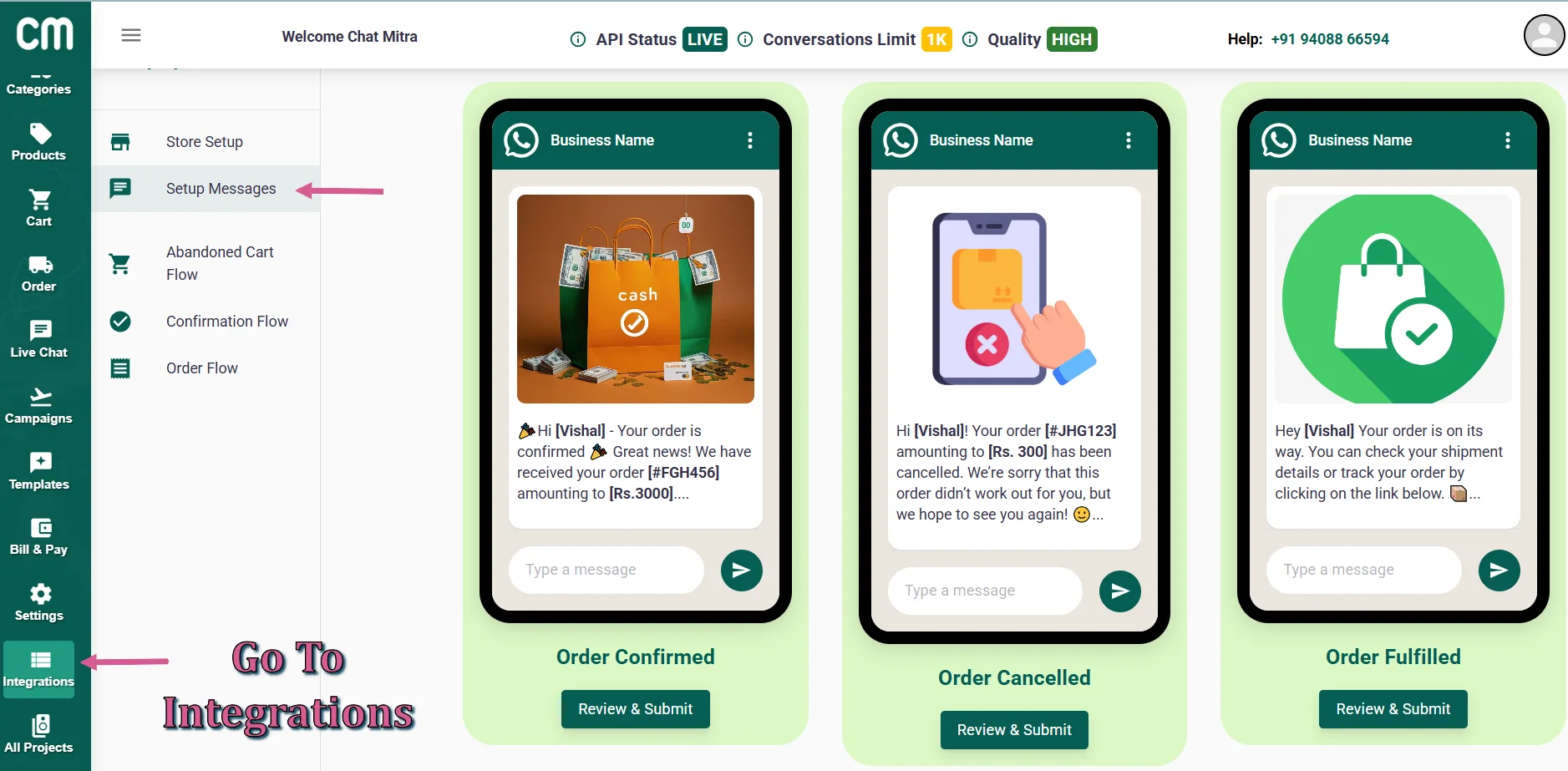
To set up Abandoned Cart messages, access our message library in the "Setup Messages" section (as shown below):
Alternatively, create and approve a new Abandoned Cart Template by navigating to Manage → Template Message → + New.
For detailed steps on creating a WhatsApp Template message, refer to this guide.
Below is a sample flow of three Abandoned Cart messages designed to boost cart recovery:
1. First Abandoned Cart Message
Hi {{1}}}! 👋
We noticed you left the Headway Bassheads 225 in your cart. 🎧
Grab them now for only Rs {{2}}}!
Secure your order by clicking below: 👇
{{3}}}
2. Second Abandoned Cart Message
Still considering, {{1}}}?
Can't stop thinking about the GlowMist Vitamin C Serum? ✨
Use code GLOW10 for 10% off!
Get them now for Rs {{2}}}!
Apply the code at checkout to claim your discount!
{{3}}}
3. Third Abandoned Cart Message
Last chance, {{1}}}! ⏱
The Headway Bassheads 225 are almost sold out!
Enjoy free shipping with code FREESHIP.
Get them now for Rs {{2}}}!
{{3}}}
Note: The parameters {{1}}}, {{2}}}, and {{3}}} represent $Name, $OrderAmount, and $AbandonedCheckoutUrl, respectively.
If a customer completes their purchase after the first message, the second and third messages won't trigger. Instead, the Order Confirmation message will be sent (if configured).
Customize your messages with additional content. View available Shopify Attributes (e.g., #OrderId, #ZipCode) here: Shopify Attributes List.
Note: The first Abandoned Cart template must be enabled to activate the second and third messages.
Ensure your Shopify store includes these order statuses: Order Confirmed, Order Fulfilled, Order Cancelled. Add them in Shopify if they don't exist.
Step 2: Configure the Abandoned Cart Flow
After setting up the templates, navigate to → Abandoned Cart Flow and click the pencil icon next to the Abandoned Cart 1 message flow.
Step 3: Edit and Enable the Template
Clicking the pencil icon will display the pre-set Abandoned Cart template. You can use it as is, edit it, or submit a new template for approval.
Step 4: Activate the Abandoned Cart Flow
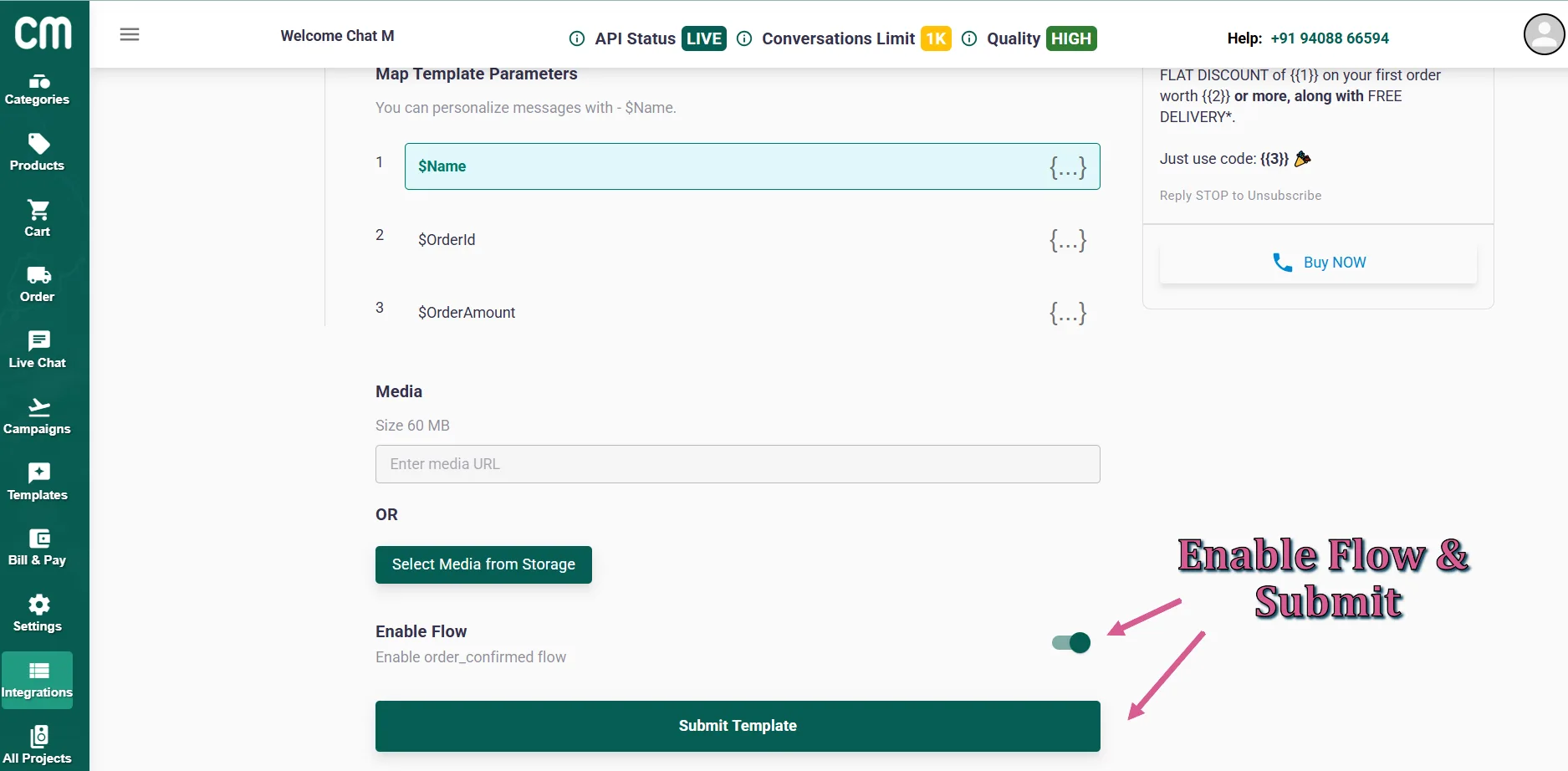
Enable the Abandoned Cart messaging flow to make it live.
To set up the second and third Abandoned Cart messages, go to Abandoned Cart Flow, select the desired message, and enable the flows. Once all flows are enabled, you'll see the confirmation screen.
Setting Up the Confirmation Flow (COD Flow)
For Cash on Delivery (COD) orders, Chat Mitra supports four trigger events:
- COD Order Confirmation Flow
- COD Order Follow-Up Status
- COD Order Confirm Status
- COD Order Cancel Status
1. COD Order Confirmation Flow
This message is sent to users who choose COD to confirm their order, reducing instances of delivery refusals that lead to return shipping costs.
Follow these steps to enable the COD Order Confirmation Flow:
Step 1: Navigate to Confirmation Flow and edit the COD Order Confirmation Flow
Step 2: Submit a new COD Order Confirmation message or select an existing template
Note: You must include two Quick Reply buttons: "Confirm Order" and "Cancel Order." Learn more about Quick Reply buttons here.
🛍️ COD Order Confirmation 🛍️
Hello {{1}}},
Your order with [Your Store Name] is ready to ship! Here are the details:
Order ID: {{2}}}
Items: {{3}}}
Total Amount: {{4}}}
Payment: Cash on Delivery (COD)
Please confirm your order to proceed: 👇
Quick Reply Buttons:
Confirm Order
Cancel Order
Note: The parameters {{1}}}, {{2}}}, {{3}}}, and {{4}}} represent $Name, $OrderId, $LineItems, and $OrderAmount, respectively.
Important: The first Quick Reply button must be "Confirm Order," and the second must be "Cancel Order" to trigger the respective messages.
When a user selects a Quick Reply button, a confirmation or cancellation message is sent, and a tag is applied in Shopify based on their choice (if the flows are enabled).
2. COD Order Follow-Up Status
This message is sent if the user hasn't responded to the COD Order Confirmation message, triggering 3 hours after the order is placed.
Follow these steps to enable the COD Order Follow-Up Flow:
Step 1: Go to Confirmation Flow and edit the Order Follow-Up Flow
Step 2: Submit a new COD Order Follow-Up message or select an existing template
Note: Include two Quick Reply buttons: "Confirm Order" and "Cancel Order." See the Quick Reply guide here.
Hello {{1}}},
We're still waiting for your confirmation on your order with [Your Store Name].
Order details:
Order ID: {{2}}}
Items: {{3}}}
Total Amount: {{4}}}
Payment: Cash on Delivery (COD)
Please confirm your order to start the shipping process: 👇
Quick Reply Buttons:
Confirm Order
Cancel Order
Note: The parameters {{1}}}, {{2}}}, {{3}}}, and {{4}}} represent $Name, $OrderId, $LineItems, and $OrderAmount, respectively.
Step 3: Enable the COD Order Follow-Up message
Note: Ensure the COD Order Confirm Status and COD Order Cancel Status flows are active before enabling this flow.
3. COD Order Confirm Status
This flow triggers when a user selects the "Confirm Order" Quick Reply button in the COD Order Confirmation flow.
Follow these steps to enable the COD Order Confirm Status Flow:
Step 1: Go to Confirmation Flow and edit the COD Order Confirm Status Flow
Step 2: Submit a new COD Order Confirm Status message or select an existing template
✅ Order Confirmed ✅
Hello {{1}}},
We've received your order confirmation, and it's being prepared for shipping!
Order details:
Order ID: {{2}}}
Items: {{3}}}
Total Amount: {{4}}}
Payment: Cash on Delivery (COD)
You'll receive a tracking number once your order ships.
Step 3: Enable the COD Order Confirm Status message
Note: Ensure the COD Order Confirmation flow is enabled before activating this flow.
4. COD Order Cancel Status
This flow triggers when a user selects the "Cancel Order" Quick Reply button in the COD Order Confirmation flow.
Follow these steps to enable the COD Order Cancel Status Flow:
Step 1: Go to Confirmation Flow and edit the COD Order Cancel Status Flow
Step 2: Submit a new COD Order Cancel Status message or select an existing template
🚫 Order Cancelled 🚫
Hello {{1}}},
Your order cancellation request has been processed.
Order details:
Order ID: {{2}}}
Items: {{3}}}
Total Amount: {{4}}}
Cancellation Status: Confirmed ✅
We're sorry to see you cancel, but we hope to serve you again soon!
Customize your messages with additional Shopify Attributes: Shopify Attributes List.
Step 3: Enable the COD Order Cancel Status message
Note: Ensure the COD Order Confirmation flow is enabled before activating this flow.
Setting Up the Order Flow (For Prepaid Orders)
Shopify's Order Flow includes five events:
Order Confirmed, Order Cancelled, Order Fulfilled, Order Feedback, Reorder
Setting Up the Order Confirmed Message
This message triggers when a user completes an online payment, and the payment is successfully captured.
Follow these steps to enable the Order Confirmed Flow:
Step 1: Go to the Order Flow and edit the Order Confirmed Flow
Step 2: Submit a new Order Confirmed message or select an existing template
✨ Order Confirmation - Payment Successful ✨
Hello {{1}}},
Thank you for shopping with [Your Store Name]!
Your payment was successful, and we're processing your order. Here's a summary:
Order ID: {{2}}}
Total Amount Paid: {{3}}}
Payment Method: Online Payment
We're working to deliver your order as soon as possible.
Note: The parameters {{1}}}, {{2}}} and {{3}}} represent $Name, $OrderId and $OrderAmount, respectively.
Customize with Shopify Attributes: Shopify Attributes List.
Step 3: Enable the Order Confirmed message
Setting Up the Order Cancelled Message
Follow these steps to enable the Order Cancelled Flow:
Step 1: Go to Confirmation Flow and edit the Order Cancel Status Flow
Step 2: Submit a new Order Cancel Status message or select an existing template
🚫 Order Cancelled 🚫
Hello {{1}}},
Your order cancellation has been processed. Here are the details:
Order ID: {{2}}}
Items: {{3}}}
Total Amount: {{4}}}
Refund: Processed within our standard timeframe.
We hope to serve you again at [Your Store Name]!
Step 3: Enable the Order Cancel Status message
Setting Up the Order Fulfilled Message
Follow these steps to enable the Order Fulfilled Flow:
Step 1: Go to Confirmation Flow and edit the Order Fulfilled Flow
Step 2: Submit a new Order Fulfilled message or select an existing template
📦 Order Shipped! 📦
Hello {{1}}},
Your order has been shipped! Here's what you need to know:
Order ID: {{2}}}
Items: {{3}}}
Total Amount Paid: {{4}}}
Track your order: https://wa.chatmitra.com/
Note: The parameters {{1}}}, {{2}}}, {{3}}}, {{4}}}, and {{5}}} represent $Name, $OrderId, $LineItems, $OrderAmount, and $OrderTrackingUrl, respectively.
Customize with Shopify Attributes: Shopify Attributes List.
This message triggers when the order is marked as "fulfilled" in Shopify.
Step 3: Enable the Order Fulfilled message
Setting Up the Reorder Message
Follow these steps to enable the Reorder Flow:
Step 1: Go to Confirmation Flow and edit the Reorder Status Flow
Step 2: Submit a new Reorder message or select an existing template
👋 Hi {{1}}}!
Loving your {{2}}} from [Your Store Name]?
Reorder now or explore new items: Visit Website
Use code REORDER10 for 10% off your next purchase!
Thanks for choosing [Your Store Name]!
CTA: Button title: Visit Website
Button URL: [Your Website URL]
After creating and approving the message, go to Order Flow, select the message, set the trigger duration, and input the dynamic parameters.
Note: The parameters {{1}}} and {{2}}} represent $Name and $LineItems, respectively.
Customize with Shopify Attributes: Shopify Attributes List.
Step 3: Enable the Reorder Status message
Setting Up the Feedback Message
Follow these steps to enable the Order Feedback Flow:
Step 1: Go to Confirmation Flow and edit the Order Feedback Flow
Step 2: Submit a new Order Feedback message or select an existing template
🌟 We Value Your Feedback! 🌟
Hello {{1}}},
We hope you're enjoying your {{2}}} purchased on {{3}}} from [Your Store Name]!
Please share your experience with us it won't take long!
Leave Feedback
As a thank you, use code THANKYOU for a discount on your next purchase.
CTA: Share Feedback
After creating and approving the message, go to Order Flow, select the message, set the trigger duration, and input the dynamic parameters.
Note: The parameters {{1}}}, {{2}}}, and {{3}}} represent $Name, $LineItems, and $OrderCreatedOn, respectively.
Customize with Shopify Attributes: Shopify Attributes List.
Step 3: Enable the Order Feedback Status message
That's it! You're now ready to automate your Shopify store messages with Chat Mitra.