How to add individual contacts directly to ChatMitra without importing .csv

3 min. read
Last updated: 2026-01-28

Quick Answer

You can add individual contacts directly to ChatMitra without CSV files by using the "Add Contact" button on the Contacts page. Fill in the contact details (name, phone, email) and submit. The contact is immediately added to your dashboard.

Introducing a simplified method for managing your contacts—now you can add a new contact directly within the ChatMitra App without the need for a .csv import.

This innovative feature on the ChatMitra Dashboard empowers you to:

  • Add contacts without the extra step of importing a .csv file.
  • Create new contacts instantly within the ChatMitra Dashboard.
  • Save time by eliminating the need to generate a .csv file for individual contacts.
How to add a contact directly on the ChatMitra App?

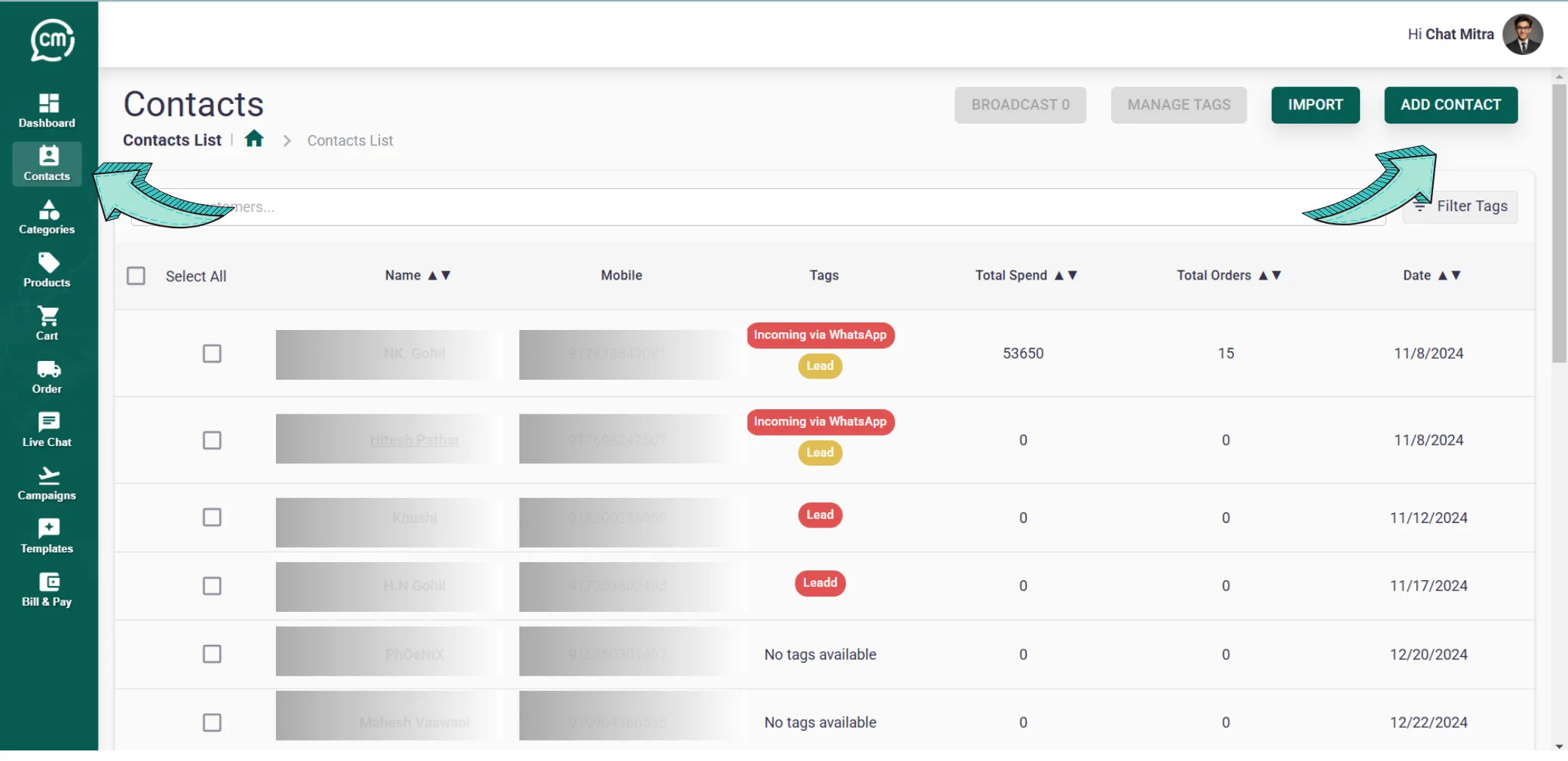
Step 1: Access the Contacts Page

Head over to the Contacts page in your ChatMitra App. Here, you'll notice a clearly labeled Add Contact button. Clicking this button initiates the manual contact creation process.

ChatMitra Contacts Page showing Add Contact button location

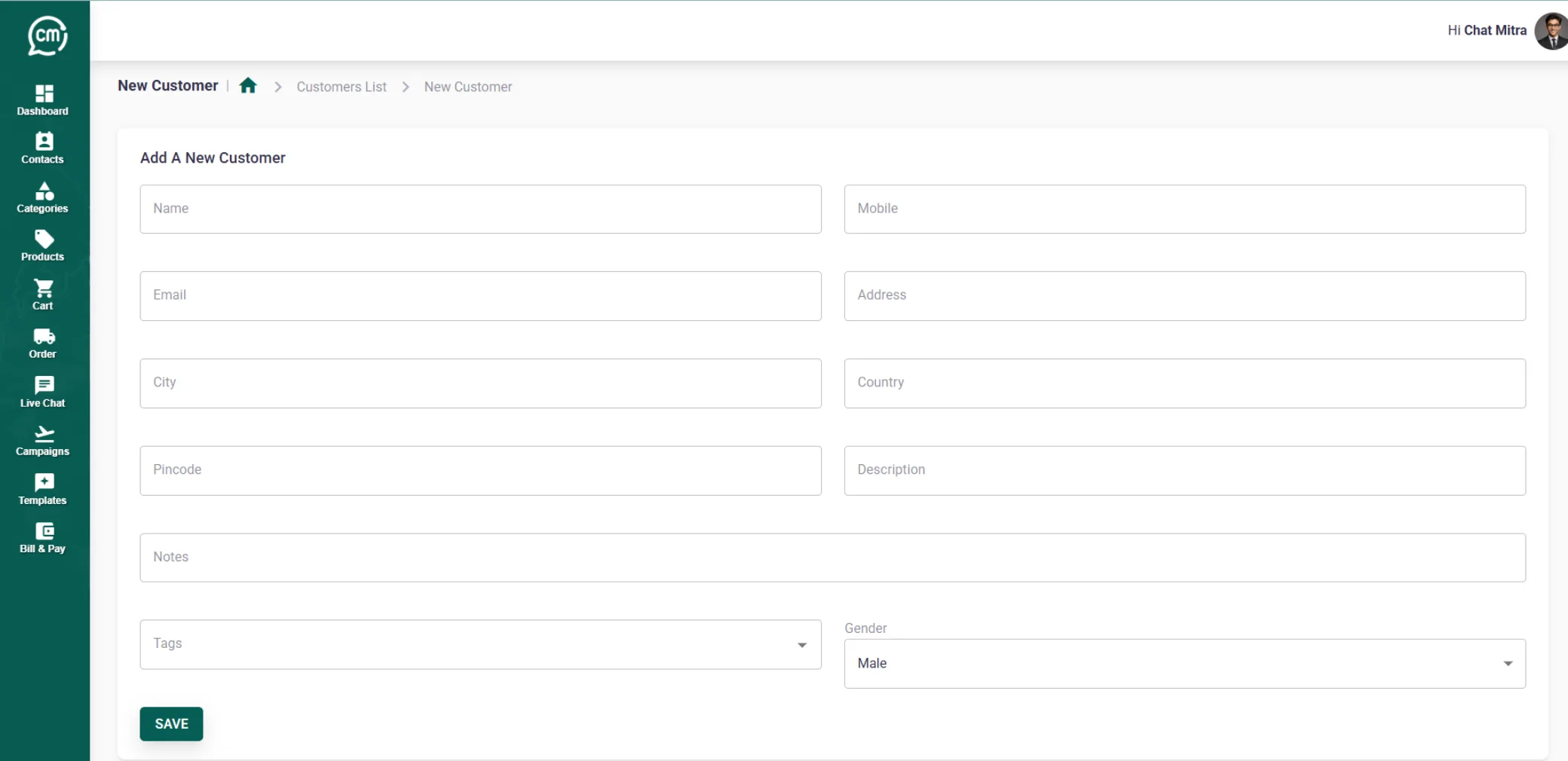
Step 2: Fill in Contact Details

After clicking the button, a form appears where you can input the contact details. Fill in all the required fields—such as name, phone number, and email address—with accurate information. Once you have completed the form, click on Add Contact to save the new entry.

Add New Contact form in ChatMitra showing required fields

Step 3: Contact Added Successfully

Once you submit the form, the new contact is immediately added to your ChatMitra Dashboard. You can now manage, edit, or update the contact information at your convenience.

And that's all there is to it! Enjoy the efficiency of adding contacts directly without any extra hassle.

Experience Seamless Contact Management!

Don't wait—visit your ChatMitra Dashboard now to try adding contacts manually and streamline your workflow.

Go to Dashboard

Frequently Asked Questions

Q: Can I add multiple contacts manually?

A: Absolutely. You can repeatedly use the manual entry option to add as many contacts as required directly through the Dashboard.

Q: Is importing a .csv file necessary at any point?

A: No, importing a .csv file is entirely optional when using the manual add feature. This new method is designed to simplify the process.

Q: What specific details do I need to provide for a new contact?

A: Generally, you'll need to input the contact's full name, a valid phone number, an email address, and any additional details required by your organization.

Q: How do I edit or remove a contact after adding it?

A: Once a contact is added, you can easily modify or delete the entry from the Dashboard. Simply select the contact and choose the desired action from the options provided.

Process Overview

StepActionOutcome
1Click on Add ContactDisplay the contact entry form
2Input contact detailsValidate and prepare contact data
3Submit the formContact is added to the Dashboard

Related Platform Guides

Explore more ChatMitra features and tutorials.

Need Help with Contact Management?

Our support team is here to help you get the most out of ChatMitra.