How to add Tags to your contacts in ChatMitra?
Tags in ChatMitra allow you to organize your contacts by enabling smart segregation. By assigning a specific tag to a group of contacts—such as leads acquired from Google Ads—you can quickly filter and manage your contacts. This makes it simple to target and broadcast messages to a particular segment of your audience.
Imagine you have a pool of leads from multiple sources. Without tags, sorting through them to send targeted messages would be a daunting task. Tags empower you to easily distinguish, filter, and reach out to the right people.
Now, let's dive into the different ways you can add or update tags in ChatMitra.
2026 WhatsApp Conversation Pricing Reference
When broadcasting to tagged contacts, these are the costs per 24-hour conversation:
| Category | Meta Charges | Chat Mitra Fee | Total |
|---|---|---|---|
| Marketing | ₹0.86 | ₹0.2 | ₹1.06 |
| Utility | ₹0.11 | ₹0.2 | ₹0.31 |
| Service | First 1,000/month free, then ₹0.115 | ₹0.2 | ₹0.2 ₹0.315 after the free 1,000 |
Why a Robust Tag Management System is Critical
An efficient tag management system is the backbone of a well-organized CRM. It offers several advantages:
- Enhanced Organization: Easily categorize contacts by source, interest, or behavior
- Improved Targeting: Send personalized messages to segmented groups, increasing engagement and conversion
- Time Efficiency: Automate repetitive tasks such as adding or updating tags, saving valuable time
- Data Consistency: Maintain uniformity across your contact database
Ready to streamline your CRM? Sign up for ChatMitra today and experience efficient tag management firsthand.
1. Assigning Tags When Importing Contacts from Google Sheets
The first method to add tags is during the import process from a Google Sheet (.csv format). This allows you to assign tags as you add new contacts.
Step 1: Add Contacts to Google Sheet
After listing the names and mobile numbers of your contacts, add a column titled "Tags" and assign a tag (e.g., "Google Ad leads") to each contact. For contacts with multiple tags, simply add additional columns as needed.
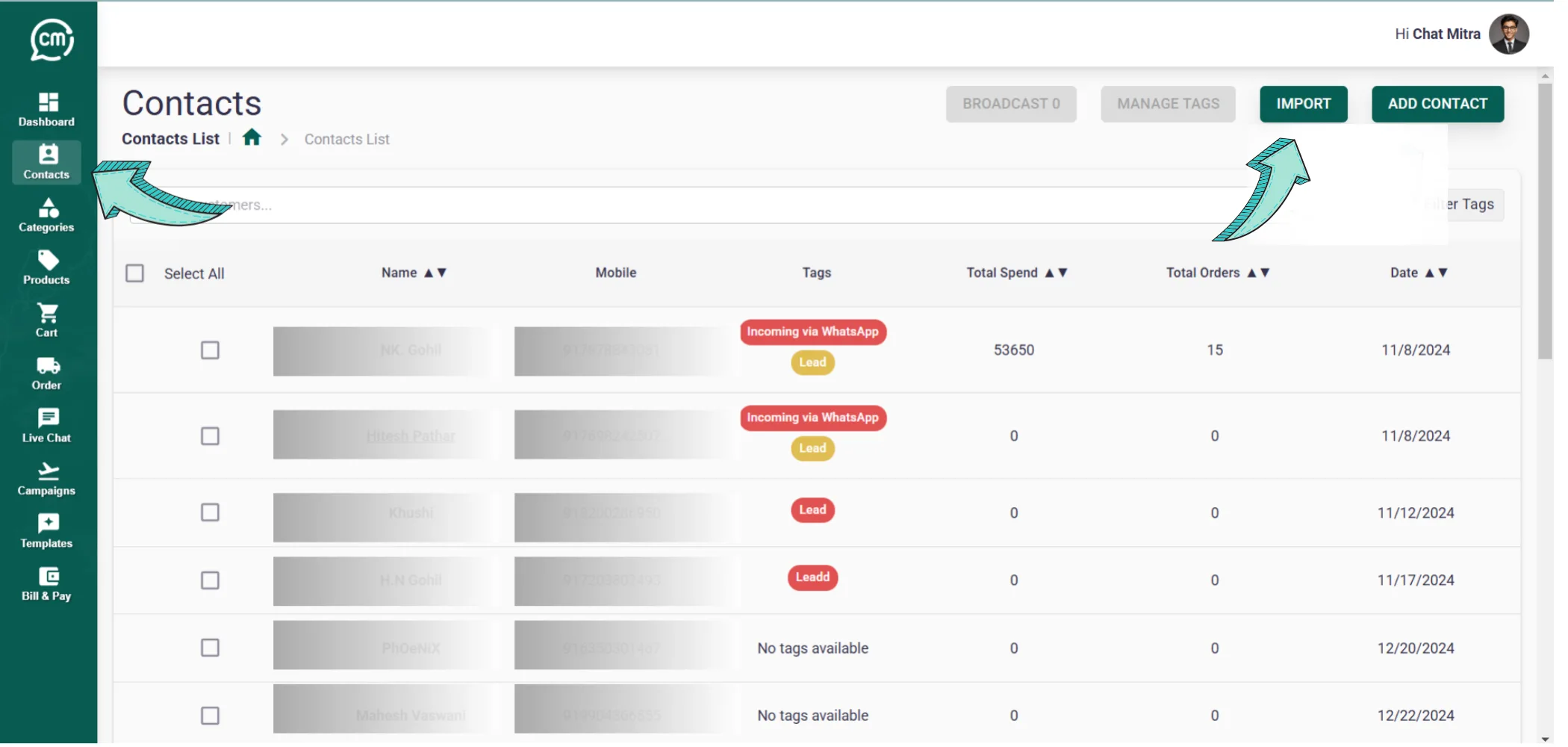
Step 2: Go to Contacts & Tap "Import Contacts"
Step 3: Select File and Press 'Upload CSV'
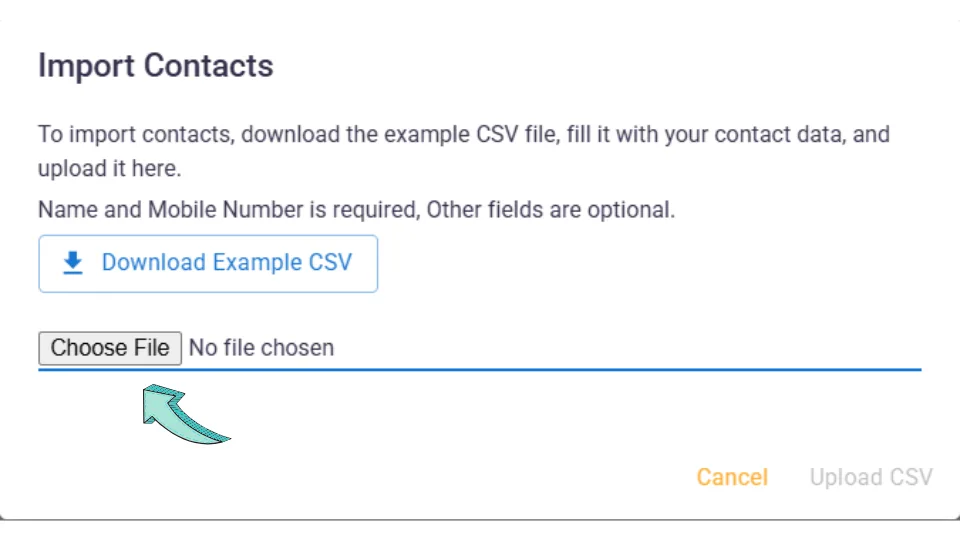
That's it! You've successfully imported contacts to ChatMitra with the designated tag.
2. Add/Remove Tags Directly from the Contacts Page
You can also update tags for multiple contacts at once from the Contacts page.
Step 1: Select Contacts and Click "Manage Tags"
In the Contacts page, select the contacts you wish to update and click "Manage Tags".
Step 2: Choose to Add or Remove Tags
Choose to either "Add a Tag" or "Remove" an existing tag.
Step 3: Create and Add New Tag
If adding a new tag, select the tag or click "Create & Add Tag" to generate one.
Take Charge of Your Contact Organization
By mastering tag management, you not only improve the efficiency of your communication but also ensure that every broadcast reaches its intended audience.
Sign up for ChatMitra TodayFrequently Asked Questions
Common questions about tag management in ChatMitra.