How to Broadcast WhatsApp Messages in ChatMitra App
2026 WhatsApp Broadcast Costs
Each broadcast initiates a conversation. Here are the transparent costs per 24-hour window:
Are you looking to send a WhatsApp Broadcast via ChatMitra but are unsure of how to proceed? You've landed in the right place. This guide offers an easy-to-follow, detailed 16-step process to help you get started with complete 2026 pricing transparency.
Follow the step-by-step instructions below to create, configure, and dispatch your WhatsApp Broadcast while understanding exactly what each conversation will cost you.
How to Send a WhatsApp Broadcast via ChatMitra (16 Steps)
Access the ChatMitra Dashboard and select 'templates' from sidebar
Before initiating a WhatsApp Broadcast, you must have an approved Template message from WhatsApp since only pre-approved messages are permitted.
Visit your ChatMitra Dashboard and click on 'templates' to begin creating a new template message.
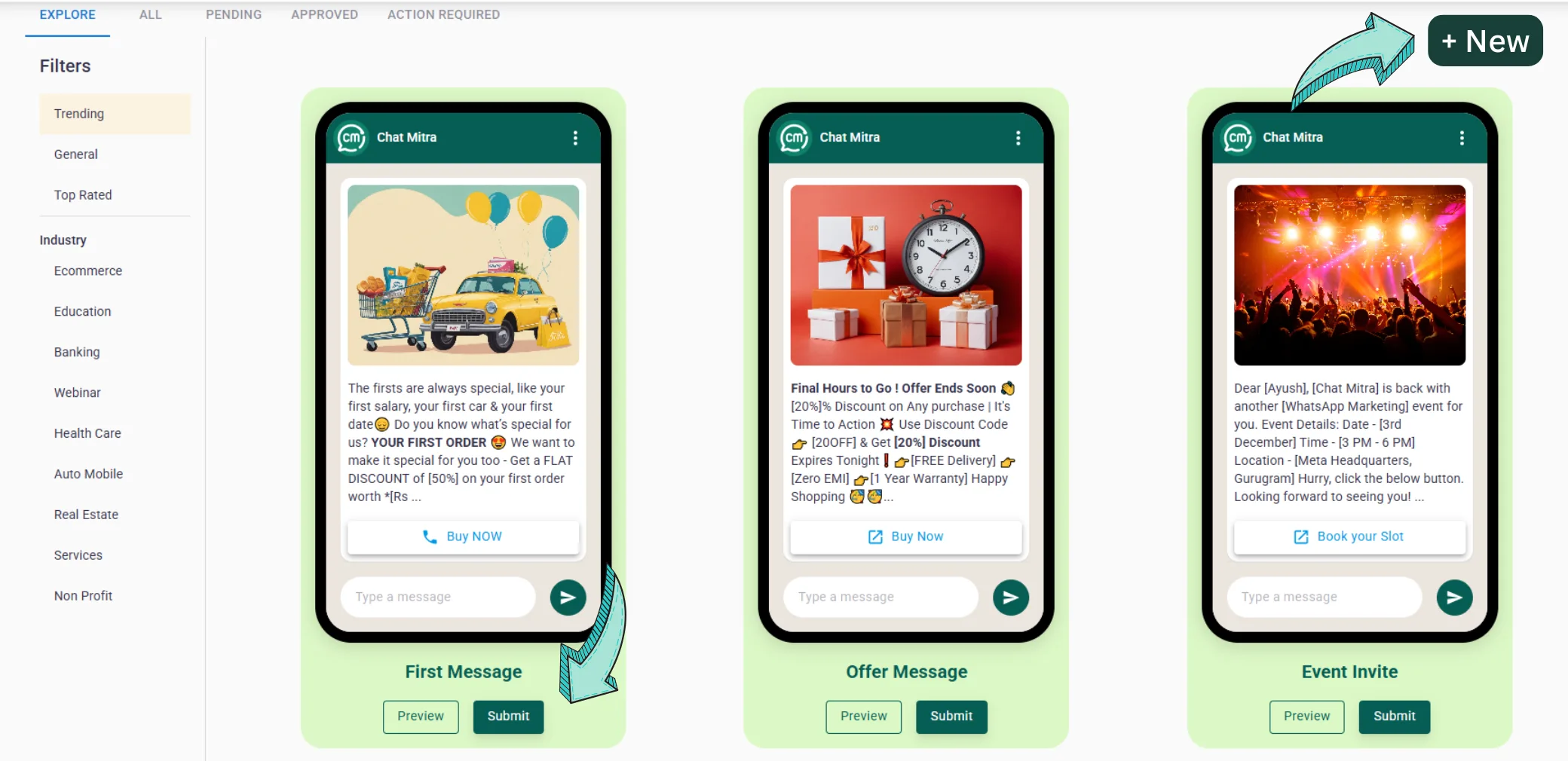
Select '+New' to begin creating a Template Message
Click the '+New' button to initiate the process of designing your new template message.
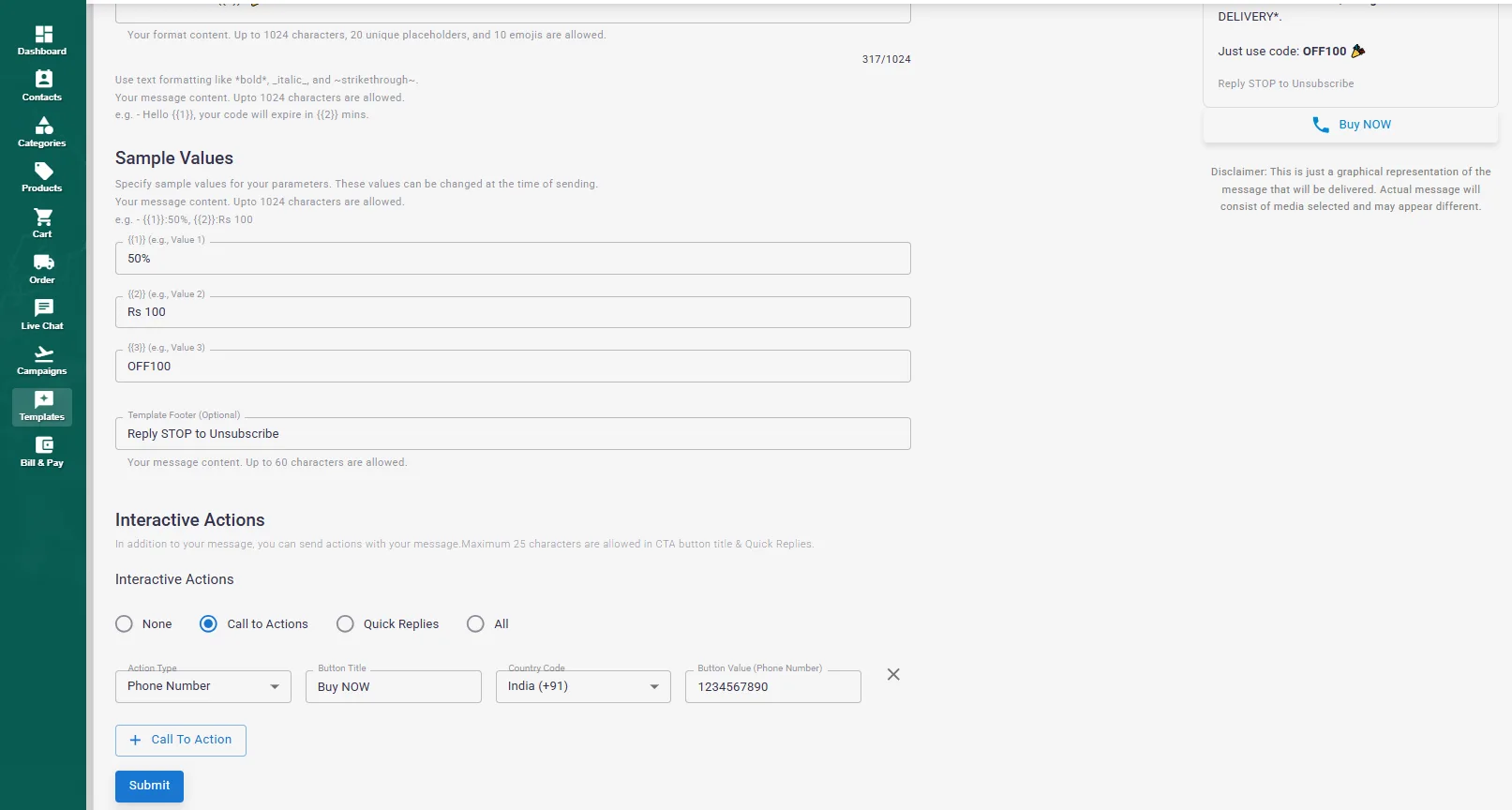
Provide the Required Information for Your Template Message
Fill in all essential fields, including Template Category, Template Name, Message Type, and Message Format. You can also include optional CTA buttons and specify the Template Language.
For further clarification, please consult our extensive Template Message Guide.
Submit Your WhatsApp Template for Approval
Once your template message is fully prepared, send it to WhatsApp for the necessary approval.
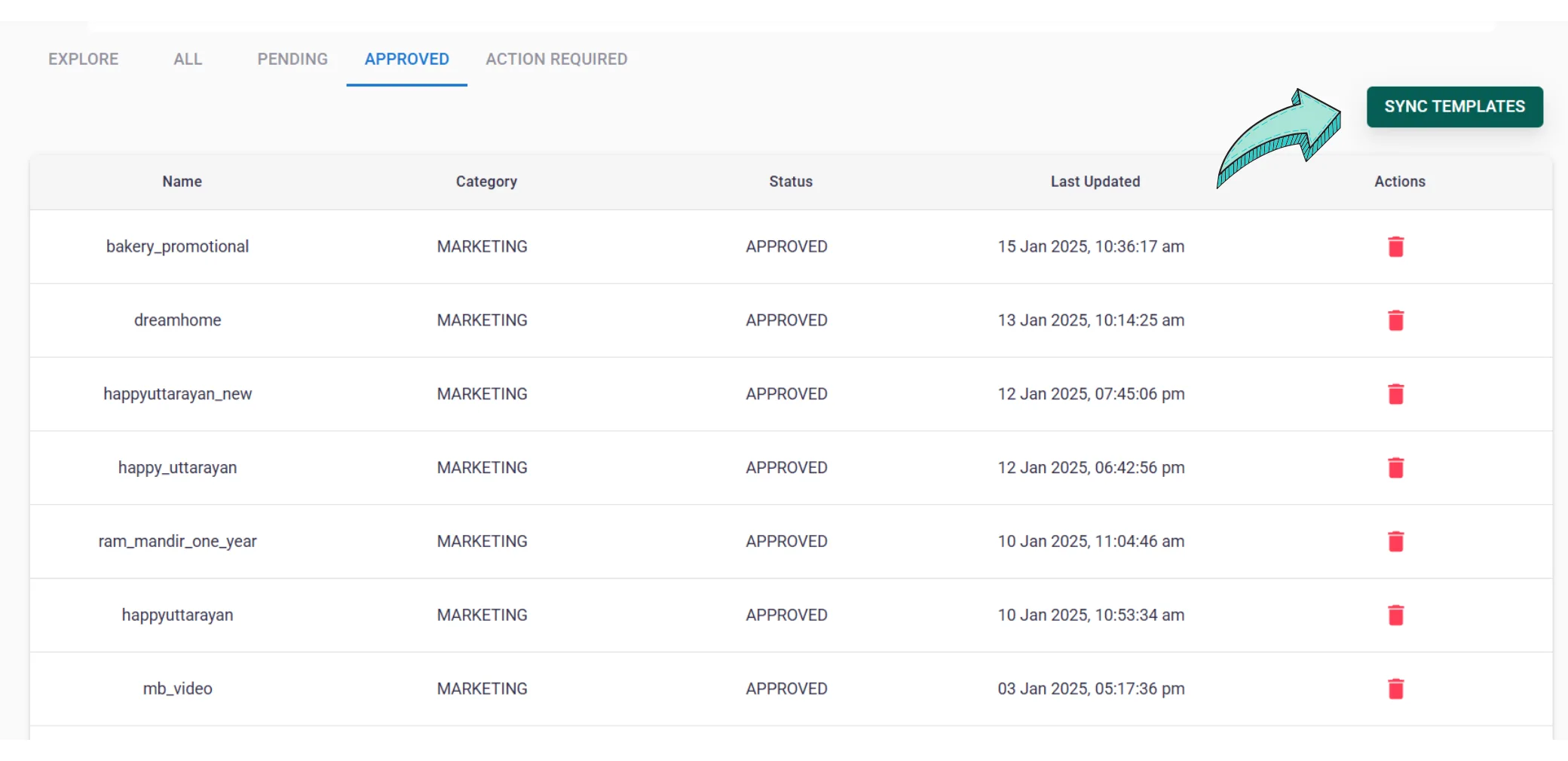
Verify Approval Status by Syncing in the 'Approved' Section
Navigate to the 'Approved' section within the Template Message area and click on 'Sync Status' to confirm that your template has been approved.
Import Contacts from the Contacts Page
After receiving approval, proceed to the Contacts Page and click on 'Import' to add your contacts using a .csv file.
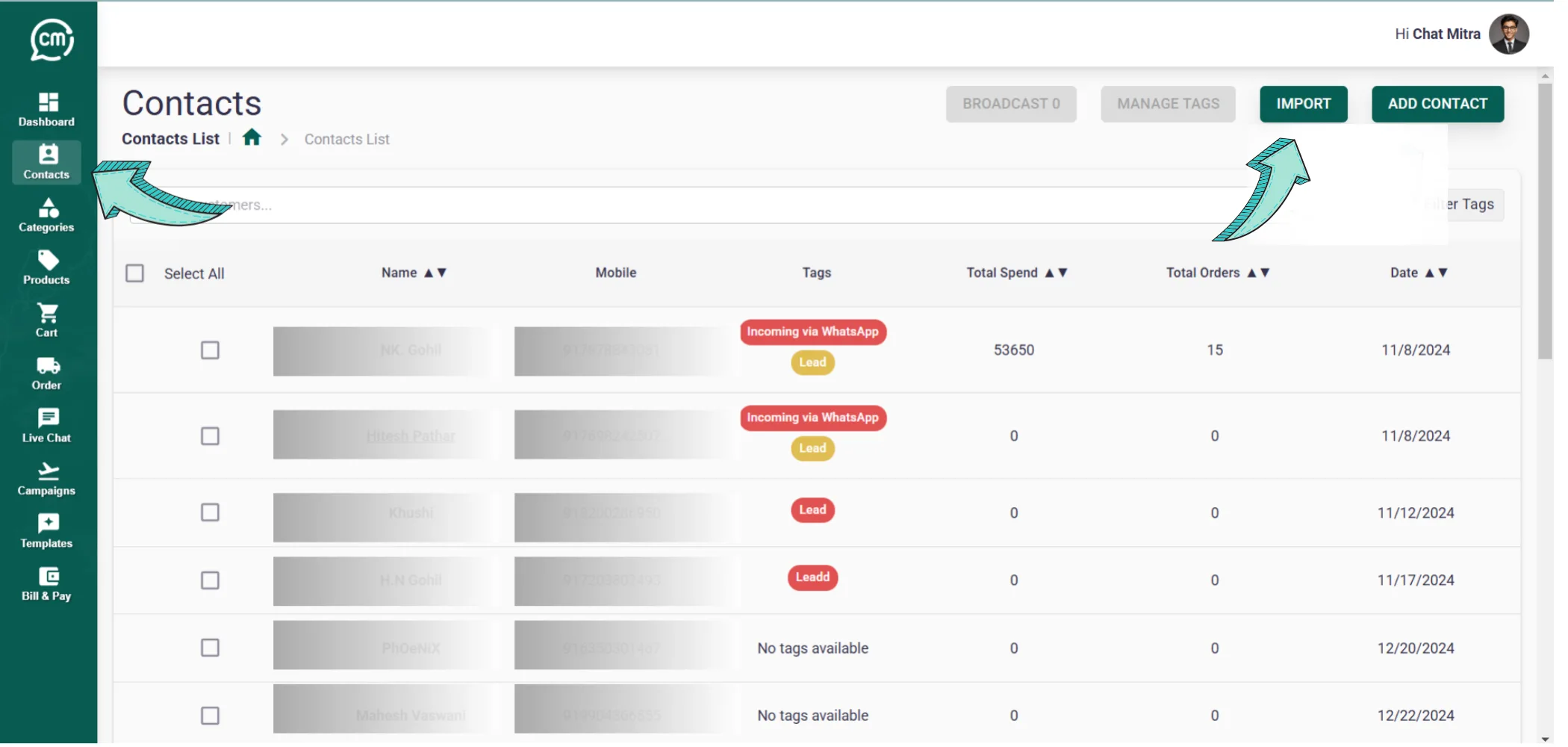
Prepare and Add Contacts in Your Spreadsheet
List the contacts you wish to import in a spreadsheet and export the document as a .csv file.
Ensure you include a tag attribute to facilitate easy filtering later on.
For additional insights, refer to our guide on adding Contacts to ChatMitra.
Download Your Contacts File in .csv Format
Once your contacts are organized, click on File and choose the option to download your document as a .csv file.
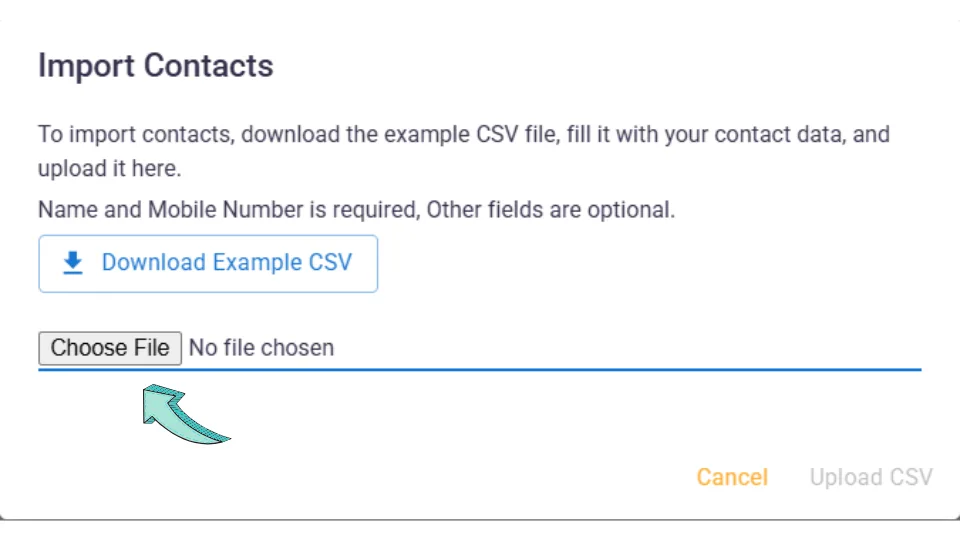
Upload the .csv File to ChatMitra
Return to ChatMitra and click on 'Upload File' to import the .csv file created from your spreadsheet.
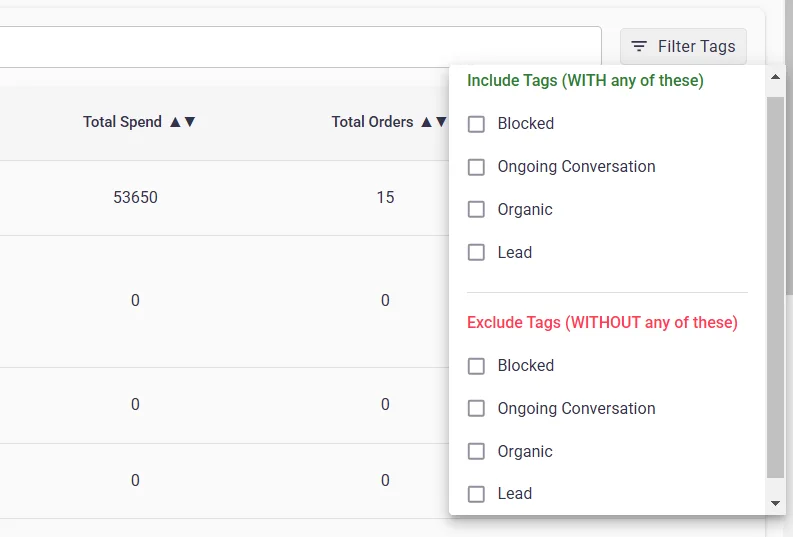
Filter Using a Specific Tag
If you have assigned a particular tag to your contacts, use that tag to filter and select the desired group effortlessly.
Select Contacts and Initiate the Broadcast
Once your filtered contacts are visible (for example, 19 contacts), select them all and click on 'Broadcast' to launch your campaign.
Note: An active filter is indicated by a small dot on the filter button.
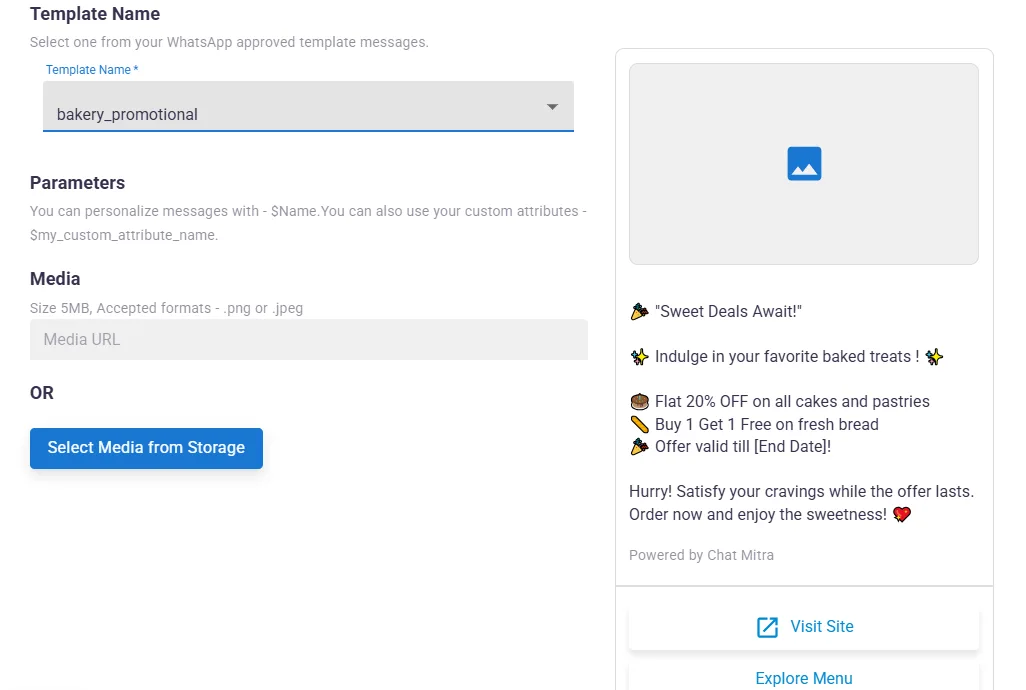
Name Your Campaign and Choose Your Pre-approved Template
Provide a unique name for your campaign and select the pre-approved template message that will be used in your broadcast.
Add Parameter Values and Attach Media
Input the necessary parameter values to replace any variable placeholders in your message (for example, $FirstName, $Email, $Country).
This personalization helps tailor your message to each recipient. You can also attach a media file if needed.
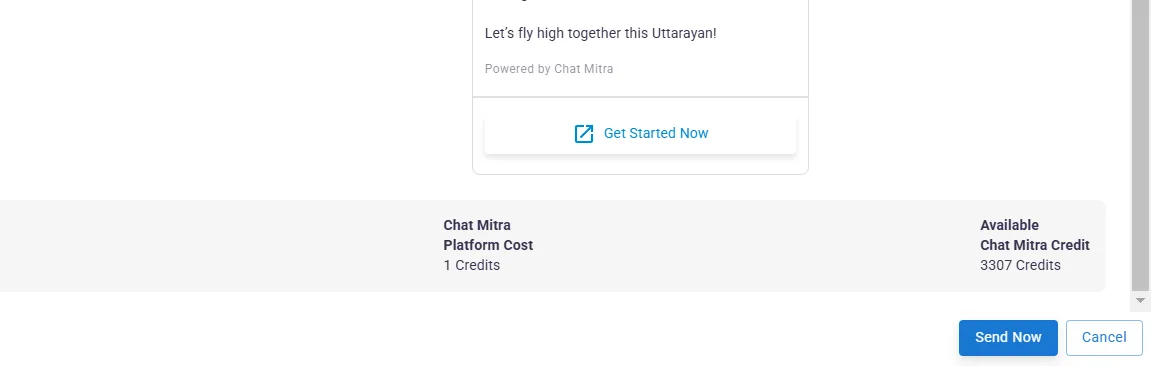
Review Your Campaign and Send Your Broadcast
Carefully review all the details of your WhatsApp Broadcast Campaign. Once you are confident everything is correct, click on 'Send Now' to dispatch your broadcast immediately.
Alternatively, you can schedule your broadcast in advance (up to two months).
Review Campaign Analytics
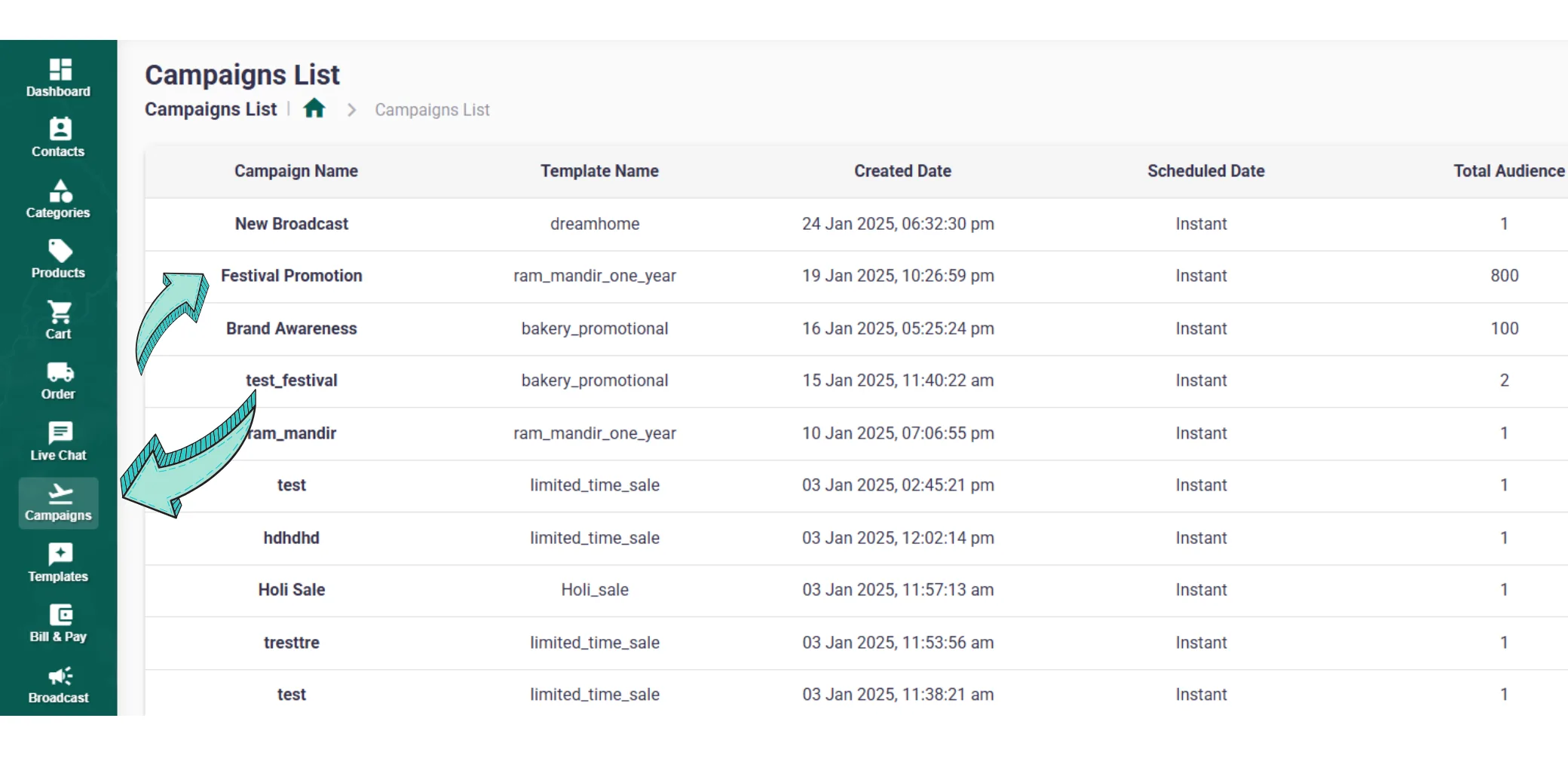
After sending your campaign, click on 'Campaigns' to access detailed analytics of your broadcast.
Select the campaign from the list for the detailed view & analytics
Leverage Analytics for Continuous Improvement
Monitor key metrics such as sent, delivered, read and failed messages to refine future campaigns.
Utilize ChatMitra's comprehensive Campaign analytics to view key performance indicators. These insights can help you retarget users effectively, potentially boosting conversions by up to 7x.
Ready to Start Broadcasting?
With transparent pricing and powerful features, ChatMitra makes WhatsApp Broadcasting simple and cost-effective for your business.
Get Started with ChatMitraFrequently Asked Questions
Common questions about WhatsApp Broadcasting with ChatMitra and 2026 pricing.