Quick Answer: Import contacts to ChatMitra by preparing a CSV file with Name and Mobile Number columns, then click Import on the Contacts page. Indian numbers can be 10 digits; international numbers need country codes with + prefix.
How Can You Import User Contact Details into the ChatMitra CRM?
ChatMitra provides a user-friendly way to import your leads gathered from multiple channels. Whether from paid ads, organic lead generation, or offline sources, this option is particularly beneficial if your contacts are not already connected via WhatsApp.
Note: For Indian phone numbers, simply use the 10-digit number without any country code. For international numbers, ensure you include the proper country code with a '+' prefix.
Step 1: Click the Import Button
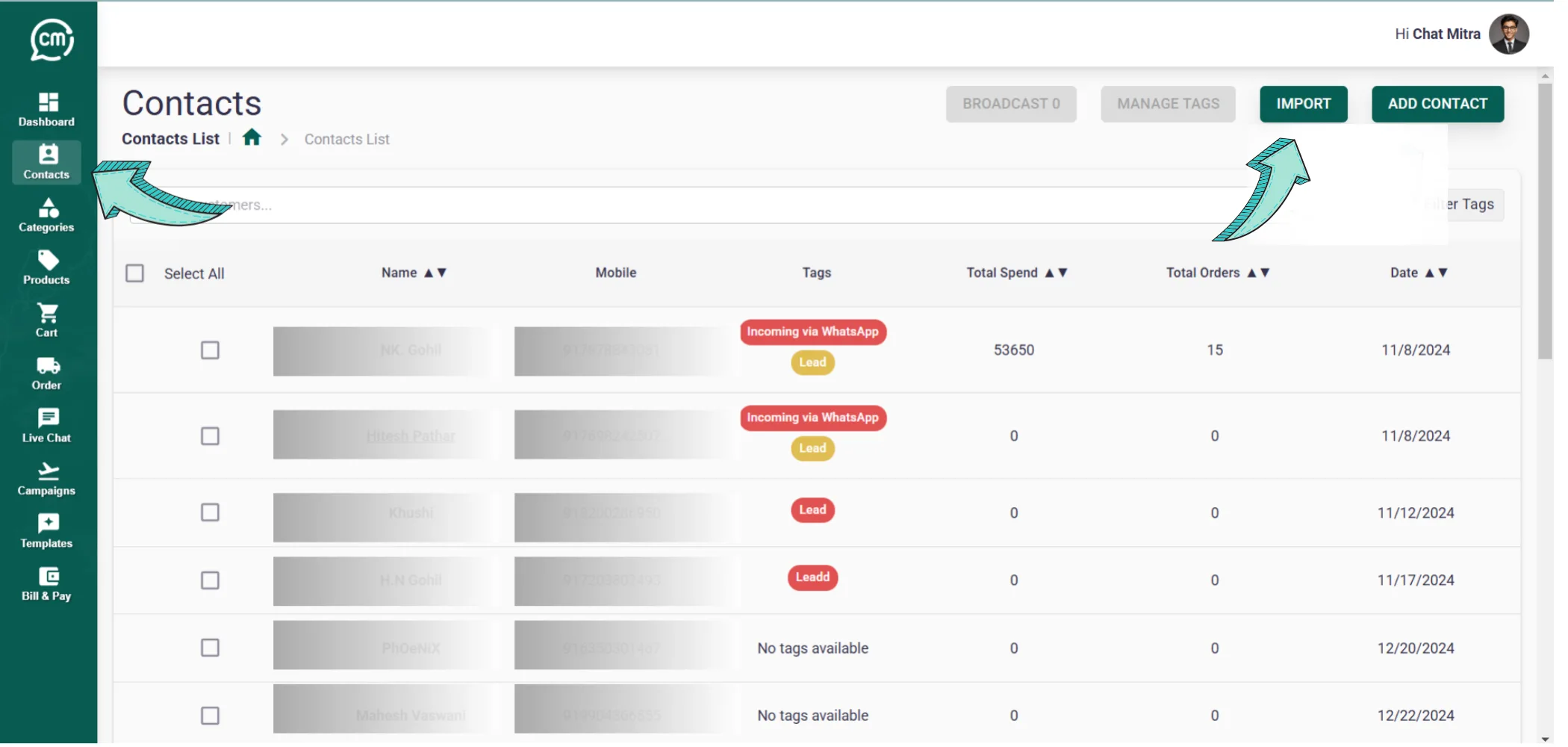
Click on the Import button located at the top-right corner of the Contacts Page, adjacent to the Export button.
Step 2: Upload Your CSV File
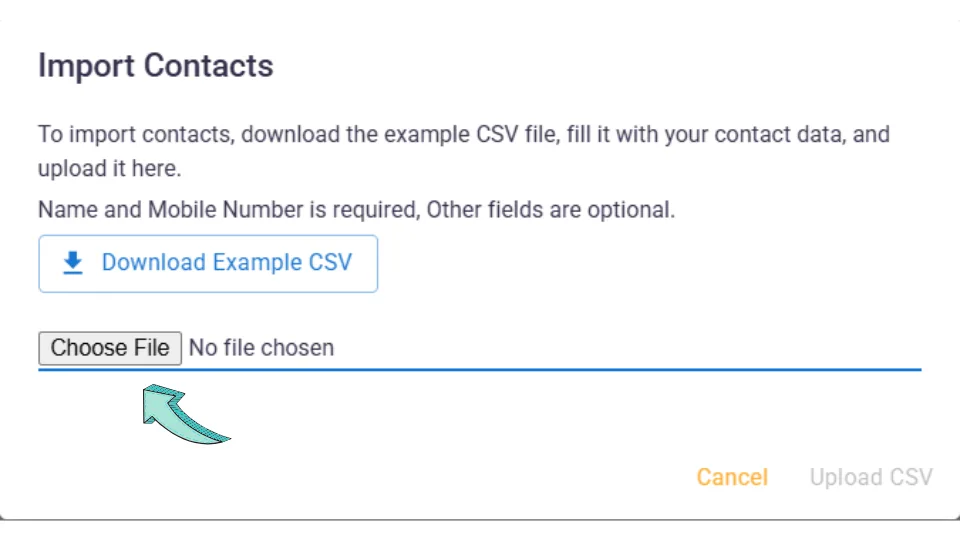
A pop-up window will appear where you need to upload your contacts file. Click Upload File and select the file (in .csv format) from your system.
For assistance, refer to our sample Excel sheet to ensure your file is correctly structured. After entering all contact details and tags, remember to download the file as a .csv since ChatMitra supports only this format.
Important: The columns highlighted in blue are required fields and must be present in your CSV file.
What CSV File Format Is Required for Uploading Contacts?
When uploading a CSV file, certain fields are generated automatically while others require manual entry. Below is a detailed explanation of the required format:
Automatically Generated Fields
1. Source: Indicates how the contact was created. Values include IMPORT for imported contacts, ORGANIC for contacts initiated via WhatsApp, and API for contacts generated through API campaigns.
2. Status: Displays whether the contact is ACTIVE (within a 24-hour window) or INACTIVE.
3. State: Shows the current state of the contact, such as Intervened, Requesting, Closed, or Handled by Assistant (when managed by the ChatMitra bot).
4. Last Active: Records the date and time of the last message sent by the contact.
5. Created At: Indicates when the contact was first added to the ChatMitra Dashboard.
Manually Entered Fields (Required in CSV)
1. Name (Mandatory)
Enter the user's full name. This field is critical as it is used in dynamic broadcast messages with placeholders like $Name, $FirstName, or $LastName.
Name: Nikunj Gohil
$Name: Nikunj Gohil
$FirstName: Nikunj
$LastName: Gohil
2. Mobile Number (Mandatory)
This field should contain the WhatsApp mobile number. For Indian numbers, you may enter the 10-digit number. For international numbers, include the country code prefixed with a '+'.
Example for India: 9876543210, +919876543210
Example for international: +12345678901 (USA), +61498765432 (Australia)
Important: If the country code is not provided, ChatMitra assumes the number is Indian and automatically prefixes it with 91.
3. Tags (Optional)
Assign tags to categorize contacts by lead qualification, current status, or other criteria. For multiple tags, separate each with a pipe character "|".
Example: MBA or MBA | Finance or Marketing | Finance | MBA
Note: Ensure all tags are pre-created in the Tags Section on ChatMitra; otherwise, they will not be assigned.
4. Source (Optional)
Enter the name of the lead source as per your business requirements. This customizable field will be displayed on the Contacts Page and automatically mapped. If omitted, it will appear empty.
5. First Message (Optional)
This field is automatically tagged based on the user's initial message. It accepts only a single value. If this header is not included in your CSV file, it will remain empty on the Contacts Page.
6. $Custom_Attribute (Optional)
Use this field to capture extra data points or qualification parameters for each user. These attributes help filter contacts for targeted WhatsApp Broadcast campaigns.
To configure these attribute fields, navigate to User Attributes in the Manager section of the ChatMitra Platform.
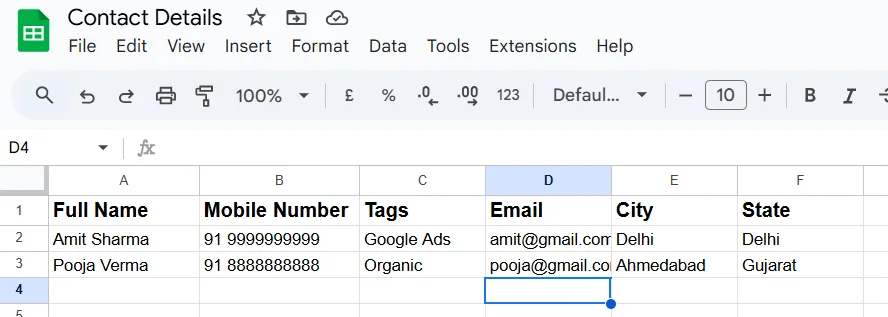
Refer to the above image for the standard CSV file format. Headers such as City, Email, and State represent Custom Attributes. Phone numbers must include the country code and a '+' sign when required.
What Happens If I Import a Contact That Already Exists?
If you import a contact that is already present in the ChatMitra CRM, the system will update the existing record with the new information from your CSV file. This prevents duplicate entries while keeping your contact data current.
Can I Modify Contact Details Directly from the Contacts Page?
Absolutely. To update a contact's details, simply select the desired contact, click on the Edit Contact button, and adjust the information as needed.
What Lead Information Does the ChatMitra WhatsApp CRM Provide?
The ChatMitra WhatsApp CRM is built to provide all the essential lead details required for user qualification and effective campaign segmentation. It includes information such as Name, Mobile Number, Tags, Source, Last Active, Created At, State, First Message Tag, and any custom attributes collected via the chatbot.
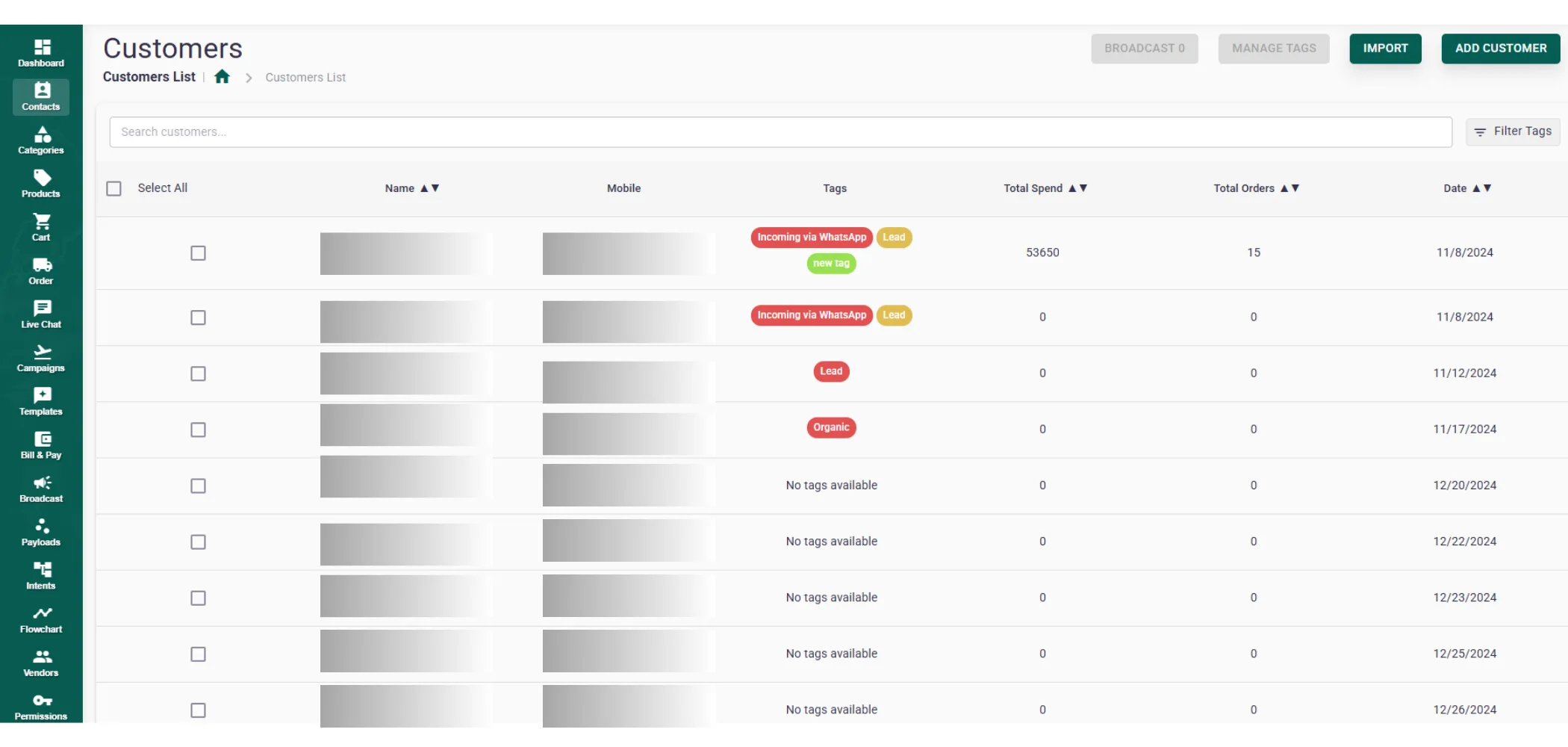
Can I Modify User Tags Directly from the Contacts Page?
Yes, updating user tags is straightforward. Choose the contacts you want to edit, click the Manage Tags button, and add or remove tags as needed.
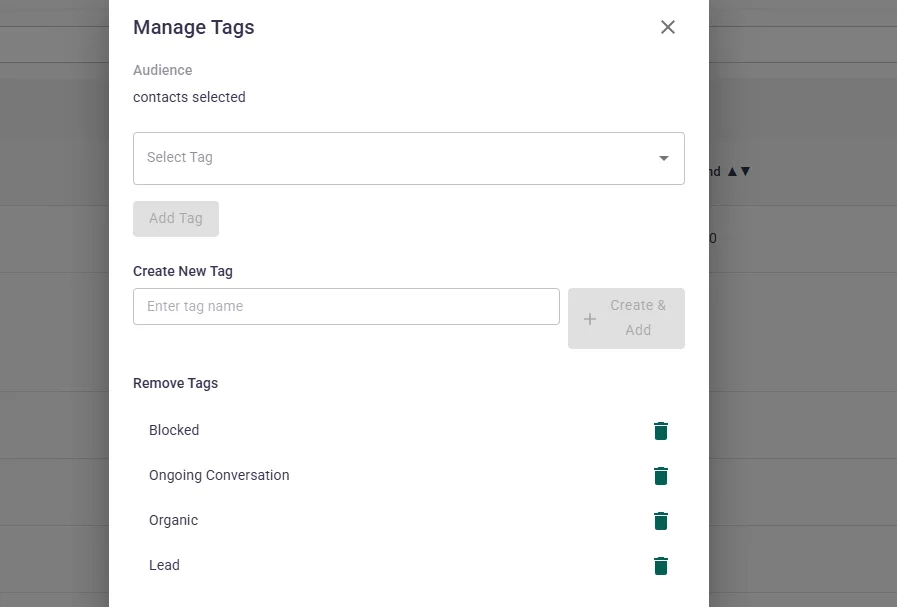
Does the ChatMitra Platform Map Lead Attributes in Real Time?
Yes, all contact data is updated and mapped in real time on the Contacts Page. This ensures that any changes are immediately visible across the platform.
How Are Contacts Saved in ChatMitra?
Every time a user sends a message to your WhatsApp Business API number, their contact details are automatically saved in the ChatMitra WhatsApp CRM. Additionally, you can import contacts via a CSV file for leads generated from other sources.
Ready to Import Your Contacts?
Start managing your WhatsApp contacts efficiently with ChatMitra.
Get Started Free