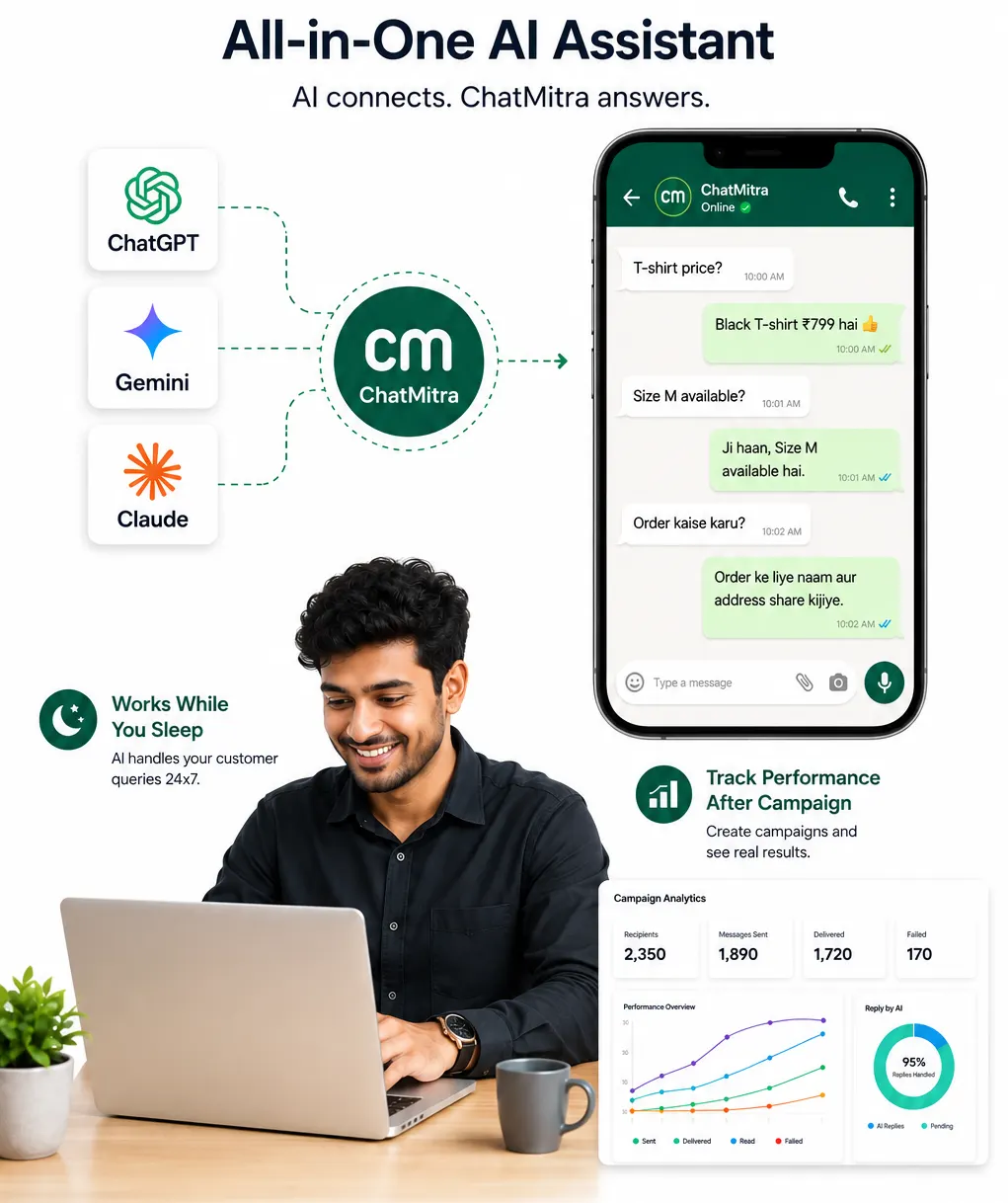
Automate WhatsApp Messages Straight from Google Sheets
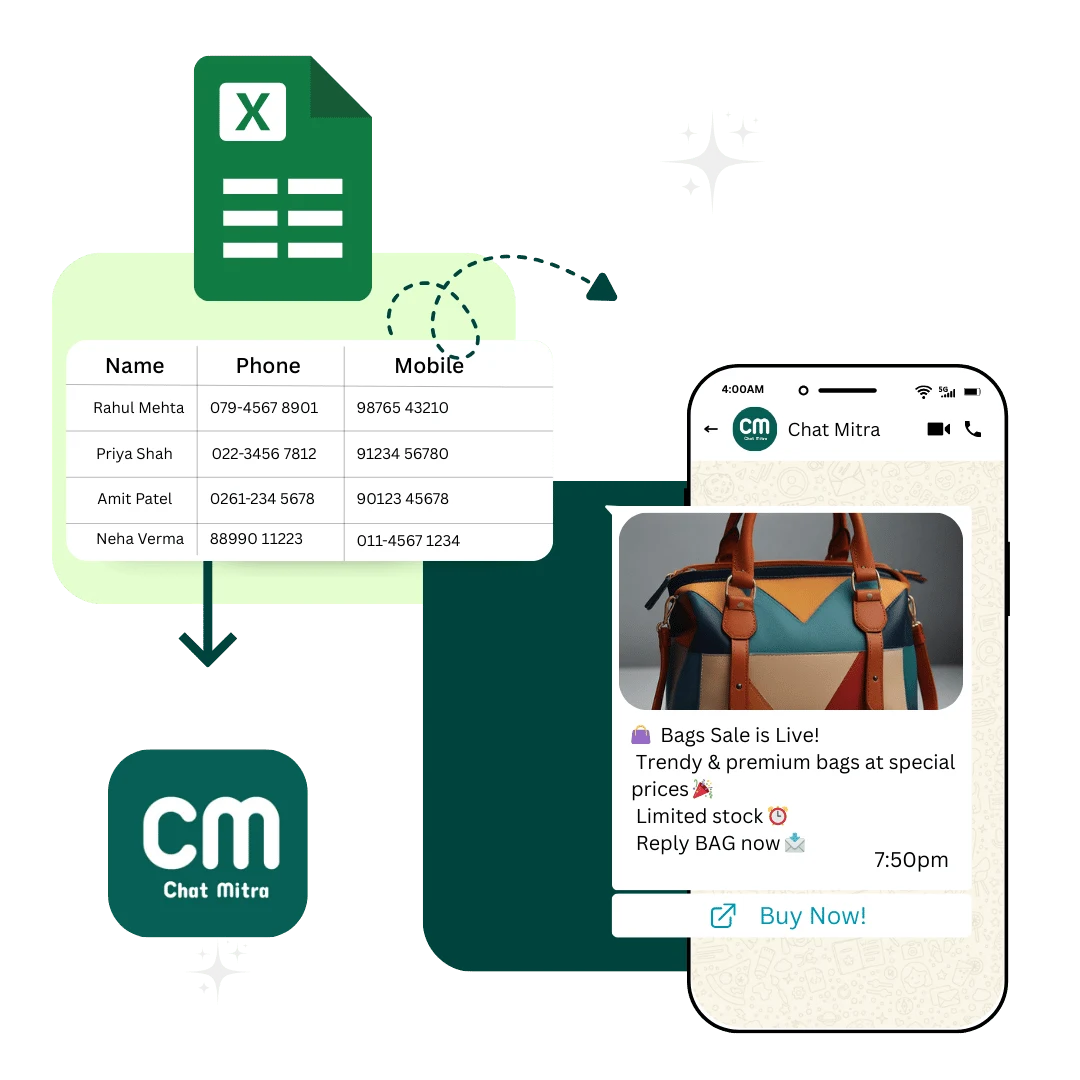
Turn any Google Sheet into a WhatsApp automation — no code, no developer. When a row is added or changes, ChatMitra automatically sends the right WhatsApp message: a lead follow-up, a payment reminder, an order update, or a birthday wish. Your spreadsheet does the work for you.
Built on the official WhatsApp Business API · 98% of WhatsApp messages get opened · No coding required
Book a One-to-One Meeting With Our Product Expert
Have questions? We've got answers. Connect with our product expert for a personalized demo and discover the best WhatsApp Business setup for your business.
Book a Free Demo
The Same Problem, at Every Size
Whether you run a one-person shop or a 200-person company, the work of “message the right customer at the right time” usually falls on a human — and humans get busy, tired, and forgetful.
If you’re a small business
You’re the sales team, the support team, and the accountant. You keep customers in a Google Sheet and message them by hand. When the day gets busy, follow-ups slip, reminders are forgotten, and leads go cold — not because you don’t care, but because there are only so many hours.
Hiring help is expensive. Stitching together separate automation tools feels technical and pricey. So the copy-paste continues.
If you’re a larger business
Your data is spread across tools, and every small messaging change waits in a developer’s queue. You may already pay for an automation platform plus a separate WhatsApp vendor — two bills, two things to maintain, and a setup only one person understands.
Meanwhile a simple spreadsheet that your operations team already lives in could be driving those messages — if only it could talk to WhatsApp.
Your spreadsheet becomes the control panel
ChatMitra’s Google Sheets WhatsApp integration watches your sheet. The moment a row is added or changes, it automatically sends a WhatsApp message through the official WhatsApp Business API. You manage everything from a sheet you already know — and the messages take care of themselves.
Create Your First Workflow in 3 Steps
No setup call, no code. Here’s the exact path from a fresh account to a live automation.
Connect your Google account
Open the Automation section in ChatMitra and click “Connect Google Account”. You sign in with Google once. ChatMitra only asks to read and write the sheets you choose — nothing else.
Connect a Google Sheet
Click “Connect a Sheet”, pick your spreadsheet, the worksheet (tab), and a unique key column (like Mobile, Order ID, or Email). The key column lets ChatMitra track exactly which row changed — even if rows are added, deleted, or sorted.
Build your first workflow
Click “New Workflow”. Pick a Trigger (when this happens), add optional Conditions (only if…), then add Actions (do this). Hit “Publish” and your automation is live. You can “Simulate” it first to see the result safely.
What a Workflow Looks Like
A workflow is just a chain you read left to right: a Trigger (when this happens), optional Conditions (only if…), then one or more Actions (do this). Here’s a real one.
Google Sheet — Row Added or Updated
Orders / Sheet1
Conditions
Status is “Paid”
Send WhatsApp Text
order confirmation
Update Sheet Row
Notified = yes
Call External API
POST notify endpoint
This is the actual ChatMitra workflow builder — drag steps, connect them, and publish.
1. The Trigger starts it
A new row in your Google Sheet kicks off the workflow — nobody has to press a button.
2. Conditions filter it
The flow only continues if the row matches your rule — here, only rows where Status is “Paid”.
3. Actions do the work
Send the WhatsApp message, tag the contact, wait two hours, then send a gentle follow-up — all on its own.
Every Way a Workflow Can Start
A trigger is the “when”. Sheet changes are the most popular, but you can also run on a schedule, on dates like birthdays, on CRM events, or from any outside app.
Google Sheet
Row Added
Fires when a new row is added to your sheet.
Row Updated
Fires when an existing row’s data changes.
Row Added or Updated
Fires for both new and changed rows.
Specific Column Changed
Fires only when one column you watch changes (e.g. Status).
Schedule
Every Day / Every Hour
Run a workflow on a fixed daily or hourly schedule.
Weekly / Monthly
Run once a week or once a month.
Custom (Cron)
Set any exact timing, like 9:00 AM every Monday.
Dates & Reminders
Birthday Today
Greet every contact whose birthday is today.
Anniversary Today
Wish customers on their anniversary date.
N Days Before / After a Date
Remind before renewals, or follow up days after a purchase.
CRM
Contact Created / Updated
React when a contact is added or edited in ChatMitra.
Status Changed
Fire when a lead moves to a new stage (e.g. Lead → Customer).
Tag Added / Removed
Trigger when a tag is applied to or removed from a contact.
Webhook
Incoming Webhook
Let any external app (store, form, CRM) start a workflow by sending data to a secure URL.
Everything a Workflow Can Do
Actions are the “do this” steps. Chain as many as you like — send messages, update contacts, write back to your sheet, call other tools, or wait.
Send WhatsApp Template
Send an approved template message with personalised values from the row.
Send WhatsApp Text
Send a plain text message to the contact.
Send Media
Send an image, video, or PDF — like an invoice or catalogue — with a caption.
Add Tag
Tag the contact for easy segmenting later.
Update Contact Field
Save or change any field on the contact record.
Update Lead Stage
Move the contact to a new stage in your pipeline.
Add Row to Sheet
Append a new row to any connected Google Sheet.
Update Sheet Row
Find a row by its key and update specific columns.
Delete Sheet Row
Remove a row by its key value.
Call External API
Send data to any other tool or service over HTTP.
Delay / Wait
Pause the workflow for minutes, hours, or days before the next step.
Automations You Can Build Today
Real, end-to-end flows people set up most often. Jump to the one you need.
Automate WhatsApp Lead Follow-Up from Google Sheets
Every lead that lands in your sheet — from a form, an ad, or your team — gets an instant WhatsApp reply, so no one slips through the cracks while you’re busy.
Why it helps: Replying in the first few minutes is what wins deals. This makes “first-minute follow-up” automatic, even at 11pm.
Automate WhatsApp Payment Reminders from Google Sheets
Keep a simple sheet of who owes what. When you mark a row “Pending”, ChatMitra sends a polite WhatsApp reminder with the exact amount — no awkward phone calls.
Why it helps: Gentle, on-time reminders get paid faster. You stop chasing money and the reminders never feel rude because they’re consistent.
Send Automated WhatsApp Birthday Messages from a Spreadsheet
Keep birthdays in a column. Each morning ChatMitra checks the sheet and wishes every customer whose birthday is today — a small touch that customers remember.
Why it helps: Personal moments build loyalty cheaply. One automation runs all year with zero effort from your team.
Send WhatsApp Feedback Requests After Delivery
When an order is marked “Delivered”, wait a couple of hours, then ask the customer for a quick rating or review — right inside WhatsApp where they’ll actually reply.
Why it helps: Asking at the right moment gets far more responses — and more 5★ reviews and repeat orders.
Send WhatsApp Order Confirmation from Google Sheets
Add a new order row — manually or from your store — and the customer instantly gets a WhatsApp confirmation with their order details. Update the row later and notify them of shipping too.
Why it helps: Instant confirmations cut “Where’s my order?” questions and make a small business feel as polished as a big brand.
…and plenty more
Delayed check-in
Daily report to WhatsApp
Approval notification
How Quickly Are Changes Detected?
By default, ChatMitra checks your Google Sheet for changes every 5 minutes. For eligible workflows, that can be lowered to as fast as every 60 seconds for near real-time WhatsApp automation.
It’s efficient, too: before reading your rows, ChatMitra first checks whether the sheet was modified at all. If nothing changed, it skips the read entirely. When the sheet has changed, it compares each row against the last snapshot to find exactly which rows were added, updated, or deleted — so a workflow only fires for the rows that truly changed.
How It Pays for Itself
Automation isn’t a luxury — it’s the cheapest staff member you’ll ever have. Here’s where the savings come from.
Manual WhatsApp follow-ups
Before
A person copies numbers and sends messages by hand — hours every week
With ChatMitra
Sent automatically the moment a row changes
Tooling cost
Before
Zapier/Make + a separate WhatsApp API vendor stacked together
With ChatMitra
One tool, included in your ChatMitra plan
Developer time
Before
You wait on a developer for every small change
With ChatMitra
Point-and-click builder — no code, change it yourself
Missed messages
Before
Forgotten reminders and follow-ups quietly lose sales
With ChatMitra
Nothing is forgotten — the sheet runs the work
One automation that sends even 200 follow-ups a week replaces hours of manual messaging — and it never takes a day off, forgets, or sends to the wrong person.
Manual vs. Stacked Tools vs. ChatMitra
| What matters | Doing it manually | Zapier/Make + WhatsApp vendor | ChatMitra |
|---|---|---|---|
| Setup time | Ongoing, every day | Hours, across 2–3 tools | About 10 minutes, once |
| Coding / developer | Not needed, but slow | Often needed for WhatsApp | No code, no developer |
| Official WhatsApp API | No | Extra vendor required | Built in — official API |
| Monthly tools to manage | 1 (you) | 2–3 separate bills | 1 (ChatMitra) |
| Reliability | Depends on the person | Breaks between tools | Runs on its own |
Why Run It on ChatMitra
Official WhatsApp API
Messages send from your verified business number — reliable, and safe from bans.
One tool, not three
Sheets, automation, and WhatsApp in one place — one login, one bill, one thing to learn.
No code, no developer
A point-and-click builder anyone on your team can change without filing a ticket.
Reliable change detection
Row-by-row tracking means the right person gets messaged — even after sheets are sorted or edited.
Test before you send
“Simulate” shows what would happen without sending a thing. Confidence before you go live.
Built for India’s businesses
Honest pricing and a beginner-friendly builder made for small and growing teams.
This page covers the no-code side of it — a row changes, a WhatsApp message goes out. For the wider setup, including syncing your product catalog, managing orders, and sending bulk messages from the same sheet, read the main Google Sheets integration.
Frequently Asked Questions
Can I send WhatsApp messages from Google Sheets?
Yes. With ChatMitra you connect a Google Sheet and build a simple workflow: when a row is added or changed, ChatMitra sends a WhatsApp message automatically. There is no coding involved — you pick the trigger and the message in a visual builder.
Do I need coding to set this up?
No coding at all. You connect your Google account, choose a sheet, then drag together a Trigger and one or more Actions in the workflow builder. If you can use a spreadsheet, you can build an automation.
Can I send bulk WhatsApp messages from Google Sheets?
Yes. Because the automation runs on every matching row, a sheet with hundreds of contacts will message each of them automatically. Messages are sent through the official WhatsApp Business API, so they are personalised per row rather than a single blast.
Can I schedule WhatsApp messages from a spreadsheet?
Yes. Alongside row-based triggers, ChatMitra has Schedule triggers — every hour, every day, weekly, monthly, or a custom time using a cron expression (for example, 9:00 AM every Monday). You can also delay a step inside a workflow by minutes, hours, or days.
Can multiple team members use the same sheet?
Yes. Google Sheets already supports several people editing at once, and ChatMitra watches the sheet no matter who makes the change. Anyone on your team can add or update a row and the automation still runs.
Can I update Google Sheets after sending WhatsApp messages?
Yes. A workflow can write back to a sheet — update a row (for example set “Notified = yes”), add a new row, or delete a row. This keeps your sheet in sync with what has actually been sent.
Does it work with the WhatsApp Business API?
Yes. ChatMitra is built on the official WhatsApp Business API, so messages are sent from your verified business number with full deliverability — not an unofficial workaround that risks getting blocked.
Can I use conditions before sending messages?
Yes. Every workflow can include conditions such as “only if Status equals Pending” or “only if Amount is greater than 1000”. You can combine several rules with AND/OR so messages go out only when they should.
Is Google Sheets better than Excel for WhatsApp automation?
For automation, yes — because Google Sheets lives in the cloud, ChatMitra can watch it for changes in real time and react instantly. A desktop Excel file isn’t continuously connected the same way. If your data is in Excel, you can import or move it into a Google Sheet to automate it.
How often does it check the sheet for changes?
By default ChatMitra checks your sheet for changes every 5 minutes. For eligible workflows the interval can be lowered to as fast as 60 seconds. To save quota, it first checks whether the sheet was modified at all and only re-reads the rows when something actually changed.
Can I send images or PDFs, like invoices?
Yes. The Send Media action lets a workflow send an image, video, or PDF with a caption — useful for invoices, receipts, catalogues, or delivery photos.
What happens if a message fails?
Each action can be set to either stop the workflow or continue to the next step if it fails, so one error doesn’t silently break the whole automation. You can also test a workflow first — “Simulate” shows the result without sending anything, and “Run for real” actually sends.
How much does it cost?
Google Sheets automation is part of your ChatMitra plan — there’s no separate automation tool to buy and no extra WhatsApp API vendor to pay. You can start free; message your business number or open the dashboard to see current plans.
Is my Google account data secure?
Yes. You connect through Google’s official secure sign-in (OAuth), and ChatMitra only requests access to the sheets you choose. Your access tokens are stored encrypted, and you can disconnect the account at any time.
Let your spreadsheet send the messages
Connect a Google Sheet, build one workflow, and watch the follow-ups, reminders, and updates go out on their own. Start free — no code needed.