If you only ever set up one way to send OTPs, make it this one. Copy-code is the simplest, most reliable WhatsApp OTP — and it works for everyone.
Copy-code is the most basic of WhatsApp’s three OTP delivery types. The authentication message shows the code plus a “Copy code” button. The user taps it, the code lands on their clipboard, and they paste it into your login screen. No app integration, no special identifiers, no Android-only requirements — just a button that copies a code.
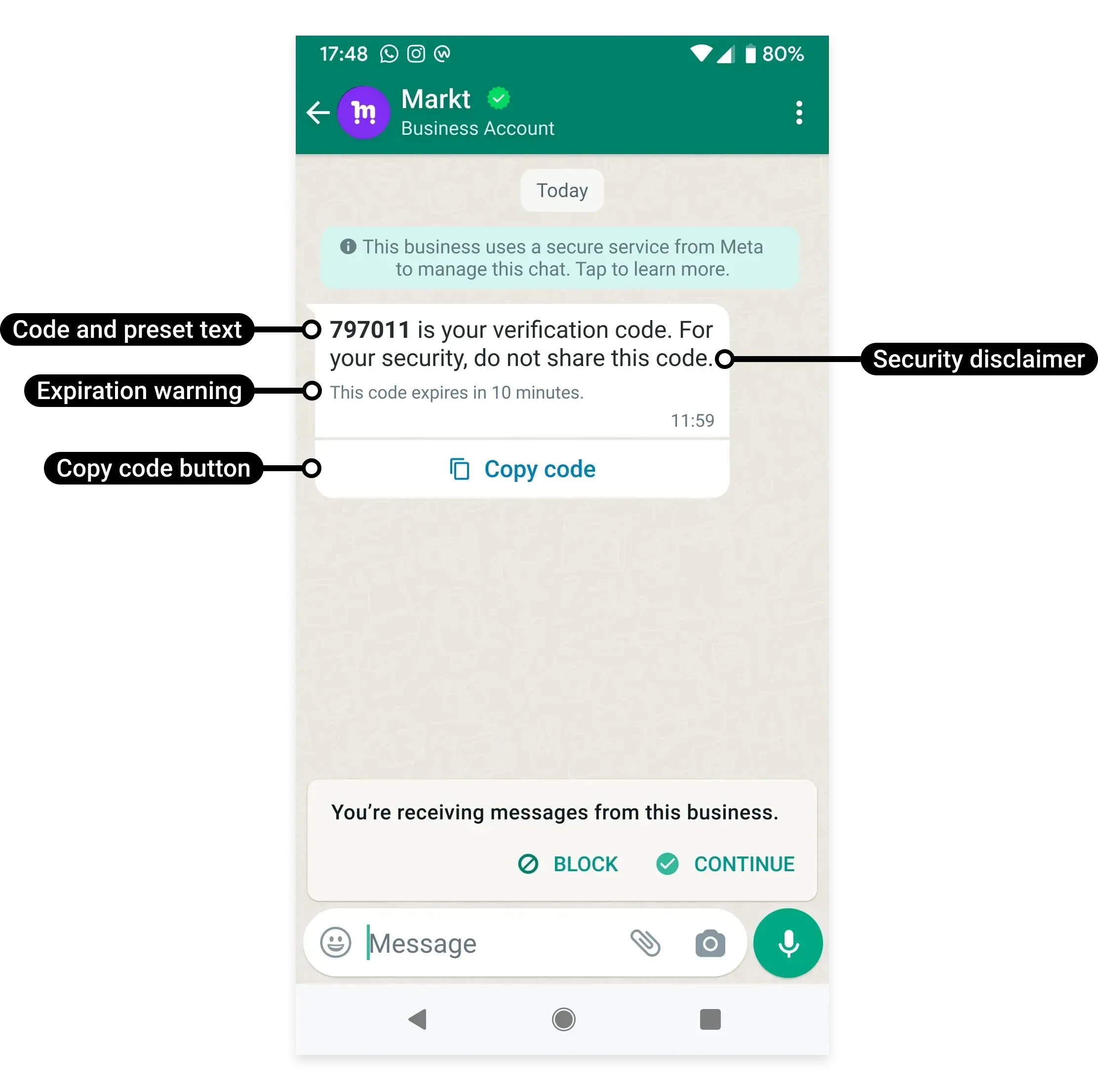
Example: “Your login code is 591837” arrives with a “Copy code” button. The user taps it, switches to your app or website, and pastes the code.
The flow is short and predictable: the user requests a code → WhatsApp delivers the message with the code and a “Copy code” button → the user taps it (the code is now on their clipboard) → they paste it into your login field. Two small actions — tap, then paste — and that’s the trade-off for working everywhere.
Creating a copy-code template
You create a copy-code template with a POST request that names a few parts:
- name — the template name (max 512 characters).
- category — must be
AUTHENTICATION. - language — the language code it’s approved in.
- components — the body, footer and the copy-code button.
The message is built from preset pieces: the line “<VERIFICATION_CODE> is your verification code”, an optional security line (“For your security, do not share this code”), an optional expiry line (“This code expires in <NUM_MINUTES> minutes”), and the copy-code button itself.
A few properties you can set:
| Property | Type | What it does |
|---|---|---|
| Code expiration | Integer | 1–90 minutes; if you skip it, the code is disabled after 10 minutes |
| Copy-code button text | String | Max 25 chars; WhatsApp localizes it by default |
| Security recommendation | Boolean | Adds the “do not share this code” line when true |
| Time-to-live | Integer | Optional delivery timeout, in seconds |
One limit to remember: URLs, media and emojis are not supported in authentication templates — keep it to the code and the safety note.
Sending a copy-code template
Once approved, sending is a simple POST request: name the approved template, pass the language code, and supply the verification code value for that user. WhatsApp formats the message with the copy-code button and delivers it.
Why it works everywhere
Copy-code relies only on copy and paste — something every phone and browser can do. It doesn’t depend on Android app-linking, a package name or a signing hash, the way one-tap and zero-tap do.
So copy-code works on:
- Android phones
- iPhones
- WhatsApp Web and Desktop
That universality is why it’s the fallback for the other two. When one-tap or zero-tap can’t run — say the user is on an iPhone — the message quietly offers copy-code instead, so the user is never left without a way to get their code.
When to use copy-code
Reach for copy-code when:
- You want the simplest setup. No app changes, nothing to configure — it just works.
- Your users log in on the web or on iPhone. Those can’t use one-tap or zero-tap, so copy-code covers them.
- You’re starting out. Ship copy-code first, then add one-tap or zero-tap later as upgrades for your Android app users.
Even teams that build the fancier delivery types keep copy-code underneath. It’s the dependable default — see Authentication Messages for how it fits with the other two.
