The Marketing Messages (MM) API is built for one job: sending marketing template messages. The moment you try to use it for anything else, it pushes back with an error. The good news is the errors are predictable — once you’ve seen them, you know exactly what they mean. Let’s walk through the ones you’ll actually hit.
Expected errors
The MM API only accepts approved marketing templates. It’s also send-only — it can’t receive incoming messages, so for two-way chat you pair it with the regular Cloud API. Here are the most common ways a send gets rejected.
Trying to send normal text (a freeform message)
The MM API won’t carry plain typed messages — only templates. If you try, you get:
(#100) Invalid parameterThe fix: send your text through the Cloud API instead, and keep the MM API for marketing templates.
Trying to send an authentication or utility template
The MM API is for marketing templates only. Point it at an authentication or utility template and it returns:
(#131055) Method not allowedSend those categories through the Cloud API.
Sending to a number that isn’t onboarded
If the terms haven’t been accepted for that account yet, the send is blocked:
(#200) You must accept the Marketing Messages Lite API termsThe fix: finish onboarding (accept the MM API terms) before sending.
Using the wrong D360-API-KEY
If your key is wrong or missing, the request is rejected outright:
Invalid api tokenDouble-check the key in your request header.
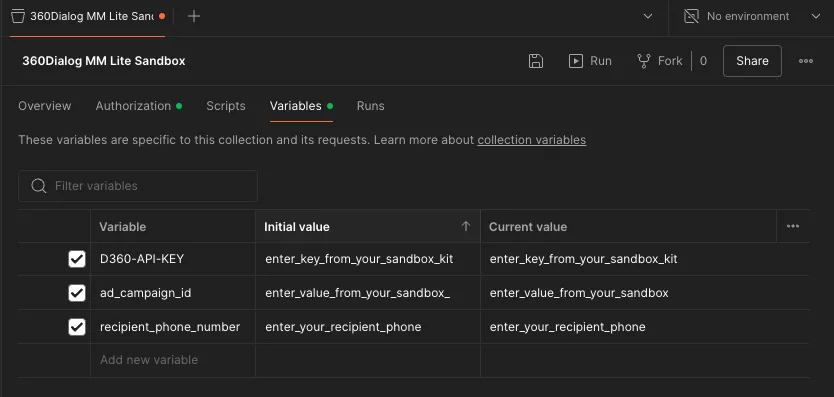
There are also two failures that aren’t about how you call the API, but about delivery limits:
| Code | Meaning | What to do |
|---|---|---|
| 131049 | The user already hit their marketing-message limit for now | Slow down; try again later |
| 131026 | Message undeliverable (e.g. the user can’t receive it) | Check the number and opt-in status |
131049 is the one people misread most. It is not a bug and not worth resubmitting in a loop — it’s WhatsApp’s per-user frequency cap telling you to ease off that user.
Template language codes
Every template is approved in a specific language, tagged with a language code. When you send, you must pass the exact code the template was approved in — a mismatch causes the send to fail.
Common codes:
| Code | Language |
|---|---|
| en | English (generic) |
| en_US | English (United States) |
| en_GB | English (United Kingdom) |
| hi | Hindi |
The trap: you approve a template as en_US but send it with en. WhatsApp can’t find a match and rejects it. Always copy the code from the approved template.
Example: a brand approves “Diwali Sale” in both en and hi, then sends hi to Hindi-speaking customers and en to the rest — same offer, two language codes.
Examples in different programming languages
You don’t have to write the API calls from scratch. Use any of these starting points:
- Postman collection — a click-and-run set of requests for setting webhooks, sending text via the Cloud API, and sending marketing templates via both the Cloud API and the MM API.
- Node.js (using the
requestlibrary) — the same four use cases, written out so you can paste them into a Node project. - Python (using the
requestlibrary) — the same four use cases in Python.
All three cover the same flows: set a webhook URL, send a plain text message via the Cloud API, send a marketing template via the Cloud API, and send a marketing template via the MM API. Pick whichever matches your codebase and adjust the API key and template name.
How to fix and avoid errors
- Paused template? Don’t resubmit blindly. Improve the message, trim your list to engaged users, and the pause lifts on its own as quality recovers.
- 131049? Reduce frequency. Spread campaigns out and segment so each user gets fewer, more relevant messages.
- Language mismatch? Read the language code off the approved template and send that exact string.
- Undeliverable (131026)? Verify the phone number format and that the customer actually opted in.
Read the code first, fix the real cause, and your marketing sends stay clean.
