Typing a six-digit code is small friction, but at the login screen, small friction loses customers. One-tap autofill removes most of it: instead of asking the user to copy a code and paste it, the message shows a button like “Autofill”. The user taps it once, and WhatsApp drops the code straight into your app’s login field.
So the journey shrinks from read code → copy → switch app → paste down to a single tap.
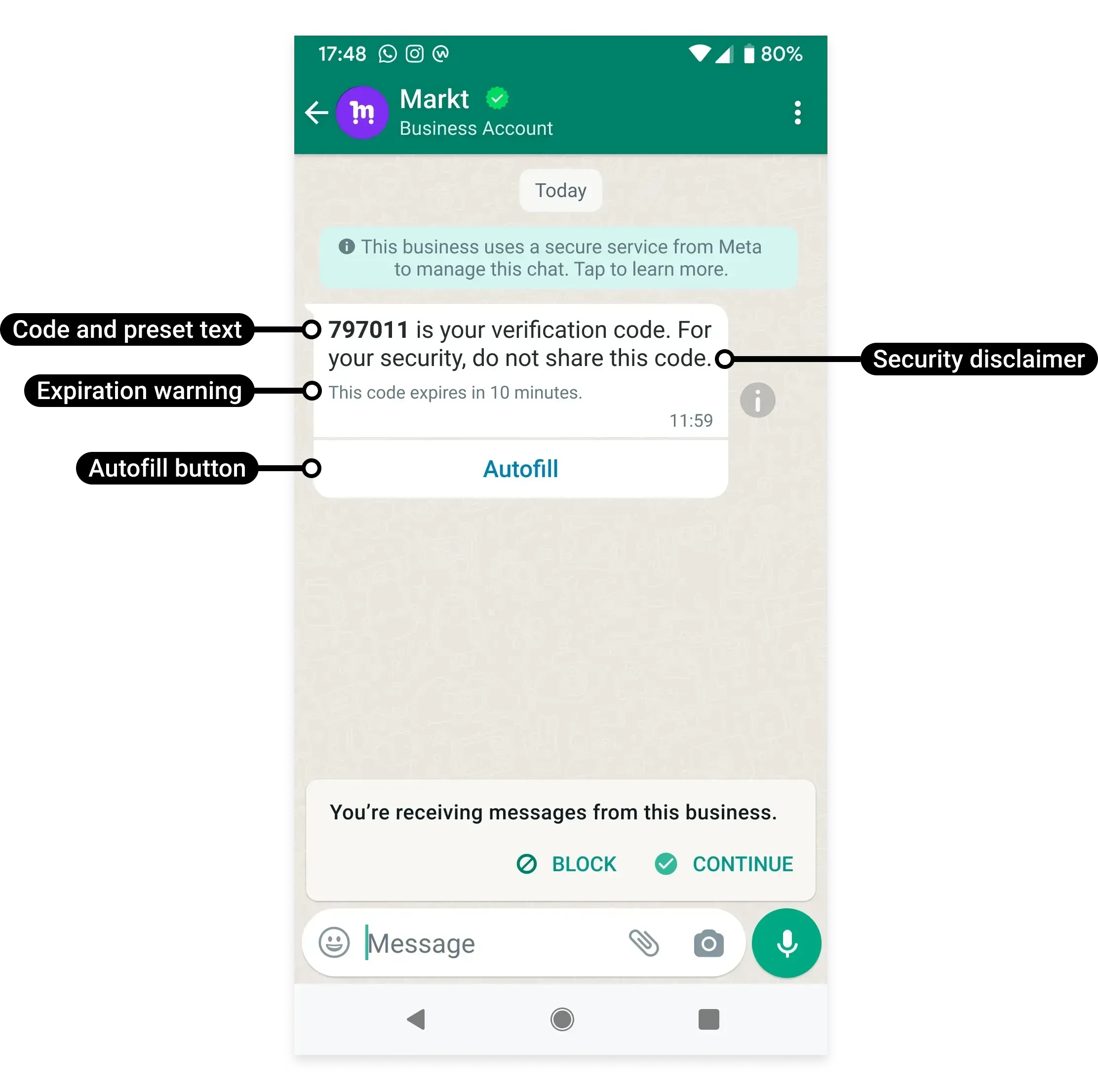
Example: a user requests a login code. The WhatsApp message arrives with an “Autofill” button; they tap it, your app opens with the code already filled, and they’re in.
One-tap autofill is an Android feature, because it relies on Android’s ability to link a message button to a specific installed app. When the user taps the button, Android verifies the app using its package name and signing hash, then opens it and passes the code in. Because this needs Android app-linking, it doesn’t work on iPhone or WhatsApp Web — those users fall back to copy-code automatically.
Creating a one-tap template
To set up one-tap, you create an authentication template with a POST request that describes its parts. The key pieces:
- name — what you’ll call the template (up to 512 characters).
- category — must be
AUTHENTICATION. - language — the language code it’s approved in.
- components — the body, footer and button, described below.
The body can switch on a security recommendation (add_security_recommendation), which adds the line “For your security, do not share this code.”
The footer can carry a code-expiry note (code_expiration_minutes, 1–90 minutes).
The button is where one-tap lives. You set:
| Field | Required? | What it does |
|---|---|---|
| type | Yes | otp |
| otp_type | Yes | one_tap |
| text | Optional | Label for the copy-code fallback button (max 25 chars) |
| autofill_text | Optional | Label for the autofill button (max 25 chars) |
| package_name | Yes | Your Android app’s package name, like com.yourbrand.app |
| signature_hash | Yes | Your app’s signing-key hash |
The package name and signing hash are how WhatsApp confirms it’s autofilling into your real app, not an impostor. The most common slip is using the debug signing hash during testing and forgetting to swap in the release hash for the Play Store build — so it works on the test phone but fails for real users.
One quirk to expect: even though you submit the button as otp, the saved template shows the button type as url. That’s normal.
Sending a one-tap template
Once the template is approved, sending is a straightforward POST request: name the approved template, pass the language code, and supply the verification code value for that user. WhatsApp builds the message with the autofill button, and on a matching Android app, the tap fills the code in.
You can also set message_send_ttl_seconds to control how long WhatsApp keeps trying to deliver the code before giving up — keep it short for security.
The copy-code fallback
Not everyone can autofill — iPhone users, WhatsApp Web users, or anyone without your app installed. One-tap autofill handles this gracefully: the same message also offers copy-code.
So if autofill can’t run, the user simply taps “Copy code” and pastes it the normal way. Nobody gets stuck.
Always keep this fallback in mind: one-tap is an upgrade for Android app users, layered on top of the universal copy-code experience — not a replacement for it. Learn more in the Copy Code guide.
