If you sell more than a handful of products, a catalog template lets customers explore your whole range without ever leaving WhatsApp. First, let’s be clear on what a “catalog” is.
What a catalog is
A catalog is the full list of products you set up in Meta Commerce Manager (a free Meta tool for storing your products). Each product in the catalog has:
- A name
- An image
- A price
- A short description
This is general Meta platform infrastructure — the same catalog can power WhatsApp, Instagram and Facebook shops. Think of it as your online product database that WhatsApp can read from.
Example: a saree store builds a catalog with 120 sarees, each with a photo, price in ₹, and fabric description.
How a catalog template works
A catalog template is a Marketing template (it shows a thumbnail header image and your own body text, on top of a fixed catalog header) with a special “View catalog” button attached. When the customer taps it, WhatsApp opens your full catalog right inside the chat, so they can scroll through every product.
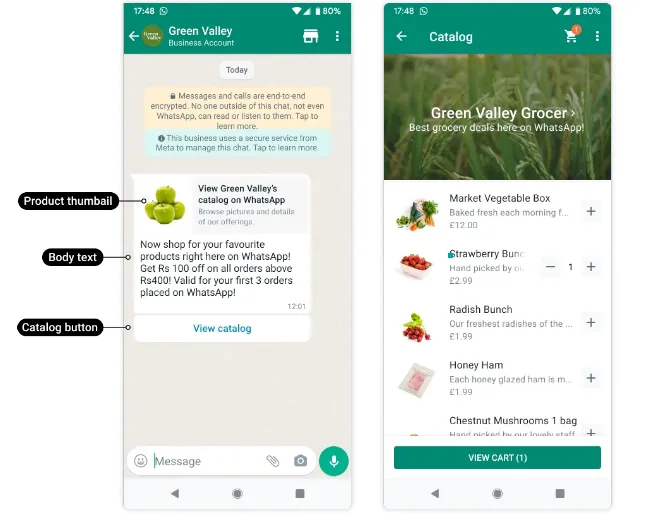
Customer reads your message
        ↓ taps "View catalog"
Full product catalog opens in chat
        ↓
Customer browses, adds items, asks questions
The big advantage: the customer never has to open a browser or app. Everything happens inside the conversation.
When to use it
A catalog template is best when the customer is exploring, not when they already know what they want:
- A new lead says “What do you sell?” → send the catalog.
- You launch a fresh collection and want people to browse it.
- A returning customer asks “What’s new?” → let them scroll.
Example: a home-decor brand replies to “Show me your stuff” with a catalog template, and the customer browses lamps, rugs and cushions in one place.
When the customer’s intent is sharper — “Do you have the blue lamp?” — a single-product message converts better than dumping the whole catalog on them.
What you need first
Before you can send a catalog template, you need an ecommerce catalog uploaded to Meta and connected to your WhatsApp Business Account. In short:
- A Meta Commerce Manager catalog with your products added.
- At least a few products in it — an empty catalog shows nothing.
- A catalog template approved by Meta, like any other template.
Creating a catalog template
You create the template with a POST request. The body holds your message text, an optional footer, and a single CATALOG button:
POST https://backend.chatmitra.com/developer/api/configs/templates{
"name": "intro_catalog_offer",
"language": "en_US",
"category": "MARKETING",
"components": [
{
"type": "BODY",
"text": "Now shop for your favourite products right here on WhatsApp! Get Rs {{1}} off on all orders above {{2}}Rs! Valid for your first {{3}} orders placed on WhatsApp!",
"example": {
"body_text": [["100", "400", "3"]]
}
},
{
"type": "FOOTER",
"text": "Best grocery deals on WhatsApp!"
},
{
"type": "BUTTONS",
"buttons": [{
"type": "CATALOG",
"text": "View catalog"
}]
}
]
}The name can be up to 512 characters, the body up to 1024, and the footer up to 60.
Sending a catalog template
Once it’s approved, send it through the messages endpoint. You fill in the body variables and, optionally, pick which product image shows as the thumbnail:
POST https://backend.chatmitra.com/developer/api/send_message{
"messaging_product": "whatsapp",
"recipient_type": "individual",
"to": "+16505551234",
"type": "template",
"template": {
"name": "intro_catalog_offer",
"language": {"code": "en_US"},
"components": [
{
"type": "body",
"parameters": [
{"type": "text", "text": "100"},
{"type": "text", "text": "400"},
{"type": "text", "text": "3"}
]
},
{
"type": "button",
"sub_type": "CATALOG",
"index": 0,
"parameters": [{
"type": "action",
"action": {"thumbnail_product_retailer_id": "2lc20305pt"}
}]
}
]
}
}The thumbnail_product_retailer_id is the SKU of the product whose image you want on the card. It’s optional — leave it out and WhatsApp uses the first item in your catalog.
Catalog templates are Marketing templates, so in India each one costs ₹0.86 to send.
