When a plain message isn’t enough, a carousel lets you fit several rich, swipeable cards into one message — a great way to show off a range without sending ten separate messages.
What a carousel is
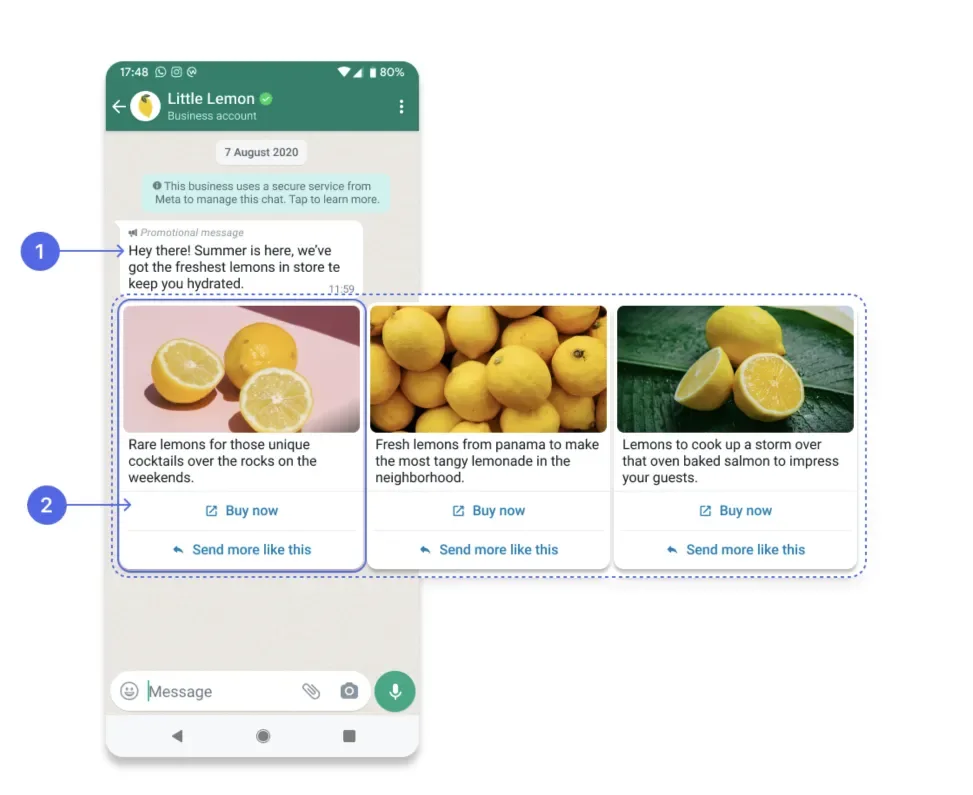
A product card carousel template is a single text message followed by a set of up to 10 cards the customer can swipe through sideways. Each card is like a mini-message of its own, and the whole thing works on WhatsApp Web too.
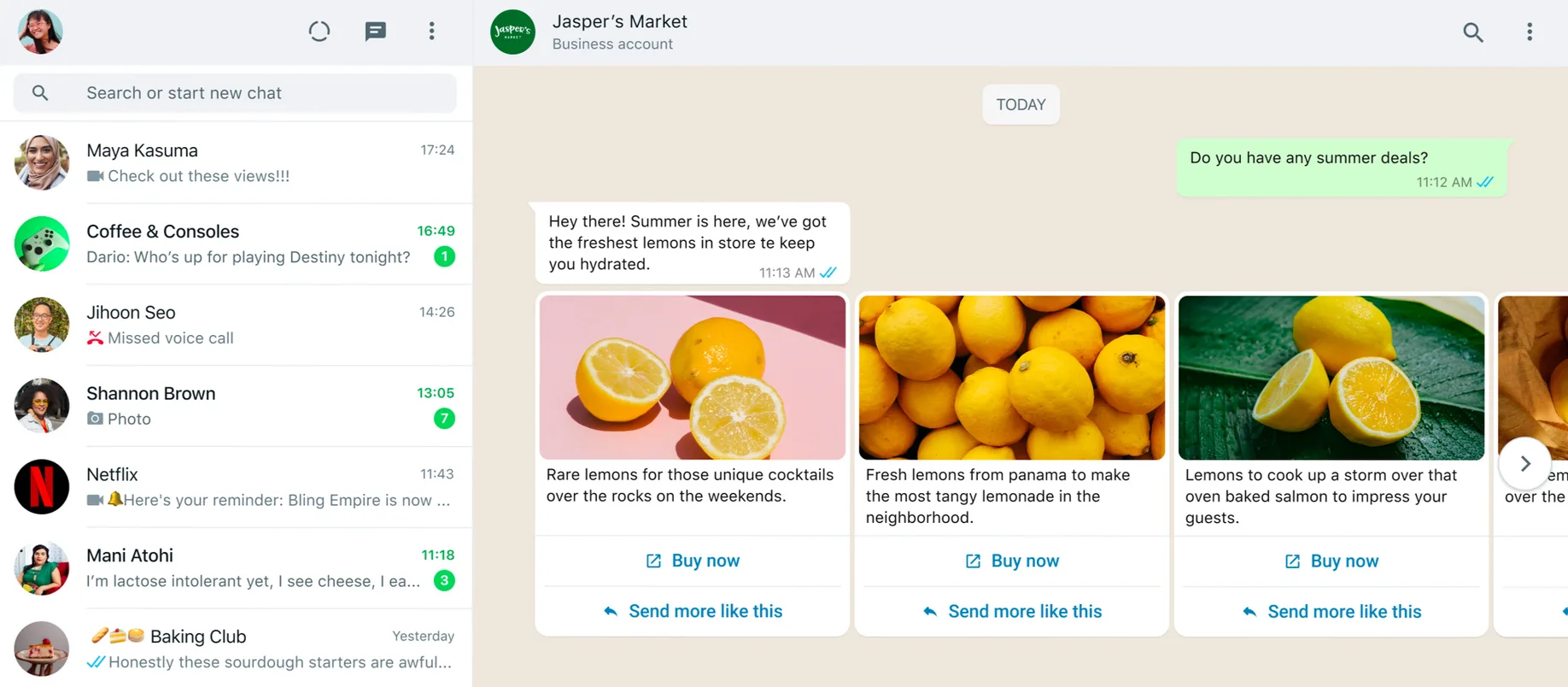
[ Card 1 ] ←swipe→ [ Card 2 ] ←swipe→ [ Card 3 ] ...Unlike catalog or multi-product messages, carousel cards aren’t limited to catalog products — you can use them for products, features, services or anything visual.
Example: a travel agency sends a carousel where each card is a holiday package: Goa, Manali, Kerala, each with a photo and a “Book now” button.
Two ways the buttons can work
Each card carries one or two buttons, and you’ll usually pick one of two checkout styles:
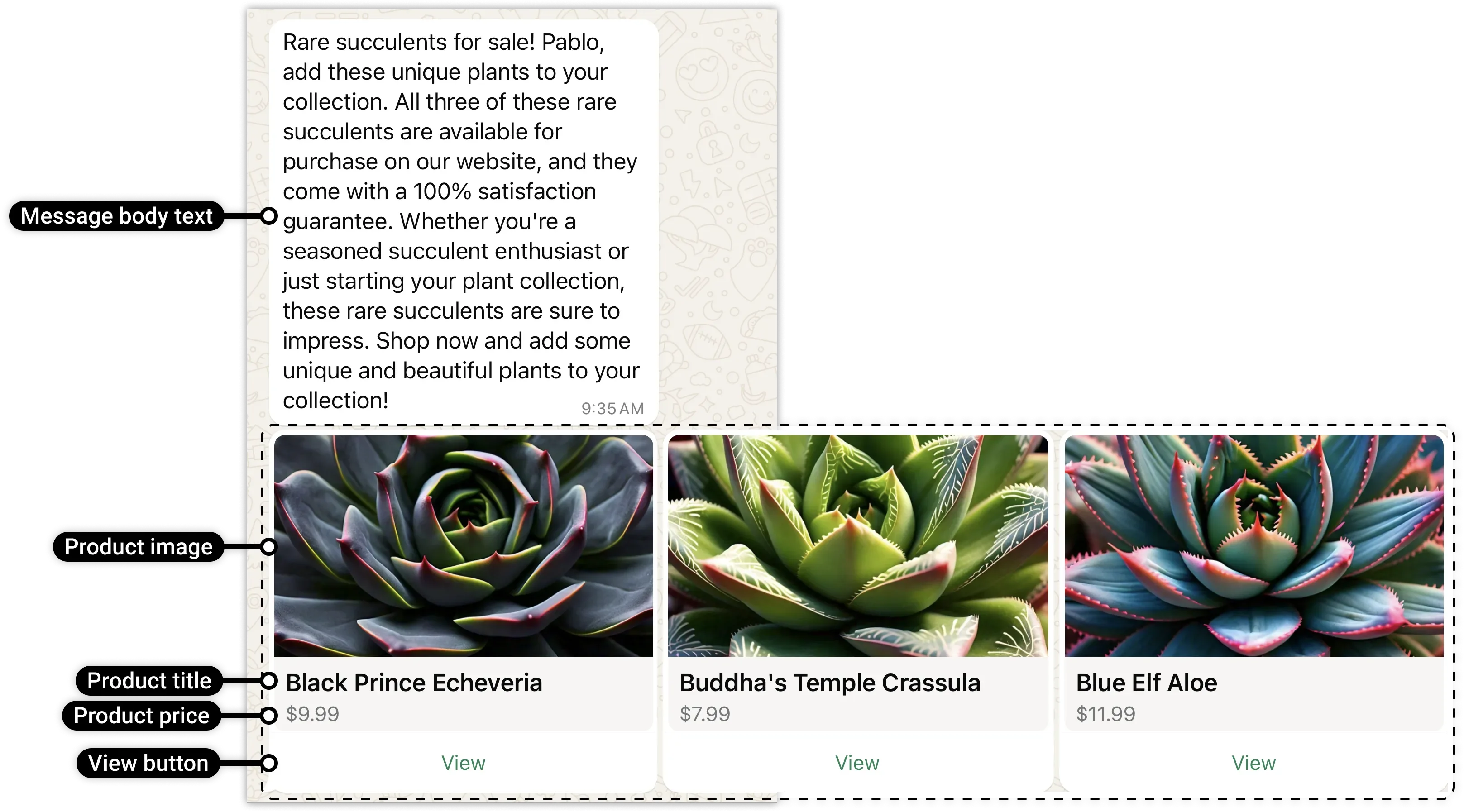
- SPM (View) button — the customer taps View to open product details and manage their cart right inside WhatsApp.
- URL button — sends the customer out to an external browser to finish checkout off WhatsApp.
What each card holds
Every card in the carousel can have:
- Media — one image or one video at the top.
- Body text — a short line describing the card.
- Buttons — one or two per card (a quick reply or a call-to-action like “View” or “Buy”).
Cards should share the same structure for a clean look — if card one has an image and a “Shop now” button, the others should follow the same pattern.
Example: a phone store’s carousel shows four phones, each card with the phone photo, its price, and a “See details” button.
When to use it
Carousels shine when you have several visual things to compare:
- Showing off a small product range (“Pick your favourite”).
- Highlighting multiple features of one product, one per card.
- Presenting service packages or plans side by side.
Example: a gym sends a carousel of membership plans — Monthly, Quarterly, Yearly — each card with its price and a “Join” button.
The rules for cards
A few constraints from Meta:
- A carousel needs 2 to 10 cards. When you create the template you must define at least two; an approved template can then carry up to ten when you send.
- Every card must share the same format and the same button types. If card one uses an image header and an SPM button, all the others must too.
- Each card’s media header is cropped to a wide ratio, so design images for that shape.
- If you use SPM buttons, you’ll need an ecommerce catalog connected to your WhatsApp Business Account.
Creating a carousel template
You create the template with a POST request. Here’s the shape using SPM (View) buttons — note the two cards inside the carousel component:
POST https://backend.chatmitra.com/developer/api/configs/templates{
"name": "<TEMPLATE_NAME>",
"language": "<TEMPLATE_LANGUAGE>",
"category": "marketing",
"components": [
{
"type": "body",
"text": "<MESSAGE_BODY_TEXT>",
"example": {
"body_text": [["<MESSAGE_BODY_TEXT_VARIABLE_EXAMPLE>"]]
}
},
{
"type": "carousel",
"cards": [
{
"components": [
{ "type": "header", "format": "product" },
{ "type": "buttons", "buttons": [{ "type": "spm", "text": "View" }] }
]
},
{
"components": [
{ "type": "header", "format": "product" },
{ "type": "buttons", "buttons": [{ "type": "spm", "text": "View" }] }
]
}
]
}
]
}If you prefer the URL button style, swap the buttons block on each card:
{
  "type": "buttons",
  "buttons": [
    {
      "type": "url",
      "text": "<URL_BUTTON_LABEL_TEXT>",
      "url": "<URL_BUTTON_URL>",
      "example": ["<URL_BUTTON_URL_VARIABLE_EXAMPLE>"]
    }
  ]
}
Sending a carousel template
When you send, you fill in the body variables and provide each card’s media and button details. This URL-button example shows one card:
POST https://backend.chatmitra.com/developer/api/send_message{
"messaging_product": "whatsapp",
"recipient_type": "individual",
"to": "some.phone.number",
"type": "template",
"template": {
"name": "summer_carousel_2024",
"language": { "code": "en_US" },
"components": [
{
"type": "BODY",
"parameters": [
{ "type": "TEXT", "text": "20OFF" },
{ "type": "TEXT", "text": "20%" }
]
},
{
"type": "CAROUSEL",
"cards": [
{
"card_index": 0,
"components": [
{
"type": "HEADER",
"parameters": [
{ "type": "IMAGE", "image": { "link": "https://www.gstatic.com/webp/gallery/1.jpg" } }
]
},
{
"type": "BODY",
"parameters": [
{ "type": "TEXT", "text": "10OFF" },
{ "type": "TEXT", "text": "10%" }
]
},
{
"type": "BUTTON",
"sub_type": "URL",
"index": "1",
"parameters": [{ "type": "payload", "payload": "last_chance_2023" }]
}
]
}
]
}
]
}
}Order webhooks
If you use SPM (View) buttons, you’ll get an order webhook whenever a customer submits an order from the carousel. URL button carousels send the customer off to your own site, so they don’t trigger order webhooks — your website handles the checkout instead.
Tips for good carousels
- Start strong. Most people only swipe two or three cards, so put your best one first.
- Keep a theme. All cards should belong together — don’t mix shoes with sofas.
- Stay consistent. Same media style, same button wording across cards.
- Don’t overfill. Three to five great cards usually beat ten weak ones.
Carousel templates are Marketing templates, so in India each one costs ₹0.86 to send. Like every template, a carousel must be approved by Meta before you can send it.
